 foxxcyber/docs
Creating a package
Create a package for your system, name its people, and learn the package page: overview, side panel and sections.
This guide is for the Program Manager / System Owner (PM), the Information System Security Manager (ISSM) and the Information System Security Officer (ISSO). Together they keep a system's package current. The package holds everything the authorizing level and the assessors need to know about the system.
- The PM owns the system's package, submits it and requests exceptions.
- The ISSM edits, approves and submits the package and requests exceptions.
- The ISSO maintains the package day to day.
All three can edit a package. The ISSM approves, and the PM and ISSM submit and request exceptions. Two terms to know first:
- ATO is an Authority to Operate: the AO's decision that the system may run until a termination date. IATT is an Interim Authority to Test.
- ConMon is continuous monitoring: the recurring duties that keep an authorization standing. The AO sets the list. You carry them out.
Create a package
Step 1. Use the unit switcher to choose your program office. Choose Packages in the sidebar, then New package. (The same button is on your unit's Overview.)
Step 2. Fill in the form.
| Field | What to enter |
|---|---|
| Name | What the system is called. |
| Acronym | Short and unique within your program office. |
| Description | What it does and who it serves. |
| System type and Mission criticality | Choose from the lists, or leave Not stated. |
| Common control provider | Turn on This package provides common controls if other program offices will inherit controls from it. |
| People | The people for each role, by name. They need not have accounts. Suggestions come from your program office's members. |
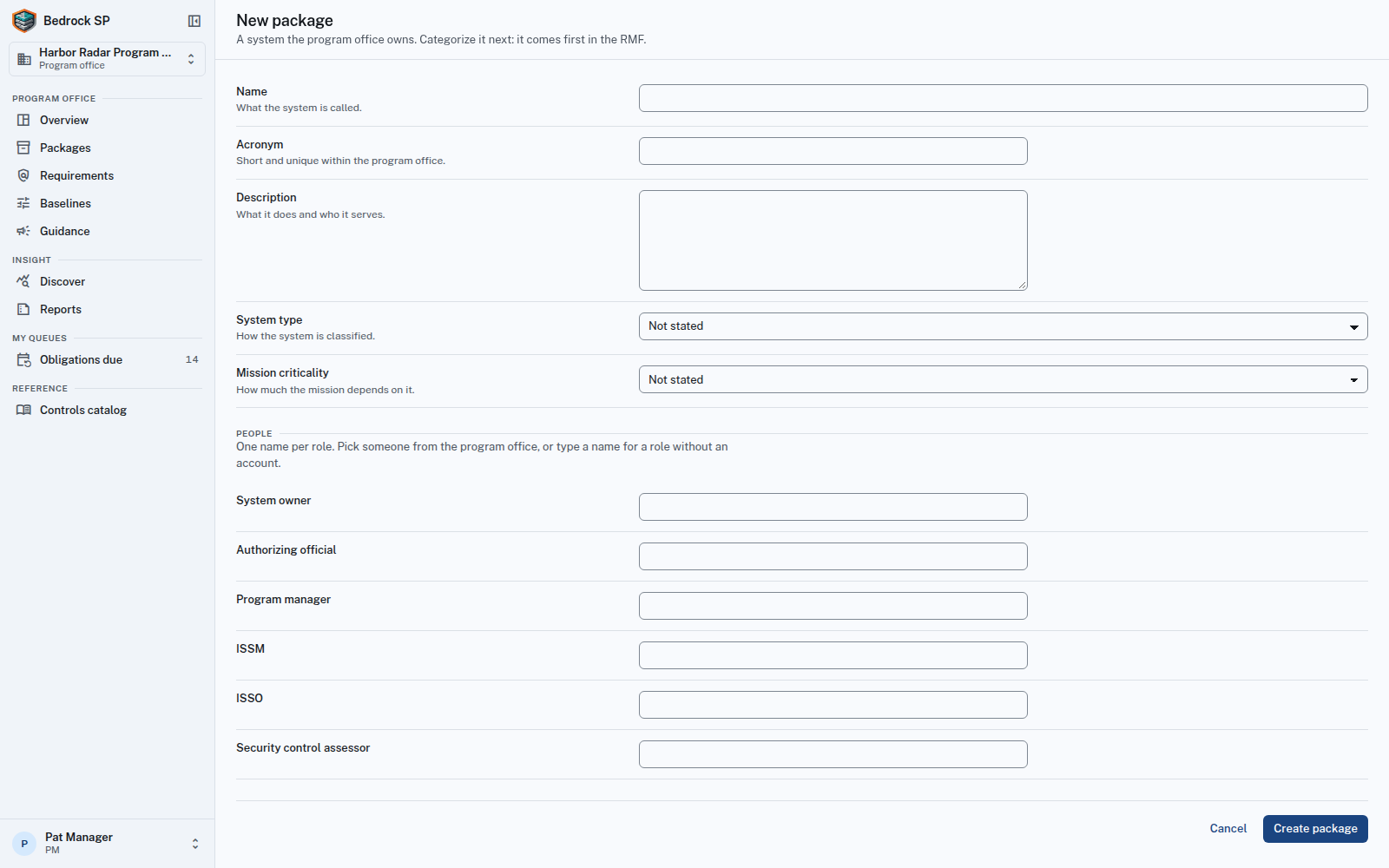
Step 3. Choose Create package.
- You see: the package Overview. Its RMF step is Categorize. Almost everything shows as not started.
A package is native: it lives in Bedrock SP and you edit it here. A package that arrived from the legacy PMO app is legacy. It is read-only here, with a banner Managed in the legacy app until cutover, until your administrator runs the cutover. See Legacy connector and cutover.
To change the details later, choose Edit package in the side panel.
The package page
Inside a package the sidebar lists the package's sections. Each is a step in this guide.
- Overview: what is Failing now, the Conditions of the current ATO, AO guidance, and Recent activity.
- Categorization, Implementation: see the next two pages.
- POA&Ms, Artifacts, Boundary & inventory, Scans.
- Standing: every requirement as a check. See Standing checks.
- Obligations, Authorization, Assessment, Posture, Exceptions, Transfers, Guidance and Source.
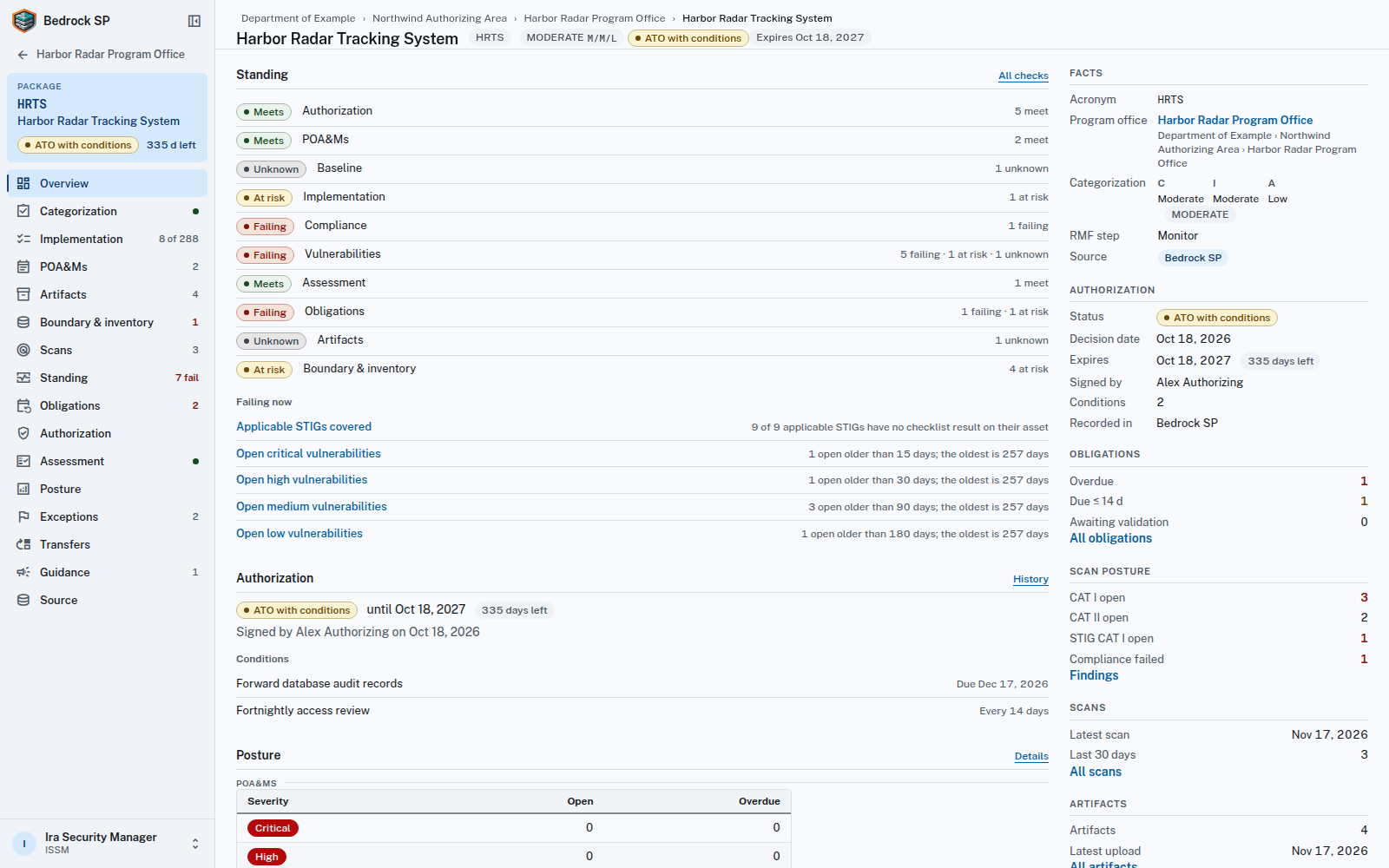
The right-hand side shows Facts (categorization, authorization, expiry), Obligations, Scan posture, Scans, Artifacts, POA&Ms, the SCA recommendation, Findings, People, the SCA team and Actions: Edit package, Request exception and Transfer.
Start with Standing
If you do not know what to do next, open Standing. Every line that is not green says what requirement it measures, who set it and what is wrong.