 foxxcyber/docs
Finding your way
The one sidebar: the unit switcher, unit scope and package scope, the main sections and My queues.
Bedrock SP has one sidebar. It changes with what you are looking at, so you always know where you are.
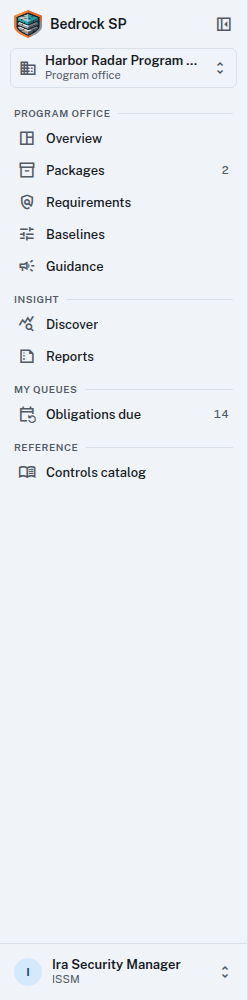
The unit switcher
At the top of the sidebar is the unit switcher. The organization is a tree of units:
- a component (for example a service or agency),
- authorizing areas under it,
- program offices under those,
- and assessor organizations.
Your role is held on one or more units, and it applies to that unit and every unit below it. Choose a unit in the switcher and the whole app narrows to it: the packages list, the requirements, the guidance and the numbers in the portfolio all show that unit and what is under it.
Unit scope and package scope
The sidebar shows one of two things:
- Unit scope (most pages). The sidebar lists Portfolio, Overview, Packages, Requirements, Baselines and Guidance for the unit, then Insight (Discover and Reports), My queues, Reference (Controls catalog) and, for platform administrators, Administration. You only see what your role can use.
- Package scope (any page inside one package). The organization navigation steps aside and the sidebar becomes the package's sections: Overview, Categorization, Implementation, POA&Ms, Artifacts, Boundary & inventory, Scans, Standing, Obligations, Authorization, Assessment, Posture, Exceptions, Transfers, Guidance and Source. The first row, Back to the program office, takes you out again.
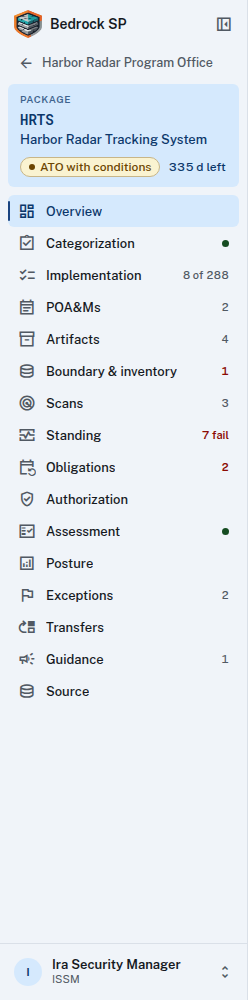
Small badges on package sections show what needs attention: failing checks on Standing, due or overdue items on Obligations, a count on Artifacts and so on. A dot means something is waiting, such as a draft decision on Authorization.
My queues
My queues lists the work waiting for you, with a count on each line. Which lines you see depends on your role.
| Queue | Who sees it | What is in it |
|---|---|---|
| Decisions to sign | AO, DAO | Authorization decisions prepared for signature. |
| Exceptions to decide | AO, DAO | Exception requests waiting for a decision. |
| Obligations to validate | SCA, and AODR, DAO, AO when no team is assigned | Evidence the program office submitted. |
| Obligations due | Program office | Items you owe. |
| Transfers to accept | AO, DAO | Packages released to your unit. |
| POA&Ms to validate | SCA | POA&M completion evidence. |
| Categorizations to approve | AO, AODR, DAO | Categorizations the program office submitted. |
| Recommendations to decide | AO, AODR, DAO | Assessment reports with an SCA recommendation. |
| Plans to approve | AO, AODR, DAO | Assessment plans the SCA submitted. |
| My assessments | SCA and SCA representative | Open plans of the packages you are assigned to assess. |
A line with no count and a muted look means nothing is waiting.
The sidebar itself
- Choose the small arrow at the top to collapse the sidebar to an icon rail. On narrow screens it slides over the page as a drawer.
- Choose the shield at the top to go home.
- The unit switcher keeps your place when you move between pages.
One scroll area
The window is the only thing that scrolls. Tables and forms use the full width of wide screens.