 foxxcyber/docs
Roles and settings
The fixed set of roles and what each can do, the two-step verification switch and the briefing marking.
Roles and permissions
Roles & permissions is read-only: the model ships with the product and cannot be edited. Each role has a set of permissions and can be held only on some kinds of unit.
| Role | Held on | Can |
|---|---|---|
| Component leadership (CIO/SISO) | Component | See the portfolio; manage baselines and requirements. |
| Designated Approving Authority (DAO) | Component, authorizing area | Everything an AO can do. |
| Authorizing Official (AO) | Component, authorizing area | Sign decisions, accept risk, decide exceptions, release and accept transfers; plus what the AODR can do. |
| AO Designated Representative (AODR) | Component, authorizing area | Prepare decisions, recommend exceptions, manage baselines and requirements. |
| Security Control Assessor (SCA) | Assessor organization | Record and sign assessments. |
| SCA Representative | Assessor organization | Record assessments for the SCA to sign. |
| Program Manager / System Owner (PM) | Program office | Edit packages, submit them, request exceptions. |
| Information System Security Manager (ISSM) | Program office | Edit, approve and submit packages, request exceptions. |
| Information System Security Officer (ISSO) | Program office | Edit packages. |
| Common Control Provider (CCP) | Component, program office | Publish the controls others inherit. |
| Auditor | Any kind of unit | See the portfolio; read only. |
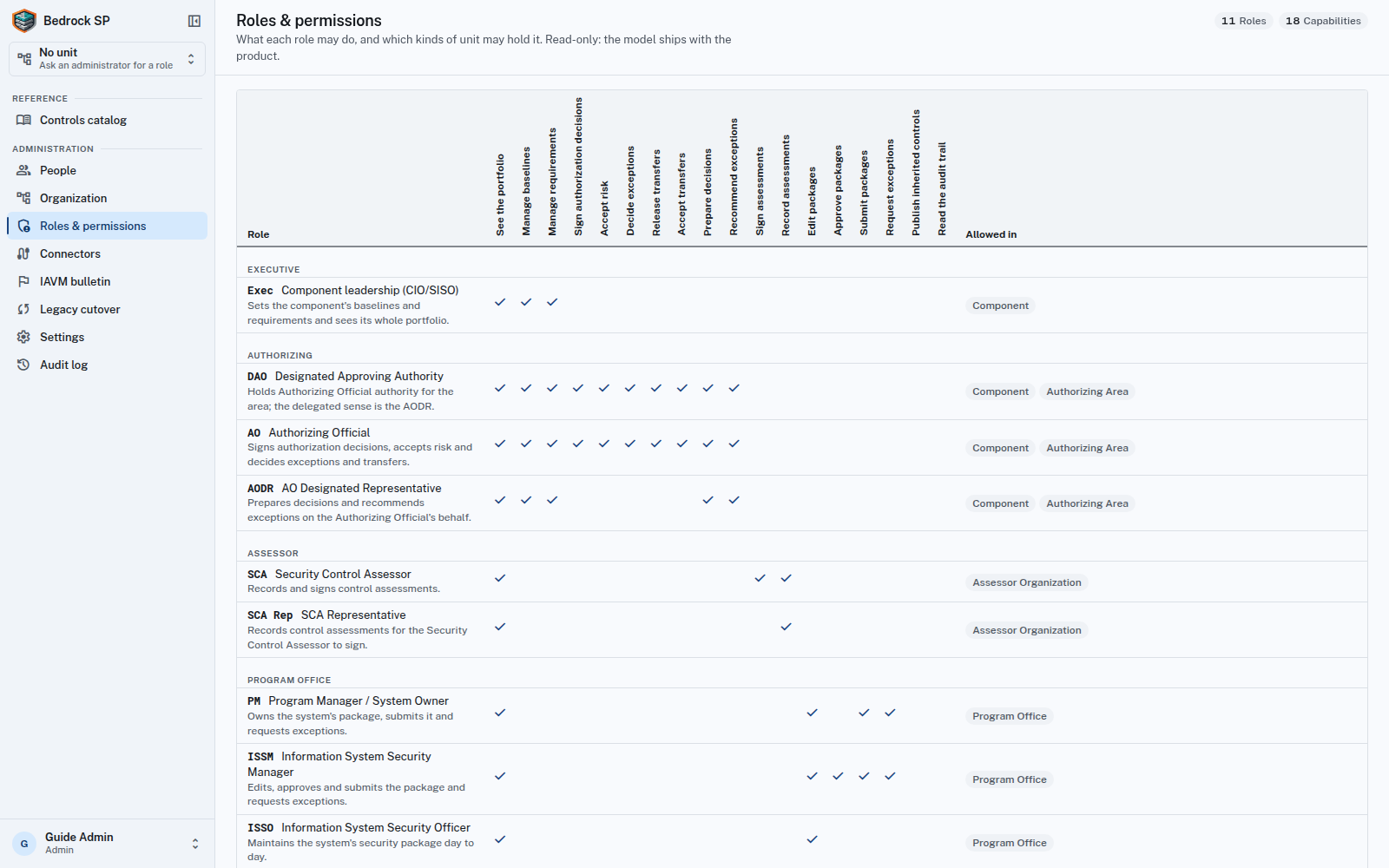
Every role also sees the portfolio of what is in its reach. A role granted on a unit reaches that unit and everything below it. Being a platform administrator is not a role.
Settings
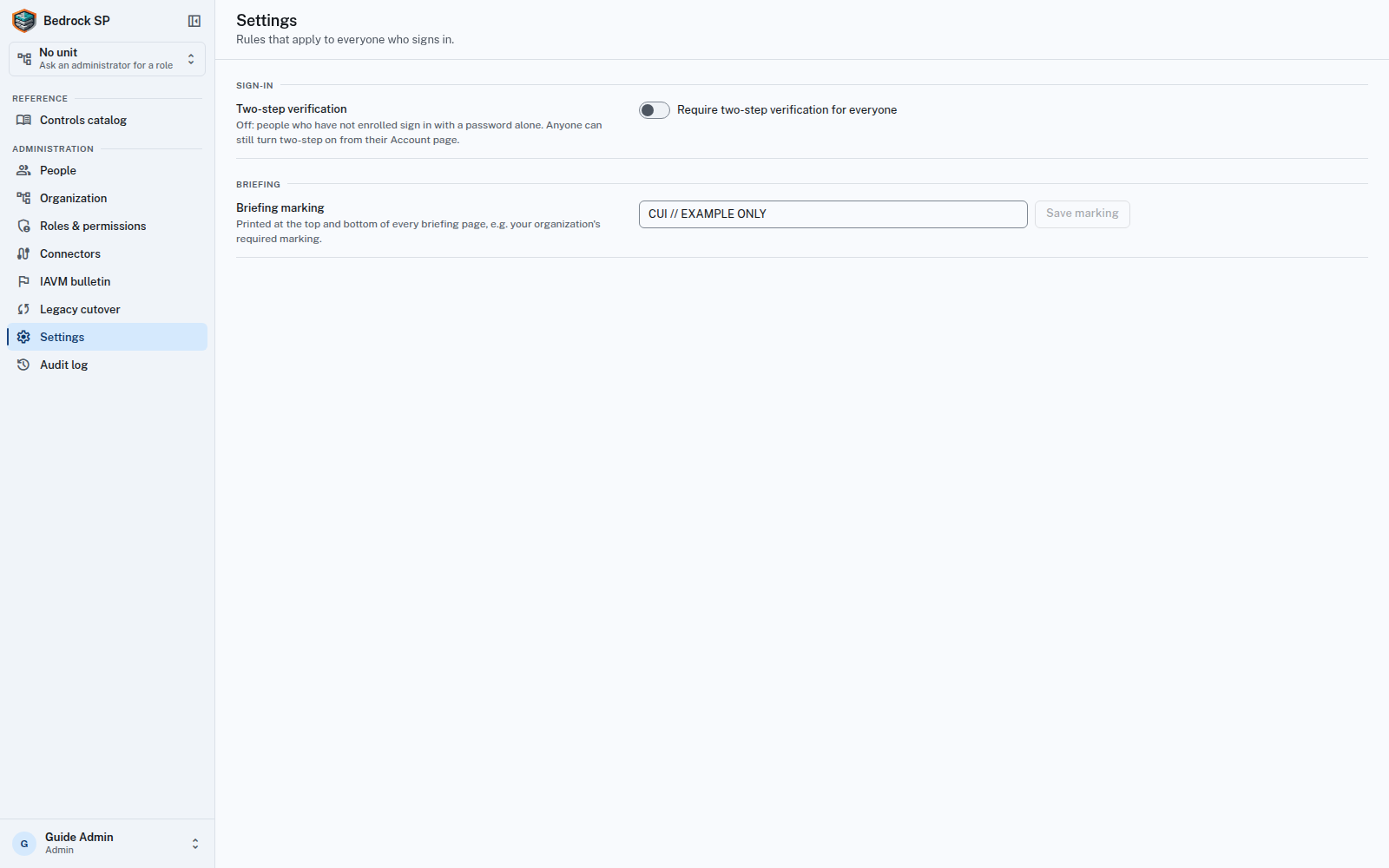
Choose Settings. The page has two parts.
Sign-in: two-step verification
Require two-step verification for everyone is on by default.
- On: everyone must enrol an authenticator app at their next sign-in and cannot reach the app without a code.
- Off: people who have not enrolled sign in with a password alone. Anyone can still turn two-step on from their Account page, and people who have enrolled are still asked for their code.
Step 1. Switch it, and watch for Saved.
Briefing marking
The Briefing marking is printed at the top and bottom of every briefing page, for example the marking your organization requires. It is plain text, up to 120 characters. Leave it empty for none.
Step 1. Type the marking and choose Save marking.
- You see: Saved. Everyone sees it on the next briefing they open.