 foxxcyber/docs
People and the organization
Add people, build the organization tree, give each person a role on a unit, reset a sign-in and disable an account.
The platform administrator manages who can sign in, the shape of the organization and which roles people hold. An administrator has no decision rights and no package data rights. Being an administrator does not let you read a package, sign a decision or approve anything. Give yourself a role on a unit if you also do that work.
Everything on these pages is under Administration in the sidebar.
The organization tree
Units come in four kinds, and each can hold only some kinds beneath it:
| Kind | May contain |
|---|---|
| Component | Authorizing areas, program offices, assessor organizations |
| Authorizing area | Program offices |
| Program office | Nothing |
| Assessor organization | Nothing |
A person's role on a unit applies to that unit and every unit beneath it.
Step 1. Choose Organization.
- You see: the tree. Open a unit for its people and sub-units.
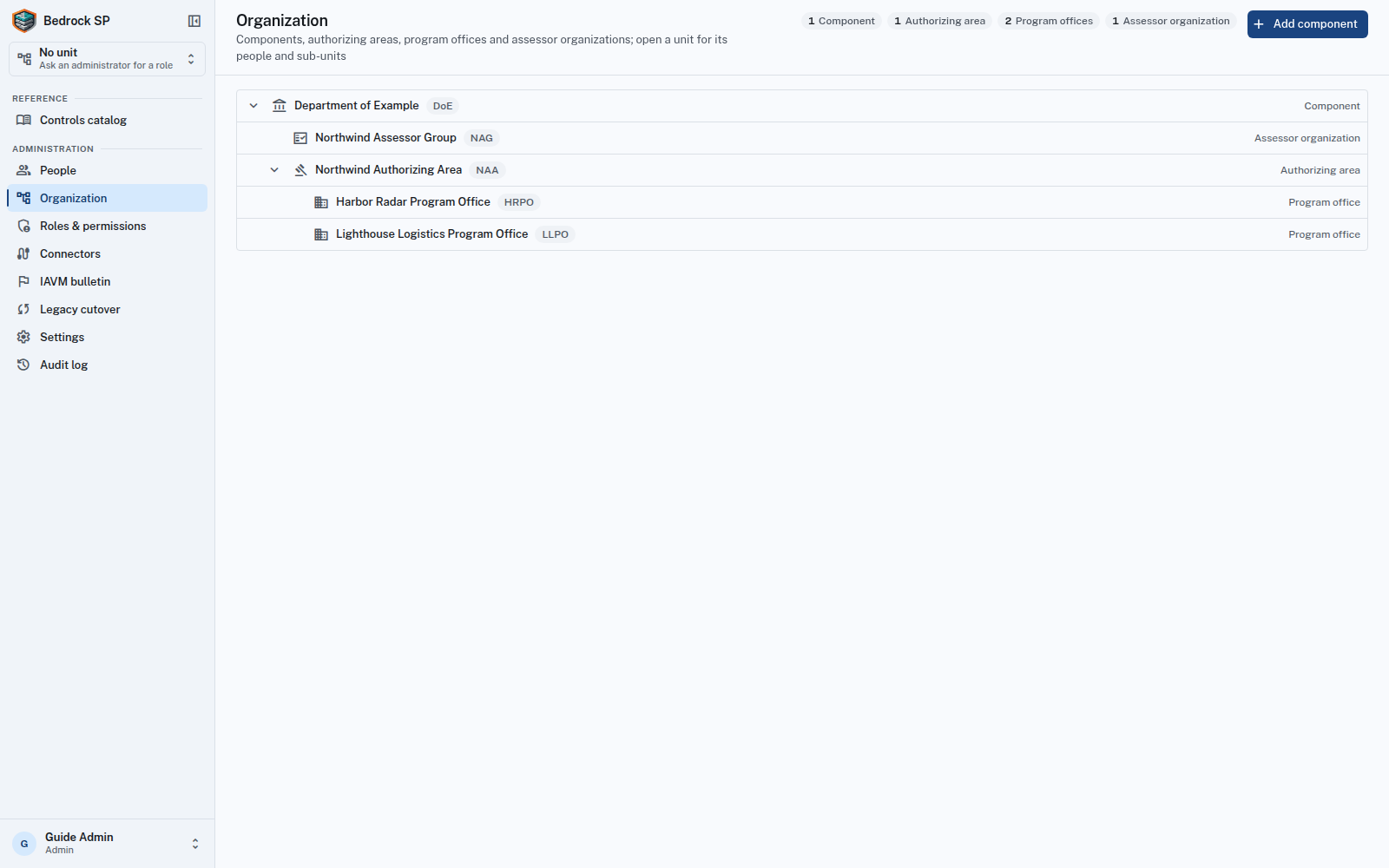
Step 2. Choose Add component to start. On a unit choose Add sub-unit. Give it a Kind, a Name and a Short name.
Step 3. Other actions on a unit: Rename, Move (choose a New parent) and Delete.
People
Step 1. Choose People.
- You see: everyone who can sign in: Name, Email, Role (their roles on units), Status, whether Two-step is on, and Created.
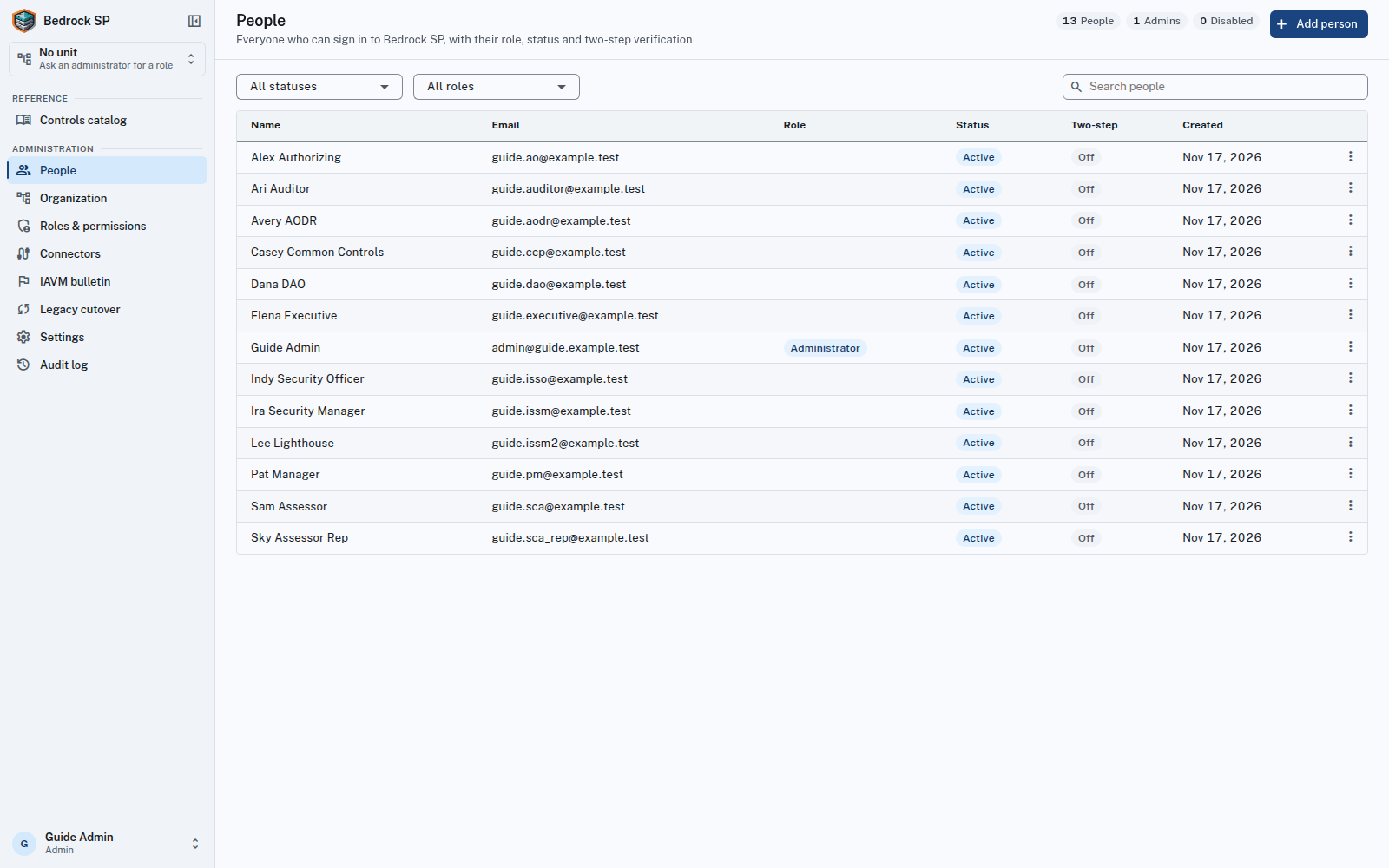
Step 2. Choose Add person. Enter a Name and Email.
- You see: a one-time password, shown once. Give it to the person. They must change it at their first sign-in. See Signing in.
Step 3. Give the person a role. Open the unit on Organization, choose Add member, pick the Person and the Role.
- The role list only offers roles allowed on that kind of unit. See the table in Roles and settings.
Remove a role with Remove on the member's row.
Reset a sign-in and disable an account
On a person's row menu:
- Edit: change the name or email.
- Reset sign-in: replaces their password with a new one-time password, clears their two-step setup, and signs them out of every session. They go through the first sign-in again.
- Disable or Enable: a disabled person cannot sign in. Their history stays.
Keep a second administrator
Make sure two people can reach Administration, so a locked-out administrator can be reset.