 foxxcyber/docs
The portfolio
Read every package's standing at a glance, find what needs attention, and arrange the portfolio the way you want it.
This guide is for component leadership (CIO/SISO) and the Designated Approving Authority (DAO). The CIO/SISO role sets a component's baselines and requirements and sees its whole portfolio. The DAO holds Authorizing Official authority for an area, so the DAO also has every step in the Authorizing Official guide.
The Portfolio is your home page. It answers one question: across everything I am responsible for, where do I stand and what needs me?
Open the portfolio
Step 1. Sign in. You land on the portfolio of your highest unit.
- You do: if you hold roles on more than one unit, use the unit switcher at the top of the sidebar to choose the component or authorizing area you want to look at.
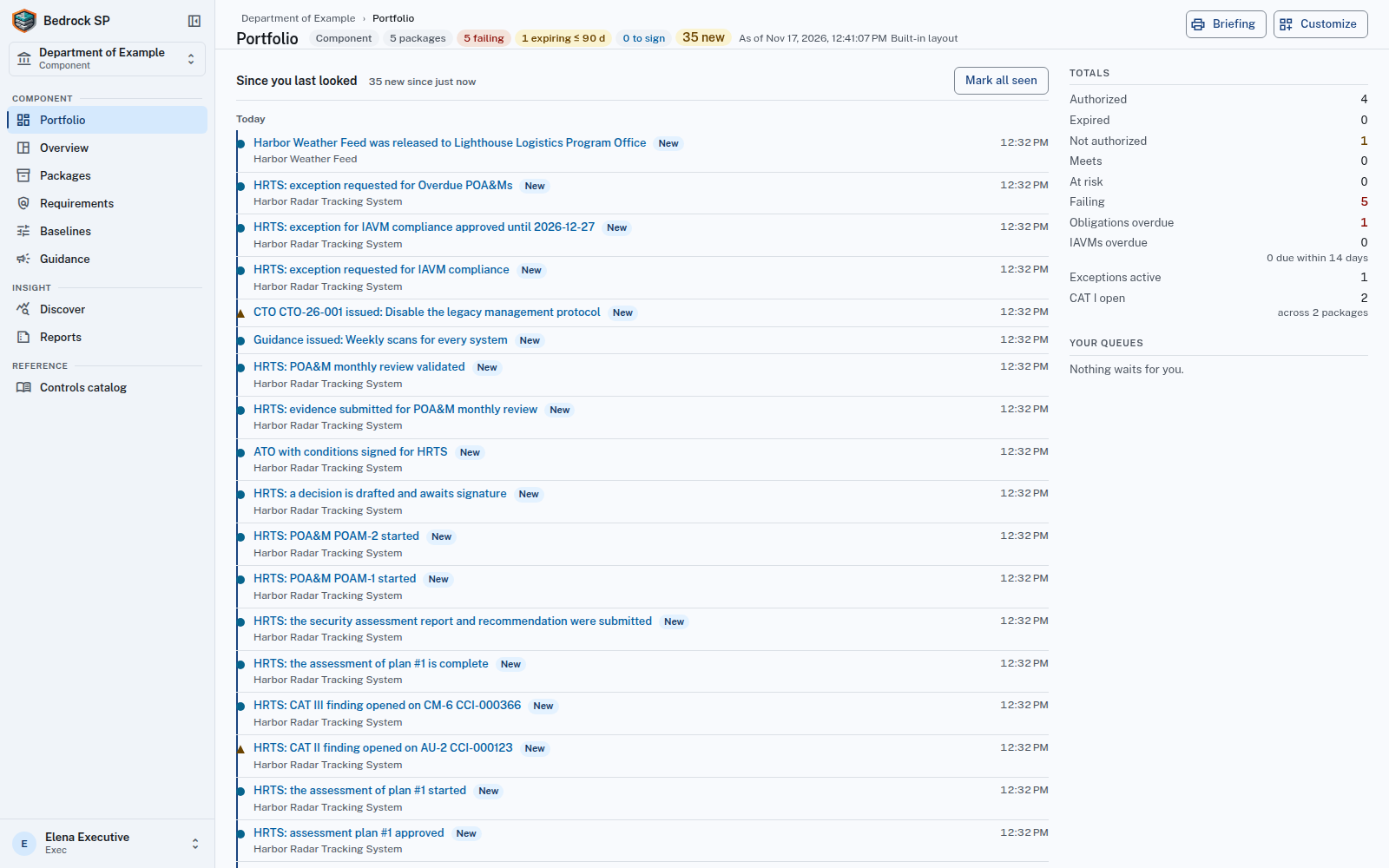
- You see: the page title Portfolio, the unit's name in the crumbs, and a row of chips: the kind of unit, the number of packages, how many are failing, how many expire within 90 days, how many decisions are waiting for you to sign, and, when something has changed, N new.
Step 2. Read the rail on the right.
- You see: Totals (how many packages are authorized, expired, not authorized, meeting their requirements, at risk or failing; obligations overdue; IAVMs overdue; exceptions active; open CAT I findings and across how many packages) and Your queues, the same counts as My queues in the sidebar with a link on each.
The sections
The page is made of sections. The built-in order is:
| Section | What it shows |
|---|---|
| Since you last looked | Changes since you last chose Mark all seen: a package's standing got better or worse, an authorization or exception is 90, 30 or 0 days from ending, an obligation went overdue, a decision was signed, and so on. |
| Needs attention | Packages that fail or are at risk, each with the reasons as short chips. |
| Standing by area | One bar per area of standing (authorization, compliance, vulnerabilities and so on) with the counts written out. |
| Expiration calendar | The next twelve months of authorizations, exceptions and obligations that end or come due, as a strip or a list. |
| Program offices | A roll-up per program office or child unit: packages, failing, at risk, expiring, CAT I, obligations overdue, exceptions, with links to the unit. |
| CAT I exposure | Packages with open CAT I findings, how old the oldest is and the limit your requirements set. Over limit is shown when it is past the limit. |
| Exceptions expiring ≤ 90 d | Approved exceptions that end soon. |
| IAVM exposure | Packages with IAVMs overdue or due within 14 days. It joins the default layout only when an IAVM is overdue; you can add it any time. |
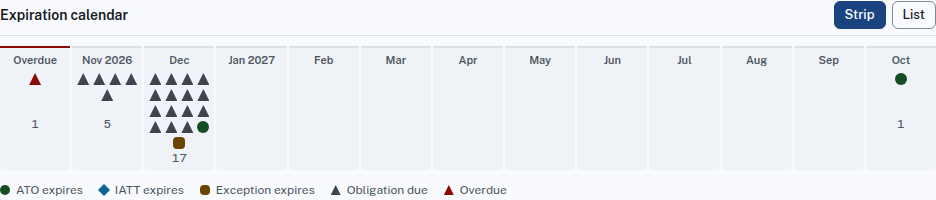
Every name is a link. Choose a package to open it, a program office to open its unit overview, a marker in the calendar to go to the thing that is ending.
Standing is never stale
The portfolio is computed when you open it, from the same numbers the package pages use. If a requirement was changed a minute ago, the portfolio already reflects it.
Change the layout
Step 1. Choose Customize.
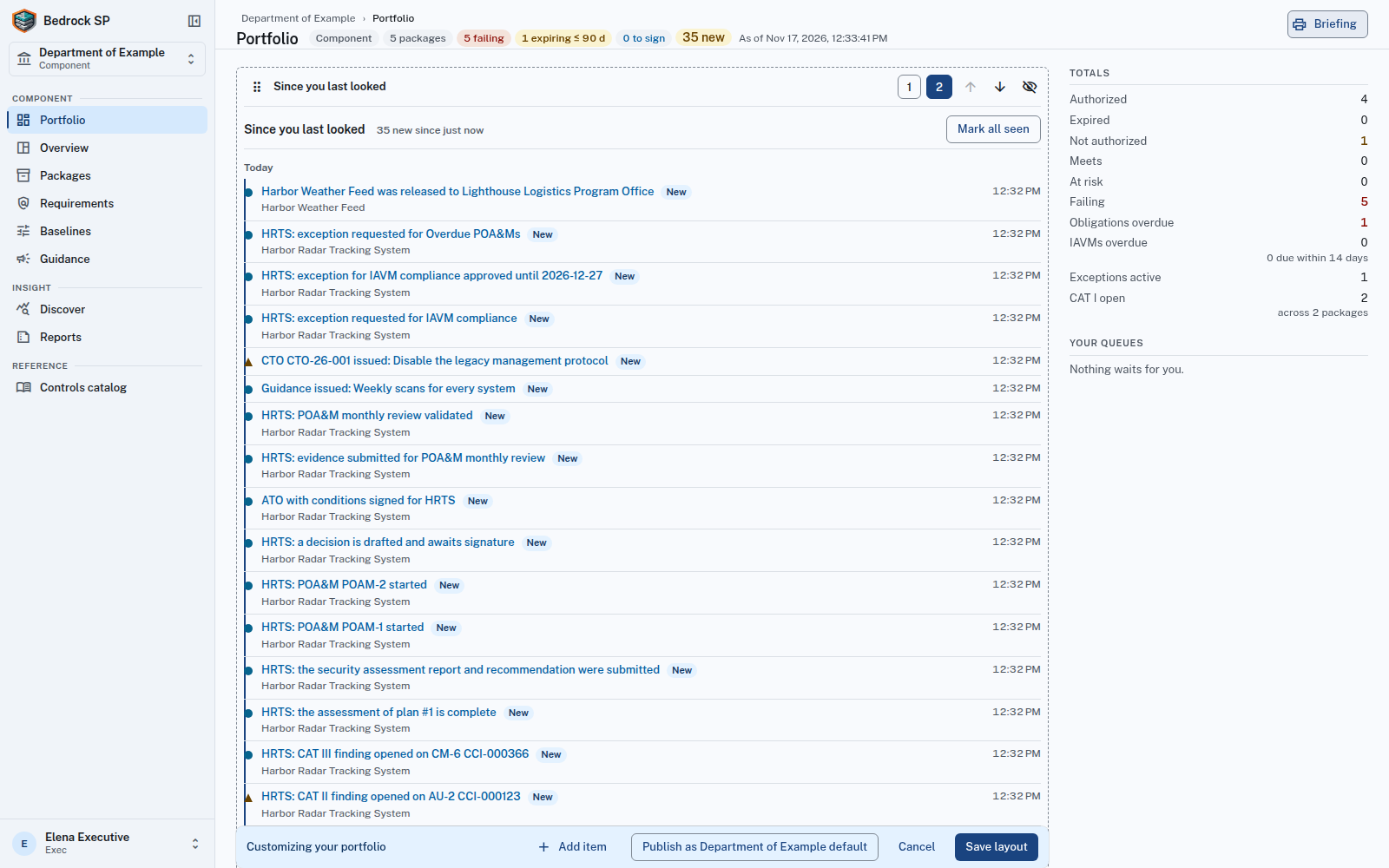
- You see: a bar titled Customizing your portfolio and, on each section, handles to drag it, a width control, and buttons to hide or remove it.
Step 2. Drag sections into the order you want, change their width, hide the ones you do not need.
Step 3. To add a panel, choose Add item. You can add a built-in section that is not on the page (such as IAVM exposure) or one of your saved queries shown as a number, a bar chart, a table and so on. See Discover.
Step 4. Choose Save layout. The layout is yours and follows you to any unit.
- Reset to the unit default (or to the built-in layout) goes back.
- If you hold authority for the unit you can choose Publish as unit default. Everyone at or below the unit then starts from that layout unless they have customized their own. The queries in it must be shared with the unit first; the page tells you which one is not.
The line under the page title says where the layout comes from: Your layout, the unit's default and who published it, or Built-in layout.