 foxxcyber/docs
Guidance and CTOs
Send a directive to a unit or one package and ask for acknowledgment, or issue a Cyber Tasking Order that every package must comply with and prove.
Guidance is how an AO speaks to program offices. It reaches a whole unit (every package under it) or one package. There are two kinds:
- Guidance: a directive. It can ask each program office to acknowledge it.
- CTO (Cyber Tasking Order): an order with a number, required actions and a comply by date. Each affected package must comply and submit evidence that the SCA validates. A CTO is never acknowledged.
Executives, DAOs, AOs and AODRs can write guidance. Only the people who can see the target see it, and everyone at or below it.
Write guidance
Step 1. Choose Guidance in the sidebar, then New guidance.
Step 2. Under Type, choose Guidance.
Step 3. Under Applies to, choose Unit (and pick one in the list) or Package (and find it with Find a package).
Step 4. Fill in the Title and the Directive. The directive is plain text, no HTML. A blank line starts a new paragraph. The preview beside it shows exactly what readers will see.
Step 5. Set the Effective date. To ask for acknowledgment, turn on Require acknowledgment and say how many days each program office has.
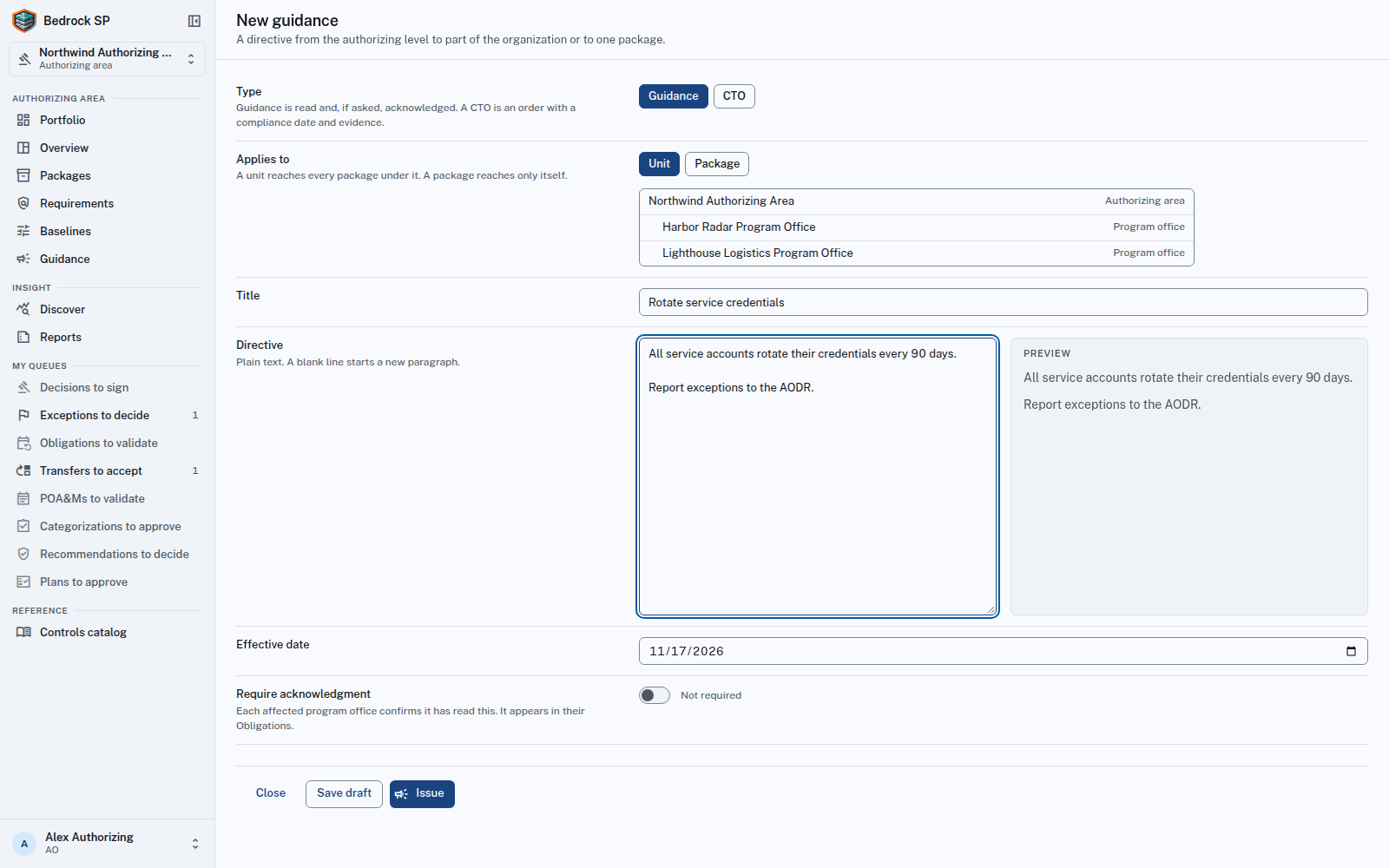
Step 6. Choose Save draft, or Issue.
- You see: a confirmation: "Title" reaches N packages. Each program office has D days to acknowledge it. You can withdraw it later, but not edit it. Choose Issue guidance.
- After issuing: each package in scope gets one obligation, Acknowledge: title, due that many days after issue. A package that comes into scope later (by a transfer, for example) gets today plus the same number of days.
Issue a CTO
Step 1. Choose New guidance and, under Type, choose CTO.
Step 2. Choose what it Applies to, then fill in:
- Title, and Background, the context for the order.
- CTO number, up to 40 characters, for example 26-04.
- Required actions: what each package must do. The preview shows it as the program offices will read it.
- Comply by: the date each package must be compliant.
- Requires evidence: on by default. Off means the program office confirms and the SCA validates the confirmation.
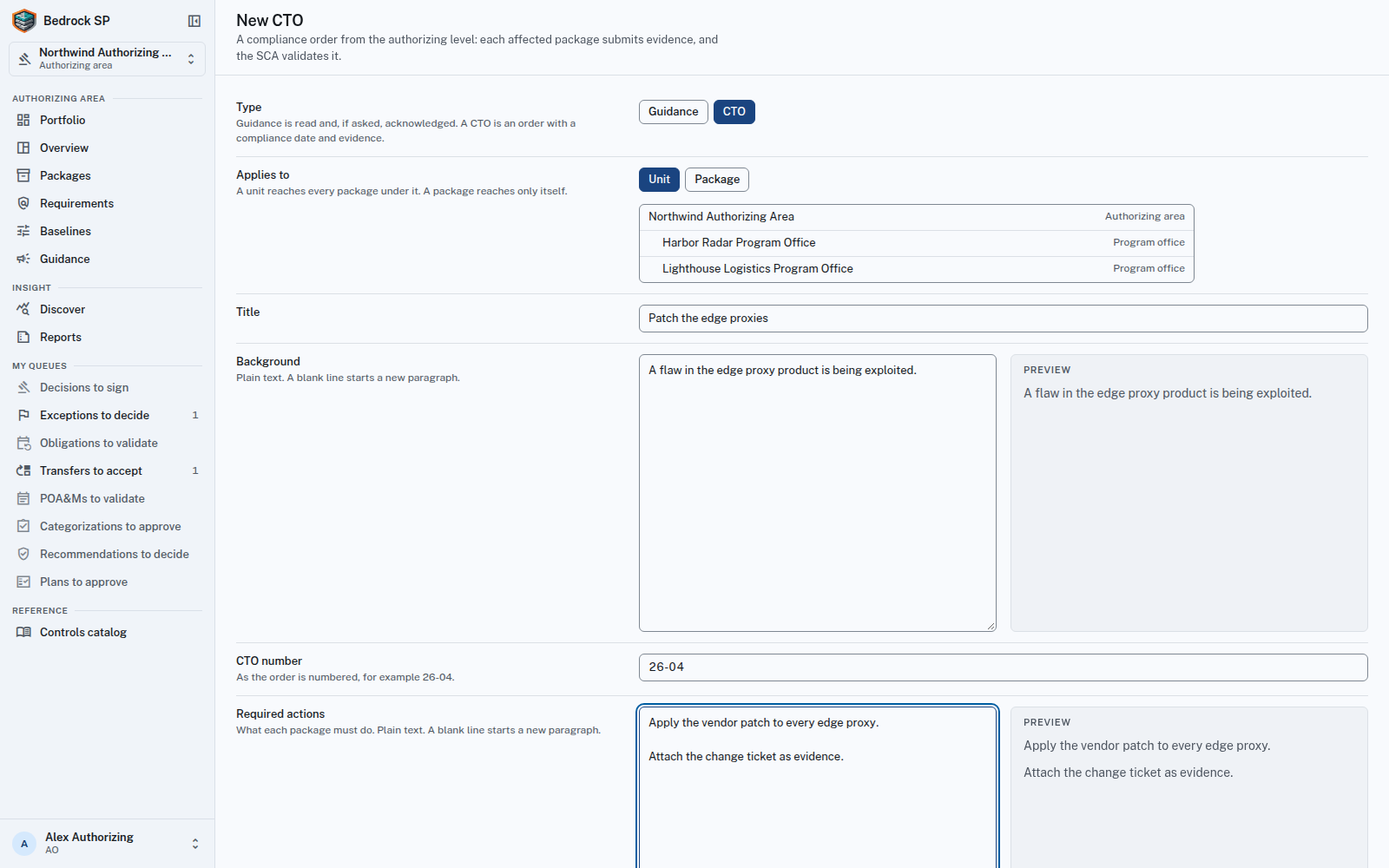
Step 3. Choose Issue, then Issue CTO in the confirmation.
- After issuing: every package in scope gets an obligation Comply with CTO number: title. It is due on the comply-by date, or a week from today if that date has already passed. A package that comes into scope late gets the remaining window, never an instant overdue.
- The program office submits evidence. The assigned SCA validates it (the AODR, DAO or AO does when no SCA team is assigned). Nobody validates their own submission.
Follow it up
Open the guidance from the list. The columns show Guidance, Applies to, Acknowledged or complied (for example 2 of 5, 1 overdue) and Status. Use the Kind filter to see only CTOs.
On the guidance record:
- Directive shows the text (and, for a CTO, Required actions).
- Acknowledgments, or Compliance for a CTO, shows each package's state: Overdue, Due soon, Pending, Acknowledged, or for a CTO Open, Awaiting validation, Complied.
- History shows who did what and when.
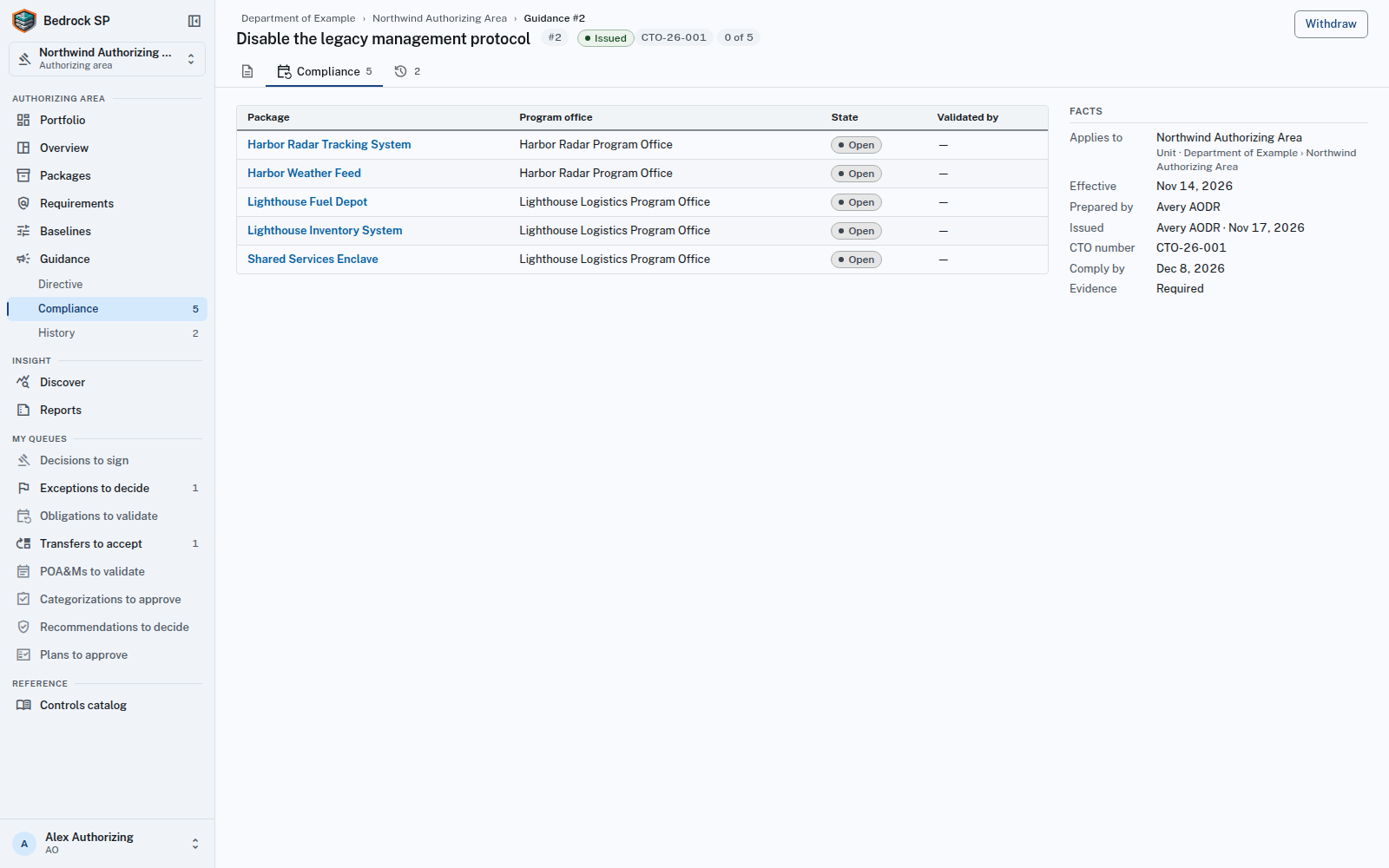
To take it back, choose Withdraw and give a Reason. Open obligations from it are retired.
Standing
Overdue acknowledgments show on each package as Guidance obligations, and CTOs as CTO compliance. Both show up in your portfolio and its change alerts.