 foxxcyber/docs
The CCI workspace
Start the assessment and mark every CCI of every control compliant, non-compliant or not applicable, with the method used, notes and evidence.
Once a plan is approved you carry it out. The CCI workspace is where you spend most of your time. You mark each CCI of each control and the results roll up by control and family.
Start the assessment
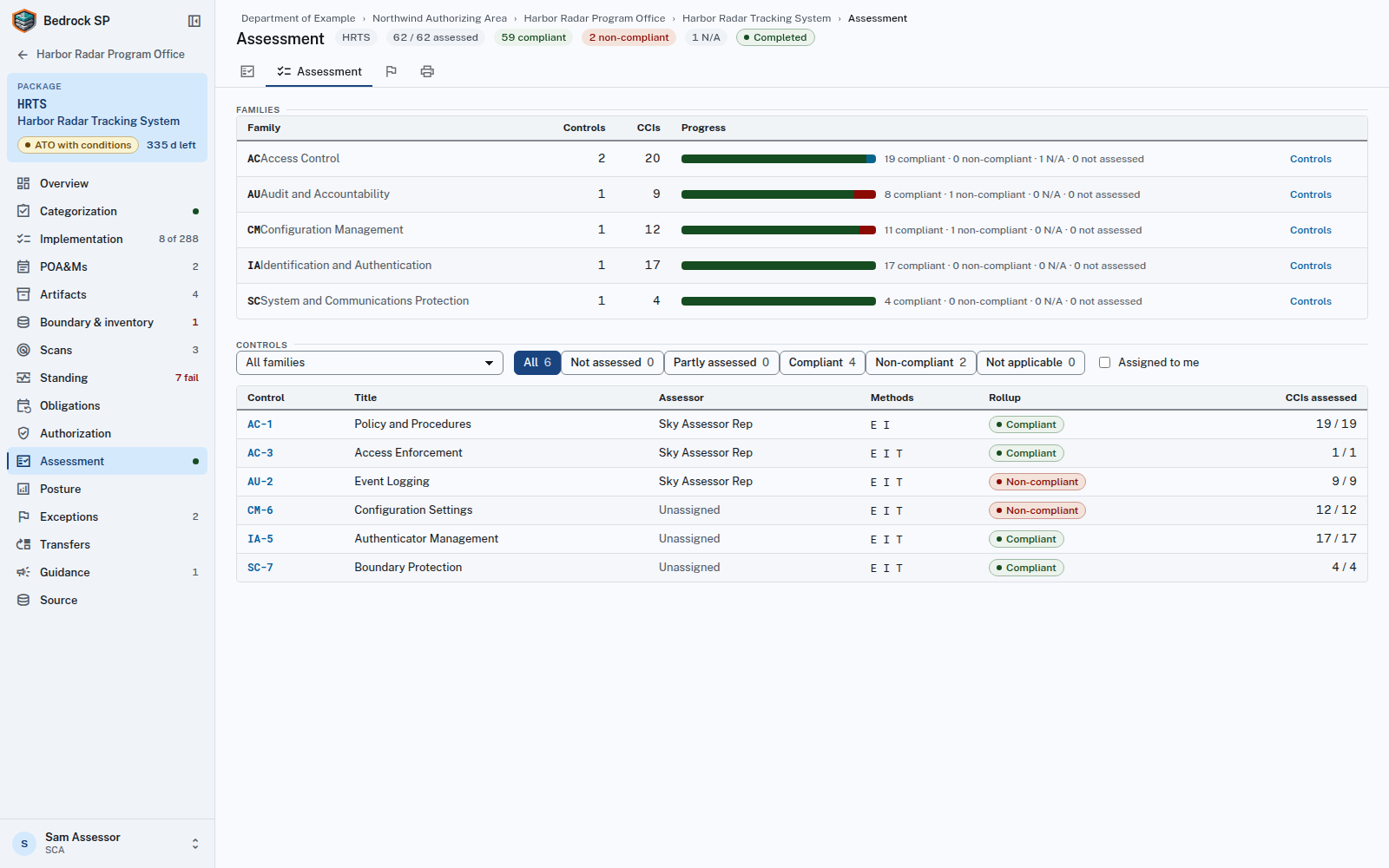
Step 1. On the package's Assessment tab choose Start assessment.
- You see: the assessment page with two tables. Families shows each control family with Controls, CCIs and Progress. Controls shows each control with its Title, Assessor, Methods, Rollup (Not assessed, Partly assessed, Compliant, Non-compliant or Not applicable) and CCIs assessed.
- Every CCI starts as Not assessed.
Assess a control
Step 1. Choose a control in the Controls table.
- You see: the control workspace. The side rail shows Implementation (what the program office wrote for this control, its status and narrative, and for a legacy package the program office's self-assessment) and History. In the middle, under the control's title, is each CCI with its definition.
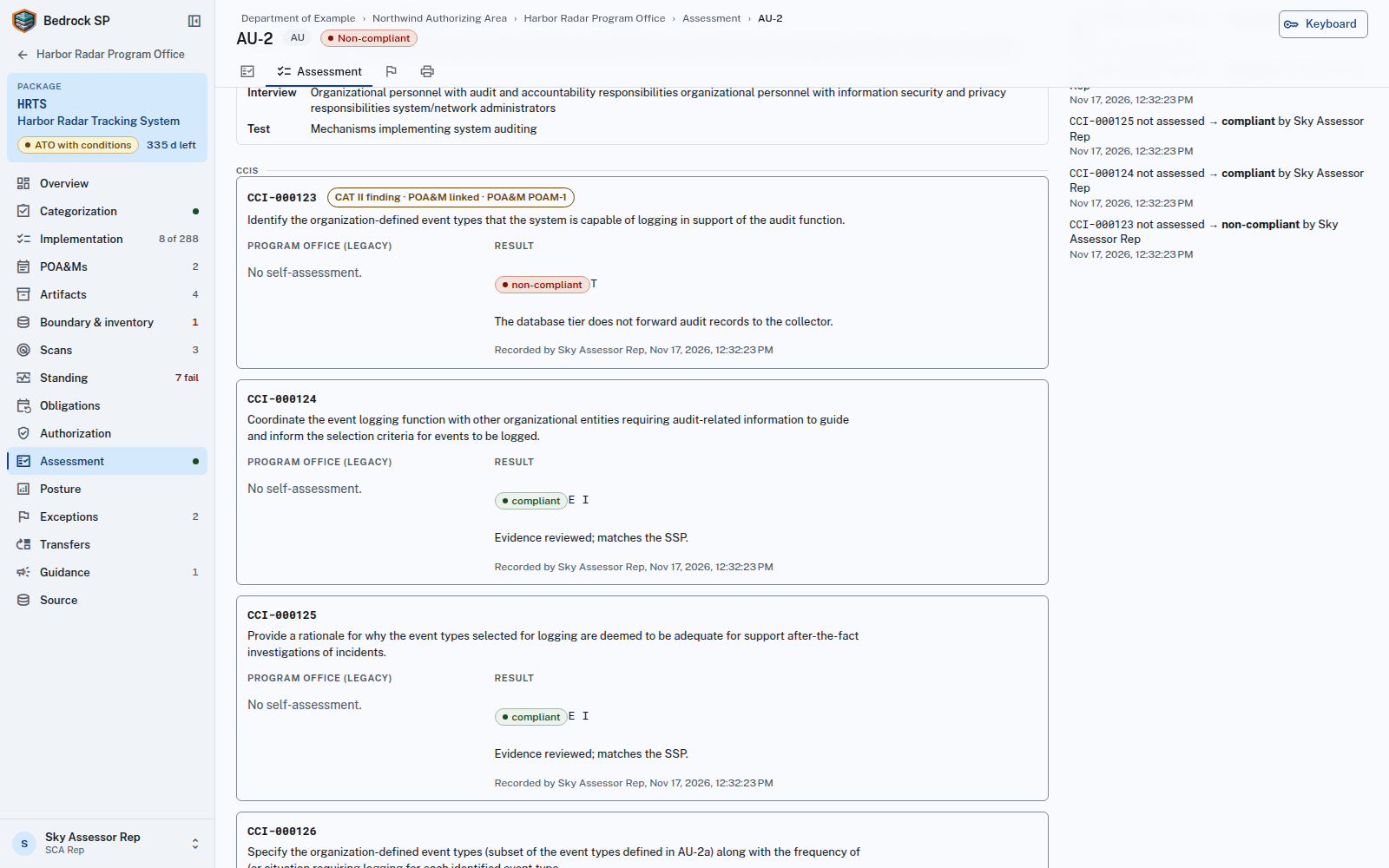
The picture shows a control after the assessment was completed, so the results are read-only. While an assessment is in progress, each CCI shows the three result buttons beside its definition, with the severity buttons and the fields below.
Step 2. For each CCI choose the result:
| Result | Key | Use when |
|---|---|---|
| Compliant | 1 | The control is implemented as the CCI requires. |
| Non-compliant | 2 | It is not. You must give a severity (CAT I, II or III) and Notes that say what you found. |
| Not applicable | 3 | The CCI does not apply to this system. |
The methods the plan set for the control (Examine, Interview, Test) are shown beside it. Write Notes, add a Recommendation for a non-compliant result, and add an Evidence link (optional) (a web address) or attach evidence files.
Step 3. Choose Save results. Discard drops what you typed since the last save.
Step 4. Move to the next control with Next, Previous, or the keyboard.
Keyboard
Choose Keyboard at the top of the workspace for the list. With a CCI row focused, press 1, 2 or 3 to set the result. Alt and the left or right arrow move to the previous or next control. The keys do nothing while you type in a field.
What a non-compliant result does
A non-compliant result opens a finding and an obligation for the program office: Open a POA&M: AC-2 CCI-000015 (CAT II), due a number of days after the finding that the AO's requirements set (30, 60 and 90 days for CAT I, II and III unless the AO set shorter). If you later change the result, the finding closes and an unanswered obligation is retired. See Findings.
Complete the assessment
When no CCI is Not assessed, the SCA lead chooses Complete assessment.
- You see: Results can no longer change once it is completed. Every CCI must have a result. Confirm with Complete assessment.
- After this: the assessment is final. A reassessment needs a new plan. The Assessment tab now offers Write the assessment report. See The report and the recommendation.