 foxxcyber/docs
Decisions and signing
Record an authorization decision with its dates, residual risk, rationale and conditions, then sign it. The conditions become obligations.
An authorization decision is the AO's formal call on a system. The four outcomes are:
- ATO (Authority to Operate).
- ATO with conditions: the system may run if the program office meets the conditions you list.
- IATT (Interim Authority to Test).
- DATO (Denial of Authority to Operate).
A decision is prepared as a draft and then signed. The AODR can prepare drafts. Only an AO or DAO signs. An AO who prepares and signs their own draft does both steps.
Prepare the decision
Step 1. Open the package and choose Authorization. In the package's side panel choose Record decision (an AODR sees Prepare decision). If a draft exists it says Continue decision draft.
- You see: the decision page. If the SCA has reported, an SCA recommendation panel at the top shows the recommendation, the residual risk the SCA reported, who signed the report and a Read the report link.
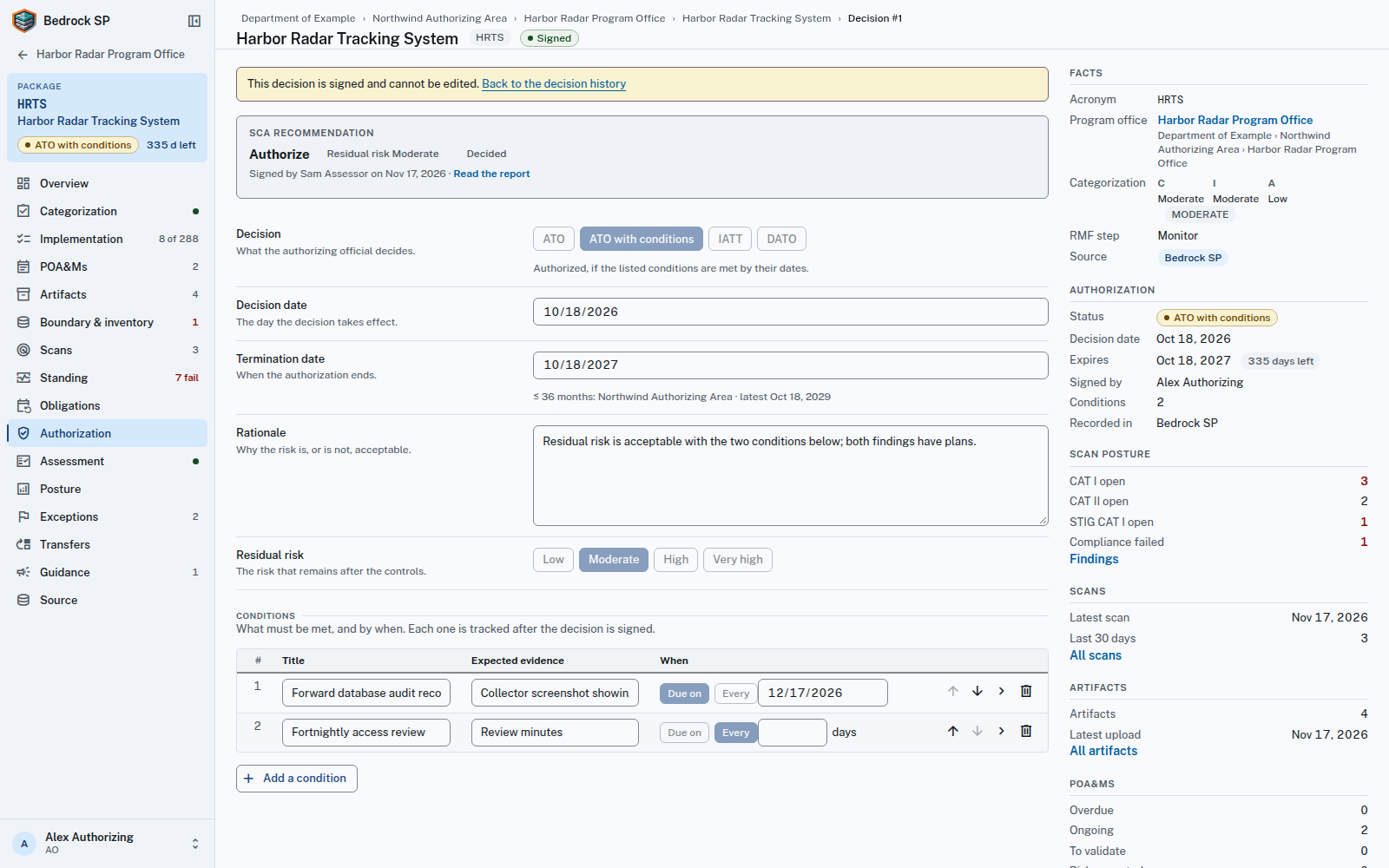
Step 2. Fill in the decision.
| Field | What to enter |
|---|---|
| Decision | ATO, ATO with conditions, IATT or DATO. A hint explains the one you chose. |
| Decision date | The day the decision takes effect. |
| Termination date | When the authorization ends. Not asked for a DATO. A hint under it says the longest allowed, for example ≤ 36 months: set by AFRL AO, taken from your requirements. |
| Rationale | Why the risk is, or is not, acceptable. |
| Residual risk | Low, Moderate, High or Very high. |
| Conditions | For ATO with conditions (and often an IATT): see below. |
Step 3. Choose Save draft.
- You see: the draft is saved. If a date breaks a limit in your requirements, the message names the limit and the unit that set it, and the draft is not saved. Discard draft removes it.
Conditions
A condition is something the program office must do, with a deadline.
Step 1. Choose Add a condition.
Step 2. Enter a Title, a Description, the Expected evidence, and When: a due date, or every N days for a recurring condition.
If the SCA suggested conditions, choose Copy into conditions to start from them. Edit freely.
Sign
Step 1. Choose Sign.
- You see: Sign this decision. Type your full name and choose Sign decision.
- After signing:
- The decision is final and replaces the previous signed decision, which is marked superseded.
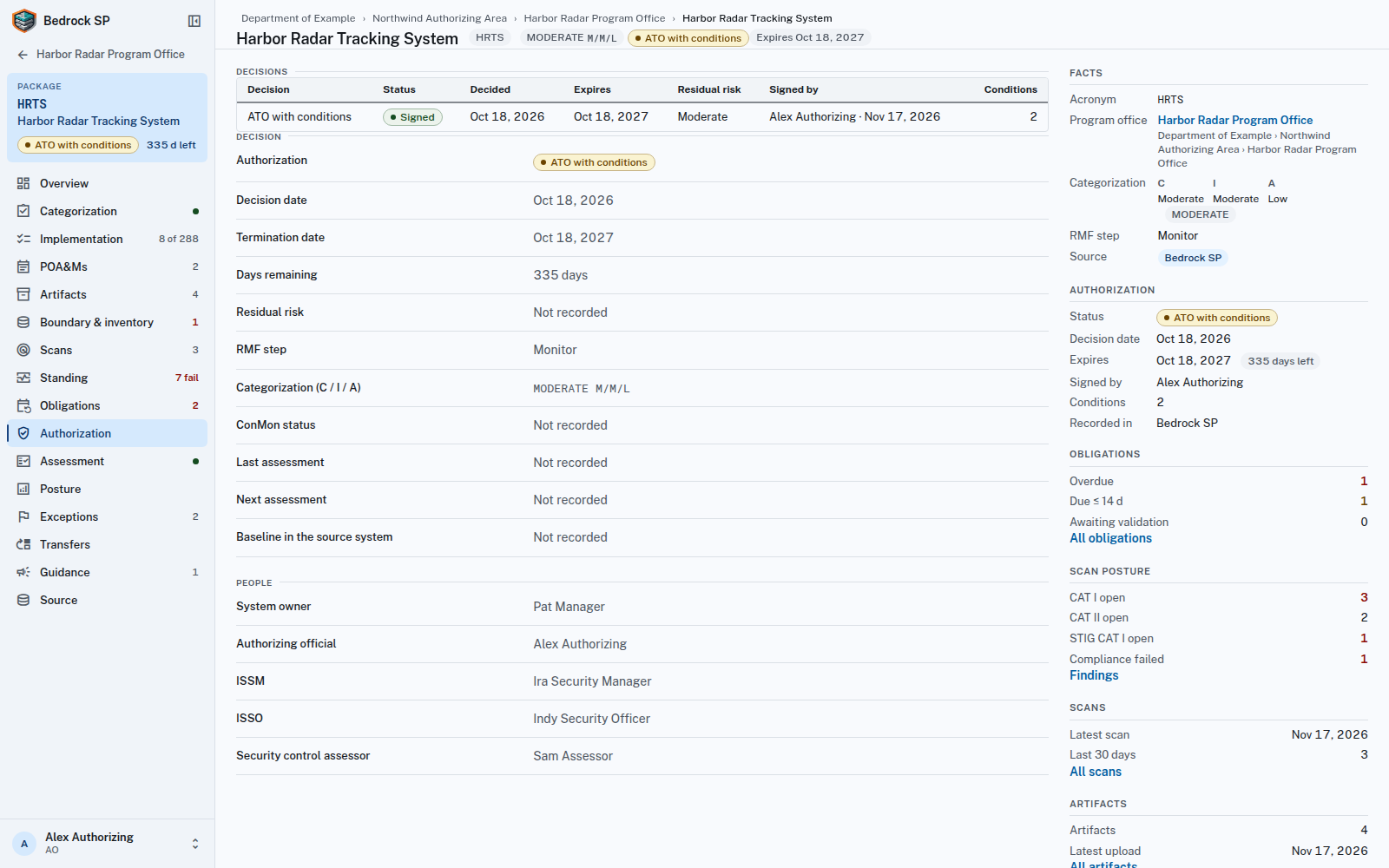
- The package's authorization status and dates are set from it.
- Each condition becomes an obligation for the program office, due on its date or recurring.
- Everyone who watches the package sees the change in Since you last looked.
The Decisions to sign queue in My queues lists drafts waiting for you. Each row shows the Package, the Decision, Prepared by, Decision to expiry and how long it has been Waiting.
A signed decision cannot be edited
If something is wrong, record a new decision. The new signed decision supersedes the old one, and the history keeps both.