 foxxcyber/docs
Audit log
See every change made in your organization (who, what, when and from where), filter it, show only what Foxx support did, and export it as CSV or JSON.
The audit log records every write across the workspace: who did what, to what, when, and from which network address. Administration changes, sign-ins, exports, and everything Foxx support looked at or did all land here. Nothing in it expires.
Before you start
- You must be a company administrator.
Read the log
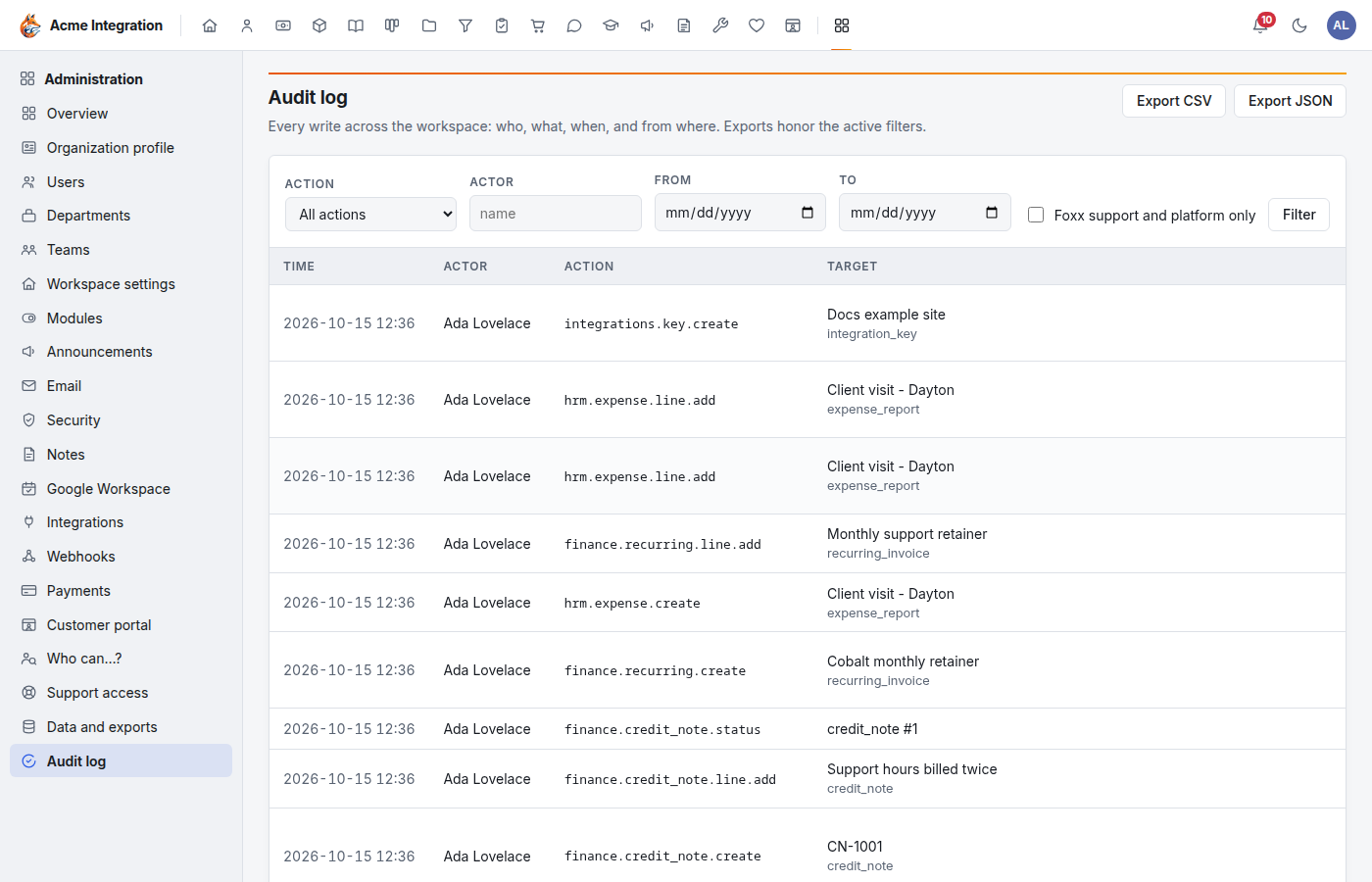
Open Administration → Audit log. Newest entries come first. Each row has:
- Time.
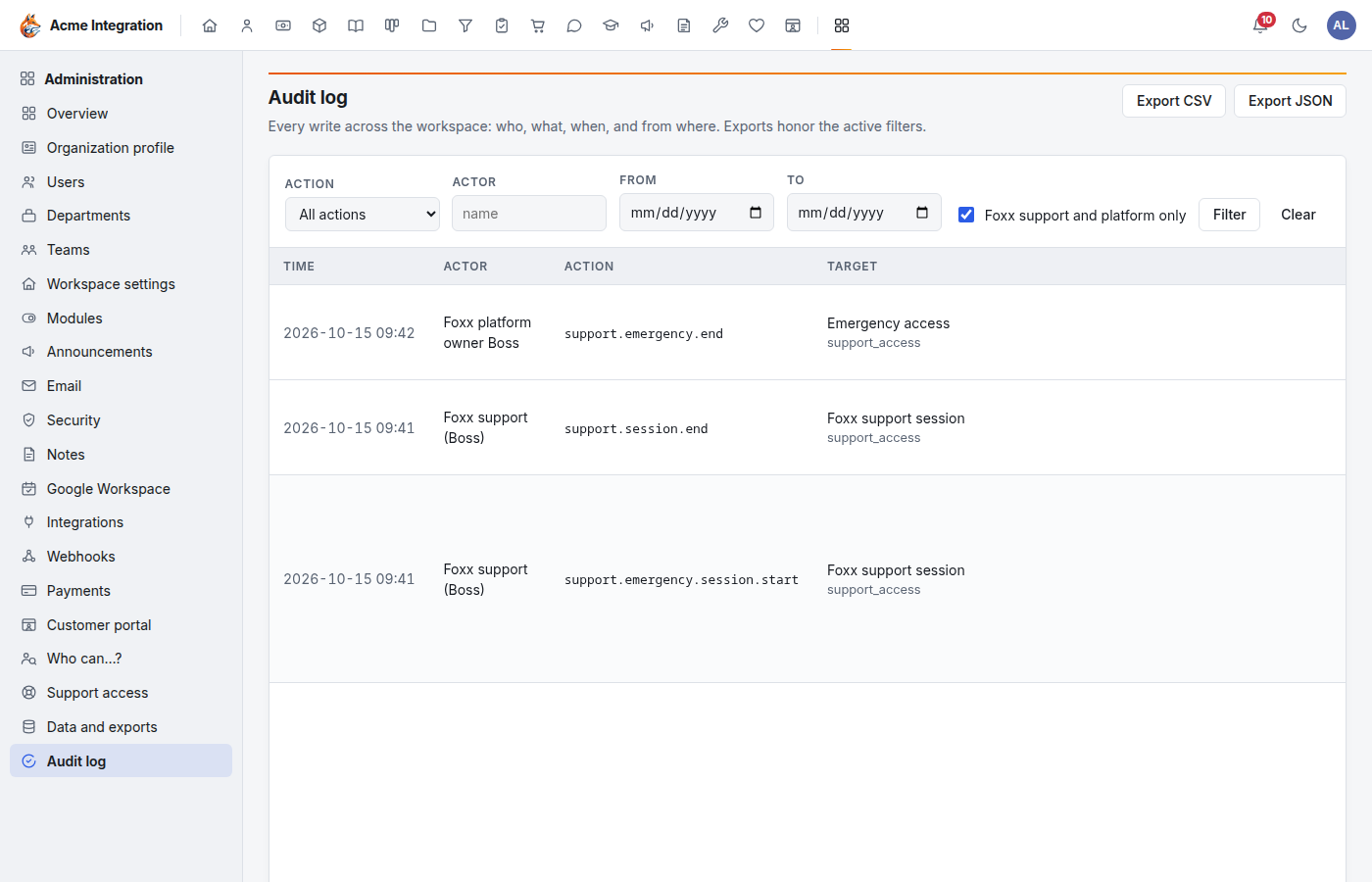
- Actor: the person, an integration key (shown by its name), Foxx support (shown as Foxx support (name)), or system for automatic work.
- Action: what was done, as a short code. The first word is the
area, for example
finance.credit_note.createorintegrations.key.create. - Target: what it was done to, with its kind underneath.
- IP and Detail: the network address and more about the change. On a narrower window, scroll the table sideways to see them.
Use ‹ Newer and Older › at the bottom to page through.
The Overview's Recent activity shows the latest lines; Full audit log → opens this page.
Filter it
- Choose an Action area (for example
admin,auth,finance) to see only that area's actions. The list changes straight away. - Type part of a name in Actor.
- Pick From and To dates.
- Click Filter. Clear removes every filter.
See only what Foxx did
Tick Foxx support and platform only. The log then shows only what Foxx looked at or did: support access being turned on and revoked, support sessions, every change Foxx support made, every change it was refused, and every read-only view-as visit. See Foxx support access.
Export it
Click Export CSV or Export JSON at the top. The export follows the filters you have applied, so filter first to export only part of the log.
Troubleshooting
The log shows "No audit events match these filters". Click Clear the filters.
An actor says "recorded as …". The entry was written before the log named seats; the note shows what the entry itself says.
I can't see the IP or Detail columns. They are to the right of the table. Scroll the table sideways.