 foxxcyber/docs
Deployment and file storage
One deployment per organization, claiming a new deployment, moving file storage to an S3-compatible bucket with the V2_BUCKET_* settings, why the move is one-way, and backing up the database and the bucket together.
This page is for whoever runs the servers behind Foxx HQ. It covers the
decisions an operator makes once per deployment. The full technical
runbook lives with the Foxx HQ source code (docs/DEPLOY.md).
One deployment per organization
Foxx HQ runs one deployment per organization: its own server, its own database and its own file bucket, under its own web address. Each deployment's platform console then shows a single organization (see Instance health).
- One organization's outage, upgrade, or data never touches another's.
- A backup or a restore is one organization's, whole.
- Put several organizations on one deployment only for a trial or a short demo. On such a deployment each organization's files are kept apart inside the bucket, but they share the server and the database.
Before you start
- Access to the hosting account (Railway or AWS) where the deployment runs, and permission to change its environment variables and restart it.
- A platform admin account for the deployment's console (see The platform console).
- For a bucket: an S3-compatible bucket you created for this deployment alone (Railway bucket, AWS S3 or MinIO), and its credentials.
Claim a new deployment straight away
A brand-new deployment has no platform admin. Its setup page creates the first one, the owner, with no password check at all: whoever reaches it first owns the deployment, and the console has no way to remove a platform admin afterwards.
- Start the deployment on its temporary, unadvertised address (for example Railway's generated domain).
- Open that address at once. The page Create the platform administrator asks for your Full name, Email and Password. Use a strong password.
- Sign in to the console, turn on two-factor sign-in under Security, and create the organization (see The platform console).
- Only then attach the public web address.
Never leave a fresh deployment reachable with its setup page unclaimed. Anyone who finds it first becomes its owner.
Where files are kept
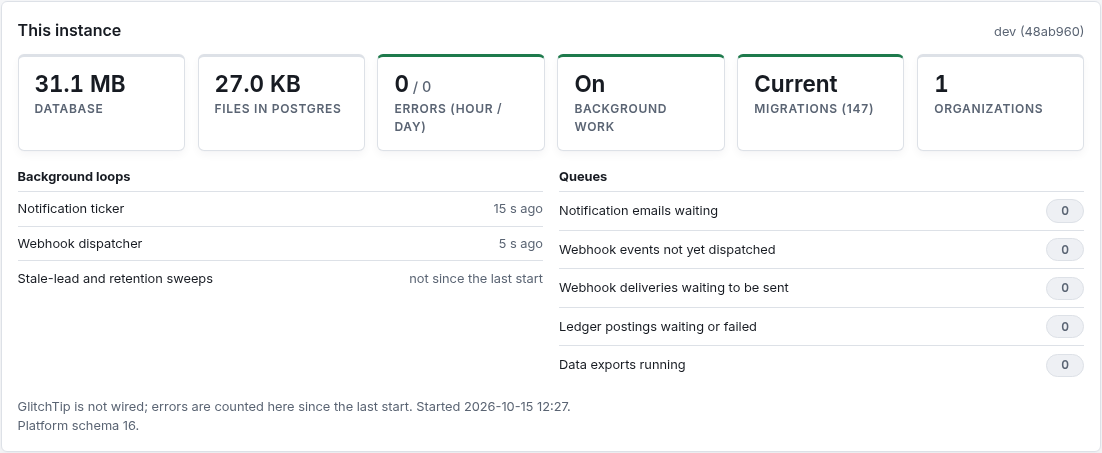
Every file people upload (attachments, Document Library files and personal drives, Notes files, logos and brand images, donation page images, form uploads, applicant and HR files) is stored in one of three places. The Files tile on the console's This instance card says which:
| Tile says | Where the files are | Backups |
|---|---|---|
| Files in Postgres | Inside the database. The default. | A database backup holds everything. The database grows with every upload. |
| Files on disk | A file storage directory on the server, for personal drives. | Back up the directory as well as the database. |
| Files in the bucket | An S3-compatible bucket. Recommended for production. | Back up the bucket as well as the database (see below). |
Move files to a bucket
With a bucket, the database stays small and fast and files scale on their own. The bucket belongs to this deployment only: one bucket per deployment, never shared. Nothing in it is ever public, and Foxx HQ never lists it.
The settings
Set these as environment variables on the Foxx HQ service:
| Setting | What to put | |
|---|---|---|
V2_BUCKET_NAME | The bucket's name. | Setting it turns the bucket on. |
V2_BUCKET_ENDPOINT | The address of an S3-compatible service, such as https://t3.storageapi.dev on Railway. | Leave it unset for AWS S3. |
V2_BUCKET_REGION | auto on Railway; the bucket's real region on AWS (AWS refuses auto). | Defaults to auto. |
V2_BUCKET_ACCESS_KEY_ID and V2_BUCKET_SECRET_ACCESS_KEY | The bucket's access keys. | Leave both unset on AWS ECS/Fargate to use the task's role instead. The secret is never written to the log. |
V2_BUCKET_PATH_STYLE | 0 only if the bucket's credentials page says it uses virtual-hosted addresses. | On by default when an endpoint is set. |
On Railway, the bucket's own variables (BUCKET, ENDPOINT, REGION,
ACCESS_KEY_ID, SECRET_ACCESS_KEY) are also read when V2_BUCKET_NAME
is unset. Setting the V2_ names is clearer.
Step by step on Railway
- Ship the current release with no bucket settings first, and let it run. It behaves exactly as before, and from then on every release can read a bucket, so rolling back a later release never strands a file.
- In the deployment's own Railway project, click New → Bucket. Railway buckets are private and encrypted.
- On the Foxx HQ service, add the variables, each pointing at the
bucket's credentials (use the bucket service's name in place of
Bucket):V2_BUCKET_NAME=${{Bucket.BUCKET}}V2_BUCKET_ENDPOINT=${{Bucket.ENDPOINT}}V2_BUCKET_REGION=${{Bucket.REGION}}V2_BUCKET_ACCESS_KEY_ID=${{Bucket.ACCESS_KEY_ID}}V2_BUCKET_SECRET_ACCESS_KEY=${{Bucket.SECRET_ACCESS_KEY}}
- Deploy. The start log says the file bodies go to the bucket. If the server cannot use the bucket, it refuses to start and says why.
- New uploads go to the bucket at once. Five minutes after the start, the mover begins moving the existing files out of the database, a little every minute.
- Watch the console's This instance card: the tile changes to Files in the bucket, and the bucket line's "still to move" count falls to zero.
- Open a few old and new files in the app to check them.
On AWS S3
Create the bucket yourself, one per deployment: a name without dots,
Block Public Access on, Object Ownership: bucket owner enforced,
default encryption on, and a bucket policy that refuses requests without
TLS. Leave V2_BUCKET_ENDPOINT unset and set V2_BUCKET_REGION to the
bucket's region. On ECS or Fargate, leave the keys unset and give the
task role only these permissions on that bucket: get, put and delete
objects, and list the bucket (plus the KMS key's encrypt and decrypt if
you use your own key). Turn on versioning with a rule that expires old
versions after about 30 days, so an accidental delete can be recovered.
How the move works
- The mover checks each file against its fingerprint, uploads it, reads it back and checks it again, and only then removes it from the database. It is safe to stop at any point; the next run carries on.
- A file that cannot move is retried an hour later, and the others move past it. The bucket line on the console shows the Last error.
- Deleted files leave the bucket only through a queue, after the deletion is saved. An upload that never finished is cleaned up a day later.
- While the bucket is unreachable, opening or uploading files kept in it fails with an error; everything else keeps working.
The move is one-way
Once files have moved, keep the bucket settings. There is no tool to move files back into the database. If you remove the settings, or roll back to a release from before step 1, every moved file answers an error until the settings are back. Nothing is lost: the files stay in the bucket, and Foxx HQ deletes nothing while the bucket is not configured.
Only in the first five minutes after switching the bucket on, before the mover's first run, can you simply remove the settings and restart. The few files uploaded in those minutes then answer an error until the settings come back.
Give the database its space back
After everything has moved, the database still holds the space the files used. Routine database maintenance makes it reusable on its own. To shrink the database's disk, whoever runs the database can compact the file table in a quiet window; file uploads and downloads wait while it runs.
Backups
Back up the database and the files together:
| File storage | What to back up |
|---|---|
| Files in Postgres | The database only. |
| Files on disk | The database, then the file storage directory. |
| Files in the bucket | The database, then the bucket. Or keep bucket versioning on. |
Always copy the files after the database dump. A file with no database record is a harmless leftover; a database record with no file is a lost file.
Test a restore now and then, onto a separate deployment, never the live one.
Other settings worth knowing
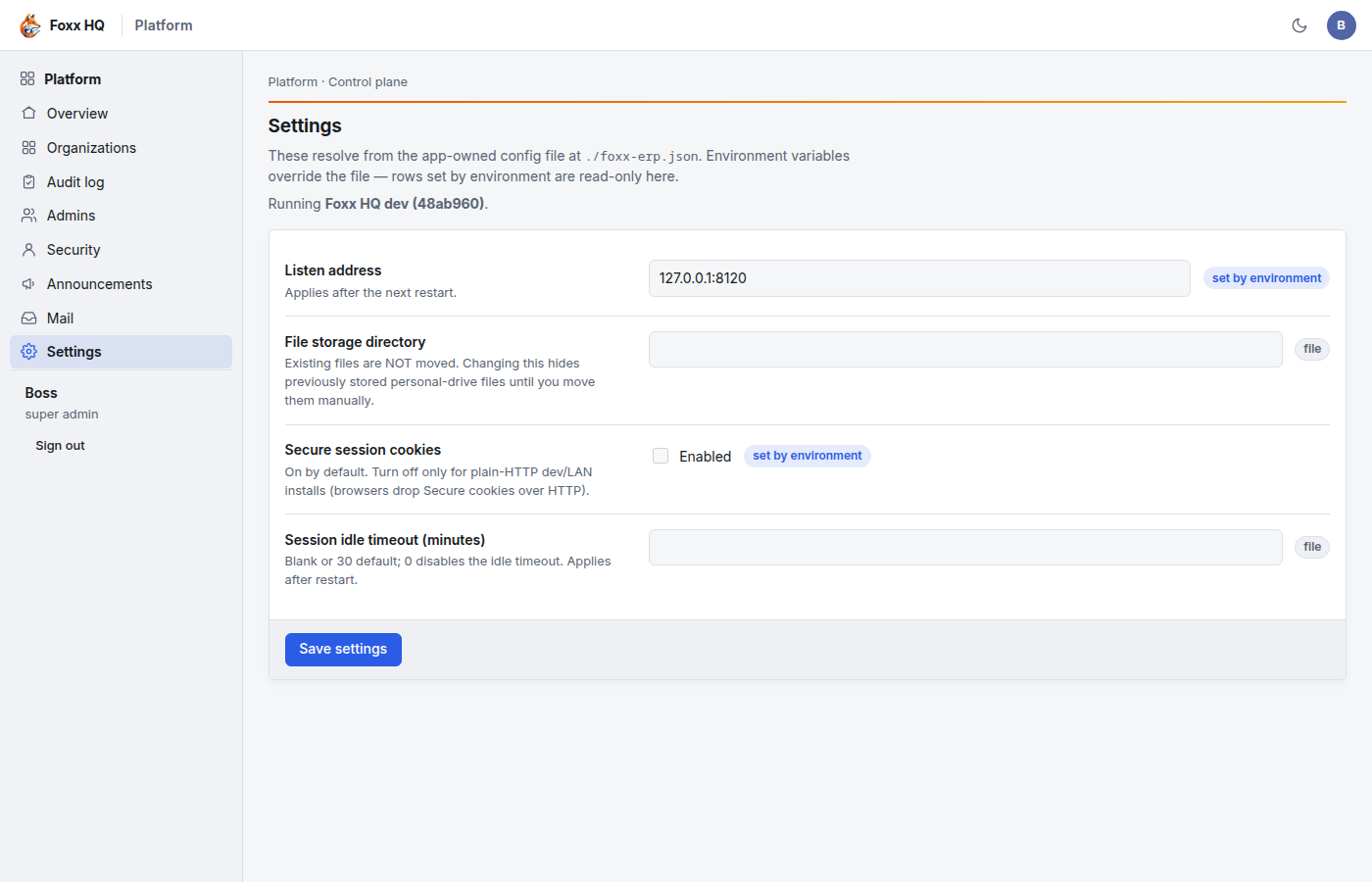
V2_TRUSTED_PROXIES: set toprivate(or the proxy's address) when the deployment sits behind a proxy, as it does on Railway. Audit logs then record each visitor's own address, and the sign-in limits count each visitor separately.GLITCHTIP_DSN: connects error reporting to GlitchTip. Without it, the console's error tile is the only record of server errors.V2_NO_TICKER=1: switches background work off. Leave it unset on a live deployment (see Instance health).- Settings in the platform console shows the server settings that can be changed there. Rows marked set by environment are fixed by these variables.
Troubleshooting
"The server won't start after I set the bucket variables."
The start log names the reason: a wrong name, endpoint, region or key.
On AWS, auto is not a valid region. Fix the variable and deploy again.
"Files say 'file body is in the bucket, and no bucket is configured'." The bucket settings were removed, or you rolled back too far. Put the settings back, or deploy a release that can read the bucket.
"'Still to move' stopped falling." The bucket line's Last error says why. The mover retries that file every hour and keeps moving the rest.
"The tile still says Files in Postgres." The bucket settings are not reaching the service. Check the variable names on the Foxx HQ service itself, then redeploy.