 foxxcyber/docs
The customer portal
Turn on the portal where your customers and donors sign in, choose its pages, invite people from the CRM, see what they see, and manage their access.
The customer portal is a separate, simple site where your own customers and donors sign in to see their invoices and pay them, their payments and receipts, their subscriptions, their support requests, their newsletter choice and their gifts. It carries your logo and colours.
Customers are not users of your workspace. They have their own accounts and their own sign-in page, and they never see anything of the workspace: no menus, no people, no records but their own.
Before you start
- You must be a company administrator to turn the portal on and choose its pages.
- Your plan must include the customer portal. If it doesn't, the settings page says so; your platform administrator decides the plan.
- To invite people, you must be a CRM owner (department lead of a CRM department, CRM admin grant, or company administrator), and the person must be a CRM contact with an email address. See CRM.
- Invitations and password resets go by email, so set up Administration → Email first. See Email.
- For customers to see invoices, the CRM account must be linked to its Finance party (the customer record invoices are made out to).
- For the Pay button, connect Stripe or PayPal. See Payments setup.
- New support requests from the portal need a live external support form in the Project Tracker. Without one, customers see their tickets but cannot open new ones.
Turn the portal on
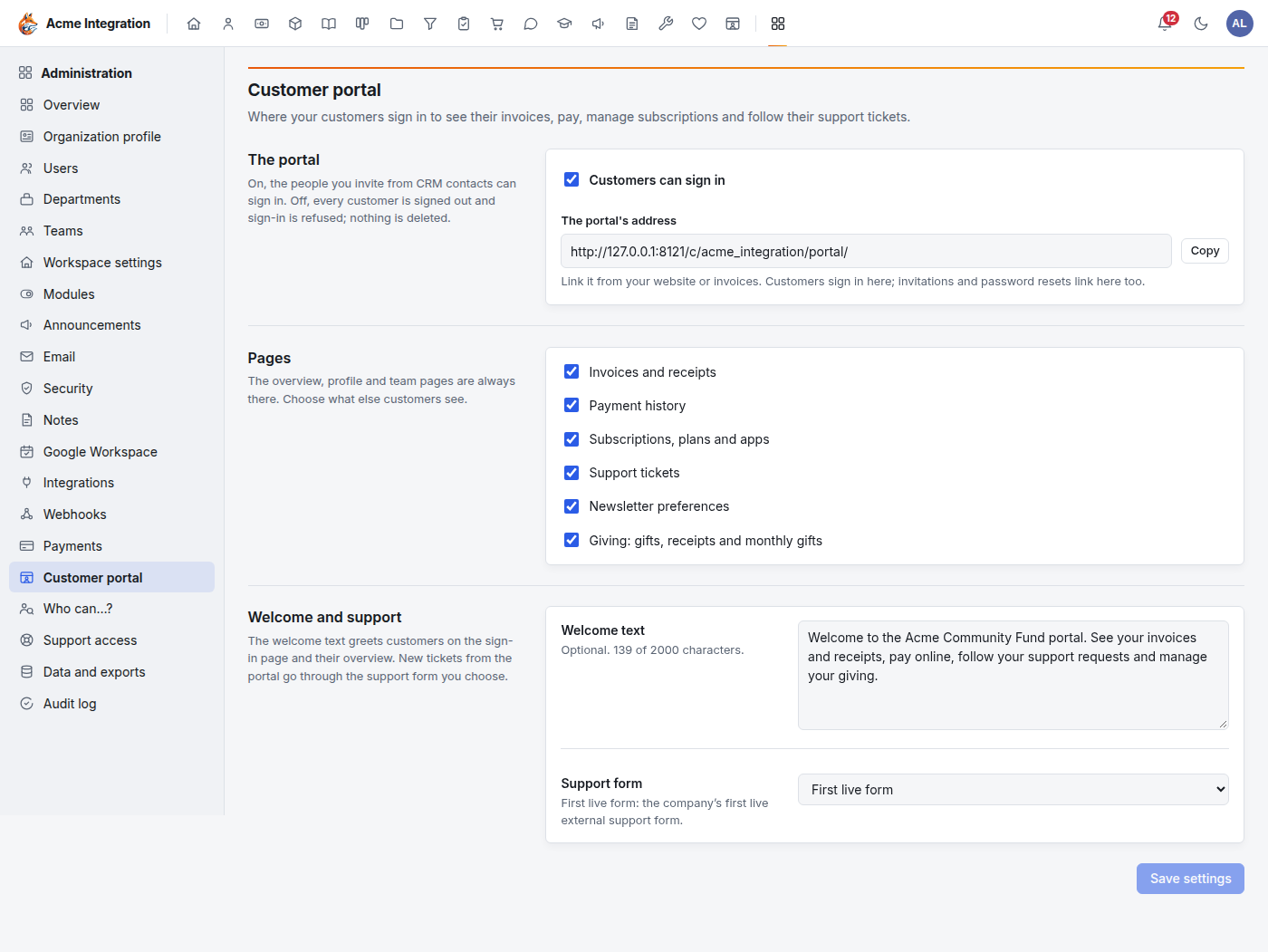
- Open Administration → Customer portal.
- Under The portal, tick Customers can sign in.
- Under Pages, tick what customers should see. The overview, their
account and their team are always there.
- Invoices and receipts
- Payment history
- Subscriptions, plans and apps
- Support tickets
- Newsletter preferences
- Giving: gifts, receipts and monthly gifts
- Under Welcome and support, write the Welcome text customers see on the sign-in page and their overview, and pick the Support form new requests go through. Leave it on First live form to use the first published external support form.
- Click Save settings.
- Copy The portal's address with Copy, and link it from your website, your invoices and your emails.
Turning the portal off signs every customer out and refuses sign-in. Nothing is deleted; turning it back on brings every account back.
Invite a customer
People are invited from their CRM contact.
- Open CRM & Sales → Contacts and the person's contact.
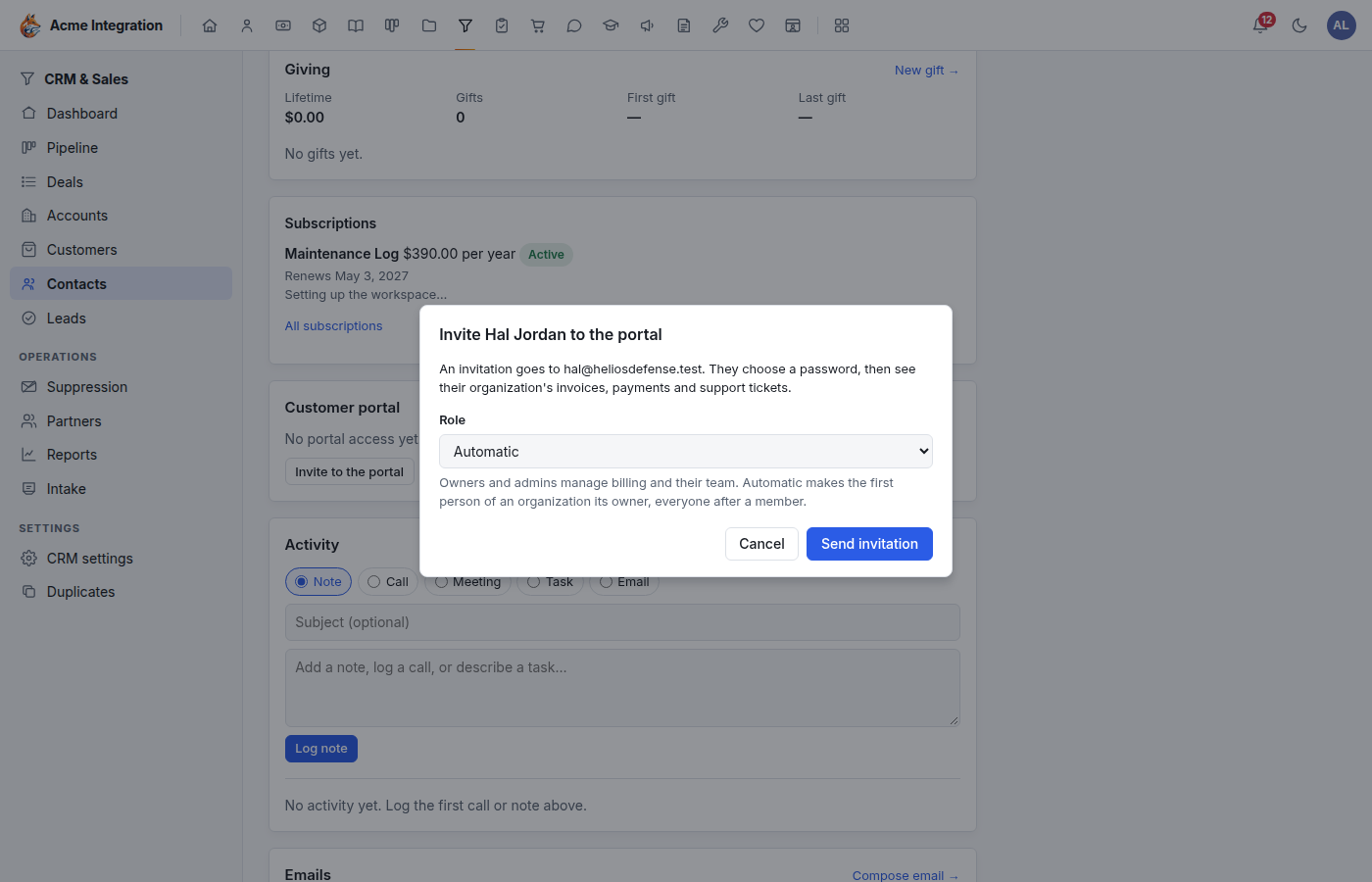
- Find the Customer portal card. It says "No portal access yet".
- Click Invite to the portal.
- Choose the Role:
- Automatic (usual): the first person invited from an organization becomes its Owner, everyone after a Member.
- Owner or Admin: can invite teammates and run billing.
- Member: sees the organization's records.
- Click Send invitation.
The person gets an email with a link. It works once and lasts seven days. They choose their own password and are signed in.
Organizations. People are grouped by their company. A contact who belongs to a CRM account joins that account's portal organization and sees its records; a contact with no account gets an organization of their own. The account's page in the CRM lists everyone from it who has portal access.
If email isn't set up yet, the invitation is created but not sent. The card says so. Once email works, use Re-send invitation from the card's menu.
What customers see
Everything a customer sees belongs to them or their organization. Another organization's invoice, ticket or receipt simply answers "not found", whatever they type in the address bar.
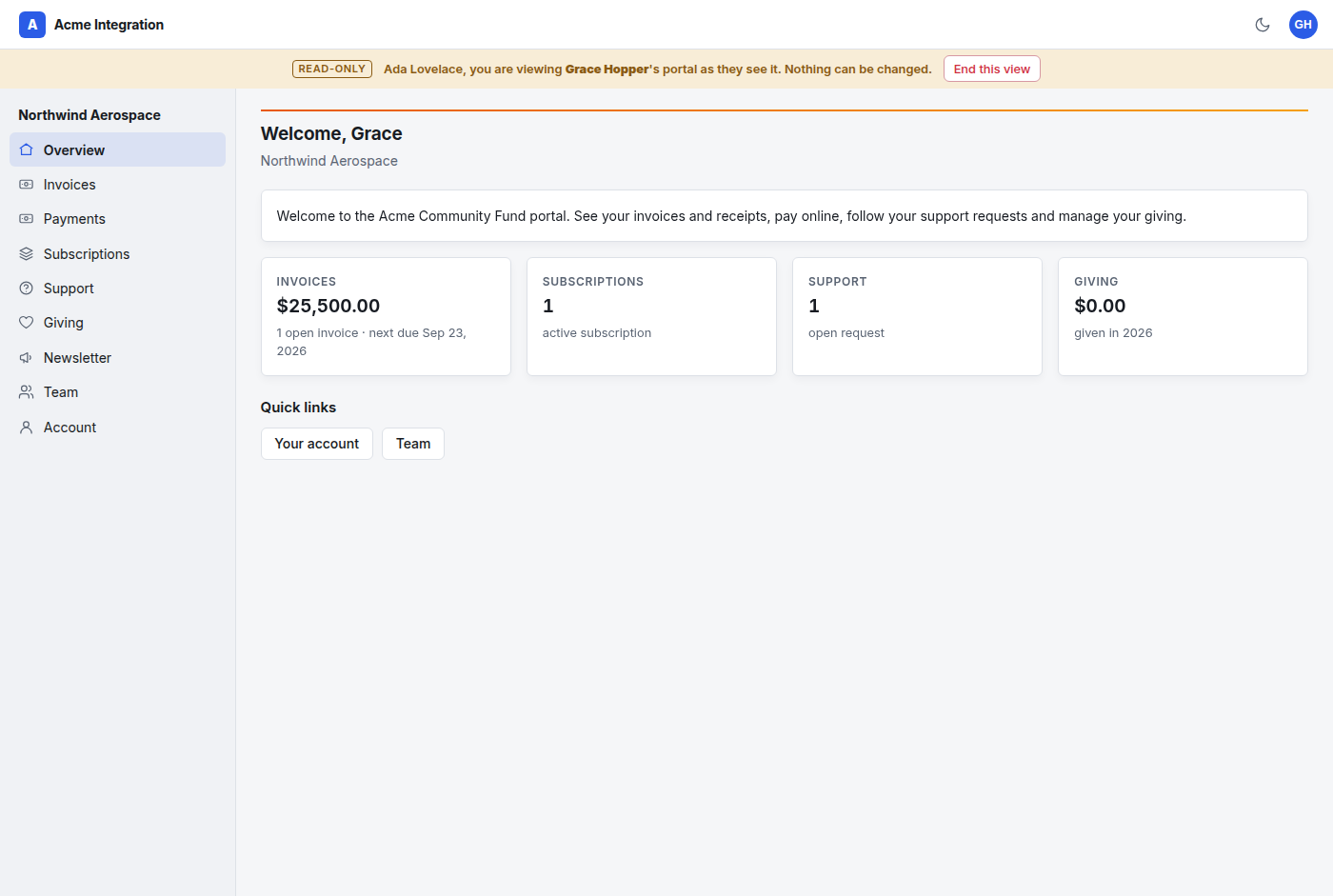
The menu down the left shows only the pages you turned on:
- Overview: your welcome text and a tile for each page: open invoices and what is due next, active subscriptions, open support requests, and giving this year.
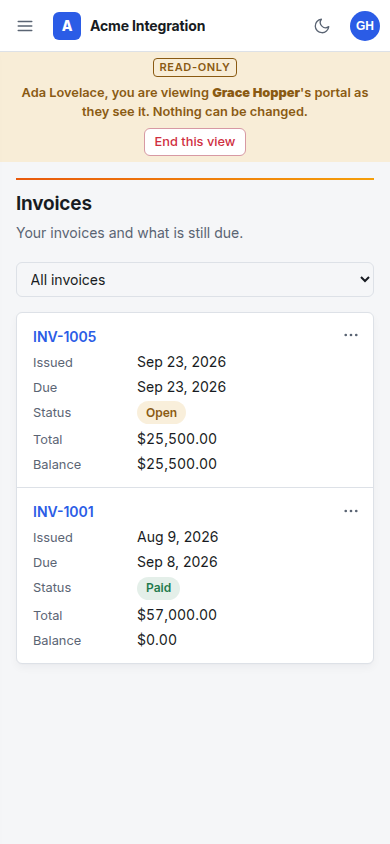
- Invoices: the organization's sent and paid invoices (never drafts or voided ones), each with its PDF. An open balance has Pay, which opens the invoice's payment page: card through Stripe's checkout, or PayPal. Card details never reach Foxx HQ.
- Payments: what was paid, each with a receipt PDF.
- Subscriptions: plans and the apps that come with them, with Launch once an app is ready. Owners and admins can subscribe to a plan from your catalog, change the card on file, and cancel at the end of the paid period (or resume before it ends).
- Support: the requests they opened with their own email address, your public replies, and a reply box. New request opens a new one. Your team answers in the Project Tracker as usual.
- Giving: their own gifts and receipts, and their monthly gifts, which they can stop or change.
- Newsletter: whether their address is subscribed, with a button to subscribe or unsubscribe. No confirmation email is needed: their portal sign-in proves the address.
- Team: who else from their organization has access. Owners and admins invite teammates, change roles and remove people here. An admin cannot make or change an owner, and the last owner cannot step down.
- Account: their name, email, password and two-factor sign-in.
On a phone
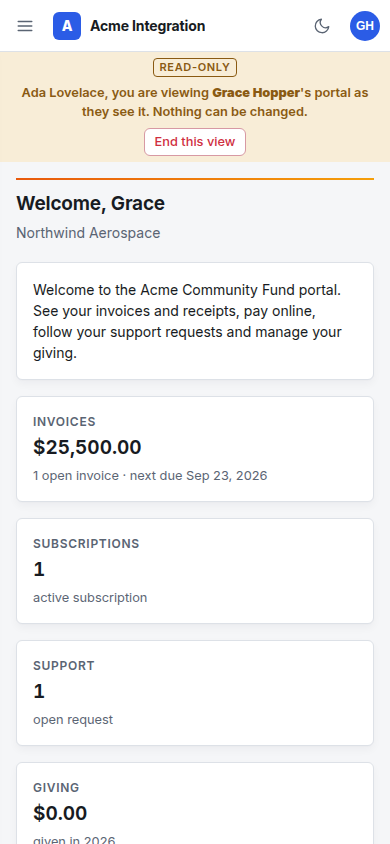
The portal works on a phone. The menu folds behind the button at the top left, tiles stack, and tables turn into cards.
Signing in and security for customers
- Customers sign in at the portal's address with their email and password, under the same password rules as your staff.
- Two-factor sign-in is optional. A customer turns it on under Account with an authenticator app, and gets recovery codes.
- Forgot your password? emails a link that works once, for an hour.
- Changing their email address takes effect once they confirm it from the new address.
- A sign-in ends after 30 minutes without activity, after 8 hours, or when the browser closes.
- Being signed in to the portal never signs anyone in to the workspace, or the other way round, even in the same browser.
See the portal as a customer sees it
When a customer asks "what am I looking at?", look for yourself:
- Open their contact in the CRM.
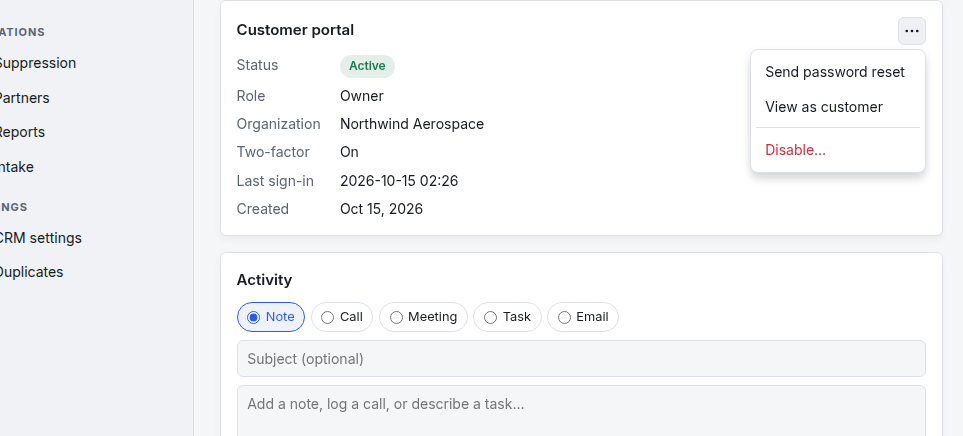
- On the Customer portal card, open the menu (…) and choose View as customer.
- Their portal opens in a new tab, read-only. A banner says whose portal you are viewing and that nothing can be changed.
- Click End this view when you are done. The view ends by itself after 30 minutes at most.
Manage a customer's access
From the Customer portal card on their contact (CRM owners):
- The card shows their Status, Role, Organization, Two-factor, Last sign-in and when the account was Created.
- Re-send invitation (while they haven't accepted): sends a new link; the old one stops working.
- Send password reset: emails them a reset link. Staff never see or set a customer's password.
- Disable…: ends every session at once and refuses their sign-in. Enable lets them back in.
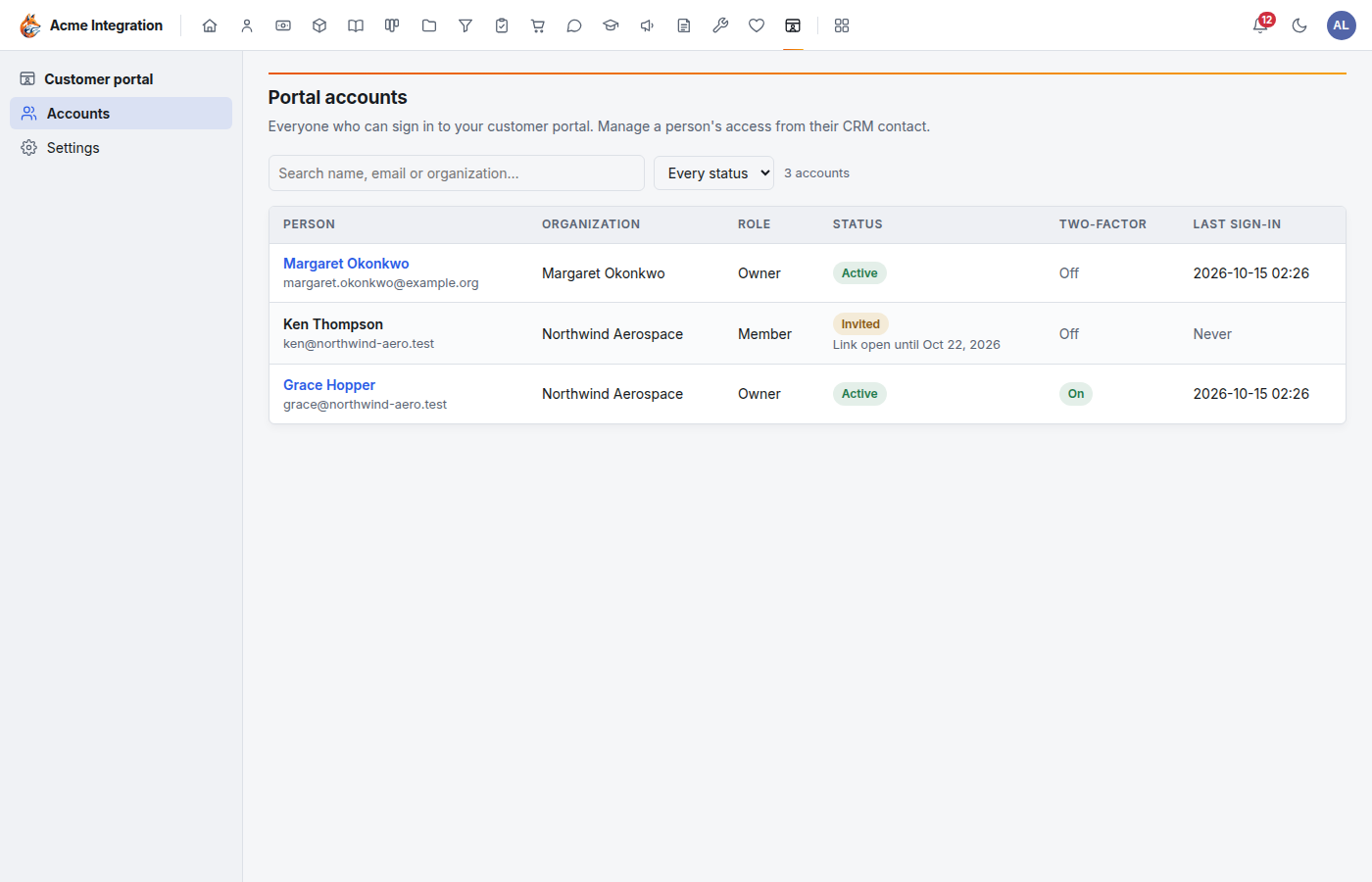
Customer portal → Accounts in the menu lists every portal account with its organization, status and last sign-in.
Every invitation, sign-in, change and staff view is recorded in the audit log, under the name of the person who did it.
Troubleshooting
"The Customer portal card isn't on the contact." The customer portal module is off, or you aren't a CRM owner. A company administrator checks Administration → Modules and Administration → Customer portal.
"Invite to the portal is greyed." The contact has no email address. Add one with Edit.
"The settings page says my plan does not include the customer portal." Ask your platform administrator to add it to your plan.
"The customer says the sign-in page is not found." The portal is off. Tick Customers can sign in and save.
"The customer sees no invoices." Check that Invoices and receipts is ticked, and that their CRM account is linked to the Finance party the invoices are made out to. Drafts and voided invoices never show.
"There's no Pay button." Connect Stripe or PayPal (see Payments setup). Paid invoices have nothing to pay.
"The customer can't open a new support request." There is no live external support form. Publish one in the Project Tracker, then pick it under Support form.
"The invitation email never arrived." Check Administration → Email, then Re-send invitation. Ask the customer to look in their spam folder. If their address is on the suppression list, nothing can be sent to it (see Email deliverability).
"The link in the invitation has expired." Invitation links last seven days. Use Re-send invitation.