 foxxcyber/docs
Procurement
File a purchase request, set approval rules and budgets, approve requisitions, and take a purchase order through sending, receiving and the vendor bill. Includes parts for Maintenance work orders.
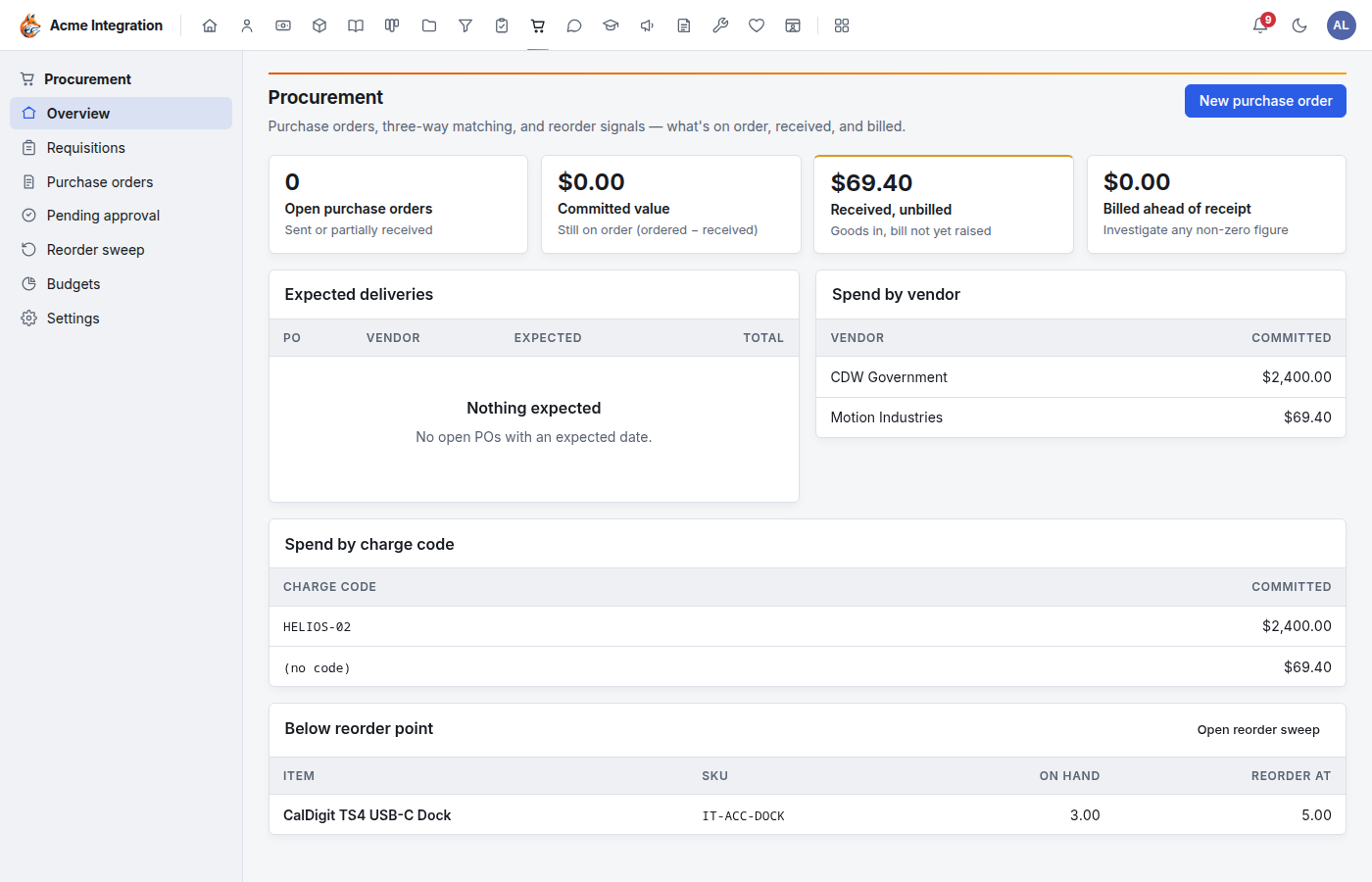
Procurement turns "I need this" into a paid vendor bill, with approvals and budgets along the way:
- Requisition: anyone asks for something.
- Approval: it climbs its approval steps. A rejection at any step ends it.
- Purchase order: the last approval turns it into a draft PO to the vendor.
- Receiving: record what actually arrived, including partial deliveries.
- Vendor bill: create the bill from the PO and pay it in Finance.
Before you start
- Procurement must be on under Administration → Modules (it starts on).
- Filing requisitions: everyone can.
- Running purchasing (purchase orders, receiving, budgets, the reorder sweep) is for procurement owners: the leads of a department with Procurement enabled, holders of the Procurement admin grant, and company administrators. Plain members of that department can't. See Finance overview.
- Settings (approval rules, over-budget rule) and adding or editing Budgets are for company administrators and Procurement admin grant holders. Other procurement owners can view budgets.
- Someone must be able to approve. With no rules, one approval by anyone on the requester's approval chain is enough: their reports-to manager, the leads of their department and the ones above it, or a company administrator.
- Vendors come from the shared Customers & vendors list in Finance. The vendor's Email there is where a PO is emailed.
File a requisition
- Open Procurement → Requisitions and click New requisition.
- Fill in what you know:
- Suggested vendor: where you'd buy it. The last approver confirms the vendor.
- Needed by: optional.
- Reason: why it's needed. Approvers see this.
- Department: one of your departments. Its budget and its leads apply.
- Charge code: the project, contract or grant this spend belongs to. Its budget applies too.
- Click Create draft.
- Under Add a line, enter a Description, Quantity and Est. unit price (your best estimate). Click Add line for each item.
- Check the Budget card: it shows what each budget has left and what remains After this requisition.
- Click Submit for approval. You can't edit it afterward. While it waits, Cancel requisition withdraws it.
The Approvals card shows every step and who it is waiting for.
Approve or reject a requisition
The people a step waits for get a notification.
- Open Procurement → Pending approval. It lists the requisitions whose current step is yours, oldest first.
- Open one and review the lines, the Budget card and the reason.
- To approve, add an optional Note and click Approve step. On the last step, confirm the Vendor and click Approve & create PO: HQ creates a draft purchase order from the lines.
- To reject, enter a Reason (the requester sees it) and click Reject.
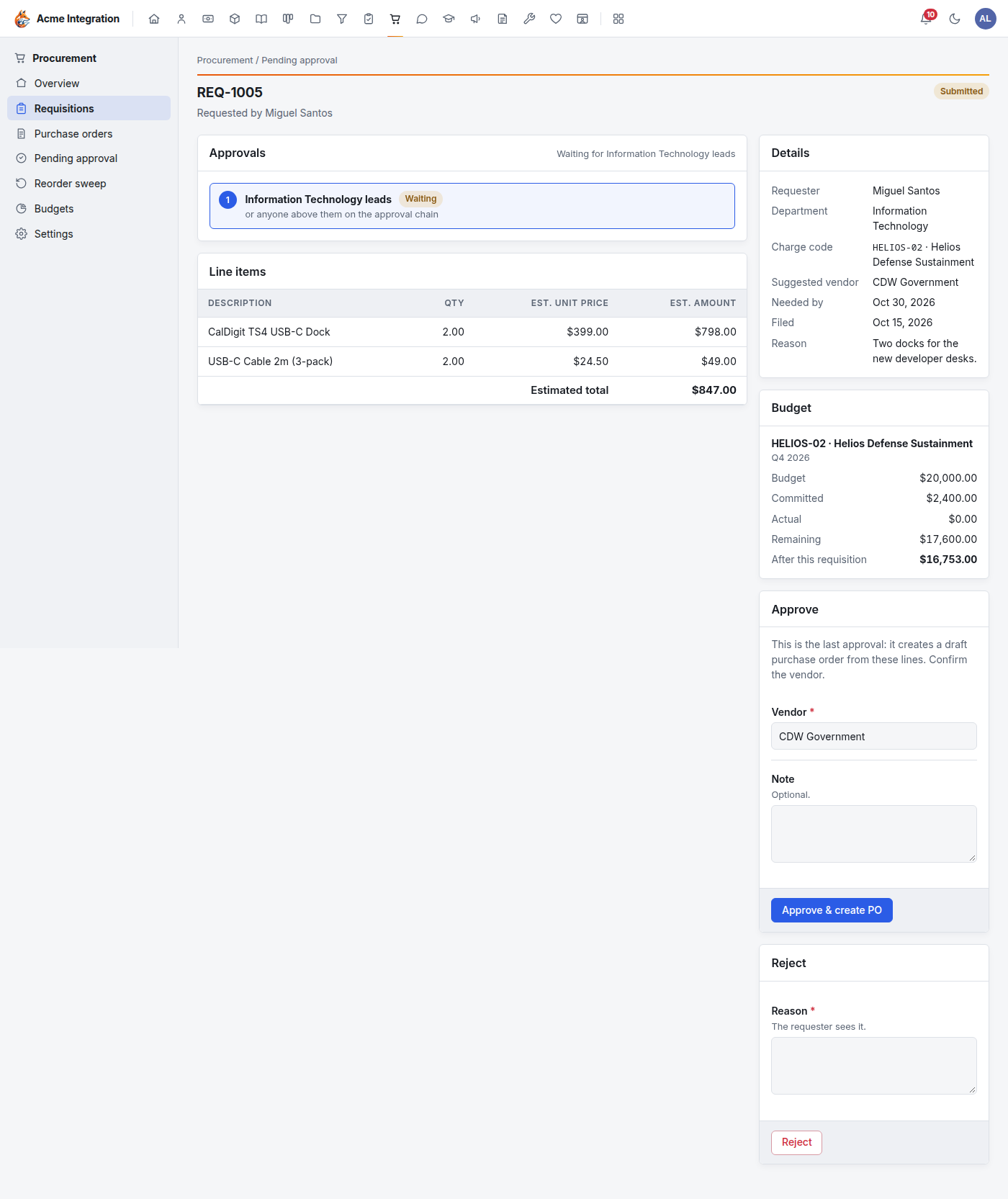
Nobody approves their own requisition, and one person approves at most one step of it.
Add approval rules for larger purchases
- Open Procurement → Settings.
- Under Approval rules, click Add rule.
- Enter Estimated total above (USD) and choose what it Also
needs:
- The next level up the chain;
- A company admin;
- A named person (then choose the Person).
- Click Add rule.
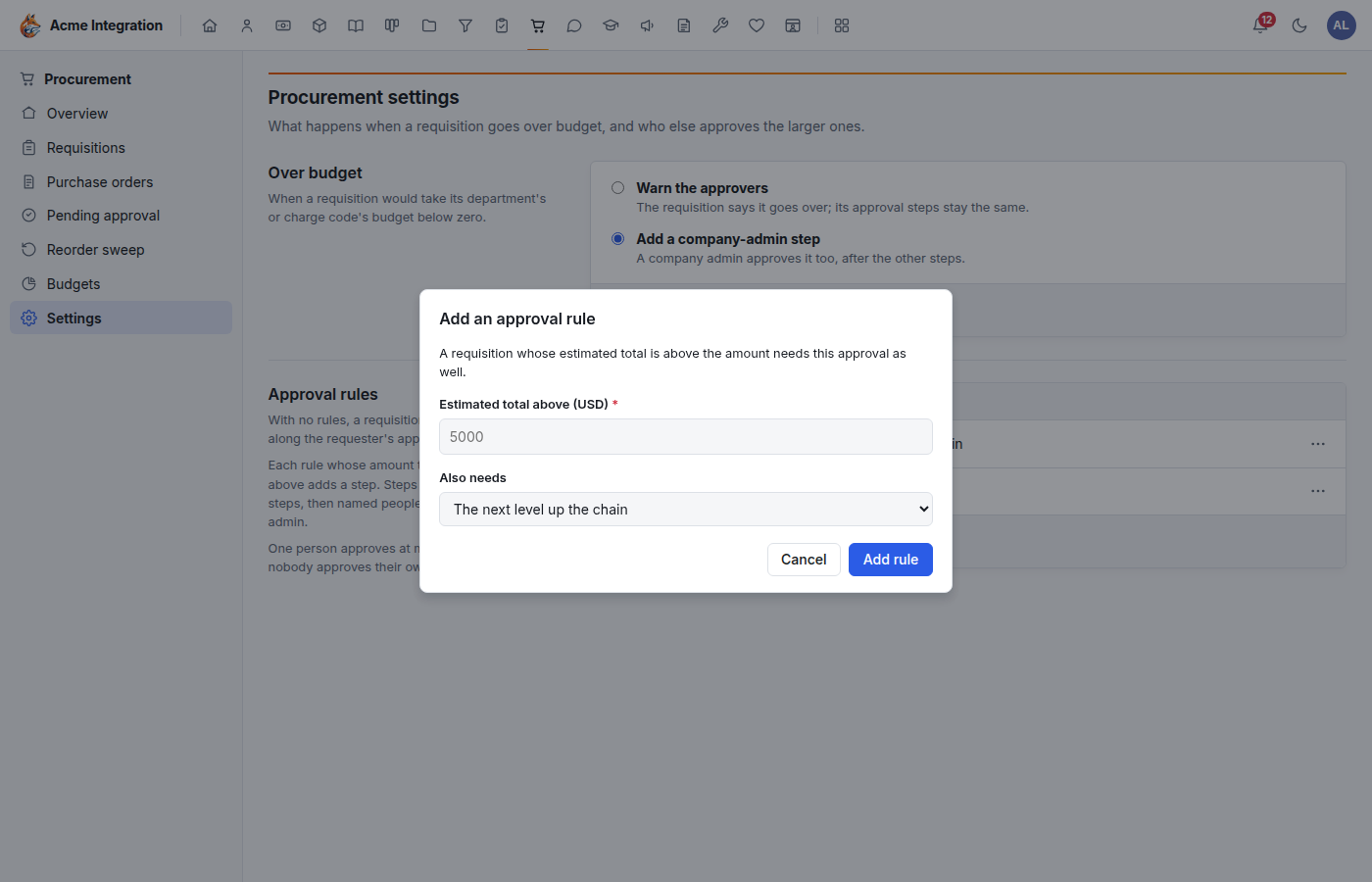
Every rule whose amount the requisition is above adds a step. Steps run in order: chain steps, then named people, then a company admin. The steps are worked out when the requisition is submitted.
When a requisition goes over budget
Under Over budget on the same page, choose:
- Warn the approvers: the requisition says it goes over; its steps stay the same.
- Add a company-admin step: a company admin approves it too, after the other steps.
Click Save.
Set budgets
- Open Procurement → Budgets and click Add budget.
- Choose Budget for: A department or A charge code, then pick which one.
- Choose the Period (A month, A quarter or A year), the date it Starts on (the first day of that month, quarter or year) and the Amount (USD).
- Click Add budget.
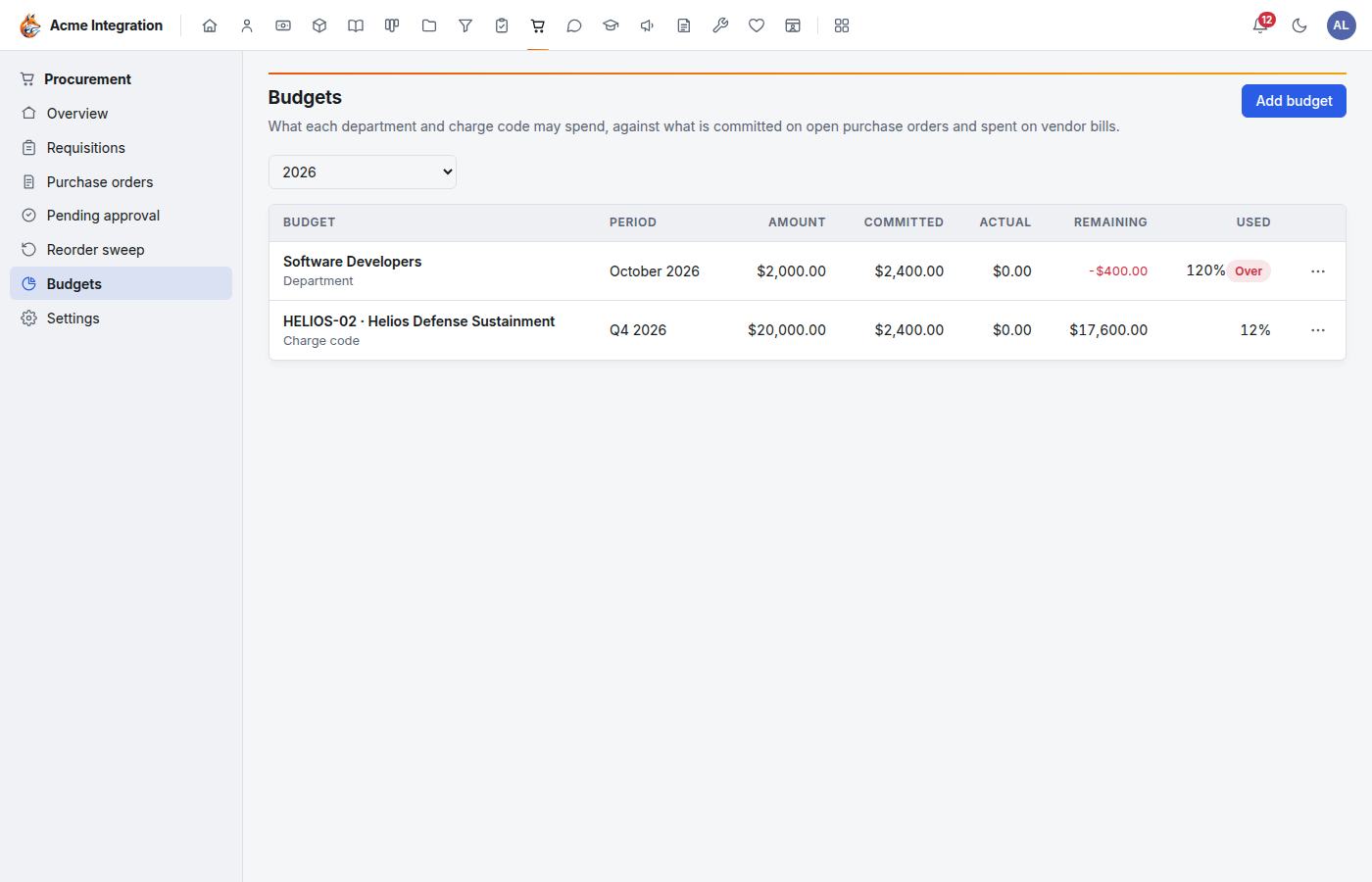
Each budget is reported against:
- Committed: what purchase orders still owe (ordered but not yet billed);
- Actual: vendor bills, except voided ones.
A requisition that would take a budget below zero is flagged when it is filed and at every approval step.
Work a purchase order
A PO is created by the last approval, or by hand with Procurement → Purchase orders → New purchase order (enter a PO number, the Vendor, optional Charge code and Department, Order date, Expected date and Notes).
- Check the lines. Each line can point to a Catalog item and a Location (required for stock items, so received stock lands in the right place).
- Send it. Click Send in the Summary card. To email the PO, use Email purchase order and click Send PO. Print opens a printable copy.
- Receive goods. Under Receive, enter the Receive qty and Unit cost for what arrived, the Received on date and an optional Note (such as the packing slip number). Click Record receipt. Partial deliveries are fine; record each one.
- Bill it. Under Bill matching, check ordered, received and billed amounts. Enter the Bill date and Due date and click Create vendor bill. The bill amount is the value of what was received. It appears under Linked vendor bills and in Finance → Vendor bills, where you pay it.
- Close it. If the rest will never arrive, click Close. Remaining quantities count as short-shipped.
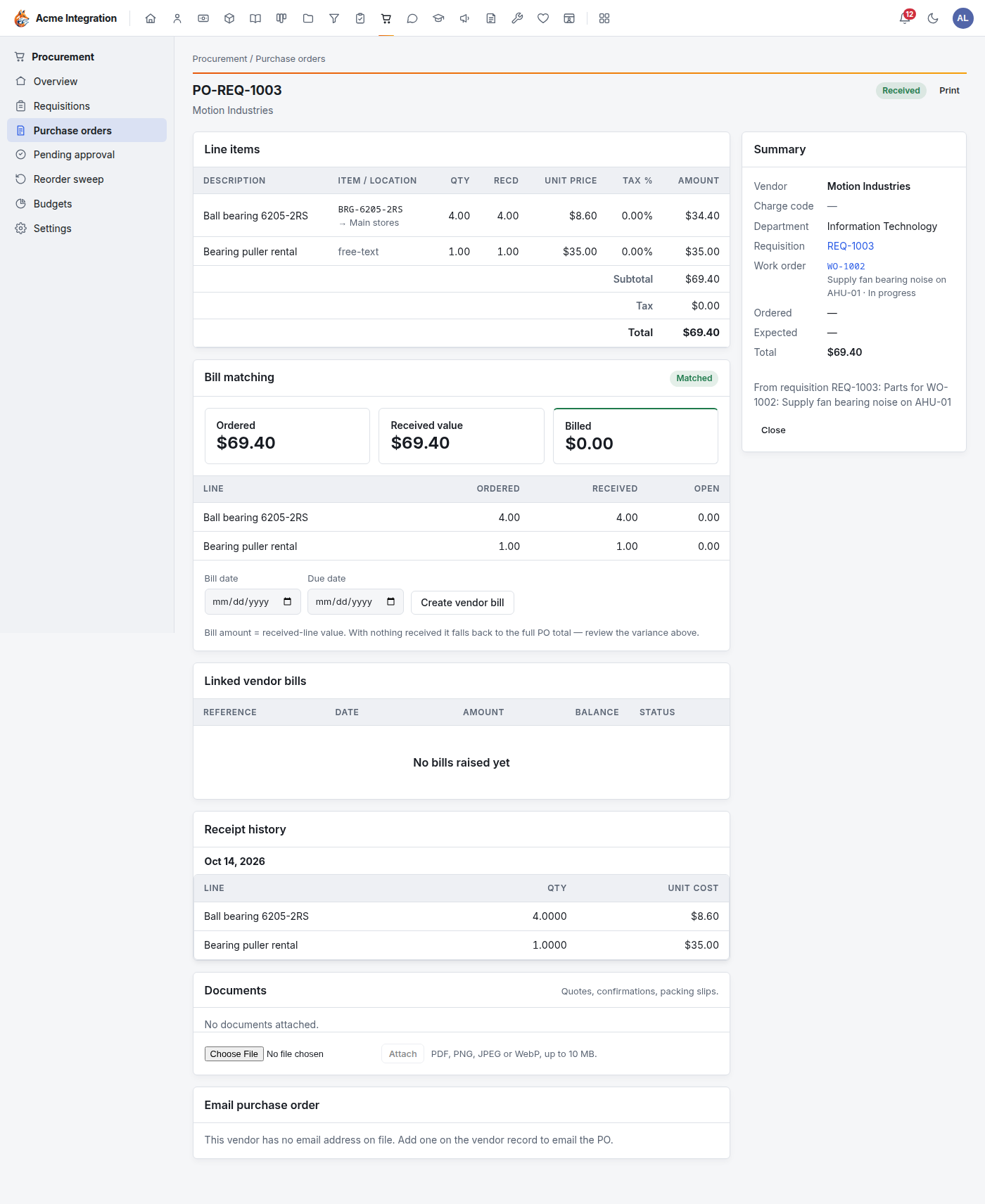
Emailing a PO does not mark it sent. Click Send in the Summary card, or the Receive section never appears.
Cancel PO cancels a draft or sent order.
Parts for Maintenance work orders
In Maintenance, a work order's Request parts and a low part's Reorder… file a requisition delivered to a Maintenance storeroom. It is approved like any other. Its PO shows the Work order it is for, and receiving it puts the parts into the storeroom at the received cost, or straight onto the work order. See Maintenance.
Reorder low stock
Procurement → Reorder sweep lists stock items at or below their reorder point. Click Draft PO on an item to start a purchase order. It is a manual check: nothing is ordered on a schedule.
Troubleshooting
I don't see Purchase orders, Budgets or Reorder sweep. You are not a procurement owner. Being a member of a department with Procurement enabled is not enough; you must be a lead of it, or hold the Procurement admin grant.
There's no Add budget button. Only company administrators and Procurement admin grant holders set budgets.
I don't see Pending approval. It shows only to people who approve something. If a requisition is waiting on you, check its Approvals card for whom it actually waits for.
I can't approve my own requisition. By design. It goes to the person above you.
There's no Receive section on a PO. The PO is still a draft. Click Send.
The Email purchase order card says the vendor has no email. Add an Email to the vendor under Finance → Customers & vendors.
"Choose a location for a stock item line." Pick a Location on the line so received stock has somewhere to go.
The Department field is missing on a requisition. You don't belong to any department. The requisition is filed without a department, and no department budget applies.