 foxxcyber/docs
Set up giving, start to finish
Every step from a new workspace to a published donation page, in order, with how to tell each one worked.
Giving records gifts, keeps funds and campaigns, issues donor receipts and runs your online donation page. Several switches have to be on before any of it shows, and some of them live in different parts of Administration. This page puts them in order. Do the steps top to bottom: each one depends on the ones above it.
Before you start
- You are a company administrator. Only company administrators can change the organization type, the modules and the payment connections.
- You have a Stripe account, a PayPal business account, or both. You only need one.
- Optional but recommended: your organization's email is set up under Administration → Email, so receipts can be emailed. See Administration.
To reach Administration, click the grid icon at the right end of the top bar. Giving's own screens are behind the heart icon in the top bar.
1. Make the organization a nonprofit
Giving is offered only to nonprofits. A business never sees it: not in Modules, not in the grants, not in the menus.
- Open Administration → Workspace settings.
- Under Organization type, choose A nonprofit.
- Click Save type.
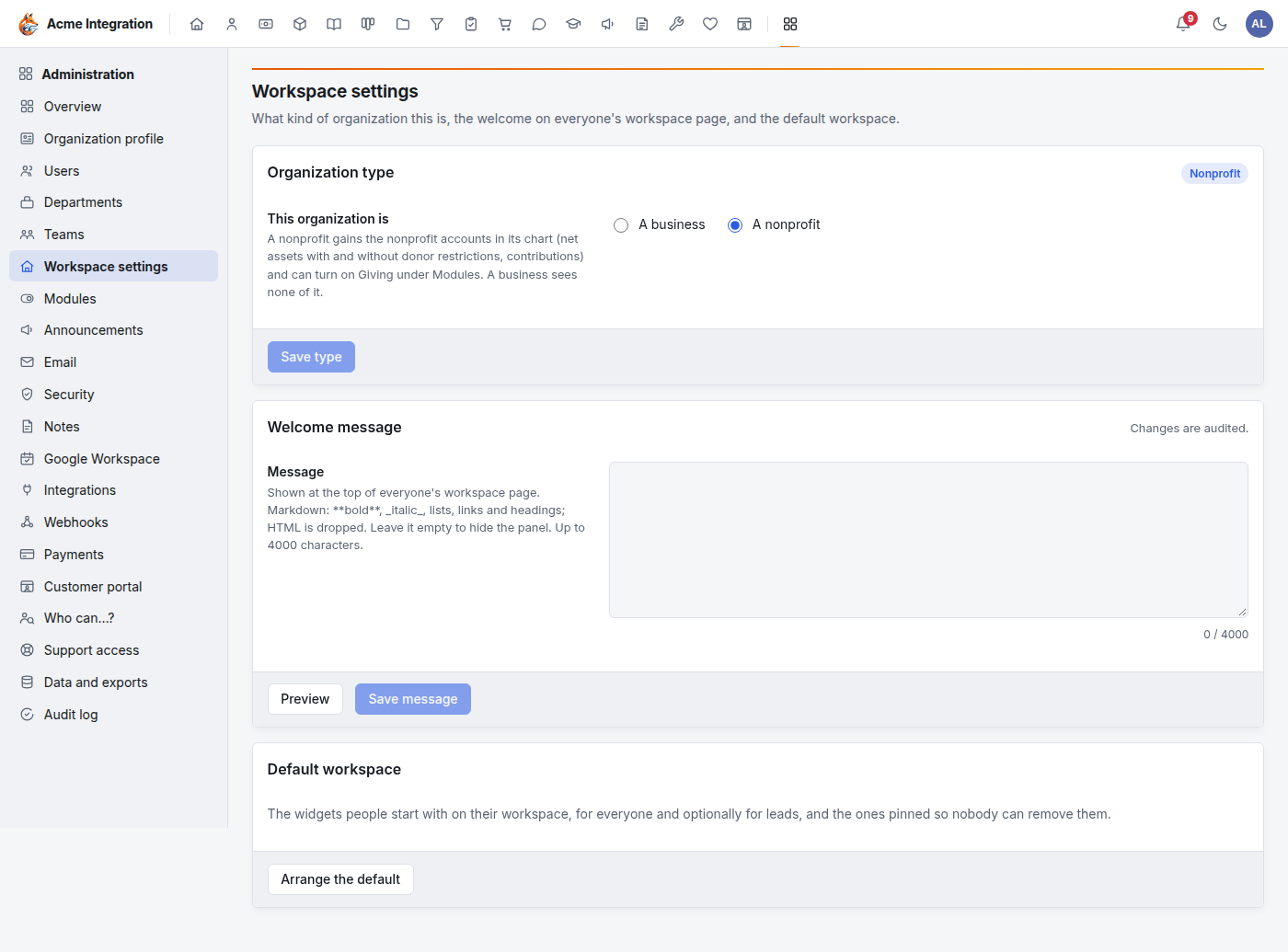
How to tell it worked: the card shows a Nonprofit badge. Saving also adds the nonprofit accounts to your chart of accounts (net assets with and without donor restrictions, contributions, and a few more); see Funds and the ledger.
2. Turn on Giving and Finance
Giving starts off, even for a nonprofit. The donation page also needs Finance, because the Stripe and PayPal connections and the books live there.
- Open Administration → Modules.
- Find Finance and make sure its switch shows On.
- Find Giving ("Donations, funds, campaigns, and IRS-ready donor receipts.") and switch it On.
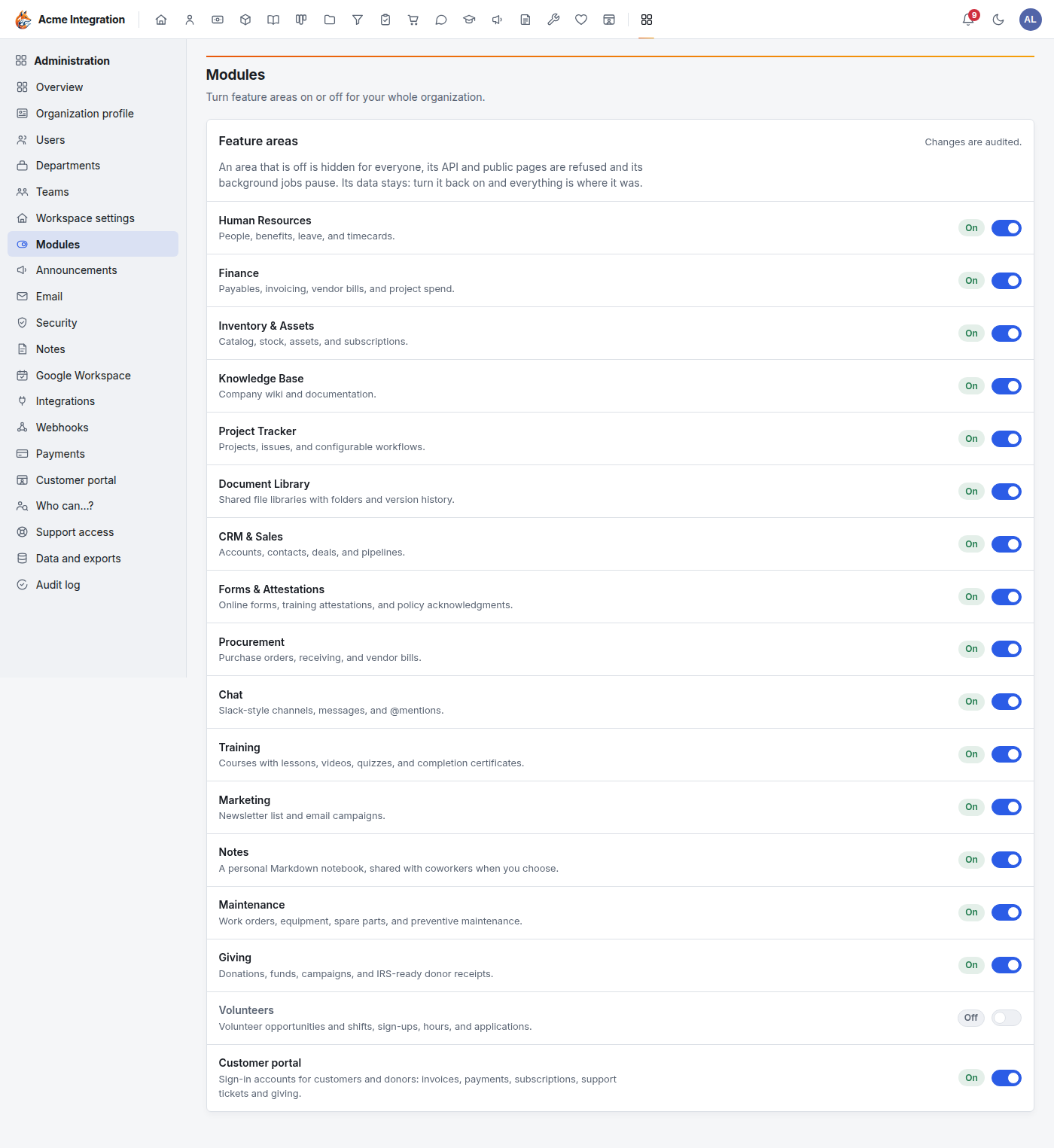
How to tell it worked: both rows show an On badge, and the heart icon for Giving appears in the top bar. If Giving is not in the list at all, go back to step 1. If the page says "Areas your plan doesn't include aren't listed", your plan may leave Giving or Finance out: ask your platform administrator. See also Modules.
3. Decide who runs Giving
Donor data is sensitive, so Giving goes by grants only. Leading or belonging to a department never gives anyone access to Giving.
| Who | What they can do |
|---|---|
| Company administrators | Everything in Giving, always. They need no grant. |
| Giving admin grant | Everything: gifts, receipts, year-end statements, imports, funds, campaigns, the donation page, monthly gifts, reports and settings. |
| Giving entry grant | Enter gifts and deposit batches, and see only the ones they entered. No receipts, reports, donor history or settings. |
To give someone a grant:
- Open Administration → Users and click the person.
- In the Access card, find Giving admin (or Giving entry) and click Grant.
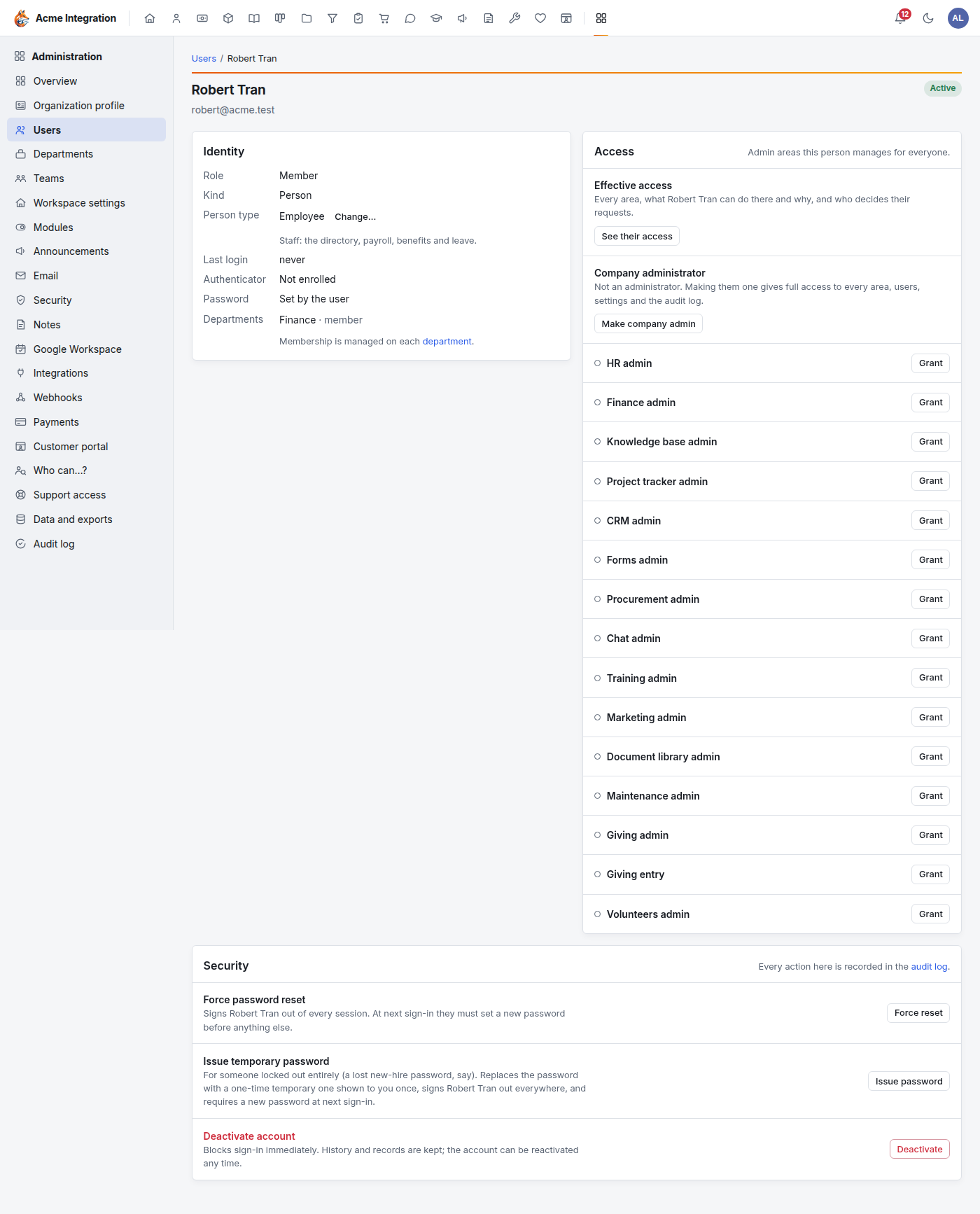
How to tell it worked: the dot beside the grant fills in and the button changes to Revoke. The person sees Giving after their next page load. A Giving admin sees an Administration group in Giving's sidebar (Receipts, Funds, Campaigns, Donation page and the rest); an entry-only person sees just Overview, New gift, Gifts and Deposit batches.
Volunteers get entry only
A person whose Person type (on their user page) is volunteer is capped at the entry level everywhere except Volunteers, even if they hold the Giving admin grant. Their user page still shows the grant. Use a staff account for anyone who runs Giving.
4. Connect Stripe or PayPal, with the webhook
The donation page takes gifts through your own Stripe account, your own PayPal account, or both. Card details never reach Foxx HQ.
- Open Administration → Payments. (This menu item only shows while Finance is on.)
- Stripe: choose Test or Live, paste the Secret key (from Stripe's dashboard under Developers → API keys), click Save, then Test connection.
- Still on the Payments page, in the Webhook card, click Copy
beside Endpoint URL and Copy the list beside Events to
send. In Stripe's dashboard, go to Developers → Webhooks → Add
endpoint, paste the URL, pick those events and save. Then reveal the
endpoint's signing secret (it starts with
whsec_), paste it into Webhook signing secret in Foxx HQ and click Save. - PayPal (optional): choose Sandbox or Live, paste your REST app's Client ID and Secret, click Save, then Test connection. In PayPal's developer dashboard, add a webhook to the app with the Webhook URL and the events from the PayPal webhook card, then paste the webhook's ID into Webhook ID and click Save.
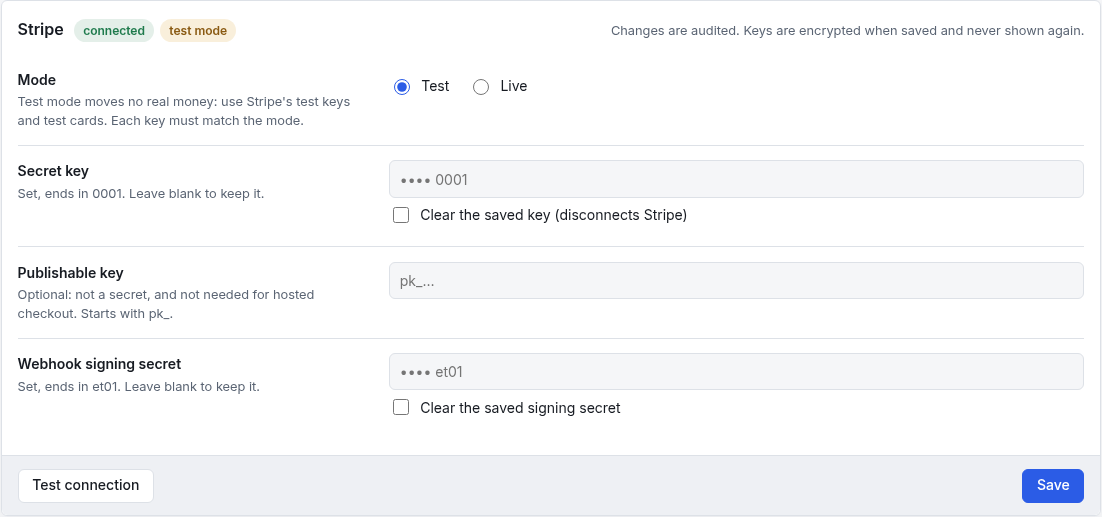
How to tell it worked: the Stripe (or PayPal) heading shows a connected badge, Test connection names your account, and the Webhook signing secret (or Webhook ID) hint says it is set. The full walkthrough, including moving from test to live, is in Payments setup.
Don't skip the webhook
The webhook is how Stripe and PayPal tell Foxx HQ that someone gave. The donation page goes live as soon as a key is saved, with or without the webhook. Without it, donors can be charged while no gift, no CRM contact and no receipt appears in Foxx HQ.
5. Create your funds
A fund is where the money goes. The donation page needs at least one active fund to offer.
- Open Giving → Funds and click New fund.
- Enter a short Code (for example
GEN) and a Name (for example General fund). - Pick the Class: without donor restrictions for money you can use for anything, with donor restrictions when the donor limited it to a purpose, and say what for in Restriction purpose.
- Save.
How to tell it worked: the fund is listed on Funds and shows up in the Funds donors may choose list on the donation page. Details: Funds and the ledger.
6. Set up the donation page
- Open Giving → Donation page.
- Fill in Headline, Story, an optional Image, the Suggested amounts, the Smallest gift and Largest gift, One-time gifts and/or Monthly gifts, and tick at least one fund under Funds donors may choose.
- Watch the Preview on the right as you type.
- Click Save draft.
How to tell it worked: a message says "Draft saved. Publish to put it on the page." Every setting is explained in The donation page.
7. Publish
Click Publish at the top of the Donation page screen.

How to tell it worked: the status card at the top shows a green Live badge, the page's address, and Copy link and Open buttons. If it shows Not live, it lists what is missing with a ✗ beside each item: fix those and the page goes live by itself.
8. Test it
- Stay in Stripe Test mode (or PayPal Sandbox) for now. The page shows "Test mode: no real money moves" at the top.
- Click Open on the status card, choose an amount and click
Give. On Stripe's page, pay with the test card
4242 4242 4242 4242(any future date, any security code). - Back in Foxx HQ, open Giving → Gifts: the gift is there, posted, method Card, in the fund you chose. Its page carries a Given online (Stripe) badge. If automatic receipts are on and email is set up, the donor's receipt is emailed at once and shows under Giving → Receipts.
If the page took the payment but no gift appears, the webhook is not set up: go back to step 4.
When everything works, switch Administration → Payments to Live with your live keys and the live webhook (Stripe and PayPal keep test and live webhooks separate), and share the address.
Troubleshooting: why can't I see Giving, and why does my page say "not found"?
The public address (your organization's address ending in /give)
shows "This page isn't available" unless every condition below is
true. The same check runs each time a donor clicks Give.
| What you see | Why | Fix |
|---|---|---|
| No heart icon / no Giving in the menus | The organization type is Business | Administration → Workspace settings → A nonprofit → Save type |
| No heart icon, organization is a nonprofit | Giving is off (it starts off) | Administration → Modules → Giving On |
| Giving missing from the Modules list | Business organization, or your plan leaves it out | Make the organization a nonprofit; if it still isn't listed, ask your platform administrator |
| Giving admin / Giving entry missing from a user's grants | Business organization | Make the organization a nonprofit |
| A colleague can't see Giving | They hold no Giving grant (departments never give Giving) | Administration → Users → the person → Grant on Giving admin or Giving entry |
| A colleague sees Gifts but no Receipts, Funds, Donation page | They have Giving entry, or they are a volunteer | Grant Giving admin; volunteers stay at entry level |
| Payments missing from Administration | Finance is off | Administration → Modules → Finance On |
| Donation page status: ✗ Finance is on | Finance is off | Administration → Modules → Finance On |
| Donation page status: ✗ Stripe or PayPal is connected | No Stripe secret key and no PayPal client ID and secret saved | Administration → Payments |
| Donation page status: ✗ Published | The page was never published, or was unpublished | Publish on the Donation page screen |
| Status says Live, but the address says not found | None of the funds the page offers is active any more | Giving → Funds: reactivate the fund, or tick another fund on the Donation page and Publish again |
| Campaign page address says not found | The campaign page isn't published, the main donation page isn't published, or the campaign is archived | Publish both pages; restore the campaign on Campaigns |
| Campaign page says the campaign has ended | Its end date has passed | Change the end date on Campaigns |
| Donors paid but no gift appears | The webhook isn't set up, or its signing secret / webhook ID is missing or wrong | Step 4 above |
| Publish says "Save the page before publishing it." | The page was never saved | Click Save draft, then Publish |
| Gifts arrive but no receipt email | Automatic receipts are off, or email isn't set up | Email receipts automatically on the Donation page; Administration → Email |