 foxxcyber/docs
The administration console
Where a company administrator runs the organization: the Overview page, its health signals, and a map of every administration screen.
Administration is where a company administrator runs the organization: people and access, modules, email, payments, integrations, data and the audit log. Its Overview page shows the state of the organization at a glance and links to every administration screen.
Before you start
- You must be a company administrator. Only company administrators see Administration. (Someone with the HR admin grant sees one item there: Teams.) To make someone a company administrator, see Users, departments and teams.
Opening Administration
- Sign in to your organization's workspace.
- In the top bar, click the grid icon at the right end of the row of area icons. Its name, Administration, shows when you hover it.
- The Overview page opens. The sidebar on the left lists every administration screen.
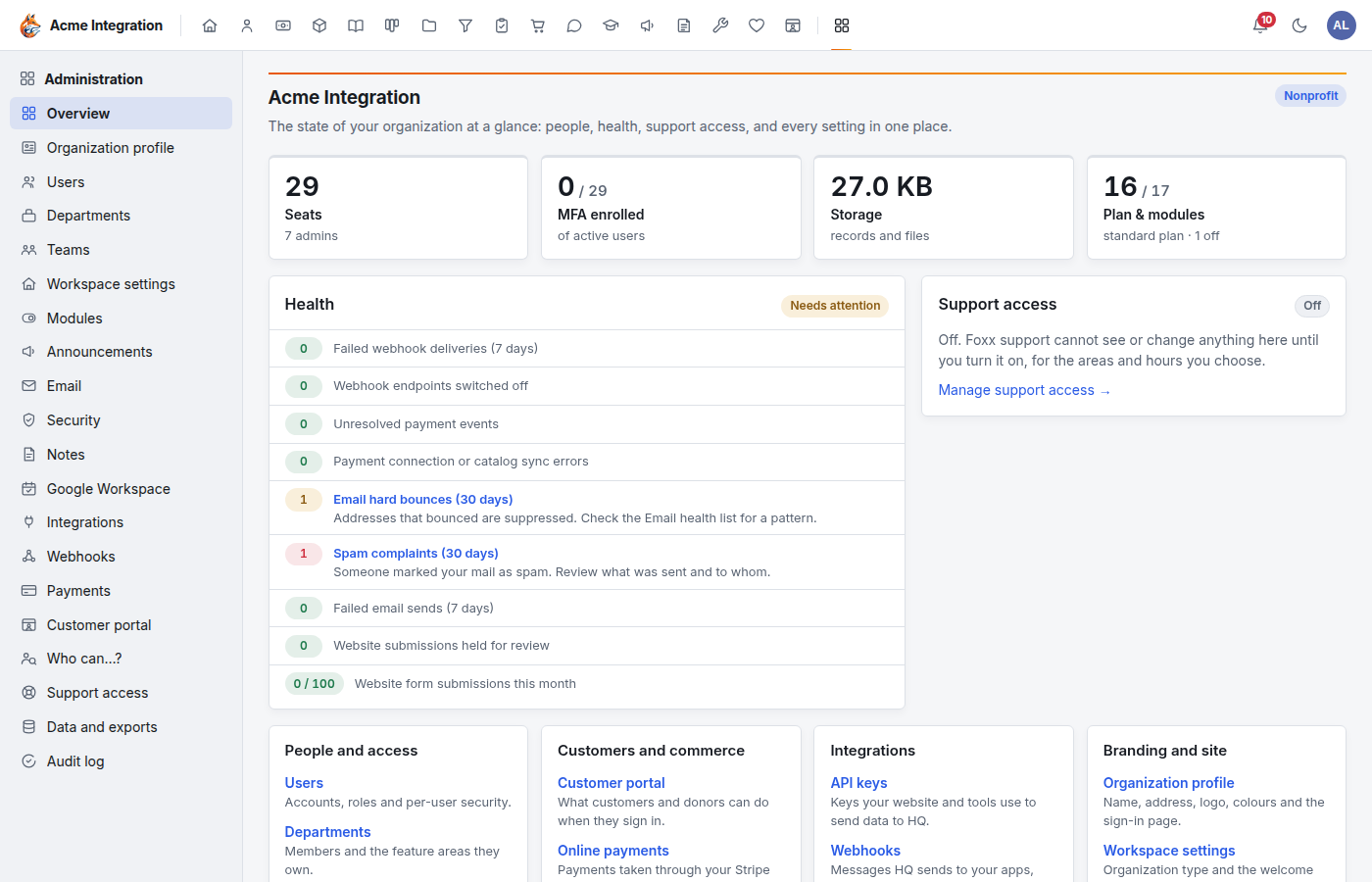
What the Overview shows
The four tiles across the top. Each one opens the screen behind it.
- Seats: the active people in the organization, with how many are administrators, volunteers and contractors. AI agents and Foxx support never count as seats.
- MFA enrolled: how many active people have set up an authenticator app. Opens Security.
- Storage: the space your records and files take up. Opens Data and exports.
- Plan & modules: your plan, and how many feature areas are on. Opens Modules.
Health. Nine signals. Each one that needs you is highlighted, says what to do, and links to the screen where you do it. The badge at the top reads All clear or Needs attention.
| Signal | Where you fix it |
|---|---|
| Failed webhook deliveries (7 days) | Webhooks: fix the receiving app, then Replay |
| Webhook endpoints switched off | Webhooks: fix the app, then switch the endpoint back on |
| Unresolved payment events | Payments setup: Review events |
| Payment connection or catalog sync errors | Payments setup |
| Email hard bounces (30 days) | Email: Email health |
| Spam complaints (30 days) | Email: Email health |
| Failed email sends (7 days) | Email: Recent sends |
| Website submissions held for review | CRM → Web forms → Quarantine (see Forms) |
| Website form submissions this month | Shows this month's count against the monthly limit your platform sets |
Support access. Whether Foxx support can work in your organization right now. Off means Foxx support cannot see or change anything there. See Foxx support access.
Recent activity. The latest lines of the audit log. Full audit log → opens the Audit log.
The map of administration screens
Under the health card, the Overview groups every administration screen by the job it does. Each link has one line saying what is behind it.
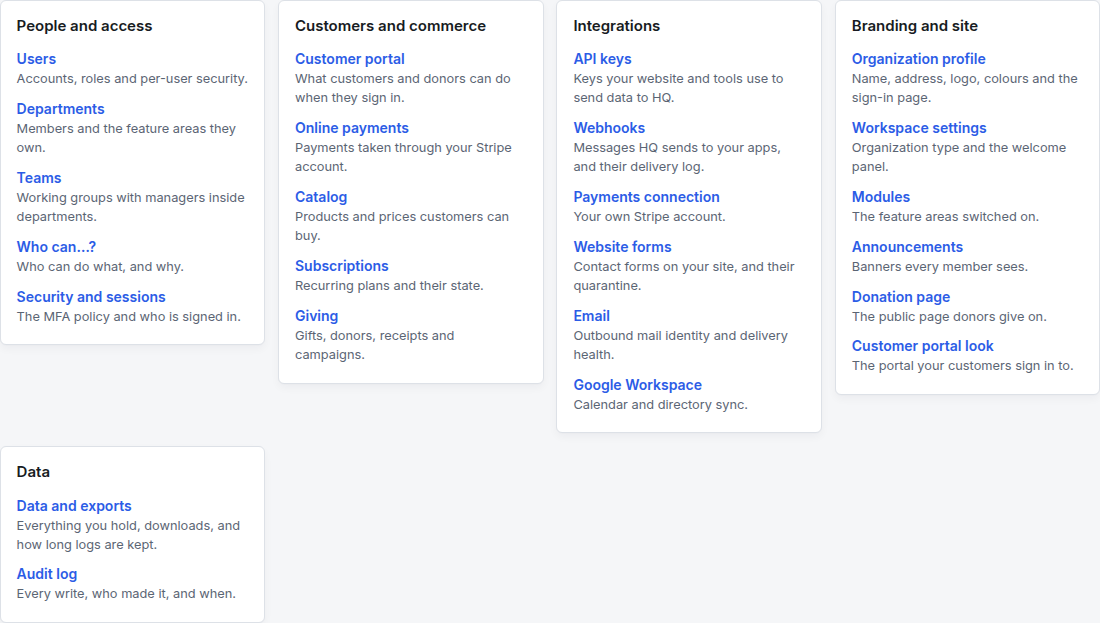
- People and access: Users, Departments, Teams, Organization (only when you have subsidiaries), Who can…?, Security and sessions.
- Customers and commerce: Customer portal, and once Stripe is connected: Online payments, Catalog and Subscriptions. Giving shows when Giving is on.
- Integrations: API keys, Webhooks, Payments connection (only while Finance is on), Website forms (only while CRM is on), Email, Google Workspace.
- Branding and site: Organization profile, Workspace settings, Modules, Announcements, Donation page (when Giving is on), Customer portal look.
- Data: Data and exports, Audit log.
The administration sidebar
The sidebar lists the same screens, in this order: Overview, Organization profile, Users, Departments, Teams, Organization, Workspace settings, Modules, Announcements, Email, Security, Notes, Google Workspace, Integrations, Webhooks, Payments, Customer portal, Who can…?, Support access, Data and exports and Audit log.
Some items only appear when they apply:
- Organization: only when your organization has subsidiaries.
- Notes: only while the Notes module is on.
- Payments: only while the Finance module is on.
- Agents workspace →: only when AI agents are switched on for the platform.
Troubleshooting
I don't see the grid icon, or Administration answers "For company administrators". You are not a company administrator. Ask one of your company administrators to open Administration → Users → your name and click Make company admin.
Payments is missing from the sidebar. The Finance module is off. Turn it on under Modules, then reload the page.
Giving or Donation page is missing from the Overview. Giving is only offered to nonprofits, and it starts switched off. Set the organization type to nonprofit, then turn Giving on. See Organization and branding and Modules.
Online payments, Catalog and Subscriptions are missing. They show once Stripe is connected. See Payments setup.