 foxxcyber/docs
Gifts, deposit batches and imports
Record a gift by hand, enter a stack of checks as a deposit batch, and import gifts from Stripe and PayPal CSV files.
Gifts given on your donation page record themselves. Everything else, checks, cash, stock, donor-advised fund grants, gifts paid outside Foxx HQ, you enter here.
Before you start
- Giving is on. See Set up giving.
- You hold Giving entry (gifts and batches, your own only), Giving admin, or you are a company administrator. Voiding, receipts and imports need Giving admin.
- At least one active fund exists (Giving → Funds).
Record one gift
- Open Giving → New gift (or New gift on the Giving overview).
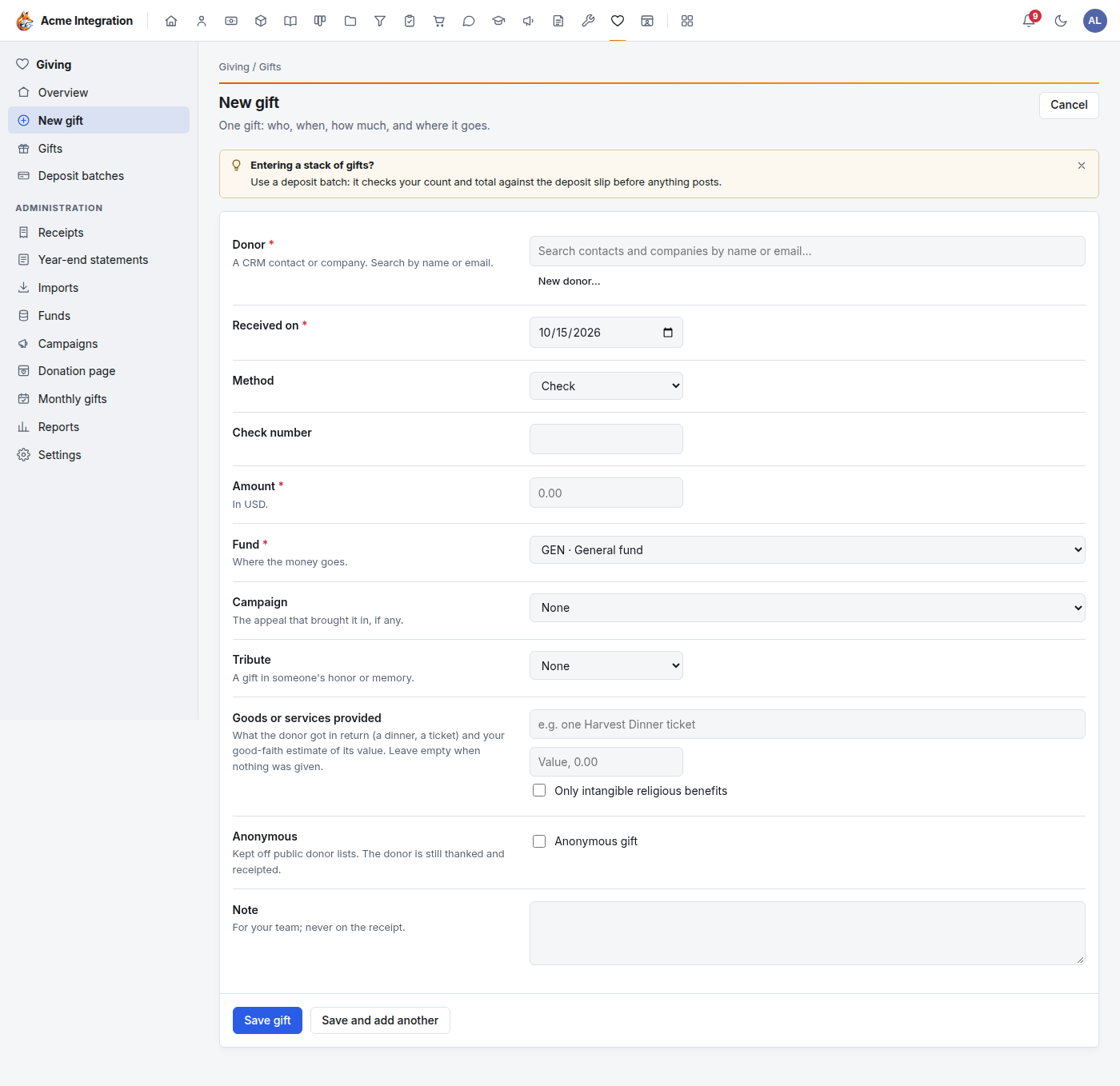
- Donor (required): type a name or email to search CRM contacts and companies. If the donor isn't there, click New donor… to add them. An email already in the CRM is that contact, not a second one.
- Received on (required): the date you received the gift.
- Method: Cash, Check (with its Check number), Bank transfer, Card (recorded by hand), Online payment service, Donor-advised fund (with the Fund sponsor, for example Fidelity Charitable), Stock or securities or In-kind (both with a Description).
- Amount (required, in USD). For stock and in-kind gifts the amount is optional: it is your own fair value for your books and is never printed on the receipt.
- Fund (required) and Campaign (optional).
- Tribute: In honor of or In memory of, with the name and optionally a Contact to tell.
- Goods or services provided: what the donor got in return (a dinner, a ticket) and your good-faith estimate of its value. Leave it empty when nothing was given. Tick Only intangible religious benefits when that is all the donor received. These drive the statements on the receipt.
- Anonymous gift: keeps the donor off public lists; they are still thanked and receipted.
- Note: for your team, never on the receipt.
- Click Save gift, or Save and add another to keep going.
The gift posts to the books right away. See Funds and the ledger.
Correct or void a gift
Open the gift from Giving → Gifts.
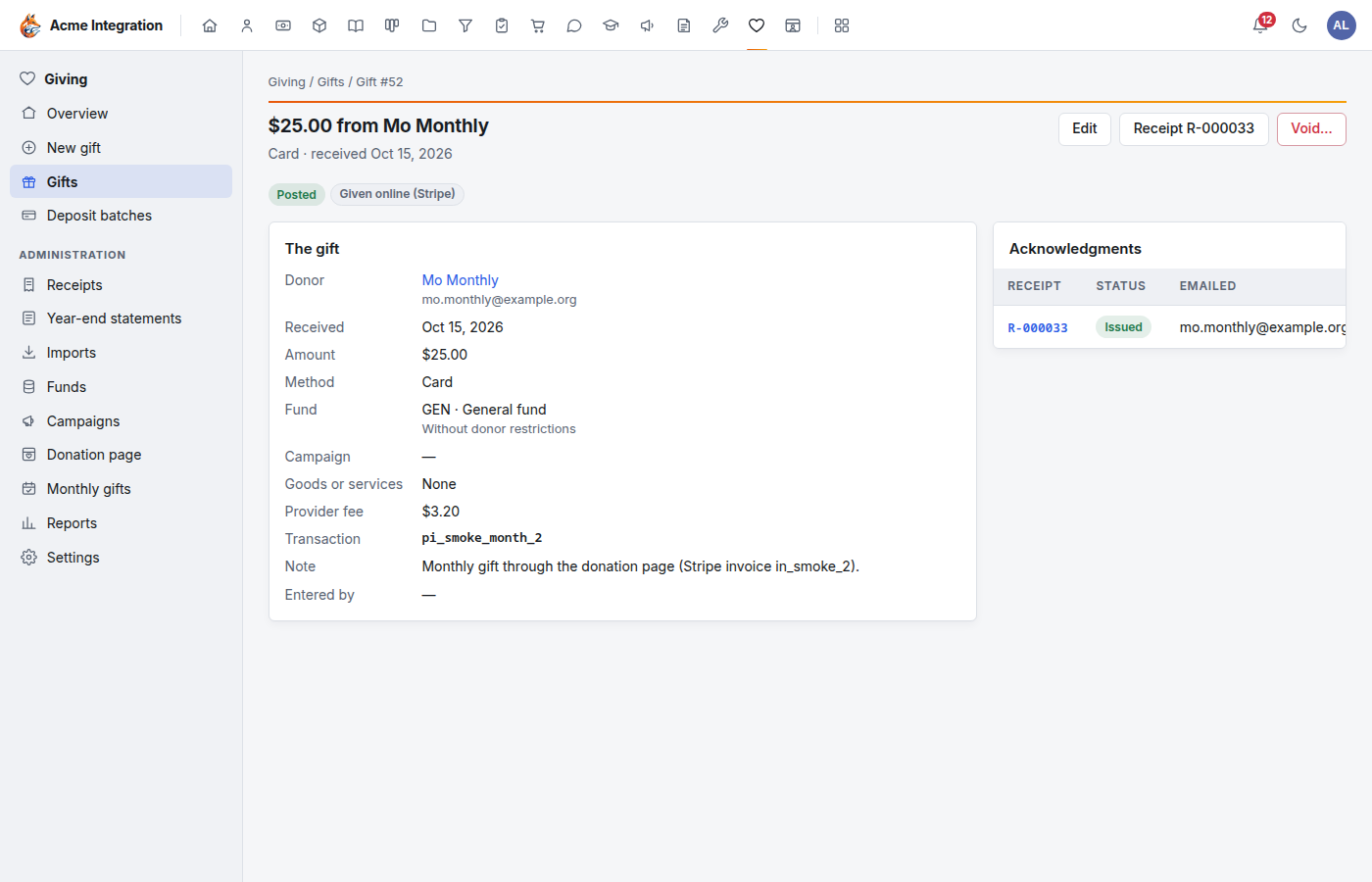
- Edit (shown while the gift can still be changed) corrects it; the books follow. Someone with Giving entry can correct their own gift only until it is receipted. Two things can't be edited: an imported gift keeps the provider's amount and fee, and a gift already deposited keeps its amount. Void it and enter it again to change those.
- Void… asks for a reason, reverses the gift's posting and voids its receipt. The gift stays on record.
- Receipt… issues the acknowledgment. Once a gift has one, the button shows the receipt number instead and opens it. See Receipts and statements.
Enter a deposit with a batch
A batch is one bank deposit, for example Sunday's checks. You type the count and total from the deposit slip first; the batch only posts when the gifts you type add up to both, so a missed or mistyped check shows before it reaches the books.
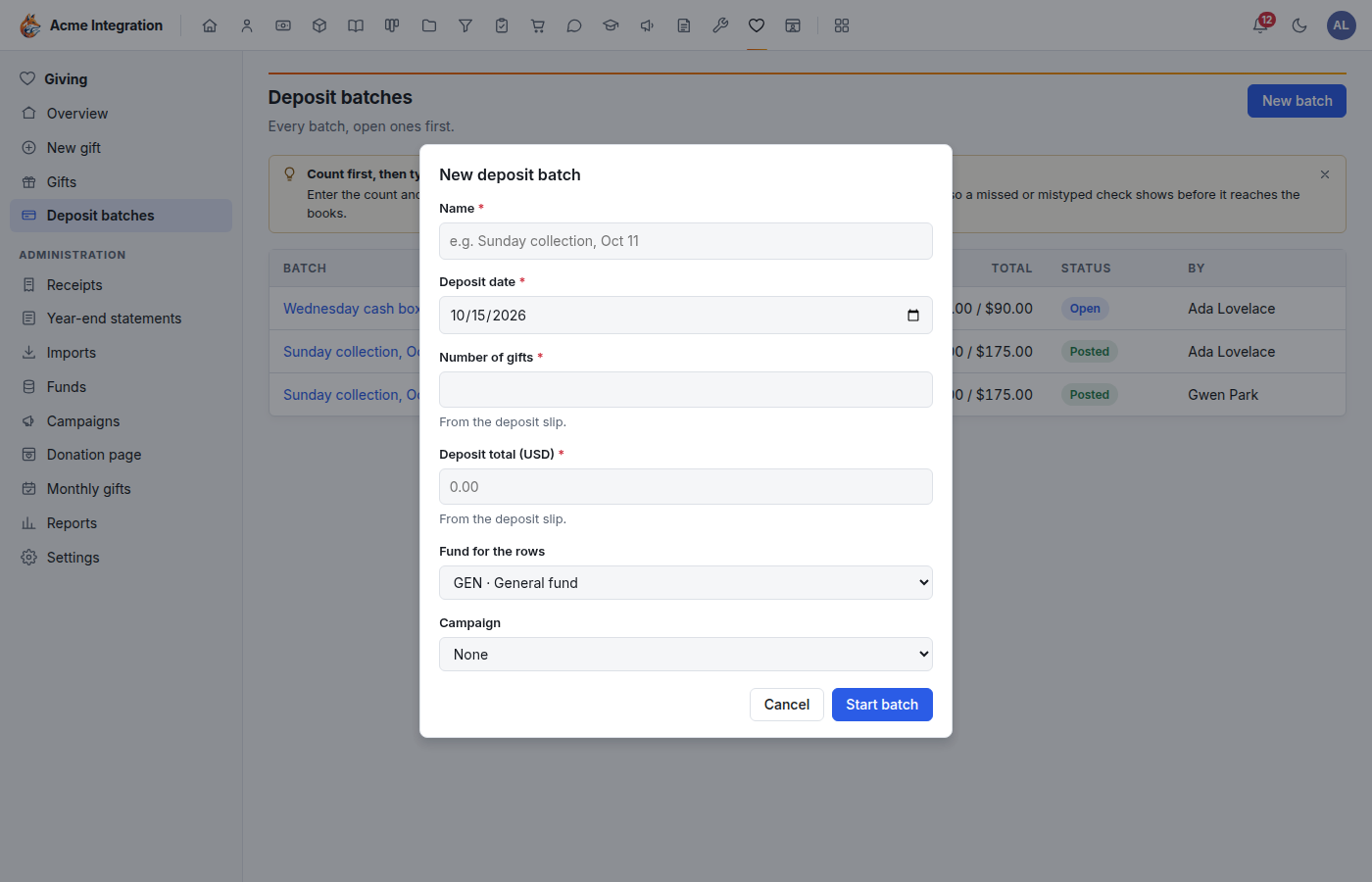
- Open Giving → Deposit batches and click New batch.
- Fill in Name, Deposit date, Number of gifts and Deposit total (USD) from the slip, and the Fund for the rows and Campaign most gifts go to. Click Start batch.
- On the batch page, add each gift (donor, method, check number, amount, fund) and click Add gift. The form keeps the date, method and fund between rows, so it is quick from the keyboard.
- The tally at the top shows gifts and total against the slip. When both match it says Balances: ready to post.
- Click Post batch and confirm. The gifts are recorded and one deposit moves the total from Undeposited funds to the bank.
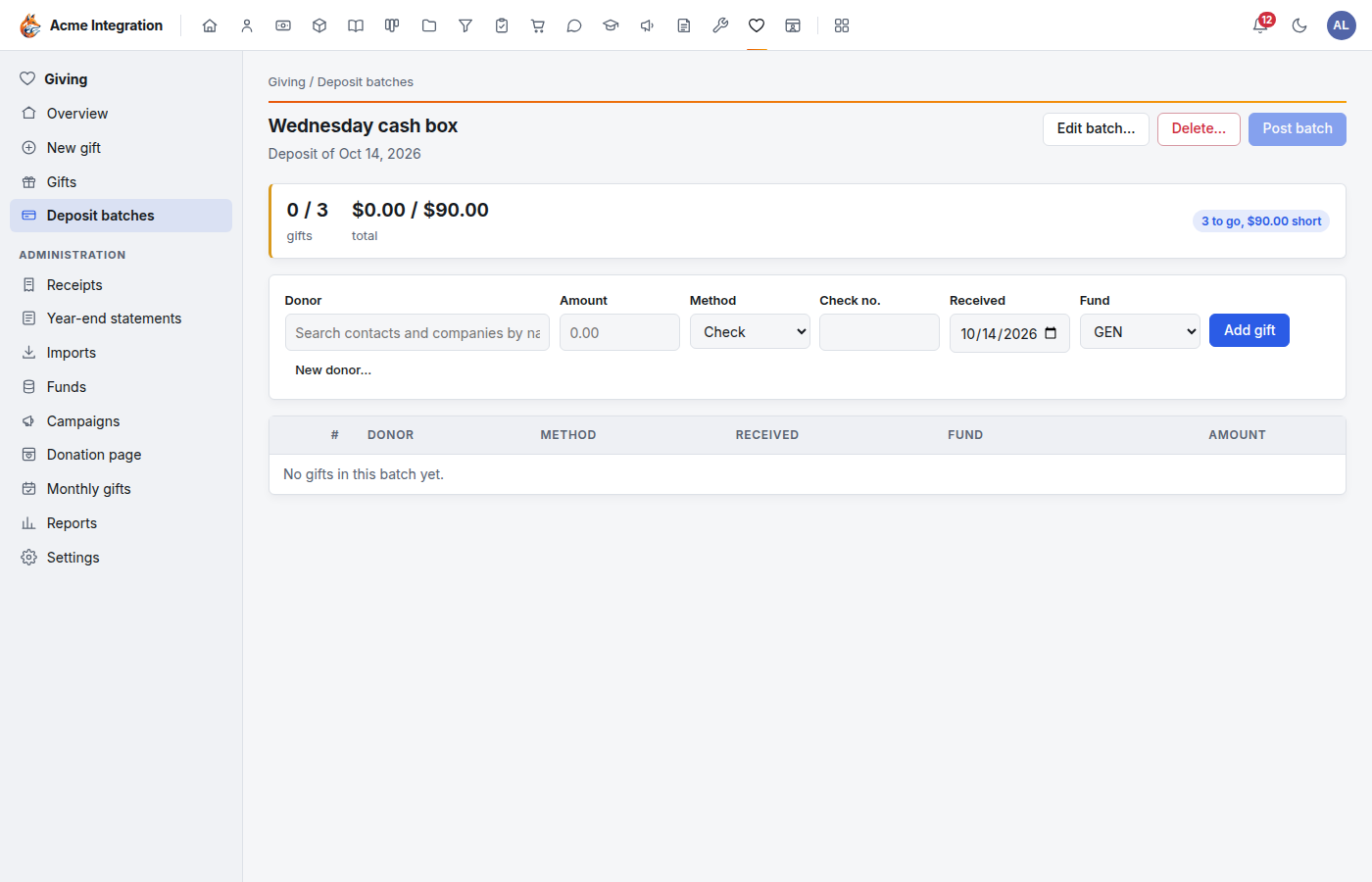
While a batch is open you can Edit or Remove… a row, change the slip figures with Edit batch…, or Delete… the batch (its unposted gifts are discarded). A posted batch can't be changed: void a gift to correct it.
Import gifts from Stripe or PayPal
Use this for gifts that came in through Stripe or PayPal outside the donation page, for example from an older giving form. It needs the Giving admin grant.
Get the file:
- Stripe: Reports → Balance → Itemized balance change from activity → Download (CSV). Only payments in US dollars become gifts; refunds, fees and payouts are skipped. Stripe's Payments → Export file isn't read, because its columns change.
- PayPal: Activity → Download, as CSV. Completed payments received in US dollars become gifts; withdrawals and pending items are skipped. Dates are read in PayPal's US format (MM/DD/YYYY).
Import it:
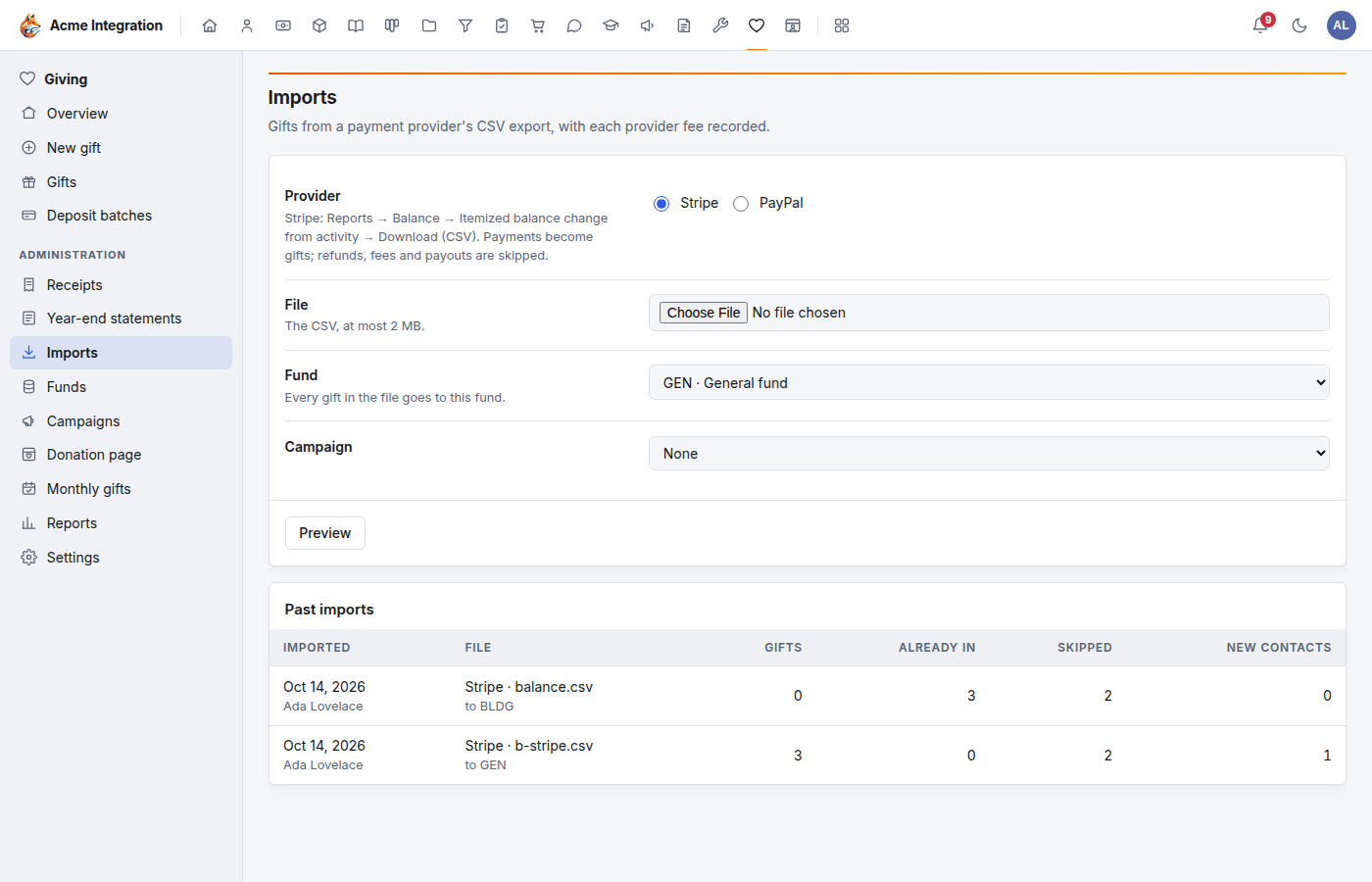
- Open Giving → Imports.
- Choose the Provider, pick the File (a CSV of at most 2 MB), and the Fund and Campaign every gift in the file goes to.
- Click Preview. Every row is listed: new gifts, donors matched to CRM contacts by email, donors the import will add to the CRM (flagged new), and skipped rows with the reason.
- Click Import N gifts.
The provider's fee is recorded with each gift. Each provider transaction is remembered, so importing the same file again adds nothing, and a PayPal payment already given on the donation page is skipped as a duplicate. PayPal gifts post to PayPal clearing, where the money waits until PayPal transfers it to your bank.
Troubleshooting
| Problem | Fix |
|---|---|
| I only see my own gifts | You hold Giving entry. Giving admins and company administrators see everyone's. |
| No Void… or Receipt… on a gift | Those need Giving admin. |
| Post batch is greyed out | The gifts don't yet match the slip's count and total. The tally says by how much. |
| Imports isn't in the menu | You need Giving admin. |
| "Nothing can be imported from this file" | The preview lists each problem line. Fix the file (or download the right report) and preview again. |
| There is no Import button after the preview | Every row is already in, or skipped. |
| A new gift's Fund list is empty | Create a fund under Giving → Funds. |