 foxxcyber/docs
Support and emergency access
The operator's side of helping an organization: looking as one of its users (read-only), working as Foxx support with its consent, what gets refused, and the platform owner's emergency hour.
A platform operator can help inside an organization in three ways. Each one leaves a record in the organization's audit log and in the platform's own audit log, and the organization can always see which one is happening.
| View as a user | Work as Foxx support | Emergency access | |
|---|---|---|---|
| Can change things | No, read-only | Yes, only in the areas the organization allowed | Yes, every area |
| Needs the organization's consent | No | Yes | No |
| Who can use it | Any platform admin | Any platform admin | Platform owner only |
| How long | Until you return to the console | Until the organization's consent ends, or it revokes it | One hour at most |
| Who you are inside | The user you picked | "Foxx support (your name)" | "Foxx support (your name)" |
The organization's side of this (turning consent on, the banner, revoking) is described in Foxx support access.
Before you start
- Sign in to the platform console (see The platform console).
- The organization must be active. Nobody can work in a suspended or archived organization.
- For Work as Foxx support: one of the organization's company administrators must have turned on support access under Administration → Support access, for 1 to 72 hours.
- For Emergency access: you must be the platform owner, and have a reason you can write down: a suspected compromise or a legal request.
Look as one of the organization's users (read-only)
Use this to see exactly what someone sees, for example when they report that a menu is missing.
- Open Organizations, then the organization, then Manage users.
- Open the menu on the person's row and choose View as. Only active users have it.
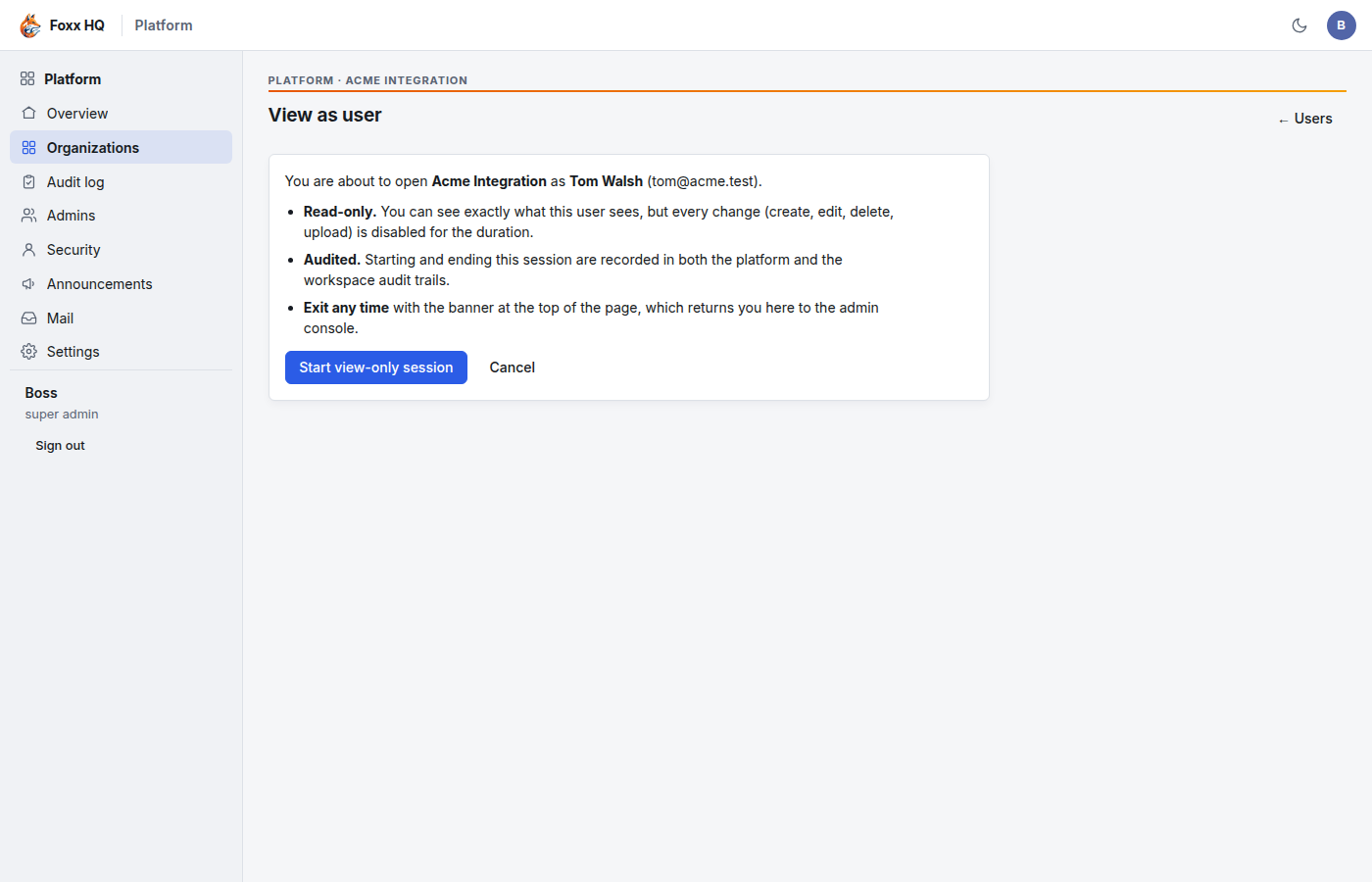
- Read the page: it says the session is Read-only, Audited in both audit trails, and that you can exit any time.
- Click Start view-only session. The organization's workspace opens as that person, with a View-only banner across the top.
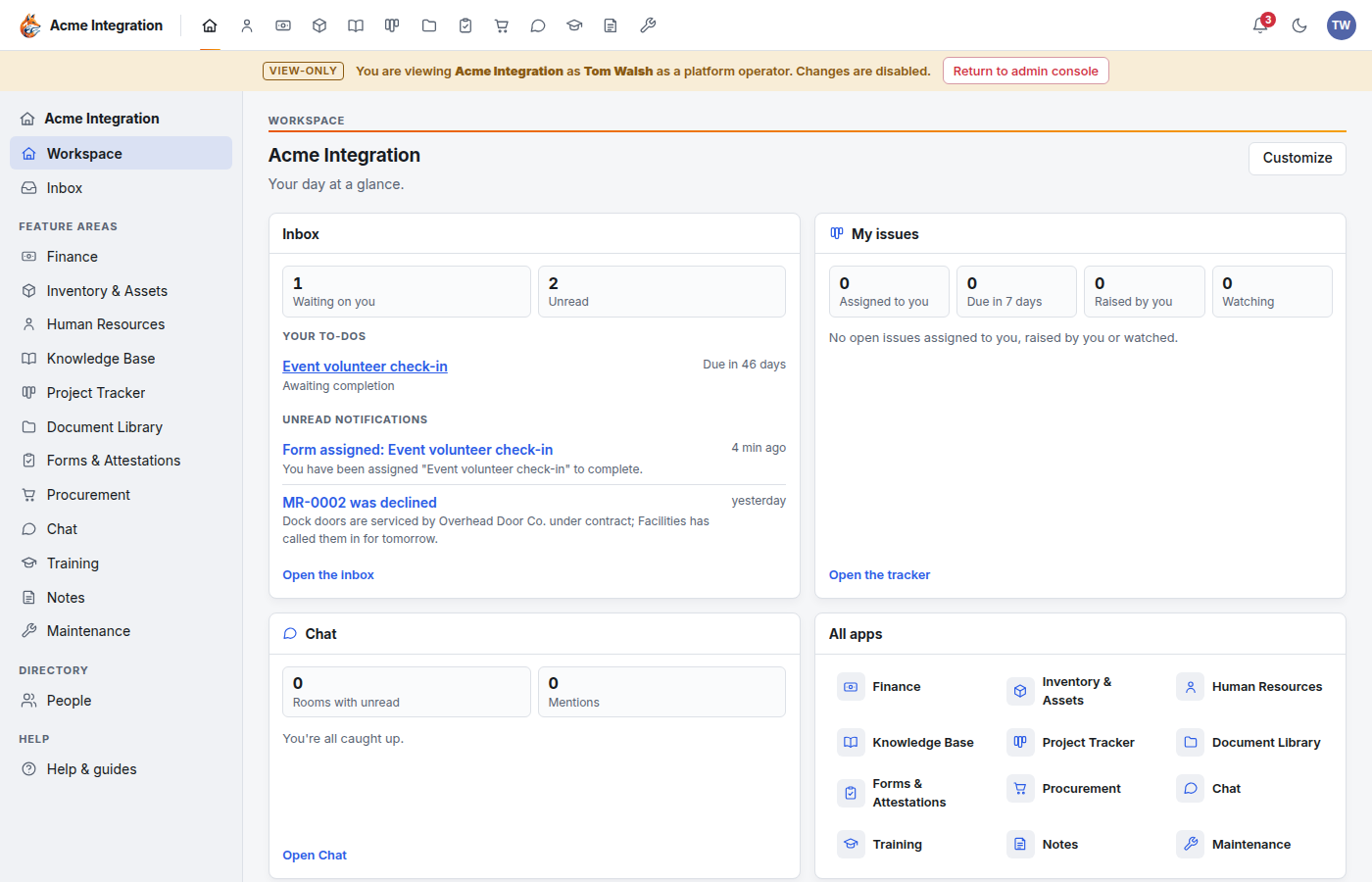
- Look around. Every change (create, edit, delete, upload) is refused.
- Click Return to admin console in the banner when you are done.
If you leave without returning, the organization's dashboard in the console says "You have an active view-only session in this workspace", with Resume view and End session.
Work in an organization as Foxx support
Use this when the organization has asked you to change something for it.
- Open the organization's dashboard (from Organizations, or click its name on the Overview).
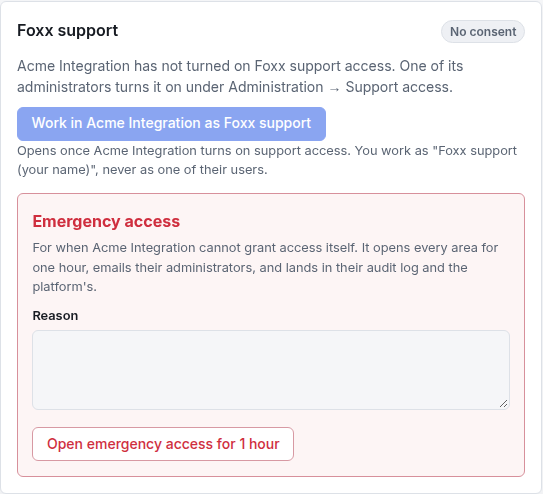
- Look at the Foxx support card:
- No consent: the organization has not turned support access on. The Work in … as Foxx support button is greyed. Ask one of its administrators to turn it on under Administration → Support access.
- Consent on: the card says which areas you may change and until when, and who turned it on.
- Click Work in (organization) as Foxx support. On the overview you can also click Work as Foxx support on the organization's row.
- The workspace opens. A banner says "You are working in (organization) as Foxx support (your name)", lists the allowed areas and the end time, and reminds you that every change is recorded.
- Do the work. When you are done, click Return to admin console in the banner.
Who you are inside
You never work as one of the organization's people. Foxx HQ gives you a separate account named Foxx support (your name). It is not a seat, it does not appear in the organization's user lists or pickers, and it cannot sign in on its own. It has a company administrator's powers, but only in the areas the organization allowed.
The areas an organization can allow are:
| Area | Covers |
|---|---|
| People and access | Users, departments, teams, sign-in security and sessions. |
| Customers and commerce | Customer portal accounts, the catalog, subscriptions, invoices, payments and giving. |
| Integrations | API keys, webhooks and Replay, payment connections, website forms and email. |
| Branding and site | Profile, logo and colours, sign-in, the donation page, modules and announcements. |
| Data | Exports and retention settings. |
| Work areas | Records in the CRM, projects, files, HR and every other area. |
What gets refused
Outside the allowed areas you can still look, but every change is refused with a message such as:
The organization allowed Foxx support to make changes in People and access only. This is in Integrations.
Some things are refused whatever the organization allowed, because they belong to its own people:
Foxx support cannot do that here: it belongs to the organization's own people.
These are: people's personal accounts and their Google connections, API tokens, and support access itself (you cannot widen or extend your own access).
Every refusal is recorded too, in both audit logs.
Resetting someone's two-factor sign-in
When a person has lost their authenticator and asks Foxx support to reset it:
- First confirm it is really them, outside Foxx HQ: a video call with photo ID, a call to a number already on file, or in person.
- In the organization, open Administration → Users, then the person, and click Reset MFA.
- Fill in Verified by (who confirmed their identity) and How it was verified. Both are required for Foxx support. The reset is refused without them.
- Click Reset MFA. The person's authenticator and recovery codes are cleared, and the audit log keeps who verified them and how.
When consent ends
When the organization's hours run out, or one of its administrators clicks Revoke now, your session ends on your very next click and you are sent back to the console.
Emergency access (platform owner only)
Emergency access is for the moment an organization cannot grant access itself: its administrators are locked out, an account looks compromised, or a legal request requires it. It opens every area for one hour, without consent.
What happens when you open it:
- your written reason goes into the organization's audit log and the platform's, flagged as an emergency;
- every company administrator of the organization is told at once, in Foxx HQ and by email, with your name and the reason;
- they see a red Emergency access banner for the whole hour, and they cannot revoke it from their side;
- you work as Foxx support (your name), with a red banner;
- it ends by itself after one hour.
Open it from the overview
- On Overview, click Emergency access on the organization's row.
- Type the Reason. It is recorded in both audit logs and emailed to the organization's administrators, so write it for them to read.
- Click Open for one hour. The workspace opens straight away.
Open it from the organization's dashboard
- Open the organization's dashboard.
- In the Foxx support card, under Emergency access, type the Reason.
- Click Open emergency access for 1 hour.
While it runs, the dashboard shows when it ends, who opened it and the reason, with End now to close it early. Ending it early also ends your session in the workspace.
Emergency access is not a shortcut around consent. Use it only when the organization truly cannot grant access itself. Its administrators are emailed the moment you open it, and the record cannot be removed.
Where it is all recorded
- The platform's Audit log (sidebar): every view-as, support session, change, refusal and emergency, with your name.
- The organization's audit log: the same events, under the Foxx support account's name. Its administrators can tick Foxx support and platform only to see just these.
- Administration → Support access, inside the organization: who looked or acted, and when.
Troubleshooting
"The Work as Foxx support button is greyed." The organization has not turned support access on, or its hours ran out. Ask one of its company administrators.
"(Organization) has not turned on Foxx support access." Same cause: the consent is off or expired.
"I'm refused with 'This is in …'." That area was not ticked when the organization turned on support access. Ask it to turn access on again with the area ticked.
"The Emergency access button is missing." Only the platform owner has it. Platform admins see "Only the platform owner can open emergency access."
"Emergency access to (organization) is already open." It is already running. If you opened it, use Work as Foxx support on the overview row to go back in. Otherwise wait for the hour to end, or end it early from the organization's dashboard with End now.
"I was sent back to the console in the middle of my work." The organization revoked access, or the time ran out. Nothing you saved before then is lost.