 foxxcyber/docs
Notes
Your personal Markdown notebook: write and organize notes, link and tag them, share a note or folder with coworkers, and bring in or export a vault.
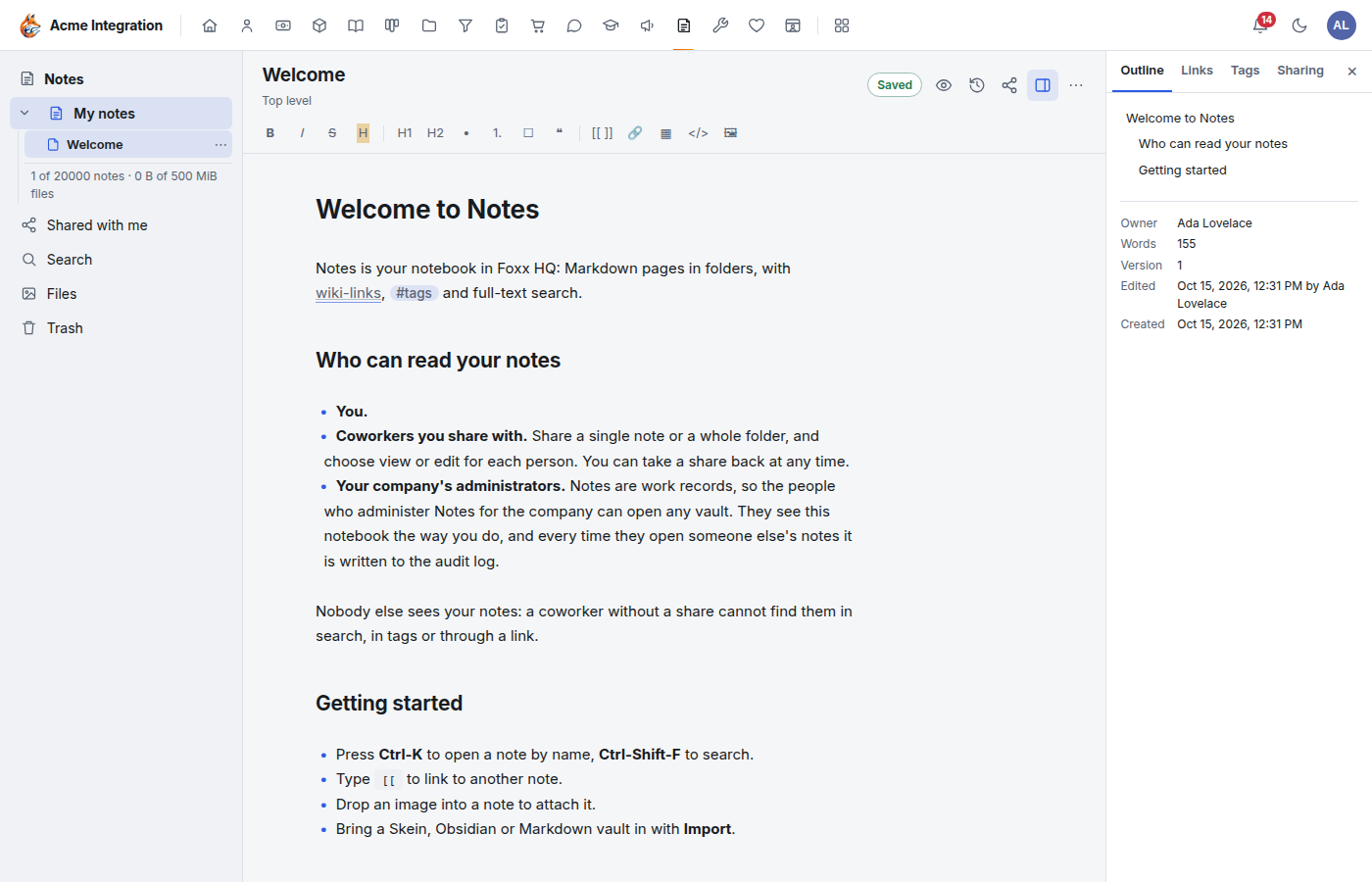
Notes is your own notebook in Foxx HQ: Markdown pages in folders,
with [[links]] between notes, #tags and full-text search. Notes are
private to you until you share them, with one exception explained below.
Before you start
- Notes must be on under Administration → Modules. Once it is on, everyone gets a notebook the first time they open Notes, with a Welcome note in it.
- Your notes are work records. Besides you and the coworkers you share with, your company's administrators can open any notebook, and each time they open someone else's notes it is written to the audit log. Nobody else can find your notes, in search, tags or by link.
- Sharing must be allowed by your company (it is unless an administrator turned it off; see below).
Write a note
- Open Notes.
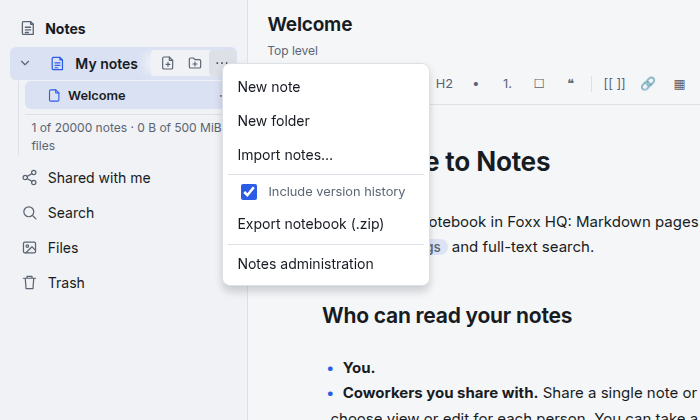
- Point at My notes in the sidebar. Small icons appear: click the New note icon (or the ⋯ icon → New note). To start inside a folder, use that folder's menu → New note here.
- Type a title in the title box at the top, then write below it.
- Notes save as you type; the badge at the top right shows Saved.
While writing:
- Use the toolbar for bold, italic, headings, lists, task lists, quotes, code, tables, links and images. You can also drop an image into the note.
- Type
[[to link to another note. Type#and a word to add a tag. - The eye icon switches to the reading view.
- The clock icon opens Version history: pick a version to read it beside the current text, then Restore this version if you need it. The last 100 versions are kept.
- The details panel (on the right) shows the note's Outline, Links (what it links to and what links to it), Tags and Sharing, plus word count and dates.
Press Ctrl+K in Notes to open a note by name, and Ctrl+Shift+F to search every note you can read.
Organize your notebook
- New folder: from the My notes icons or menu.
- Each note's and folder's menu (the ⋯ on its row) has Open, Rename…, Move…, Share… and Move to trash.
- Trash (sidebar) keeps deleted notes. Click Restore to bring one back, Delete forever to remove it, or Empty trash.
- Files (sidebar) lists the images and files in your notes. A file that no note shows is cleaned up a day after upload.
The line under My notes shows how much of your notebook you are using, such as "1 of 20000 notes · 0 B of 500 MiB files". The limits are set by your administrators.
Share a note or folder
- Open the note, and click the Share icon at the top (or use Share… in the note's or folder's menu in the sidebar).
- Under Add a coworker, type a name or email.
- Choose Can view or Can edit.
- Click Done.
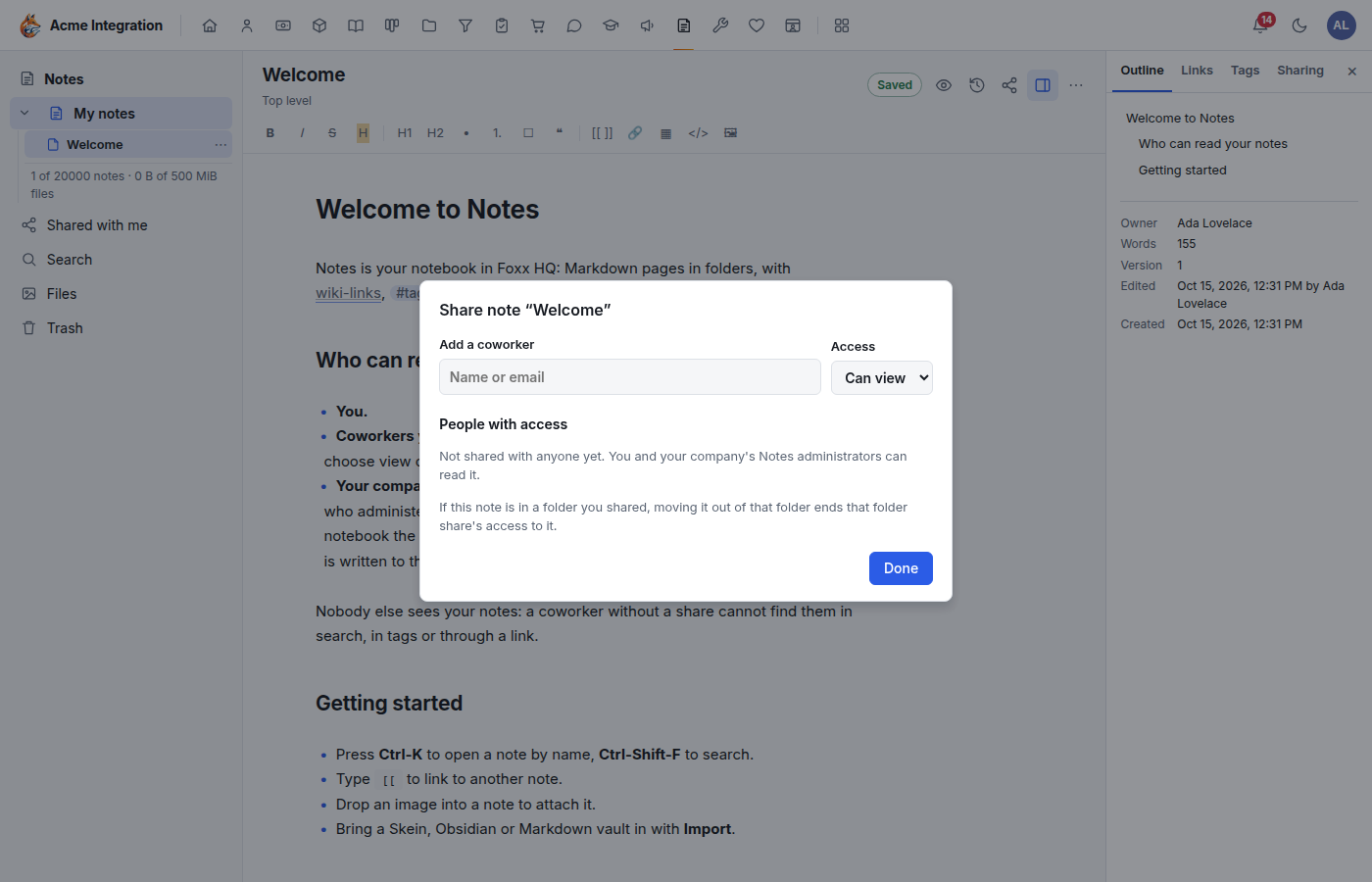
People with access lists everyone you shared with. Click Revoke to take a share back at any time. Sharing a folder shares every note in it; moving a note out of a shared folder ends that folder's access to it.
Notes shared with you appear under Shared with me.
Bring in or export a notebook
- Import notes… (in the My notes menu) takes a
.zip, or Markdown and image files, such as an Obsidian or Skein vault. Choose where they go under Into. The result lists what was Renamed and what was Left out. - Export notebook (.zip) downloads your notebook. Tick Include version history first to add every saved version.
Notes settings (company administrators)
Administration → Notes (or Notes administration in the My notes menu) sets:
- Limits and sharing: Storage per notebook, Notes per notebook, Largest file, Largest import, and Sharing on or off. Turning sharing off suspends every share (they come back when you turn it on again). Lowering a limit deletes nothing; a notebook over it just stops taking new notes or files.
- Notebooks: every person's notebook, its size and last edit. When someone leaves, their notebook turns read-only for the people it was shared with: give it to a coworker or delete it here. Search every notebook searches all of them.
Troubleshooting
I can't find a coworker's note. They haven't shared it with you. Ask them to share it; it then appears under Shared with me.
There is no Share option, or the details say sharing is off. Your company has turned sharing off under Administration → Notes.
A shared note says "Read-only: owner deactivated". The owner left. A company administrator can give the notebook to someone else.
A note shows Keep mine, Keep theirs and Keep both. Someone else edited it at the same time. Choose which text to keep, or keep both.
I can't add more notes or files. Your notebook reached its limit. Delete forever from Trash, remove unused files, or ask an administrator to raise the limit.
"This note isn't available". It was moved to the trash, unshared, or the link is wrong.