 foxxcyber/docs
Your account: password, two-factor, sessions
Change your password, set up two-factor authentication and recovery codes, choose email notifications, connect Google, and sign out other devices.
My account holds your sign-in and security settings. Open it from the avatar menu (your initials, top right) → My account.
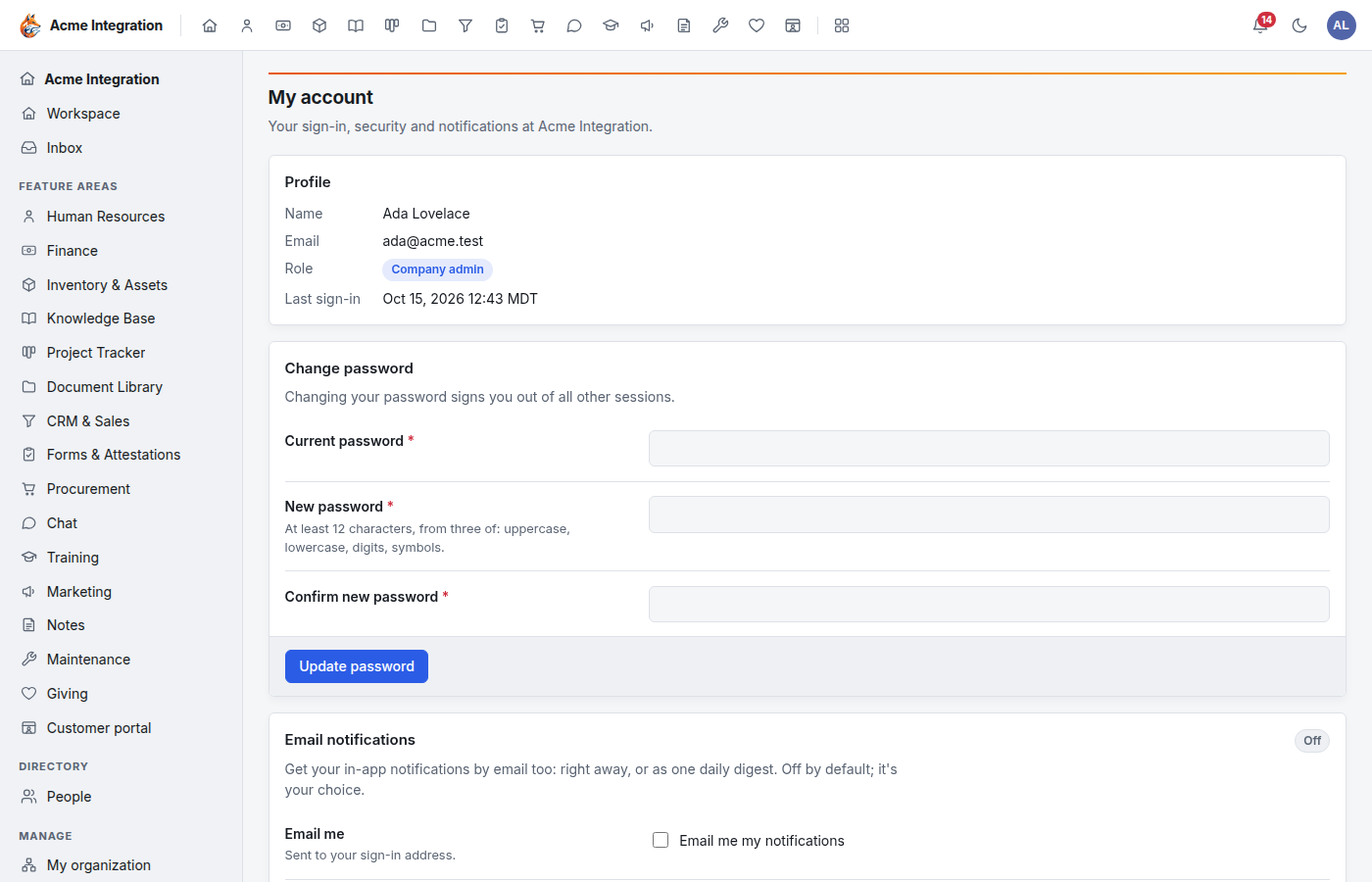
The page has these cards, top to bottom:
| Card | What it does |
|---|---|
| Profile | Shows your name, email, role and last sign-in. Your name and email are changed by a company administrator |
| Change password | Sets a new password |
| Email notifications | Sends your notifications by email, immediately or as a daily digest |
| Two-factor authentication | Adds a code from an authenticator app to your sign-in |
| Google account | Connects your Google Calendar to Foxx HQ |
| Personal access tokens | Lets a script act as you on the API |
| Active sessions | Lists the devices signed in to your account, and signs them out |
Your directory profile (photo, job title, contact details) is a different page: avatar menu → My profile.
Change your password
- On My account, find Change password.
- Enter your Current password.
- Enter a New password: at least 12 characters, using three of: uppercase, lowercase, digits, symbols.
- Enter it again in Confirm new password.
- Click Update password.
Changing your password signs you out on every other device.
Turn on two-factor authentication
Two-factor authentication (MFA) means signing in needs your password and a 6-digit code from an app on your phone.
Before you start
- Install an authenticator app on your phone, such as Google Authenticator, 1Password, Authy or Aegis.
- Have somewhere safe to keep your recovery codes (a password manager, or a printed copy in a locked drawer).
Steps
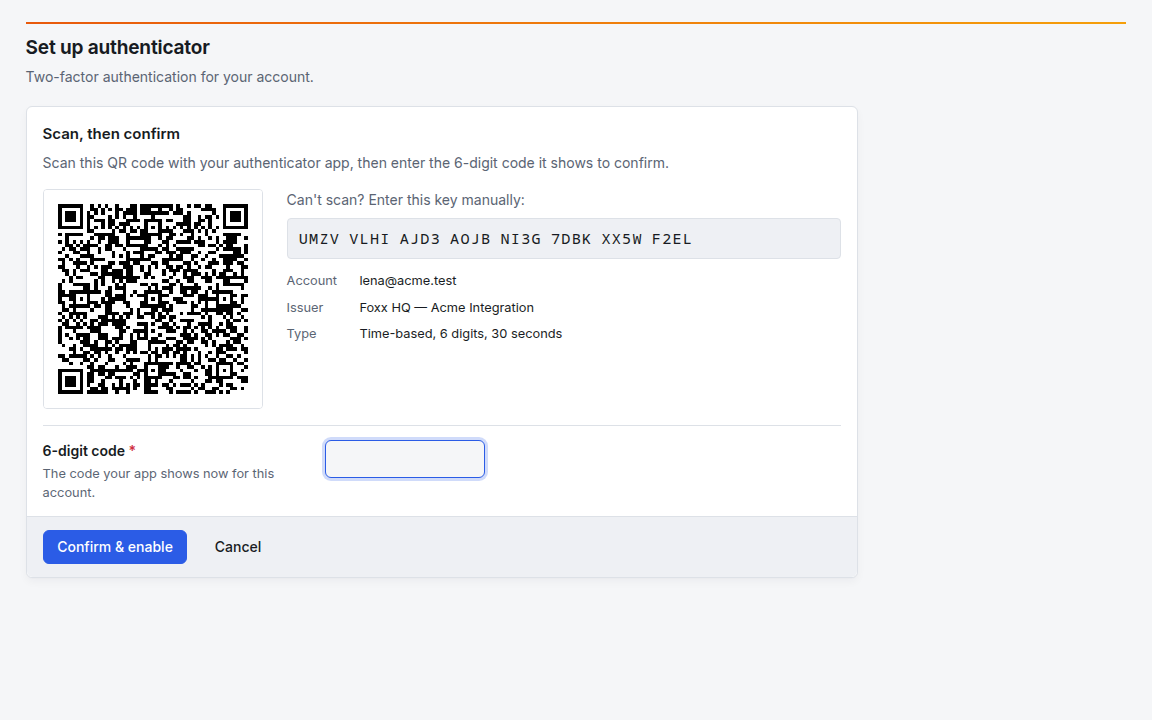
- On My account, find Two-factor authentication and click Set up authenticator.
- In your authenticator app, add an account and scan the QR code. If you can't scan, type the key shown under Can't scan? Enter this key manually (it is time-based, 6 digits, 30 seconds).
- Type the 6-digit code your app now shows into 6-digit code.
- Click Confirm & enable.
- Foxx HQ shows your recovery codes. They are shown once and never again. Click Copy codes or Download as text and store them somewhere safe. Each code works once, if you lose your phone.
- Click the button to confirm you have saved them.
From now on, after your password, Foxx HQ asks Verify it's you: enter the code from your app (or one recovery code).
When your organization requires it
If a company administrator requires two-factor authentication for everyone (see Security), the card shows Required and you are walked through these same steps at your next sign-in. You can't turn it off while it is required.
Get new recovery codes
- On My account, under Two-factor authentication, find Recovery codes.
- Enter a current code from your authenticator app.
- Click Regenerate recovery codes. Every unused old code stops working. Save the new ones.
The card always shows how many recovery codes you have left.
Turn two-factor off
- Under Turn off, enter a current authenticator code or one of your recovery codes.
- Click Disable MFA.
The button is greyed out when your organization requires two-factor authentication.
Choose email notifications
See Get notifications by email.
Connect your Google account
When your organization has connected Google Workspace, you can show your Google Calendar on your workspace (the Agenda widget) and create events with a Meet link from Foxx HQ.
- On My account, find Google account.
- Click Connect Google account and approve the request in Google.
- The card shows Connected and the Google address. Foxx HQ reads your calendar only; it does not read your mail.
To stop, click Disconnect. If the card shows Needs attention, Google stopped accepting the connection: click Reconnect.
If the card says Google Workspace is not set up yet, a company administrator must set it up first. See Google Workspace.
Personal access tokens
A token lets a script or the hqctl command-line tool act as you on the
API. A token can read and draft within the areas you choose. No token
can schedule or send anything; those actions stay in the app.
- On My account, find Personal access tokens.
- Enter a Label (where it will be used, such as "hqctl on my laptop").
- Optionally set Expires on. The token stops working at the end of that day.
- Under Scopes, tick read and/or write for each area the token needs. Only areas you can use today are listed.
- Click Issue token.
- Copy the token now. It is shown once and never again. Then click the button to hide it.
To stop a token, click Revoke on its row in the table under the form. It stops working at once. The card shows how many live tokens you may have. Lost a token? Revoke it and issue a new one.
See and sign out other devices
Active sessions lists every device signed in to your account, with its address, when it signed in and when it was last active. This session marks the device you are using.
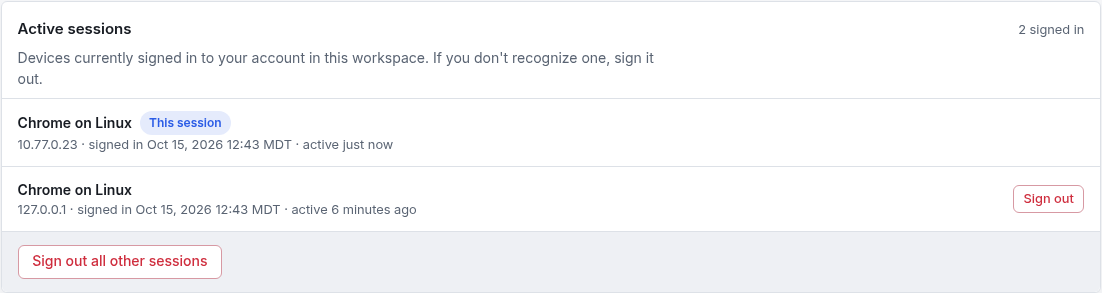
- To sign out one device, click Sign out on its row.
- To sign out everywhere except here, click Sign out all other sessions.
If you don't recognize a device, sign it out and change your password.
Troubleshooting
"Update password" fails. Check the current password, and that the new one is at least 12 characters with three of the four character types, and that both new entries match.
The authenticator code is rejected. Codes change every 30 seconds. Check your phone's clock is set automatically, then type the newest code.
I lost my phone and my recovery codes. Ask a company administrator to use Reset MFA on your user under Administration → Users, then set it up again.
I can't change my name or email. A company administrator changes them under Administration → Users.
There is no Google account card, or it says "not set up". Your organization hasn't connected Google Workspace.