 foxxcyber/docs
The platform console
Sign in as the platform operator, read the overview, create and manage organizations, and add platform admins. What the owner role can do that an admin cannot.
The platform console is where whoever runs a Foxx HQ deployment looks after it. It sits outside every organization's workspace: from here you create organizations, decide what each one's plan includes, help an organization's administrators, and watch the instance's health.
Most people never see it. Company administrators run their own organization from Administration inside the workspace (see Administration). The console is for the platform operators only.
Before you start
- You need a platform admin account. These are separate from workspace accounts: your workspace sign-in does not work here, and a platform admin account does not open a workspace.
- The very first platform admin is created by the setup page on a fresh deployment, and becomes the owner (see Deploying and file storage). Later admins are added by an existing admin.
Sign in
- Open your deployment's address followed by /app/admin/login. The page is titled Platform sign in.
- Enter your platform admin email and password, then Sign in.
- If you turned on two-factor authentication, enter the code from your authenticator app (or a recovery code).
You land on the Overview. The sidebar holds Overview, Organizations, Audit log, Admins, Security, Announcements, Mail and Settings. Your name and Sign out sit at the bottom of the sidebar and under the round initials button at the top right.
Turn on two-factor authentication for your platform account first: Security in the sidebar, then follow the steps to scan the QR code and save your recovery codes. The platform account can reach every organization, so it deserves the strongest sign-in.
The overview
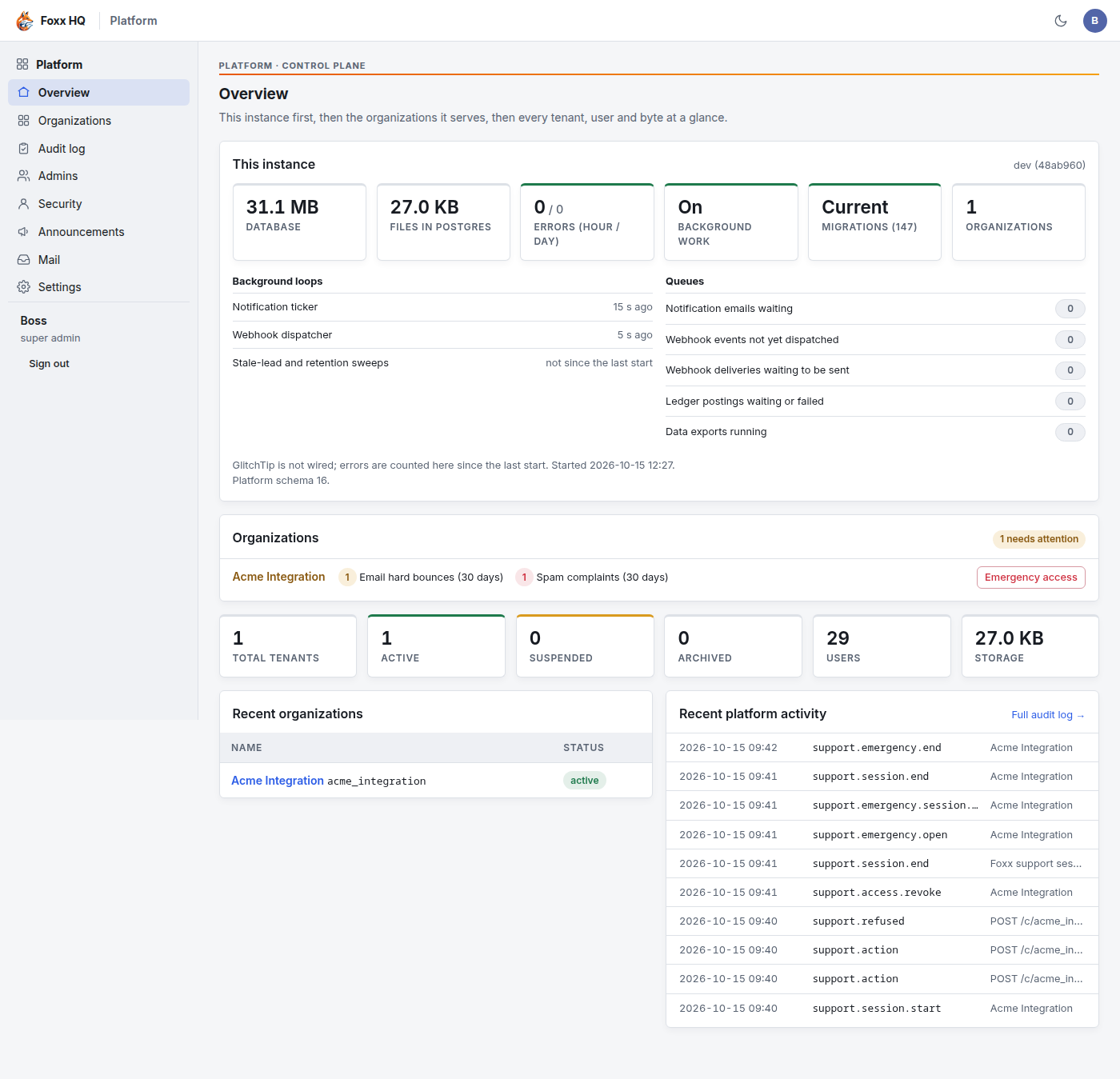
The overview reads from top to bottom:
- This instance: the health of this deployment itself, its database, file storage, background work, errors and migrations. Every tile and list is explained in Instance health.
- Organizations: every active organization, the ones that need
attention first. Each row lists only the signals that are not
fine, such as email hard bounces or failed webhook deliveries, with
their counts. An organization with nothing wrong shows Healthy.
Click the organization's name to open its dashboard.
- Work as Foxx support appears on a row while that organization allows Foxx support to work in it.
- Emergency access appears for the platform owner only. See Support and emergency access.
- Tiles for Total tenants, Active, Suspended, Archived, Users and Storage.
- Recent organizations and Recent platform activity, with a link to the Full audit log.
Organizations
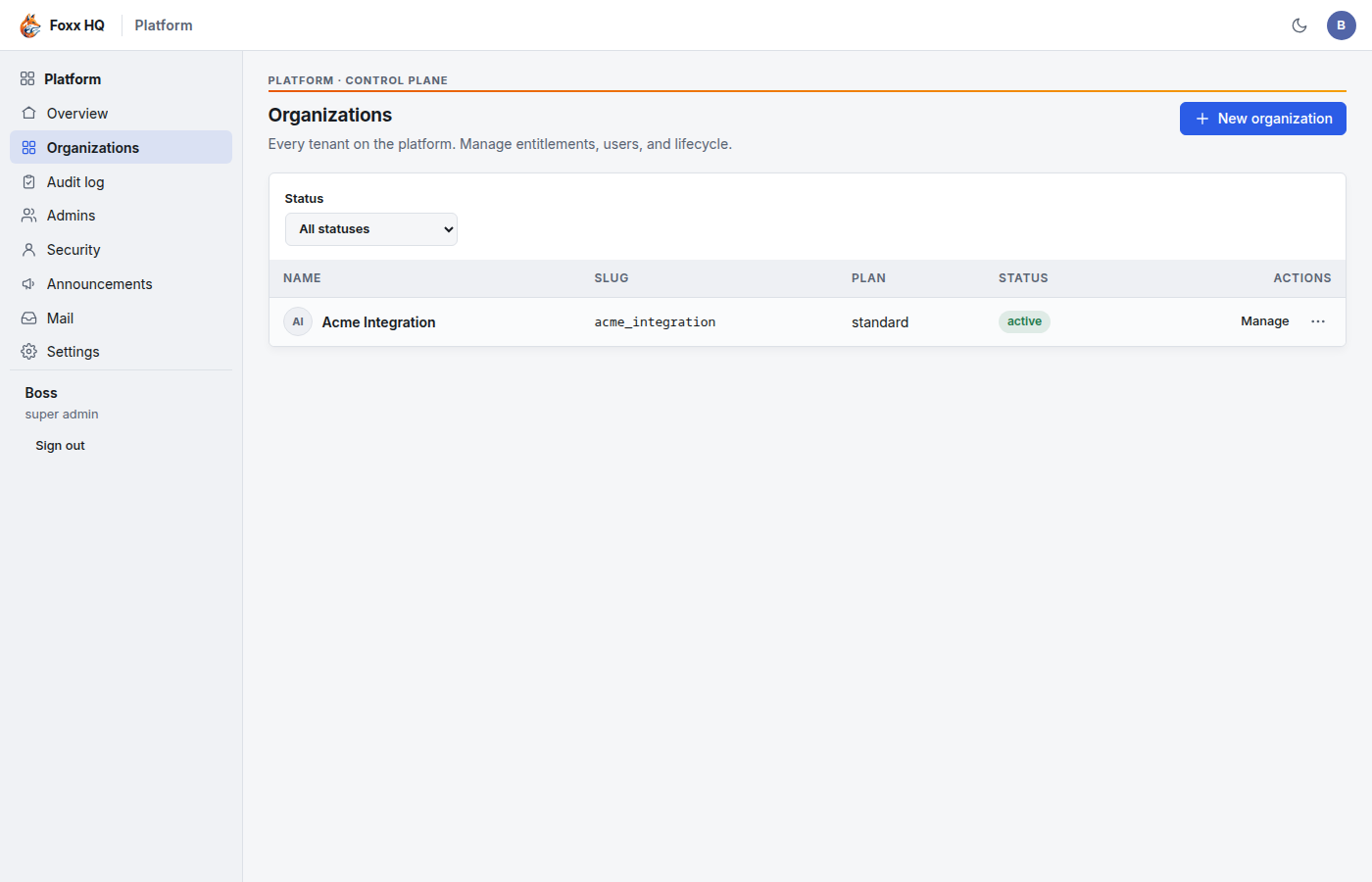
Organizations in the sidebar lists every organization (a "tenant") with its slug, plan and status. Use Status to show only active, suspended or archived ones. On each row, Manage opens the organization's dashboard, and the row's menu has Open sign-in, which opens that organization's own workspace sign-in page.
Create an organization
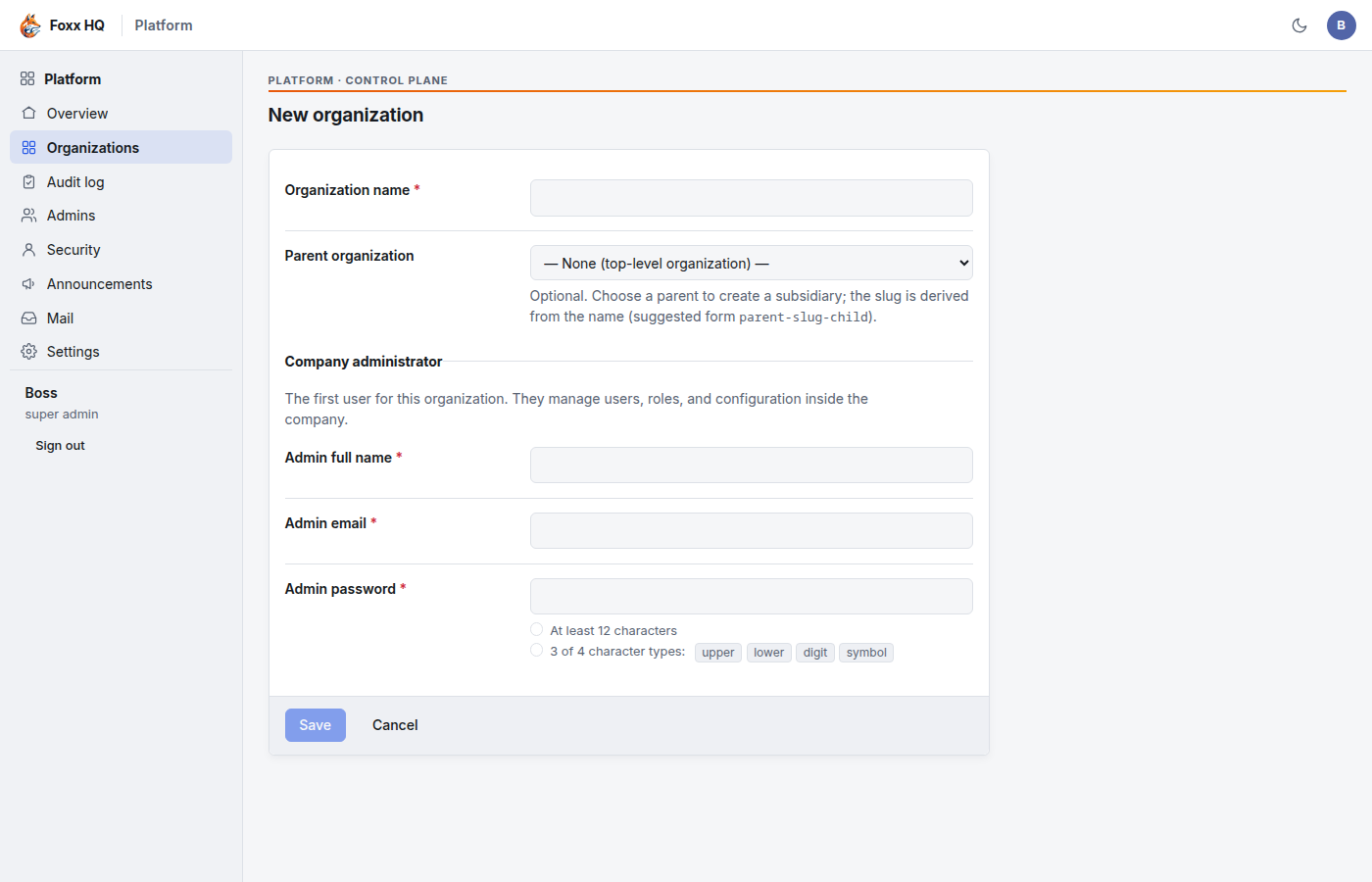
- Click New organization.
- Fill in:
- Organization name: the name people see. The slug (the short name in its web address) is made from it.
- Parent organization (shown only when other organizations exist): leave it at None (top-level organization) unless this is a subsidiary of another organization.
- Under Company administrator: Admin full name, Admin email and Admin password. This is the organization's first user. They manage its users, roles and settings from inside the workspace. The meter under the password says whether it is strong enough; Save stays greyed until it is.
- Click Save.
Send the administrator their workspace address and password through a channel you trust. They should change the password on first sign-in.
Foxx HQ runs one deployment per organization. Create several organizations on one deployment only for a trial or a short-lived demo. See Deploying and file storage.
The organization dashboard
Click an organization (or Manage) to open its dashboard.
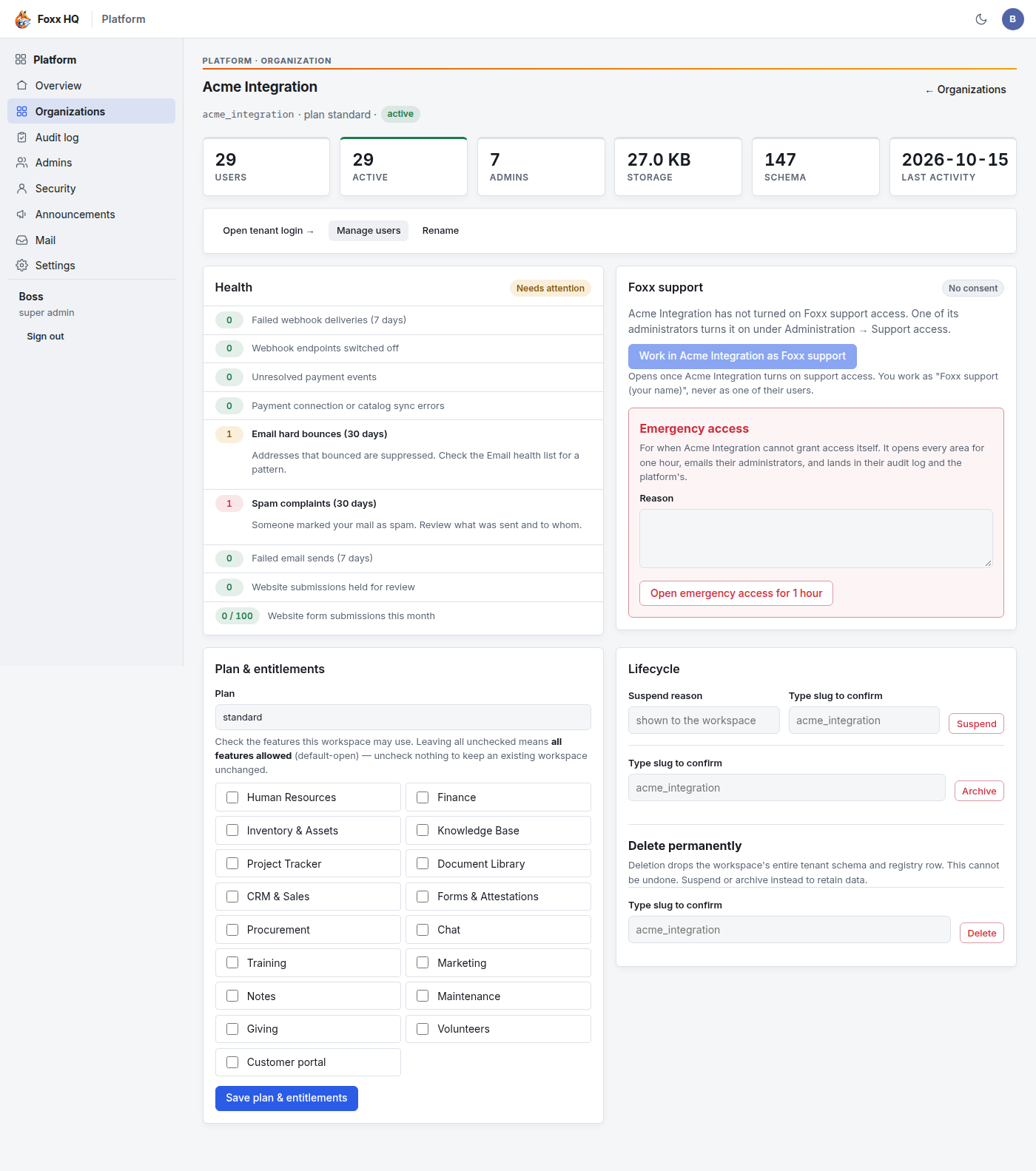
- Tiles: Users, Active, Admins, Storage, Schema (the migration the organization's data is at) and Last activity. When the schema is behind the instance, a behind badge shows the target, and a Migrate to head button appears. The server normally migrates every organization when it starts, so this is only needed after a migration failed.
- Open tenant login: opens the organization's workspace sign-in.
- Manage users: the organization's users (below).
- Rename: change the Organization name.
- Health: every health signal with its count, including the ones that are fine, and a hint saying what to do about each one that is not. The last row is Website form submissions this month against the monthly limit.
- Foxx support: whether the organization allows Foxx support to work in it, and the emergency access form. See Support and emergency access.
- Plan & entitlements: the plan name and the feature areas the organization may use. If no box is ticked, every feature area is allowed. Tick boxes only to limit the plan. Click Save plan & entitlements. An area left out here disappears from the organization's Administration → Modules list.
- Lifecycle:
- Suspend: type a Suspend reason (the workspace sees it), type the organization's slug in Type slug to confirm, then Suspend. Nobody can sign in or work in it until you Reactivate it. Nothing is deleted.
- Archive: type the slug, then Archive. Data is kept; Reactivate brings it back.
- Delete permanently: type the slug, then Delete. This removes the organization and all of its data, and cannot be undone. Suspend or archive instead whenever you might need the data again.
An organization's users
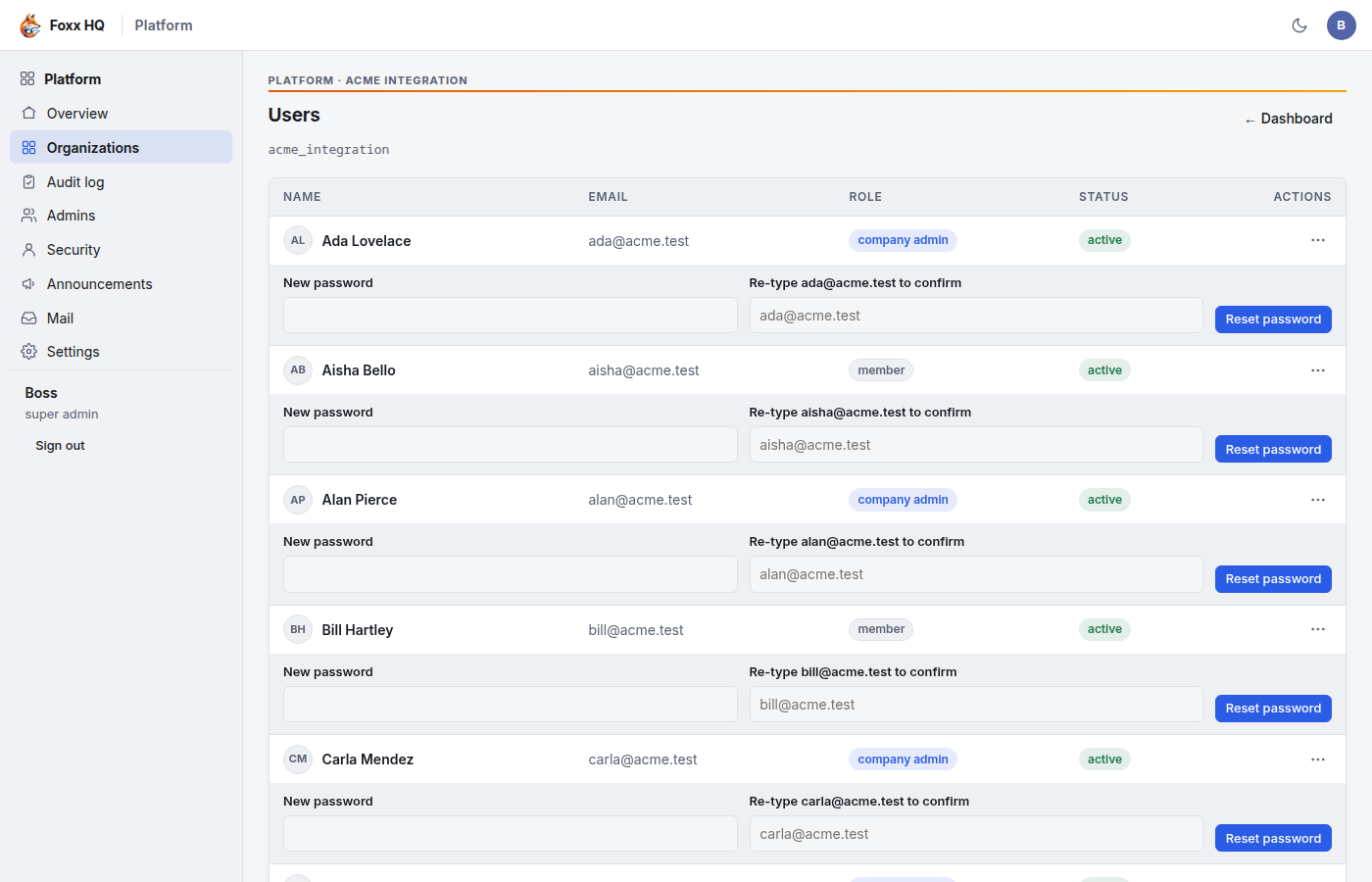
Manage users lists every user with their role (company admin or member) and status. Each row's menu has:
- Deactivate or Activate.
- Promote (make company admin) or Demote.
- View as (active users only): opens the workspace as that person, read-only. See Support and emergency access.
Under each user, Reset password sets a new password for them: type it in New password, re-type the user's email address in the second box to confirm you picked the right person, then click Reset password. Use this only when the organization's own administrators cannot help, and tell the person through a channel you trust.
Admins and the owner role
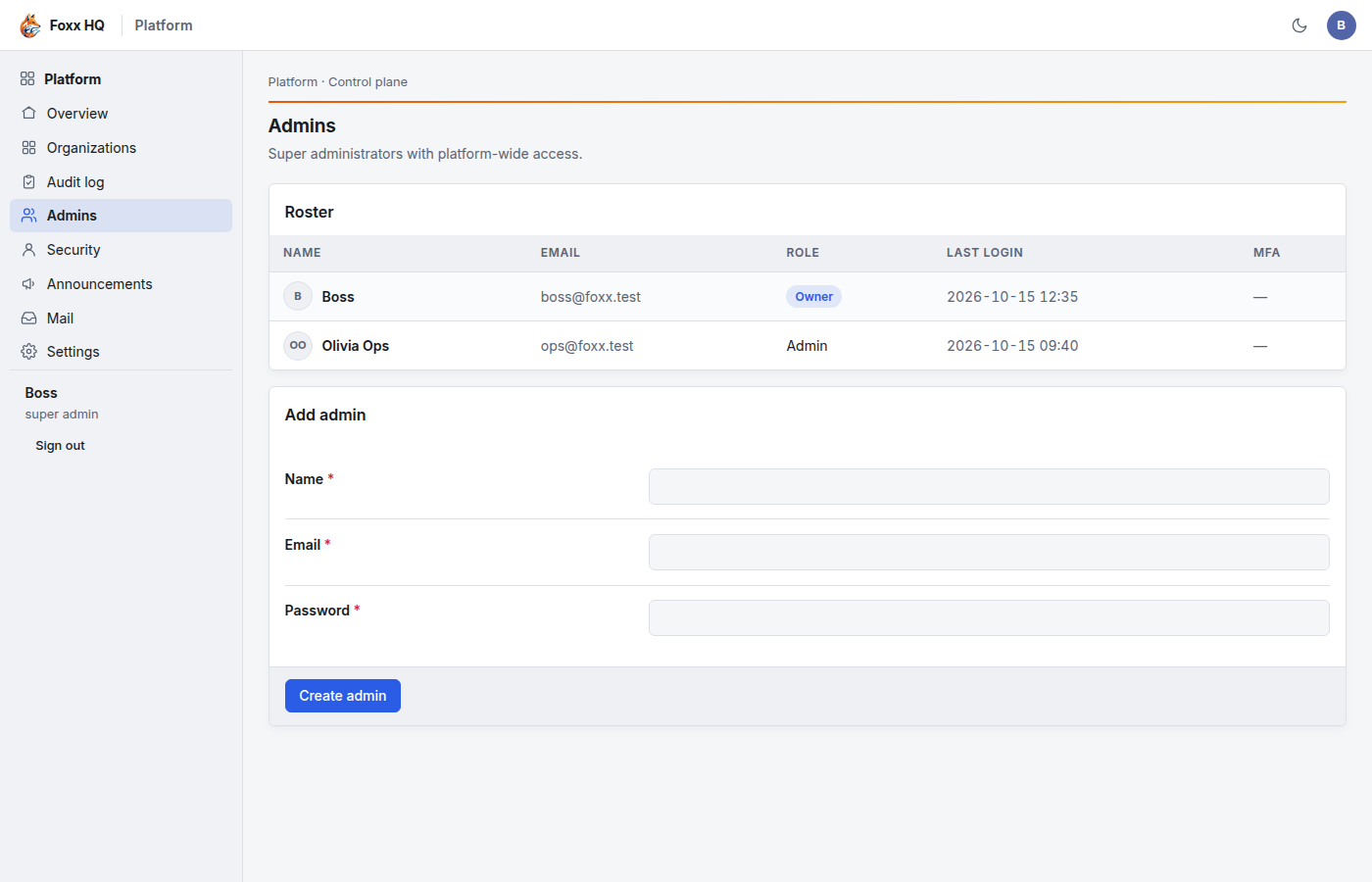
Admins lists the platform admins with their Role, Last login and whether two-factor sign-in (MFA) is on.
There are two roles:
| Owner | Admin | |
|---|---|---|
| Run the whole console: organizations, users, plans, lifecycle, mail, announcements, settings | Yes | Yes |
| View an organization's workspace as one of its users (read-only) | Yes | Yes |
| Work in an organization as Foxx support, while it allows it | Yes | Yes |
| Add another platform admin | Yes | Yes |
| Open or end emergency access without the organization's consent | Yes | No |
The owner is the first platform admin, created by the setup page. Everyone added later is an Admin.
Add a platform admin
- Open Admins.
- Under Add admin, fill in Name, Email and Password. The password must meet the same rules as any sign-in password.
- Click Create admin. The new admin signs in at /app/admin/login and should turn on two-factor sign-in under Security straight away.
The console has no way to remove a platform admin or change a role. Add only people who should keep platform access. If an admin must be removed, whoever runs the server has to do it directly in the database.
Other console pages
- Audit log: every platform-level change: who made it, when, from which address, and what it touched. Support sessions and emergency access are recorded here too.
- Announcements: banners shown to every organization during a time window (Title, Body, Level, Starts, Ends).
- Mail: the platform's own Resend account, the sending domains verified for each organization, and the bounce and complaint webhook. See Email deliverability for what an organization sees.
- Settings: server settings such as the listen address, the file storage directory, secure cookies and the session idle timeout. A row marked set by environment is controlled by the server's environment variables and is read-only here.
Troubleshooting
"My workspace password doesn't work on the platform sign-in." Platform admin accounts are separate. Ask the owner to add you under Admins.
"Emergency access isn't on my overview or dashboard." Only the platform owner sees it. Admins see "Only the platform owner can open emergency access."
"An organization's sign-in says it is unavailable." Check its status on Organizations. A suspended or archived organization refuses sign-in until you Reactivate it.
"A feature area is missing from an organization's Modules page." Its plan leaves it out. Open the organization's dashboard, tick the area under Plan & entitlements (or untick every box to allow all areas), and click Save plan & entitlements.
"Too many sign-in attempts." Repeated sign-ins from the same address are slowed down for a few minutes. Wait, then try again.