 foxxcyber/docs
Maintenance
Take maintenance requests, run work orders, schedule preventive maintenance, keep spare parts and storerooms, print QR labels, and read the reports.
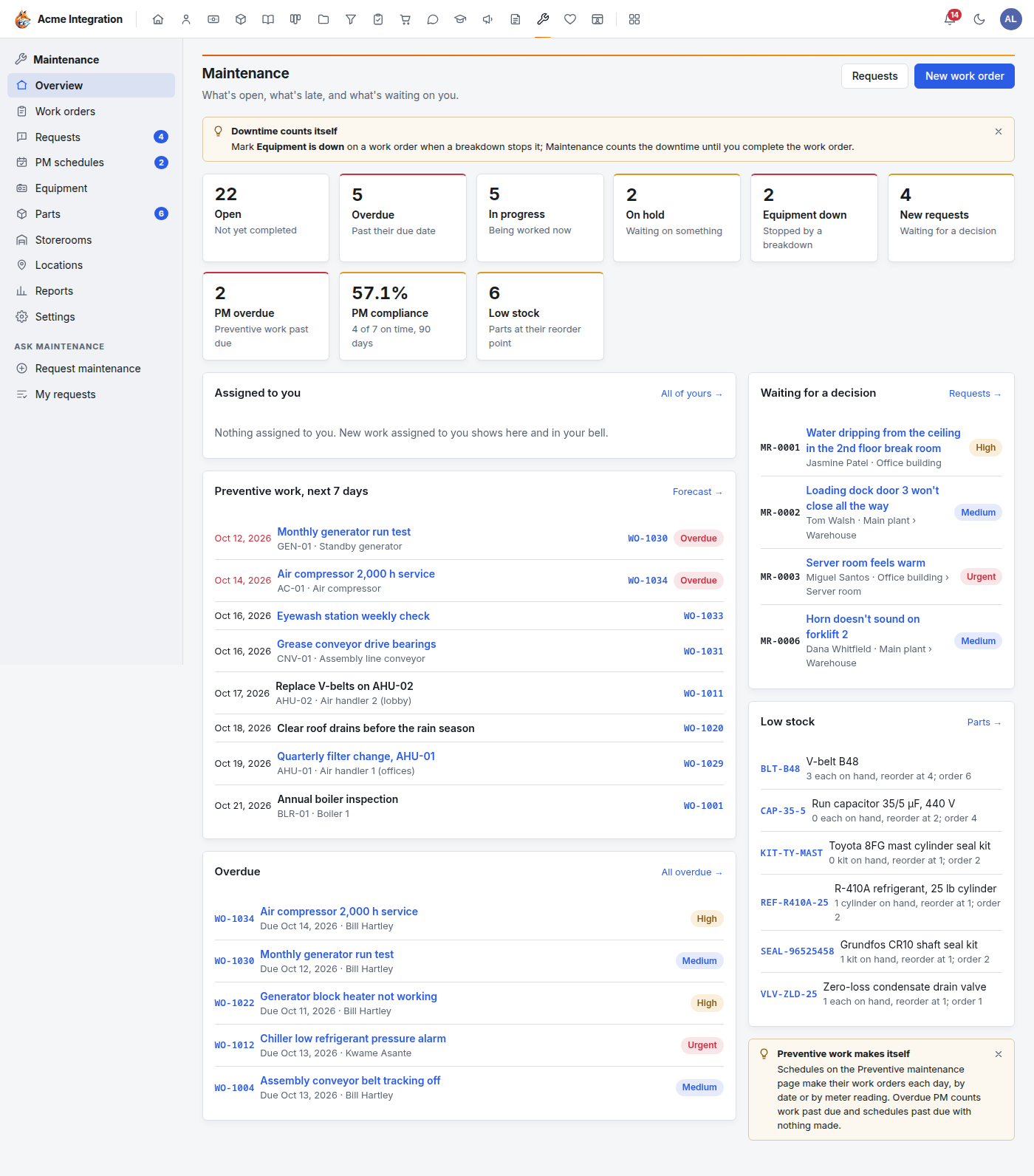
Maintenance looks after your buildings and machines: requests from staff, work orders, equipment, spare parts and preventive maintenance. It is its own area and shares nothing with the Project Tracker or Inventory & Assets.
There are two kinds of user:
- Everyone can ask Maintenance for help (Request maintenance) and follow their own requests (My requests).
- The people who run Maintenance: members of a department with Maintenance enabled, and company administrators. They see work orders, equipment, parts, schedules and reports.
Before you start
- Maintenance must be on under Administration → Modules.
- To give a team the full Maintenance screens, a company administrator enables Maintenance on their department: Administration → Departments → the department → Feature areas. Every member of that department then runs Maintenance. See Users, departments and teams.
- Settings (labor rates and failure codes) is for company administrators and people with the Maintenance admin grant.
- To buy parts from a work order, Procurement must also be on.
Set up (first time)
Do these once, in this order, from the Maintenance sidebar:
- Locations: your sites, buildings and rooms (for example Main plant › Boiler room).
- Equipment: each machine or system you look after, with its location, make, model, serial number and warranty. Click New equipment.
- Storerooms: where you keep spare parts.
- Parts: each spare part, with its reorder point.
- Settings: the Default hourly rate (USD per hour) used to cost logged time, any personal rates, and your problem, cause and remedy code lists.
- PM schedules for routine work (see below).
Ask for maintenance (everyone)
- Open Maintenance and click Request maintenance in the sidebar (under Ask Maintenance).
- Fill in What needs fixing? (one line), Details, Where and How urgent.
- Click Send request.
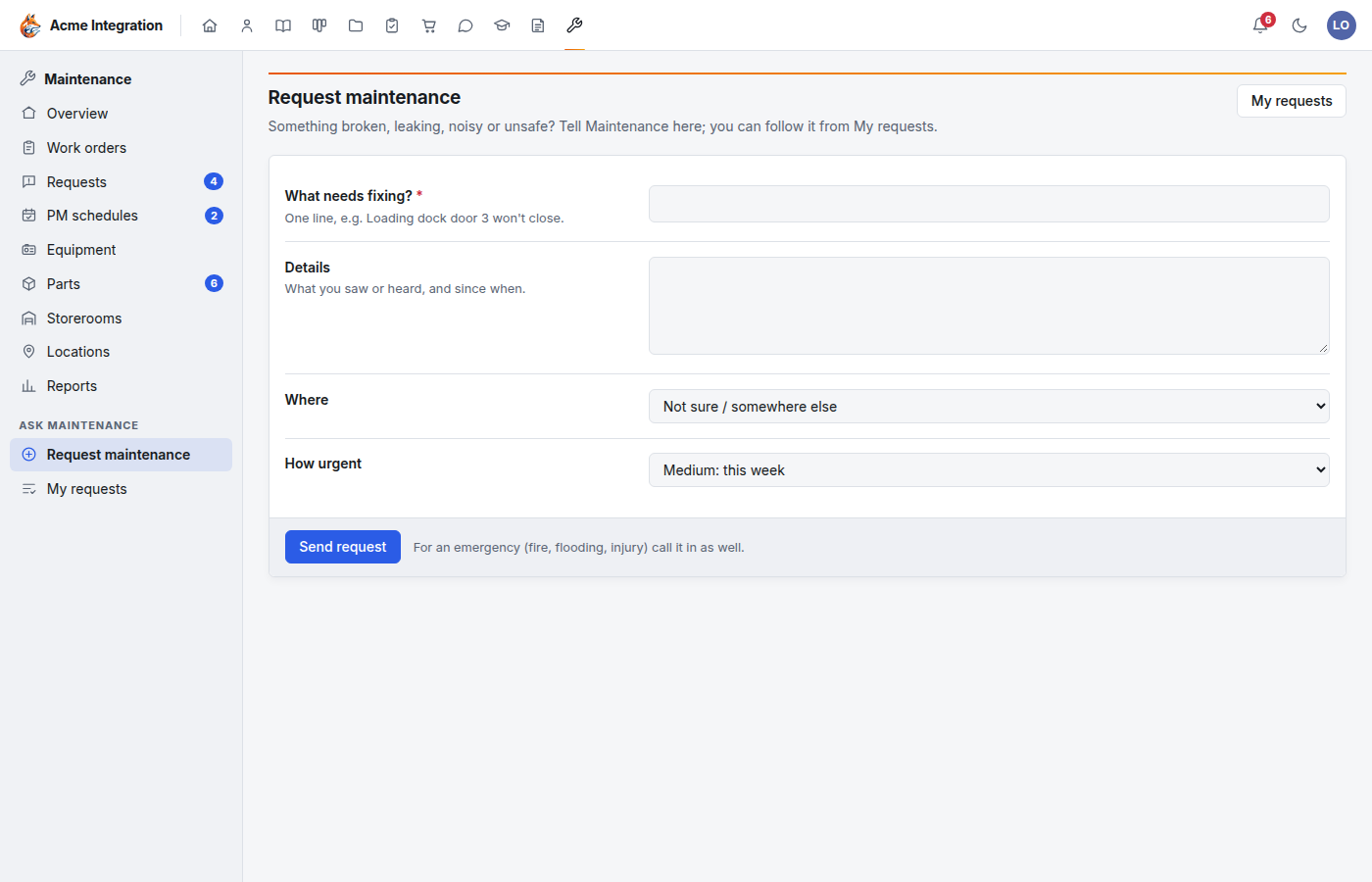
Follow it under My requests. You see whether it was approved (and the work order's number and status) or rejected (with the reason). You never see the work order itself.
For an emergency (fire, flooding, injury), call it in as well. A request is not an alarm.
Approve or reject requests
New requests land in Requests, oldest first, with a count in the sidebar.
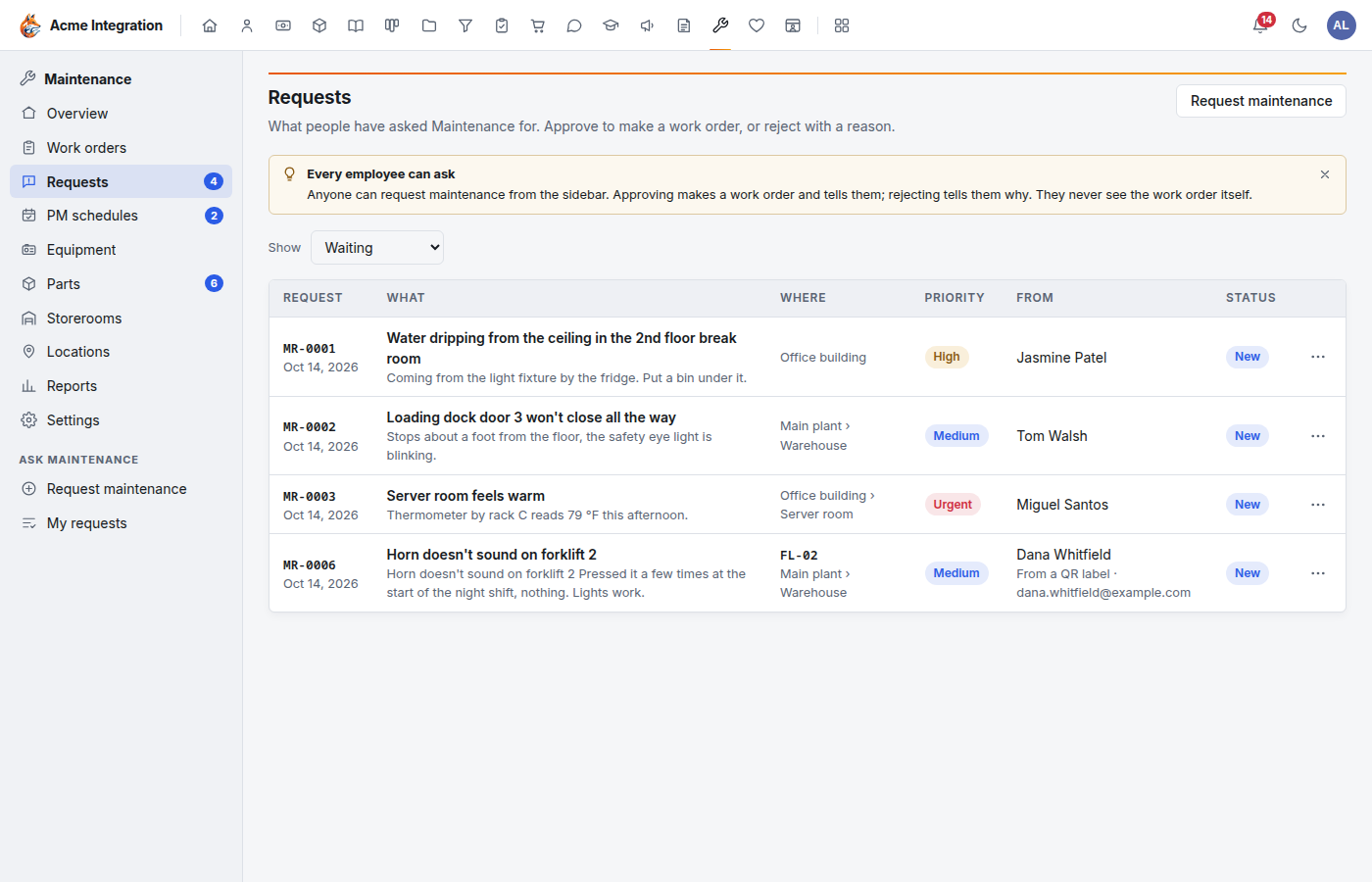
- Open Requests. Show filters by Waiting, Approved, Rejected or All.
- Open a request's ⋯ menu:
- Approve…: check or change the work order title, description, type, priority, equipment and who works on it, then click Approve and create. A work order is made and the requester is told.
- Reject…: give a reason and click Reject request. The requester reads the reason on their request.
QR labels
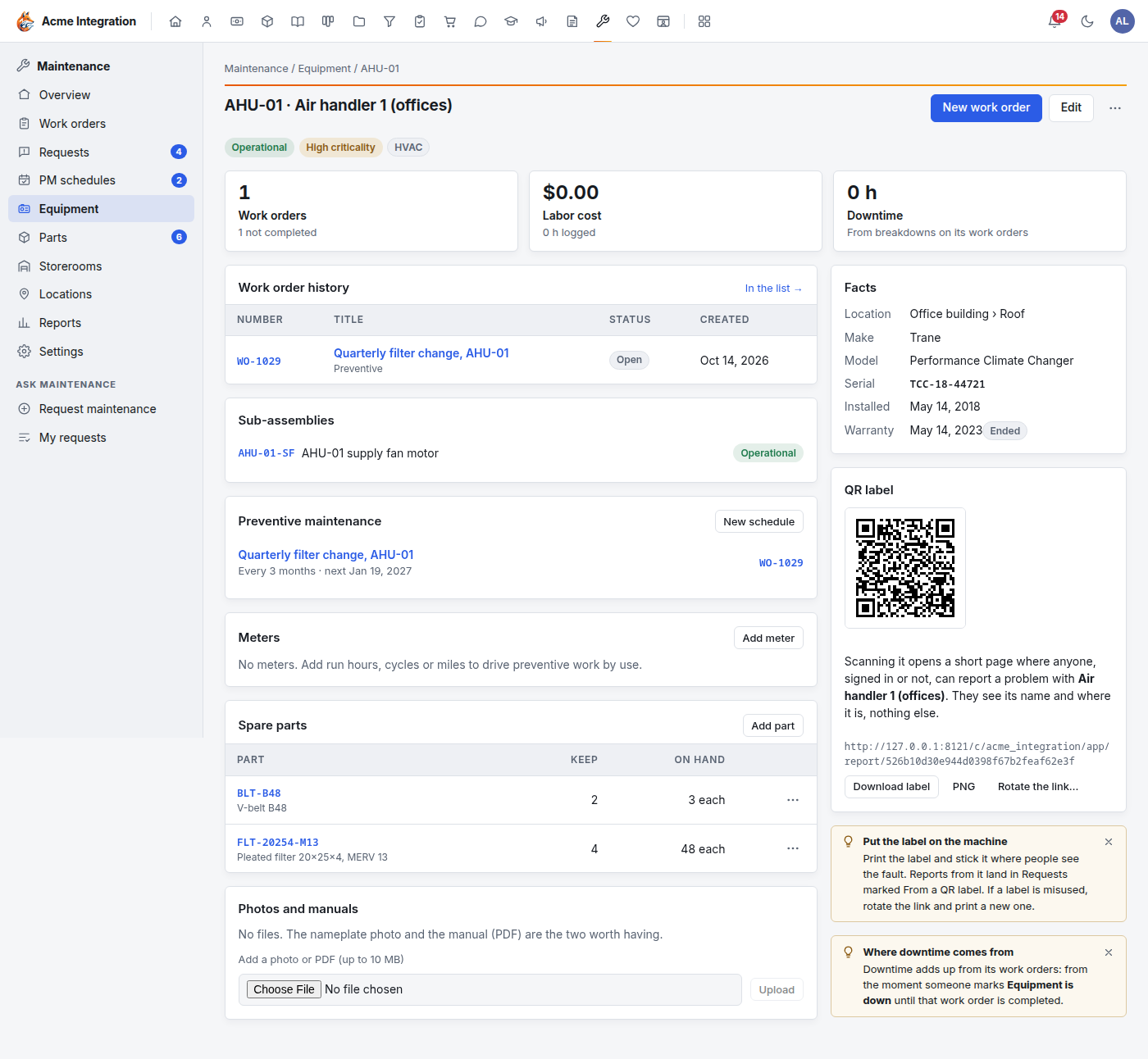
Every piece of equipment and every location has a QR label. Anyone who scans it, signed in or not, gets a short page showing only the equipment's name and where it is, and can report a problem with their name, an optional email and a photo. The report arrives in Requests marked From a QR label.
- Open the equipment (or, under Locations, a location's ⋯ menu → QR label…).
- Under QR label, click Download label (or PNG), print it and stick it on the machine.
- If a label is misused, click Rotate the link…. Printed labels stop working at once; print the new one.
Create and run a work order
- Click New work order (on the overview, the work order list, or an equipment page).
- Fill in Title, Description, Type (Corrective, Preventive, Inspection, Safety or Improvement), Priority, Equipment, Location, Scheduled for (a date makes it Scheduled), Due, Estimated hours, Assign to (only people who work Maintenance; they are notified) and an optional Checklist.
- Click Create work order.
A work order moves through a fixed flow:
Open → Scheduled → In progress ⇄ On hold → Completed → Closed
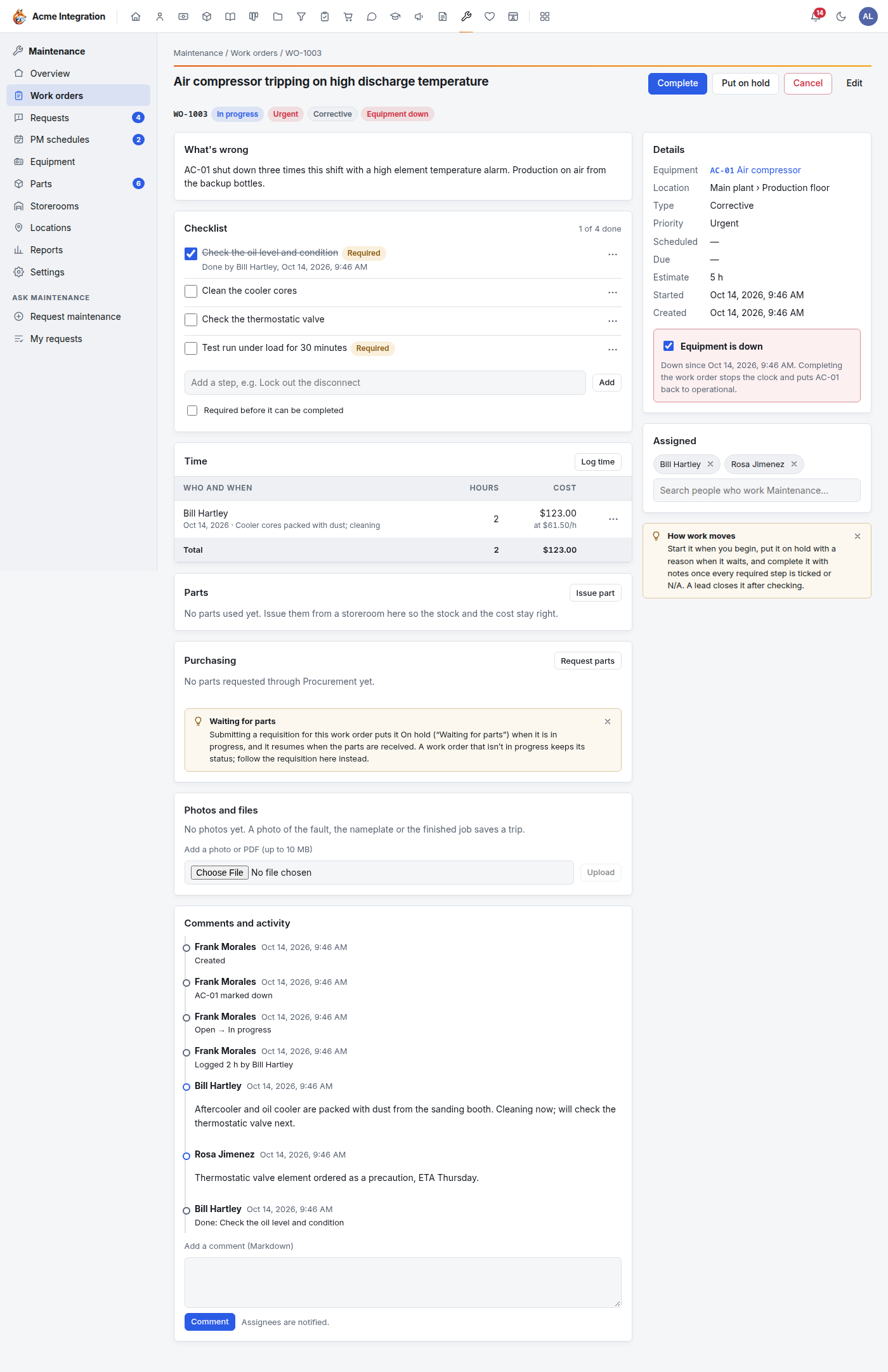
The buttons at the top of the work order offer the next moves:
| Button | What it does |
|---|---|
| Schedule | Asks for the date |
| Start | Stamps when work began (repair times need this) |
| Put on hold | Asks what it is waiting for |
| Resume | Back to in progress from on hold |
| Complete | Needs every Required checklist step done or N/A, and completion notes. Problem, cause and remedy codes are optional but feed the reports |
| Close | A lead closes it after checking |
| Reopen | Takes a completed work order back to in progress |
| Cancel | Asks for a reason. Possible any time before Closed |
While you work:
- Equipment is down: tick it when a breakdown stops the machine. The equipment shows as down and its downtime counts until the work order is completed (or you untick it).
- Checklist: tick steps as you go, mark N/A, or add a note (a reading, what you found) from the step's ⋯ menu.
- Time: click Log time and enter the Day, Hours and a Note. Each entry is costed at the person's rate on that day. A technician logs their own time; a lead can log anyone's.
- Parts: Issue part takes parts off a storeroom shelf at today's cost; Return puts unused ones back. You can't issue more than is on hand.
- Assigned: search for people who work Maintenance, add them, and save. They are notified.
- Photos and files (photo or PDF, up to 10 MB) and comments (Markdown, which notify the assignees).
Preventive maintenance
A PM schedule makes work orders for routine work before it is needed.
- Open PM schedules and click New schedule.
- Fill in Title (each work order's title), Description, Equipment (or a location instead), Priority.
- Under Comes due, choose:
- By the calendar: Every N days, weeks, months or years, starting from Next due. Lead days makes the work order that many days ahead of the due date.
- By a meter: every so many hours, cycles or miles on one of the equipment's meters. Record readings on the equipment page (Record reading); the reading that reaches the next service point makes the work order at once.
- Under Counting, choose Fixed (keeps to its dates, whenever the work is done) or Floating (counts again from the day the work is completed).
- Add Estimated hours, Assign to, a Checklist (steps marked Required must be done or N/A before completion) and Planned parts.
- Click Save schedule.
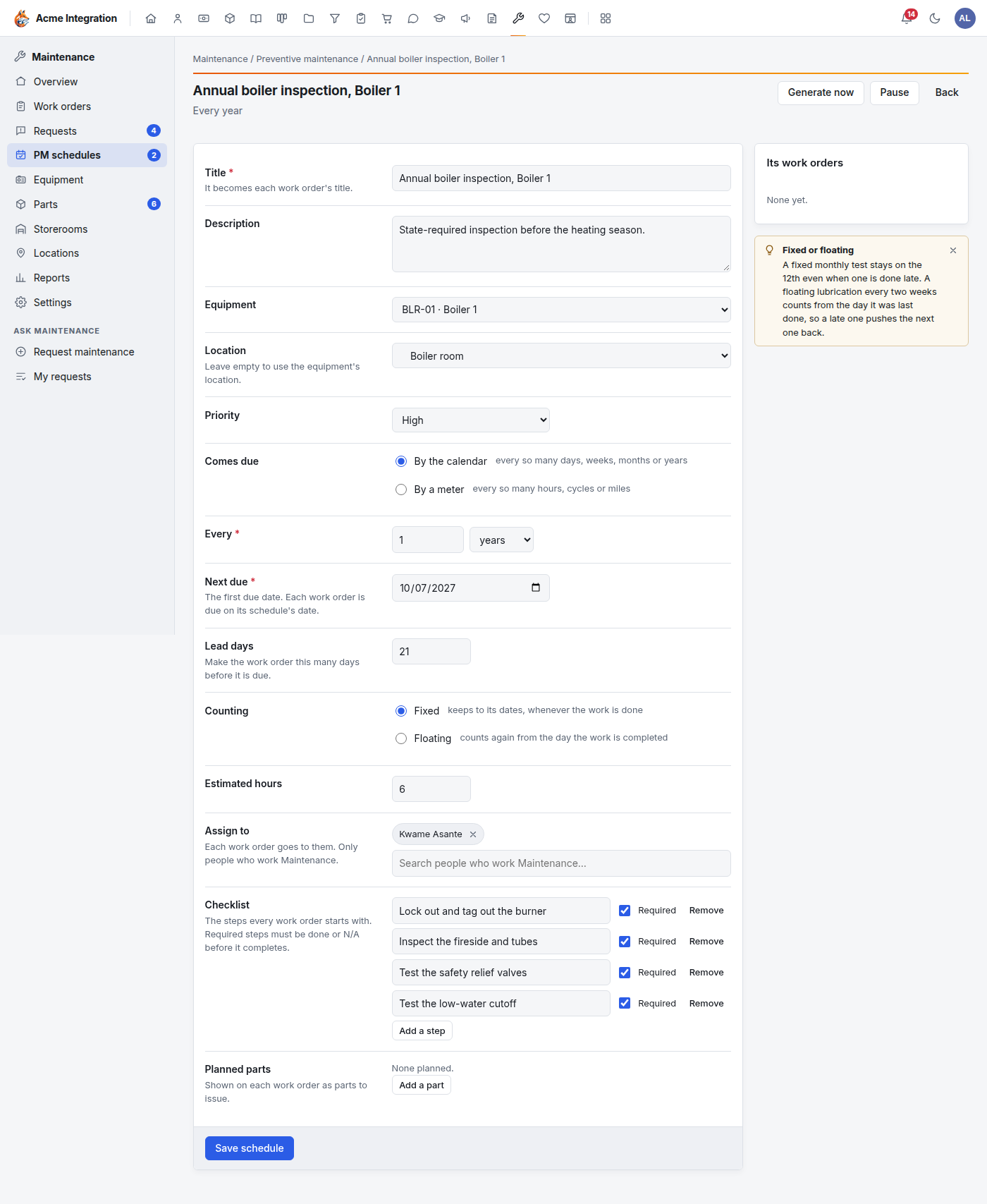
Work orders are made automatically every day. A schedule has at most one open work order at a time. Generate now on a schedule makes its next one at once; Generate due work on the list runs today's generation now. Pause stops a schedule generating. 12-week forecast shows upcoming preventive work by week, with estimated hours.
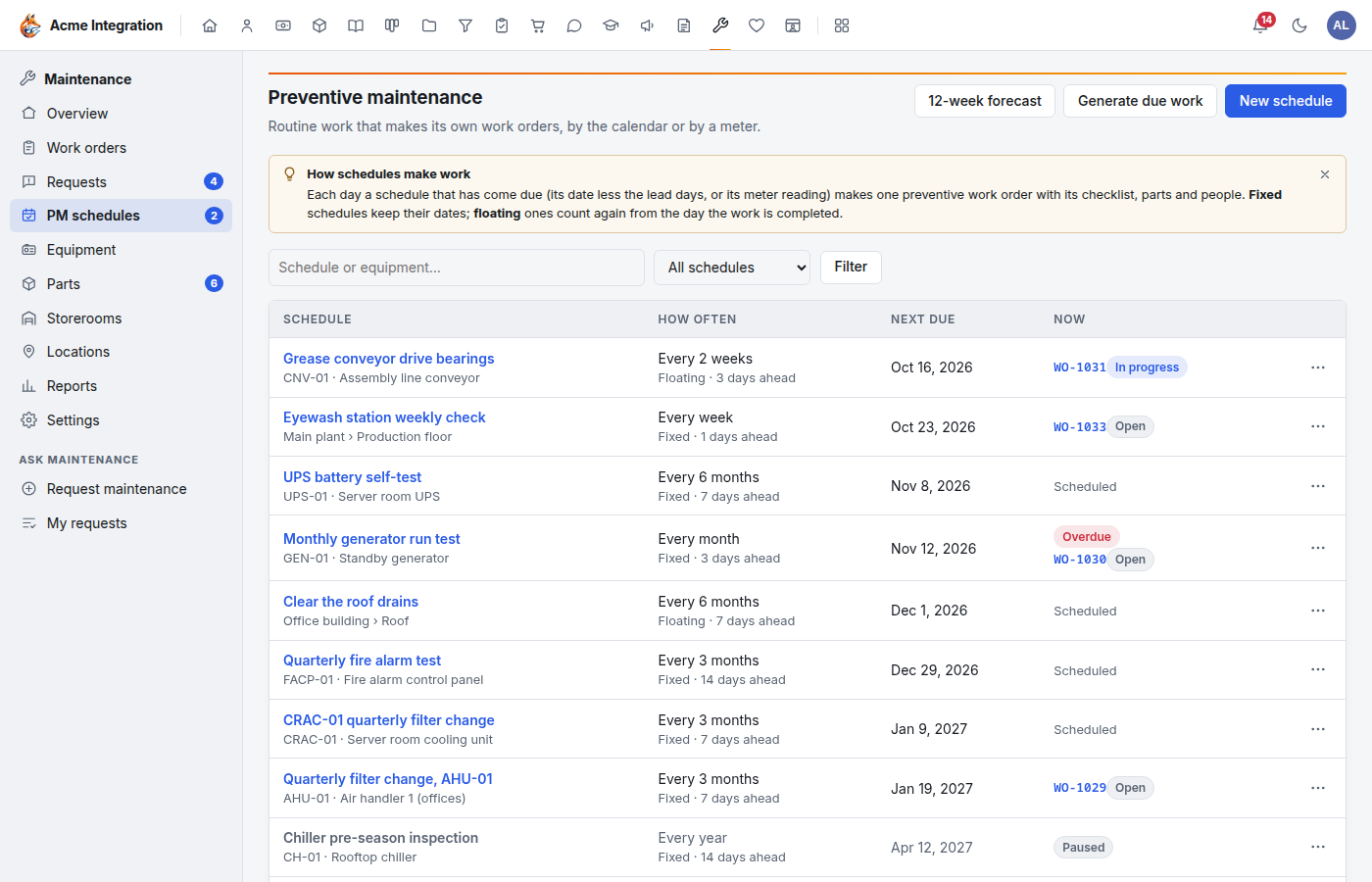
PM compliance is the share of preventive work orders completed on or before their due date, out of those due in the period (cancelled ones aside).
Parts and storerooms
Open a part from Parts to manage its stock:
- Receive puts a delivery on the shelf. The part's unit cost becomes the weighted average of what was on hand and what arrived.
- Count… (on a storeroom's row) corrects its quantity to what is really there. It needs a reason.
- Move from here… transfers stock to another storeroom.
- Set the bin… records where on the shelves it lives.
Every change is a line in the part's ledger, which can't be edited: fix a mistake with another line. A part is low when the total on hand is at or below its reorder point (0 means don't watch it). Each piece of equipment can have a Spare parts list of what to keep for it.
Buying parts (needs Procurement)
- Request parts on a work order, or Reorder… on a low part in the Parts list, creates a draft requisition in Procurement. Review it there and submit it. See Procurement.
- A work order that is in progress goes on hold (waiting for parts) when its requisition is submitted, and back to in progress when everything has arrived. Its Purchasing section shows where each requisition and purchase order is.
- Receiving the purchase order puts the parts in the storeroom at the price paid, or issues them straight to the work order.
Reports
Reports covers a period you choose (From / to, or Last 30 days, Last 90 days, Last 12 months): cost by equipment (labor and parts), downtime, mean time to repair and between failures, PM compliance by month, work orders by type and status, and the backlog of estimated hours. Each table downloads as CSV.
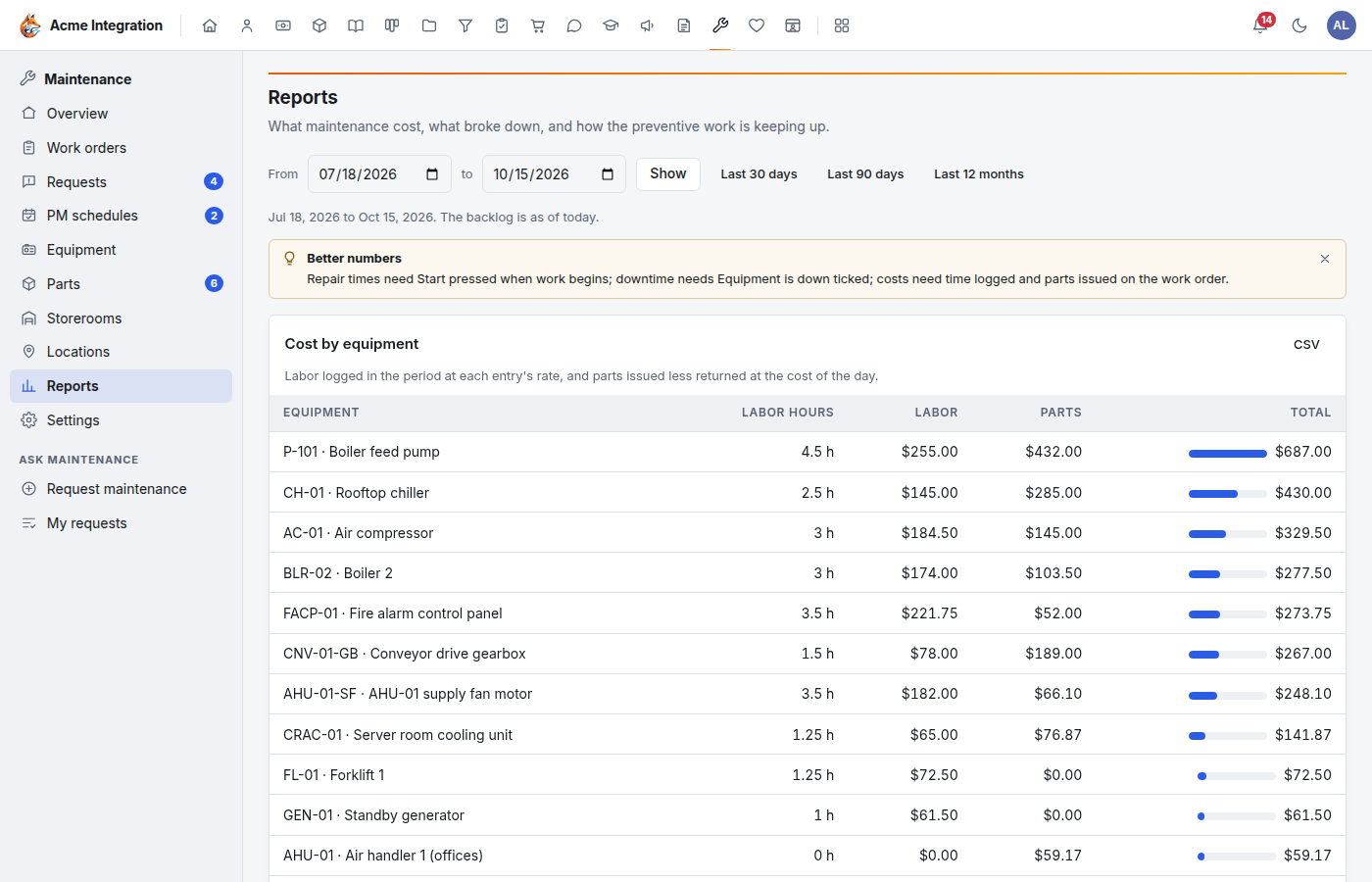
The numbers are only as good as the habits: repair times need Start pressed when work begins, downtime needs Equipment is down ticked, and costs need time logged and parts issued on the work order.
Troubleshooting
I only see Request maintenance and My requests. You aren't in a department with Maintenance enabled. A company administrator enables it under Administration → Departments → the department → Feature areas.
Complete is refused. A Required checklist step isn't done or marked N/A, or the completion notes are empty.
I can't find someone under Assign to. Only people who work Maintenance (members of a department with Maintenance) can be assigned.
Issue part says there isn't enough. The storeroom doesn't hold that many. Receive the delivery first, or Count if the shelf is really fuller than the system says.
There is no Request parts or Reorder… button. Procurement is off under Administration → Modules.
A printed QR label stopped working. Someone used Rotate the link…. Print the current label from the equipment page.
There is no Settings in the sidebar. Settings is for company administrators and Maintenance admins.
A PM schedule isn't making work orders. It may be Paused, it may already have an open work order, or (for a meter schedule) no reading has reached the next service point yet.