 foxxcyber/docs
CRM: contacts, accounts and deals
Keep the people and companies you work with, follow deals on the pipeline board, move contacts through lifecycle stages, read the summary panel, and archive or delete records.
The CRM (CRM & Sales in the menu) holds the people you work with (contacts), the companies and organizations they belong to (accounts), and the sales you are working on (deals). Everything else in this section, from the customer portal to newsletters, starts from a CRM contact.
Before you start
- CRM & Sales must be on under Administration → Modules. See Modules.
- To use the CRM, you must belong to a department that has the CRM area enabled, or be a company administrator. See Access and permissions.
- Some tools belong to CRM owners only: department leads of a CRM department, people with the CRM admin grant, and company administrators. Owners can delete contacts, merge duplicates, import, change CRM settings, and invite people to the customer portal.
- The Pipeline board needs at least one pipeline with stages. A CRM owner sets them up under CRM settings (see below).
Find your way around
Open CRM & Sales from the top bar. The sidebar has:
- Dashboard: the CRM at a glance.
- Pipeline: open deals as a board, one column per stage.
- Deals: every deal as a list, open, won and lost.
- Accounts: companies and organizations.
- Customers: accounts that have bought something through the customer portal.
- Contacts: people. Leads is the same list showing only contacts at the lead stage.
- Under Operations: Suppression (addresses that must never be emailed, see Email deliverability), Partners, Reports and Intake (website forms).
- Under Settings (owners): CRM settings and Duplicates.
Who sees which records
Every record can have an owner. A record with an owner is seen by that person and by CRM administrators; a record with no owner (Unassigned) is seen by the whole CRM team. Any record can also be shared with particular people. Lists, reports and exports all follow these rules, so two people can see different numbers on the same list.
Contacts
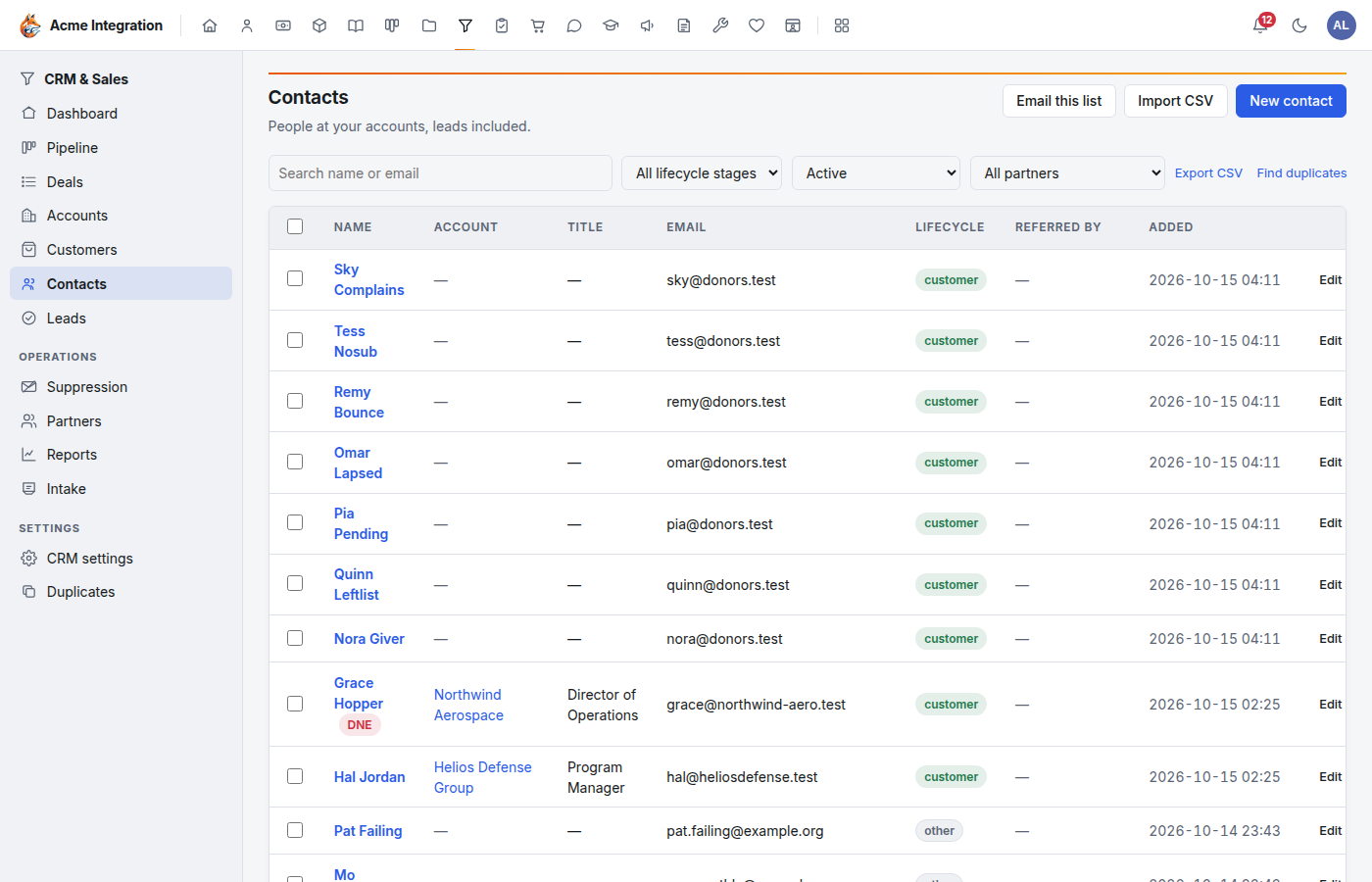
Add a contact
- Open Contacts and click New contact.
- Fill in First name and Last name, and as much as you know: Email, Phone, Title, Account (the company they belong to), Lifecycle stage, Owner, Source, Referred by partner and Labels.
- Tick Do not email if this person must never get email from you.
- Save. The contact's page opens.
Give the contact an email address if you might invite them to the customer portal or add them to a newsletter later. Both go by email.
A contact's page
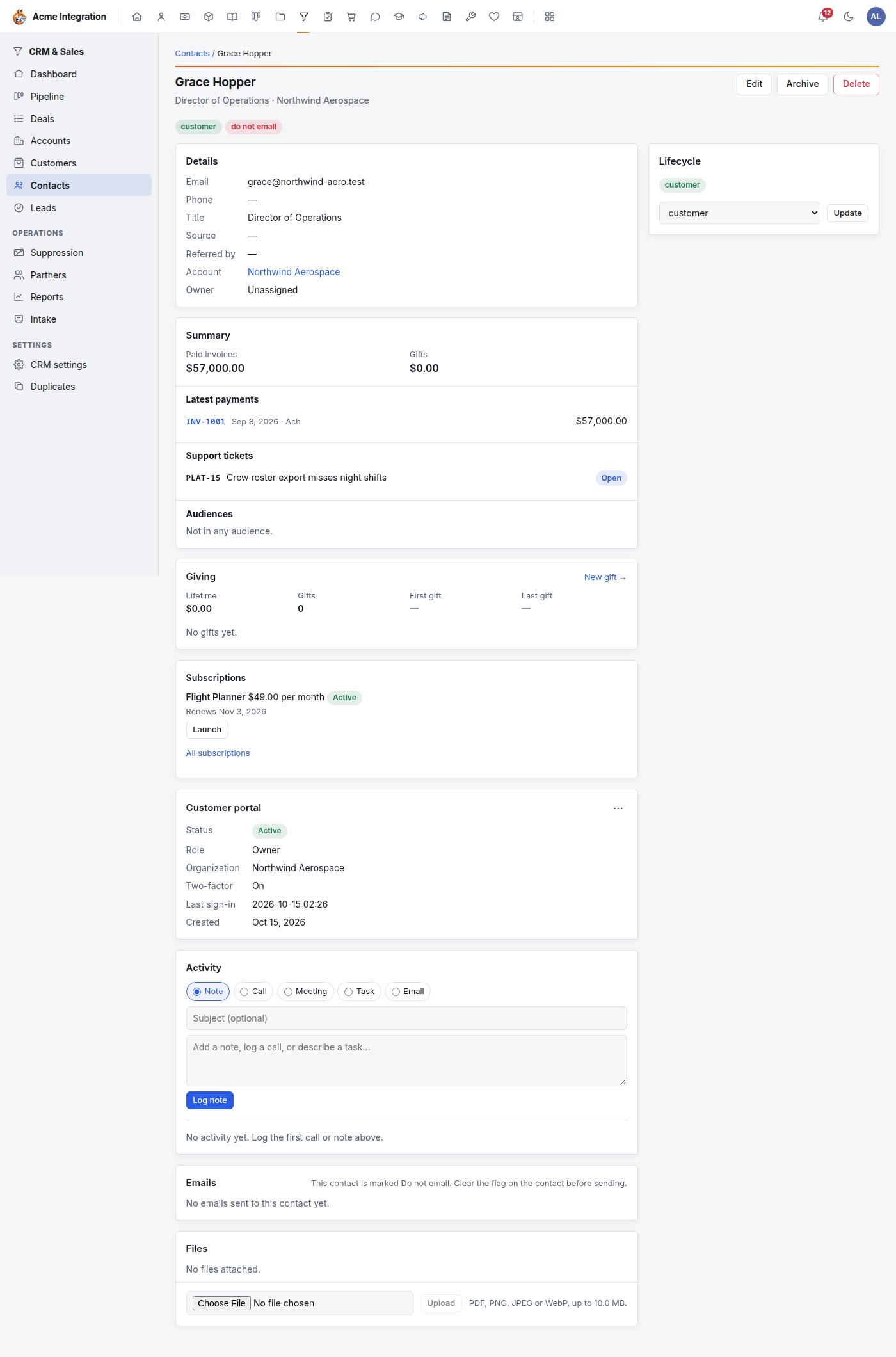
From top to bottom:
- Edit, Archive and Delete at the top right, with Email when the contact can be emailed.
- Chips for the lifecycle stage, and archived or do not email when they apply.
- Details: email, phone, title, source, partner, account, owner, any custom fields and labels.
- Summary (see below), followed by cards from other areas: Giving, Subscriptions and Customer portal. Each appears only when that area is on and you can use it.
- Activity: log a Note, Call, Meeting, Task or Email, then click the log button.
- Emails sent to the contact, with their status. If the contact can't be emailed, the reason is shown instead of Compose email.
- Files attached to the contact.
- Lifecycle on the right.
Lifecycle stages
A contact's stage says how far along they are:
| Stage | Means |
|---|---|
| lead | Someone who showed interest. |
| mql | A marketing-qualified lead: engaged enough to follow up. |
| sql | A sales-qualified lead: worth a sales conversation. |
| customer | Buys from you. |
| other | Anyone else: donors, partners, volunteers. |
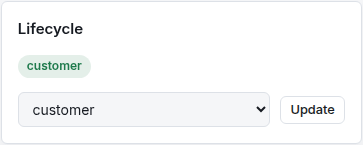
To change it, pick the stage in the Lifecycle card and click Update. A lead also gets a Qualify lead button, which moves it straight to sql. On the Leads list, Qualify does the same from the row.
The summary panel
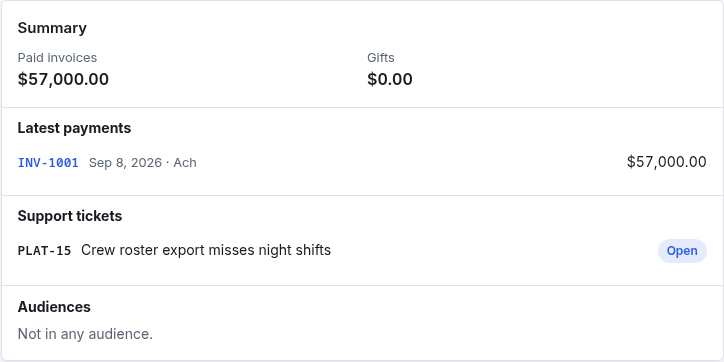
The Summary card on a contact's (or account's) page brings together what other areas know about them, so you don't have to go looking:
- Paid invoices and Gifts: lifetime totals.
- Latest payments: the most recent invoice payments, each linking to its invoice.
- Support tickets: their tickets and each one's status.
- Volunteer hours: this year and all time.
- Audiences: the marketing audiences they are in.
Each part appears only if you can open that area. Someone without Finance access, for example, does not see the payments.
Accounts
An account is a company or organization. Its page lists its Contacts (with New contact), its Open deals (with New deal), Won deals and Purchase history from the customer portal (when there are any), Details (including its Finance link, the Finance party its invoices are made out to), Sharing, and the same Summary panel as a contact. When the customer portal is on, a Customer portal card lists the account's people who have portal access.
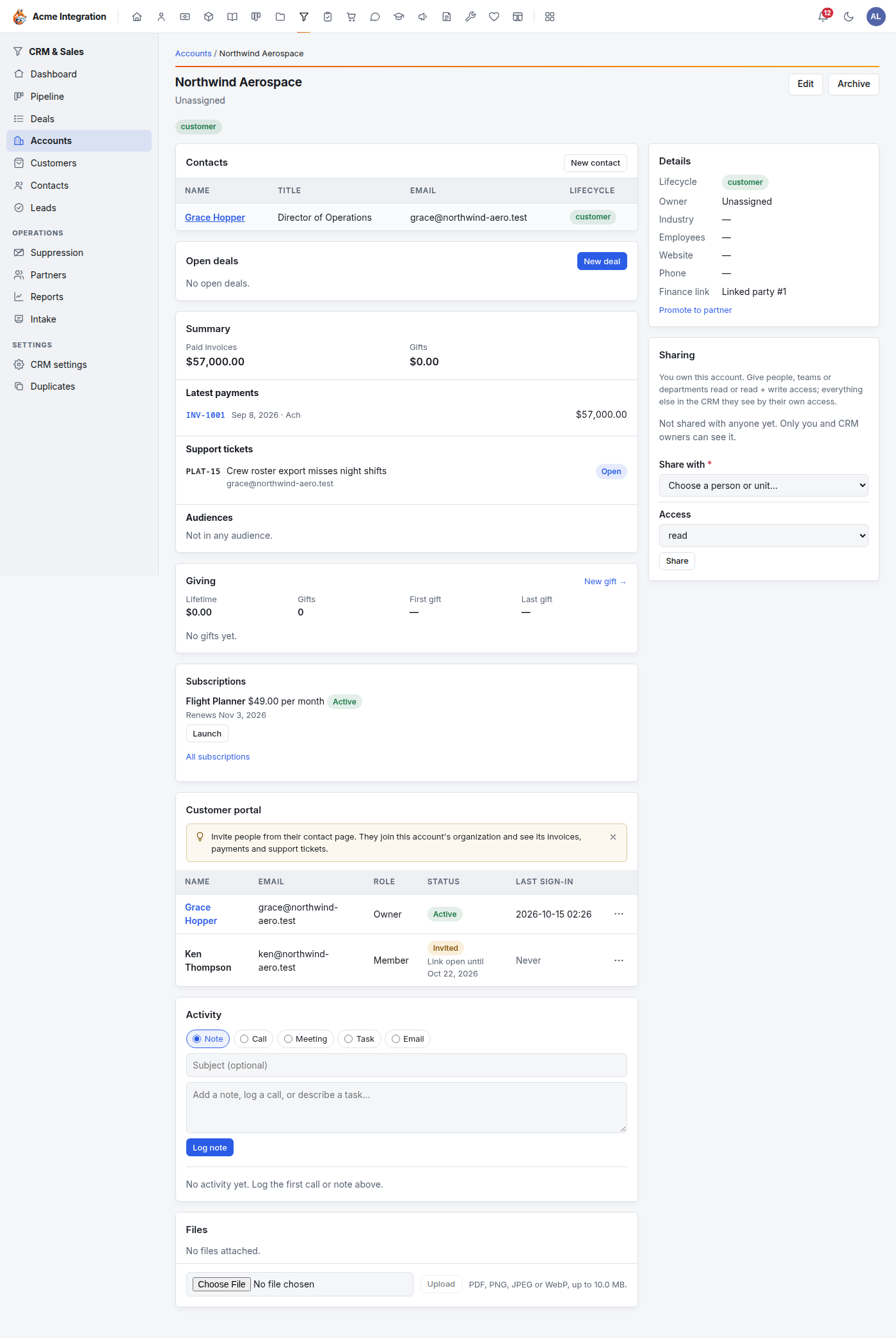
To add one, open Accounts, click New account, fill in Name and anything else you know (Industry, Website, Phone, Employees, Lifecycle stage, Owner, Labels), and save.
Deals and the pipeline
The pipeline board
Pipeline shows every open deal as a card in its stage's column. Each column header shows the stage's win probability, the number of deals and their total value.
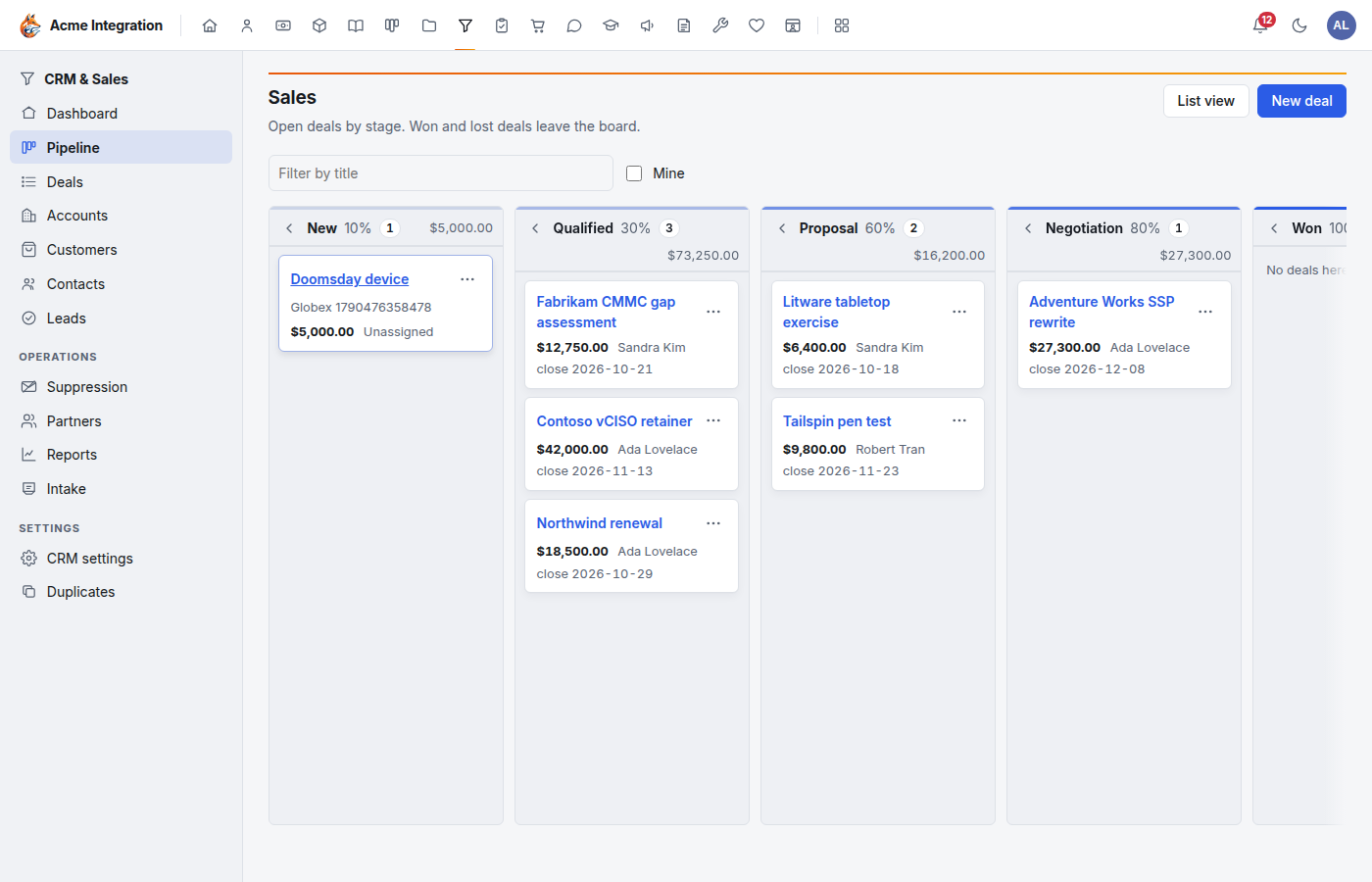
- Move a deal: drag its card to another column. On a phone, press and hold the card first. Or open the card's menu and choose Move to (stage).
- Filter by title, or tick Mine to see only your deals.
- Click the arrow beside a column's name to fold it away.
- Several pipelines? Buttons above the board switch between them.
- List view shows all deals in a table; New deal adds one.
Add a deal
- Click New deal (on the board, the Deals list, or an account).
- Fill in Title, Account, Amount and Currency, Pipeline and Stage, Expected close, Owner, and optionally Referred by partner and Labels.
- Save.
Win or lose a deal
Open the deal. In Close deal, click Mark won, or type an optional reason and click Mark lost. Won and lost deals leave the board but stay on the Deals list.
While a deal is still open, the Quote card's Generate quote turns it into a Finance quote from your catalog products and free-text lines, so nothing is typed twice. A deal has one quote; once made, the card shows the quote instead.
Set up pipelines and stages (CRM owners)
Open CRM settings:
- Pipelines: Add pipeline, then Add stage for each step from first contact to won or lost. Use the arrows to put stages in order. The stages become the board's columns.
- Custom fields: extra fields on the account, contact and deal forms.
- Labels: tags for accounts, contacts and deals. Renaming or deleting one updates every record that carries it.
Archive or delete
| Archive | Delete | |
|---|---|---|
| For | Real people and companies you no longer work with | Spam and junk |
| History, notes, files | Kept | Deleted with it |
| Shows in lists | No, except with the Archived filter | No |
| Can be undone | Yes, Restore | No |
| Who can | Anyone who can see the record | CRM owners only |
Archive a contact: open it and click Archive. To bring it back, show Archived in the list's status filter, open the contact and click Restore.
Delete a contact: open it and click Delete (owners only), then confirm. Notes and attachments go too.
Several at once: on Contacts, tick the rows. A bar appears with Archive, Restore (when the list shows archived contacts) and, for owners, Delete permanently.

Archive an account: open it (or its row menu on Accounts) and click Archive, then confirm.
An archived account cannot be restored from the app today: there is no Restore button for accounts. Archive an account only when you are sure.
Troubleshooting
"CRM & Sales isn't in my menu." The module is off (Administration → Modules), or you are not in a department with the CRM area. Ask a company administrator.
"I can't find a contact a colleague can see." It has an owner and isn't shared with you. Ask its owner to share it, or ask a CRM administrator.
"The Delete button is missing." Only CRM owners can delete. Archive instead.
"The Pipeline says No pipeline yet, or This pipeline has no stages yet." A CRM owner needs to add a pipeline and its stages under CRM settings.
"The contact page says No such contact." It was deleted, or it belongs to an account you can't see.
"Email is missing on the contact, or Emails says it can't be emailed." The contact has no address, is marked Do not email, or is on the suppression list. See Email deliverability.
"An archived contact disappeared." Archived records leave the lists. Choose Archived (or Active and archived) in the status filter.