 foxxcyber/docs
Inbox and notifications
Everything waiting on you in one list, your notifications, the bell count, and getting notifications by email.
The Inbox gathers everything waiting on you, from every area, in one place. It has two tabs:
- My Work: things you need to act on, such as leave requests to approve, expense reports to review, forms to fill in and courses assigned to you.
- Notifications: things that happened that you should know about, such as a mention in chat, a requisition waiting for your approval or a new job applicant.
Before you start
- Nothing to set up. Everyone has an Inbox.
- To also get notifications by email, turn it on under My account (see below), and your organization must have email set up. See Email.
Open the Inbox
Any of these opens it:
- Click the bell in the top bar. Its red number is your waiting work plus your unread notifications.
- Click Inbox in the sidebar of your workspace.
- Click Open the inbox at the bottom of the Inbox widget on your workspace.
Work through My Work
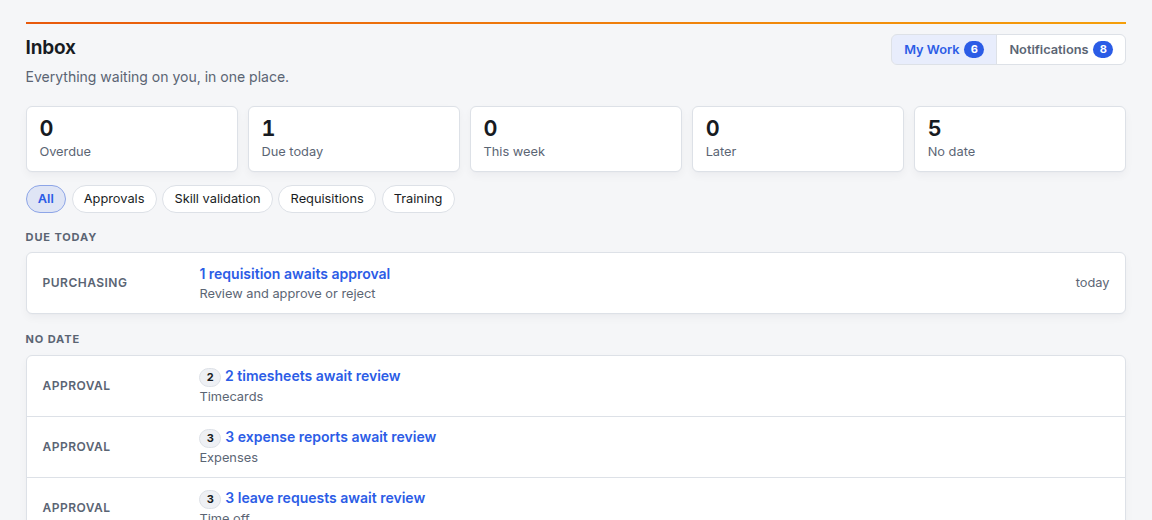
- The row of counts at the top shows how urgent your work is: Overdue, Due today, This week, Later and No date.
- To see one kind of work only, click a chip under the counts (for example Approvals). Click All to see everything again.
- Items are grouped by when they are due. Each row shows its kind (such as APPROVAL), what it is, and where it comes from. Similar items are bundled: "3 expense reports await review" is one row.
- Click a row to open the page where you act on it. When you have dealt with it, it leaves your Inbox by itself.
When nothing is waiting, the page says You're all caught up.
Read your notifications
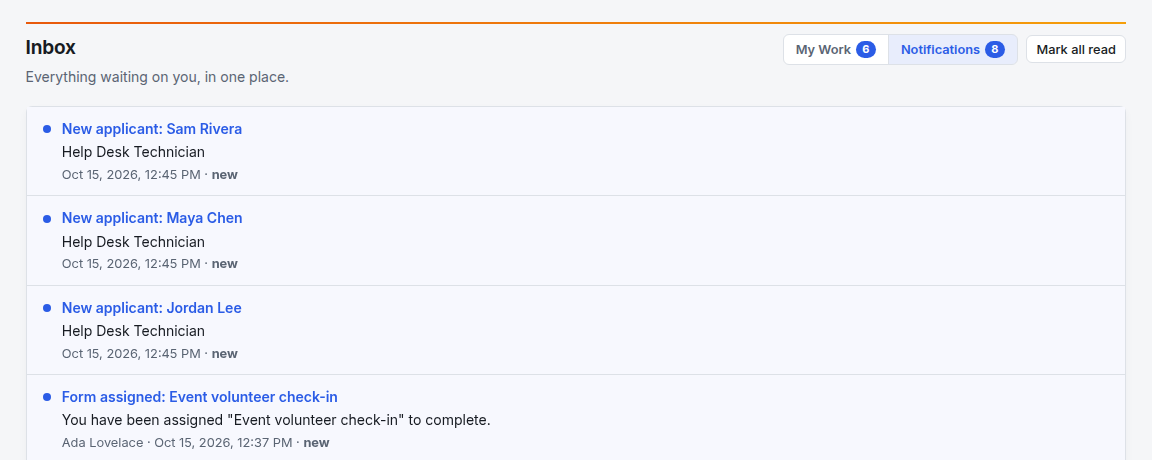
- In the Inbox, click the Notifications tab. The number on the tab is how many are unread.
- Unread notifications have a blue dot and the word new.
- Click a notification's title. Foxx HQ marks it read and takes you to what it is about (for example, the chat message that mentioned you).
- To clear the unread count in one go, click Mark all read.
The Project Tracker also has its own Notifications page (in the Tracker's sidebar) for updates on issues you watch or are assigned: moves, comments and assignments. See Project Tracker.
Get notifications by email
Email notifications are off until you turn them on. It is your choice.
- Open the avatar menu (top right) and choose My account.
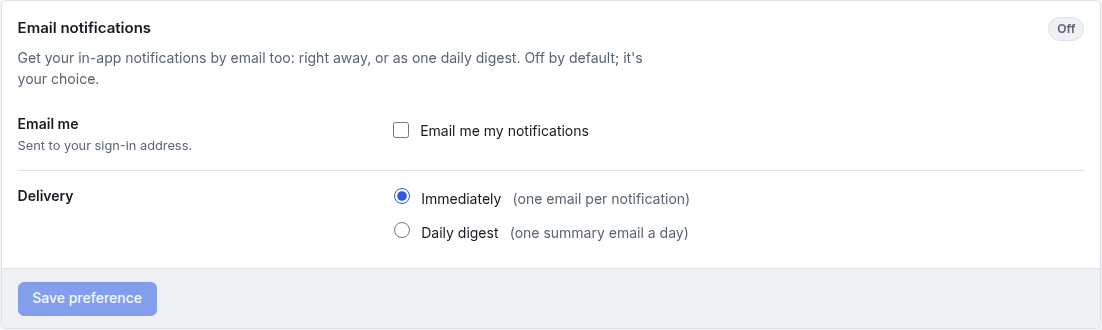
- Find Email notifications.
- Tick Email me my notifications. Emails go to your sign-in address.
- Under Delivery, choose:
- Immediately: one email per notification, or
- Daily digest: one summary email a day.
- Click Save preference. The badge on the card changes to On · immediately or On · daily digest.
To stop the emails, untick Email me my notifications and save.
Troubleshooting
The bell shows a number but My Work is empty. The number includes unread notifications. Open the Notifications tab.
"Some sources couldn't be loaded right now." One area didn't answer in time, so counts may be incomplete. Reload the page in a minute.
An item I approved is still listed. Reload the page. If it is still there, open it: there may be another step (for example, a second approver).
I turned on email but get nothing. Check that Save preference showed the On badge. If it did, your organization's email may not be set up or may be failing. Ask a company administrator to check Administration → Email.
I was mentioned in chat but got no notification. You are only notified if you can read that channel.