 foxxcyber/docs
Your workspace home and widgets
Arrange the widgets on your workspace home: add, move, resize and remove them, and (for administrators) set the default layout everyone starts with.
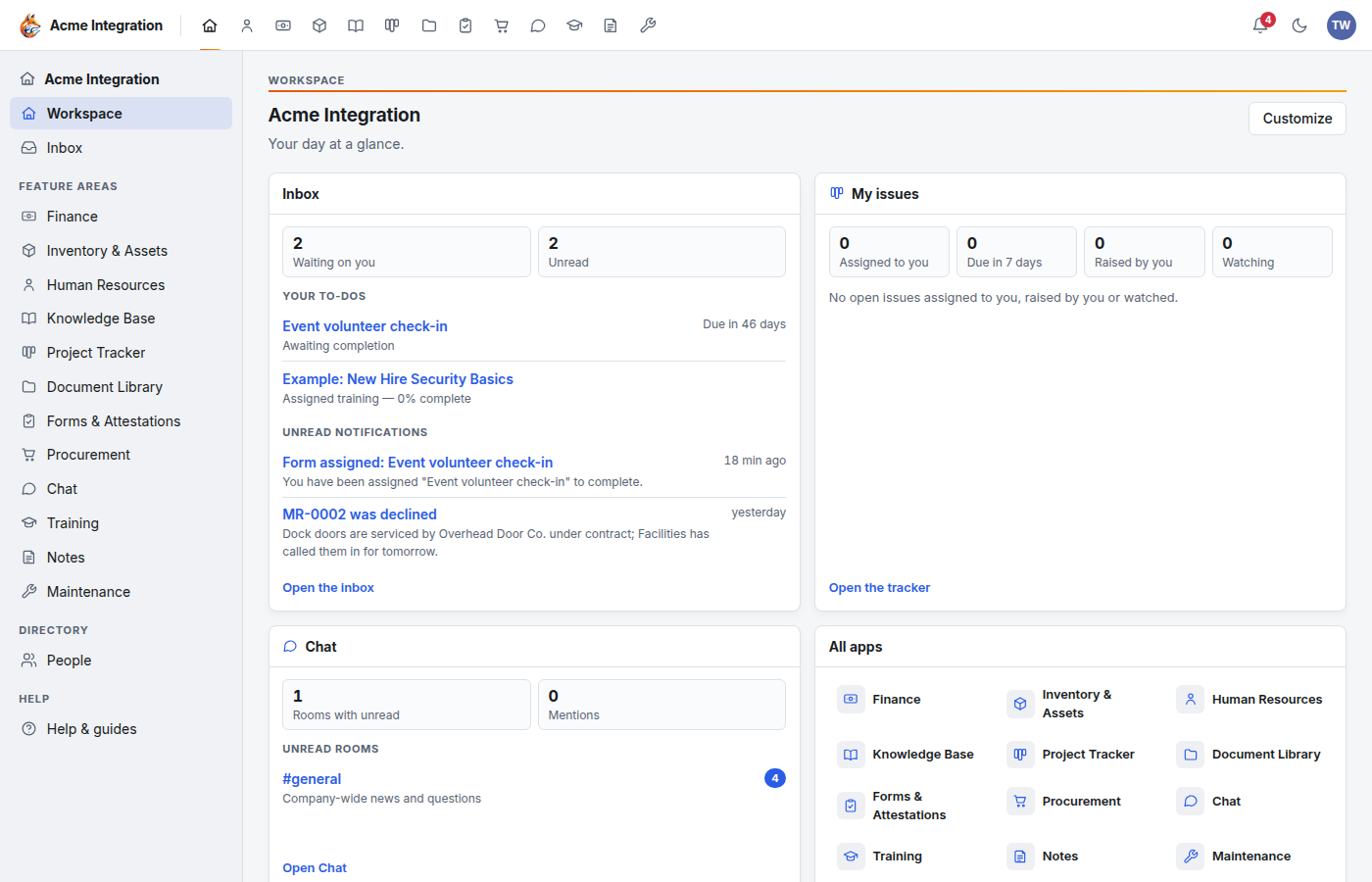
Your workspace is the page you land on after signing in. It is a board of widgets. Each widget is a small live view into one area, with links straight into it: what is waiting for your decision, your issues, unread chat, your deals, today's calendar and more. You arrange the board yourself.
Before you start
- You only see a widget for an area that is switched on for your organization and that you can use. If an area is off, its widgets disappear from every workspace until it is back on.
- A widget never shows anything you couldn't open in the area itself.
- The Agenda widget needs your organization to have connected Google Workspace, and you to connect your own Google account under My account. See Google Workspace.
What each widget shows
| Widget | What it shows |
|---|---|
| Inbox | Requests waiting for your decision (leave, timesheets, expenses, requisitions, skill claims, access requests), your other to-dos, and your unread notifications |
| Welcome | Your organization's welcome message |
| Announcements | Your organization's announcements, including ones you dismissed from the banner |
| Agenda | This week on your Google Calendar, with Join and New event |
| My issues | Project Tracker issues assigned to you, due in the next 7 days, raised by you, and ones you watch |
| Saved filter | One saved Project Tracker filter. Each filter you can open can be added as its own widget |
| Knowledge Base | Your favorite pages and when they last changed, recent edits, and the spaces you manage |
| Chat | Rooms with unread messages, and messages that mention you |
| My deals, Follow-ups, My leads, Account activity | Your CRM work: deals by stage and close date, follow-ups due, your leads, and activity on accounts you own |
| Maintenance | For people who run Maintenance: your work orders, overdue work and requests waiting for a decision. For everyone: your own requests |
| Requisitions | Requisitions waiting for your decision, and your own with their status |
| Time off, Training, Forms to complete | Your leave balances and upcoming leave, courses assigned to you, forms waiting for you |
| Recent notes | Notes you changed recently |
| Giving | Gifts today and this month (nonprofits with Giving on) |
| Volunteer shifts | Your upcoming shifts, and sign-ups waiting for coordinators |
| All apps | Every area open to you, one click away |
The numbers on a widget match the rest of the app: the Inbox widget's Waiting on you and Unread are the bell's numbers, and a chat room's count is its sidebar badge.
Each widget loads on its own. If one area is slow or failing, that widget shows its own message with Try again, and the rest of the page still works. Widgets refresh when you come back to the browser tab.
Arrange your workspace
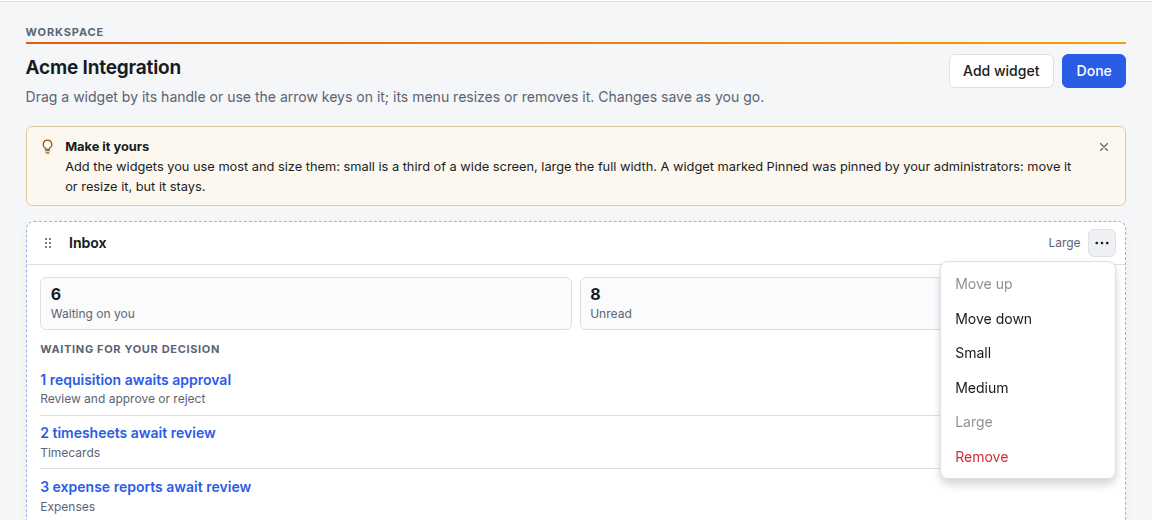
- On your workspace, click Customize (top right). The board switches to edit mode: each widget shows a drag handle, its size and a ⋯ menu.
- Make your changes (see below). Changes save as you go.
- Click Done when you are finished.
Add a widget
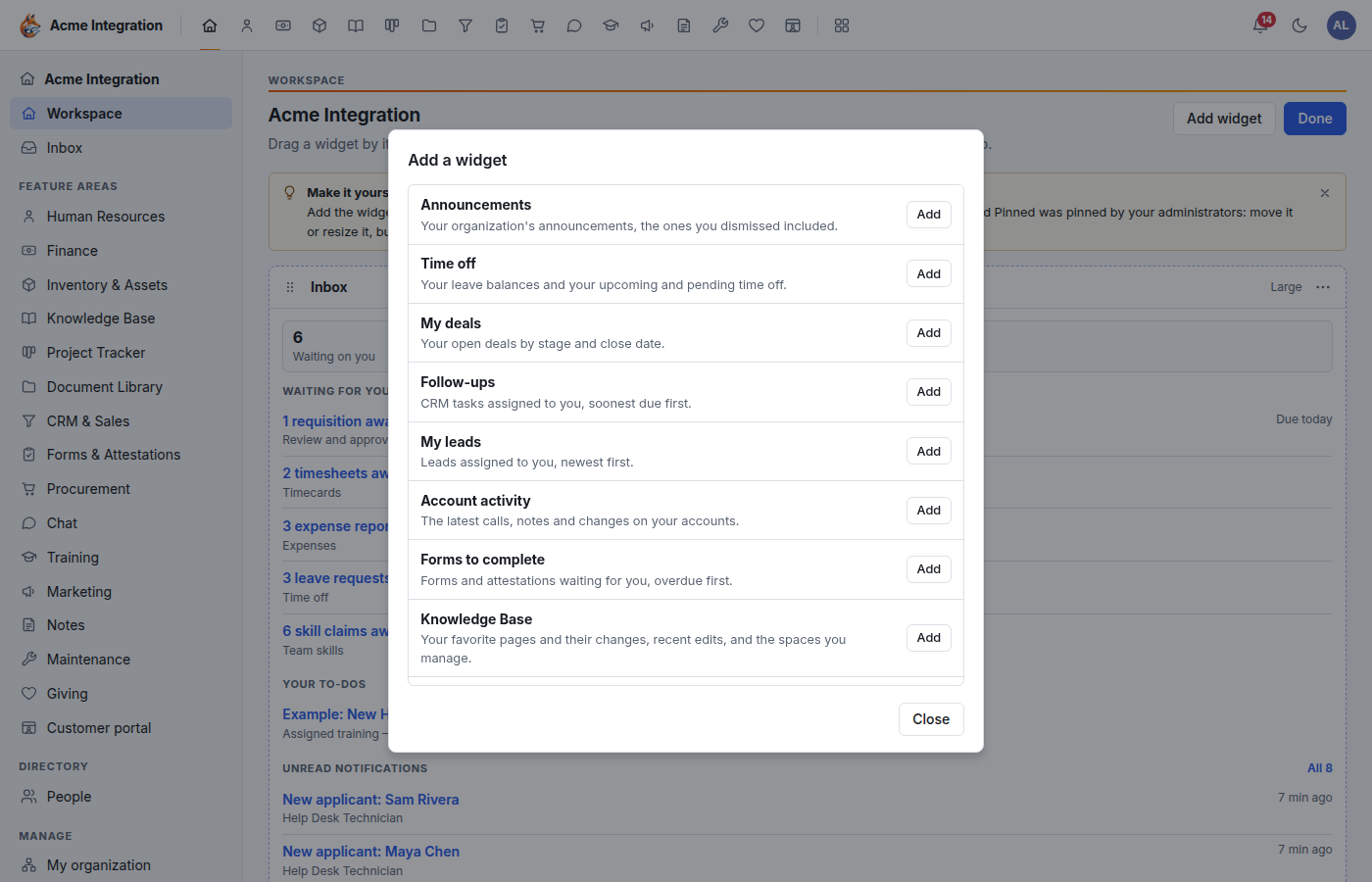
- In Customize mode, click Add widget.
- The Add a widget box lists every widget you can still add, each with a line on what it shows. Saved tracker filters show as Saved filter.
- Click Add next to the one you want. It is added to your board.
- Click Close when you are done adding.
If the box says "Every widget open to you is already on the workspace", there is nothing left to add.
Move a widget
- Drag it by its handle (the six dots at its top left), or
- open its ⋯ menu and choose Move up or Move down, or
- click the handle and use the arrow keys.
Resize a widget
Open its ⋯ menu and pick Small, Medium or Large. Small is a third of a wide screen; Large is the full width. On a phone every widget is full width, one under another.
Remove a widget
Open its ⋯ menu and choose Remove. You can add it back later with Add widget.
A widget marked Pinned was pinned by your administrators. You can move and resize it, but not remove it.
Start over
Reset to default (shown in Customize mode once you have changed anything) throws away your arrangement and gives you your organization's default again.
Your layout is yours alone, and it follows you to every device you sign in on.
The default workspace (company administrators)
Until someone arranges their own workspace, they see the organization's default for their role. Out of the box that is the welcome message, Inbox, My issues, Agenda, Chat and All apps. Leads (department leads, team managers and company administrators) also get a wider Inbox and their Requisitions.
Before you start
- You must be a company administrator.
Arrange the default
- Open Administration → Workspace settings.
- Under Default workspace, click Arrange the default. (From your own workspace, the Default workspace link at the bottom of the page goes to the same place.)
- Choose whose default you are editing:
- Everyone: everyone who hasn't arranged their own workspace.
- Leads: department leads, team managers and company administrators. Until you arrange one for them, leads get the Everyone default.
- Use Add widget, drag the widgets, and use each widget's ⋯ menu to resize or remove it, exactly as on your own workspace. The widgets show a short description instead of live data.
- To force a widget onto every workspace, open its ⋯ menu and choose Pin for everyone. A pinned widget appears even for people who arranged their own workspace, and they can't remove it. A pin on the Everyone default reaches leads too. Choose Unpin to undo it.
- Back to built-in discards your custom default and returns to the out-of-the-box layout.
Changes save as you make them and are recorded in the audit log.
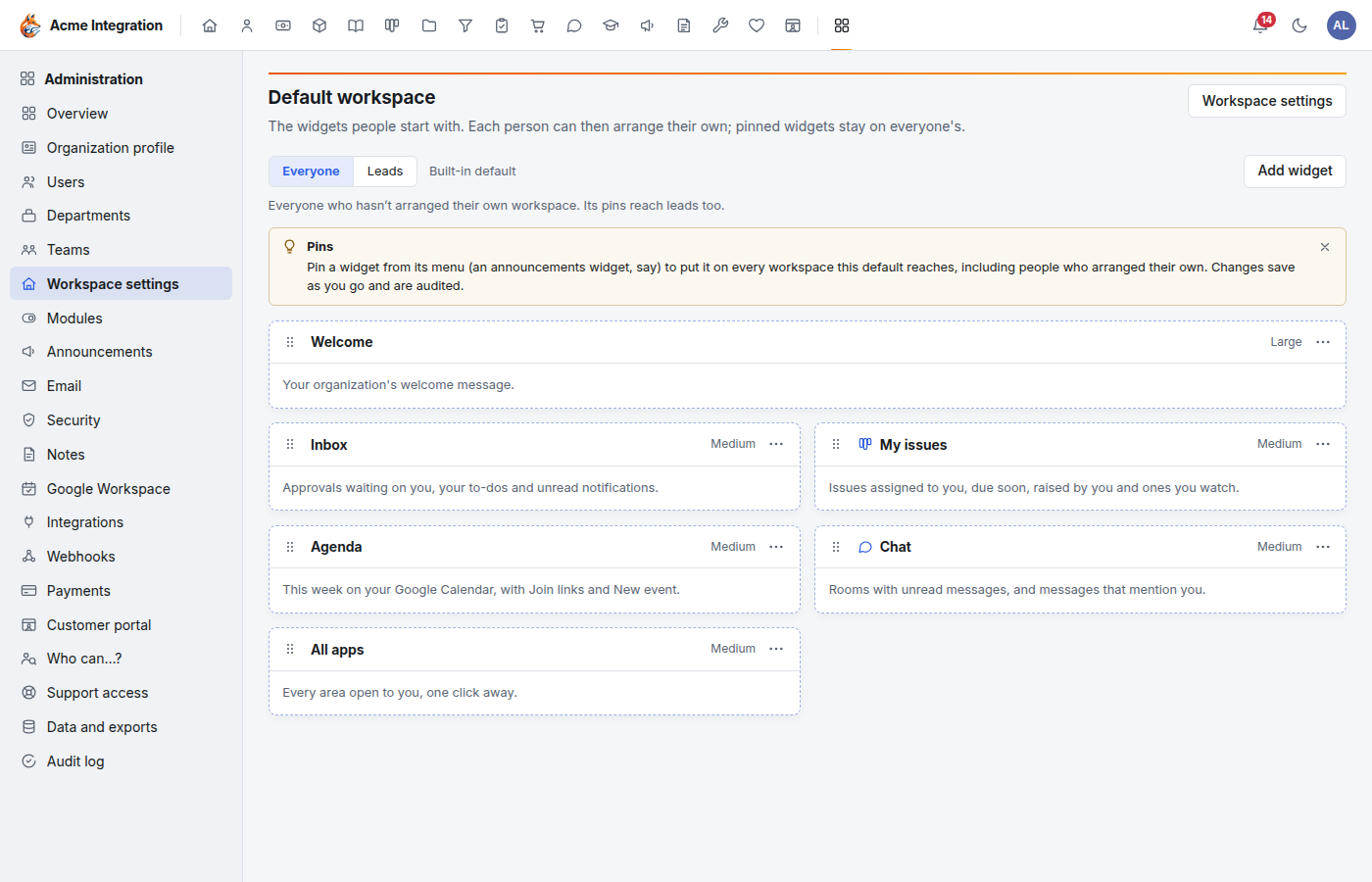
Pin an Announcements widget on the Everyone default when you need every person to see a notice on their home page.
The welcome message
The Welcome widget shows the message set under Administration → Workspace settings → Welcome message. It takes Markdown (bold, italic, lists, links and headings). Click Preview to check it, then Save message. Leave it empty to hide the widget's panel. See Organization and branding.
Troubleshooting
A widget I want isn't in Add widget. Its area is switched off, or you can't use that area (for example, CRM widgets only appear for people in a department with CRM enabled). It may also already be on your board.
A widget says "This widget isn't available to you any more". You lost access to its area (the area was switched off, or you left the department). Remove the widget.
A widget says "Couldn't load …". That area had a problem. Click Try again. The rest of your workspace is unaffected.
I can't remove a widget. It is Pinned by your administrators.
Agenda says Google isn't set up. Your organization hasn't connected Google Workspace yet, or you haven't connected your Google account under My account.
My workspace is empty. Click Add a widget, or use Customize → Reset to default.