 foxxcyber/docs
Time and leave
Log weekly hours on a timecard, request time off, and approve both. For HR, set up charge codes, leave types and balances.
Employees log their hours on a weekly timecard and ask for time off with a leave request. Both go to an approver, who approves or rejects them. HR administrators set up the charge codes hours are booked to, the kinds of leave people can take, and everyone's leave balances.
Before you start
- Human Resources is turned on under Administration → Modules. See Modules.
- For timecards: at least one charge code exists. An HR administrator adds them under Human Resources → Charge codes (see below). Without one, there's nothing to book hours to.
- For leave: at least one leave type exists, under Leave types & balances. Without one, nobody can request time off.
- Every person has an approver. Requests climb an approval chain: the person's reports-to manager (if one is set), then the leads of their department, then the leads of each department above it, then the company administrators. HR administrators can decide any request. Nobody approves their own. Set reporting lines in My organization or Administration → Departments. See Users, departments and teams.
- The person is an employee or a contractor. Volunteers don't get timecards or leave. They log hours in Volunteers instead.
Log your hours on a timecard
-
Go to Human Resources → Timecards.
-
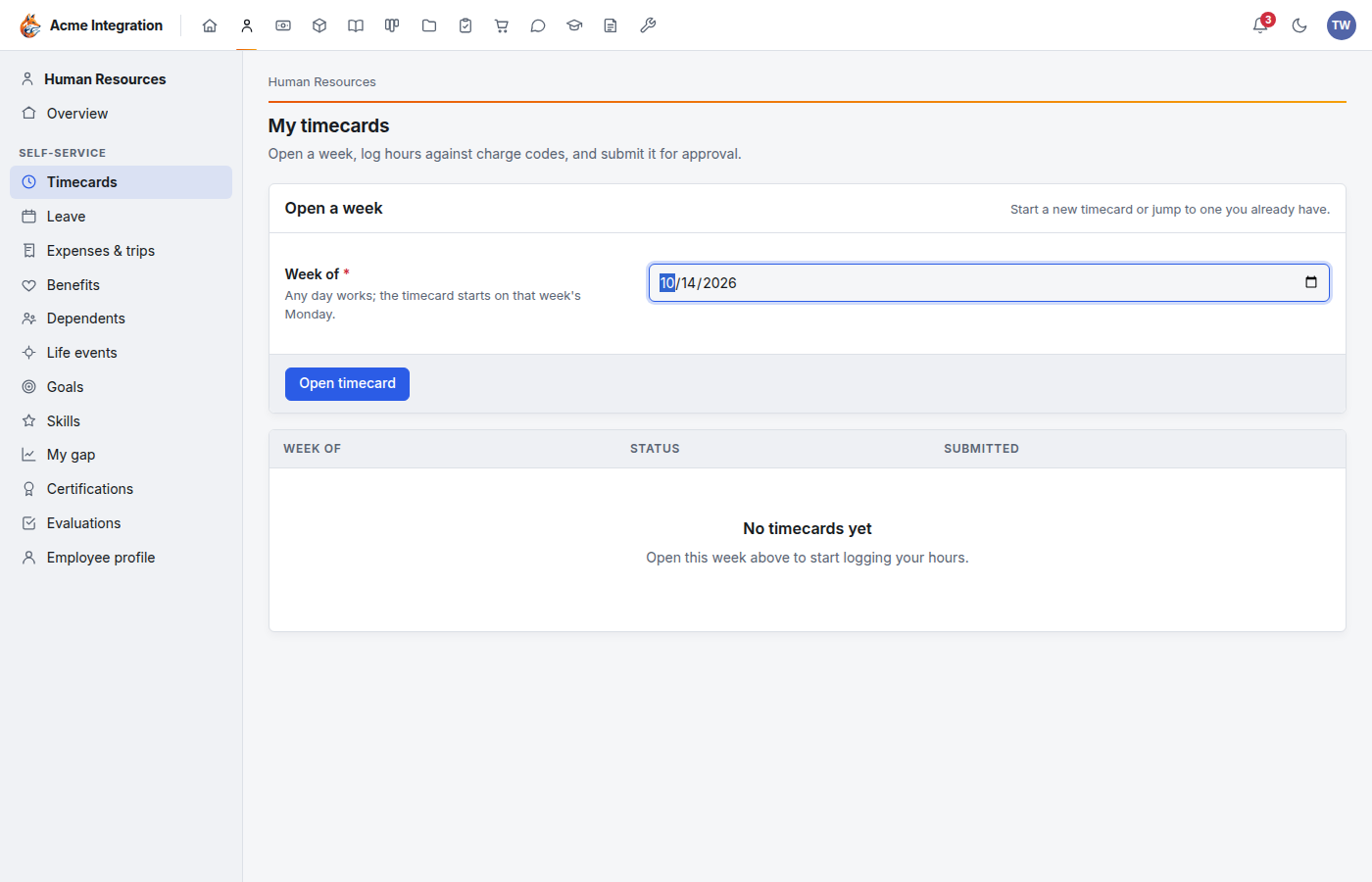
Under Open a week, pick any day in the week in Week of. The timecard always starts on that week's Monday.
-
Click Open timecard. If you already have one for that week, it opens instead of a new one.
-
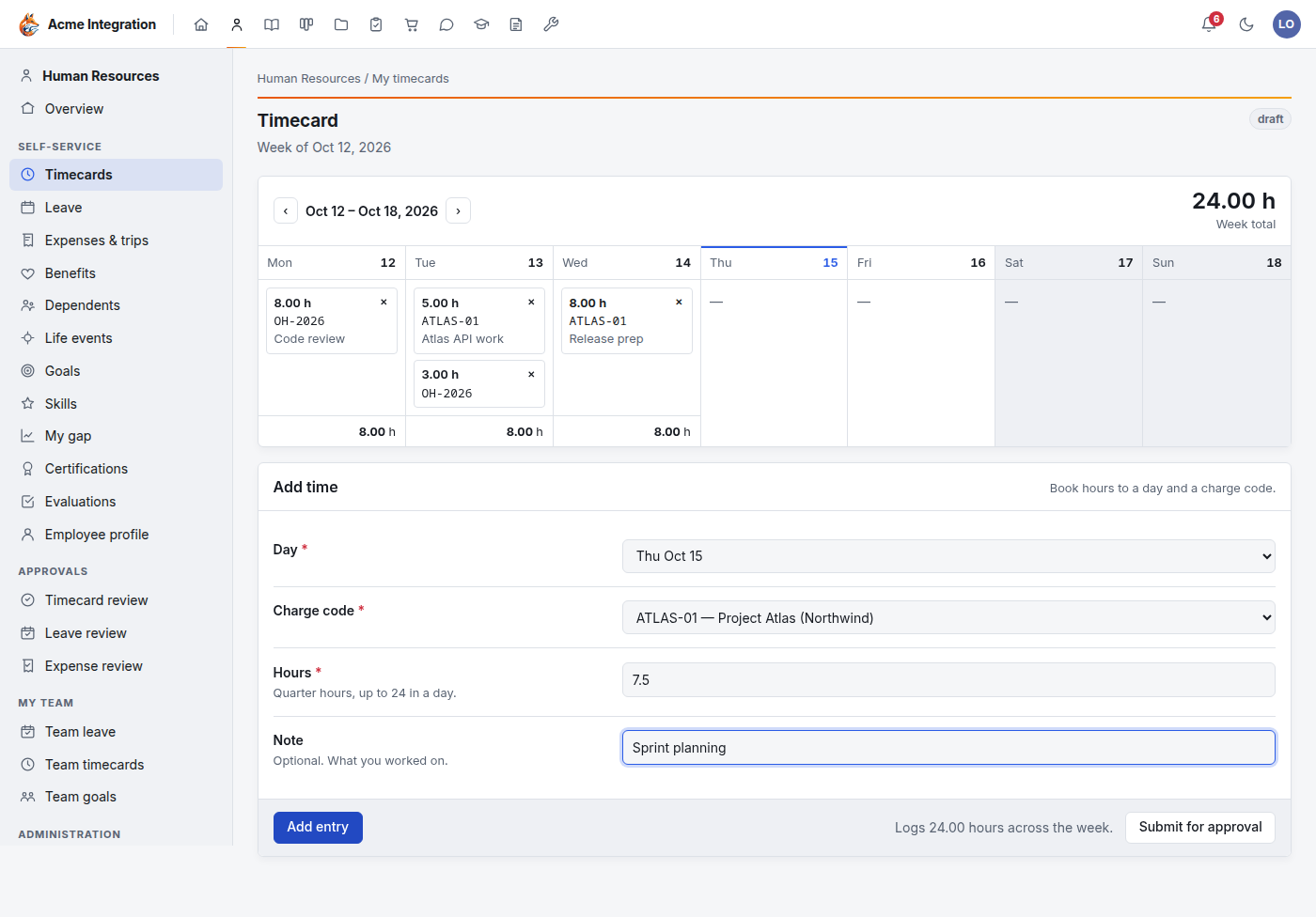
Under Add time, choose the Day and the Charge code, enter the Hours (in quarter hours, up to 24 a day), and add a Note if you like.
-
Click Add entry. The entry appears on that day in the week grid, with the day's total underneath and the Week total at the top right. Click × on an entry to remove it.
-
Repeat for each day. The ‹ and › buttons move to the week before or after.
-
When the week is done, click Submit for approval and confirm.
Once submitted, you can't edit the week. If something is wrong, ask your approver to Reject it. That sends it back to you as editable.
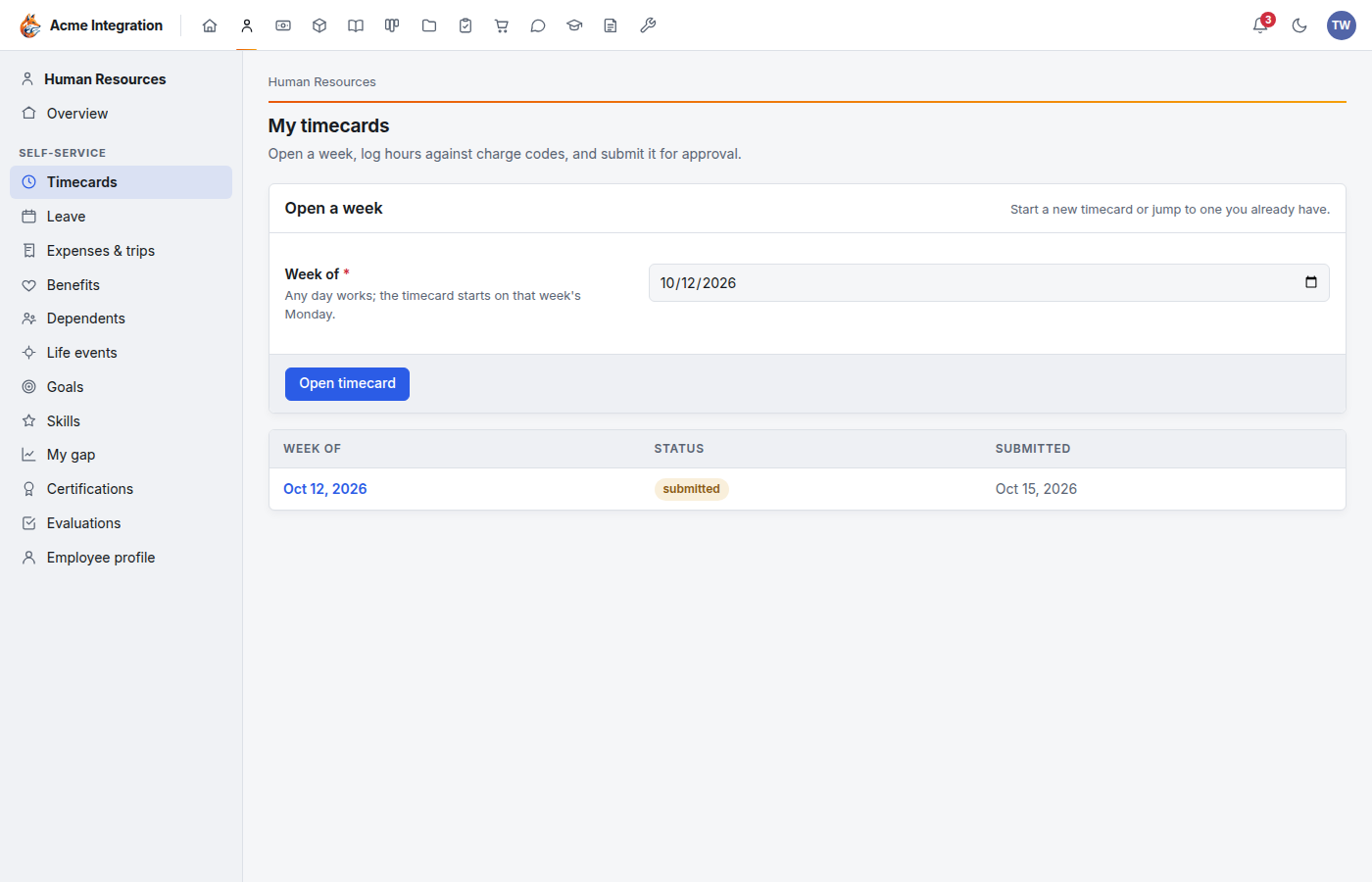
Your timecards are listed on the Timecards page with their status: draft, submitted, approved or rejected.
Approve timecards
-
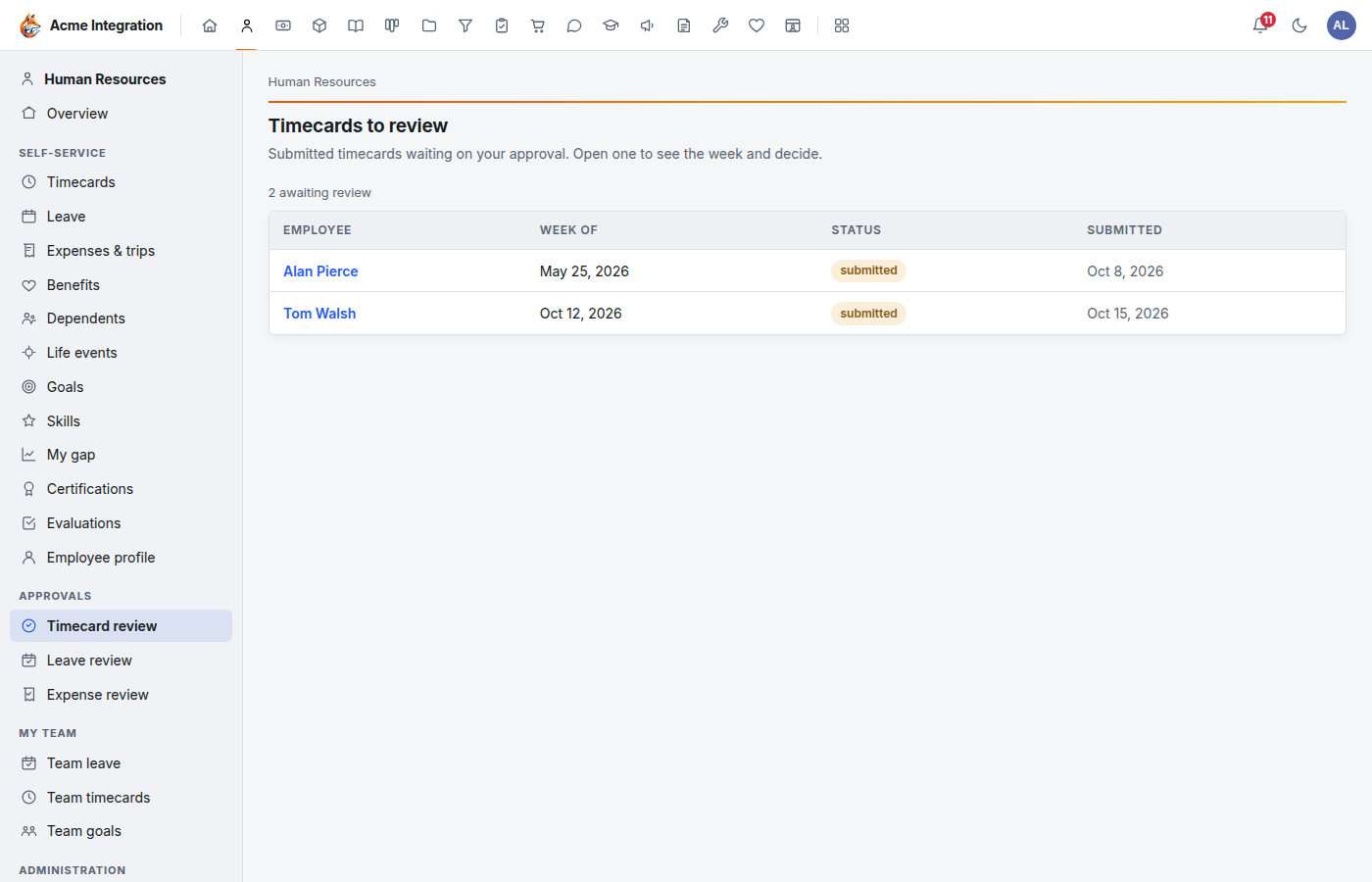
Go to Human Resources → Timecard review. The list shows only the submitted timecards waiting on you.
-
Click the person's name to open the week.
-
Under Supervisor decision, click Approve or Reject.
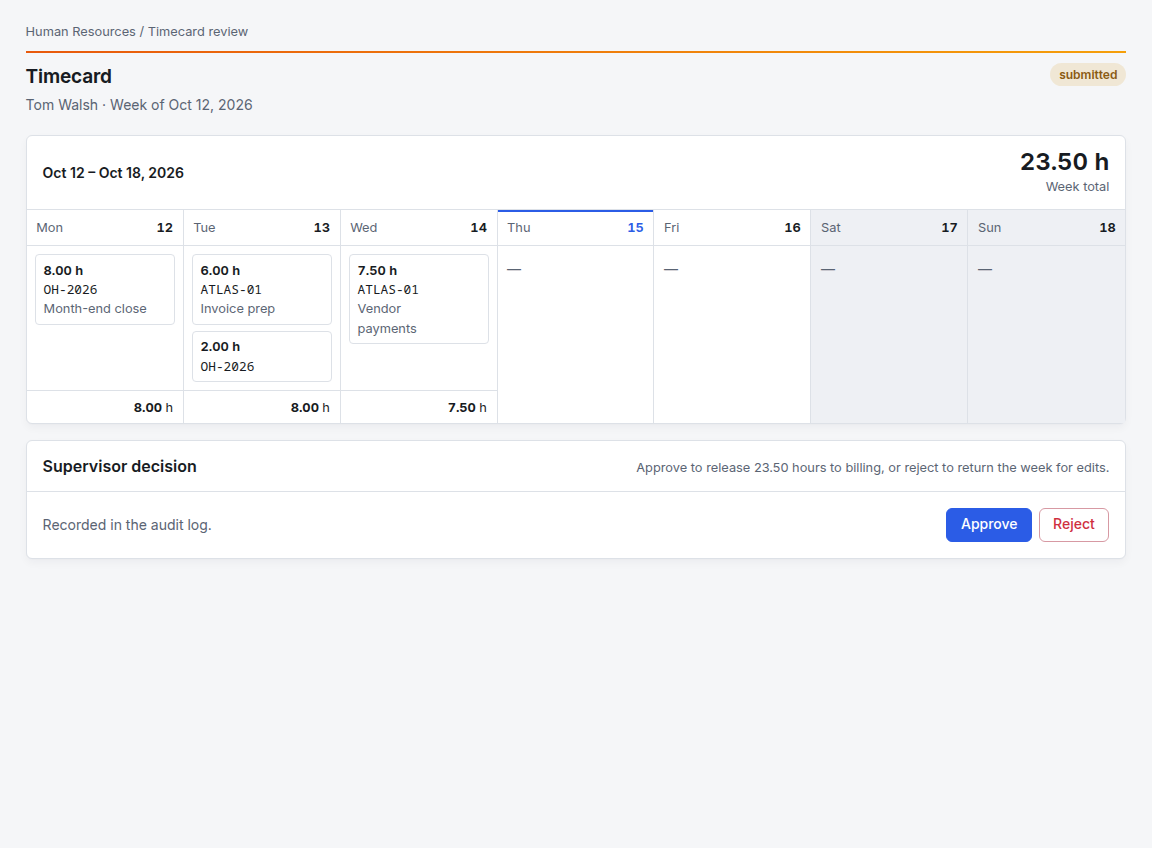
Approve releases the hours to billing: hours on a billable charge code can then go on a client invoice in Finance. Reject returns the week to the employee for edits. Every decision is recorded in the audit log. Once hours are billed, the timecard shows a Billing history with the invoice each line went on.
Managers can also open Team timecards to check that everyone on their team has filled in their week.
Request time off
- Go to Human Resources → Leave. My balances shows how many days you have of each kind of leave. A kind marked not tracked has no balance.
- Click Request leave.
- Choose the Leave type, the First day and the Last day, and add a Note for your approver if you like.
- Click Submit request.
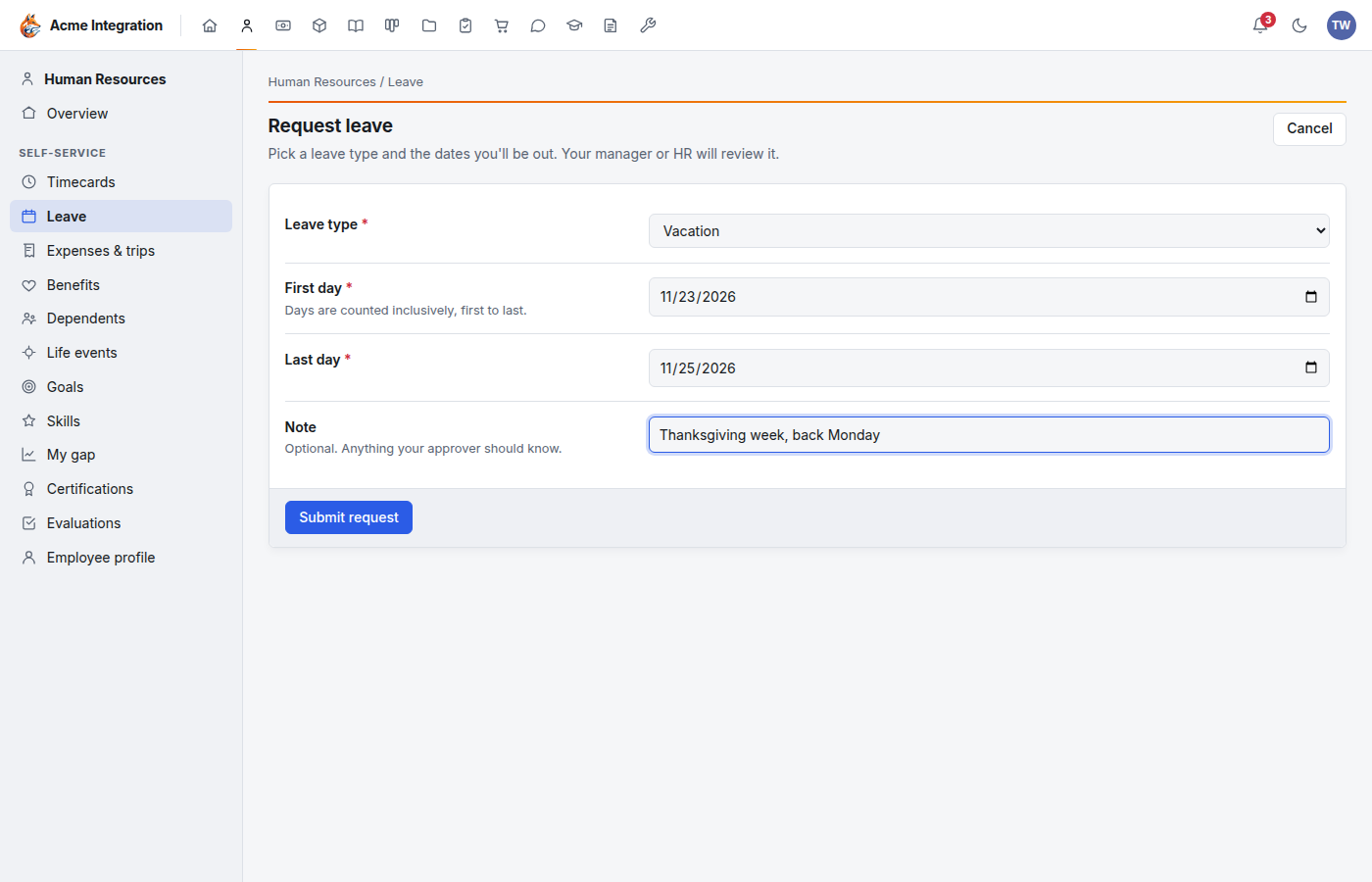
The request shows under My leave requests as pending until it is decided. Your approver sees it in their review list and Inbox.
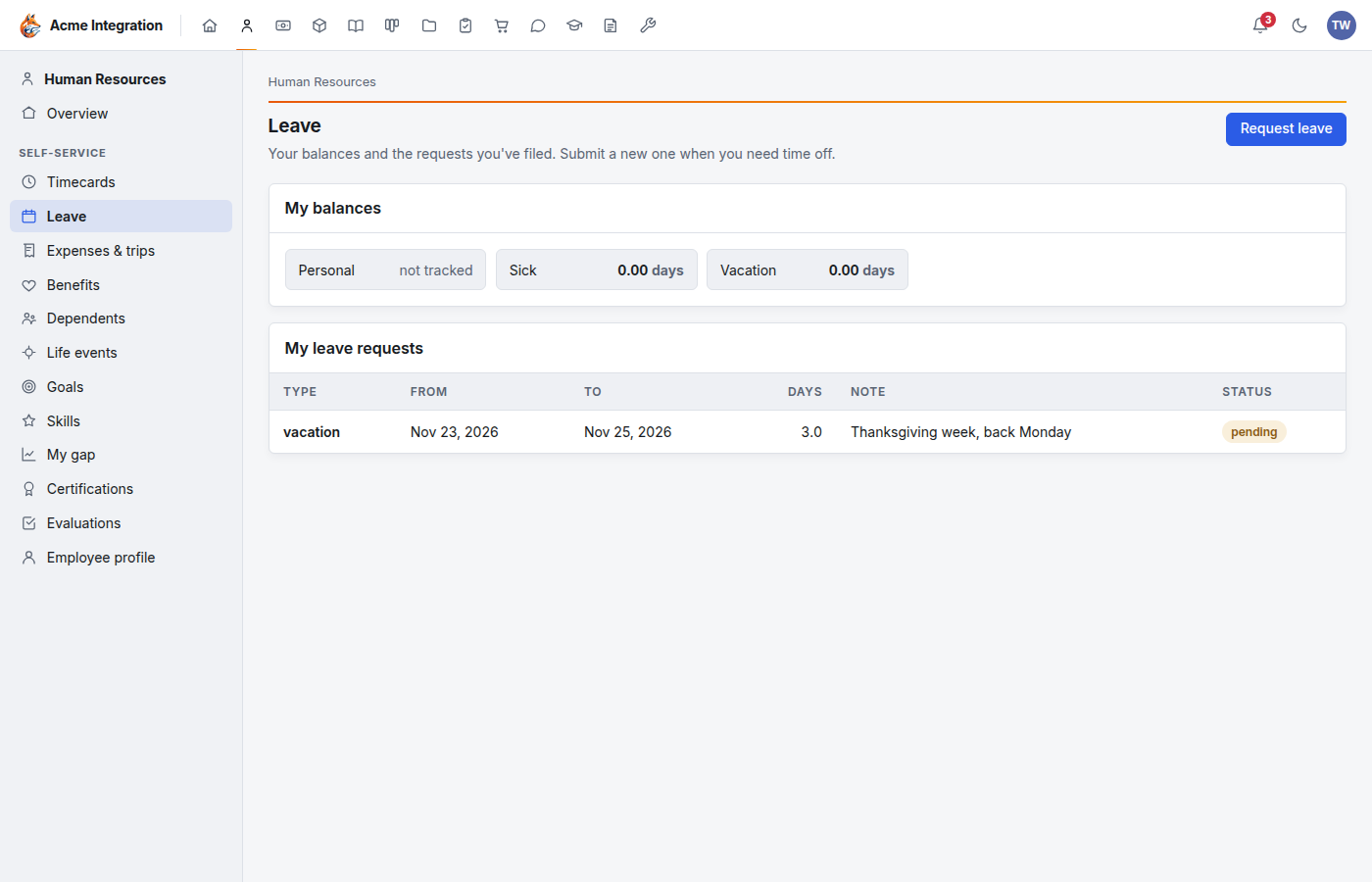
Days are counted as calendar days, first to last, including weekends. A request from Friday to Monday counts four days. To take only weekdays across a weekend, file two requests.
Approve leave
- HR administrators use Human Resources → Leave review. It lists every request in the organization. Click Approve or Reject on a pending one.
- Managers and leads use Team leave, which lists pending requests from the people they manage, with Approve and Deny.
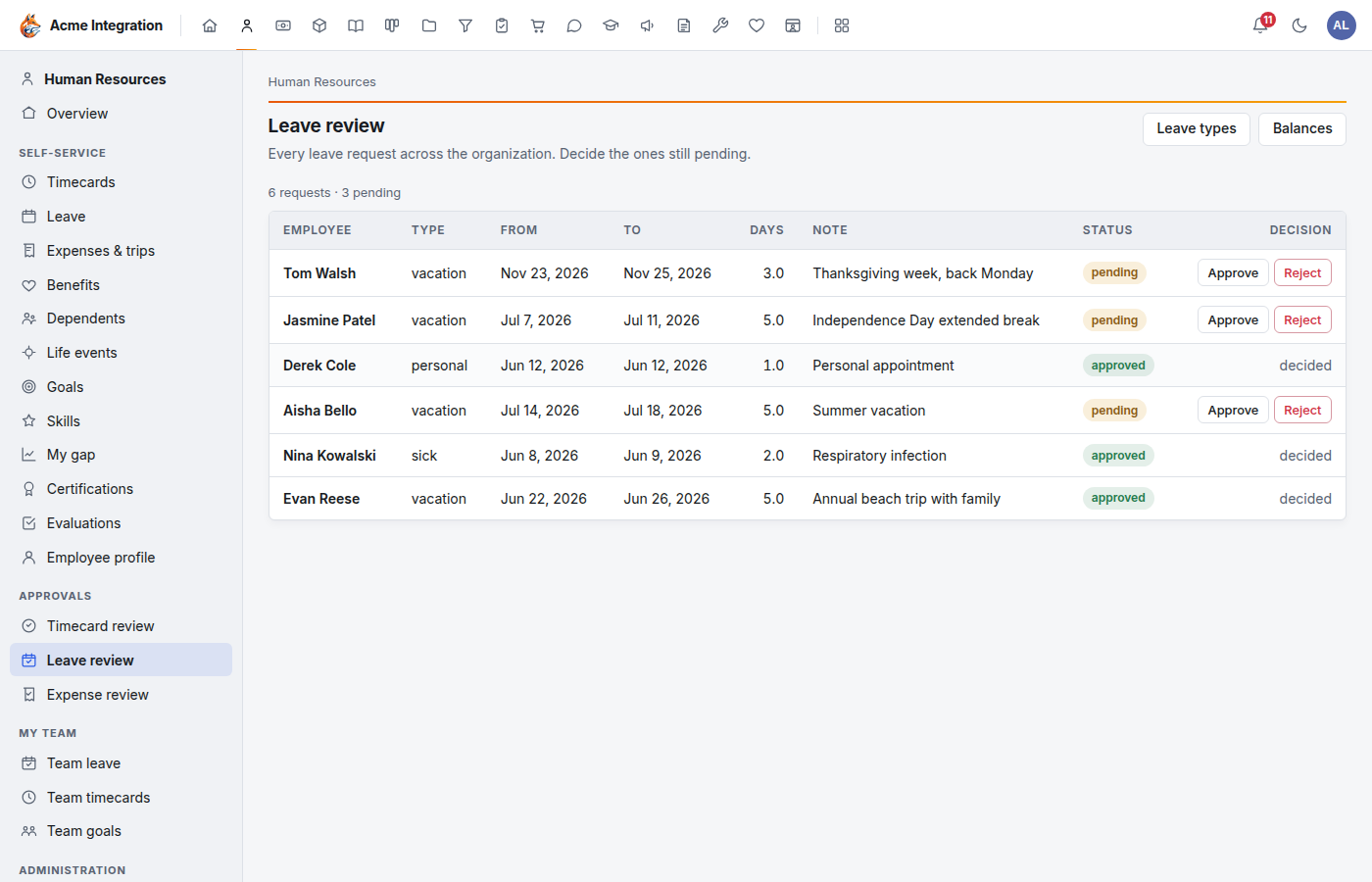
A department lead who isn't an HR administrator sees only their own people:
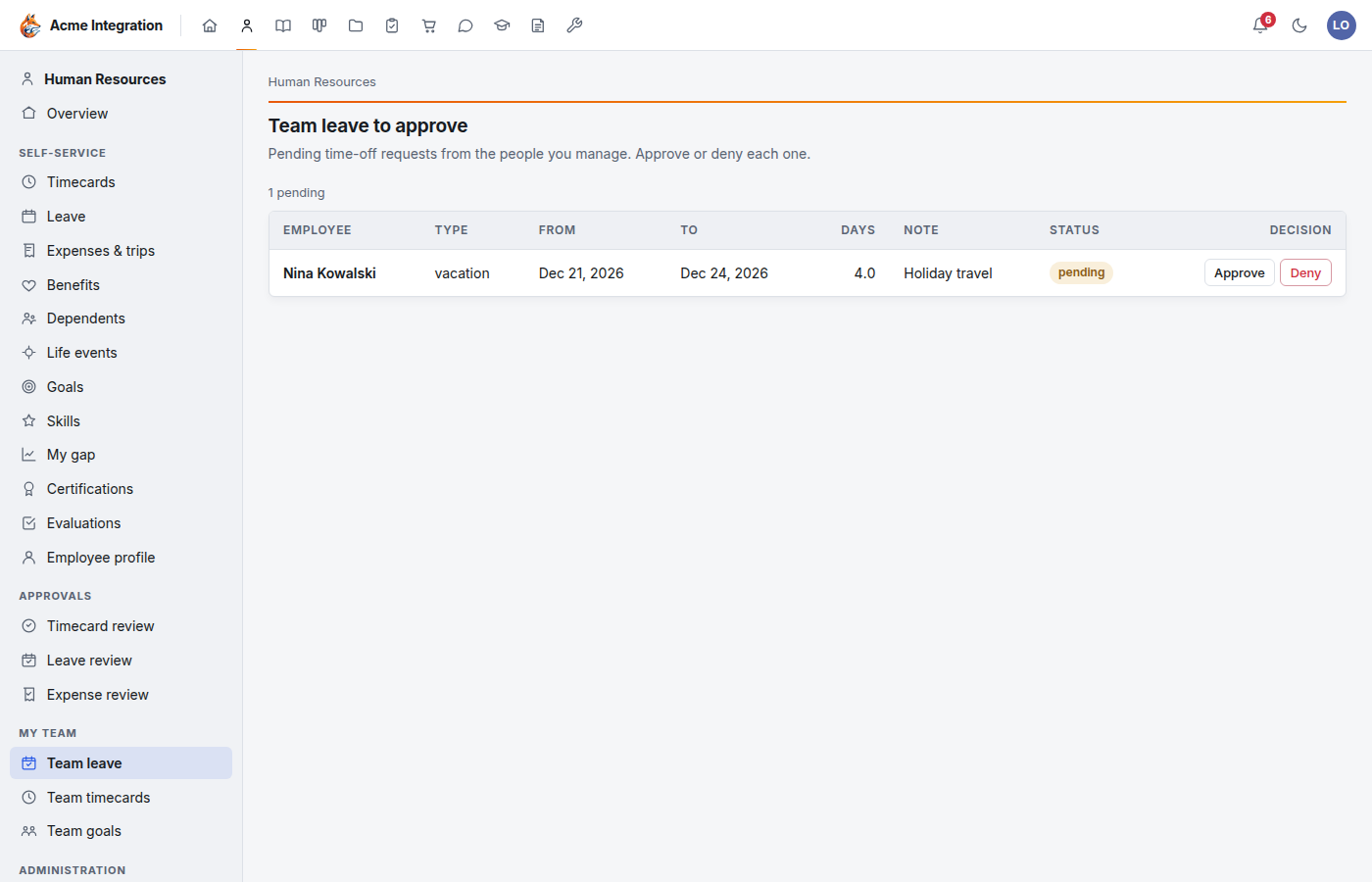
When a request is approved, its days come off the person's balance, if the leave type affects balances. A rejected request changes nothing.
Set up charge codes (HR administrators)
Charge codes are the projects and contracts hours are booked to.
- Go to Human Resources → Charge codes.
- Click New charge code.
- Enter the Code and Name. The contract fields (Contract number, Period of performance, Funded value, and so on) are optional.
- Click Save. To bill the hours to a client, tick Billable to a client, choose the Client and set a Labor bill rate.
Set up leave types (HR administrators)
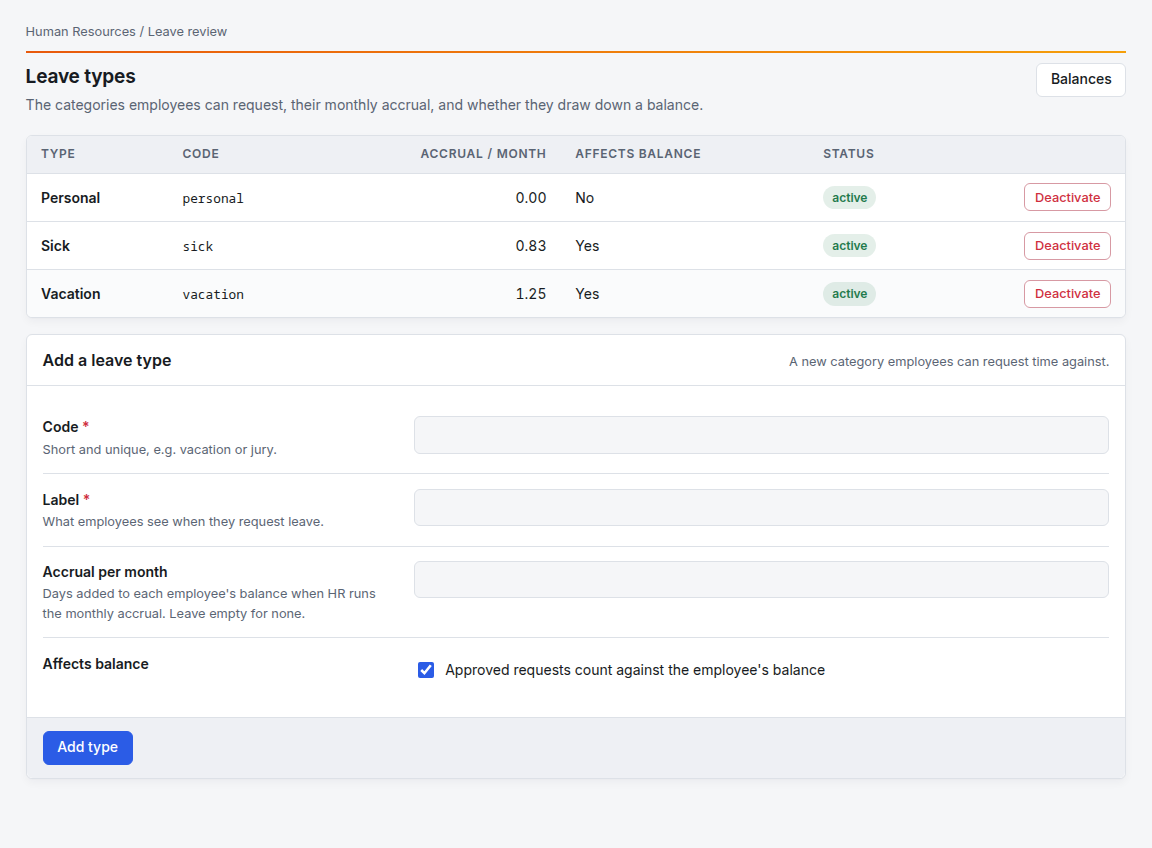
- Go to Human Resources → Leave types & balances.
- Under Add a leave type, enter:
- Code: short and unique, such as
vacationorjury. - Label: what employees see when they request leave.
- Accrual per month: the days added to each employee's balance every time the monthly accrual runs. Leave empty for none.
- Affects balance: tick it if approved requests should come off the balance. Untick it for kinds you don't count, such as jury duty.
- Code: short and unique, such as
- Click Add type.
Deactivate stops new requests against a type. Its past requests stay.
Run the monthly accrual and set balances (HR administrators)
Click Balances on the Leave types page to open Leave balances.
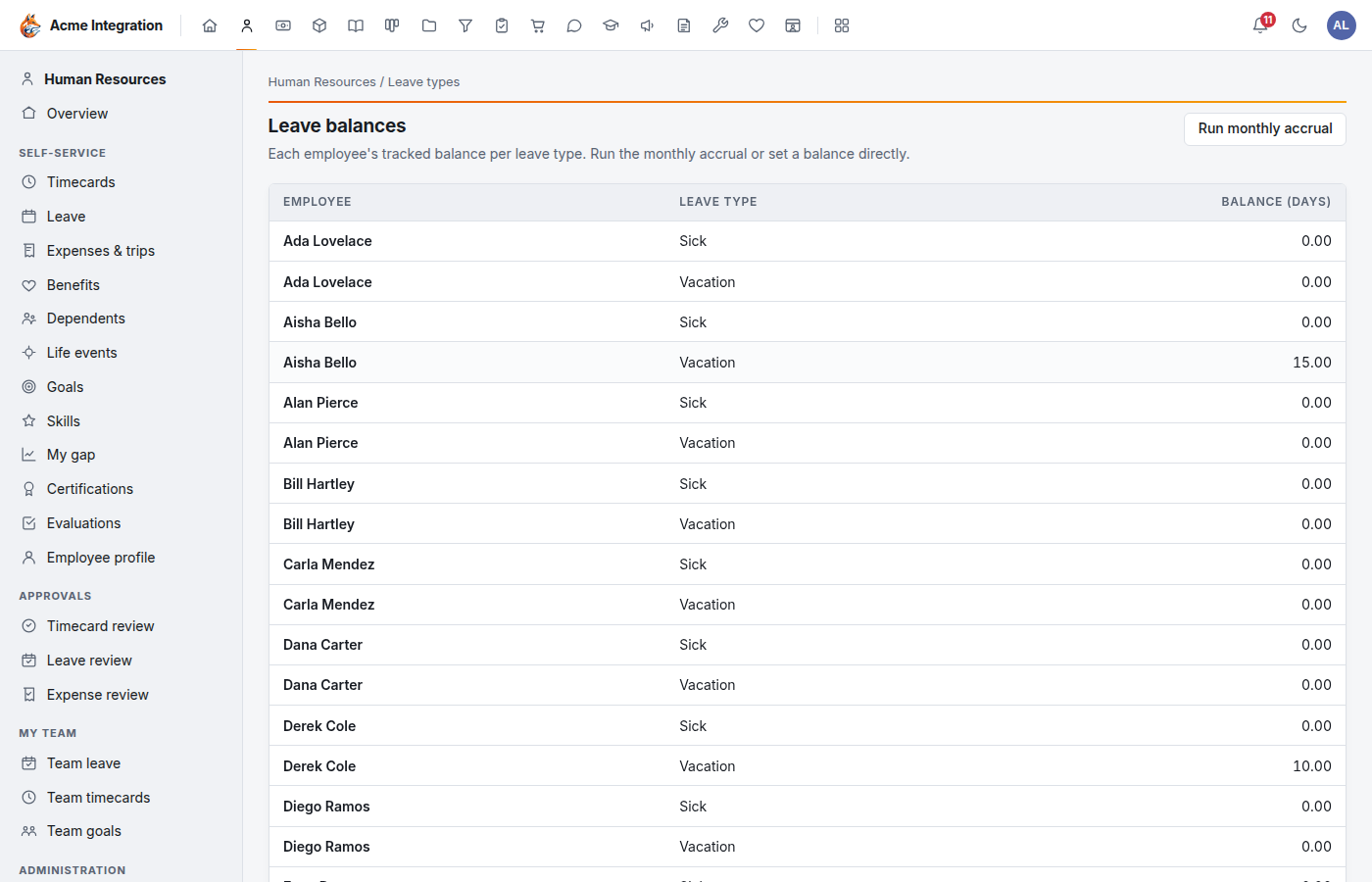
- Run monthly accrual adds one month of accrual to every active employee, for each active leave type that affects balances. Run it once a month.
- Set a balance replaces one employee's balance for one leave type, for example to load starting balances. It isn't added to the old balance, it replaces it.
Nothing runs the accrual for you, and nothing stops it running twice. Each click adds another month. Pick one person and one day of the month to run it, and check the audit log if you're unsure whether it ran.
Volunteers and contractors never accrue leave and don't appear on this page.
Troubleshooting: I don't see it
- There's no Timecards or Leave in my sidebar. You're set up as a volunteer. A company administrator can check your type under Administration → Users.
- "There are no active charge codes yet." An HR administrator needs to add one under Charge codes.
- "No leave types to request yet." An HR administrator needs to add one under Leave types & balances.
- I can't change a timecard. It's already submitted or approved. Ask your approver to reject it.
- I filed leave by mistake. There's no cancel button. Ask your approver to reject the request.
- My request isn't in anyone's review list. Check the approval chain: does the person have a reports-to manager or a department with a lead? If not, it goes to the company administrators.
- A lead has no Timecard review or Leave review. These show only for people who are on someone's approval chain, and for HR administrators.
- A balance went below zero. Approving a request doesn't check the balance. Fix it with Set a balance.
- Leave types or Balances say they're managed by HR. Those pages are for HR administrators only.