 foxxcyber/docs
Knowledge Base
Your company wiki: create spaces and pages, link pages together, keep version history, control who reads and writes, and import or export Markdown.
The Knowledge Base is your company wiki. Pages live in spaces (like sections of the wiki), each with its own access. Pages are written in Markdown, keep every version, and can link to each other.
Before you start
- Knowledge Base must be on under Administration → Modules. Once it is on, everyone can use it.
- What you can read and write depends on each space:
- A space is owned by the company, a department or a team.
- Members of the owning department write pages with no grant; its leads administer the space (settings, sharing, visibility).
- A Restricted space is invisible to everyone else until shared. An Organization space is readable by everyone.
- Who can create spaces: department leads (for their own department), people with the Knowledge Base admin grant, and company administrators.
Create a space
- Open Knowledge Base and click New space.
- Fill in:
- Key: 2 to 10 letters or digits, such as
ENGorHR. - Name, and an optional Description.
- Owner: Company-wide, or a department or team.
- Visibility: Restricted to owner + invited, or Organization (everyone can read).
- Key: 2 to 10 letters or digits, such as
- Click Create space.
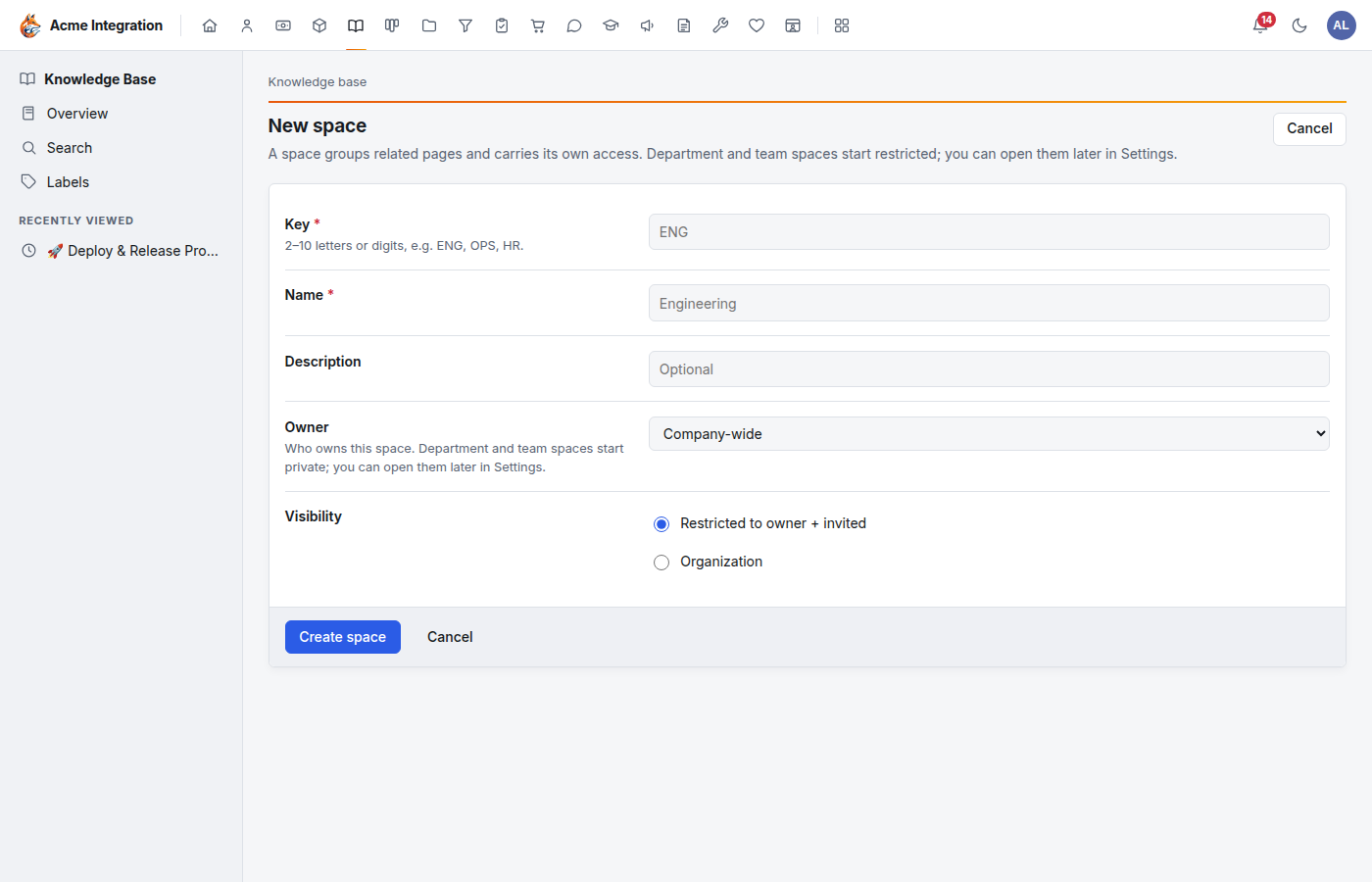
New spaces start Restricted. If everyone should read it, choose Organization here, or later under the space's Settings.
Write a page
- Open the space and click New page (or Add sub-page on an existing page to nest the new one under it).
- Fill in:
- Icon: one optional emoji shown before the title.
- Title.
- Labels: comma-separated tags, such as
onboarding, security. Reuse existing names so related pages group together on the Labels index. - Format: Markdown or HTML (sanitized).
- Write in the left pane, using the toolbar for bold, headings, lists, links, tables and images. The Preview on the right updates as you type. You can drop an image straight into the text.
- Click Create page (or Save changes when editing).
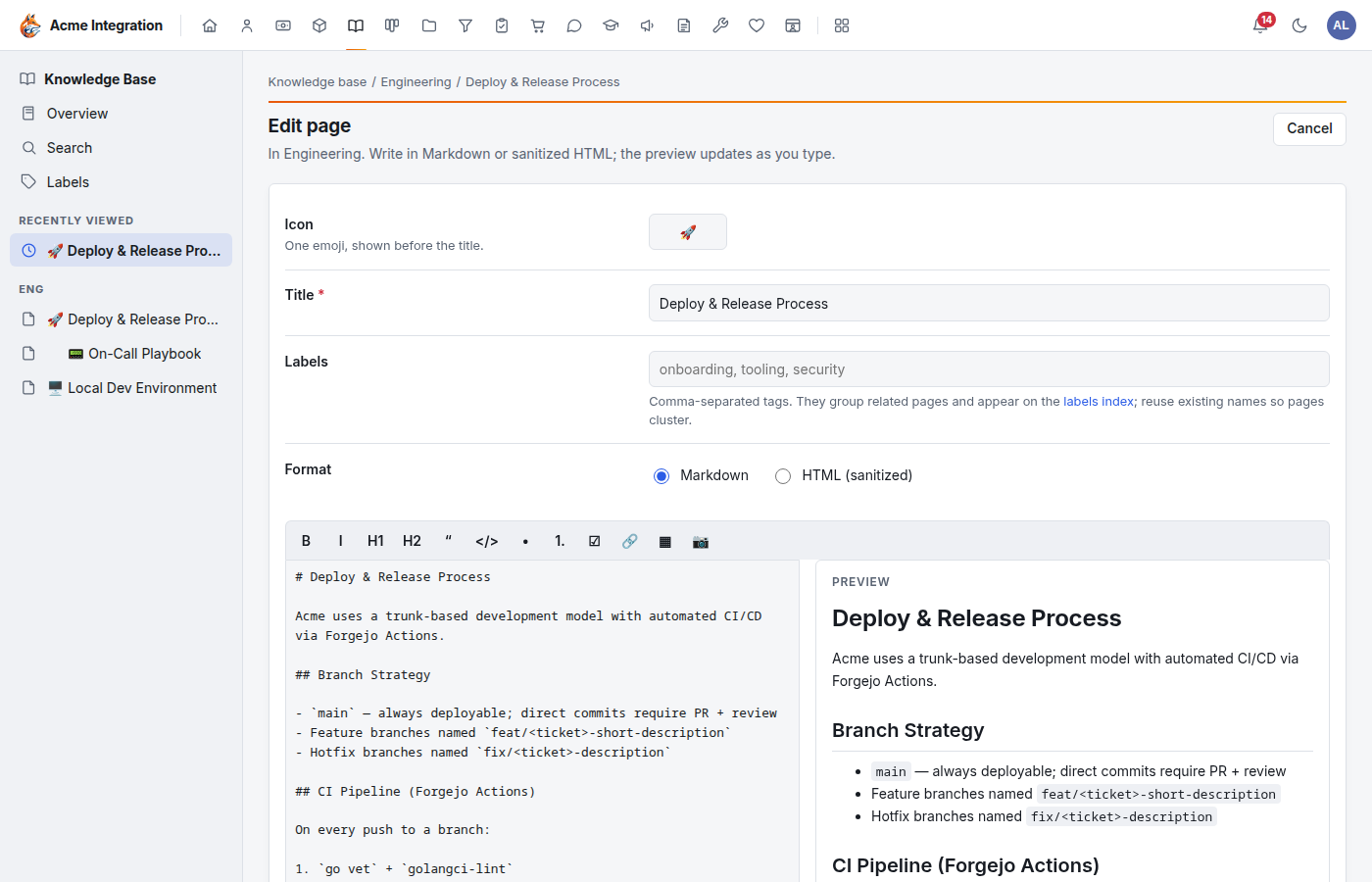
To change a page later, open it and click Edit.
Link pages together
Type [[Page Title]] to link to the page with that title in the same
space, or [[Page Title|shown text]] to show different words.
- A link to a page that doesn't exist yet shows as a missing link. Click it to create that page; every link to it then connects by itself.
- Each page lists the pages that link to it under Linked from.
- Renaming a page updates every
[[link]]to it across the space, and records a version on each page it changed.
Structured properties
Start a page with a block like this to give it properties:
---
status: active
review-date: 2026-09-01
tags: [policy, cmmc]
---
The properties show in a panel at the top of the page. A space's Table view lists its pages as rows with their properties as columns, and lets you filter by a property's value.
Read and organize pages
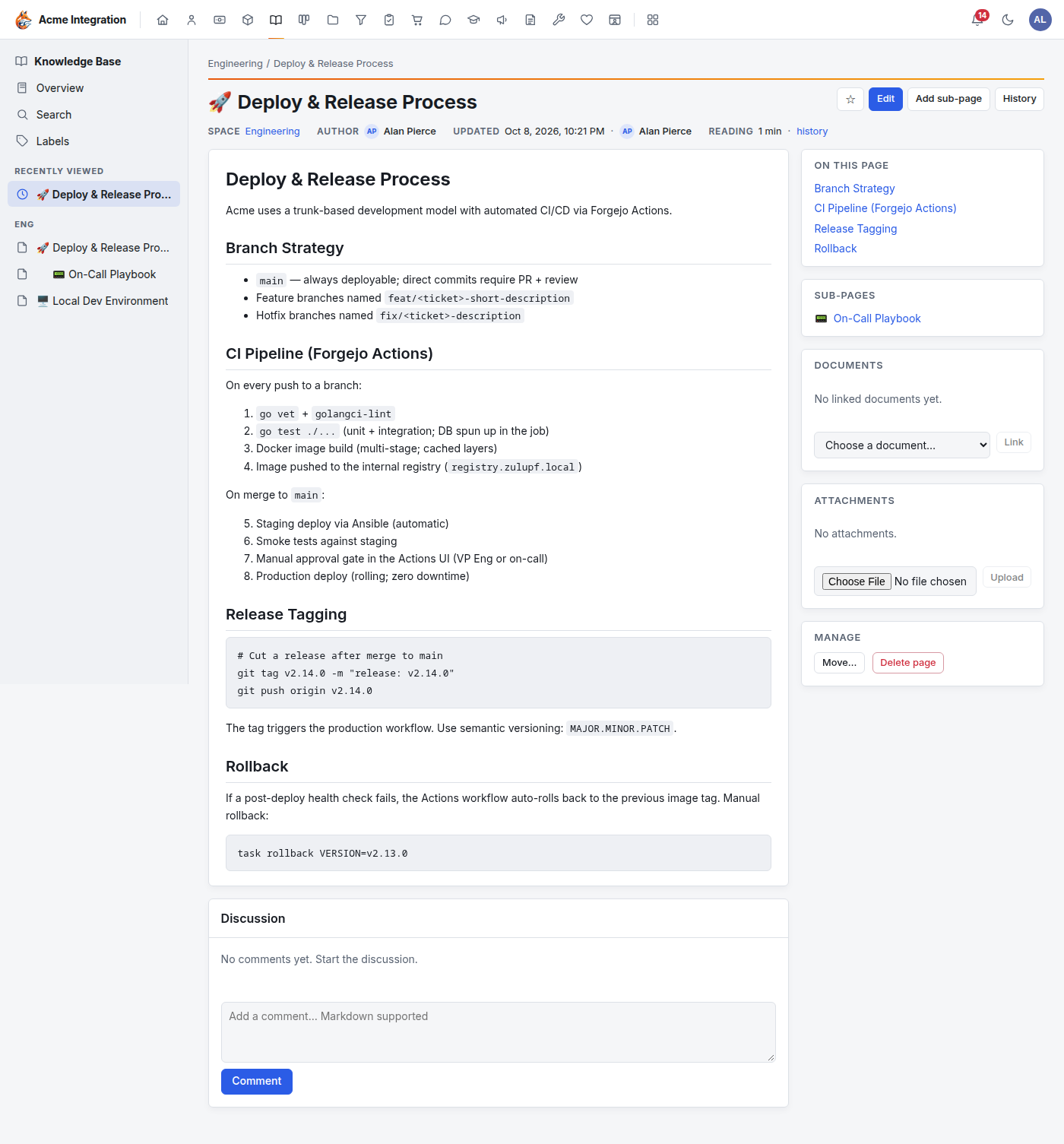
- ☆ (next to Edit) adds the page to your favourites. Favourites appear at the top of the Knowledge Base sidebar under ★ Favourites, and on the Knowledge Base widget of your workspace. Pages you viewed recently appear under Recently viewed.
- History lists every saved version. Open one to see Changes vs current, and click Restore this version to bring it back.
- Documents: choose a file from the Document Library and click Link, so the document lives in one place and the page points to it.
- Attachments: upload a file to the page itself.
- Discussion: comment on the page (Markdown).
- Manage → Move… puts the page (and its sub-pages) under another page. Delete page removes it.
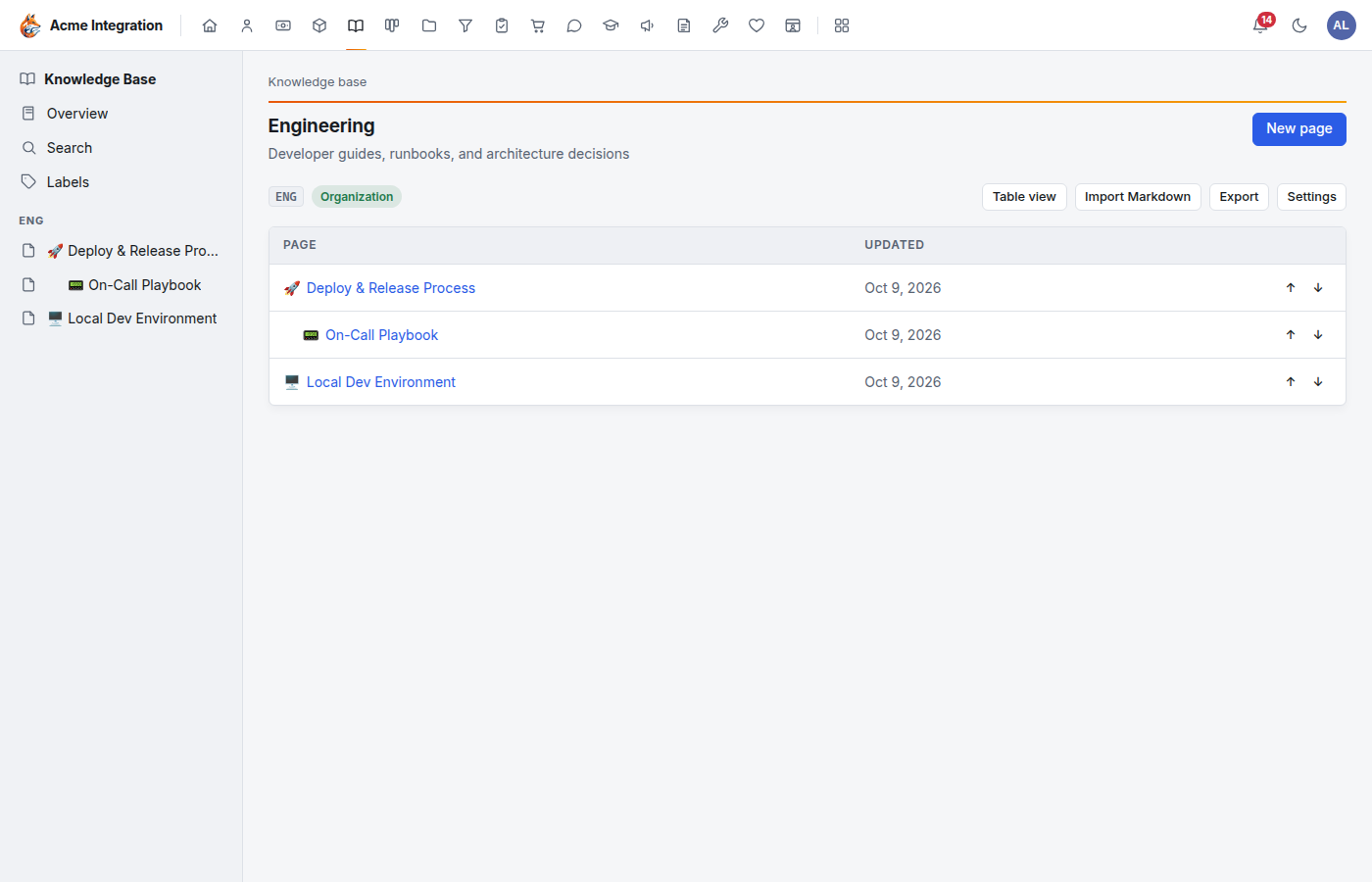
- On the space's page list, the ↑ and ↓ arrows reorder pages among their siblings.
Find things
- Search (sidebar) covers titles, text and labels across every space you can read.
- Labels lists every label in the spaces you can read; click one to see its pages.
Share a space (space administrators)
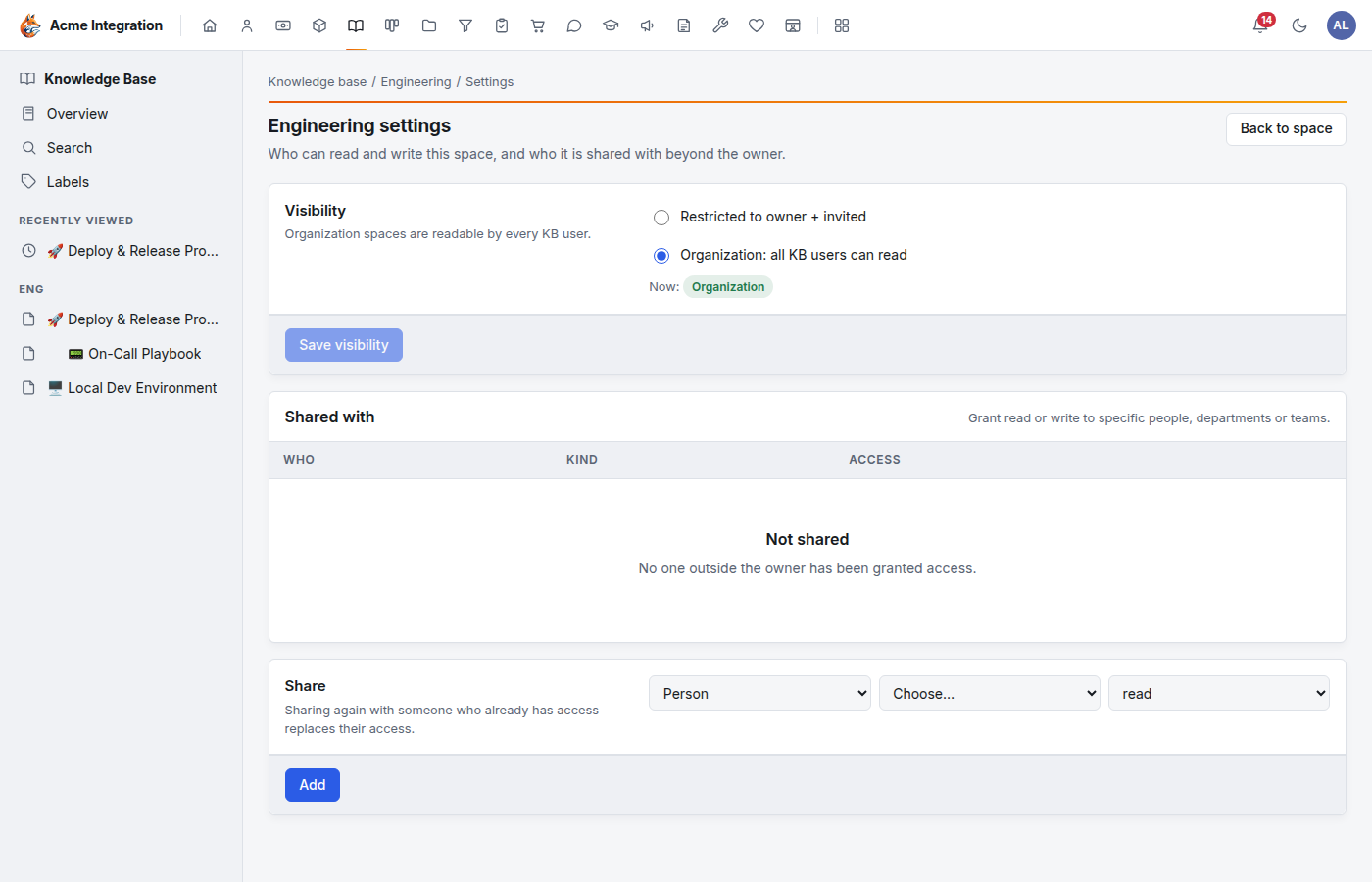
- Open the space and click Settings.
- Under Visibility, choose Restricted to owner + invited or Organization: all KB users can read, and click Save visibility.
- Under Share, pick the kind (Person, Department or Team), then who, then read or read + write. Click Add. Sharing again with someone who already has access replaces their access.
- Shared with lists everyone with access; Remove takes it away.
Import and export Markdown
Import Markdown (on a space you can write) brings in a folder of
.md files, such as an Obsidian vault export.
- Open the space and click Import Markdown.
- Choose Markdown files and/or a
.zipof them under Files. - Click Import.
How files are brought in: file names become titles, folders in a zip
become parent pages, frontmatter tags become labels, and [[links]]
between the files connect whatever order they arrive in. A file whose
title already exists in the space is skipped, so importing again is
safe. Limits: 500 files per batch, 1 MB per file.
To take content out, Export on a space downloads that space as a zip; Export all on the Knowledge Base overview downloads every space you can read.
Troubleshooting
I can't see a space. It is Restricted and not shared with you. Ask its department's lead, a Knowledge Base admin or a company administrator to share it.
There is no Edit or New page button. You can read the space but not write to it. Ask for read + write access.
There is no New space button. Only department leads, Knowledge Base admins and company administrators create spaces.
A [[link]] shows as missing. No page in the same space has
exactly that title. Links don't reach into other spaces.
Import skipped some files. A page with that title already exists in the space, the file is over 1 MB, or the batch had more than 500 files.
I can't drag pages to reorder them. Use the ↑ and ↓ arrows on the space's page list, or Move… on a page to change its parent.