 foxxcyber/docs
Chat
Talk in channels: create organization or private channels, post with Markdown, @mention a teammate, and manage a channel's access and archive.
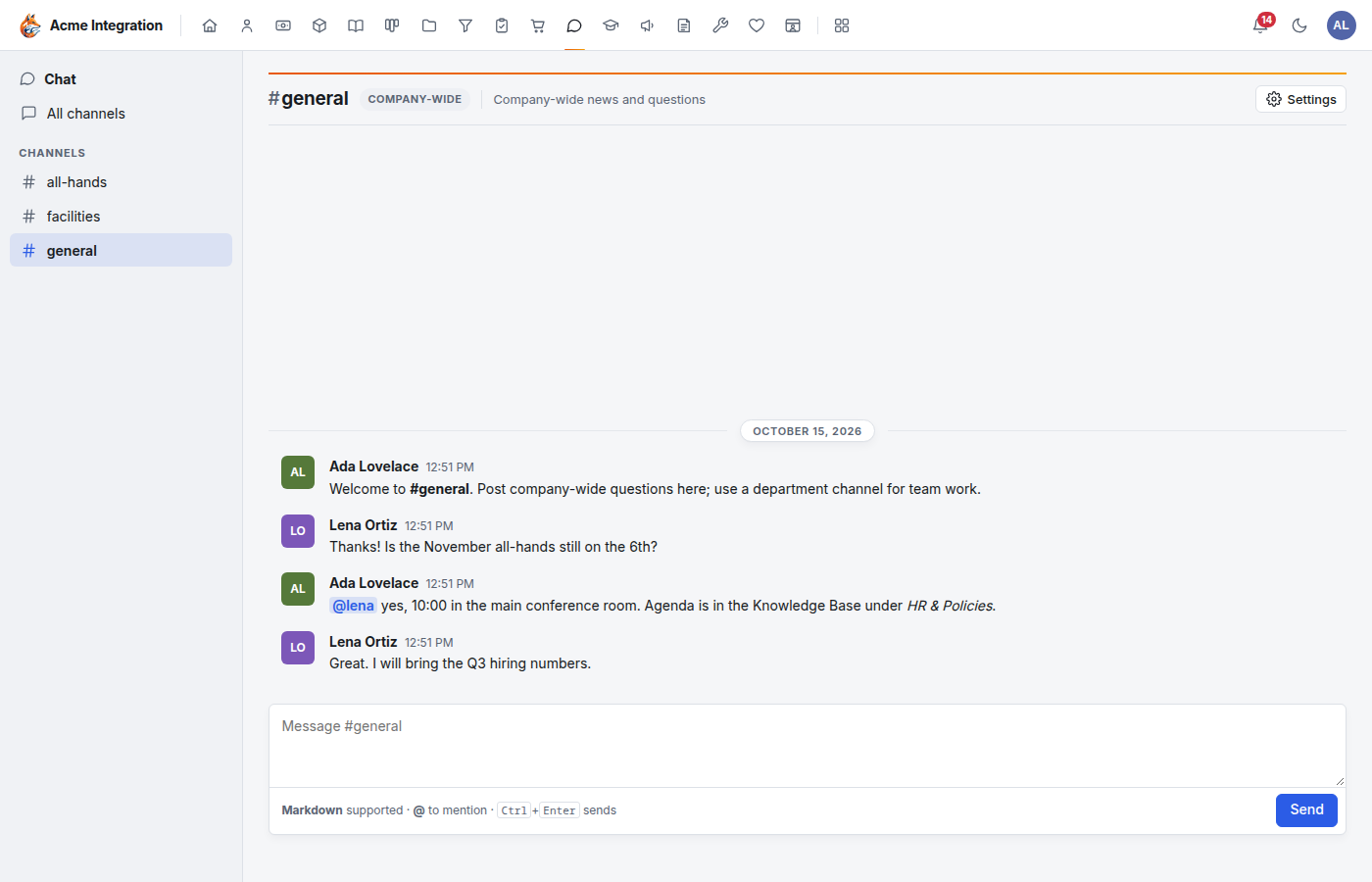
Chat is internal messaging in channels. Each channel is the running record of one topic, team or effort.
Before you start
- Chat must be on under Administration → Modules. Once it is on, everyone can use it.
- A channel is owned by the company or a department, and is
either:
- Organization: everyone can read and post. (In other areas "organization" means read-only; in Chat it means everyone can join the conversation.)
- Private: only the owning department's members (and people granted access) can see it. Its members post; its leads administer it.
- Who can create channels: department leads (for their department), people with the Chat admin grant, and company administrators.
- Chat has channels, messages, mentions and unread counts. It does not have direct messages, threads, reactions, file attachments or search.
Create a channel
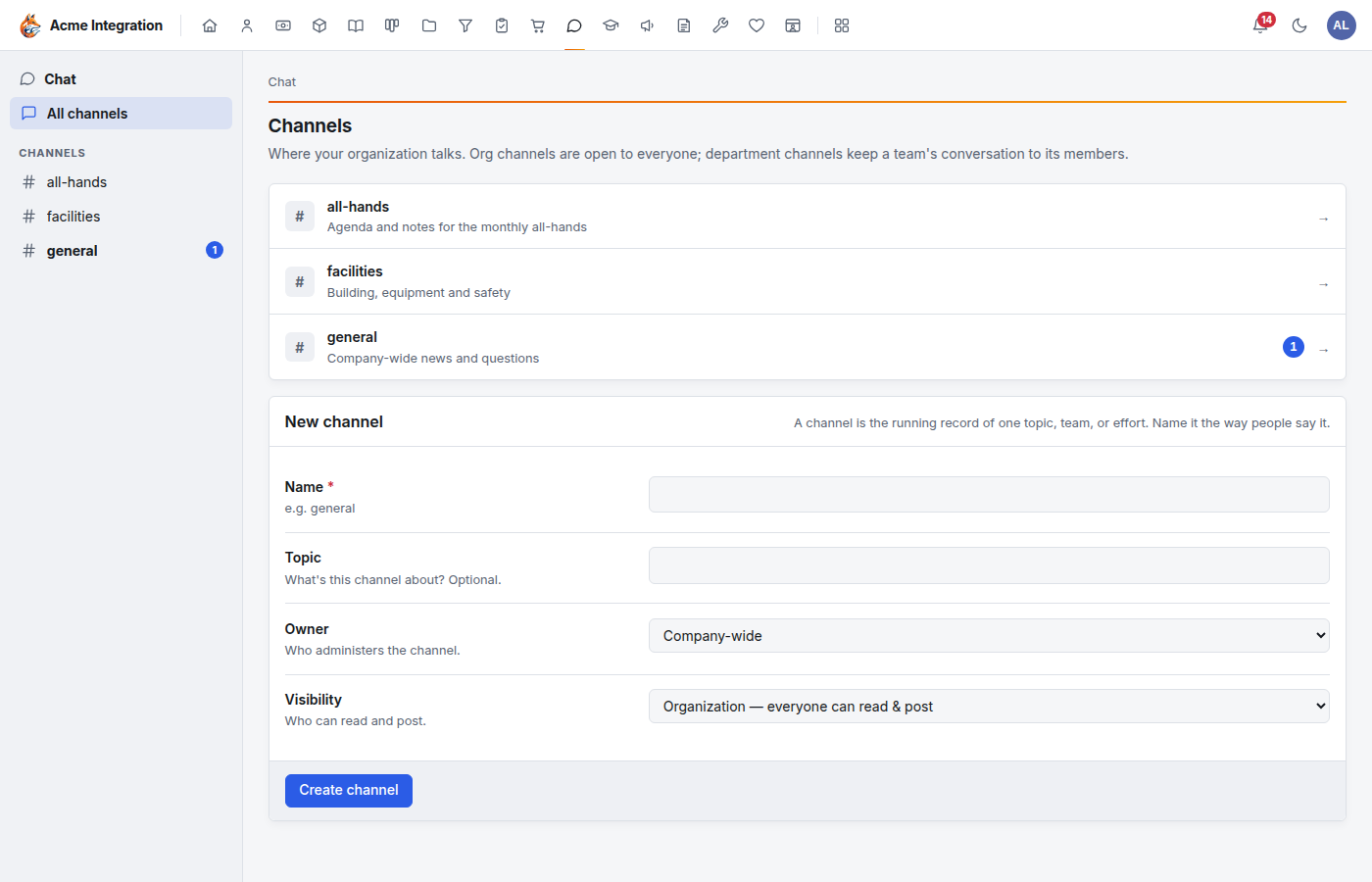
- Open Chat. Channels lists every channel you can see.
- Under New channel, fill in:
- Name: what people call it, such as
general. - Topic (optional): what the channel is about.
- Owner: Company-wide or a department. The owner administers the channel.
- Visibility: Organization — everyone can read & post, or Private — owner department + invited only.
- Name: what people call it, such as
- Click Create channel. The new channel opens.
Post a message
- Click the channel in the sidebar.
- Type in the box at the bottom. Markdown works (
**bold**,_italic_, lists, links). - Click Send, or press Ctrl+Enter.
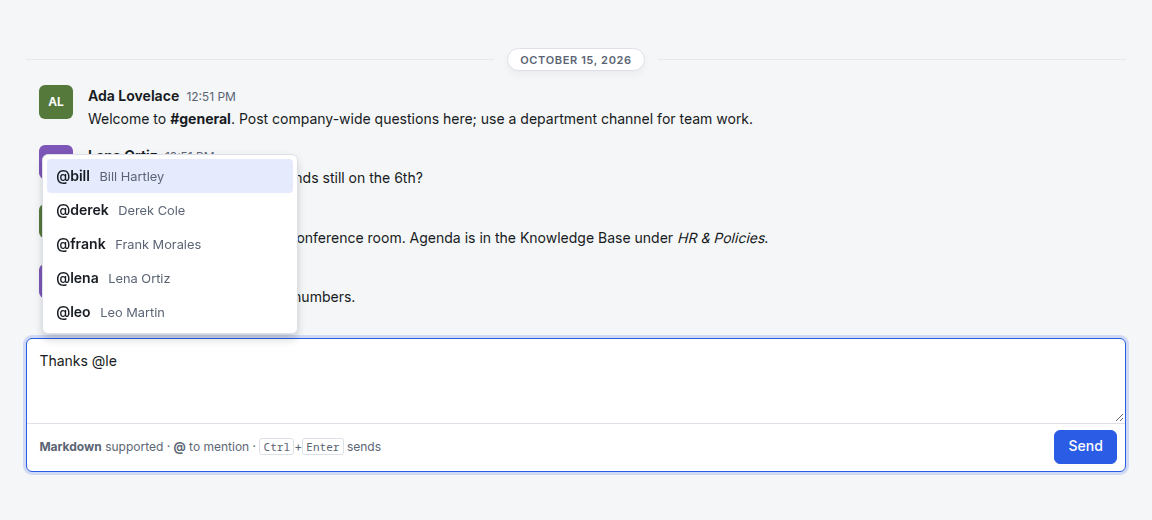
To get someone's attention, type @ and the start of their name. A
list of people in the channel appears: click one or press Enter. The
handle is the part of their email before the @ (for
jane.doe@acme.com, it is @jane.doe). They get a notification in
their Inbox
that opens straight to your message, as long as they can read the
channel.
- Edit or Delete your own message with the links under it. Channel admins can edit or delete any message. A deleted message leaves a "message deleted" marker so the history stays intact.
- The sidebar shows an unread count on channels with new messages (up to 99+). Opening the channel clears it. Your workspace's Chat widget shows the same counts and your mentions.
- ↑ Older messages at the top loads earlier history.
Manage a channel (channel admins)
Open the channel and click Settings (top right).
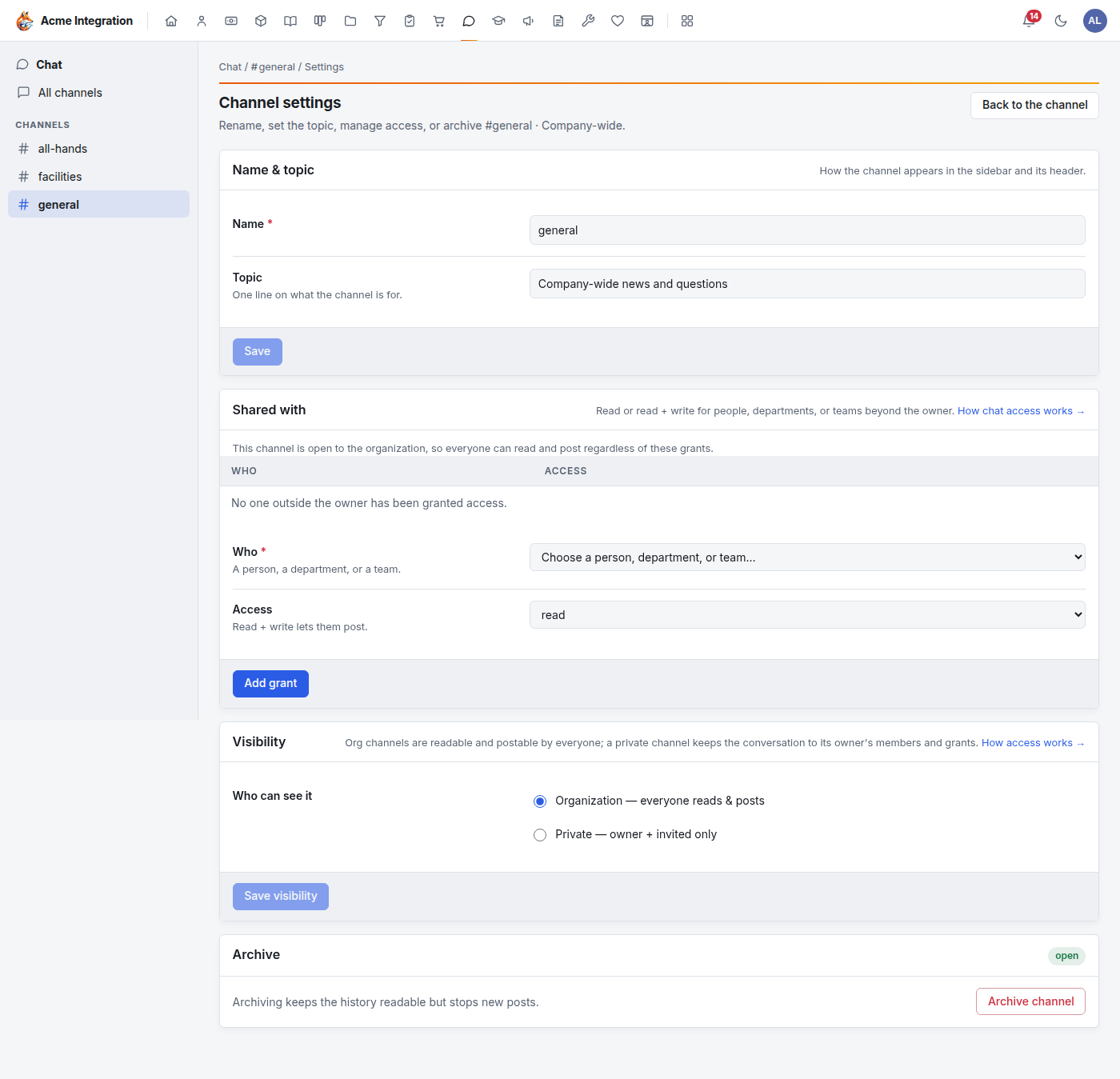
- Name & topic: rename it or change the topic, then Save.
- Shared with: give a person, department or team read or **read
- write** access, then Add grant. Remove takes a grant away. (On an organization channel everyone can already read and post.)
- Visibility: Organization — everyone reads & posts or Private — owner + invited only, then Save visibility.
- Archive: Archive channel keeps the history readable but stops new posts. Unarchive reopens it.
Troubleshooting
I can't see a channel. It is private to a department you aren't in. Ask one of its leads, a Chat admin or a company administrator to add a grant for you.
"You can read this channel but not post." You have a read-only grant. Ask a channel admin for read + write.
"This channel is archived. New messages are disabled." A channel admin archived it. They can Unarchive it.
There is no New channel form. Only department leads, Chat admins and company administrators create channels.
Someone I mentioned didn't get a notification. They can't read the channel, or the handle was typed wrong. Pick the person from the list that appears after @.
There is no Settings button. Settings is for the channel's admins: the owning department's leads, Chat admins and company administrators.