 foxxcyber/docs
Users, departments and teams
Add people, put them in departments, choose members and leads, make company administrators, create teams, and deactivate accounts.
Access in Foxx HQ starts with three things: the people (users), the departments they belong to, and their role in each department (member or lead). Teams are optional working groups inside a department. This page is the order that works for setting it up.
Before you start
- You must be a company administrator. (Someone with the HR admin grant can manage Teams only.)
- Read Access and permissions once. It explains why a department's name grants nothing on its own.
1. Create departments
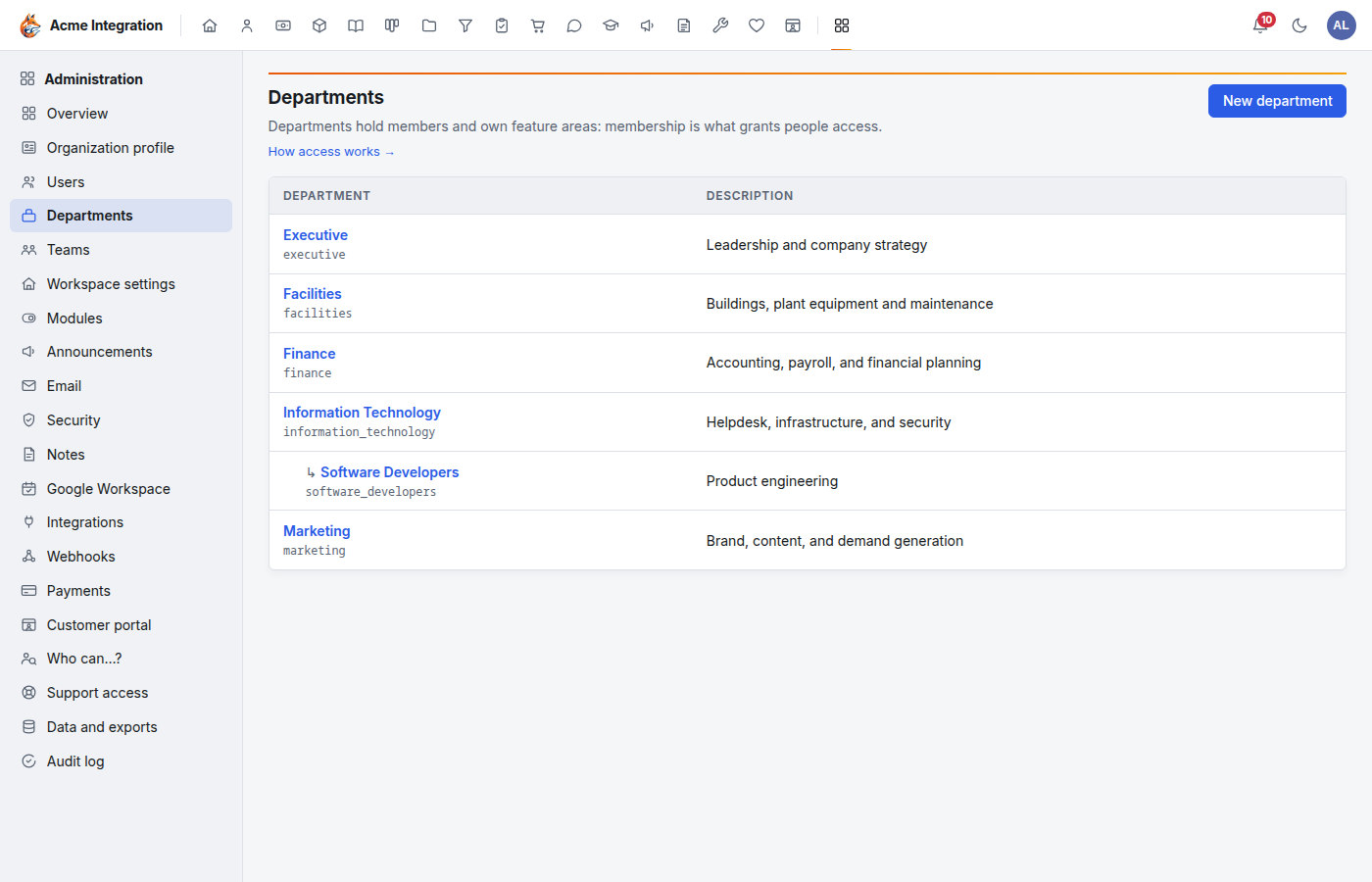
A department is the unit that owns feature areas and content. Model your real organization: Finance, Programs, Facilities, and so on.
- Open Administration → Departments and click New department.
- Fill in:
- Department name: shown wherever people pick a department. Its short identifier (the slug) is made from this name once and never changes, even if you rename the department later.
- Description: optional.
- Part of: optional. Put it inside another department when your organization has levels. Leads of the department above manage it too. A department can sit at most six levels deep.
- Click Create department.
2. Turn on feature areas for the department
Creating a department called "Finance" does not switch on the Finance area. You enable areas on the department.
- Open the department from Administration → Departments.
- Scroll to Feature areas. The Who gets access column says exactly what each switch does.
- Click Enable beside each area this department should own. Disable takes it away again.
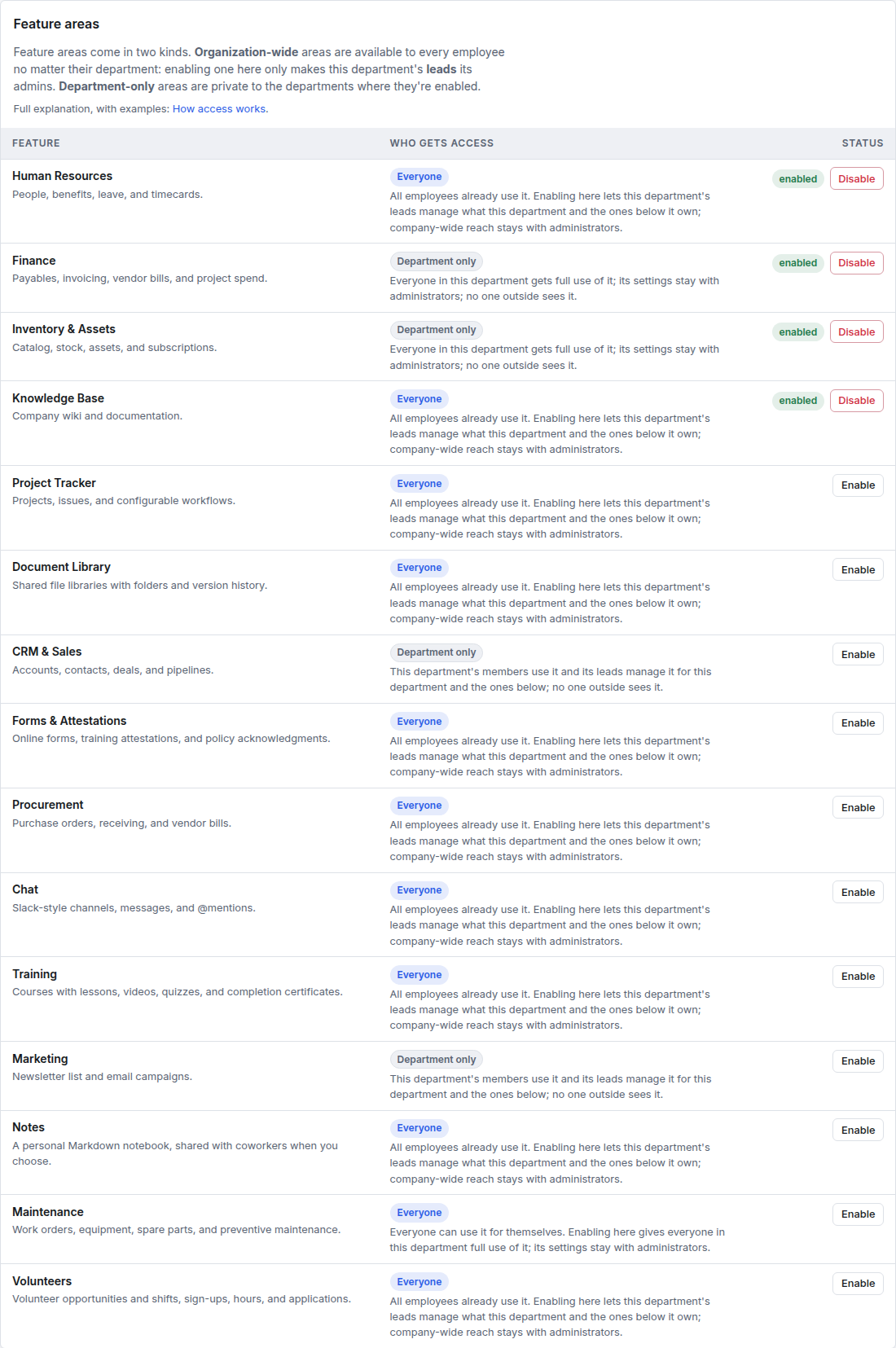
- Everyone areas (such as Project Tracker, Knowledge Base, Procurement, HR) are already open to every employee. Enabling one here makes this department's leads its managers for their part of the organization.
- Department only areas (Finance, Inventory & Assets, CRM & Sales, Marketing) are invisible until enabled. Enabling one is what lets this department's people in. For Finance and Inventory, everyone in the department gets full use.
The full table is in Access and permissions.
3. Add people
Foxx HQ does not email staff an invitation. You create the account with a temporary password and give it to the person yourself.
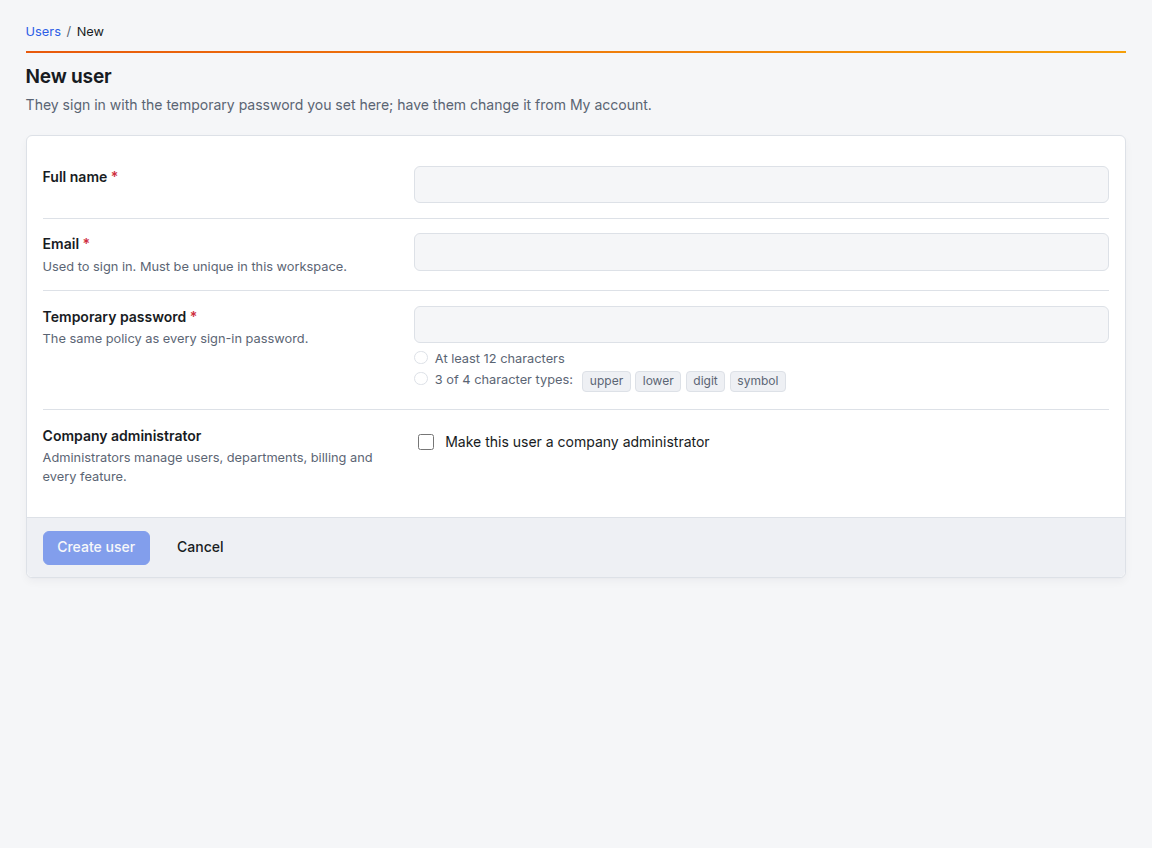
- Open Administration → Users and click New user.
- Fill in:
- Full name.
- Email: what they sign in with. It must be unique in your organization.
- Temporary password: the same rules as every sign-in password: at least 12 characters, using 3 of the 4 character types (uppercase, lowercase, digit, symbol). The checklist under the field ticks off each rule; Create user stays greyed out until both are met.
- Company administrator: tick only for people who should run everything, including this console.
- Click Create user.
- Give the person their email and temporary password in a safe way (in person or by phone, not in the same email as the address). Ask them to change it under My account after they sign in, or open their page and click Force reset so they must choose a new one at their first sign-in.
4. Put people in departments
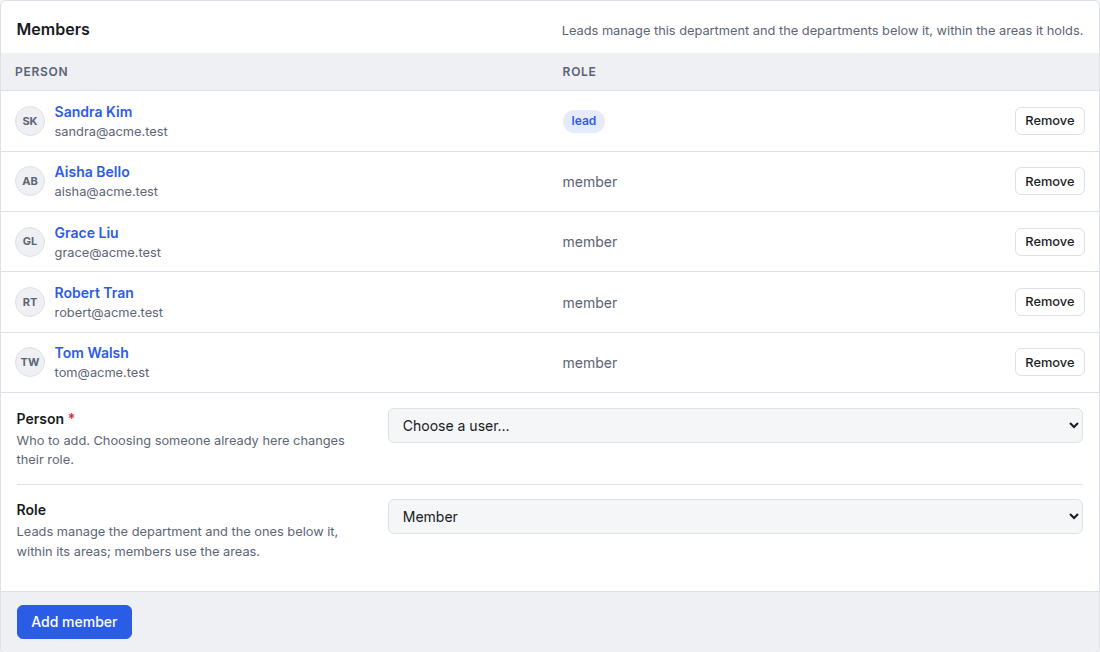
- Open the department and find Members.
- Under the list, choose the Person and their Role:
- Member: uses everything the department has enabled.
- Lead: a member who also manages the department, the departments below it, and what they own (spaces, projects, libraries, templates). Leads also approve their people's leave, timesheets, expenses and requisitions.
- Click Add member. Choosing someone already listed changes their role. Remove takes them out.
Manage one person
Open Administration → Users. The list shows each person's access (member, company admin, or the grants they hold), whether they are active, their last sign-in and whether they use MFA. Search by name or email, then click a name.
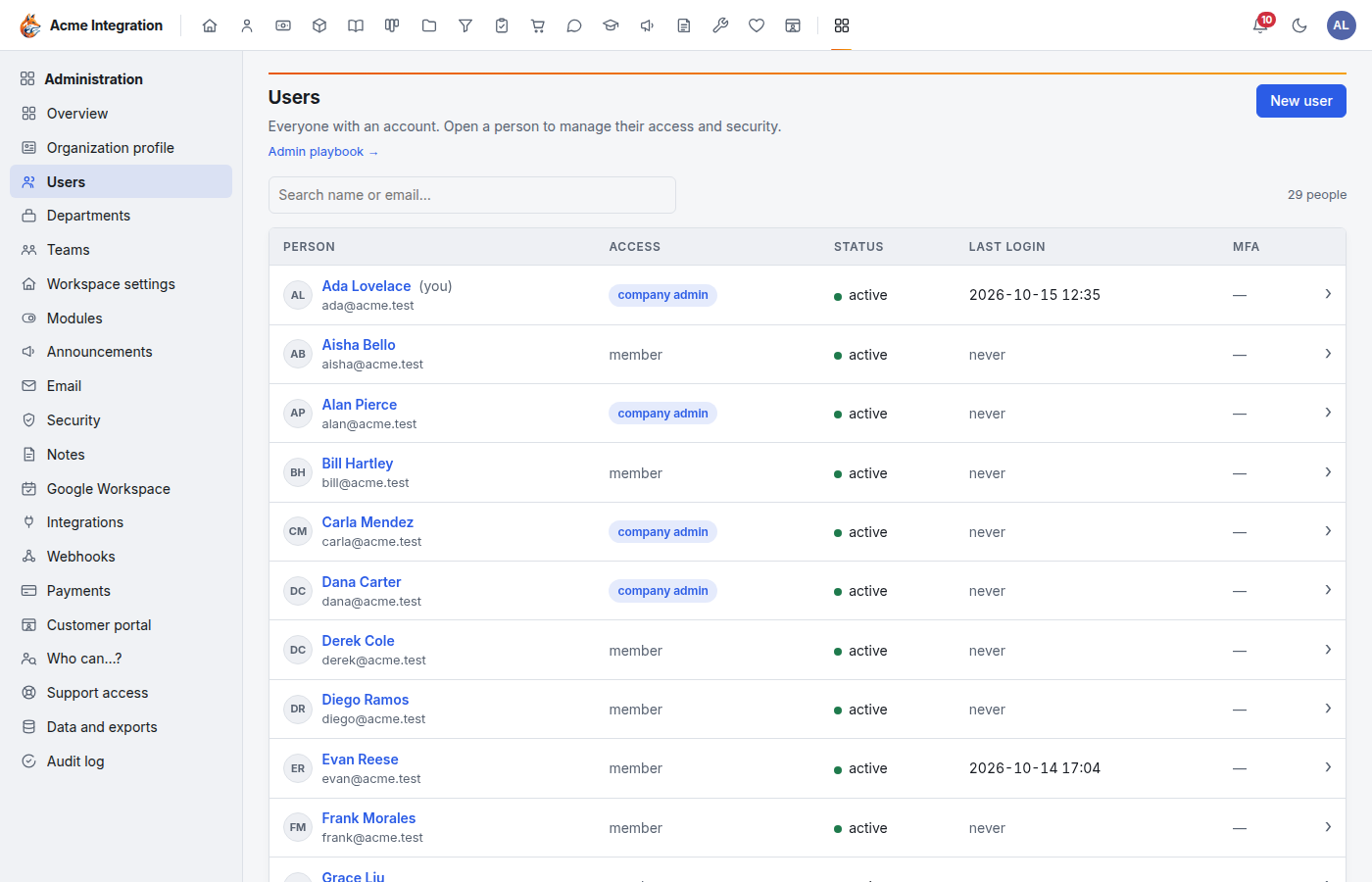
The person's page has three cards.
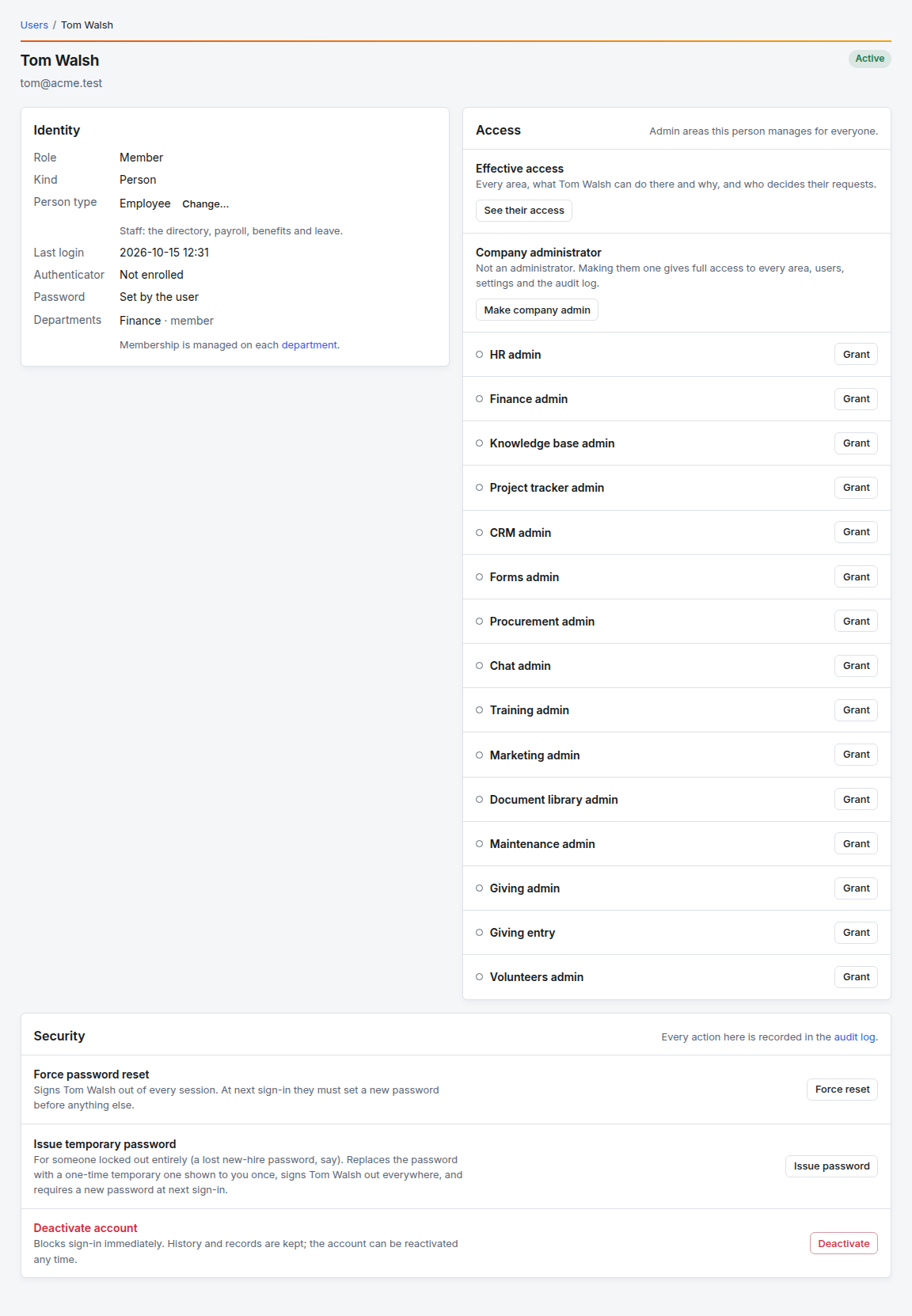
Identity
- Person type: Employee (the default), Volunteer or Contractor. Click Change… to switch. Volunteers get the least access: self-service outside the Volunteers area, no staff directory, and no payroll, benefits or leave. Contractors are listed apart and left out of payroll and benefits.
- Departments: where they are a member or lead. Change this on each department's page.
Access
- See their access shows every area, what they can do there and why, and who decides their requests.
- Make company admin gives full access to every area, every setting, users and the audit log. Hand it out sparingly. Remove admin takes it away; on your own page the button reads Step down. The last active company administrator can't be removed.
- Admin-area grants: Grant or Revoke one area for the whole company, for example Finance admin or Knowledge base admin, without changing departments. See Access and permissions.
Security (not shown on your own page; use My account for yourself)
- Force reset: signs them out everywhere. At their next sign-in they must choose a new password before anything else.
- Issue password: for someone locked out entirely. It replaces their password with a temporary one shown to you once, signs them out everywhere, and requires a new password at next sign-in. Copy it, then click Done, hide it.
- Reset MFA: shown when they have an authenticator. It clears the authenticator and recovery codes. Before you do it, confirm it is really them by a call, a video call or in person; the dialog asks who verified them. If your MFA policy covers them, they set up a new one at next sign-in.
- Deactivate: blocks sign-in at once and signs them out everywhere. Their history and records are kept. Reactivate restores sign-in.
Every action on this page is recorded in the audit log.
Teams (optional)
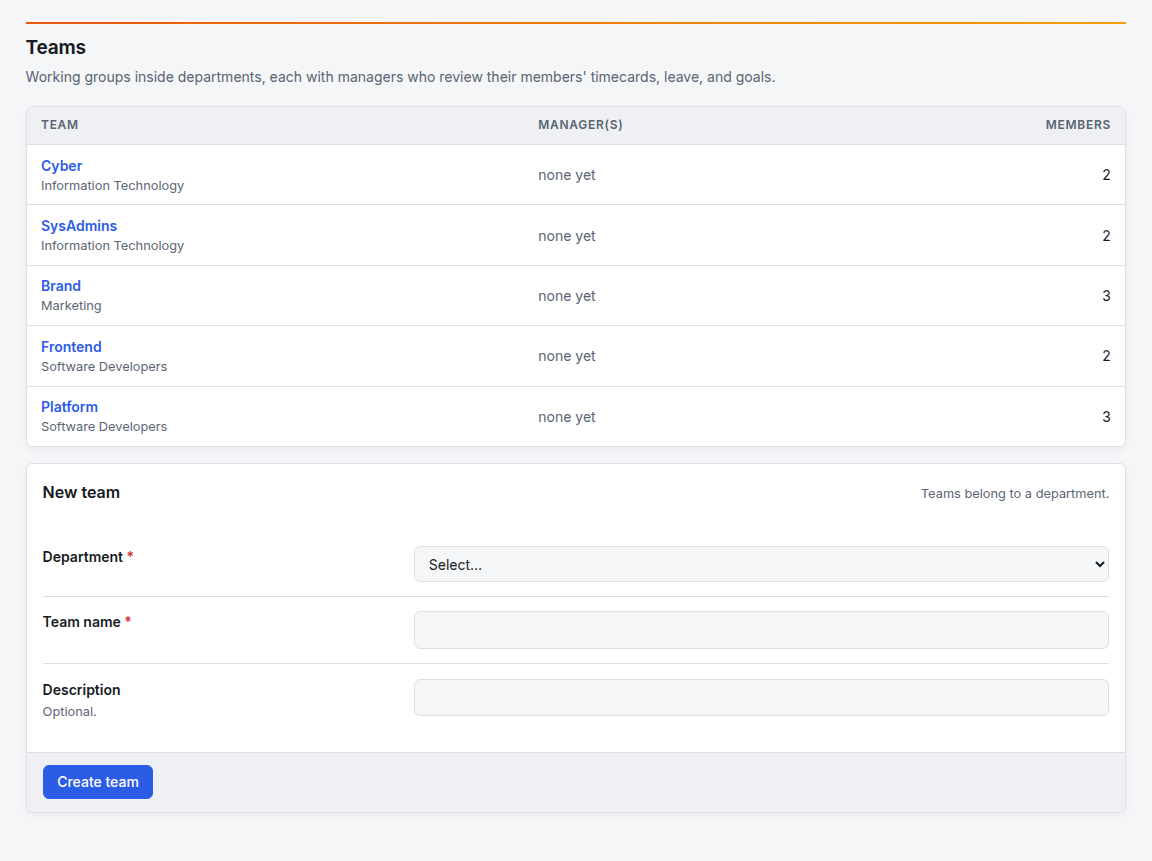
A team is a working group inside a department, such as Platform or Cyber inside Engineering. Team managers review their members' timecards, leave and goals, and teams can own content and receive shares just like departments.
- Open Administration → Teams.
- Under New team, choose the Department, type the Team name and an optional Description, then click Create team.
- Open the team, choose a Person and a Role (Member or Manager) and add them.
Department leads can do some of this themselves
Department leads have My organization in the workspace sidebar under Manage. There they can add and remove people in the departments below their own, create sub-departments and teams, set who someone reports to, and turn areas on for the departments below them (only areas their own department has). A lead can't make anyone a company administrator or an area administrator.
Deleting a department
On the department's page, Delete department is allowed only when nothing refers to it: no members, teams, enabled areas, inventory, libraries or other records. If something still does, the card lists what to remove first. To delete, type the department's slug exactly and click Delete department. It can't be undone.
Troubleshooting
"I put someone in the Finance department and they can't see Finance." The Finance area isn't enabled on that department. Open the department → Feature areas → Enable beside Finance. Also check that Finance is on under Modules.
Create user stays greyed out. The temporary password doesn't meet the rules yet: at least 12 characters, and 3 of uppercase, lowercase, digit and symbol.
A new person can't sign in. Check the email is exactly right, the account is Active, and they are using your organization's own sign-in page. If they lost the temporary password, use Issue password.
A volunteer leads a department but can't open its management screens. Volunteers get self-service only outside the Volunteers area. Change their person type to Employee or Contractor.
Remove admin is refused. They are the last active company administrator. Make someone else an administrator first.
The Delete department card shows a list instead of a form. Remove or move the things listed there first.