 foxxcyber/docs
Campaigns and reports
Create campaigns with a goal, dates and a default fund, give each one a donation page, and read Giving's reports.
A campaign is an appeal that brings gifts in: a spring appeal, a building campaign, a year-end drive. Each one has a goal, dates and a default fund, and the Campaigns list shows how far it has come.
Before you start
- Giving is on and you are a company administrator or hold the Giving admin grant. See Set up giving.
- Create the funds first (Giving → Funds) if you want a campaign to have a default fund.
Create a campaign
- Open Giving → Campaigns and click New campaign.
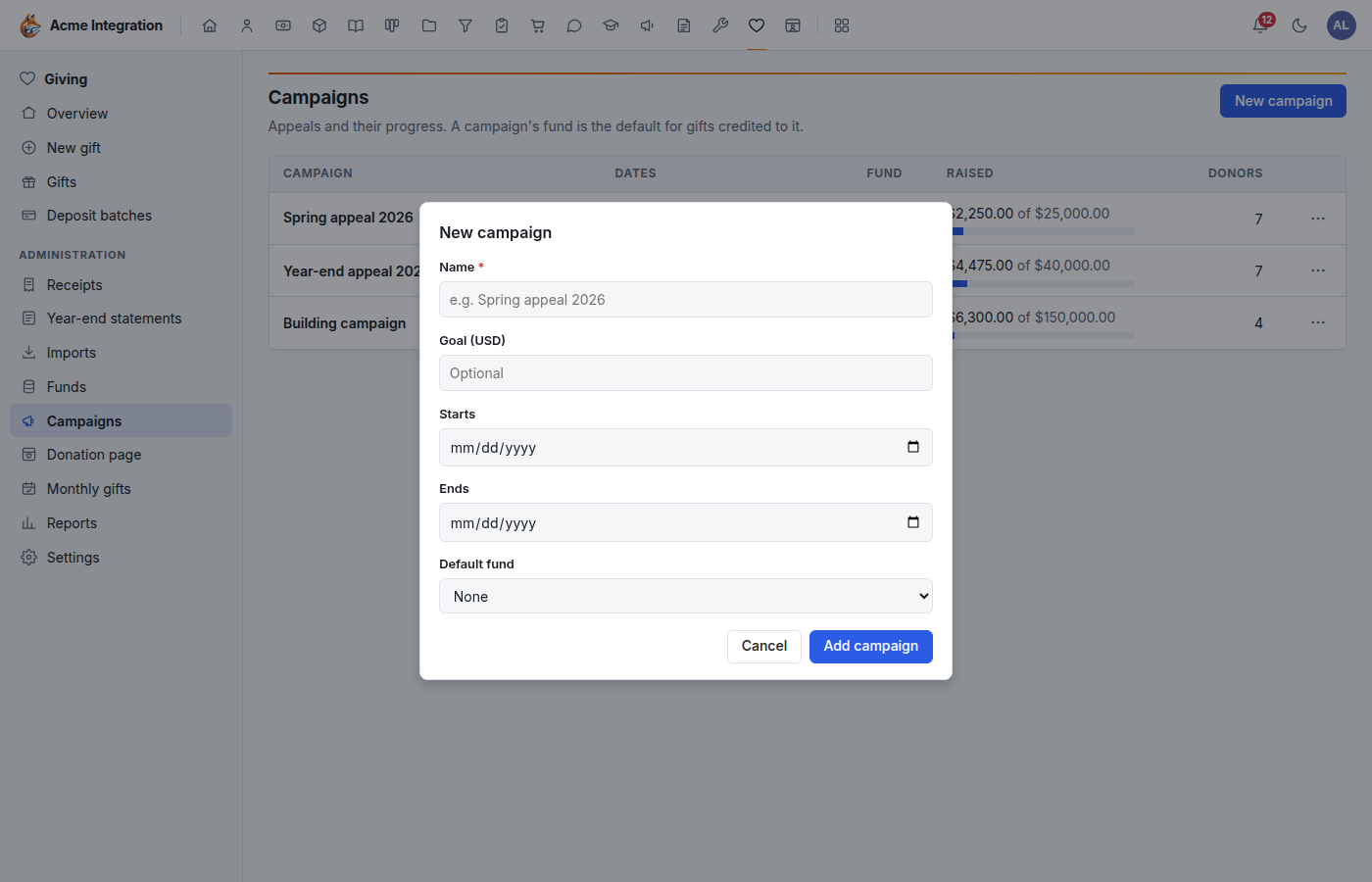
- Fill in the dialog:
- Name (required), for example Spring appeal 2026;
- Goal (USD), optional: the target shown as a progress bar;
- Starts and Ends, optional dates; with no end date the campaign is open-ended;
- Default fund: the fund gifts credited to this campaign go to unless someone picks another, or None.
- Click Add campaign.
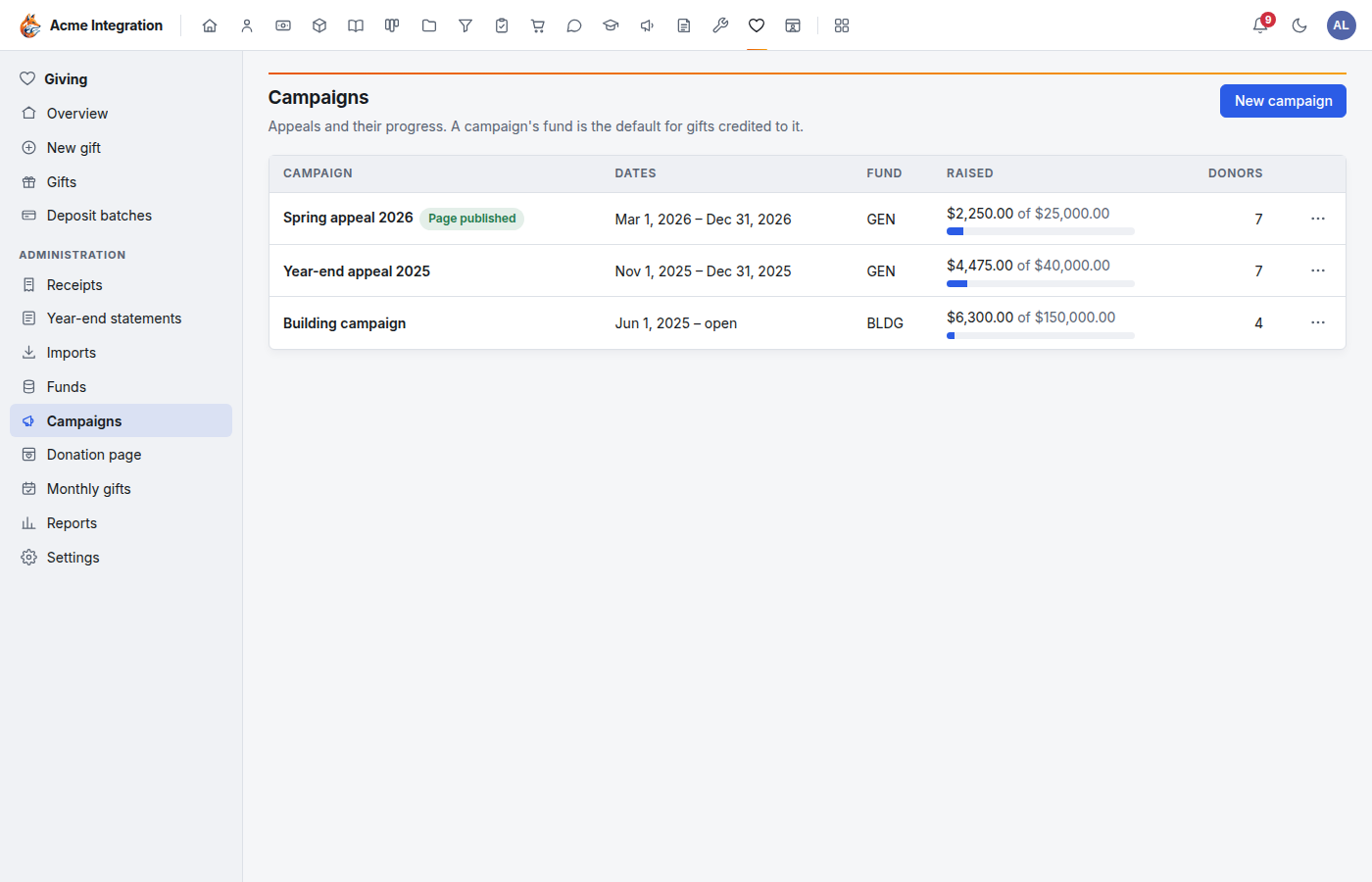
The list shows each campaign's dates, fund, the money raised against the goal, and the number of donors. A Page published badge marks campaigns whose donation page is live.
Credit gifts to a campaign
- Typed gifts: pick the campaign in the Campaign field of New gift, or for a whole deposit batch in the batch's Campaign field.
- Imports: choose the campaign when you import a Stripe or PayPal file.
- Online: gifts given on the campaign's own donation page are credited to it automatically.
- Email appeals: in Marketing, an email campaign can be a fundraising appeal for a Giving campaign. Its emails link to the campaign's page with the appeal's code, and gifts given through that link record the appeal. See Customers.
Edit, archive, restore
Click ⋯ on a campaign's row:
- Edit… changes the name, goal, dates or default fund. Changing the end date reopens a campaign page that had ended.
- Donation page opens the campaign's own page editor. See Campaign pages.
- Archive takes the campaign out of the gift form and takes its page down. Restore brings it back.
Archiving never deletes the campaign or its gifts.
Reports
Giving → Reports covers any period. Pick From and To and click Show, or use This year or Last year.
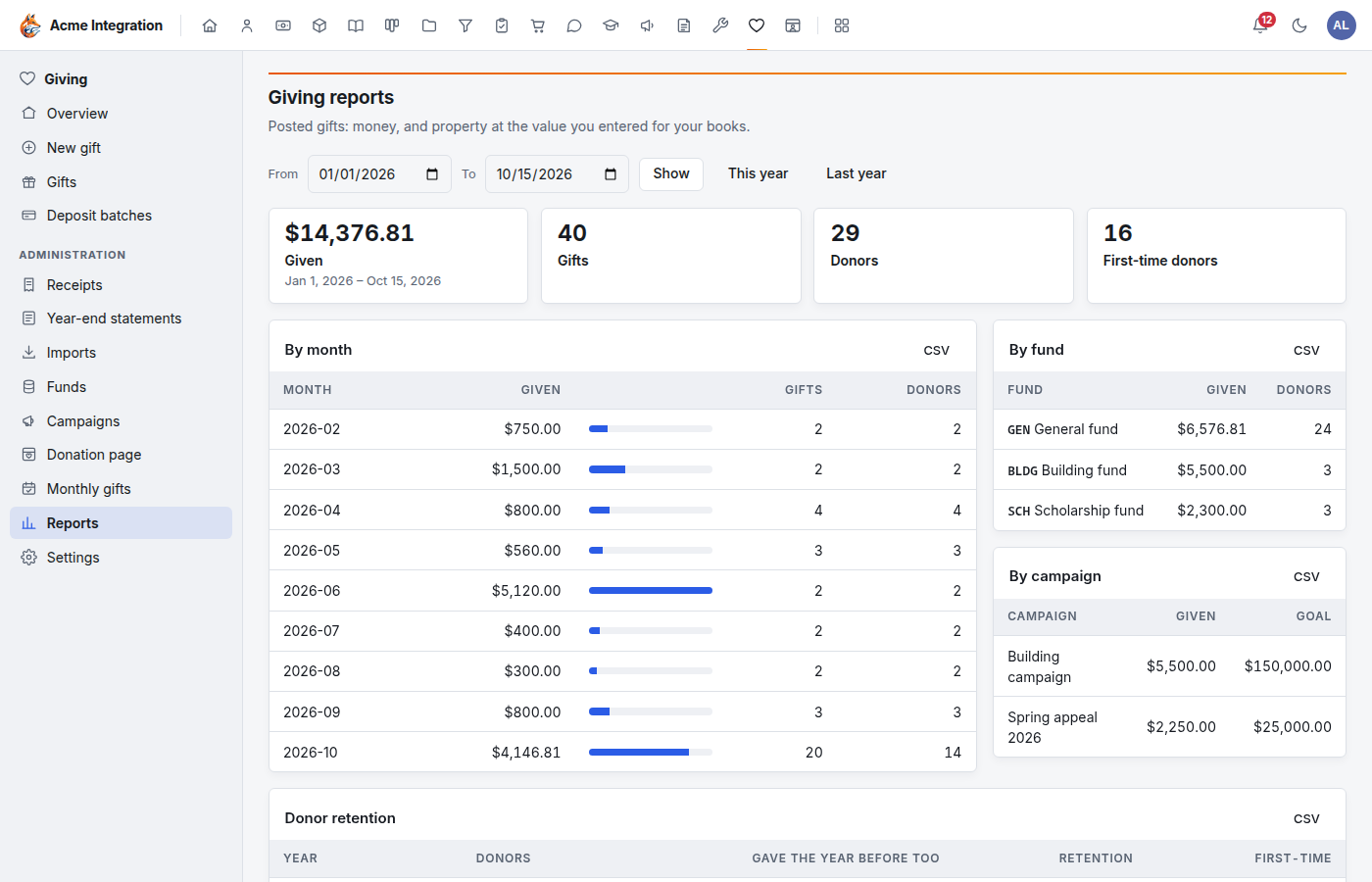
The report shows the money given, the number of gifts and donors, and tables for:
- By month, By fund and By campaign (with each campaign's goal);
- Donor retention: donors who gave the year before too;
- Top donors;
- First-time donors: donors whose first gift ever falls in the period;
- Lapsed: donors who gave last year and not since.
Each table has a CSV button to download it. Reports count posted gifts: money, and property at the value you entered for your books.
On a CRM contact or company, the Giving tab (Giving administrators only) shows that donor's lifetime giving, first and last gift, every gift and every receipt.
Troubleshooting
| Problem | Fix |
|---|---|
| Campaigns or Reports isn't in the Giving menu | You need the Giving admin grant. |
| A campaign is missing from the gift form | It is archived. Restore it from its ⋯ menu. |
| The campaign page took no more gifts | Its end date has passed; change it with Edit…. |
| Raised looks too low | Only posted gifts count. Post open deposit batches and check for voided gifts. |