 foxxcyber/docs
Human Resources overview
What Human Resources covers, who sees which screens, how employee records work, and where each HR area lives.
Human Resources holds your people and their working life: profiles, timecards, leave, expenses, benefits, goals, skills, certifications, evaluations, hiring, onboarding and offboarding. Everyone uses it for their own records. HR administrators and department leads also manage other people's.
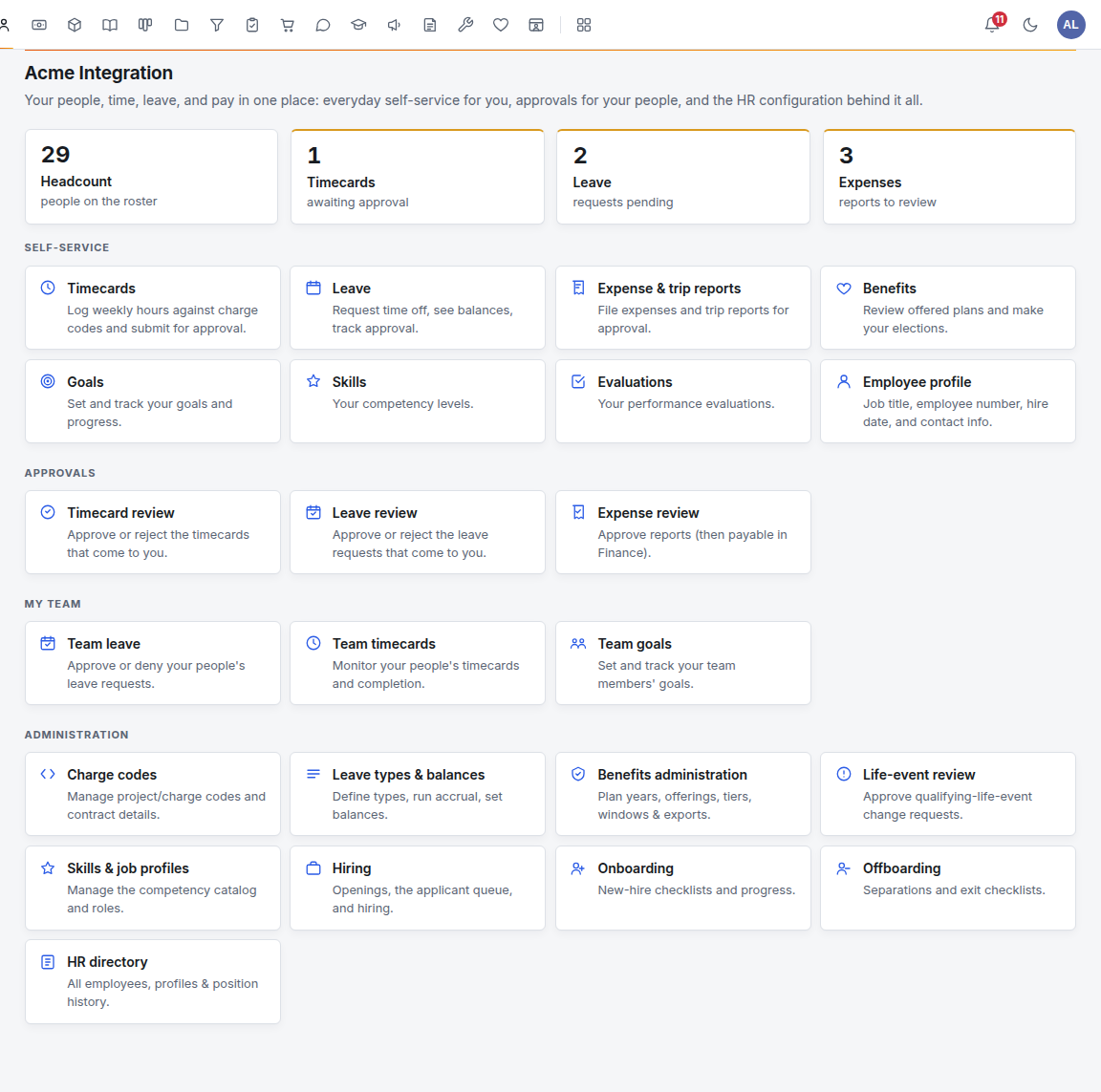
Open it from the area bar at the top of the workspace (the person icon), or go to Human Resources from the workspace home. The page that opens is the HR Overview: counts across the top, then a card for every screen you can use.
Before you start
- Human Resources is turned on for the organization. A company administrator checks this under Administration → Modules. See Modules.
- People have accounts. Everyone who signs in to the workspace is on the HR roster. Accounts are created under Administration → Users. See Users, departments and teams.
- Departments are set up, with their members and leads. Leads, approvals and hiring all follow the department tree.
- HR is enabled on the departments whose leads should manage people. Go to Administration → Departments → the department → Feature areas and click Enable next to Human Resources. A department's name means nothing on its own: a department called "HR" gets no HR powers until the area is enabled on it.
- Someone is an HR administrator. Company administrators always are. To make someone else one, go to Administration → Users → the person and click Grant next to HR admin. See Access and permissions.
Who sees what
The sidebar only lists what you can use, so two people can see different HR menus.
| Who | What they get |
|---|---|
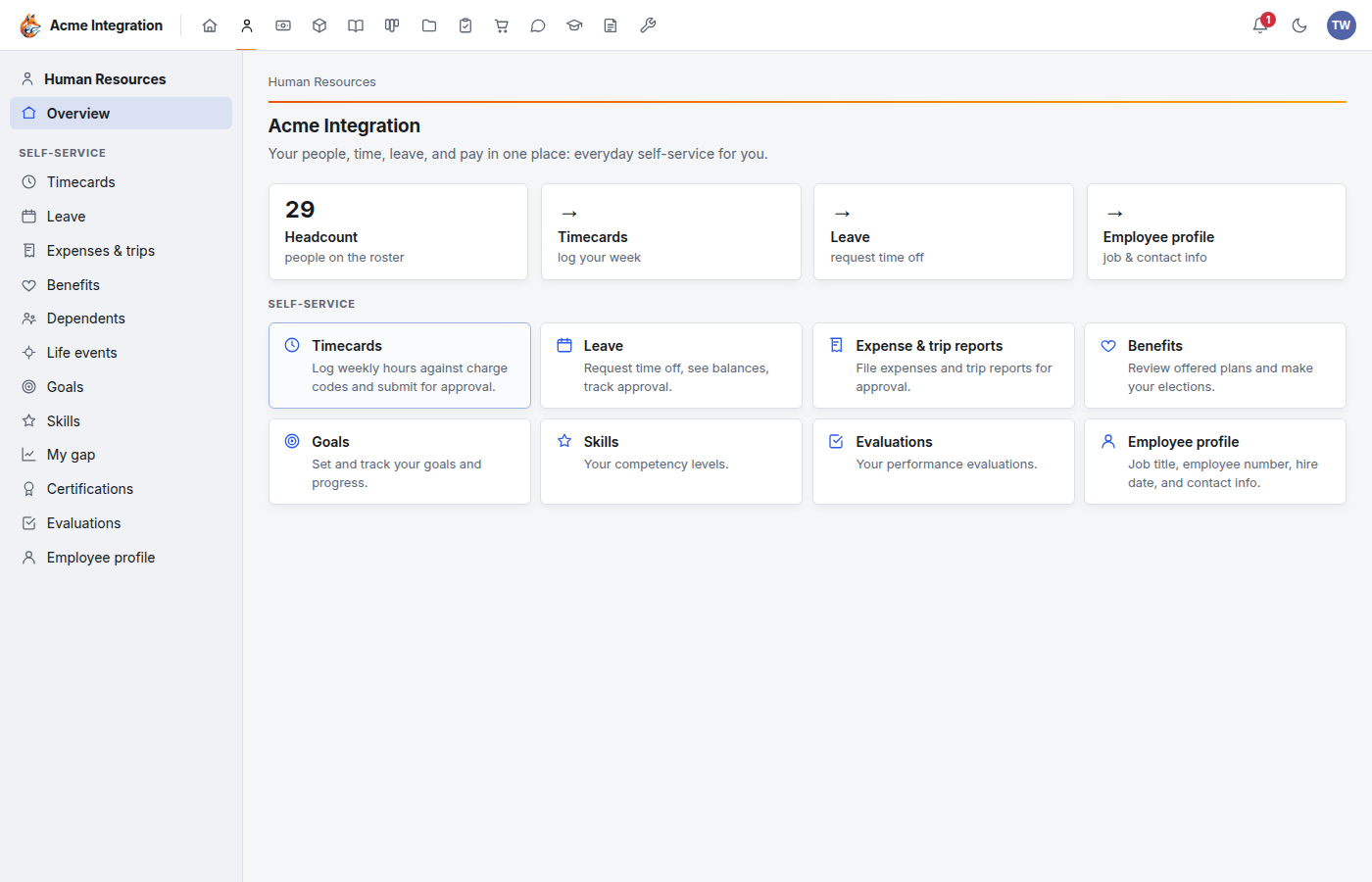
| Everyone | Self-service: their own timecards, leave, expenses and trips, benefits, goals, skills, certifications, evaluations and employee profile. |
| Anyone people's requests climb to (a reports-to manager, a department lead, a company administrator) | Approvals: Timecard review, Leave review and Expense review, showing only the requests they may decide. |
| Managers and leads | My team: Team leave, Team timecards, Team goals and Skill validation. |
| Leads of a department with HR enabled | Administration for the people they manage (their own department and every department below it): Hiring, Onboarding, Offboarding, HR directory, Cert expiry pipeline, Skill validation and Staffing & matrix. |
| HR administrators (company administrators and holders of the HR admin grant) | All of the above for everyone, plus the settings: Charge codes, Leave types & balances, Benefits admin, Enrollment tracking, Life-event review, Legacy plans, Skills & job profiles and Certification catalog. |
A lead never manages themself, a co-lead, anyone above them or a company administrator. If a lead should run HR for the whole organization, give them the HR admin grant.
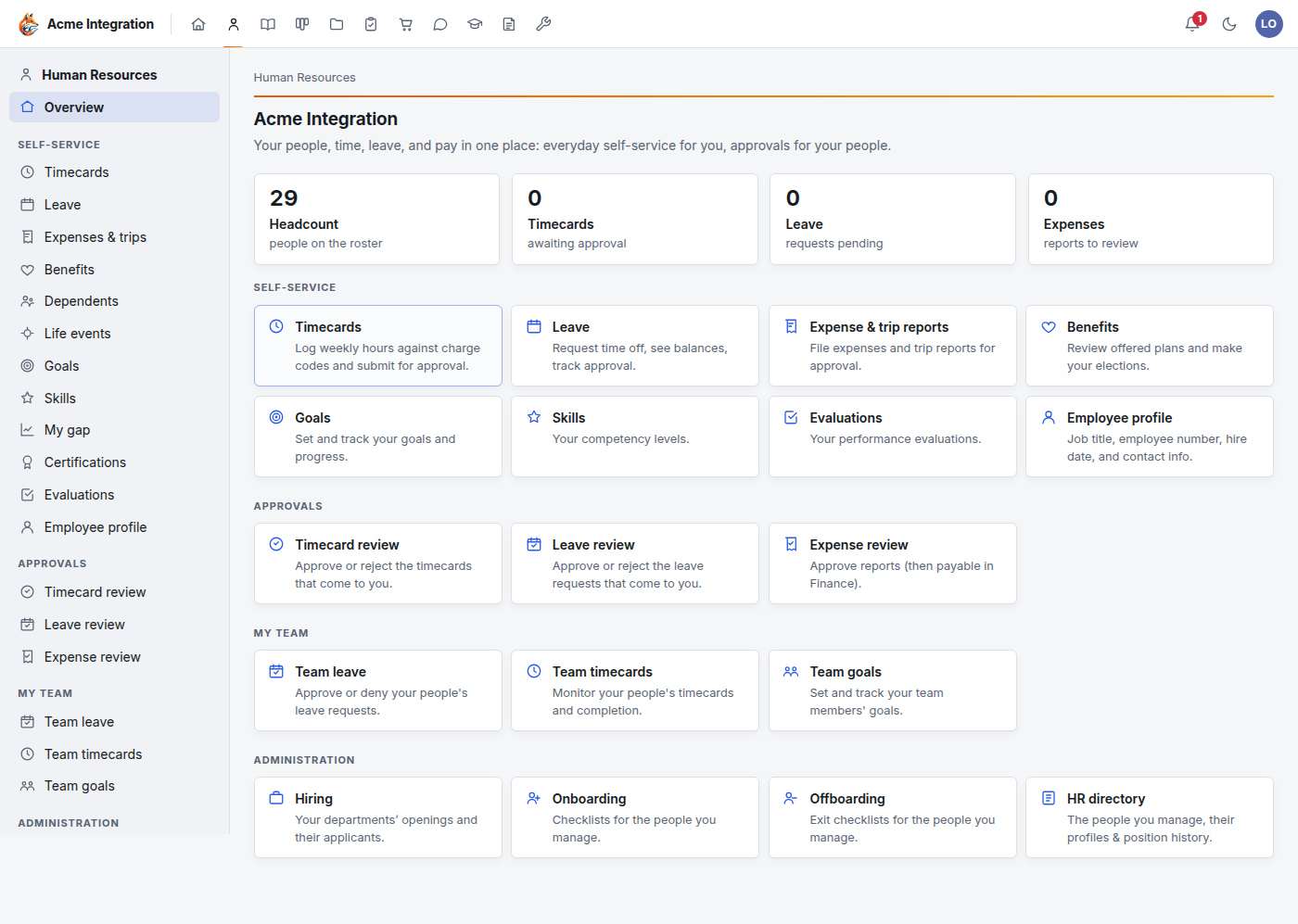
Here is the same Overview for a department lead who is not an HR administrator. The settings cards are gone, and the counts cover only the requests that come to them:
And for an ordinary employee, who sees self-service only:
Employees, volunteers and contractors
Every person has a type: employee (the default), volunteer or contractor. A company administrator changes it under Administration → Users.
- Volunteers don't see Timecards, Leave or the benefits screens, accrue no leave, and aren't in the staff directory. They log their hours in Volunteers instead. See Volunteers.
- Contractors work like employees, but get no benefits and accrue no leave.
Employee records
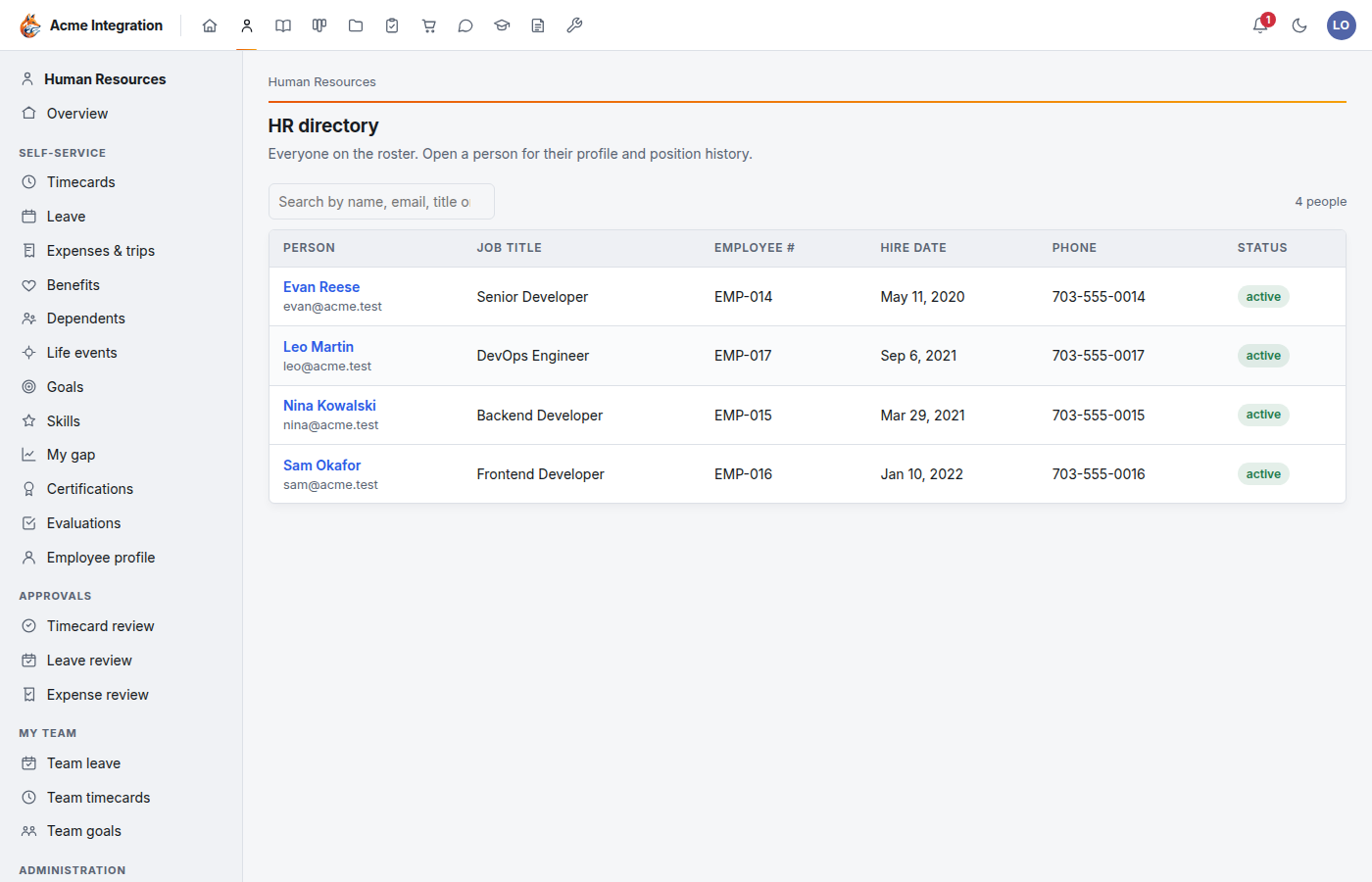
HR administrators open HR directory to see everyone on the roster, with job title, employee number, hire date, phone and status. A lead sees only the people they manage. Search by name, email, title or number, then click a name.
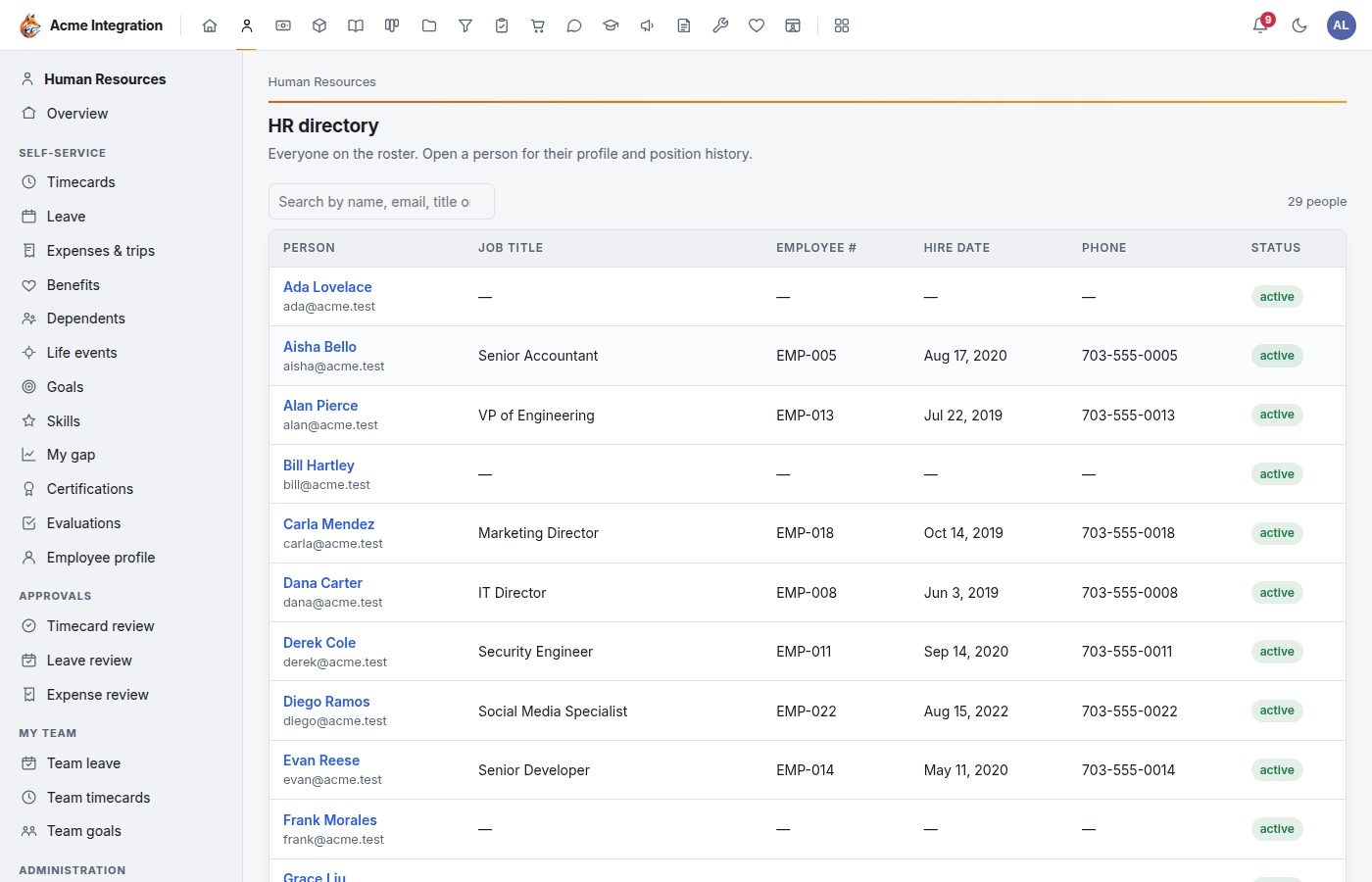
The same directory for a department lead lists only the people in their department and the departments below it:
A person's page shows:
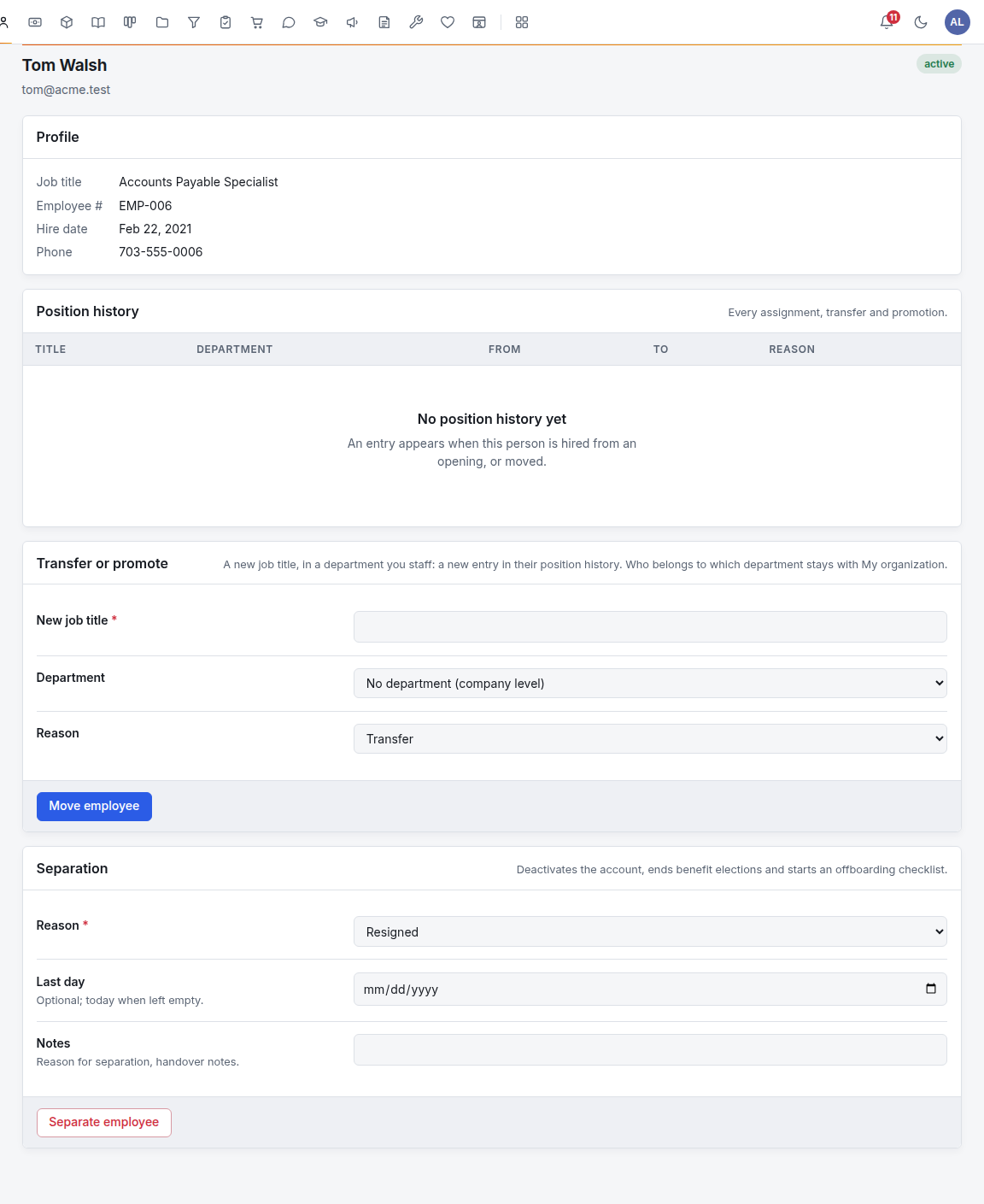
- Profile: job title, employee number, hire date and phone. Each person keeps their own details up to date under Employee profile.
- Position history: every assignment, transfer and promotion. The first entry is written when someone is hired from an opening. See Hiring.
- Transfer or promote and Separation, described below.
Move someone to a new job
- Open HR directory and click the person.
- Under Transfer or promote, enter the New job title.
- Choose the Department. You can only pick a department you staff. HR administrators can also choose No department (company level).
- Choose the Reason: Transfer or Promotion.
- Click Move employee.
This adds a line to their position history. It does not change which department they belong to for access. That is still done under Administration → Departments, or by a lead in My organization.
Separate someone who is leaving
- Open the person's page.
- Under Separation, choose the Reason, the Last day (empty means today) and any Notes.
- Click Separate employee and confirm.
Separation deactivates their account, ends their benefit elections and starts an offboarding checklist, which opens next. You can't separate yourself.
The HR areas
- Timecards and leave: weekly hours against charge codes, time off, balances and approvals. See Time and leave.
- Expenses & trips: expense and trip reports with receipts, approved in Expense review and then paid from Finance. See Expenses.
- Benefits: HR administrators set up plan years, offerings and tiers under Benefits admin, activate the year, then open an enrollment window. Employees enroll under Benefits, list Dependents and beneficiaries, and report Life events (qualifying life events). HR decides those in Life-event review. Enrollment tracking shows who hasn't decided yet. When a plan year is active, every new hire gets their own enrollment window.
- Goals: everyone sets and updates their own. Managers use Team goals.
- Skills: everyone records their skill levels, and managers confirm them in Skill validation. HR keeps the skill catalog and job profiles under Skills & job profiles. My gap compares your skills with your job profile. Staffing & matrix finds who holds a skill.
- Certifications: everyone records their credentials with expiry dates. HR keeps the Certification catalog and watches the Cert expiry pipeline.
- Evaluations: HR runs performance evaluations, and each person reads their own.
- Hiring: openings on your careers page and the applicant queue. See Hiring.
- Onboarding and Offboarding: checklists. One starts by itself when a new hire sets their password, or when someone is separated. Edit checklist template on the Onboarding page sets the tasks every new hire gets. You can also start an onboarding by hand.
- Training: courses live in their own area. See Training.
Troubleshooting: I don't see it
- There's no Human Resources in the area bar. HR is turned off for the organization. A company administrator turns it on under Administration → Modules.
- A lead has no Administration group in the HR sidebar. HR isn't enabled on their department. Enable it under Administration → Departments → the department → Feature areas.
- A lead sees only a few people in the HR directory. That's expected. A lead sees their own department and the ones below it. Grant HR admin for company-wide reach.
- Leave types, Charge codes or Benefits admin are missing. These are for HR administrators only. Leading a department isn't enough.
- Someone has no Timecards, Leave or Benefits. Check their type under Administration → Users. Volunteers get none of these, and contractors get no benefits.
- A page says it's for HR. You opened a link to a screen your role doesn't reach, such as another person's record.