 foxxcyber/docs
Inventory and assets
Track what your departments own: the item catalog, stock by location, serialized equipment with custody and depreciation, and software subscriptions with renewal dates.
Inventory & Assets keeps track of what each department holds:
- Catalog: every product, service, asset and subscription you track.
- Stock: counted items (cables, parts, supplies) by location, with every move recorded.
- Assets: serialized equipment (laptops, tools) with who holds it, its value and its warranty.
- Subscriptions: software and services that renew, with seats and cost.
Before you start
- Inventory & Assets must be on under Administration → Modules (it starts on).
- It is department-only. A company administrator enables it on a department under Administration → Departments → the department → Feature areas. Every member of that department gets full use of its inventory. Company administrators can act in any department.
- Locations and Categories & fields are managed by those same department members.
- Add at least one location before you move stock.
How departments share inventory
Every item belongs to one department. You see your departments' items plus any item marked Shared, and you manage the ones your department owns. Pages with a Department picker at the top show one department at a time: pick yours if the page looks empty.
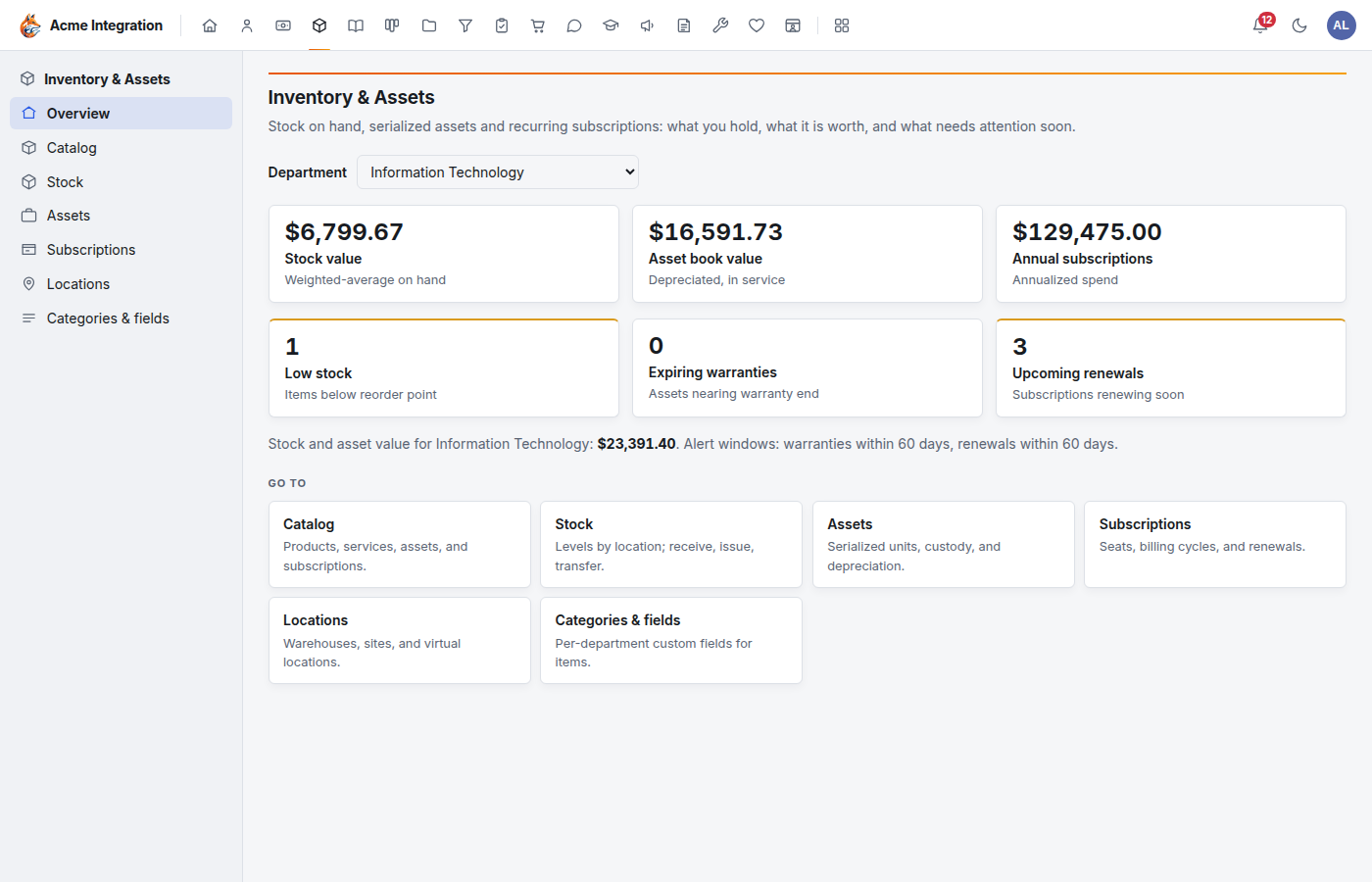
The Overview rolls up, per department, stock value, asset book value, annual subscription spend, and alerts: low stock, warranties ending within 60 days and renewals within 60 days.
Set up locations and categories
- Locations: open Inventory & Assets → Locations. Under New location, enter a Name, choose the Kind (Warehouse, Site or Virtual; virtual suits consignment or in-transit stock) and an optional Address. Click Add location.
- Categories (optional): open Categories & fields. Under New category, enter a Name and, if it only makes sense for one kind of item, pick Applies to kind. Click Add category. Add custom fields to a category; they appear on any item given that category.
A closed location stays on file but drops out of the pickers.
Add an item to the catalog
- Open Inventory & Assets → Catalog and click New item.
- Fill in the form:
- Department: who owns and edits the item.
- Kind: Stock is counted, Asset is serialized, Subscription renews, Service is work you sell. It can't change later.
- SKU (unique within the department), Name, Description and Category.
- Sell price (USD), Cost price (USD) and VAT rate (%). For stock, receiving keeps the cost at the weighted-average cost.
- Duration: for services and subscriptions, such as "12 months".
- Reorder point: for stock, flag it as low at or below this quantity.
- Selling and buying: tick Sellable and/or Purchasable.
- Visibility: tick Shared to show it to all departments.
- Click Create item.
To sell an item marked Sellable, open it and click Sell this item. Choose the Customer, the Document (Draft quote or Draft invoice) and the Quantity, then click Create document. Finish it in Invoices and billing.
Move stock
- Open Inventory & Assets → Stock. Pick the department and the location at the top.
- Under Move stock, choose the operation:
- Receive: add stock. Enter the Item, Quantity and Unit cost (USD), which updates the weighted-average cost.
- Issue: take stock out (used or handed out).
- Adjust: correct a count. A positive Delta adds, a negative one removes.
- Transfer: move stock From one location To another.
- Add an optional Note and click the operation's button.
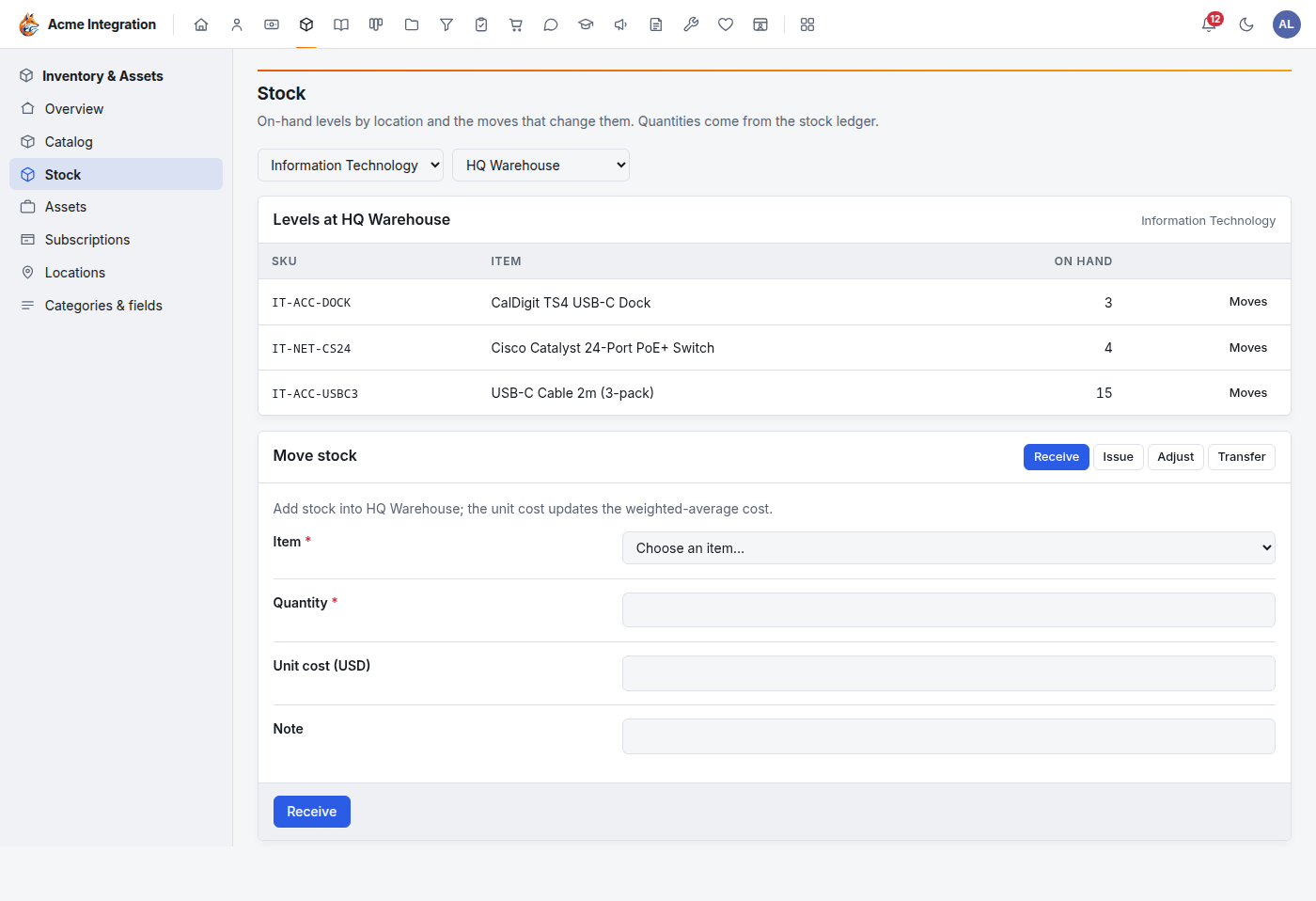
Click Moves on a row to see that item's history. Stock received on a purchase order arrives here automatically. See Procurement.
Track equipment (assets)
- Create a catalog item of kind Asset first, such as "Laptop 16 inch".
- Open Inventory & Assets → Assets and click New unit.
- Fill in the unit:
- Asset item: the catalog item it is one of.
- Asset tag: the label on the unit, such as IT-0042. Serial: the maker's serial number.
- Acquisition cost (USD) and In service date (depreciation starts here).
- Useful life (months), Salvage value (USD) (what it is worth at the end) and Depreciation method.
- Warranty until and a Note.
- Click Create unit.
Open a unit to see its book value today and its history. Under Custody actions:
- Assign: to A person (a member of the item's department) or A location.
- Return to stock: back from a person, with an optional Holding location.
- Send to repair: note what is wrong. The holder keeps it after repair.
- Dispose: enter Disposed on and an optional Disposal value (USD).
- Add a note: adds to the history without changing the unit.
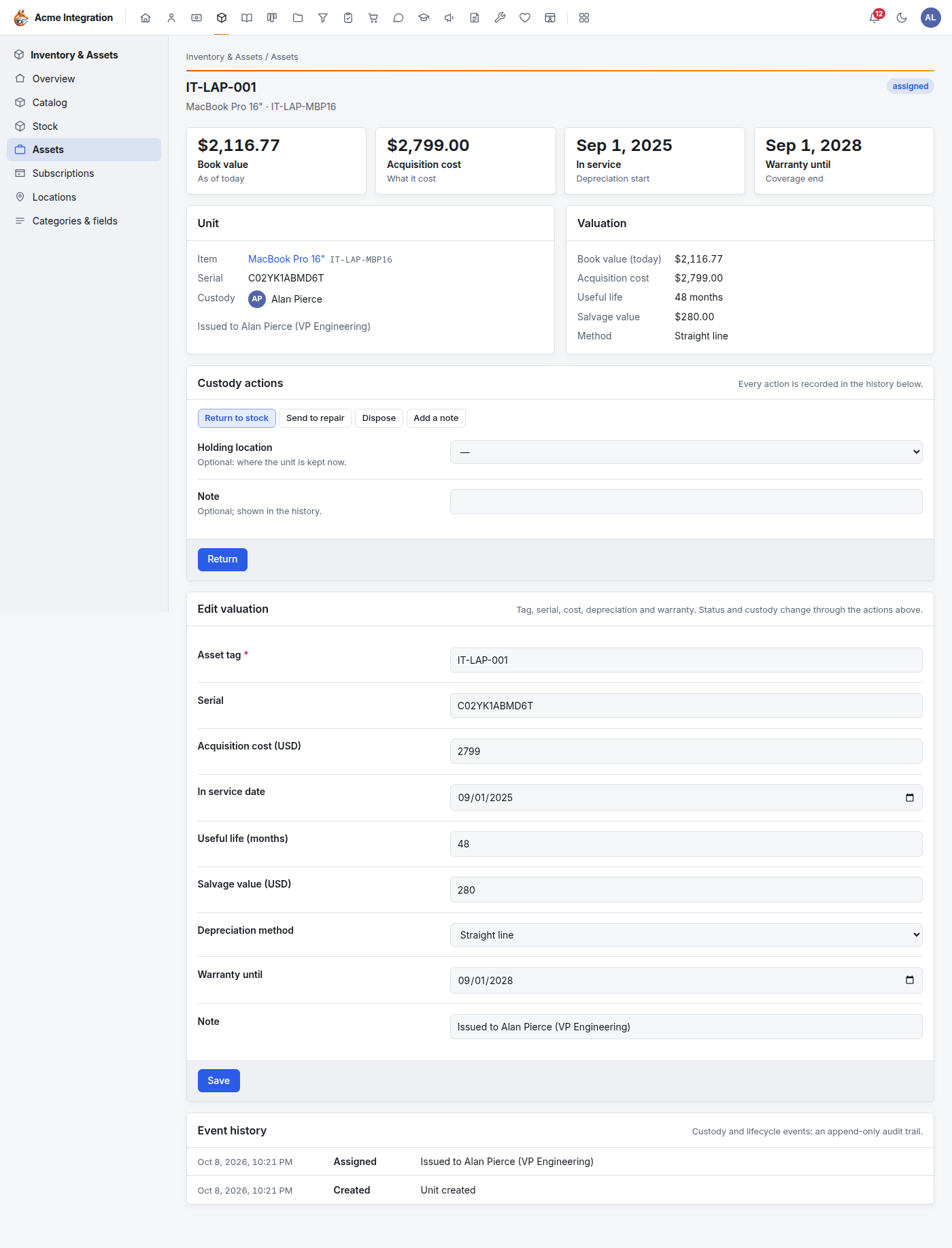
Every action is recorded in the Event history, which can't be edited.
Track subscriptions and renewals
- Create a catalog item of kind Subscription, such as "Slack Business+".
- Open Inventory & Assets → Subscriptions and click New subscription.
- Choose the Subscription item and Vendor, then enter Seats, Billing cycle (Monthly, Quarterly or Annual), Cost per cycle (USD), Starts on, Renews on and a Note.
- Click Create subscription.
Renewals within 60 days are flagged on the overview, so you can cancel or renegotiate in time.
Inventory values (stock value, asset book value, depreciation) are tracked here. They are not posted to the general ledger automatically. Purchases reach the ledger through vendor bills.
Troubleshooting
I don't see Inventory & Assets. Your department doesn't have it enabled, or the module is off. Ask a company administrator.
The overview or Stock page is empty. It is showing a different department. Pick yours in the Department picker at the top.
Stock says "No open locations". Add a location under Locations first.
I can't find an asset item when creating a unit. Units need a catalog item of kind Asset. Create one with New catalog item.
I can't change an item's kind. The kind is fixed once the item exists. Open it, click Archive, and create a new item.
I can't edit another department's item. You can see shared items but only the owning department can change them.