 foxxcyber/docs
Security
Require two-factor sign-in (MFA) for administrators or everyone, see who is signed in, and sign a session out.
Administration → Security holds the organization-wide sign-in rules: the two-factor (MFA) policy and the list of active sessions. Actions on one person (forcing a password reset, resetting their authenticator, deactivating them) are on that person's page; see Users, departments and teams.
Before you start
- You must be a company administrator.
- Before requiring MFA for everyone, tell people they will need an authenticator app on their phone (any standard app that shows six-digit codes).
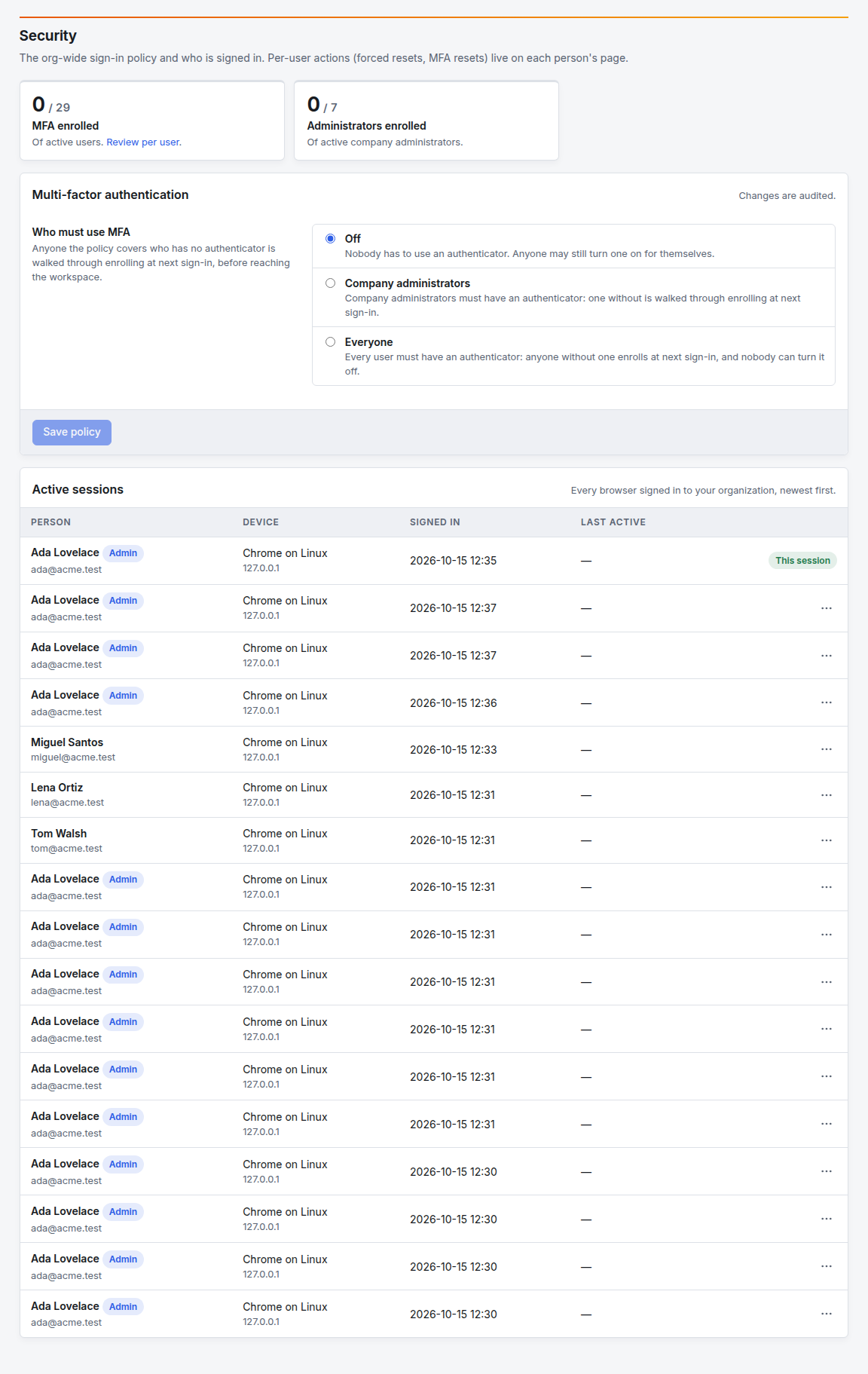
Require two-factor sign-in
- Open Administration → Security.
- Under Who must use MFA, choose one:
- Off: nobody has to use an authenticator. Anyone may still turn one on for themselves under My account.
- Company administrators: administrators must have an authenticator.
- Everyone: every user must have one, and nobody can turn theirs off.
- Click Save policy. The change is recorded in the audit log.
What happens next: anyone the policy covers who has no authenticator is walked through setting one up the next time they sign in, before the workspace opens. People already signed in carry on until their next sign-in. When they set it up they get one-time recovery codes; ask them to keep those somewhere safe.
The two tiles at the top show how many active people, and how many administrators, have an authenticator. Review per user opens the Users list, whose MFA column shows who has one.
Start with Company administrators: administrators reach everything, so they matter most. Move to Everyone once your administrators have done it themselves.
See who is signed in
Active sessions lists every browser signed in to your organization, newest first: the person, the device and its network address, when it signed in and when it was last active. Your current browser is marked This session.
Sign a session out
- Find the session in Active sessions.
- Open its row menu (⋯) and click Sign out.
That browser is signed out of your organization at once. The person's other browsers are not affected. To sign someone out everywhere, open their page and click Force reset (they must also choose a new password) or Deactivate. To end your own session, use Sign out in your account menu.
When someone loses their phone
- Confirm it is really them, by a call, a video call or in person.
- Open Administration → Users → the person, and click Reset MFA. The dialog asks who verified their identity; that is recorded in the audit log.
- Their authenticator and recovery codes are cleared. If the policy covers them, they set up a new one at their next sign-in.
Troubleshooting
Someone says they weren't asked to set up MFA. They were already signed in when you saved the policy. They will be asked at their next sign-in. To make it happen now, sign their sessions out.
Someone can't turn off their authenticator. The policy covers them (Everyone, or Company administrators for an administrator). That is by design.
Reset MFA doesn't appear on a person's page. They have no authenticator set up, so there is nothing to reset.
The sessions list has many lines for one person. Each browser and each sign-in is its own session. Sign out the ones that shouldn't be there.