 foxxcyber/docs
Integrations and API keys
Create API keys that let your website, shop or automation tools send contacts, events, tickets and newsletter sign-ups to Foxx HQ, choose their scopes and rate limits, and rotate or revoke them.
An integration key lets another system (your website's back end, a shop, an automation tool) send data to Foxx HQ through its API: create CRM contacts, record events, open support tickets, add newsletter subscribers, or report a subscription's setup back. Keys only go in one direction, into Foxx HQ. For the other direction, Foxx HQ telling your apps what happened, see Webhooks.
Before you start
- You must be a company administrator. Keys reach company data.
- Each scope works only while its area is on under Modules (see the table below).
- Website contact forms don't need a key. Set them up under CRM → Web forms (see Forms).
- You can have up to 50 live keys.
Create a key
- Open Administration → Integrations.
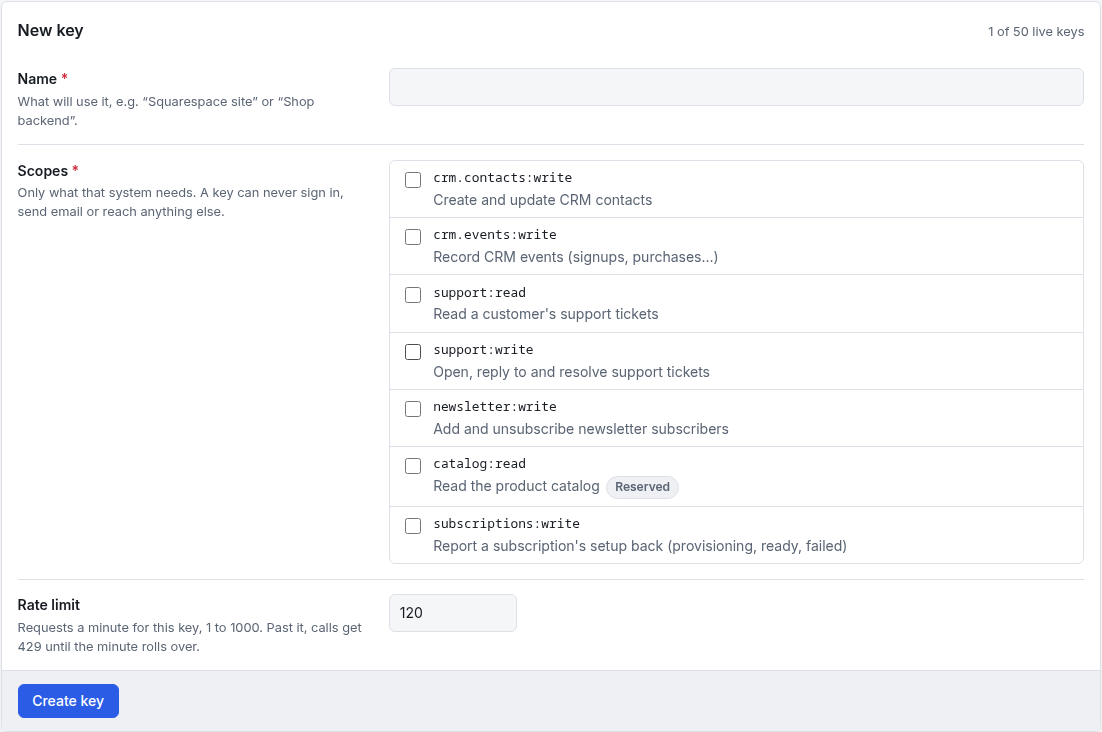
- In New key, fill in:
- Name: what will use it, for example "Squarespace site" or "Shop backend". It appears in the audit log as the actor.
- Scopes: tick only what that system needs. A key can never sign in, send email or reach anything else.
- Rate limit: requests a minute for this key, 1 to 1000 (120 by default). Past it, calls are refused with 429 until the minute rolls over.
- Click Create key.
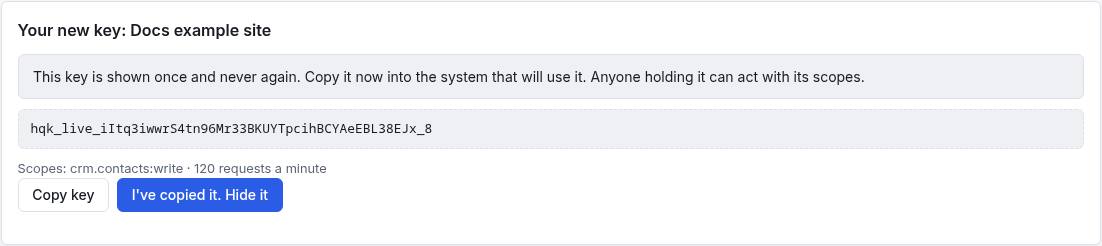
- Copy the key now. It starts with
hqk_live_and is shown once. Click Copy key, put it into the system that will use it, then click I've copied it. Hide it.
The scopes
| Scope | What it allows | Needs this module on |
|---|---|---|
crm.contacts:write | Create and update CRM contacts | CRM & Sales |
crm.events:write | Record CRM events (signups, purchases…) | CRM & Sales |
support:read | Read a customer's support tickets | Project Tracker |
support:write | Open, reply to and resolve support tickets | Project Tracker |
newsletter:write | Add and unsubscribe newsletter subscribers | Marketing |
catalog:read | Read the product catalog (marked Reserved: nothing uses it yet) | Inventory & Assets |
subscriptions:write | Report a subscription's setup back (provisioning, ready, failed) | Finance |
When a module is off, its scopes stay on the key but stop working. They work again when the module is back on.
Connect the other system
The How to connect card on the same page gives the API address and
ready-to-copy examples for each scope. In short, the system sends the
key as Authorization: Bearer hqk_live_… with JSON bodies. Adding an
Idempotency-Key header to a POST makes a retry return the first answer
instead of doing the work twice. The last example links to the full API
description (OpenAPI 3). Give that card to whoever builds the
connection.
Rotate or revoke a key
The Keys table lists every key: its name, the first characters of the key, its scopes, when it was created, when and from where it was last used, and Live or Revoked.
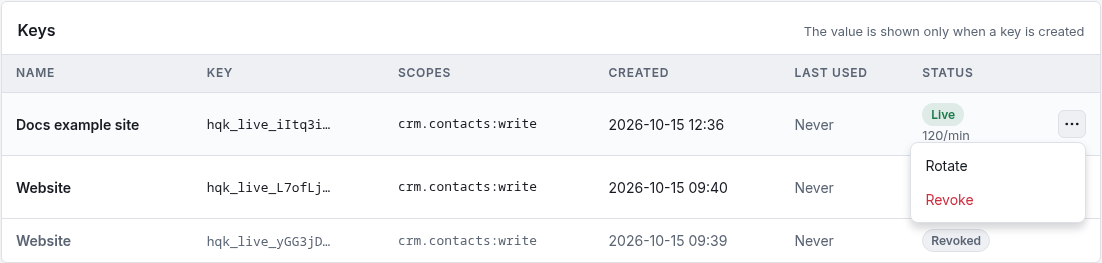
Rotate when a key may have leaked, or on a schedule:
- Open the key's row menu (⋯) and click Rotate.
- Confirm with Rotate key. A new key with the same name, scopes and rate limit is made, and the old one stops working at once.
- Copy the new key from the top of the page into the system that uses it straight away.
Revoke when a system no longer needs access:
- Open the row menu and click Revoke, then Revoke key.
- Anything still using it is refused (401) from its next request. This can't be undone; create a new key to reconnect.
Revoked keys stay in the list, greyed, for the record.
Customer ticket link
At the bottom of the page, Ticket emails link to sets where the
emails link when staff reply to or resolve a customer's support ticket.
Use your own page with {ref} where the ticket number goes, for example
https://example.org/account/support/{ref}. Leave it blank to use Foxx
HQ's own ticket page, with a private link made for each email. Click
Save link.
Troubleshooting
Calls get 401. The key was revoked or rotated, or was copied wrongly. Create or rotate a key and paste it again.
Calls get 403 or "not found" for one kind of request. The key lacks that scope, or the scope's module is off. Check both.
Calls get 429. The key passed its rate limit. Wait a minute, or raise the limit by creating a new key with a higher one.
I lost a key. It can't be shown again. Rotate it and use the new one.
Create key is refused. You have 50 live keys. Revoke ones you no longer use.