 foxxcyber/docs
Expenses
How staff file expense and trip reports, how approvers decide them, how Finance pays them, and how to bill expenses back to a client.
An expense report collects out-of-pocket costs for one approval. A trip report is the same thing for one trip, with a destination and purpose. The life of a report:
- The person files it under Human Resources → Expenses & trips and submits it.
- Someone on their approval chain approves or rejects it.
- An approved report waits under Finance → Payables until Finance pays it.
- It posts to the ledger on approval, so the cost lands in the right expense account even before it is paid.
Before you start
- Anyone can file reports. They live in Human Resources, which is on for everyone unless a company administrator switched it off under Administration → Modules.
- Someone must be able to approve: the person's reports-to manager, a lead of their department or a department above it, or a company administrator. See Access and permissions.
- Paying reports needs Finance access. See Finance overview.
- Charge codes (projects, contracts, grants) are set up by HR administrators under Human Resources → Charge codes. They are optional on each line.
File an expense or trip report
-
Open Human Resources → Expenses & trips.
-
Under New report, choose the Kind: Expense report or Trip report.
-
Enter a Title, such as "September client visit". For a trip, add the Destination (trip) and Purpose (trip). Period start and Period end are optional.
-
Click Create report. The report opens as a draft.
-
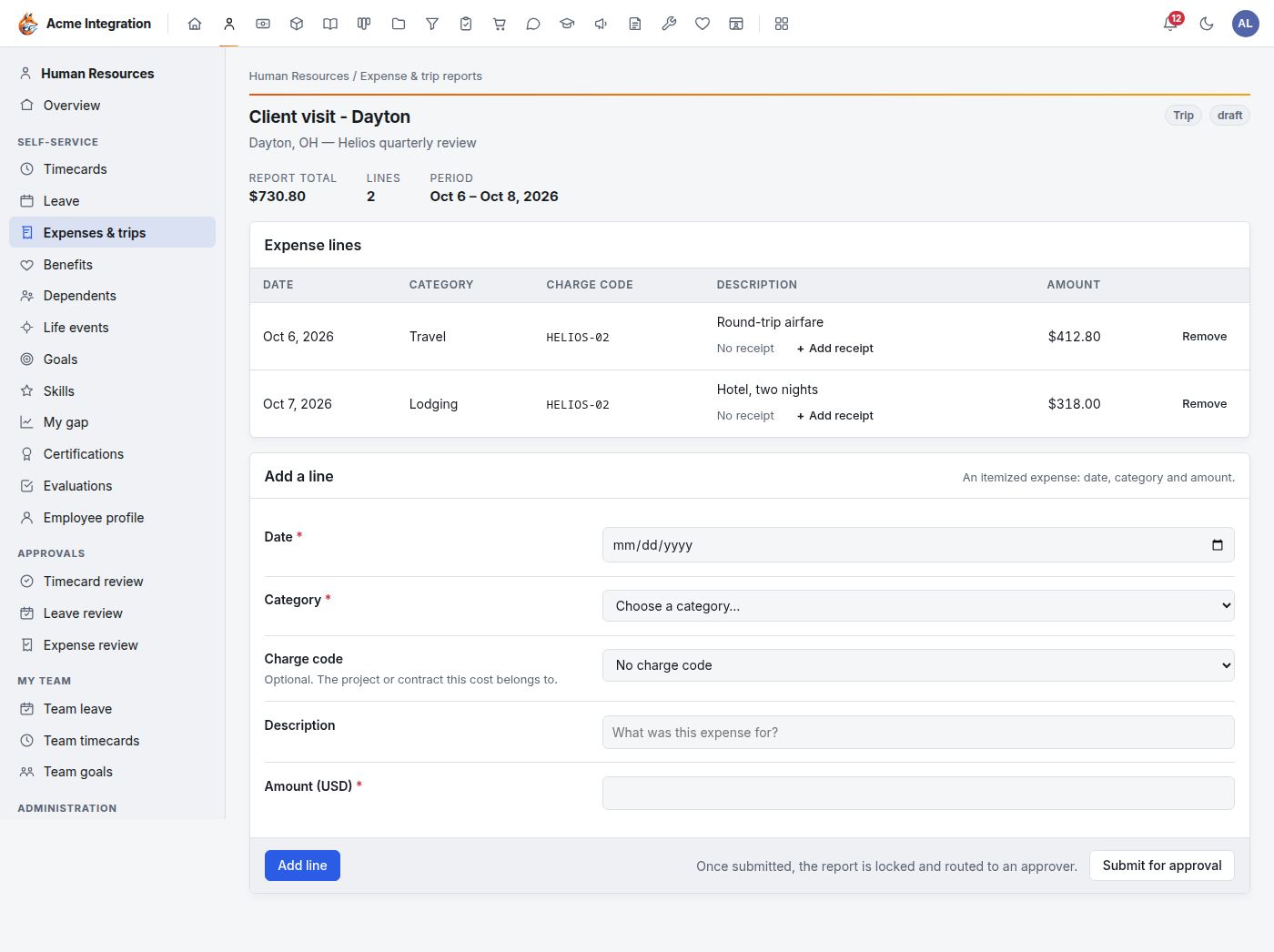
Under Add a line, enter each cost:
- Date and Category (Travel, Lodging, Meals, Supplies or Other), both required;
- Charge code: optional, the project or contract the cost belongs to;
- Description and Amount (USD).
Click Add line. Repeat for each cost.
-
Click + Add receipt on a line to attach the receipt.
-
Click Submit for approval and confirm. The report locks and goes to an approver.
Approve or reject a report
- Open Human Resources → Expense review (under Approvals). It lists the submitted reports waiting for you.
- Open a report and check its lines and receipts.
- Under Approver decision, click Approve to send it to Finance, or Reject to return it.
A rejected report stays rejected. The person files a new report with the corrections.
Pay approved reports
- Open Finance → Payables. Awaiting payment lists every approved report with the person and the amount.
- Reimburse the person the usual way (bank transfer, check).
- Click Mark paid on the report. It moves to Recently paid.
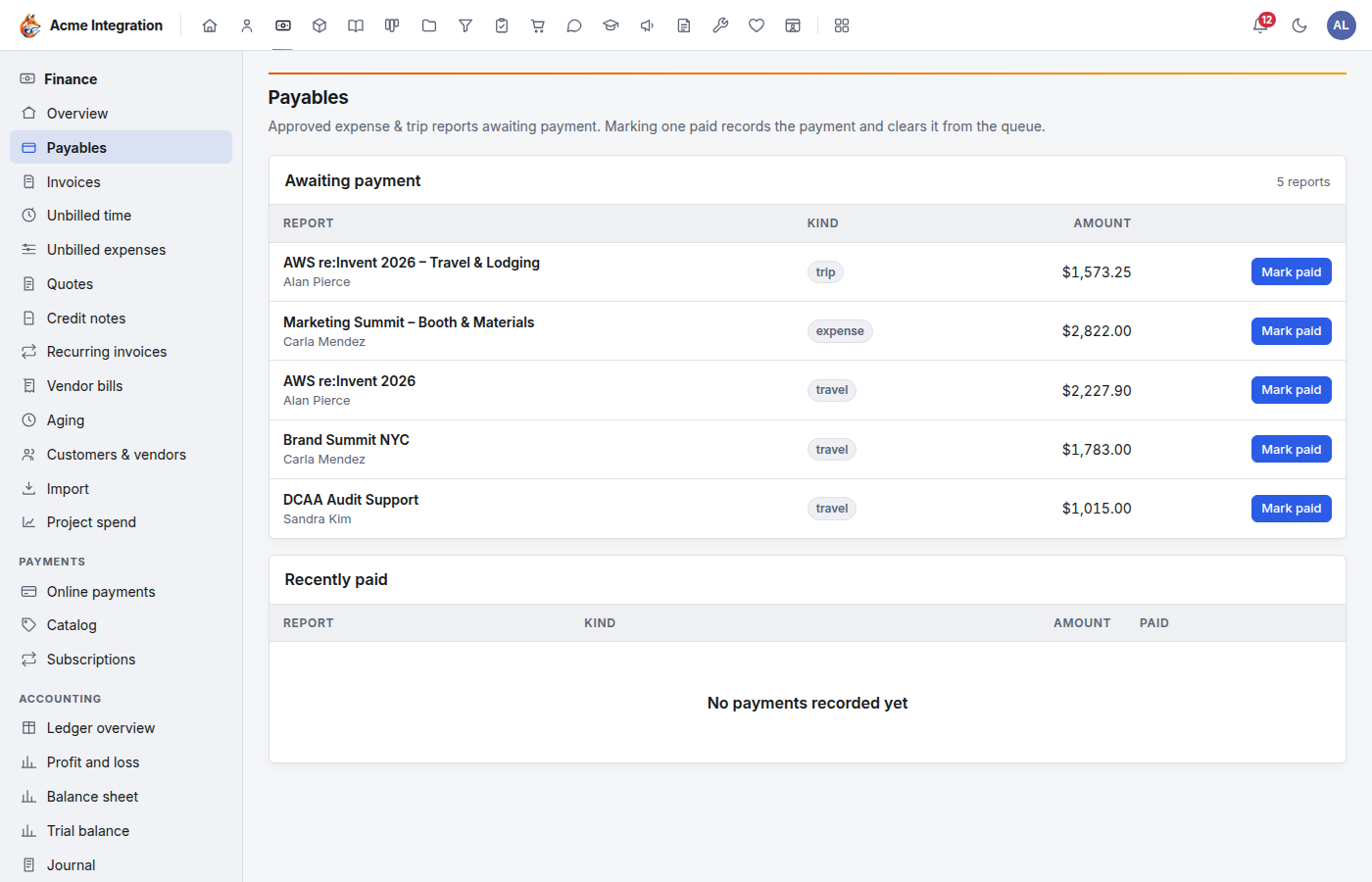
Mark paid acts at once, with no date or method to fill in. Click it only after the money has gone out.
How expenses land in the books
When a report is approved, each line posts to the expense account for its category, and the total goes to Reimbursements payable (money the organization owes the person). Mark paid clears that.
A company administrator or Finance admin can change which account each category posts to, and can name an Owner whose reports count as owner contributions instead of money owed. See Ledger and reports.
Bill expenses back to a client
Expenses on a billable charge code can be passed on to the client.
- An HR administrator opens the charge code under Human Resources → Charge codes, ticks Billable to a client and picks the Client (a customer from Finance).
- Approved expense lines and vendor bills on that code then appear under Finance → Unbilled expenses.
- Choose the Customer (optionally a Cutoff (date on or before)) and click Apply.
- Under Generate invoice, enter a Markup % (0 to 500; 0 passes costs through unchanged) and click Generate draft invoice.
- A draft invoice opens with one line per expense. Review it, mark it sent and email it. See Invoices and billing.
Each expense is billed only once. Unbill on a draft invoice's line returns it to the queue. Write off removes an expense from the queue for good, without billing it.
Troubleshooting
I don't see Expense review. It shows only to people who approve something (a manager, a department lead) and HR administrators.
Submit for approval is greyed out. The report has no lines yet, or its total is zero.
I can't edit my report. Only drafts can be changed. A submitted, approved or rejected report is locked.
An approved report isn't in Payables. Payables shows approved reports only. Check the report's status, and that you are looking with Finance access.
An expense isn't in Unbilled expenses. Its report must be approved, its line must have a charge code, and the code must be Billable to a client with that customer as the Client. It also drops out once billed or written off.