 foxxcyber/docs
Ledger and reports
How Foxx HQ keeps the general ledger for you, where each record posts, how to add accounts and journal entries, and how to run profit and loss, balance sheet and trial balance.
Foxx HQ keeps a double-entry general ledger under Finance → Accounting. You don't post most entries yourself: invoices, payments, vendor bills, credit notes and approved expense reports post on their own, and so do online payments, refunds and (for nonprofits) gifts. The books use the accrual basis: income counts when you invoice, expenses when they are billed or approved.
Before you start
- You need Finance access. See Finance overview.
- Accounting settings are for company administrators and Finance admin grant holders only.
- Every organization starts with a ready-made chart of accounts. You don't need to set anything up before records start posting.
The ledger overview
Open Finance → Ledger overview (in the Accounting part of the Finance menu).
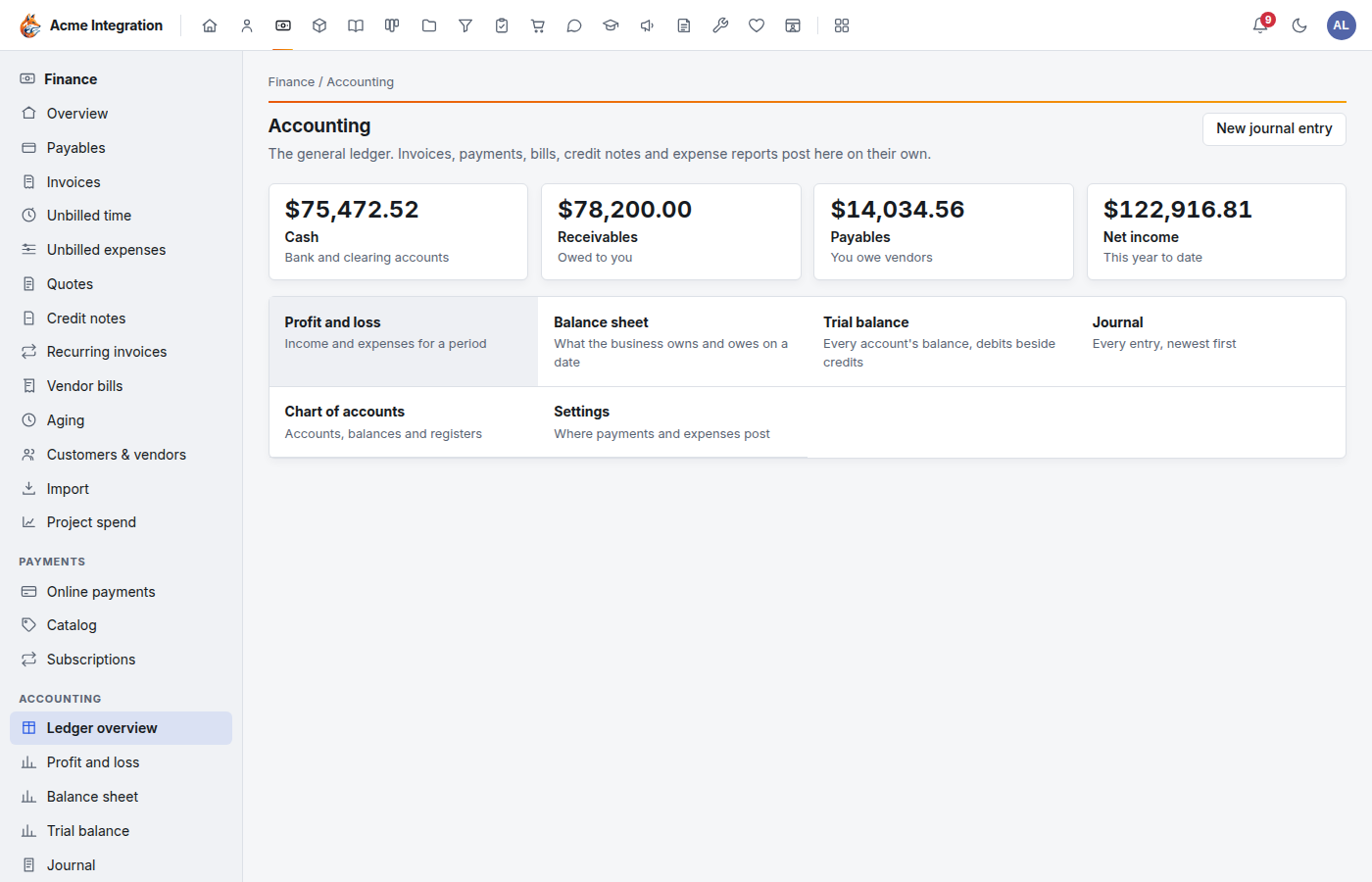
- Cash: your bank accounts plus the Stripe and PayPal clearing accounts.
- Receivables: what customers owe you.
- Payables: what you owe vendors.
- Net income: this year to date.
If a record can't post, a Couldn't post table appears here with the record and the reason (for example, an account that was turned off). Fix the record or the setting it names and HQ tries again on its own.
What posts where
| Record | When it posts | What it does in the books |
|---|---|---|
| Invoice | When it is marked sent | Accounts receivable up; Services income and Sales tax payable up. A draft or void invoice posts nothing. |
| Invoice payment | When recorded | Money into the cash account for its method (see settings); Accounts receivable down. |
| Online payment (Stripe or PayPal) | When the provider reports it | The amount less the fee into Stripe clearing or PayPal clearing; the fee to Merchant fees. |
| Credit note | When issued | Income down; Accounts receivable down. A refund through Stripe or PayPal also takes the money back out of clearing. |
| Vendor bill | When entered | The bill's expense account up; Accounts payable up. |
| Expense report | When approved | Each line to its category's expense account; Reimbursements payable up (or Owner contributions for the owner). |
Change a record and the ledger follows: HQ reverses what it posted and posts the corrected entry. Nothing is ever edited or deleted in place.
Stripe clearing and PayPal clearing hold money the provider owes you. When a payout reaches your bank, record it with a journal entry: debit your bank account (for example 1000 Operating checking) and credit the clearing account.
Accounting settings
Open Finance → Settings (under Accounting). Saving a change re-posts the records it affects, as a reversal and a new entry.
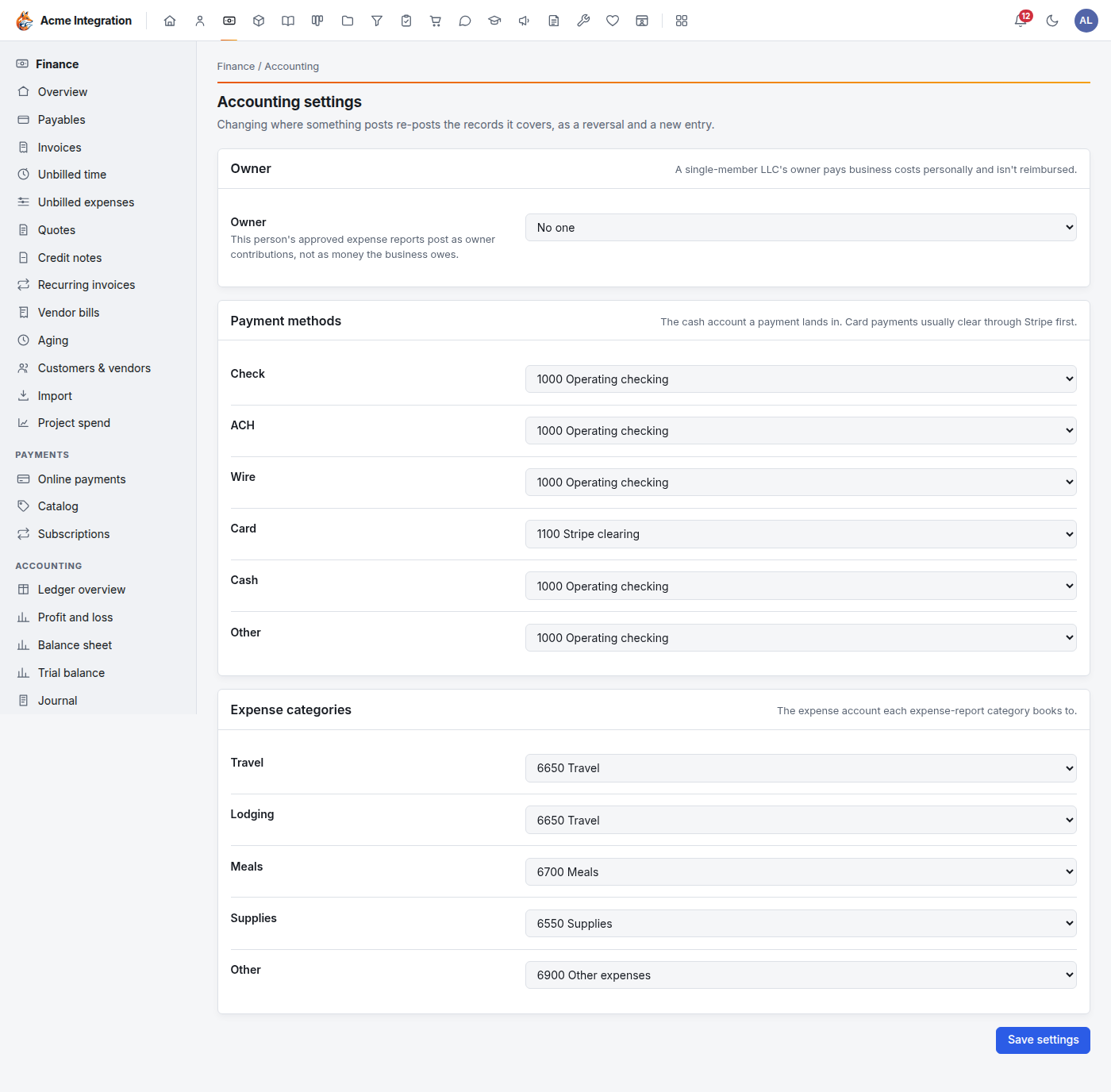
- Owner: for a business whose owner pays costs personally and isn't reimbursed (such as a single-member LLC). That person's approved expense reports post as Owner contributions, not as money the business owes. Leave it on No one otherwise.
- Payment methods: the cash account each method lands in: Check, ACH, Wire, Card, Cash and Other. Card usually lands in Stripe clearing.
- Expense categories: the expense account each expense-report category (Travel, Lodging, Meals, Supplies, Other) books to.
Click Save settings.
Where a vendor bill books
A vendor bill posts to Other expenses unless you choose otherwise:
- For a vendor: open Customers & vendors, click Edit on the vendor, and under Books to pick the default expense account for all its bills, then click Save.
- On one bill, under Vendor bills → the bill → Books to, pick an account for that bill only, then click Save.
Chart of accounts
Finance → Chart of accounts lists every account by type (assets, liabilities, equity, income, expenses) with today's balance. Accounts marked HQ posts here are the ones HQ uses automatically; they can't be turned off or deleted.
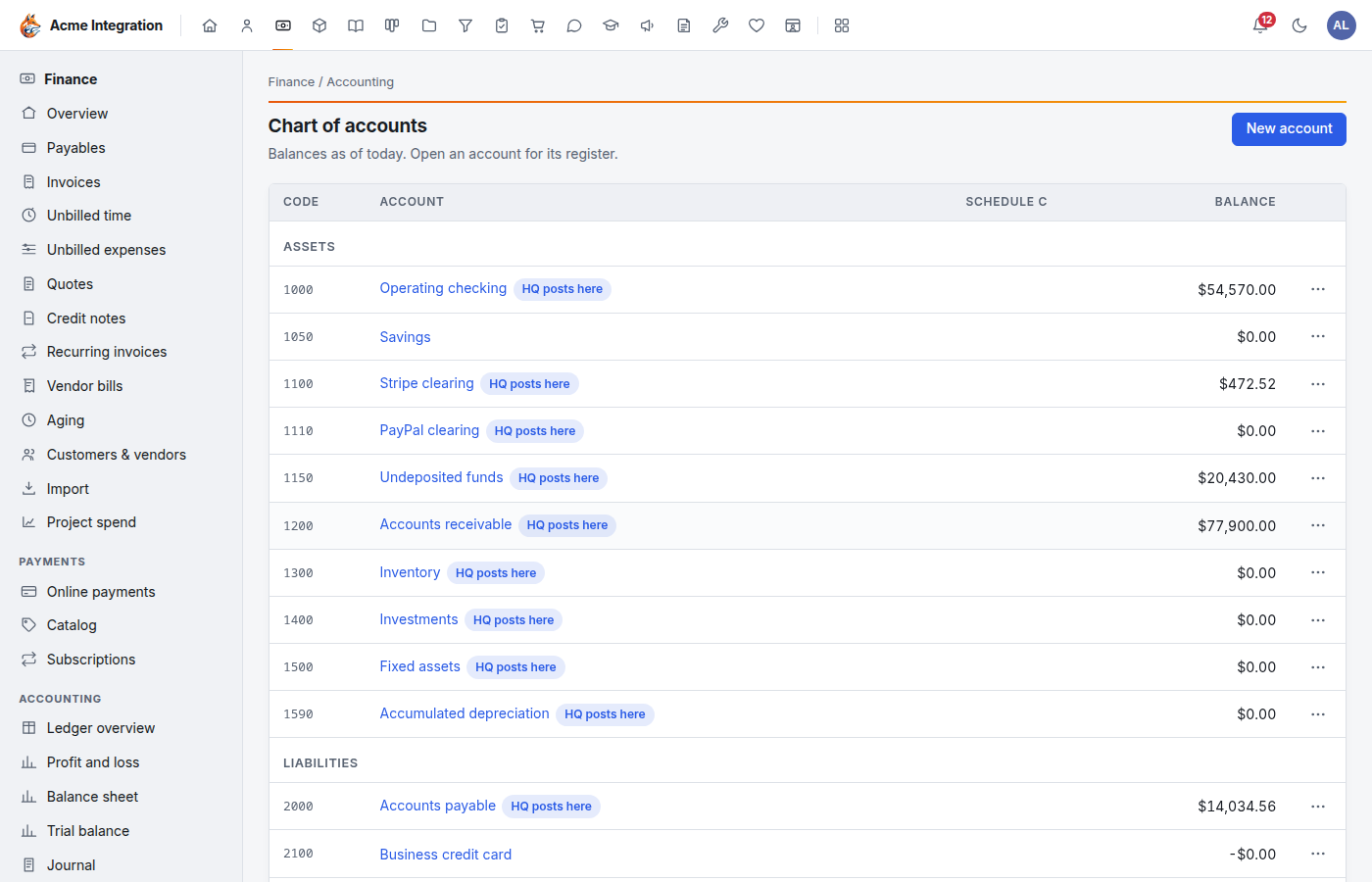
To add an account:
- Click New account.
- Enter a Code (a short number, unique in the chart) and a Name, and choose the Type. The type can't change later.
- For income and expense accounts, the optional Schedule C line is the line it belongs on in Schedule C (Form 1040), such as 18 or 27a.
- Click Add account.
Open any account (or its ⋯ → Register) to see every line posted to it. Choose From and To dates and click Show. An account that has postings can't be deleted; untick Active under Edit instead, so it keeps its history but takes no new entries.
Post a journal entry
Use a journal entry only for what no record covers: opening balances, owner contributions and draws, bank transfers and corrections.
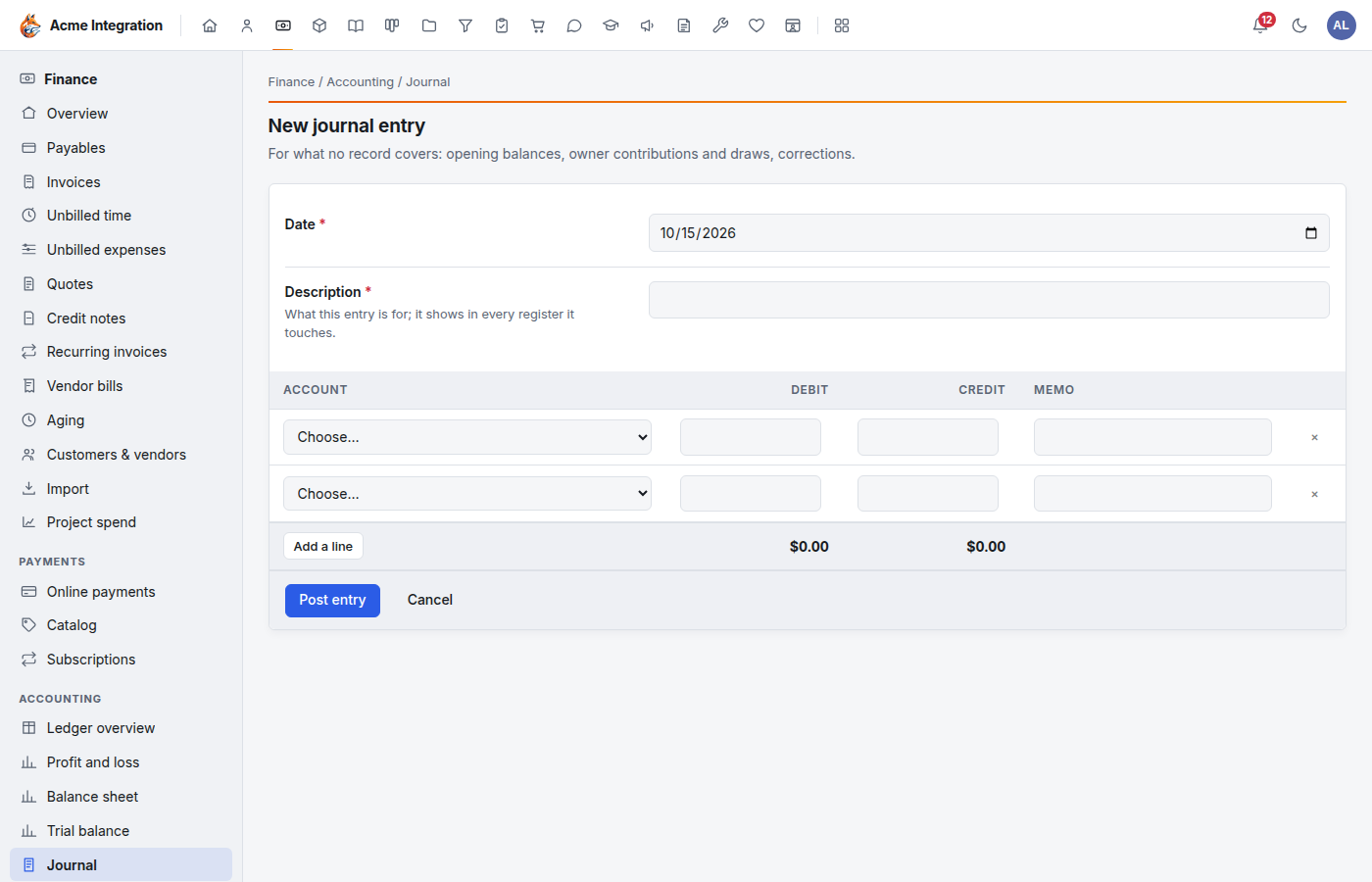
- Click New journal entry (on the ledger overview or the Journal page).
- Enter the Date and a Description. The description shows in every register the entry touches.
- On each line, choose the Account and enter a Debit or a Credit, with an optional Memo. Click Add a line for more than two lines.
- When the footer says Balanced, click Post entry. If it says Off by an amount, debits and credits don't match yet.
Posted entries are permanent. To undo one, open it from Journal, choose a Reversal date under Reverse this entry, and click Reverse. HQ posts the mirror image and the original stays on record. An entry HQ posted from a record can't be reversed by hand: change the record instead.
Run the reports
All three reports are in the Accounting part of the Finance menu.
- Profit and loss: income and expenses for a period. Choose From and To and click Run.
- Balance sheet: what the organization owns and owes on a date. Choose As of and click Run.
- Trial balance: every account with a balance, debits beside credits. The two totals always match.
Click any account name in a report to open its register.
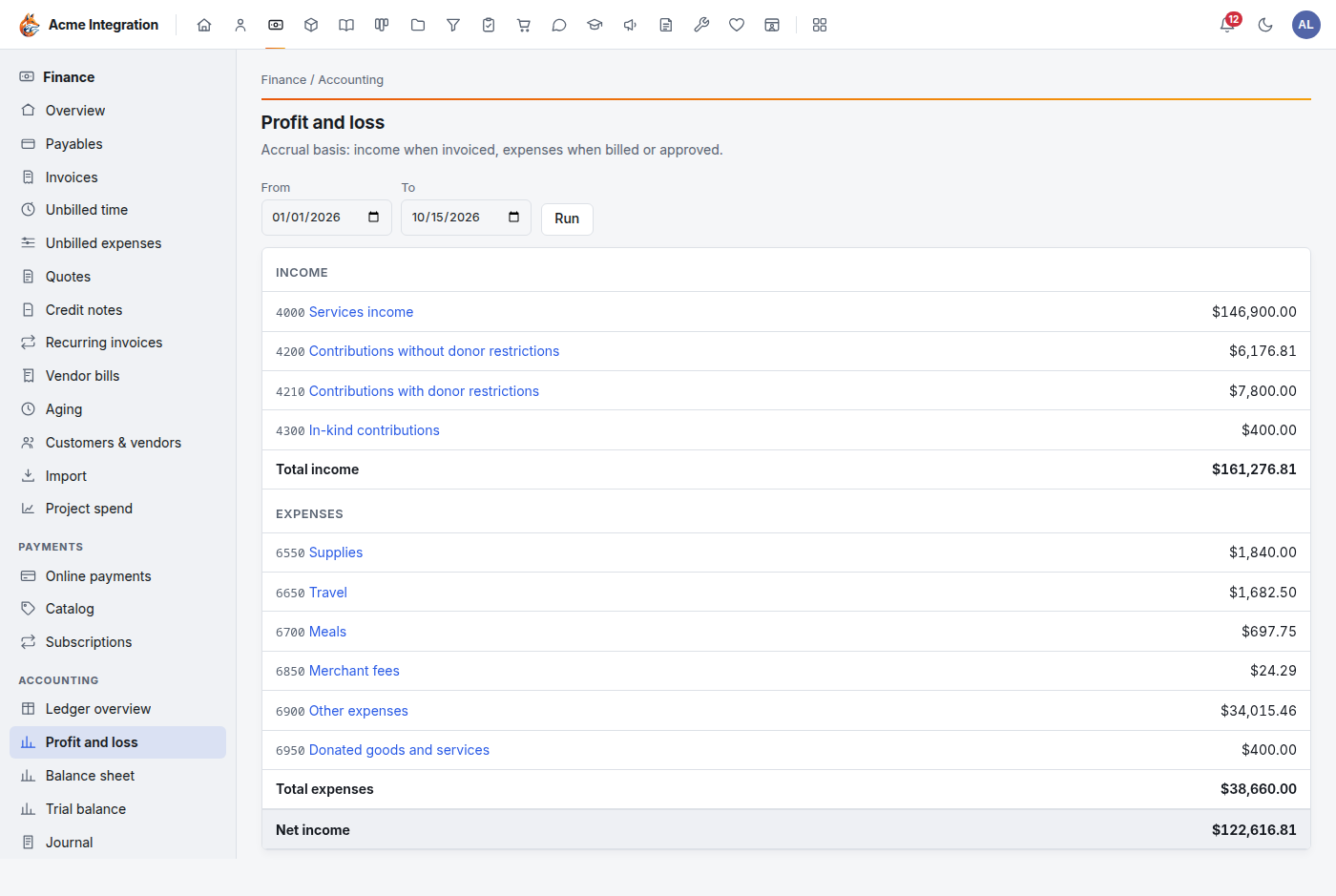
Other Finance views that help with reporting:
- Aging: receivables and payables by how overdue they are.
- Project spend: spending per charge code, with funding when set.
Nonprofits also get fund accounting for gifts. See Funds and ledger.
Troubleshooting
Settings is missing from the Accounting menu. Only company administrators and Finance admin grant holders see it.
A record isn't in the books. Drafts and voided records post nothing. Mark the invoice sent or the bill entered. If it still isn't there, look for it in Couldn't post on the ledger overview.
"N more records are still posting." HQ is catching up. Reload the page in a moment.
"HQ posts to this account, so it can't be turned off." It is a system account and must stay active.
"That account has postings." You can't delete an account that has been used. Turn it off instead.
"Debits and credits must be equal." Check the Off by figure in the journal entry's footer and fix the lines.
Cash looks too high and the bank too low. Online payments wait in Stripe clearing or PayPal clearing until you record the payout to your bank with a journal entry.