 foxxcyber/docs
Signing in and finding your way around
How to sign in, what to do when sign-in fails, and how the top bar, sidebar, account menu and quick search work.
This page covers signing in to your organization's workspace and the parts of the screen you will use every day.
Before you start
- You need an account in your organization. A company administrator creates it and gives you your email and a temporary password. (People hired or accepted as volunteers through Foxx HQ may get an invitation email instead: open its link and choose a password.)
- You need your organization's sign-in address. It ends in
/c/<your-organization>/app/login. If you don't have it, use Sign in by email (below) and Foxx HQ finds your workspace for you.
Sign in
- Open your organization's sign-in page. It shows your organization's name (and logo, if your administrator added one).
- Enter your Email and Password.
- Click Sign in.
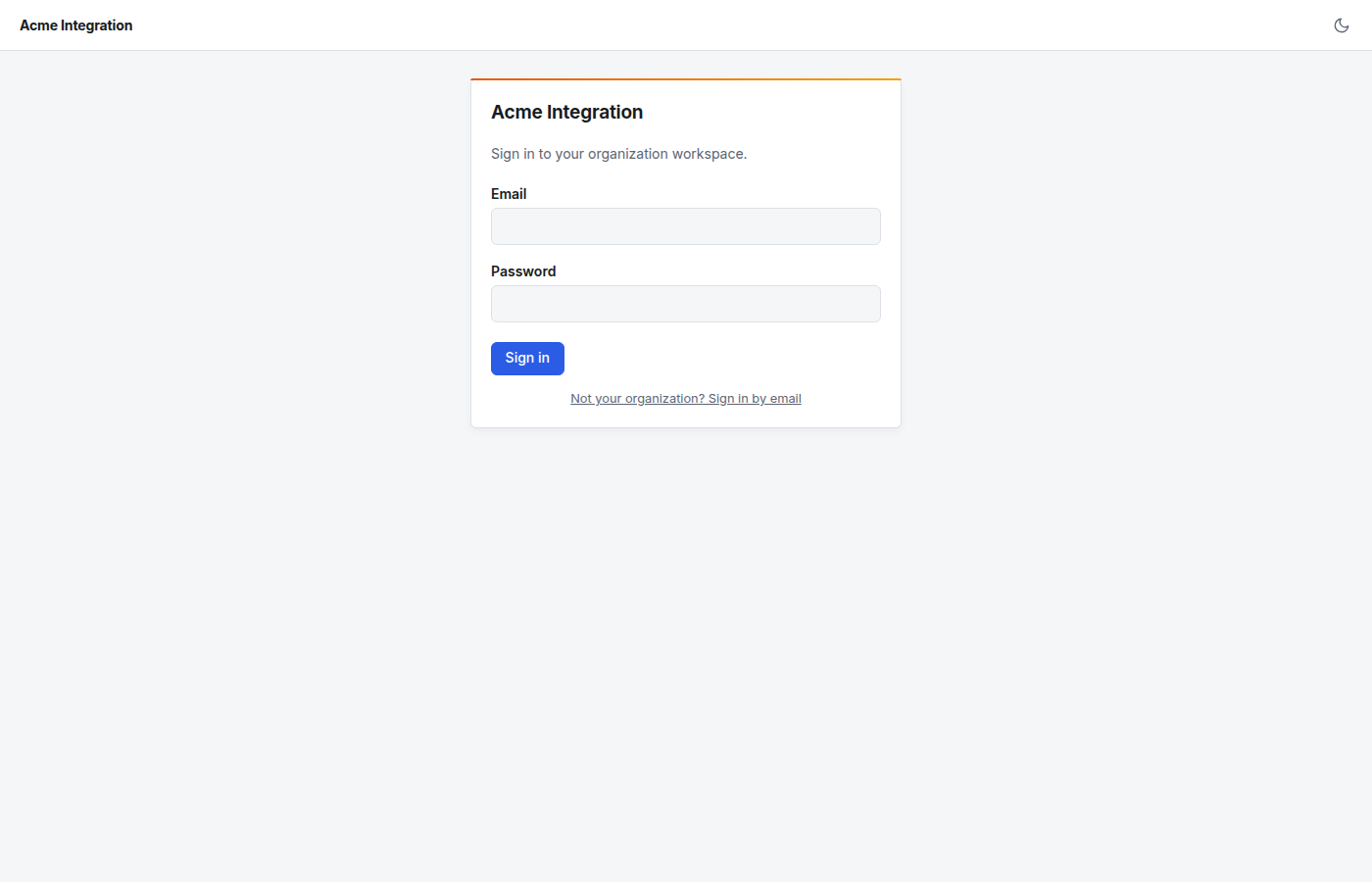
What can happen next:
- "Verify it's you": your account uses two-factor authentication. Enter the 6-digit code from your authenticator app in Authentication code and click Verify. Lost your phone? Enter one of your recovery codes in the same box.
- "Set up authenticator": your organization requires two-factor authentication and you haven't set it up yet. Follow the steps in Your account.
- "Set a new password": your administrator wants you to choose a new password first. Enter your Current password (the temporary one), then your New password twice, and click Set password & continue.
- "Choose a workspace": your email belongs to more than one workspace. Pick where to go; you are signed in to all of them.
Signing in by email
If you don't know your organization's address, click Not your organization? Sign in by email. Sign in there with your work email and Foxx HQ takes you to your organization's workspace.
Signing out, and automatic sign-out
- To sign out, open the avatar menu (your initials, top right) and click Sign out.
- For safety, Foxx HQ signs you out after a period with no activity: 10 minutes by default. A minute before, a Still there? box counts down. Click Stay signed in to carry on, or Sign out now. Sign in again to pick up where you were.
The top bar
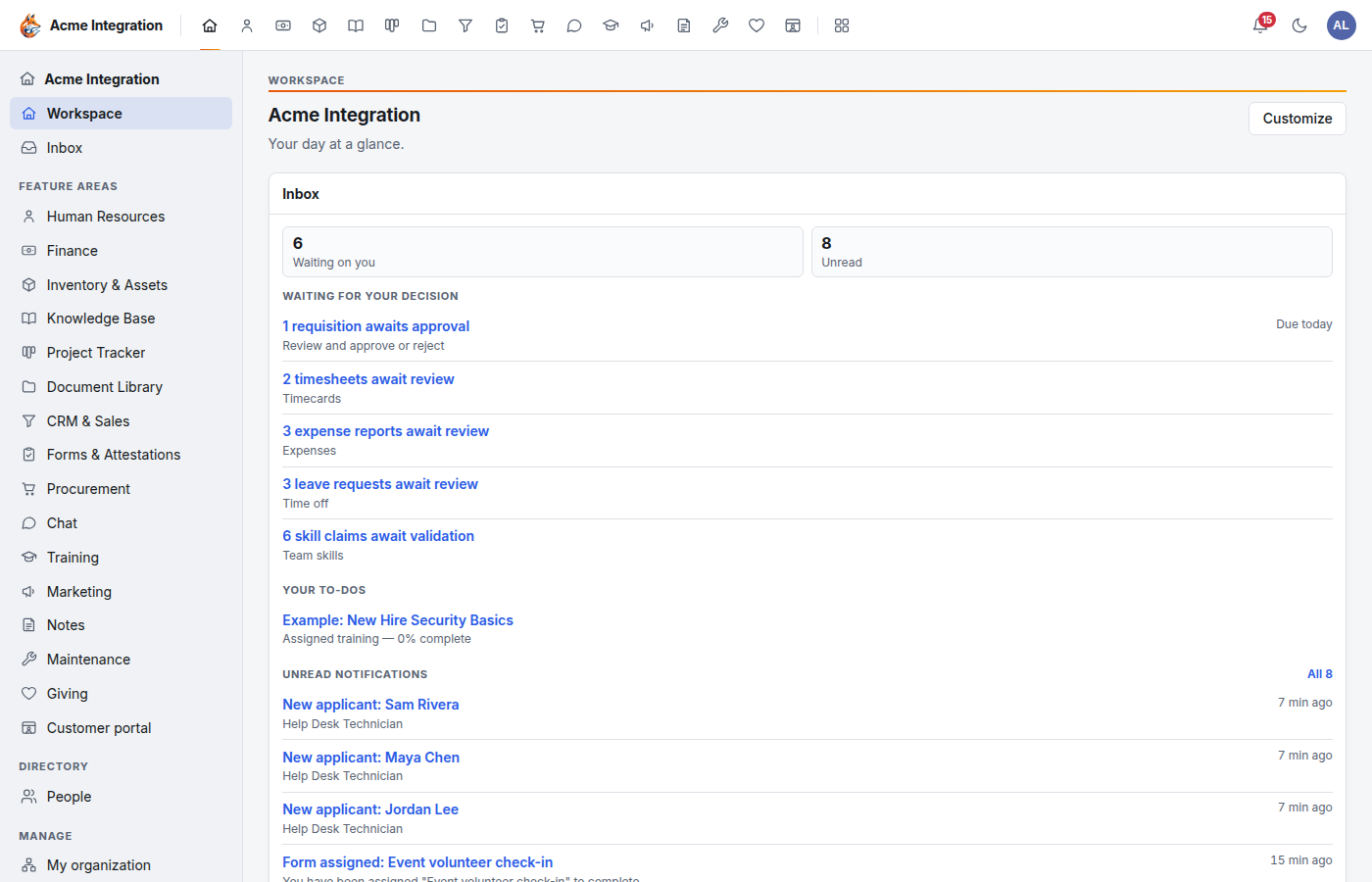
From left to right:
- Your organization's name (or logo). Click it to go back to your workspace home.
- The area icons. One icon per area you can open: the house is your workspace, then Human Resources, Finance, Knowledge Base and so on. Hover an icon to see its name. The area you are in is underlined. Company administrators also see Administration (the grid icon) at the end, after a thin divider.
- The bell. Its red number is how many things are waiting on you plus your unread notifications. Click it to open the Inbox.
- The moon or sun. Switches between the light and dark theme.
- Your initials. Opens the account menu.
The account menu
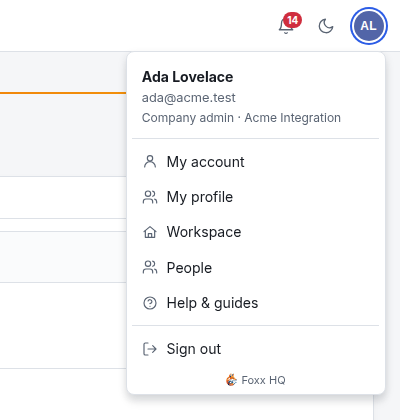
- My account: password, two-factor authentication, email notifications, signed-in devices. See Your account.
- My profile: your entry in the staff directory.
- Workspace: back to your home page.
- People: the staff directory.
- Help & guides: the in-app guides for every area.
- Sign out.
The menu also shows whether you are a Company admin or a Member.
The sidebar
The sidebar on the left changes with where you are.
- On your workspace, Inbox, People or My account, it lists Workspace and Inbox, then every area you can open under Feature areas, then People under Directory. If you lead a department you also see My organization under Manage; company administrators also see Administration there. Help & guides is at the bottom.
- Inside an area, it shows that area's own menu. For example, in the Project Tracker it lists All projects, Search issues, Filters and the menu of the project you are in.
On a phone, the sidebar folds away. Tap the menu button at the top left to open it. Because the row of area icons is hidden on a phone, the sidebar then also lists every area under Switch area.
Jump to any page (Ctrl+K)
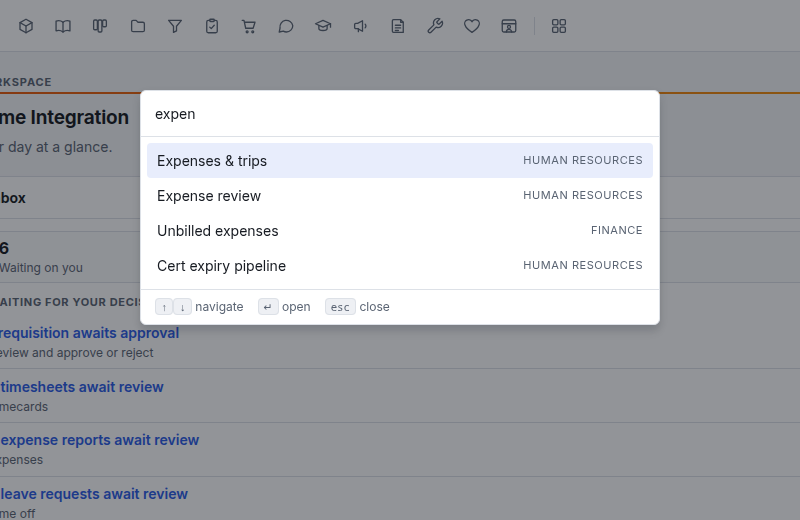
Press Ctrl+K (on a Mac, Cmd+K) anywhere to open Jump to…. Type part of a page's name, use the arrow keys to pick, and press Enter. Press Esc to close it. It only lists pages you can open.
Banners at the top of the page
- Announcements from your organization show above every page. Some have an × to dismiss them. Dismissed ones stay readable in the Announcements widget on your workspace.
- Foxx support or Emergency access banners tell company administrators when the Foxx team can work in your organization. See Foxx support access.
Troubleshooting
"Invalid email or password." Check the email is your work address and the password is typed exactly (passwords are case-sensitive).
"Too many sign-in attempts. Please wait a few minutes and try again." After 10 tries in 5 minutes, Foxx HQ pauses sign-in for that email. Wait five minutes and try once more, carefully.
I forgot my password. There is no "forgot password" link for staff. Ask a company administrator. They can open your user under Administration → Users and use Issue temporary password (if you are locked out completely) or Force password reset.
I lost my authenticator app. Enter one of your recovery codes instead of the 6-digit code. If you have no recovery codes left, ask a company administrator to use Reset MFA on your user under Administration → Users, then set it up again.
"Unknown organization." The address is wrong. Click Sign in by email and let Foxx HQ find your workspace.
"This workspace is unavailable." Your organization's workspace is suspended or archived. Contact your administrator.
An area is missing from the top bar. It is switched off for your organization, or you are not in a department that uses it. See Start here.