 foxxcyber/docs
Google Workspace
Connect your Google Cloud OAuth client so people can link their Google account: their calendar on the workspace, and events with a Meet link made from a record.
Foxx HQ works alongside Google Workspace; it doesn't replace Gmail or Calendar. Once a company administrator connects your organization's Google Cloud client, each person can link their own Google account to see their calendar on their workspace and create events with a Google Meet link from a record.
The connection reads and writes calendar events only. It does not read anyone's mail.
Before you start
- You must be a company administrator in Foxx HQ.
- You need someone who administers your Google Cloud project (often your Google Workspace administrator). The Google steps are done once per organization.
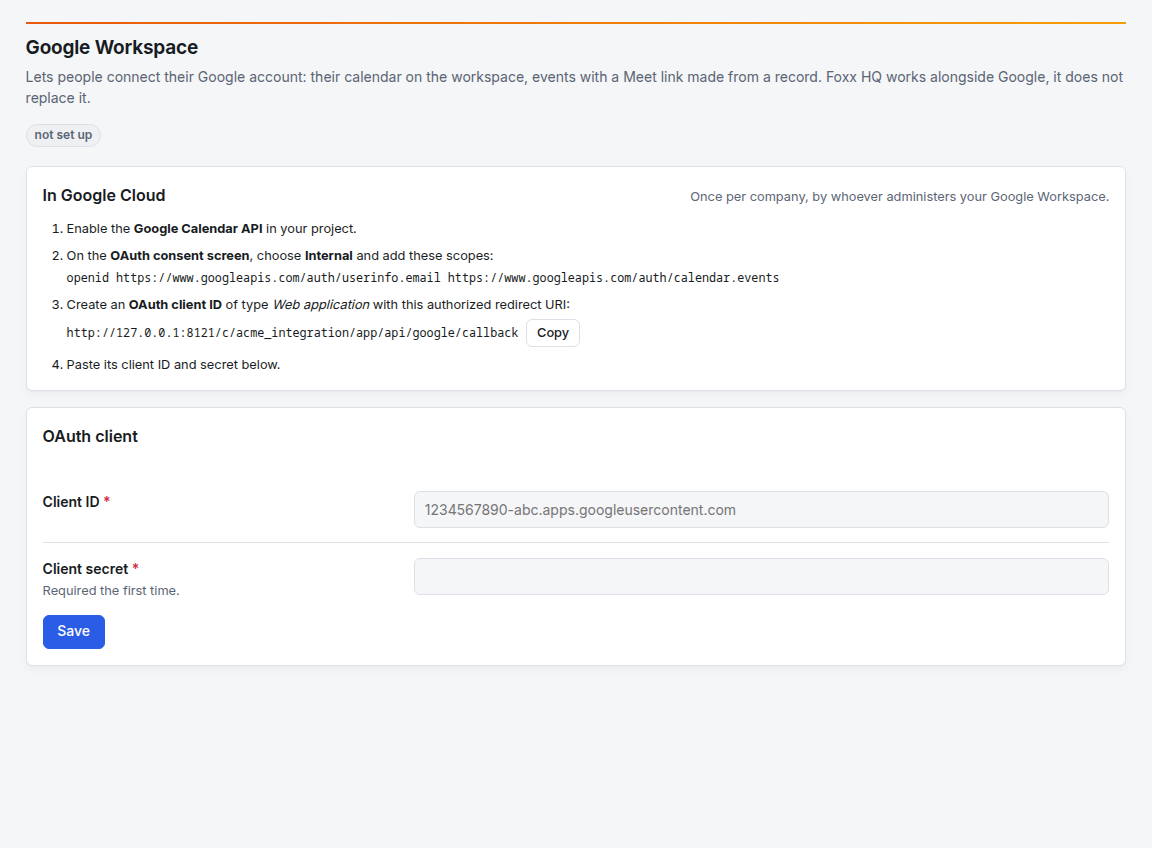
Step 1: in Google Cloud
Administration → Google Workspace lists the exact values to use in the In Google Cloud card. In your Google Cloud project:
- Enable the Google Calendar API.
- On the OAuth consent screen, choose Internal, and add the
scopes the card lists:
openid,https://www.googleapis.com/auth/userinfo.emailandhttps://www.googleapis.com/auth/calendar.events. - Create an OAuth client ID of type Web application. Under
authorized redirect URIs, paste the URI the card shows (click
Copy). It is your organization's own address, ending in
/api/google/callback. - Copy the new client's client ID and client secret.
Step 2: in Foxx HQ
- In the OAuth client card, paste the Client ID (it ends in
.apps.googleusercontent.com) and the Client secret. - Click Save. The badge changes to configured.
The secret is never shown again. To change the client ID later, leave the secret blank to keep the stored one.
Step 3: each person connects
Tell people to open My account and click Connect Google account in the Google account card, then approve on Google's page. Their workspace's agenda widget also offers Connect Google account. The card then says Connected with their Google address. Each person can Disconnect at any time.
The OAuth client card shows how many accounts are connected.
Remove the connection
Remove client (in the OAuth client card) disconnects every connected account. Google Calendar itself is not touched.
Troubleshooting
People see "Google Workspace is not set up for this company yet". Step 2 isn't done.
Google says "redirect_uri_mismatch". The redirect URI in Google Cloud doesn't exactly match the one on the Google Workspace page. Copy it again and paste it in the OAuth client's authorized redirect URIs.
Google says the app is blocked or for internal users only. With an Internal consent screen, only accounts in your own Google Workspace can connect. Personal Gmail accounts can't.
A person's card says "Needs attention". Google no longer accepts their connection (for example they changed their password or removed access). They click Reconnect.
A red banner says the encryption key is not set. The server can't store the client secret yet. Ask the platform operator.