 foxxcyber/docs
Modules
Turn feature areas on or off for the whole organization, what switching one off does, and which areas need the nonprofit organization type.
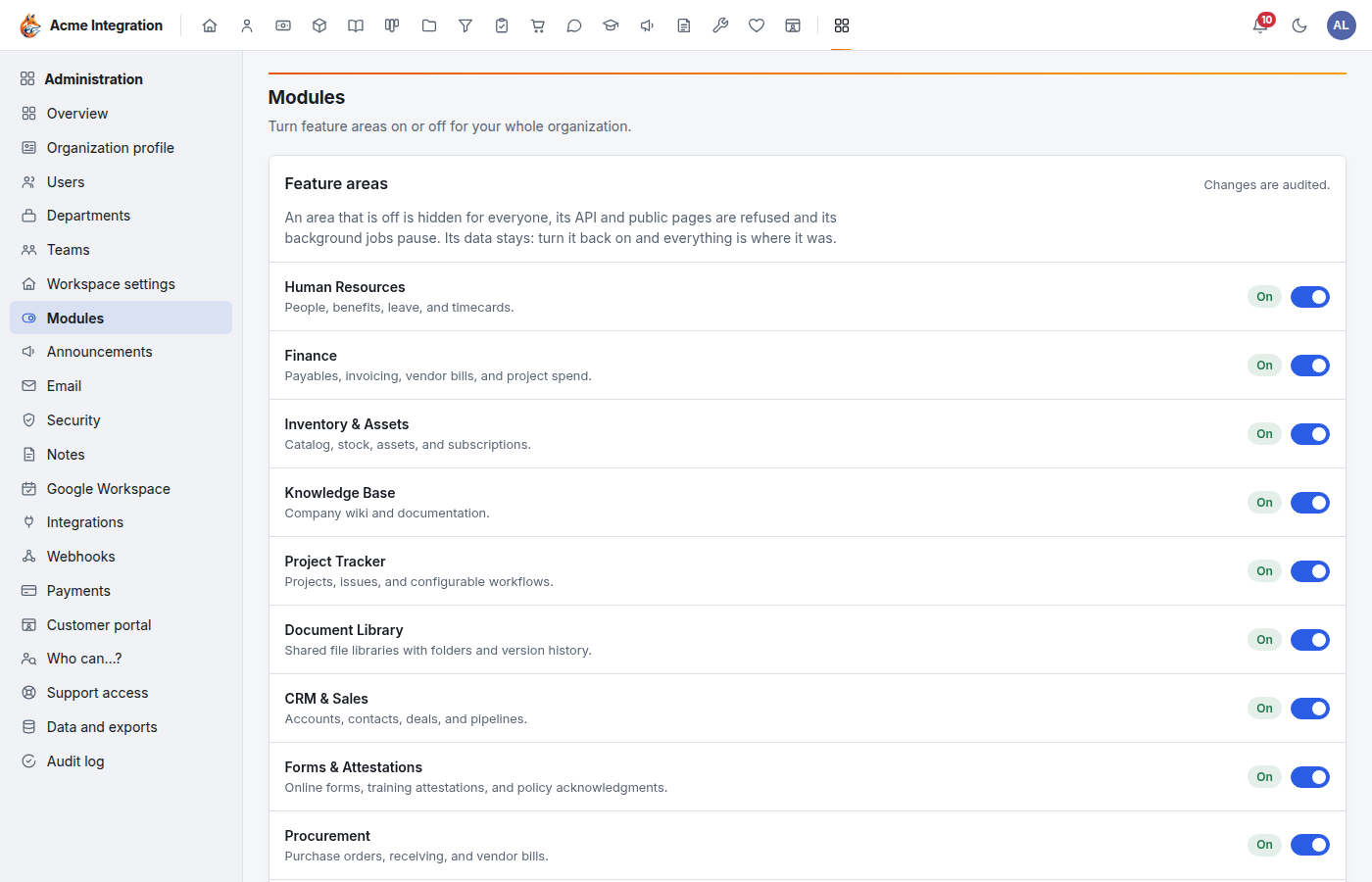
A module is a feature area: Finance, CRM, Giving, and so on. Administration → Modules turns each one on or off for everyone in the organization. Use it to hide what you don't use, and to switch on the areas that start off.
Before you start
- You must be a company administrator.
- Only the areas your plan includes are listed. Your platform administrator decides the plan.
- Giving is listed only when the organization type is nonprofit (see Organization and branding).
Turn an area on or off
- Open Administration → Modules.
- Click the switch beside the area.
- Turning an area on takes effect at once.
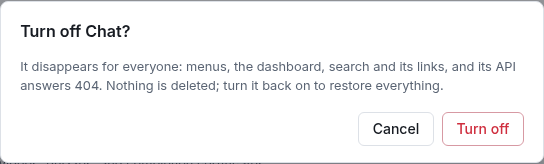
- Turning an area off asks you to confirm first, and says what stops. Click Turn off to go ahead.
- The menus update straight away. Every change is recorded in the audit log.
What "off" does
When an area is off:
- it disappears for everyone: menus, the workspace, search and its links;
- its API answers "not found", and its public pages are refused;
- its background work pauses.
Nothing is deleted. Turn it back on and everything is where it was.
Every module
| Module | What it is | Starts | What also stops when it is off |
|---|---|---|---|
| Human Resources | People, benefits, leave and timecards. | On | |
| Finance | Payables, invoicing, vendor bills and project spend. | On | Posting to the general ledger waits until Finance is back on. Payments (Stripe and PayPal) also disappears from Administration. |
| Inventory & Assets | Catalog, stock, assets and subscriptions. | On | |
| Knowledge Base | Company wiki and documentation. | On | |
| Project Tracker | Projects, issues and workflows. | On | The guest support pages, the support-ticket API and support email links. |
| Document Library | Shared file libraries with folders and version history. | On | |
| CRM & Sales | Accounts, contacts, deals and pipelines. | On | Website contact forms, the events API and stale-lead reminders. |
| Forms & Attestations | Online forms, training attestations and policy acknowledgments. | On | |
| Procurement | Purchase orders, receiving and vendor bills. | On | |
| Chat | Channels, messages and @mentions. | On | |
| Training | Courses with lessons, videos, quizzes and certificates. | On | |
| Marketing | Newsletter list and email campaigns. | On | Newsletter sign-up and confirmation pages and scheduled campaigns. Unsubscribe links in mail already sent keep working, as the law requires. |
| Notes | A personal Markdown notebook, shared when you choose. | On | The clean-up of unused note attachments pauses. |
| Maintenance | Work orders, equipment, spare parts and preventive maintenance. | On | The public problem-report page behind the QR labels, and the daily preventive-maintenance run. |
| Giving | Donations, funds, campaigns and donor receipts. Nonprofits only. | Off | Gift entry, receipts and year-end statements. Gifts, funds and receipts are kept, and their postings stay in the ledger. |
| Volunteers | Volunteer opportunities and shifts, sign-ups, hours and applications. | Off | |
| Customer portal | Sign-in accounts for customers and donors: invoices, payments, subscriptions, support tickets and giving. | Off |
Modules other features depend on
Some screens need more than one module. Turn these on first:
- Payments (Stripe and PayPal) needs Finance on. See Payments setup.
- Giving needs the nonprofit organization type, then Giving on. Taking donations online also needs Finance on and Stripe or PayPal connected.
- Website forms need CRM & Sales on.
- Integration key scopes work only while their area is on:
crm.contacts:writeandcrm.events:writeneed CRM,support:readandsupport:writeneed Project Tracker,newsletter:writeneeds Marketing,subscriptions:writeneeds Finance. The scope stays on the key and works again when the area is back.
Turning a module on does not by itself give people access to department-only areas such as Finance or CRM. Enable the area on a department too. See Users, departments and teams.
Troubleshooting
Giving isn't listed. The organization type is business. Change it under Administration → Workspace settings, then come back.
An area I expected isn't listed at all. Your plan doesn't include it. Ask your platform administrator.
"Your plan does not include …" when switching. Same: the plan changed. Ask your platform administrator.
I turned an area on but people still can't see it. For Finance, Inventory, CRM and Marketing, enable the area on their department. For Giving, give them the Giving admin or Giving entry grant.