 foxxcyber/docs
Invoices and billing
Set up customers, send invoices and quotes, record payments, take card and PayPal payments with a pay link, sell from the online catalog, and handle refunds and credit notes.
Everything you bill lives under Finance. The usual path is: add the customer, create an invoice, mark it sent, email it (with a Pay online button if you take payments online), then record the payment or let Stripe or PayPal record it for you.
Before you start
- You need Finance access: membership of a department with Finance enabled, the Finance admin grant, or company administrator. See Finance overview.
- To email invoices, quotes and credit notes, email must be set up under Administration → Email. See Email.
- To take card or PayPal payments (pay links, the catalog, subscriptions), a company administrator must connect Stripe or PayPal and add its webhook under Administration → Payments. See Payments setup. The catalog and subscriptions need Stripe; pay links work with either.
Add a customer
Customers and vendors share one list, so a company you both bill and pay is one record.
- Open Finance → Customers & vendors and click New party.
- Fill in the form:
- Name: the company or person.
- Role: tick Customer, Vendor, or both. At least one.
- Payment terms (days): how long they have to pay.
0means due on receipt. It fills in an invoice's due date for you. - Tax ID, Phone: optional.
- Email: where invoices and quotes are emailed. Without it, the email card on an invoice tells you to add one.
- Billing address: printed on PDFs.
- Notes: for your team only.
- Click Create party.
To stop using a party, click Archive on its row. It stays on file but drops out of the pickers. Reactivate brings it back.
Moving from another tool? Finance → Import loads customers and vendors, invoices, and vendor bills from CSV files. Each file is checked first and imported all-or-nothing, with every problem listed by line number. Import customers and vendors first, so invoices and bills can link to them by name.
Create and send an invoice
- Open Finance → Invoices and click New invoice.
- Fill in the header:
- Invoice number (required): your own numbering, such as INV-1007.
- Customer: pick a customer record. Its name is copied onto the invoice, and its payment terms fill an empty due date. Or type a Customer name for a one-off.
- Contract number and Charge code: optional, for project or grant tracking.
- Issue date and Due date.
- Click Create invoice. The invoice opens as a draft.
- Under Line items, enter a Description, Qty, Unit price and Tax %, then click Add line. Repeat for each line.
- Click Mark sent in the Summary card. A draft cannot take payments or a pay link.
- Under Email invoice, check To (it comes from the customer record), add an optional Note, and click Send invoice. The email carries the PDF, and a Pay online button when Stripe or PayPal is connected.
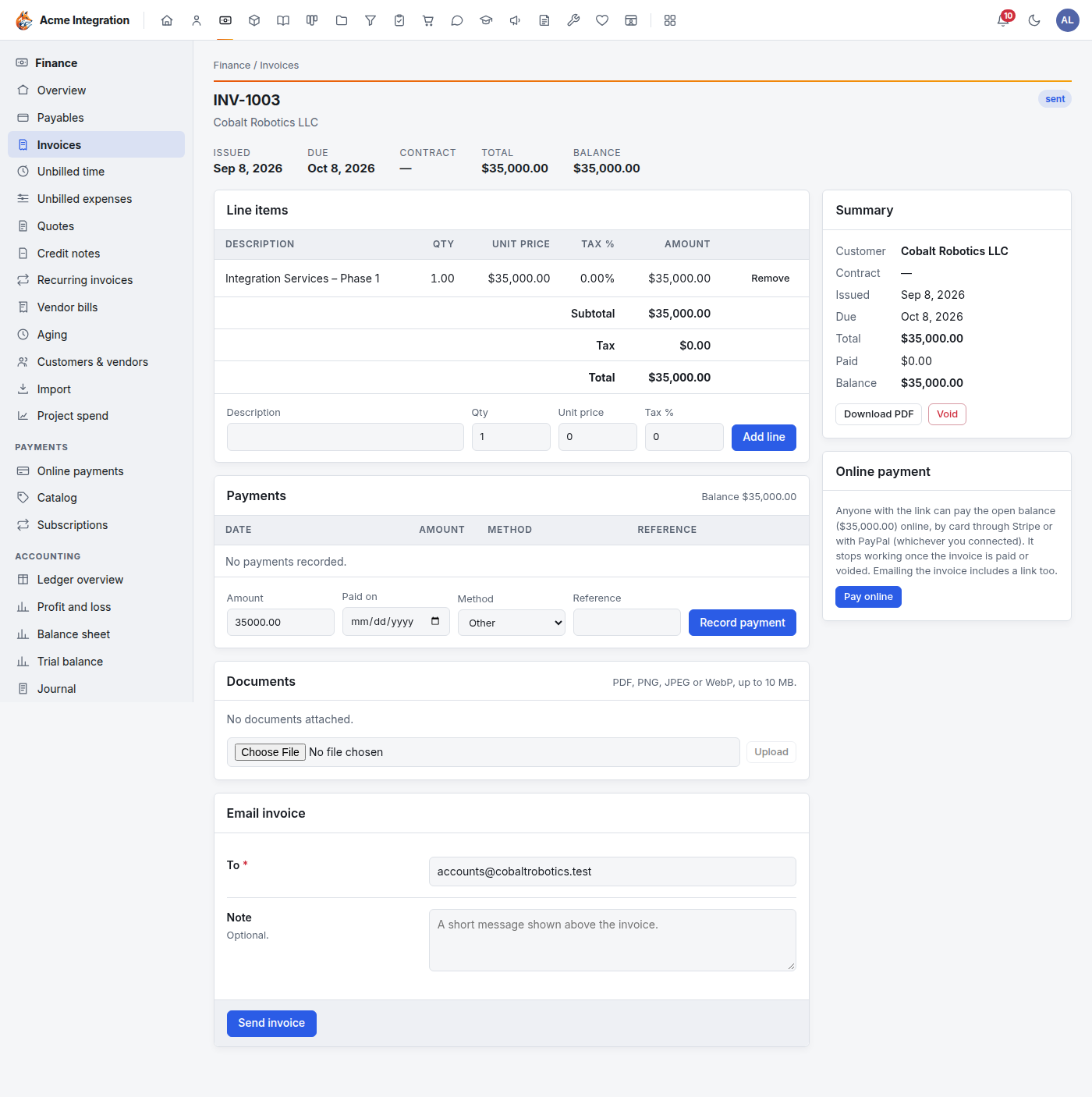
Click Mark sent before you email. Sending the email does not change the invoice's status, and a draft's email has no Pay online button.
Other buttons on the invoice:
- Download PDF: the printable invoice.
- Edit details: change the header while it is a draft.
- Void: cancel the invoice. It stays on file, stops counting as owed, and any pay link to it stops working.
- Documents: attach PDFs or images (up to 10 MB each).
Lines are locked once the invoice is paid or voided.
Invoices from quotes, time and expenses
- Quotes: Finance → Quotes → New quote works like an invoice, with a Valid until date. Use Mark sent, then Mark accepted or Mark declined. Convert to invoice turns an accepted quote into a draft invoice.
- Unbilled time: approved timecard hours on a billable charge code. Pick a customer and click Generate draft invoice.
- Unbilled expenses: vendor bills and approved expense lines on a billable charge code. See Expenses.
Recurring invoices
For a retainer or anything billed on a schedule:
- Open Finance → Recurring invoices and click New recurring.
- Enter a Title (internal), the Customer, the Cadence (Monthly, Quarterly, Annual or Weekly), the First run date, and an optional Invoice number prefix (REC when blank).
- Click Create recurring invoice, then add its line items.
Recurring invoices are not created automatically. When a run date arrives, open Finance → Recurring invoices and click Generate due. Each template whose next run has arrived makes one draft invoice. Review it, mark it sent and email it as usual.
Pause stops a template; Activate restarts it. A template that has already made an invoice can't be deleted; pause it instead.
Record a payment by hand
For a check, bank transfer or cash:
- Open the invoice. It must be sent.
- In the Payments card, enter the Amount, Paid on date, Method (Check, ACH, Wire, Card, Cash or Other) and an optional Reference such as the check number.
- Click Record payment.
A part payment leaves the rest open. When the balance reaches zero the invoice is marked paid. The payment posts to the ledger on its own; which bank account it lands in depends on the method (see Ledger and reports).
Take a payment online with a pay link
Once Stripe or PayPal is connected, every sent invoice with a balance shows an Online payment card.
- Open the sent invoice.
- In Online payment, click Pay online. HQ makes a link and copies it for you. Paste it into a message to the customer, or just email the invoice: the email carries the same link.
- The customer opens the link and sees the invoice number, dates, total and Balance due, with a Pay button (by card, through Stripe) and a Pay with PayPal button, for whichever you connected.
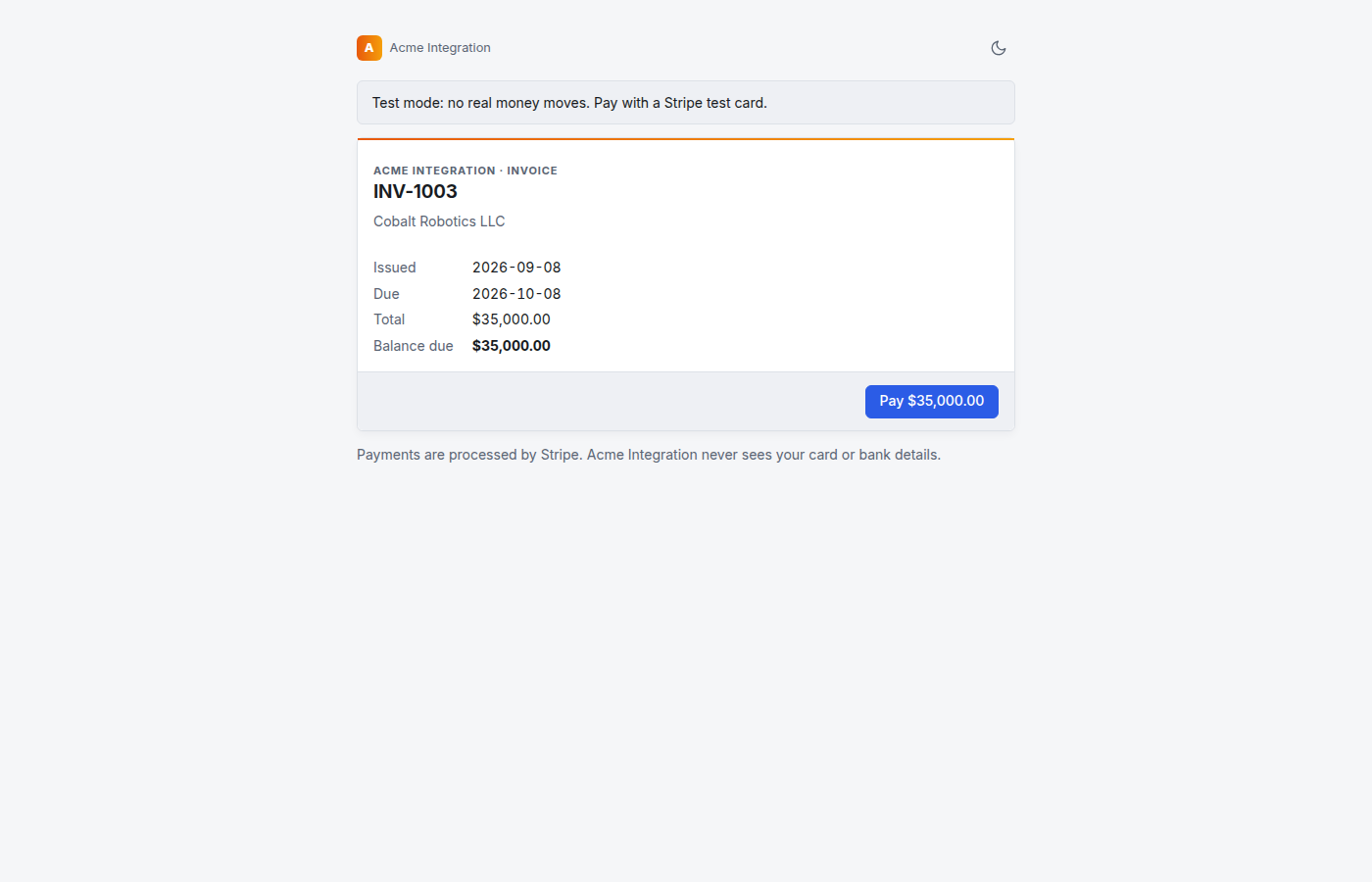
- The customer pays on Stripe's or PayPal's own page. They type their card or bank details there, never into HQ.
- When the payment lands, HQ records it on the invoice (method Stripe or PayPal), and the invoice is marked paid once the balance clears. The payment, its fee and any dispute show in the Online payment card and under Finance → Online payments.
Good to know:
- The link always charges the open balance. It stops working once the invoice is paid or voided.
- If two people pay the same link, the second payment is not put on the invoice. It appears in the Events HQ couldn't match list under Administration → Payments, so an administrator can refund it.
- A Test mode or PayPal sandbox banner on the pay page means no real money moves.
Sell online: the catalog
The catalog needs Stripe. It holds products you sell from your website, each with one or more prices.
- Open Finance → Catalog and click New product.
- Enter the Name and Description (both show on Stripe's
checkout page). Entitlements is only for software plans: short
keys such as
seats.10that apps connected to HQ read. Leave it empty for an ordinary product. - Keep On sale ticked and click Create product.
- Under Prices, click Add price. Enter the Amount (USD), choose Billing (One-time, Monthly or Yearly) and an optional Label such as "Team". Click Add price.
- Each price then shows:
- a Checkout link that sends a buyer straight to Stripe's checkout. Click Copy and link to it from your website;
- a Buy button: a small piece of HTML to paste into your website builder.
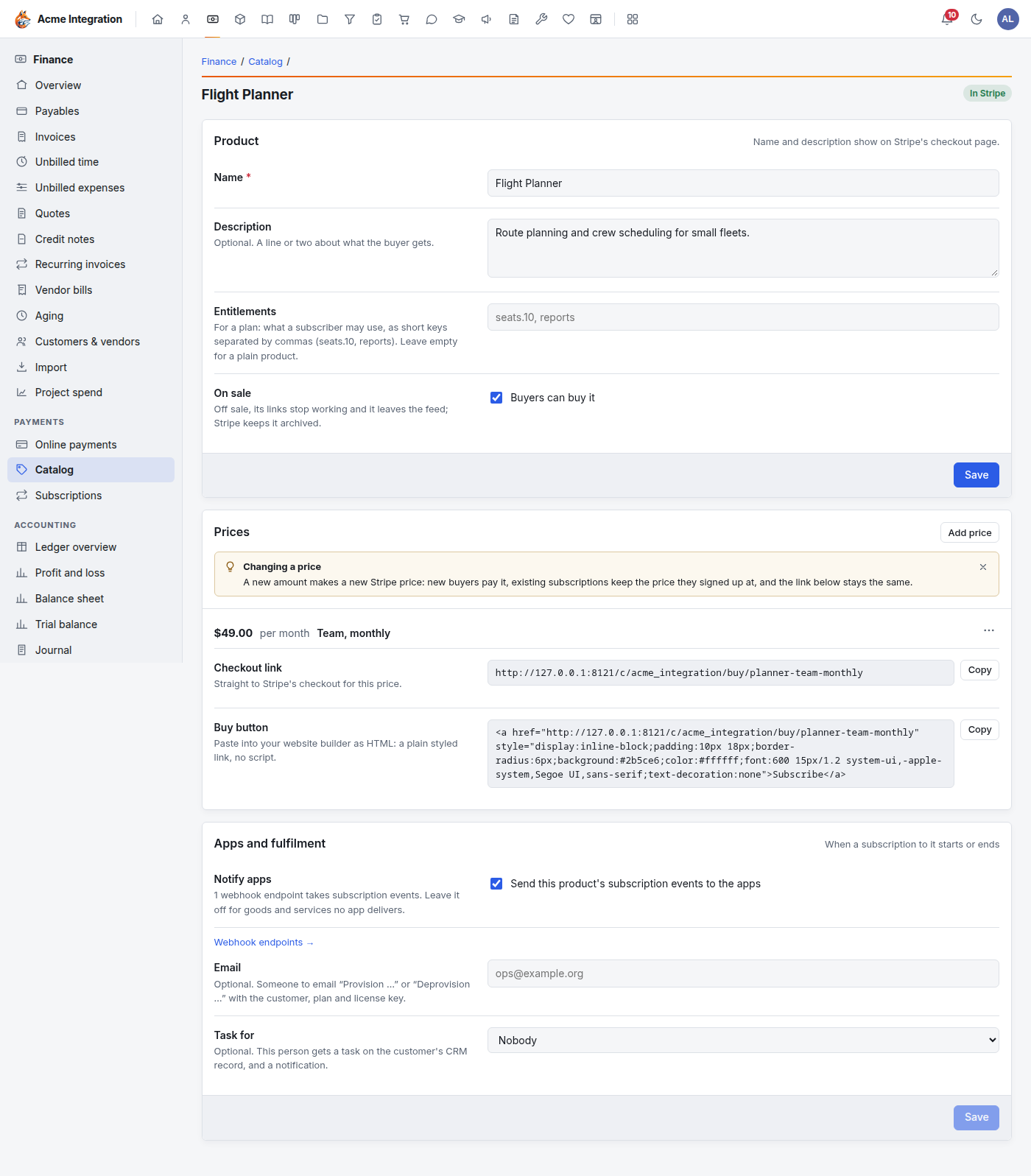
Every save is sent to your Stripe account. A product whose sync failed says why; click Sync now to try again.
Changing a price creates a new price in Stripe. New buyers pay the new amount, existing subscribers keep the price they signed up at, and the checkout link stays the same. To stop selling a price, open its ⋯ menu, choose Take off sale and confirm: its link and Buy button stop working, and existing subscriptions continue.
Copy the catalog feed URL gives a read-only list of what is on sale, for websites that show live prices.
Each catalog sale becomes a paid invoice in Finance, so it lands in the books like any other sale.
Subscriptions
A checkout for a Monthly or Yearly price starts a subscription. Finance → Subscriptions lists them with the customer, plan, amount, status and when the current period ends. HQ matches each buyer to a CRM contact by email, creating one if needed.
Stripe charges the card each period and HQ records each payment. When a renewal fails, the subscription is marked past due and company administrators get a notification. Stripe retries the card and emails the customer itself; the next successful payment clears it.
Refunds
Refunds are made in Stripe or PayPal, not in HQ:
- Find the payment in your Stripe dashboard or PayPal account and refund it there.
- HQ hears about the refund through the webhook. It adds a credit note for the refunded amount ("Refund through Stripe" or "Refund through PayPal"), applies it to the invoice, and takes the money back out of the clearing account.
Refunds show as negative amounts under Finance → Online payments. The original processing fee stays an expense. If PayPal returns part of its fee, record that by hand.
Disputes: the payment is flagged and company administrators are told. Answer the dispute in your Stripe dashboard before its deadline. Nothing posts to the books until you know the outcome.
For a check or bank refund, use a credit note (below) and record the money going out with a journal entry.
Credit notes
A credit note reduces what a customer owes, for example after a billing mistake.
- Open Finance → Credit notes and click New credit note.
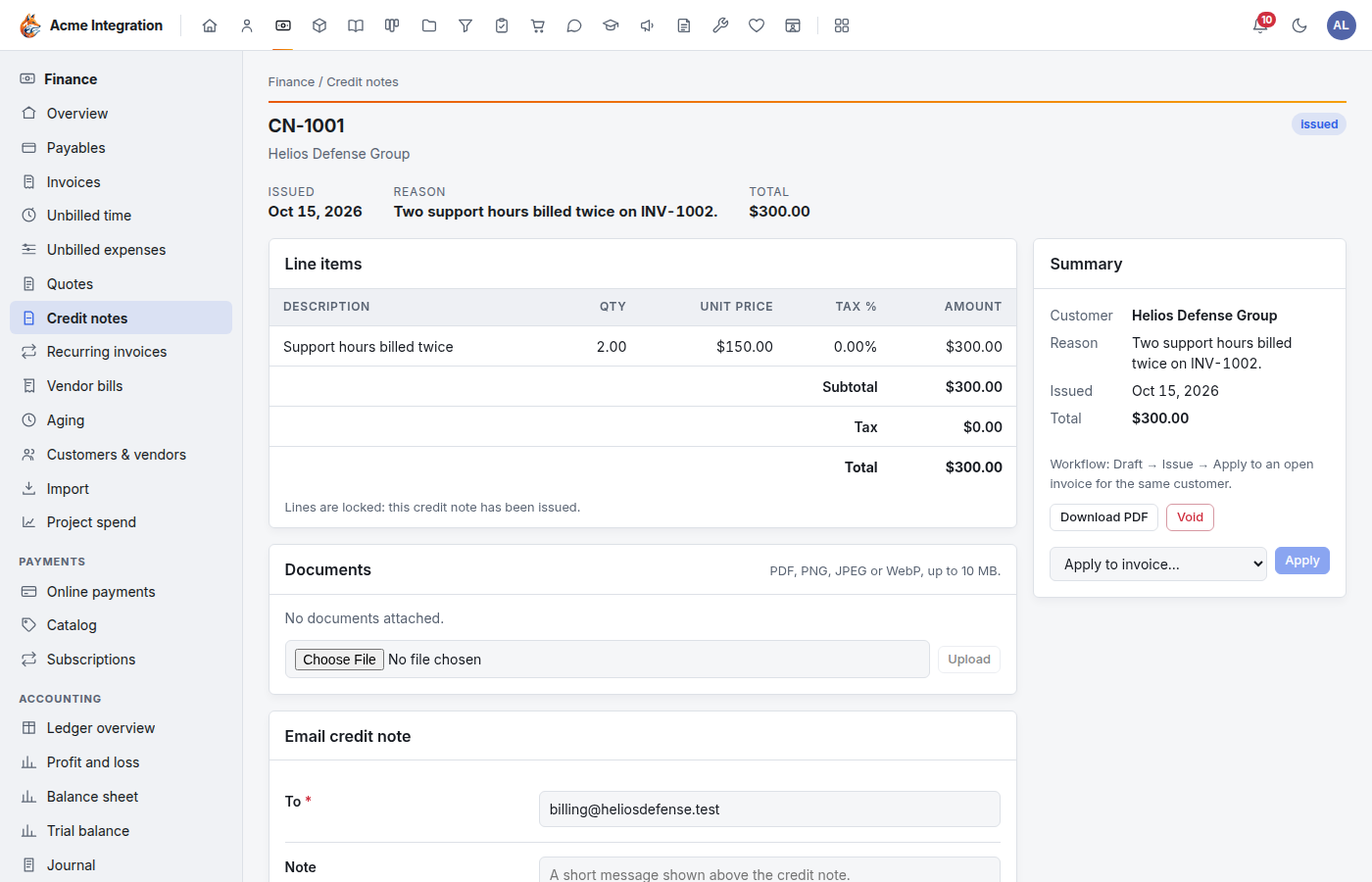
- Enter the Credit note number, the Customer (a credit can only be applied to the same customer's invoices), a Reason and the Issue date. Click Create credit note.
- Add line items for the amount to credit.
- Click Issue. The lines lock.
- Choose the invoice in Apply to invoice… and click Apply. Only that customer's open invoices are listed.
Troubleshooting
There is no Pay online button. Check that the invoice is sent (not draft) and still has a balance, and that Stripe or PayPal is connected under Administration → Payments.
The customer says the pay link "isn't available". The invoice was paid or voided, so the link stopped working. Make a new link only if there is still a balance.
A paid invoice still shows a balance in HQ. Payments arrive through the webhook. If the webhook is missing or its signing secret is wrong, Stripe or PayPal can't tell HQ. Ask a company administrator to check Administration → Payments and its Events HQ couldn't match list.
Catalog says "Stripe isn't connected". The catalog and subscriptions need Stripe, even when PayPal is connected.
The email card says email isn't configured, or the customer has no email address. Set up email under Administration → Email, or add an Email to the customer under Customers & vendors.
"Payments can be recorded once the invoice is sent." Click Mark sent first.
Apply to invoice… is empty. The customer has no open (sent, unpaid) invoices, or the credit note was made for a different customer.
My recurring invoice didn't appear. Click Generate due on Finance → Recurring invoices, and check that the template is not paused.