 foxxcyber/docs
The donation page
Every setting on Giving → Donation page, how Save draft and Publish work, campaign pages, cover-the-fees, what donors see, and what happens after a gift.
The donation page is a page on Foxx HQ that you send people to from your
website, emails, social posts or a QR code. Donors give by card through
your own Stripe account, through your own PayPal account, or either.
Its address is your organization's address with /give at the end;
the exact address is shown at the top of the editor.
Everything on the page is a setting, never code, so it always looks like your organization and stays safe for visitors.
Before you start
- Giving is set up: nonprofit organization, Giving and Finance on, and you are a company administrator or hold the Giving admin grant. Follow Set up giving, start to finish if any of that is missing.
- Stripe or PayPal is connected under Administration → Payments, with its webhook. Without the webhook, gifts are charged but never recorded.
- At least one active fund exists under Giving → Funds.
Open the editor
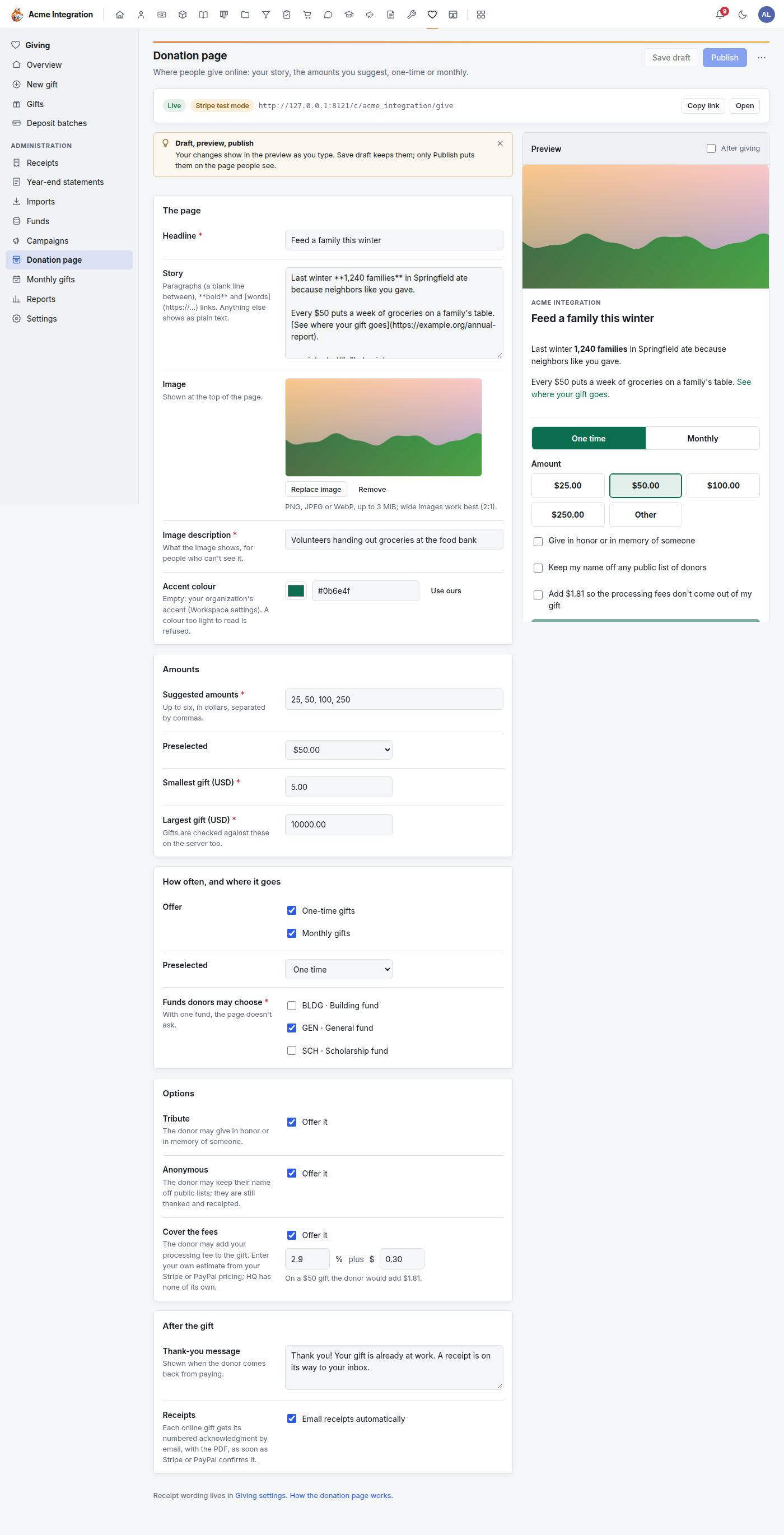
Open Giving → Donation page. The screen has three parts:
- the status card at the top: Live or Not live, the page's address, and Copy link and Open once it is live;
- the settings on the left;
- the Preview on the right, which shows the page as visitors will see it, as you type.
The settings
The page
- Headline (required): the big title, up to 120 characters.
- Story: your appeal. Leave a blank line between paragraphs. Wrap
words in two asterisks for bold (
**like this**) and write links as[words](https://address). Anything else shows as plain text. - Image: Choose image uploads a PNG, JPEG or WebP picture of up to 3 MiB. Wide images (about 2:1) work best. Foxx HQ checks the file and re-saves it. Remove takes it off.
- Image description (required once there is an image): what the picture shows, for people who use a screen reader.
- Accent colour: the button and highlight colour. Leave it empty to use your organization's accent from Workspace settings; Use ours clears it. A colour too light to read is refused.
Amounts
- Suggested amounts (required): up to six, in dollars, separated by
commas, for example
25, 50, 100, 250. - Preselected: the amount already chosen when the page opens, or None.
- Smallest gift (USD) and Largest gift (USD) (required): donors may type their own amount (Other) inside these limits. Every suggested amount must sit between them. Foxx HQ checks the amount again before anyone is charged.
How often, and where it goes
- Offer: One-time gifts, Monthly gifts, or both. With both, Preselected picks which one starts selected.
- Funds donors may choose (required): tick one or more active funds. With one fund, the page doesn't ask the donor. With several, Preselected fund picks the starting choice.
Options
- Tribute: lets the donor give in honor of, or in memory of, someone.
- Anonymous: lets the donor keep their name off public lists. They are still thanked and receipted.
- Cover the fees: see Cover the fees below.
After the gift
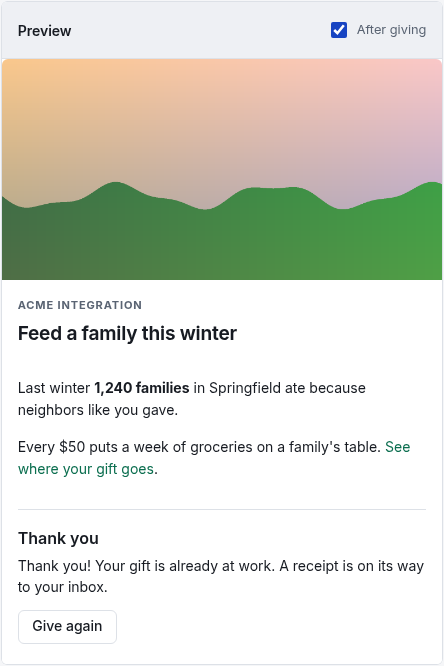
- Thank-you message: shown when the donor comes back from paying. Tick After giving above the preview to see it.
- Receipts: Email receipts automatically (on by default) issues and emails the numbered acknowledgment, with its PDF, as soon as Stripe or PayPal confirms the gift. The email goes through your organization's email settings (Administration → Email). Receipt wording lives in Giving → Settings; see Receipts and statements.
Save draft, Publish, Unpublish
- Save draft keeps your changes without showing them to visitors.
- Publish puts the saved draft on the public page. If you have unsaved changes, Publish saves them first. When the page already is published, an Unpublished changes badge on the status card reminds you that visitors still see the older version.
- Unpublish… (in the ⋯ menu beside Publish, once published) takes the page down. Its address then says the page isn't available, campaign pages go down with it, and your draft stays.
Every change is recorded in the audit log.
If you publish while something is still missing, the message says "Published. The page goes live once everything above is ready." The status card then lists, with a ✓ or ✗, what the page still needs:
- Finance is on;
- Stripe or PayPal is connected (Administration → Payments);
- Stripe's webhook signing secret is set, so card gifts get recorded (and the same for PayPal's webhook ID when PayPal is connected);
- Published.

The checklist disappears once the page is live
The page goes live without the webhook, and from then on the checklist is hidden. Check the webhook on Administration → Payments before you share the address.
Cover the fees
Donors may add a little so the processing fee doesn't come out of their gift. Foxx HQ has no fee figures of its own: you enter your own estimate from your Stripe or PayPal pricing, as a percentage plus a fixed amount (one estimate serves both providers).
- Tick Offer it under Cover the fees.
- Enter the percentage (for example
2.9) and the fixed part in dollars (for example0.30). - The hint shows what a donor would add on a $50 gift.
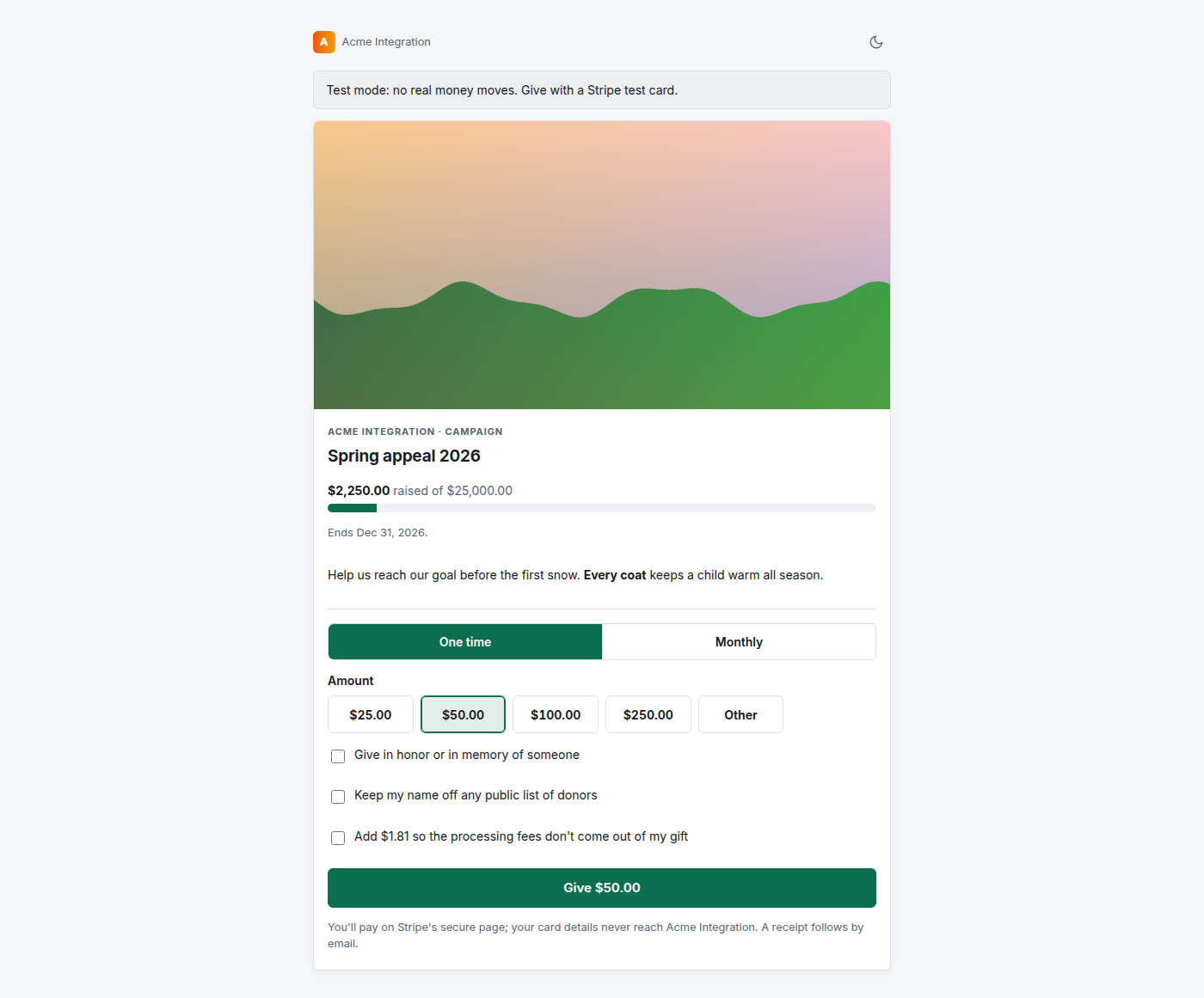
Cover-the-fees can't be saved without an estimate. The donor sees the exact amount it adds ("Add $1.81 so the processing fees don't come out of my gift"). What they add is part of their gift and their receipt; the fee the provider actually charged is recorded on the gift.
What the donor sees
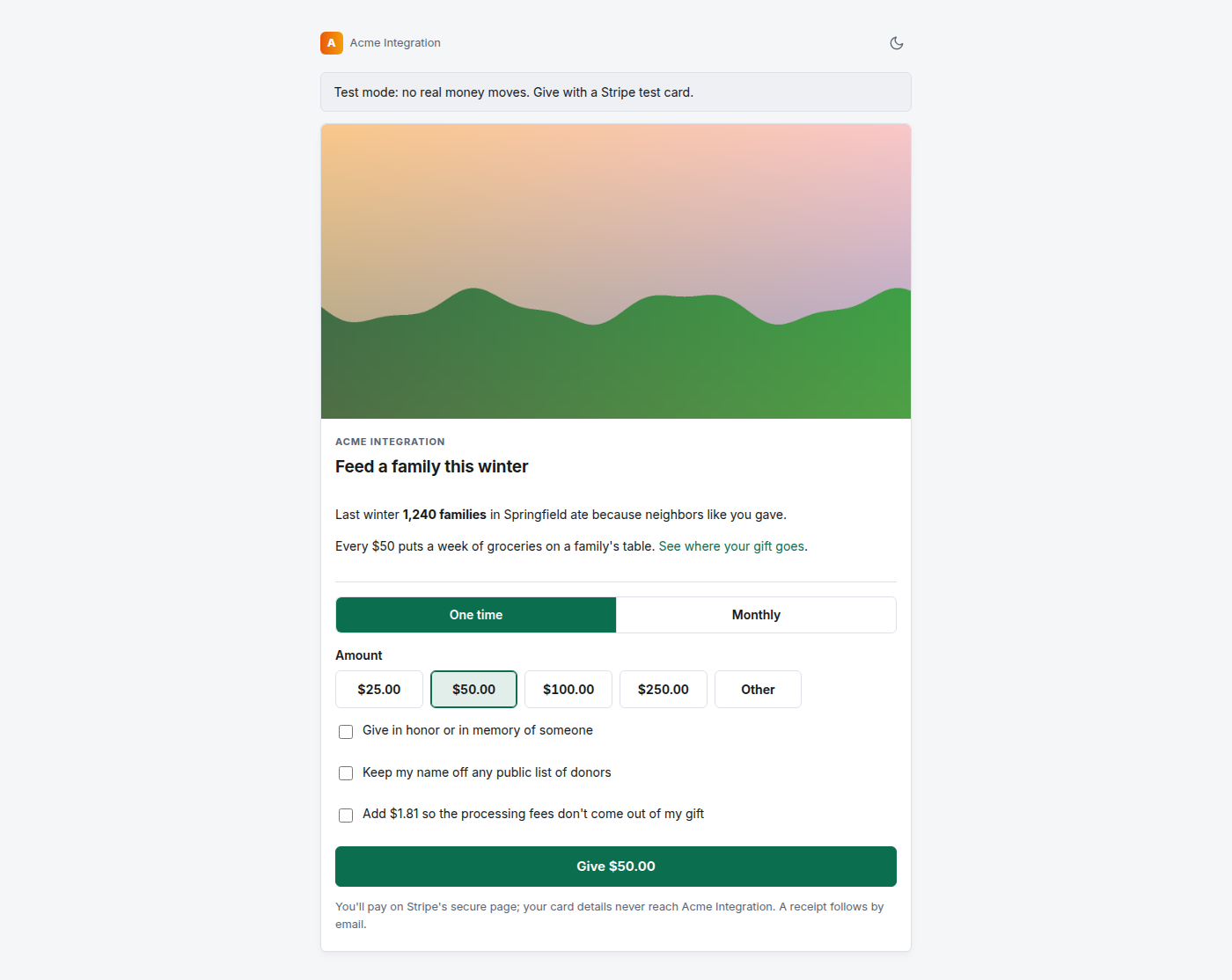
The public page shows your logo, the image, the headline and story, the One time / Monthly choice, the amount buttons with Other, the options you turned on, and a Give button with the amount. In Stripe test mode or PayPal sandbox a banner says no real money moves. With both providers connected there is a card button and a Give with PayPal button.
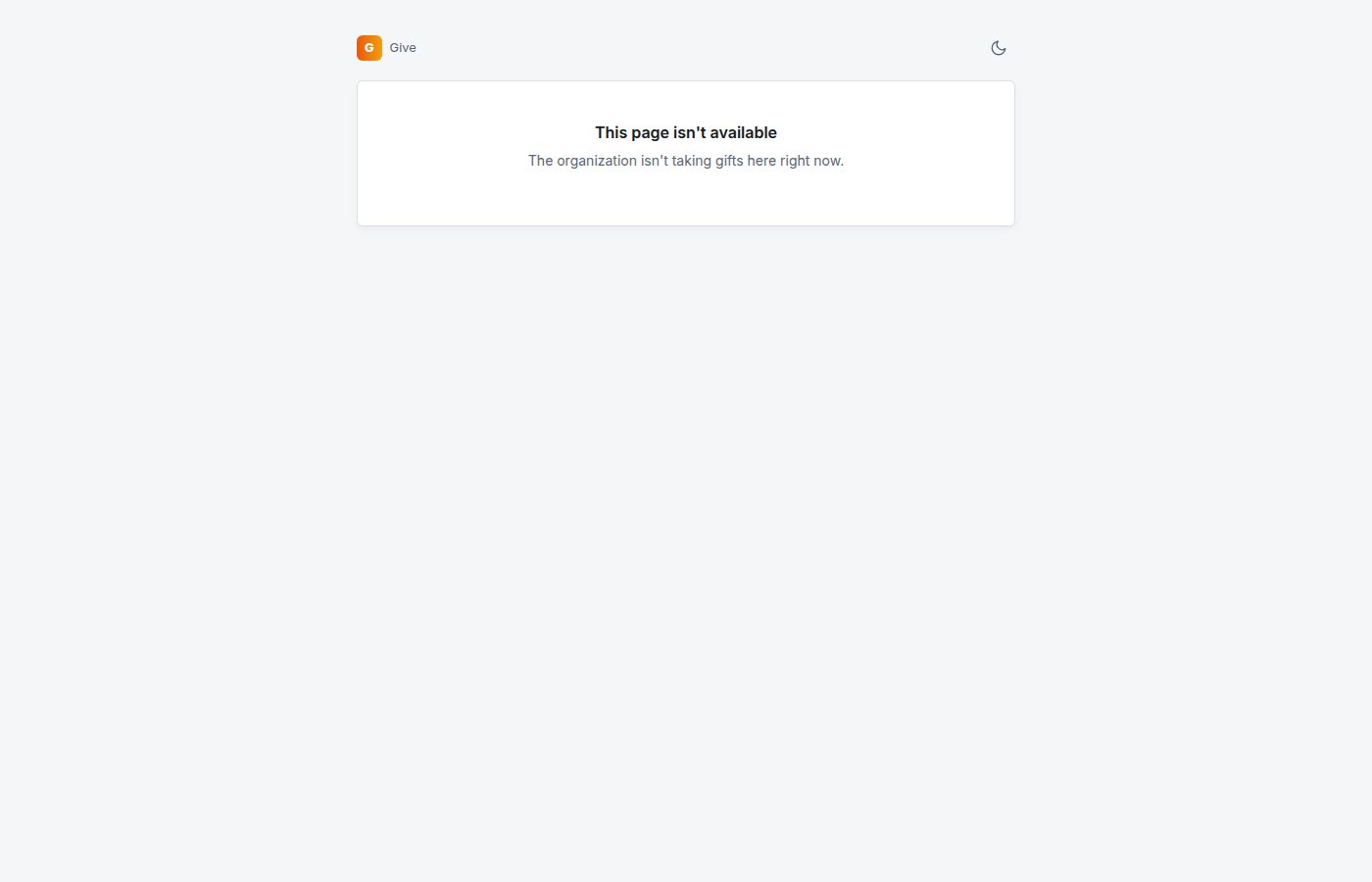
When the page isn't available (not published, or a prerequisite is missing), visitors see "This page isn't available. The organization isn't taking gifts here right now."
What happens after a gift
By card (Stripe). The donor pays on Stripe's own checkout page and comes back to your thank-you message. When Stripe's webhook confirms the payment:
- the gift is recorded as posted, method card, in the fund and campaign the donor chose, with the tribute, the anonymous choice and the fee Stripe kept;
- the donor is matched to a CRM contact by email, or added as one;
- with automatic receipts on, the receipt is issued and emailed with its PDF at once;
- a payment Stripe reports twice is recorded once.
A refund in Stripe follows into Foxx HQ: a part refund reduces the gift and re-issues its receipt for the new amount, a full refund voids it. A disputed payment is left as it is and company administrators are notified, so you can respond in Stripe before its deadline.
With PayPal. The donor approves the gift on PayPal's page and comes back to the donation page, where Foxx HQ completes the payment and records the gift at once (method online payment service), with the same CRM match and automatic receipt. A donor who never comes back is recorded when PayPal's notice arrives. A payment PayPal reverses is listed under Administration → Payments → Events with nothing changed; void the gift if the money is gone for good.
Monthly. A donor who picks Monthly starts a Stripe or PayPal subscription. See Monthly gifts.
Campaign pages
Each campaign can have its own page under the donation page's address,
for example …/give/winter-coats. A campaign page has its own address,
headline, story and image, and shows the campaign's goal, a progress
bar of the gifts posted to it, and its end date. The amounts and options
are the donation page's. When the campaign has a default fund, gifts on
its page go to that fund.
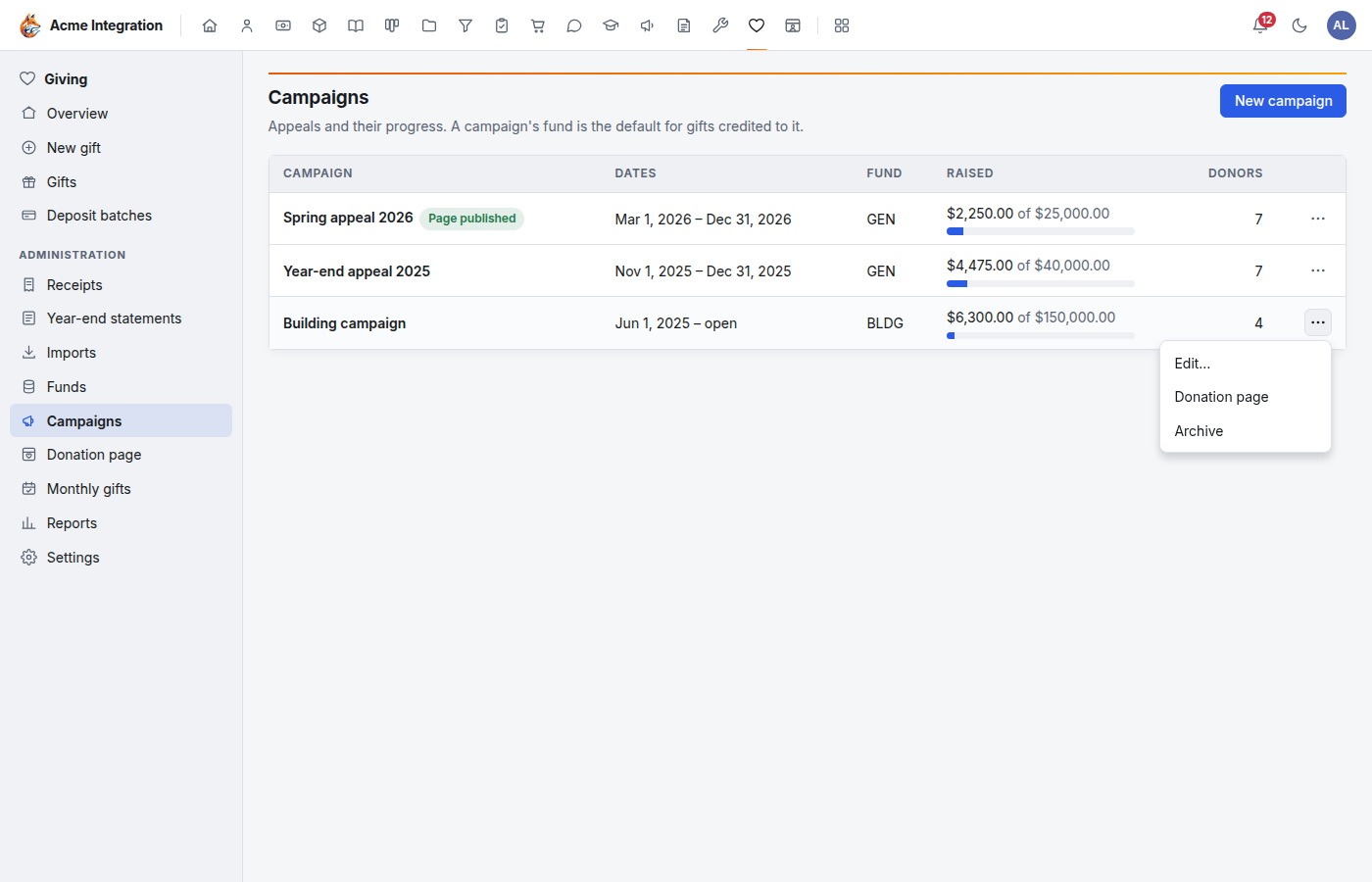
- Open Giving → Campaigns.
- Click ⋯ on the campaign's row and choose Donation page.
- Set the Address (lowercase letters, digits and hyphens), Headline, Story and optionally an Image (empty uses the donation page's image).
- Save draft, then Publish.
A campaign page is live only while the main donation page is published too; until then the checklist says "Published (the donation page must be published too)". Changing the address moves the page at once and the old address stops working. After the end date the page thanks visitors and takes no more gifts; an archived campaign has no page.
Troubleshooting
| Problem | Fix |
|---|---|
| Donation page isn't in the Giving menu | You need the Giving admin grant (or to be a company administrator). |
| Funds donors may choose shows no funds | Create one under Giving → Funds first; reload the page. |
| "Choose active funds." when saving | A ticked fund was made inactive. Untick it or reactivate it. |
| "Every suggested amount must be between the smallest and the largest gift." | Widen the limits or change the amounts. |
| "Enter your processing-fee estimate to offer cover-the-fees." | Enter a percentage and/or a fixed part, or untick cover-the-fees. |
| The preview says "Fix the highlighted fields to update the preview." | A field is invalid; the preview shows the last good version until you fix it. |
| The page says not found | See the table in Set up giving. |