 foxxcyber/docs
Volunteers
Turn on Volunteers, post opportunities and shifts, check people in to record their hours, take volunteer applications, onboard new volunteers, and report the hours and their in-kind value.
Volunteers runs the people who give you their time. You post opportunities with shifts, volunteers sign up, coordinators check them in and out, and the time between becomes their volunteer hours. People apply to volunteer from your website. Reports total the hours and, if you choose, estimate what they're worth.
Before you start
-
Volunteers is turned on. It starts off. A company administrator turns it on under Administration → Modules. See Modules.

-
Coordinators are set up. Coordinators run Volunteers. They are:
- the leads of a department with Volunteers enabled (Administration → Departments → the department → Feature areas → Enable next to Volunteers). A lead coordinates their department's opportunities and every department below it;
- company administrators and holders of the Volunteers admin grant (Administration → Users → the person). They coordinate every opportunity and own the Settings.
-
Email is set up under Administration → Email, so invitations, reminders and decline emails go out. See Email.
-
For applications: Forms & Attestations is on. Volunteer application forms are built there.
Volunteers are people with an account
A volunteer signs in like anyone else. Their type is volunteer, and they get the least access:
- self-service in every area, the Volunteers area, and their own profile;
- not in the staff directory, and they can't browse it;
- never in payroll or benefits, and they don't accrue leave. HR's Timecards, Leave and Benefits screens aren't shown to them.
Their hours are booked to a Volunteer time charge code that is never billed or paid, and that never appears on HR timecards.
People become volunteers by being approved from an application, or by a coordinator's invitation (both below). A company administrator can also change anyone's type (employee, volunteer or contractor) under Administration → Users. The change is recorded in the audit log.
Everyone in the organization, volunteers and staff alike, can sign up for shifts and see their own hours on the Volunteer home.
Departments
Departments decide who coordinates what:
- An opportunity or a volunteer opening can belong to a department. Its leads, and the leads of the departments above it, coordinate it. A Company-wide one is for Volunteers admins.
- A volunteer belongs to a department the ordinary way: add them under Administration → Departments, or a lead adds them in My organization. A volunteer approved from an opening joins that opening's department automatically.
- The setting Who sees applicants and volunteers (below) can limit each coordinator to their own departments' volunteers and applicants.
Post an opportunity
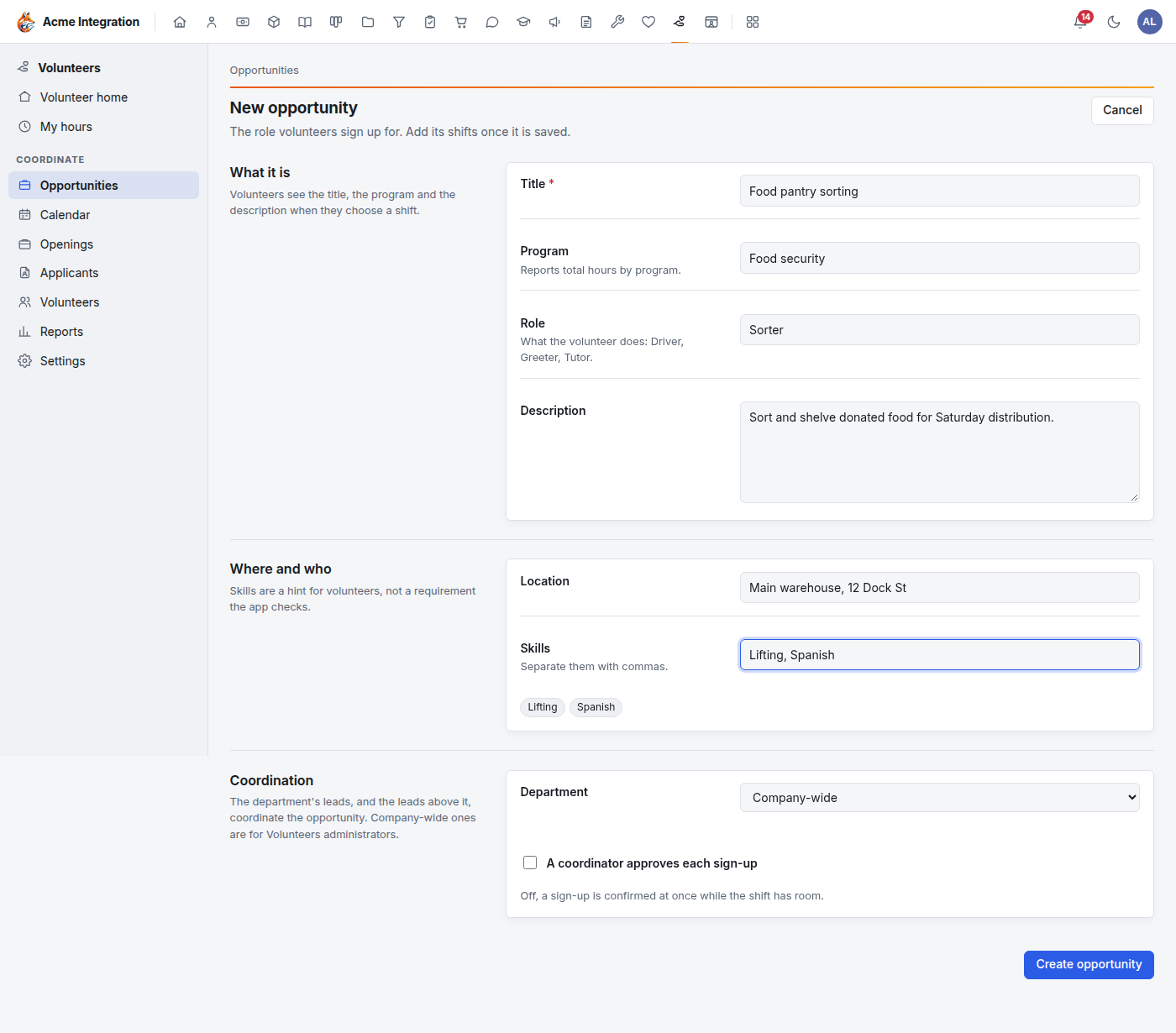
An opportunity is a role volunteers sign up for, such as "Food pantry sorting".
- Go to Volunteers → Opportunities and click New opportunity.
- Under What it is, fill in the Title, the Program (reports total hours by program), the Role (Driver, Greeter, Tutor) and a Description.
- Under Where and who, add the Location and any Skills, separated by commas. Skills are a hint for volunteers, not something the app checks.
- Under Coordination, choose the Department (or Company-wide, if you're a Volunteers admin).
- Decide how sign-ups work. Tick A coordinator approves each sign-up to review each one. Leave it unticked and a sign-up is confirmed at once while the shift has room.
- Click Create opportunity.
Add shifts
- Open the opportunity and click Add shift.
- Enter when it Starts and Ends (at most 24 hours, on your clock), the number of Places, and an optional Note ("Meet at the side door, bring gloves").
- Click Add shift. Volunteers can sign up straight away.
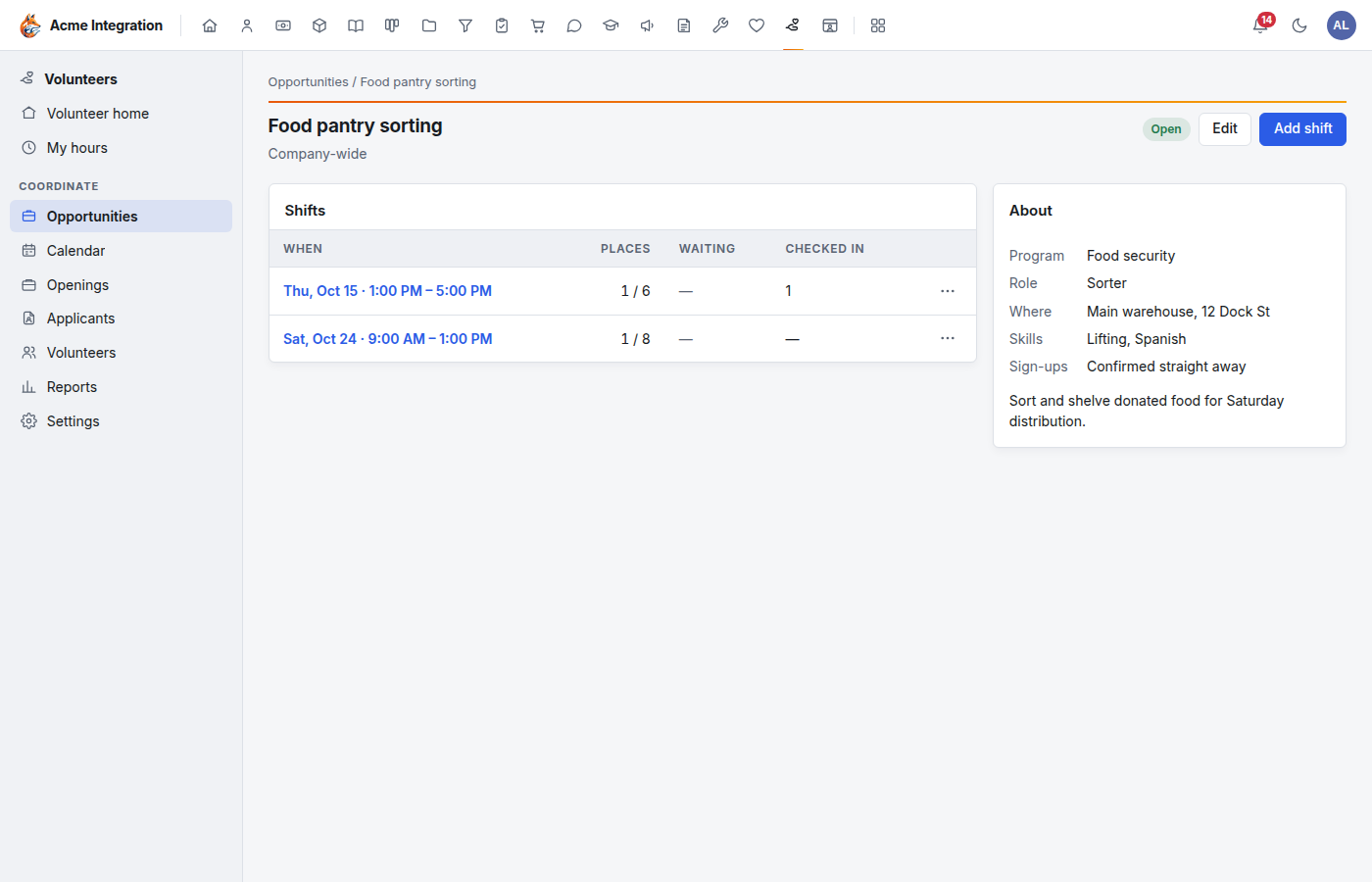
A place is held by a confirmed sign-up and by one waiting for approval. When every place is taken, the shift shows Full.
From a shift's … menu you can Edit… it (places can't go below the number already signed up) or Cancel shift…. The people on it are told, and it stays on record as cancelled.
Close an opportunity (from its … menu on the Opportunities list) to stop new sign-ups. Its shifts and hours are kept, and Reopen brings it back.
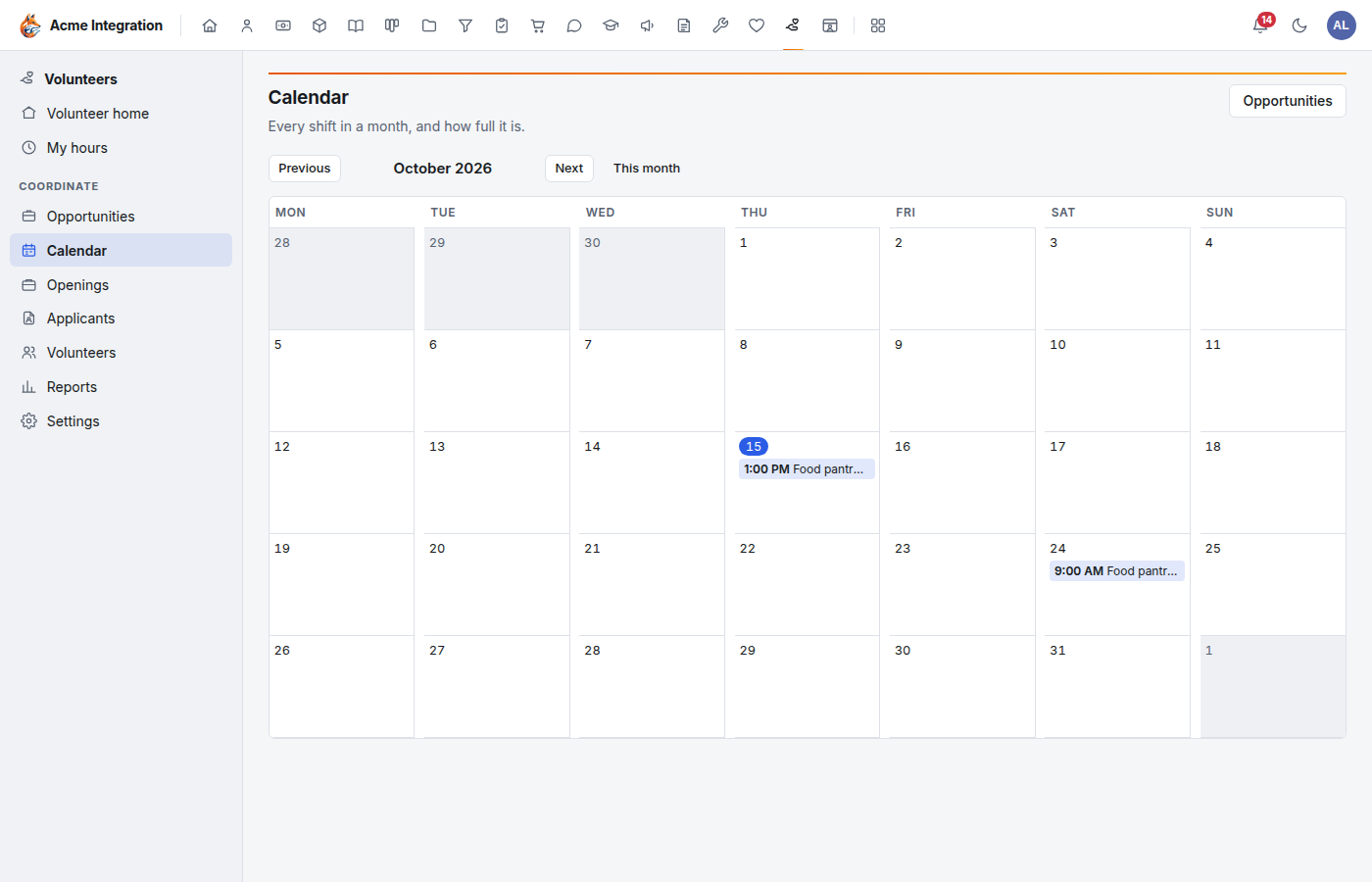
The Calendar shows every shift of the opportunities you coordinate, a month at a time, and how full each is.
Sign up for a shift
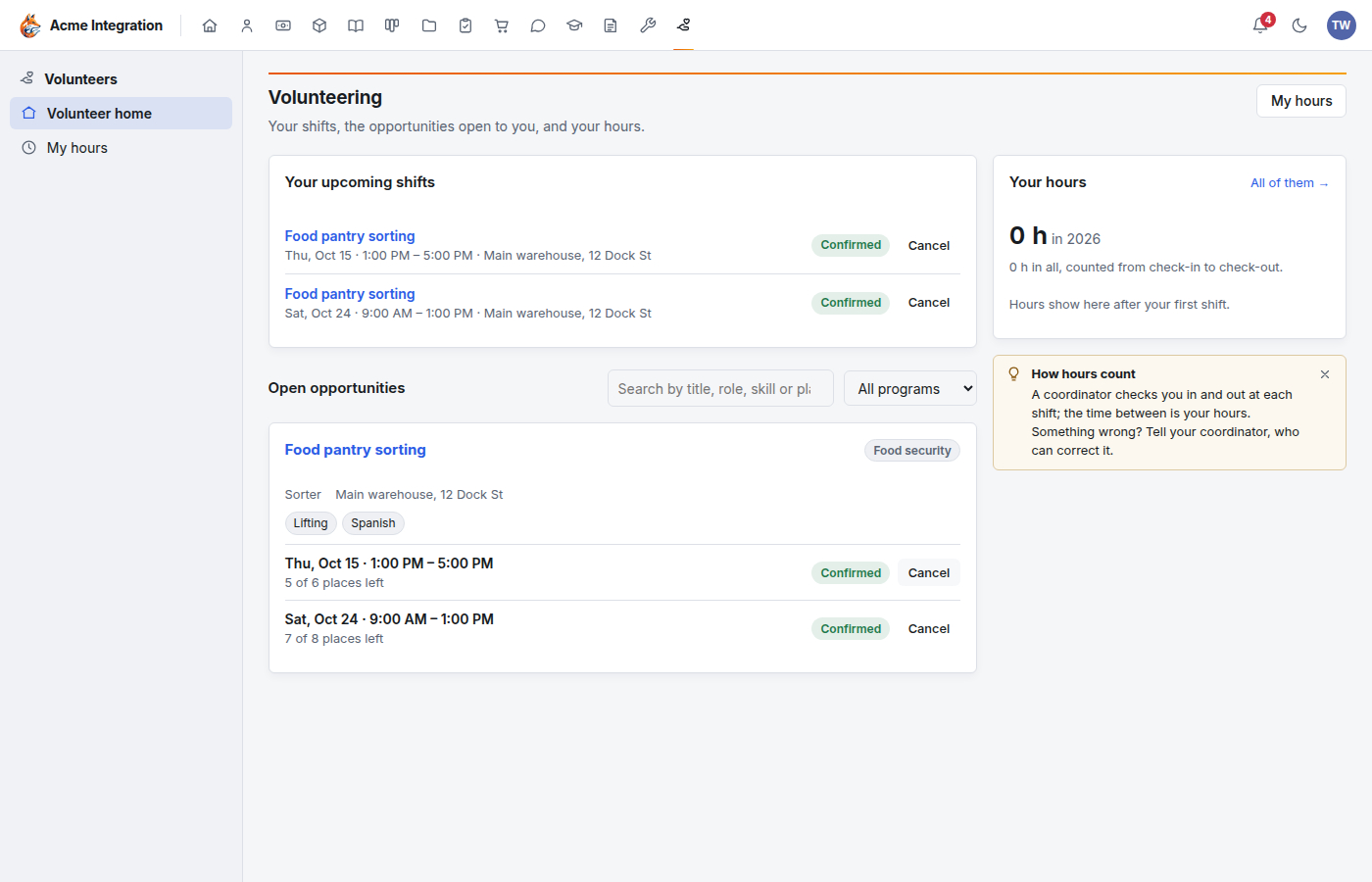
On the Volunteer home, Open opportunities lists what you can do. Search by title, role, skill or place, or filter by program.
- Find a shift and click Sign up. If the opportunity needs approval, the button says Request a place, and a coordinator confirms it.
- Your shift appears under Your upcoming shifts. You can Cancel until it starts.
You're reminded the day before, in the bell and by email if you turned on email notifications under your account. My hours lists the hours from your shifts.
Run a shift: check-in and hours
Open a shift (from the opportunity, the calendar or Roster and check-in in its … menu) to see its roster.
- Approve the people waiting, or Decline them from the … menu. They're told either way.
- When a volunteer arrives, click Check in.
- When they leave, click Check out. The time between, rounded to the nearest quarter hour, is booked as their hours for the day.
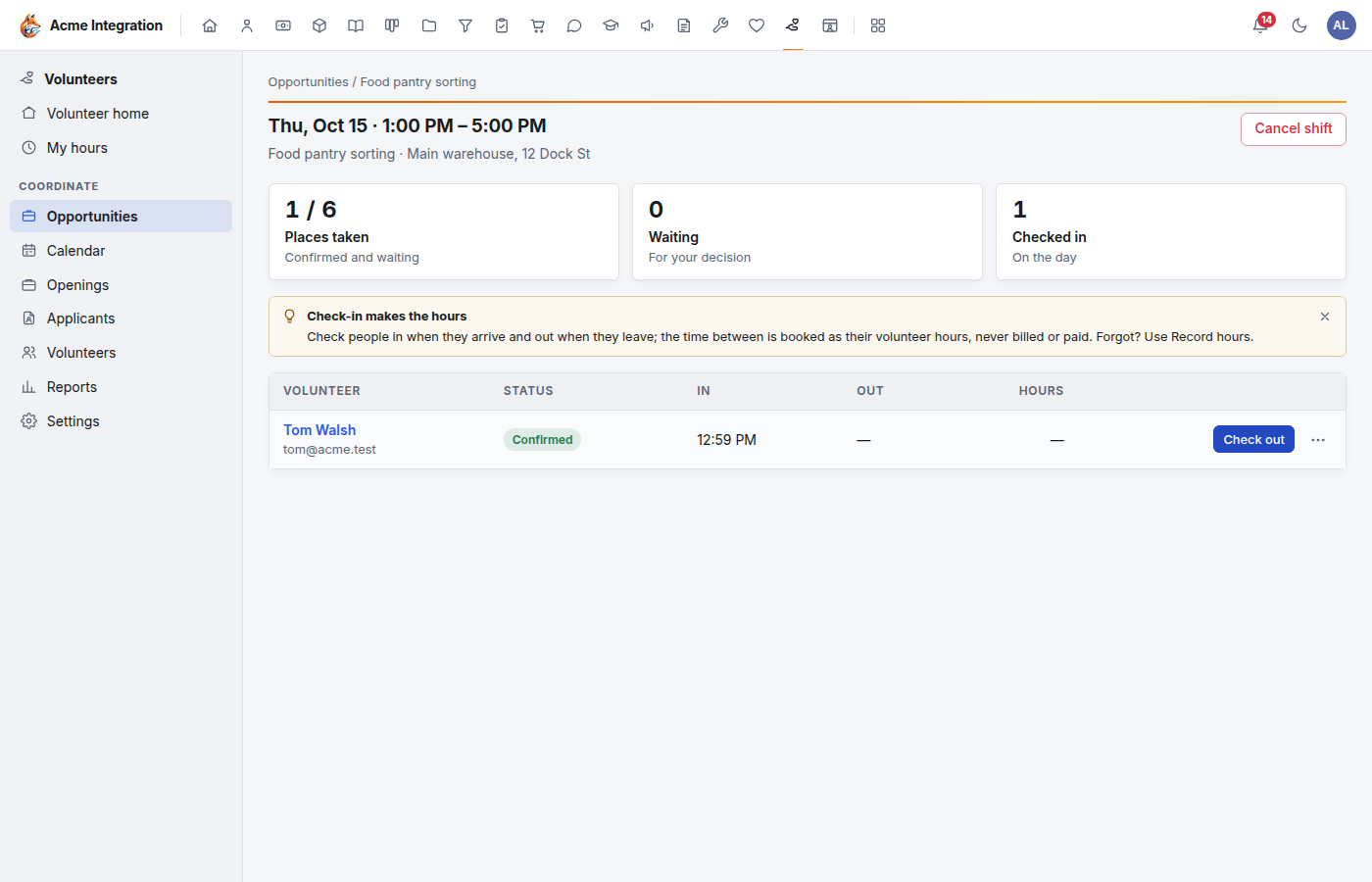
Forgot to check someone out, or a time is wrong? Use … → Record hours… or Correct hours…. Every correction is recorded in the audit log with the hours before and after.
Volunteer hours are recorded and corrected here only, never on HR timecards.
Take volunteer applications
People ask to volunteer without needing an account, from two places:
- The public application page. This is the general volunteer application. Its address is under Volunteers → Settings → Public application page → The page's address, with a Copy button. Put it on your website. Tick Take applications to open it, and write an Introduction shown above the form.
- Your careers page, which lists your volunteer openings: roles you post under Volunteers → Openings.
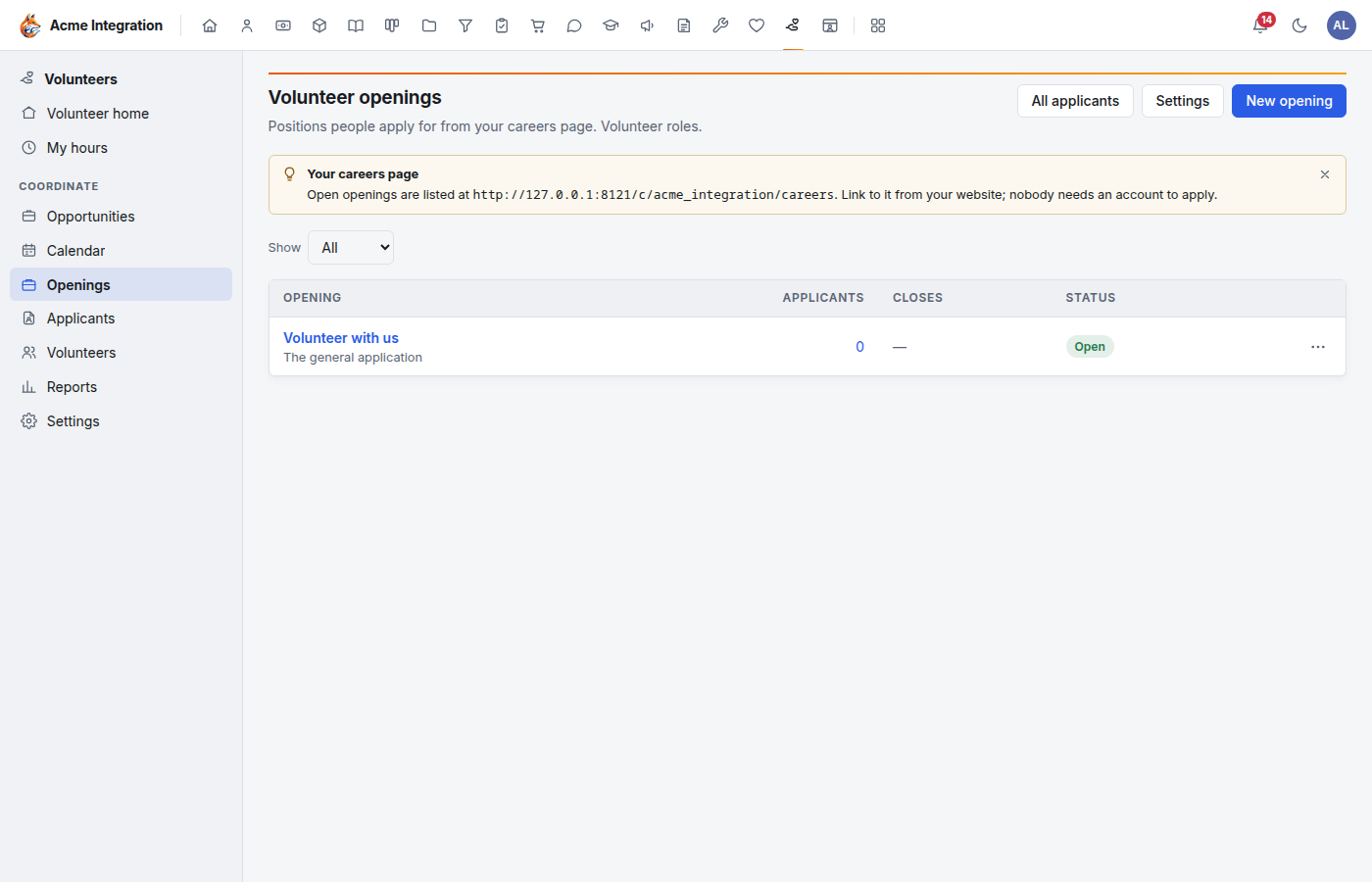
Volunteer openings, their application forms, the applicant queue and the stages work exactly like staff hiring. Read Hiring for creating an opening, building its form in Forms, the files people can send, moving applicants through the stages, declining and the records you must keep. The differences:
- New applications wait in Volunteers → Applicants, with a count on the sidebar.
- Where hiring says Hire, Volunteers says Approve…, then Approve and invite. The person gets an email with a link to set their password. The link works once, for seven days.
- The general application's questions are edited from Openings → the general application → Edit application form. Until someone edits it, it asks for a name, email, phone, what they'd like to do and when they're free.
- The decline email is under Settings → Decline email.
When an approved person sets their password, they become a volunteer, join the opening's department (if it has one) and their onboarding starts.
Invite someone directly
- Go to Volunteers → Volunteers and click Invite a volunteer.
- Enter their Name and Email and click Send invitation.
Waiting invitations are listed under Invitations, with Re-send (the old link stops working) and Revoke… in each row's menu.
Who sees applicants and volunteers
Under Settings → Who sees applicants and volunteers, a company administrator or Volunteers admin chooses:
- Every coordinator sees all of them (the default).
- Each coordinator sees their own departments' and the ones below. A coordinator then sees only applicants to openings of their departments, the volunteers who belong to those departments, and the invitations they sent themselves. Applicants to an opening with no department (such as the general application) and volunteers in no department go to Volunteers admins and company administrators.
Onboard new volunteers
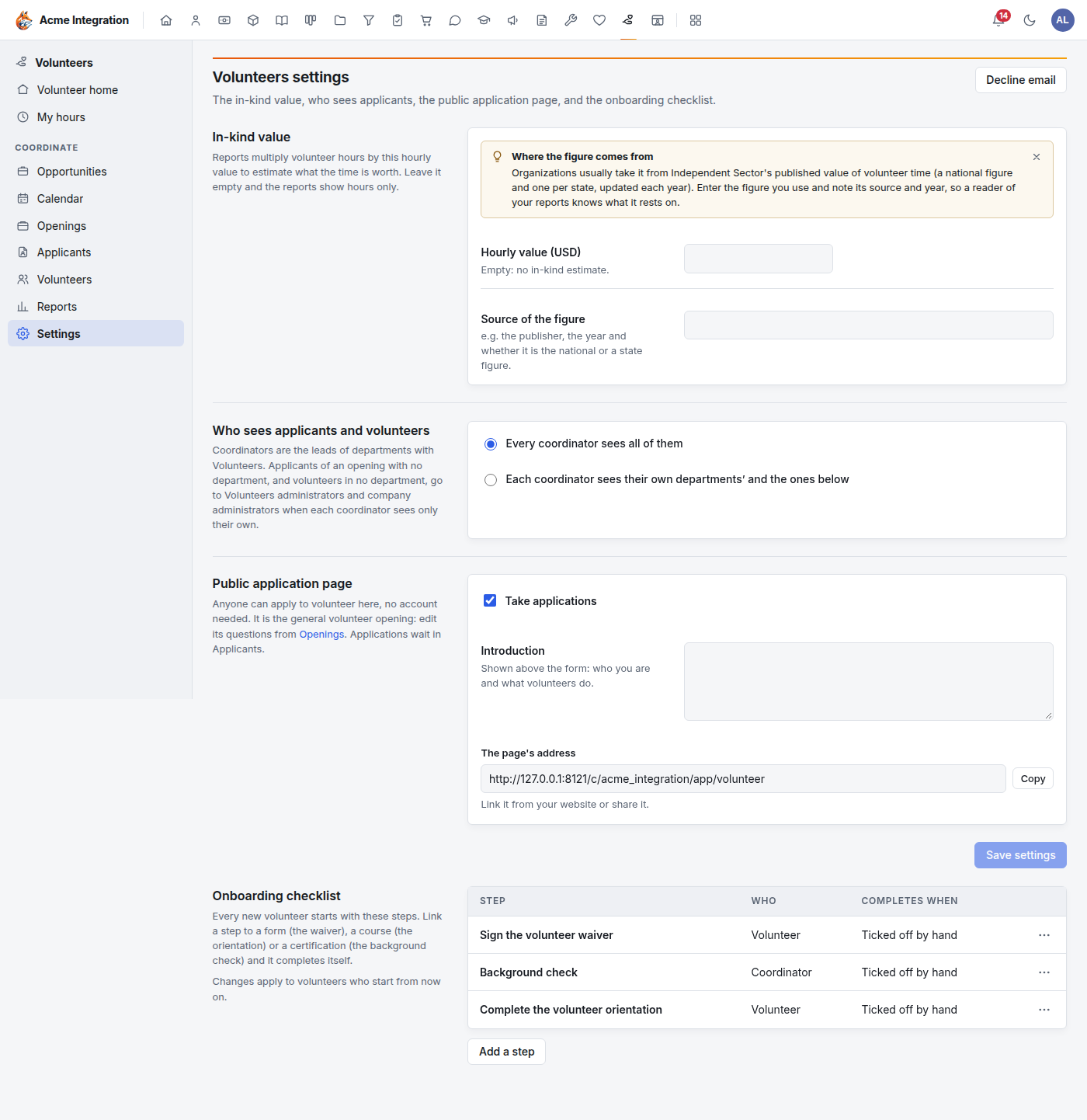
Every new volunteer starts with an onboarding checklist. Set its steps under Volunteers → Settings → Onboarding checklist → Add a step. Changes apply to volunteers who start from then on. Each step is one of:
- a task that a coordinator or the volunteer ticks;
- a form, such as a waiver. It's done when the volunteer submits it in Forms;
- a course, such as an orientation. The volunteer is enrolled when onboarding starts, and it's done when they finish it in Training;
- a certification, such as a background check. It's done while the volunteer holds it and it hasn't expired. A coordinator records it, not the volunteer: on the volunteer's page, click the step and enter Completed on, Expires on and a Reference. The usual certification expiry reminders apply.
Onboarding starts by itself when an approved or invited volunteer sets their password. For anyone else, open them under Volunteers → Volunteers and click Start onboarding.
Reports and the in-kind value
Volunteers → Reports shows the hours booked in a period, for the opportunities you coordinate. Group them By volunteer, By opportunity, By program or By month, pick the dates (or This year, Last 90 days, Last 12 months) and click Show. CSV downloads the table.
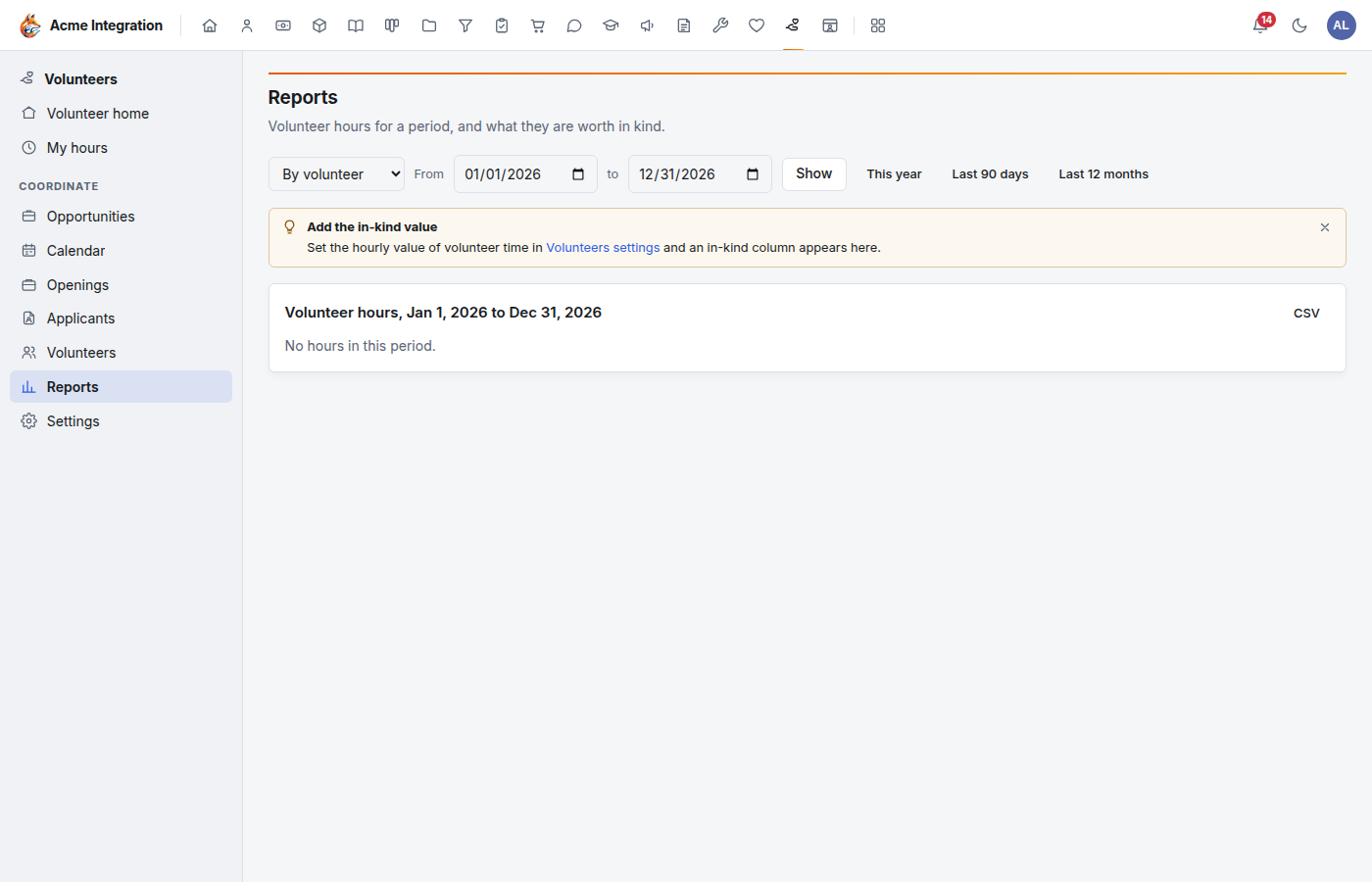
To show what the hours are worth as an in-kind estimate:
- Go to Volunteers → Settings → In-kind value.
- Enter the Hourly value (USD). There is no default.
- In Source of the figure, note where it comes from: the publisher, the year, and whether it's the national or a state figure.
- Click Save settings.
Many organizations use the value of volunteer time that Independent Sector publishes each year. Until a value is set, reports show hours only. The value is an estimate for your records, not money paid.
Troubleshooting: I don't see it
- There's no Volunteers in the area bar, or its pages answer "not found". Volunteers is off. Turn it on under Administration → Modules.
- Volunteer openings are missing from the careers page. Volunteers is off, the opening is still a draft, or it's past its close date.
- The public application page says it isn't available. Tick Take applications under Volunteers → Settings, and check that Volunteers is on.
- A lead has no Coordinate section in the Volunteers sidebar. Volunteers isn't enabled on their department.
- A coordinator can't see an applicant or a volunteer. Who sees applicants and volunteers is set to their own departments, and the person belongs to another department, or to none.
- There's no Settings in the sidebar. Settings are for company administrators and Volunteers admins only.
- A volunteer asks where Leave or Timecards went. Volunteers don't have them. Their hours come from shift check-in.
- The in-kind column is missing from reports. Set an hourly value under Settings → In-kind value.
- A shift says Full and has no Sign up button. Every place on it is taken. Places held by people waiting for approval count too. A coordinator can add places with Edit… on the shift.