 foxxcyber/docs
Hiring
Post staff and volunteer openings on your careers page, build their application forms, work the applicant queue, and hire or approve the people you choose.
Hiring puts openings on your public careers page, takes applications through a form you control, and gives your team one queue to review them. When you hire someone, Foxx HQ invites them to set a password, and their HR record and onboarding are set up for you.
There are two kinds of opening, and they work the same way:
- Staff openings live in Human Resources → Hiring.
- Volunteer openings live in Volunteers → Openings, with their applicants under Volunteers → Applicants. Where this page says Hire, a volunteer opening says Approve. See also Volunteers.
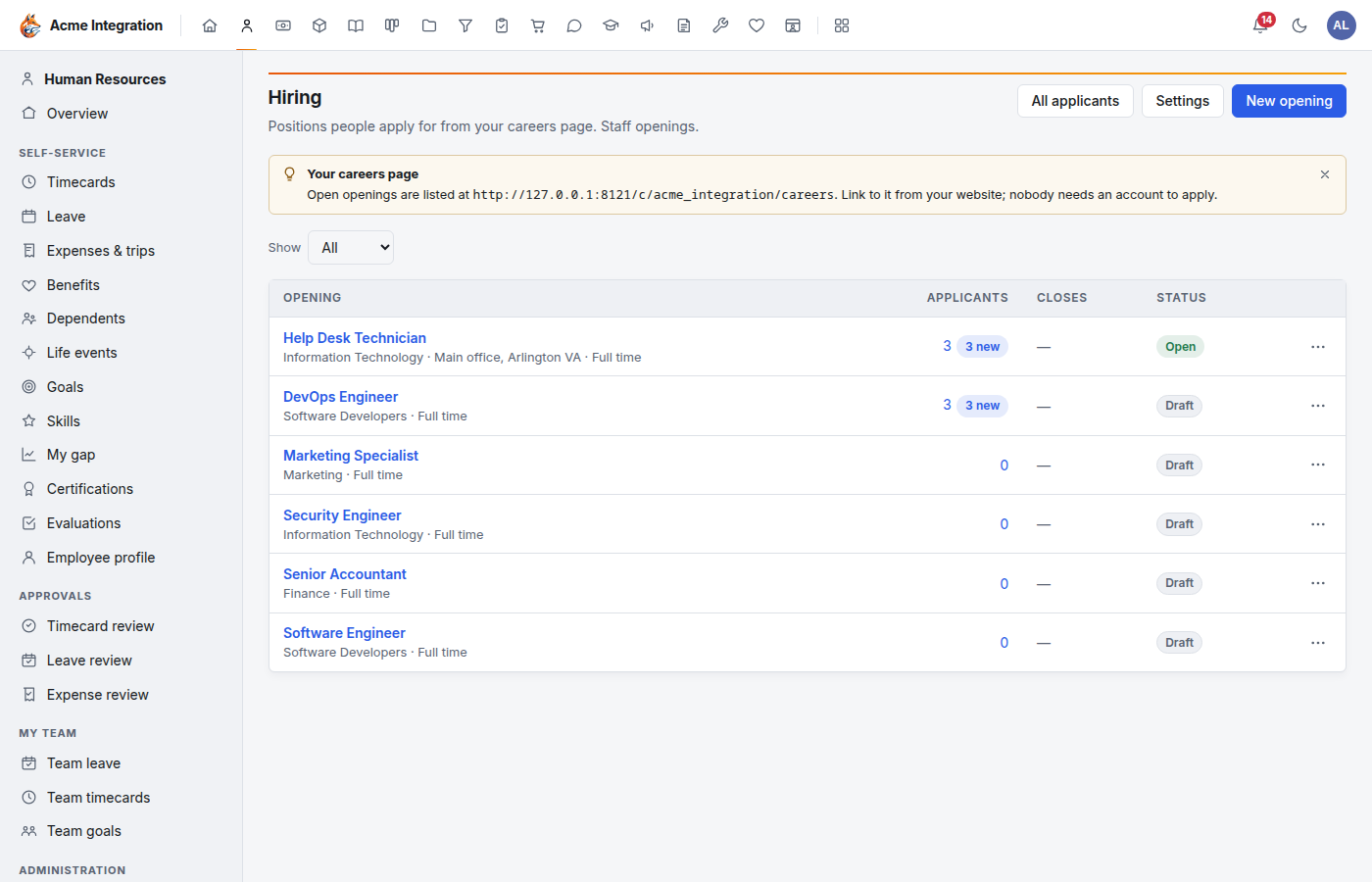
Before you start
- The area is turned on. Human Resources for staff openings, Volunteers for volunteer openings, under Administration → Modules. See Modules. While an area is off, its openings are left off the careers page.
- Email is set up, under Administration → Email. Hiring sends the new person an invitation, and declining can send an email. Without email, the hire still happens but the invitation doesn't go. See Email.
- Forms & Attestations is on. Application forms are built there.
- Departments have leads. The leads of an opening's department are its hiring managers.
- For a lead to post and review staff openings, Human Resources is enabled on their department (Administration → Departments → the department → Feature areas).
Who sees applicants
Applicants' answers and files are private. Only these people see them:
- Staff openings: HR administrators (company administrators and holders of the HR admin grant) see every opening. The leads of the opening's department, and of any department above it, see that opening's applicants as its hiring managers.
- Volunteer openings: Volunteers coordinators. A setting under Volunteers → Settings → Who sees applicants and volunteers decides whether every coordinator sees all of them (the default) or each coordinator sees only their own departments'. See Volunteers.
- An opening for the whole organization (no department) is created, edited and reviewed by the area's administrators.
- Nobody else. Only company administrators can delete an applicant.
New applications are announced in the bell to the people who review that opening, and by email to those who turned on email notifications under their account.
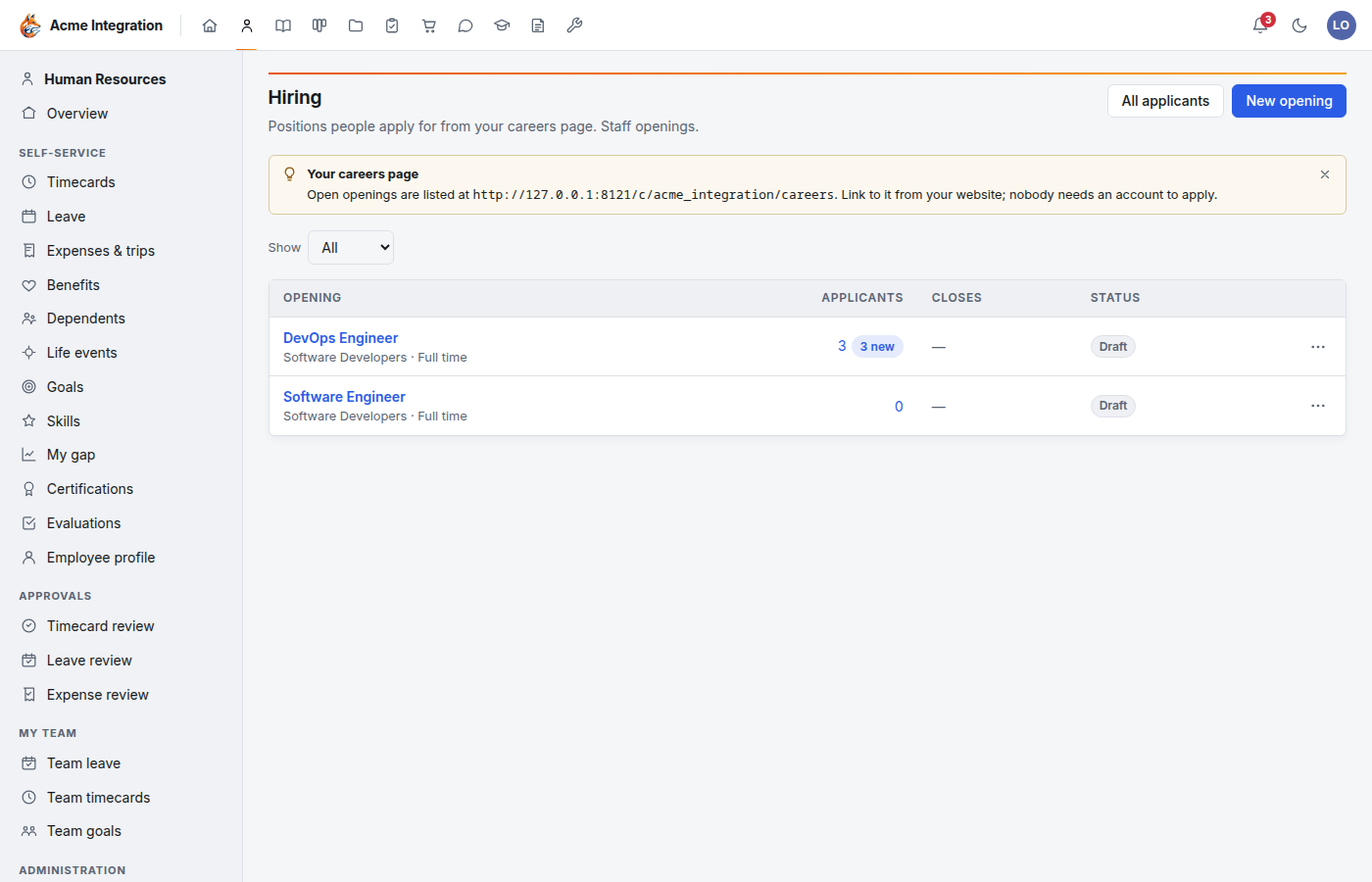
Here is the Hiring page for a department lead who isn't an HR administrator. They see only their department's openings, and there's no Settings button:
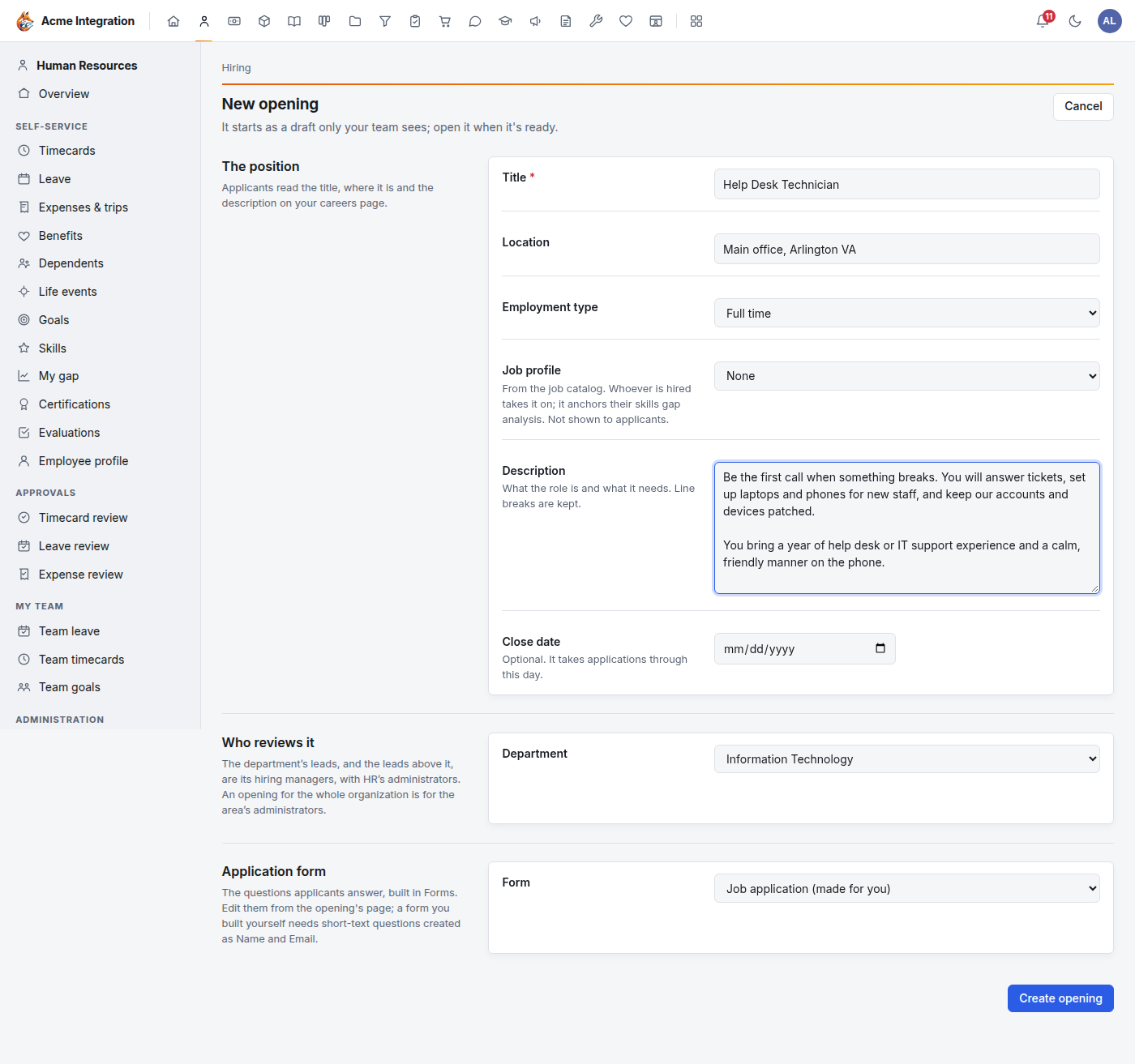
Create an opening
- Go to Human Resources → Hiring and click New opening.
- Under The position, fill in:
- Title: what applicants see, such as "Warehouse supervisor".
- Location: a place, or "Remote".
- Employment type (staff only): Full time, Part time or Contract.
- Job profile (staff only, optional): a profile from the job catalog. Whoever is hired takes it on. Applicants don't see it.
- Description: what the role is and what it needs. Line breaks are kept.
- Close date (optional): applications are taken through this day.
- Under Who reviews it, choose the Department. Its leads, and the leads above it, become the hiring managers. HR administrators can also choose The whole organization.
- Under Application form, keep the default form or choose another (see below).
- Click Create opening.
The opening starts as a draft: only your team sees it. Nobody can apply yet.
Open it for applications
On the opening's page, click Open for applications. It now appears on your careers page and takes applications until its close date. Close stops new applications. Applications already in stay either way.
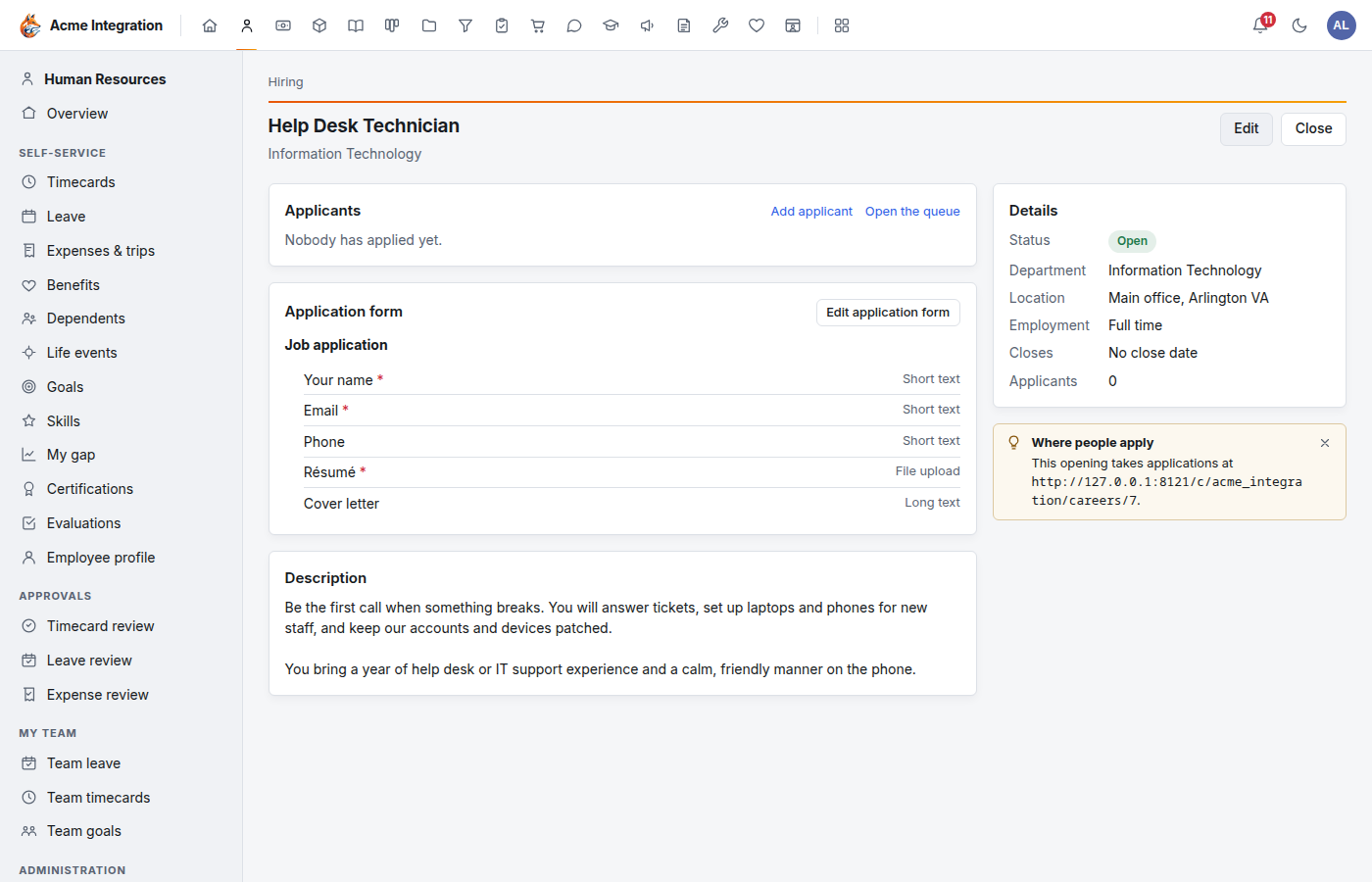
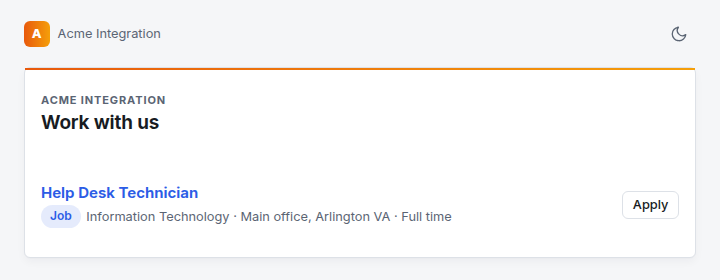
The Where people apply tip gives the opening's own address. Your careers page lists every open opening. Its address is in the tip at the top of the Hiring page and under Settings. Link to it from your website. Nobody needs an account to apply.
Build the application form
Each opening asks a form built in Forms & Attestations. The first time you create an opening of each kind, Foxx HQ makes a default form for you:
- Job application: your name, email, phone, résumé and cover letter.
- Volunteer application: the same, plus what they'd like to help with and when they're free. The résumé is optional.
Neither form asks about age, sex, race, religion, national origin, disability, veteran status or any other demographic. Keep those questions off your forms. Foxx HQ has no equal-opportunity survey.
To change the questions:
- On the opening's page, click Edit application form. The form opens in the Forms builder. You need access to Forms' management screens and the right to edit that form. A Forms administrator can share it with you.
- Add, edit, reorder or delete questions. Use a File upload question for a résumé, cover letter or portfolio.
- Click Publish (the button names the new version, such as Publish v2). Changes reach the careers page only when you publish. Applications already in keep the questions they were answered on.
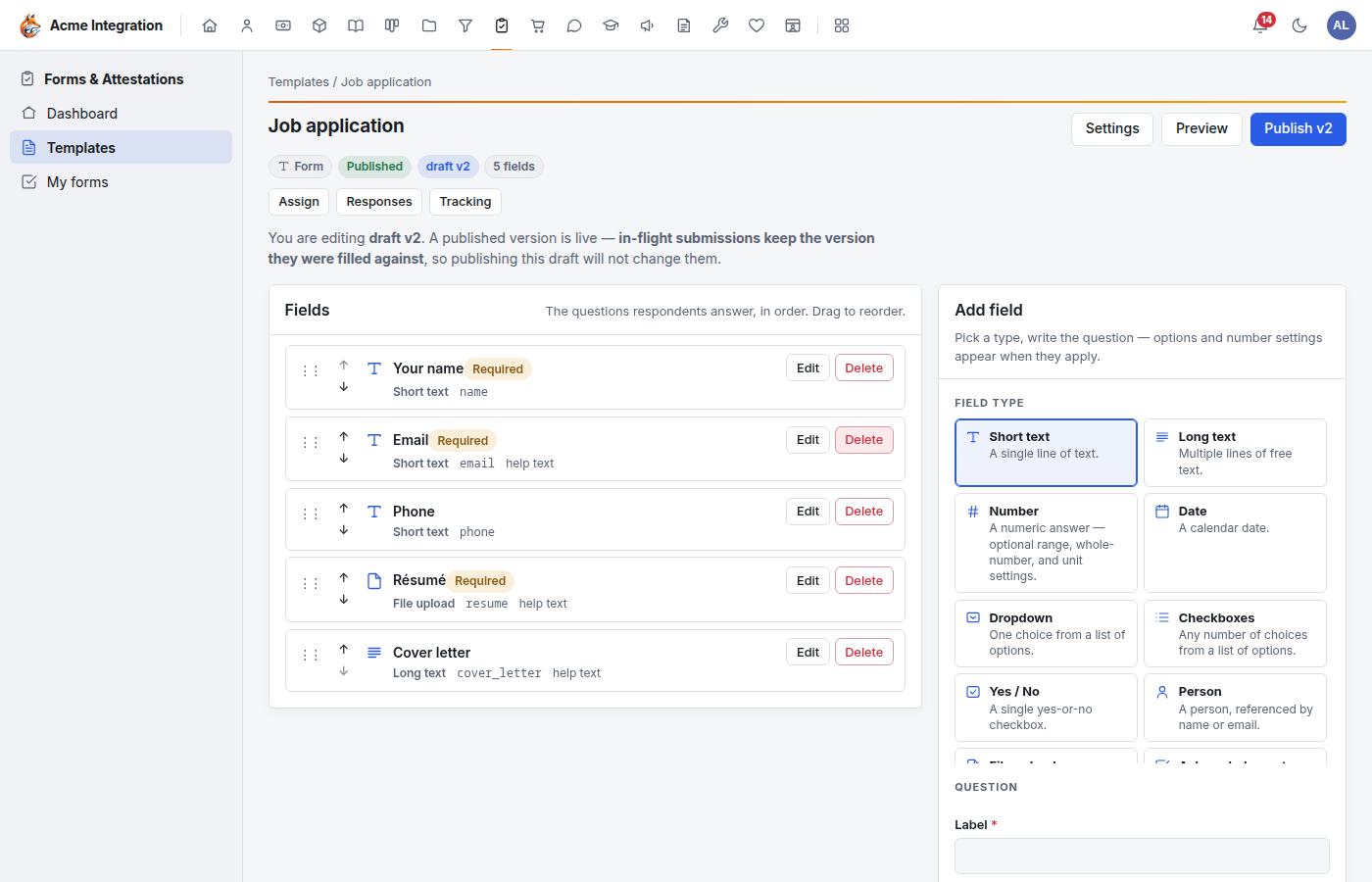
To use a different form, choose it under Application form on the opening's Edit page. It must be published and have two short-text questions created as Name and Email. The default forms' Your name and Email questions are those. If a form can't take applications, the opening's page says so in red.
Files applicants send
Foxx HQ checks each file's real type, not its name:
- Accepted: PDF, Word (.docx), OpenDocument text (.odt), RTF, plain text, and PNG, JPEG or WEBP images.
- Refused: everything else, including old Word .doc files and macro-enabled Word files. A program renamed to .pdf is still refused.
- Size: up to 10 MB a file, and about 11 MB for the whole application.
Files are stored privately and are only ever offered as a download, to the people who review that opening.
What applicants see
The opening's page shows its description and the form. The applicant fills it in and clicks Send application. They see a thank-you message and you'll reach them at the email they gave.
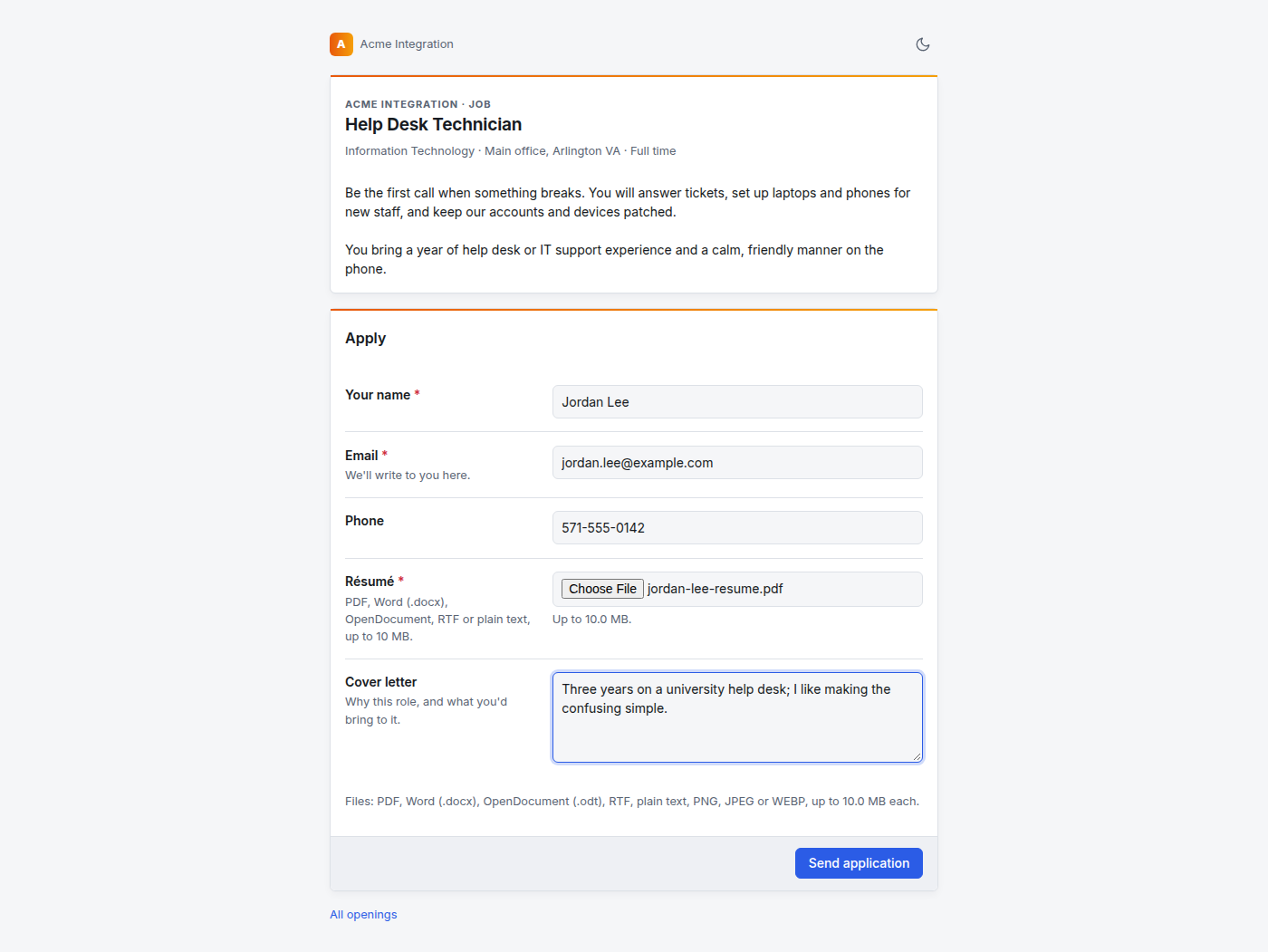
The page limits how often one visitor, one opening and one organization can submit, and it catches bots. Each application is kept on its own: someone who applies twice appears twice, and the queue says how many times.
Work the applicant queue
Go to Hiring → All applicants, or click an opening's applicant count. Search by name or email, and filter by Opening and Stage. Still deciding (the default) hides people who were hired, declined or withdrew.
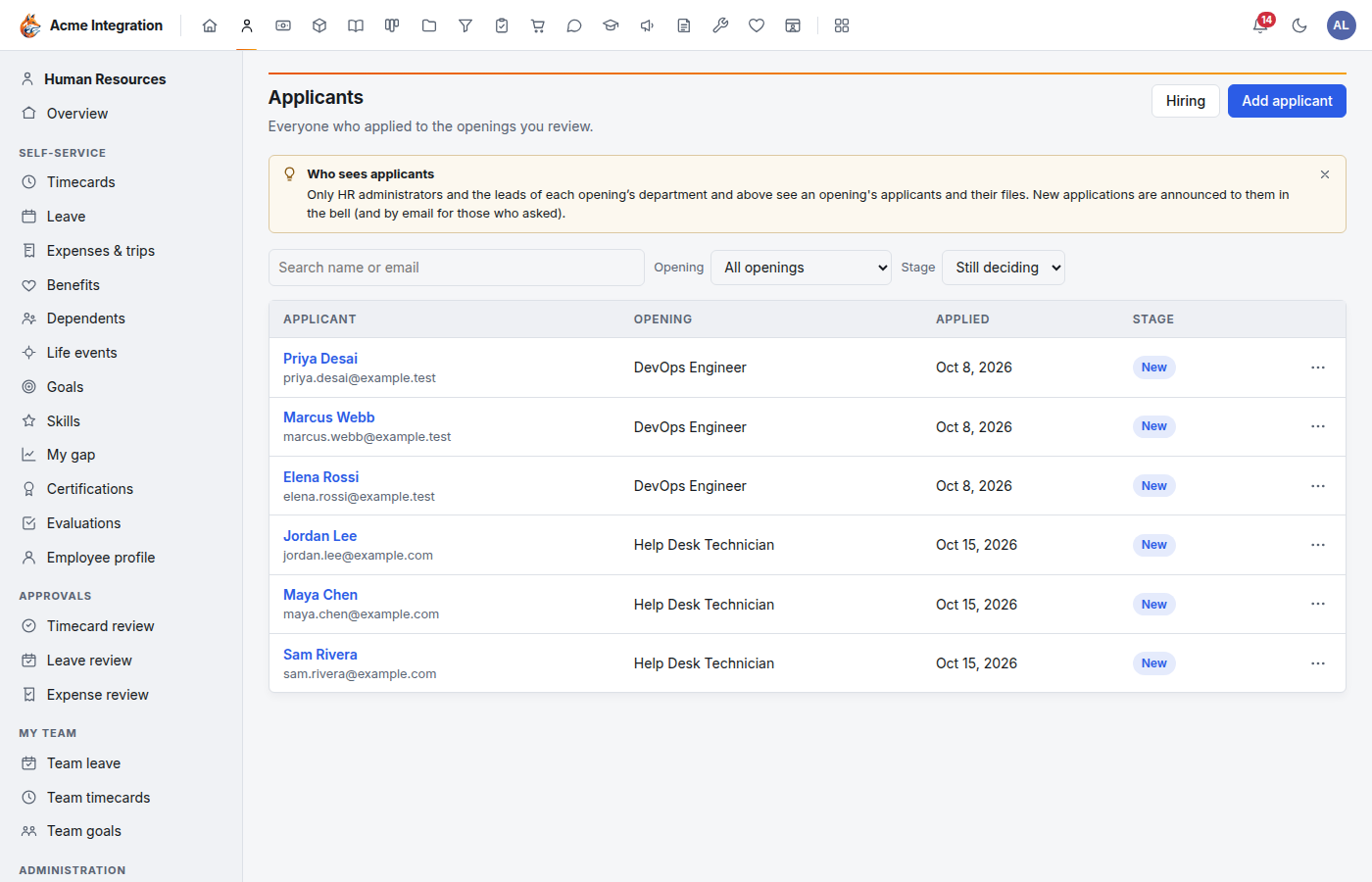
Applicants move through fixed stages: New → Reviewing → Interview → Offer, then Hired (for volunteers, Approved), Declined or Withdrawn.
Click a name to open the applicant:
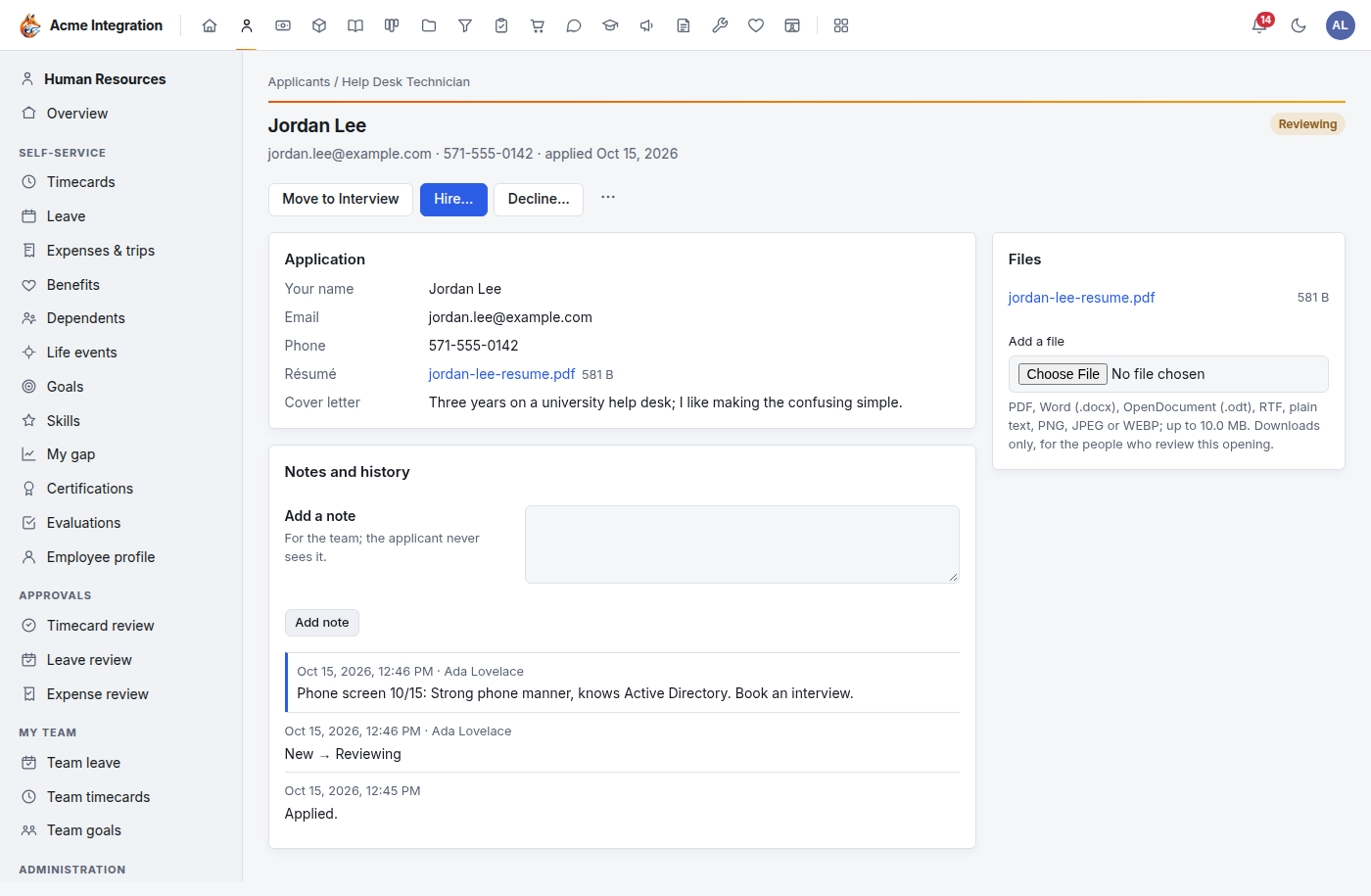
- Move to … moves them to the next stage. The … menu moves them to any stage, marks They withdrew, or re-sends an invitation.
- Add a note keeps interview notes for the team. The applicant never sees notes.
- Add a file attaches a reference or your own notes, checked like any applicant file.
- Notes and history records every stage change, note, file and email. Each change is also in the audit log.
- A declined or withdrawn applicant can be brought back with Reopen. A hired one can't.
Add someone who applied another way
For someone who emailed you, met you at a job fair or was referred:
- On the Applicants page, click Add applicant.
- Choose the Opening (a draft or open one), enter their Name and Email, and optionally a Phone, a Note and one File.
- Click Add applicant.
They have no form answers, and their page says so.
Decline someone
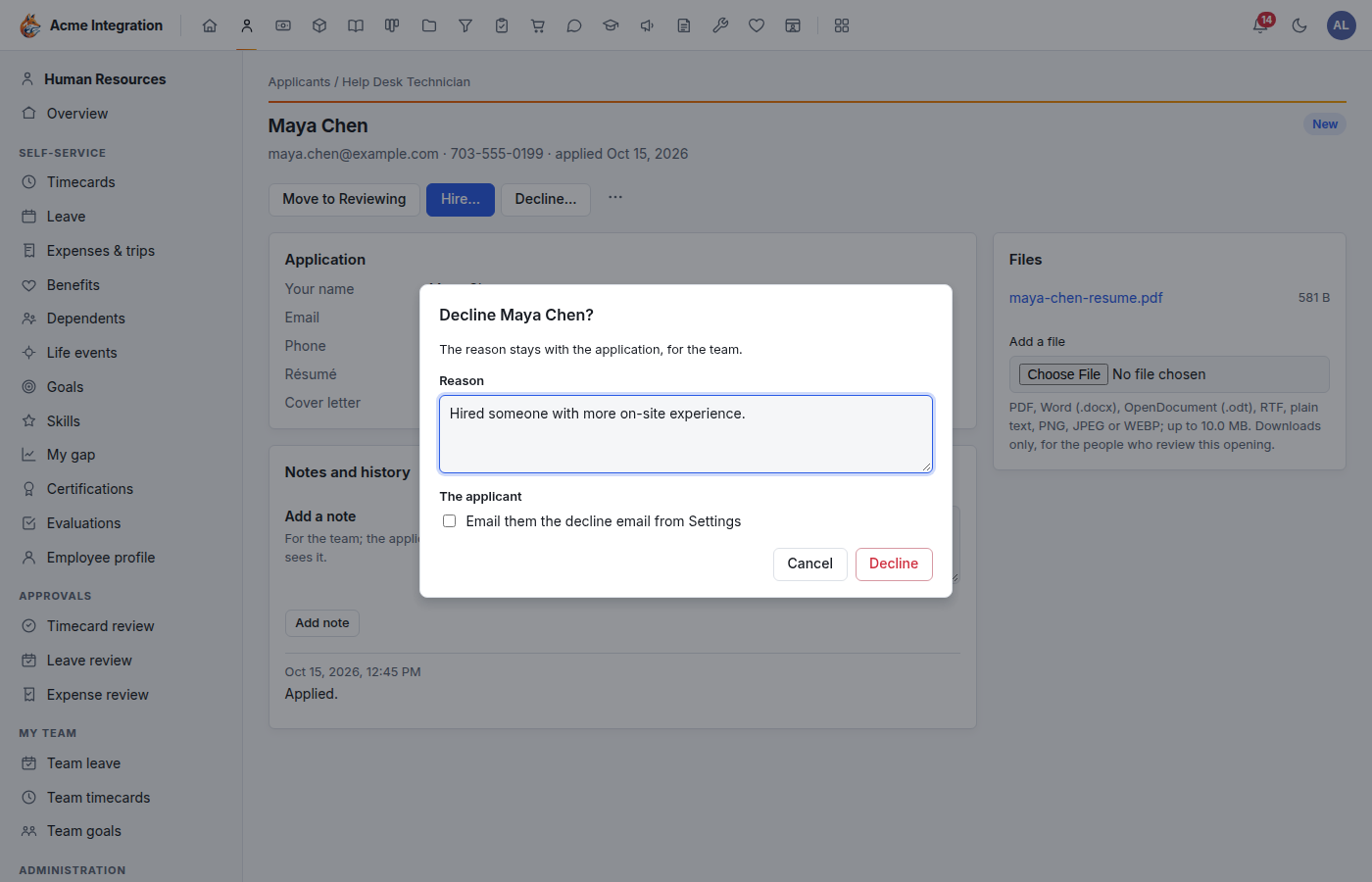
- On the applicant's page, click Decline….
- Enter a Reason if you like. It stays with the application for the team.
- To tell them, tick Email them the decline email from Settings. This box only appears when email is set up.
- Click Decline.
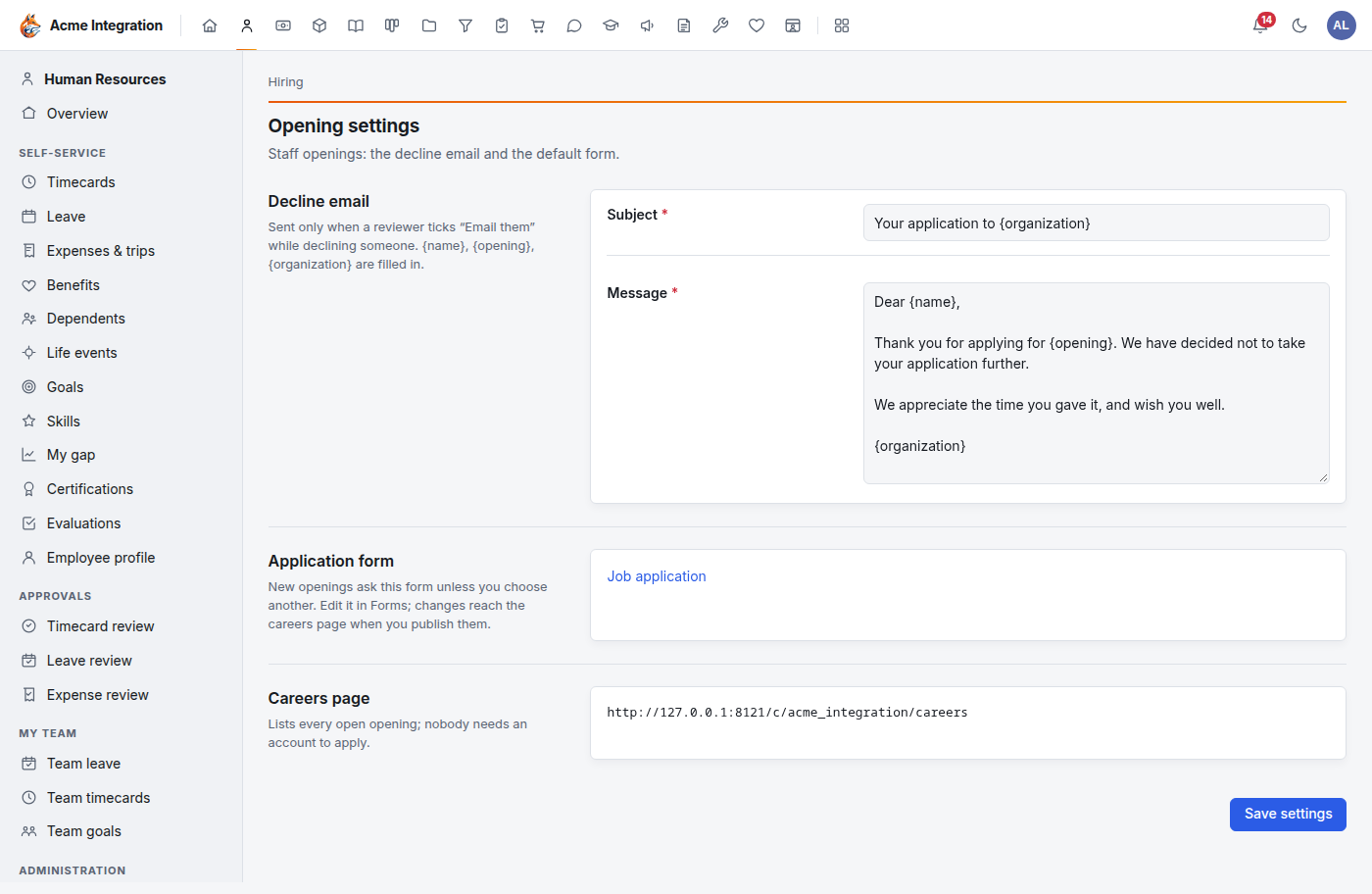
HR administrators write the decline email under Hiring →
Settings. Use {name}, {opening} and {organization} and they're
filled in. Volunteers has its own copy under Volunteers →
Settings → Decline email.
Hire or approve
- On the applicant's page, click Hire… (or Approve… for a volunteer).
- Read the dialog and click Hire and invite.
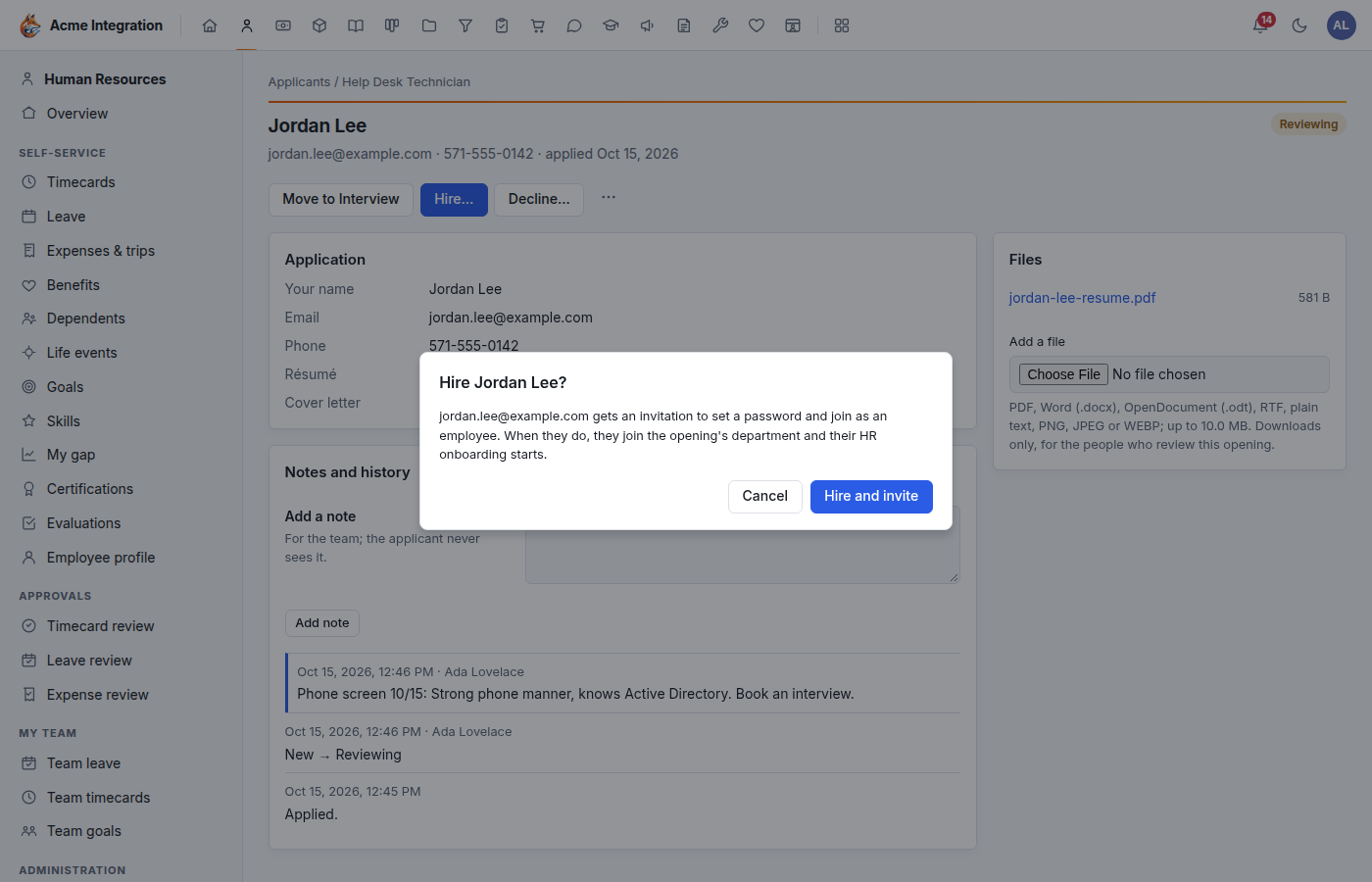
The applicant gets an email with a link to set their password. The link works once, for seven days. The applicant page shows the invitation's state. If it didn't go, or it expired, use … → Re-send the invitation. The old link stops working.
When they set their password:
- A staff hire becomes an employee and joins the opening's department. Their HR record is filled in: the first line of their position history (the opening's title and department), job title, hire date and the opening's job profile. Their Onboarding checklist starts. If a benefits plan year is active, they also get a new-hire enrollment window.
- An approved volunteer becomes a volunteer, joins the opening's department (if it has one) and their volunteer onboarding starts.
Keeping applicant records
Foxx HQ never deletes applicants on its own. A company administrator can delete one, with their files, from the … menu on their page. The deletion is recorded in the audit log.
Before you delete, check what your organization must keep. The in-app help cites two federal rules, from the Electronic Code of Federal Regulations as of 1 October 2026:
- 29 CFR 1602.14 (Title VII, the ADA and GINA): keep application forms and other hiring records for one year from when the record was made or the personnel action happened, whichever is later. If a discrimination charge is filed or a lawsuit is brought, keep all relevant records, including other candidates' applications for the same position, until it's finally resolved.
- 29 CFR 1627.3(b)(1)(i) (the Age Discrimination in Employment Act): keep job applications, résumés and other employment inquiries, and records of any refusal to hire, for one year from the personnel action. If an enforcement action is started, keep them until it's finally resolved (1627.3(b)(3)).
These rules apply to employers those laws cover. State law or your own policy may ask for longer. Ask your counsel if you're unsure.
From Positions & hiring
The old Positions & hiring screens moved into Hiring on 15 October 2026. Old links open Hiring.
- Each position became a staff opening. An open position became a draft and stays off the careers page until you open it. A filled or closed one became closed.
- Details Hiring doesn't use (requisition number, clearance, salary grade and range, seats, remote type) show on the opening's page under From Positions & hiring. They're never published.
- A moved opening has no form yet. Open for applications gives it the default job application.
- Each candidate became an applicant with no form answers. Their notes became a note in their history.
Troubleshooting: I don't see it
- There's no Hiring in the HR sidebar. You're not an HR administrator, and HR isn't enabled on a department you lead.
- The careers page says it isn't available, or an opening is missing. Check that the opening is Open, not past its close date, and that its area (Human Resources or Volunteers) is turned on under Administration → Modules. An opening past its date shows Past its date in the list.
- "This form can't take applications." Publish the form in Forms, and make sure it has short-text questions created as Name and Email. Or choose another form.
- There's no Edit application form button. You need Forms' management screens and edit rights on that form. Ask a Forms administrator to share it with you.
- A lead can't see an applicant. The opening belongs to another department, or to the whole organization. Leads see only openings of their own department and the ones below it.
- The hire happened but no email went. Email isn't set up. Set it up under Administration → Email, then Re-send the invitation.
- There's no Delete applicant. Only company administrators can delete applicants.
- Add applicant says there's no draft or open opening. Create or open one first. Closed openings don't take new applicants.