 foxxcyber/docs
Foxx support access
What Foxx support can see and do in your organization, how to allow it for a set number of hours and areas, how to revoke it, the banners you will see, emergency access, and read-only view-as.
Foxx (the people who run the platform) never work inside your organization as one of your people. They can help in three ways, and you can always see which one is happening:
| Kind | Needs your consent | Can change things | You can end it |
|---|---|---|---|
| Looking, read-only (view-as) | No | No | It ends when they leave |
| Support access | Yes, for the hours and areas you choose | Yes, only in the areas you allowed | Yes, Revoke now |
| Emergency access | No | Yes, every area | No; it ends by itself within the hour |
Everything Foxx does is recorded in your audit log and in Foxx's own log.
Before you start
- You must be a company administrator to turn support access on or off. Every company administrator sees the banners.
Allow Foxx support to work in your organization
When you ask Foxx for help that needs changes (fixing a webhook, rotating a key, correcting a setting), turn support access on:
- Open Administration → Support access.
- In Turn on support access, set For how many hours: 1 to 72. Access ends by itself then.
- Under In which areas, tick only the areas they need. Leave every
box unticked to allow every area.
- People and access: users, departments, teams, sign-in security and sessions.
- Customers and commerce: customer portal accounts, the catalog, subscriptions, invoices, payments and giving.
- Integrations: API keys, webhooks and Replay, payment connections, website forms and email.
- Branding and site: profile, logo and colours, sign-in, the donation page, modules and announcements.
- Data: exports and retention settings.
- Work areas: records in the CRM, projects, files, HR and every other area.
- Click Turn on support access.
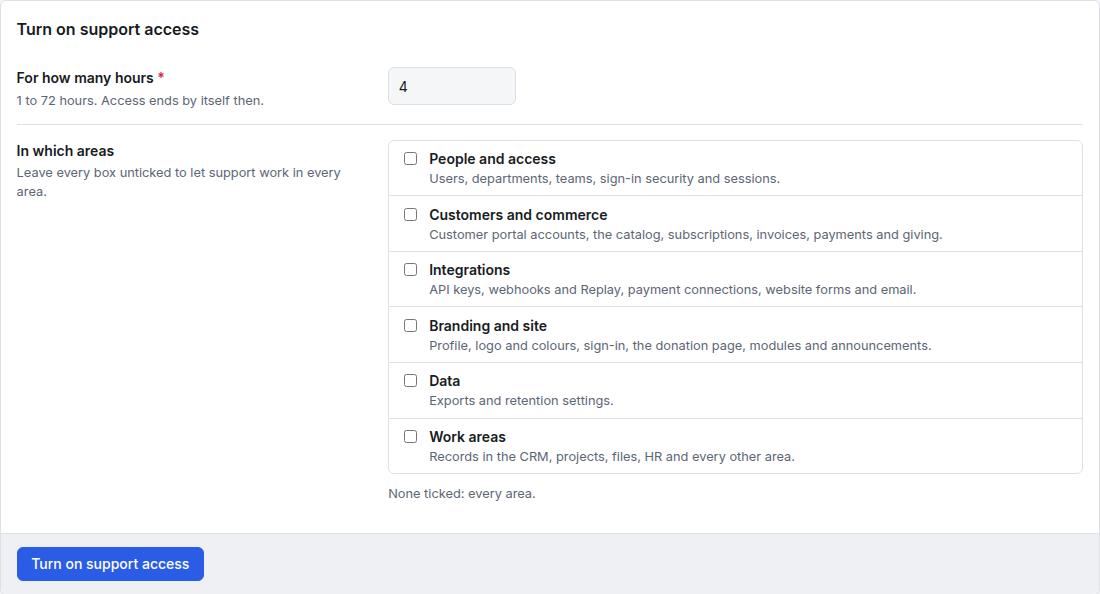
The card at the top changes to Support access is on, naming the areas and the end time. To change the hours or areas, fill in the form again (now titled Change support access); it replaces the access that is on.
While it is on:
- Foxx works as a separate support account named Foxx support (their name). It is never one of your people: it isn't a seat, it isn't in any list or picker, and it can't sign in on its own.
- It has a company administrator's powers only in the areas you allowed. Elsewhere it can look, but every change is refused (and the refusal is logged).
- It can't touch personal accounts, API tokens, or support access itself. To reset someone's authenticator, Foxx support must first record who confirmed that person's identity outside Foxx HQ, and how.
- Every company administrator sees a banner at the top of every page: Foxx support can make changes in (areas) until (time). with Revoke now and Details.
Revoke it
Click Revoke now in the banner, or on Administration → Support access, and confirm with Revoke access. Anyone from Foxx support working in your organization is signed out on their very next click. The access also ends by itself when the hours run out. You can turn it on again at any time.
Emergency access
Only for a suspected compromise of your organization or a legal request, Foxx's platform owner (and no one else at Foxx) can open emergency access without your consent. It:
- needs a written reason, and lasts at most one hour;
- notifies every company administrator at once, in Foxx HQ and by email;
- shows every company administrator a red banner: Emergency access by Foxx (name) until (time): (reason), with Details;
- works through the same support account, in every area, and is flagged as an emergency in both logs.
You can't revoke emergency access from your side. It ends by itself within the hour. Administration → Support access then shows Emergency access is open with the reason.
Read-only looks (view-as)
A Foxx operator can open your workspace as one of your people, to see exactly what they see when helping with a question. Nothing can be changed this way. It needs no consent and shows no banner to you, but every look is recorded in your audit log (who, as whom, when it started and ended).
See what Foxx did
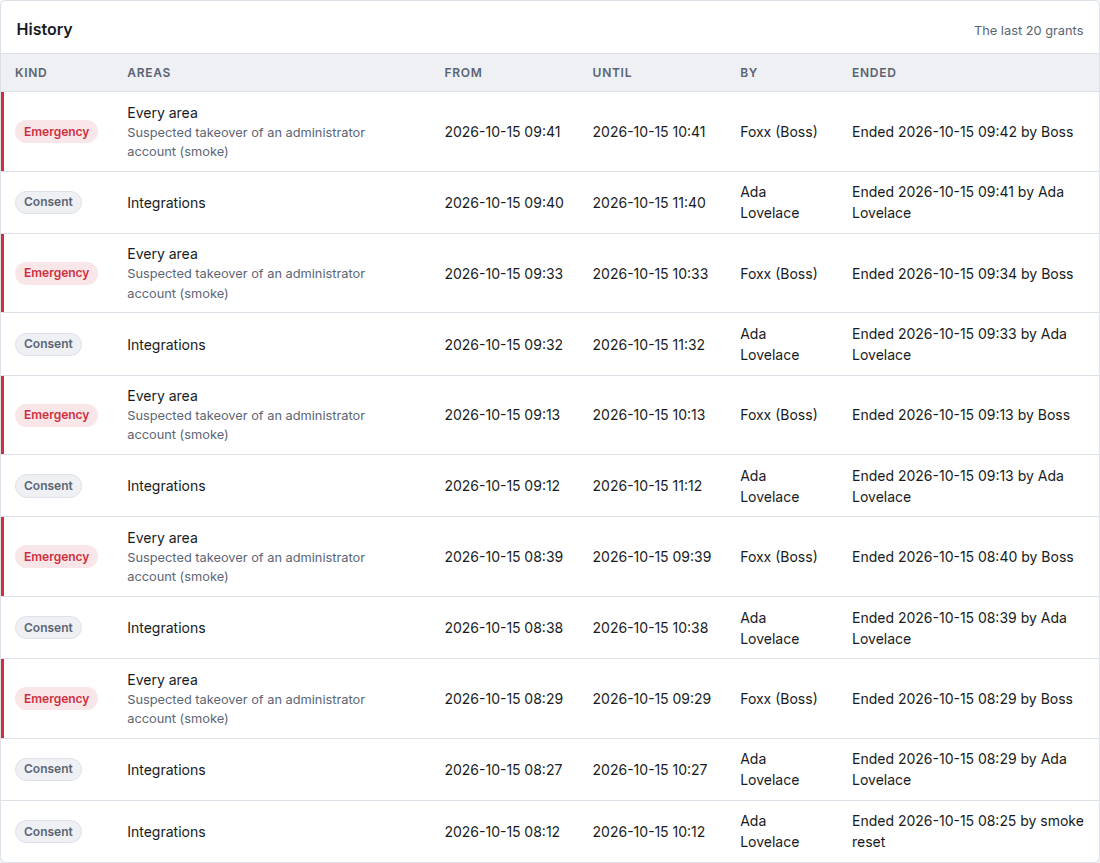
- Administration → Support access → History: the last 20 grants, consent or emergency, with the areas, start and end, who turned it on, and how it ended.
- Recent support activity on the same page, and In the audit log → for the full list.
- In the audit log, tick Foxx support and platform only.
The Overview page's Support access card always says whether access is Off, On or Emergency.
Troubleshooting
Foxx support says a change was refused. The change is in an area you didn't tick. Change support access to add that area, or tick none to allow every area.
There is no Revoke now button on the banner. It is emergency access, which ends by itself within the hour.
I didn't get an emergency email. Check that your email transport is set up under Email. The in-app notification and the red banner appear either way.
Can Foxx see our data when support access is off? Foxx operators can look read-only (view-as), and every look is in your audit log. They can't change anything without your consent, except through emergency access.