 foxxcyber/docs
Forms and attestations
Build a form or a read-and-sign acknowledgment, publish it, assign it to people once or on a cycle, track who has completed it, and read the answers.
Forms & Attestations collects answers from your own people: event check-ins, surveys, training attestations, policy acknowledgments. Everyone fills in what is assigned to them; form administrators build the forms and read what comes back.
There are two kinds of template:
- Form: questions to answer.
- Acknowledgment: a document people read and sign, such as a code of conduct, with optional questions.
Before you start
- Forms & Attestations must be on under Administration → Modules. See Modules.
- Everyone in the organization can fill in forms assigned to them.
- To build templates, assign them and read answers you must be a forms administrator: a department lead of a department with the Forms area, a holder of the Forms admin grant, or a company administrator. See Access and permissions.
- People are told about assignments in their Inbox. See Inbox and notifications.
Build a template
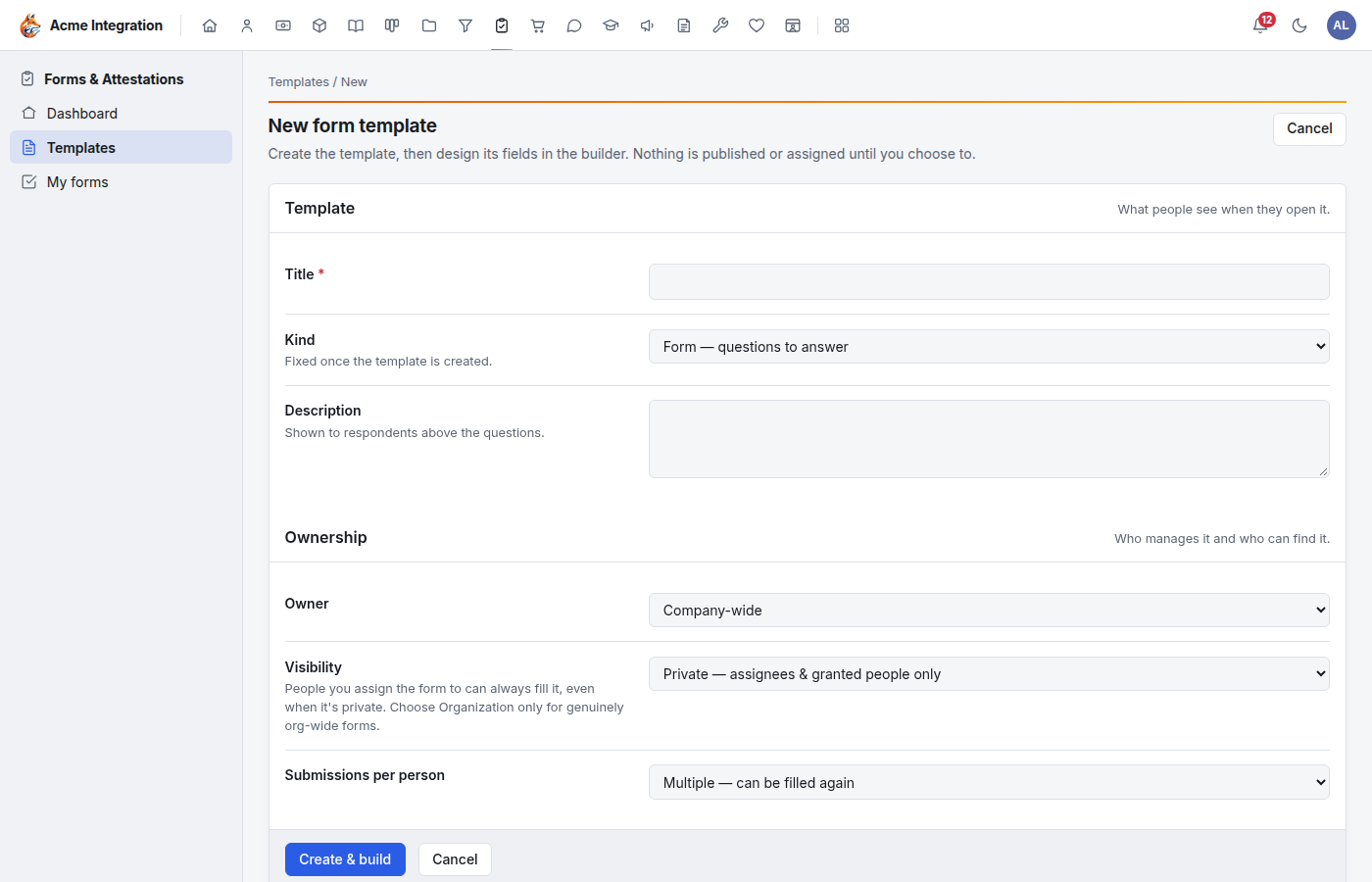
- Open Forms & Attestations → Templates and click New template.
- Under Template:
- Title and Description.
- Kind: Form — questions to answer or Acknowledgment — read & sign a statement.
- Under Ownership:
- Owner: Company-wide, or one department. The owner's forms administrators manage the template.
- Visibility: Private (only the people it is assigned to, or shared with) or Organization (anyone can find and fill it).
- Submissions per person: Multiple (can be filled again) or One (a single submission, then view-only).
- Save. The Builder opens. Nothing is published or assigned yet.
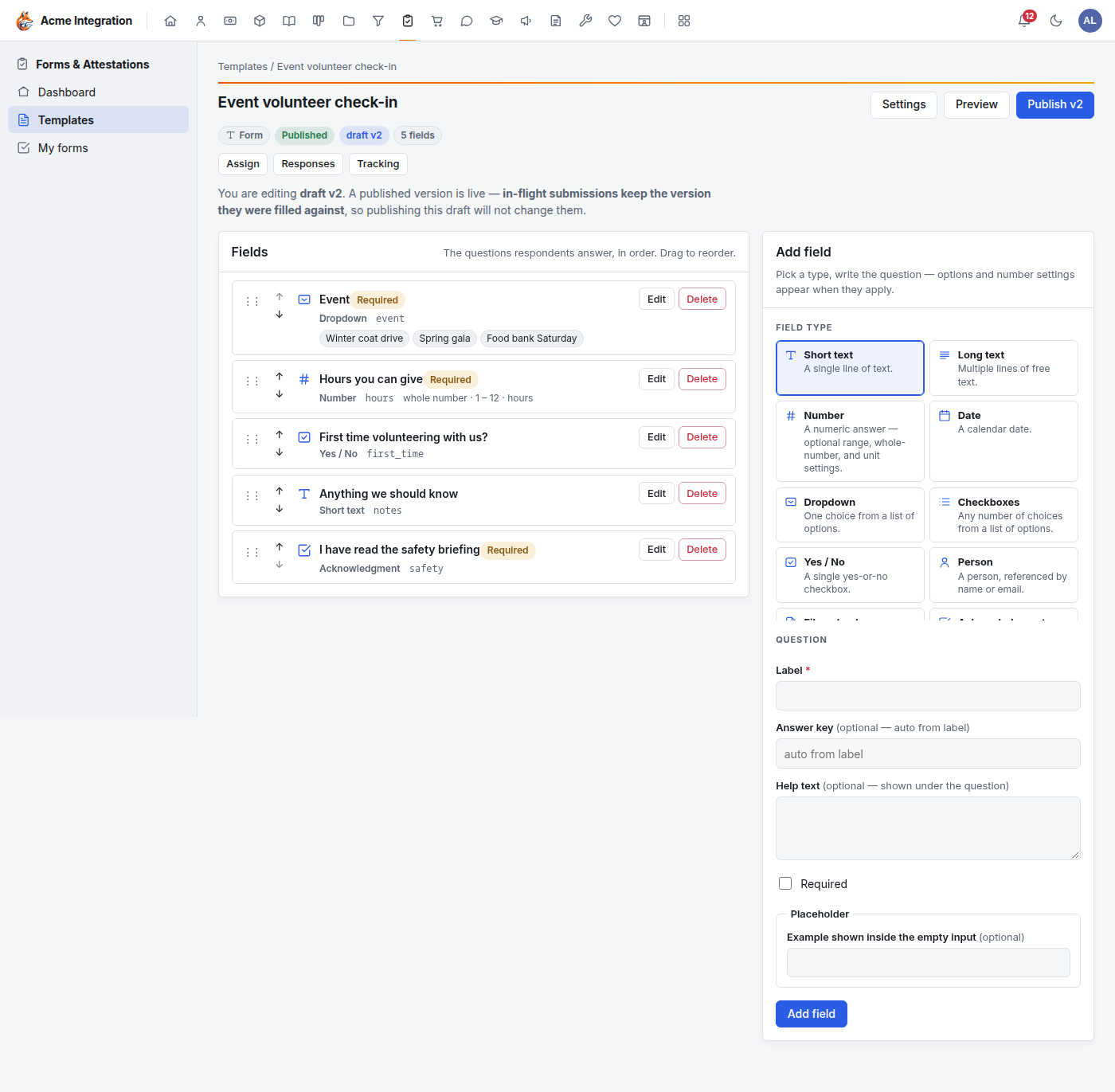
Add fields
The builder shows your fields on the left and Add field on the right.
- Pick a Field type. Each card says what it collects: Short text, Long text, Number, Date, Dropdown, Checkboxes, Yes / No, Person, File upload, Acknowledgment, Signature, and the display-only Section heading and Instructions.
- Write the Label (the question). The Answer key is made from it; it names the column in exports.
- Add Help text if the question needs explaining, and tick Required if it must be answered.
- Fill in what the type needs:
- Dropdown and Checkboxes: the options, one per line.
- Number: a minimum, a maximum, whole numbers only, and a unit such as "hours" or "%". The fill page enforces the range and shows the unit.
- Text fields: a Placeholder, the example text shown inside the empty box.
- Click Add field.
Reorder fields with the arrows or by dragging the handle; Edit and Delete are on each field.
For an Acknowledgment, upload the document people will sign under Document to acknowledge. Publishing is blocked until it is attached.
Preview shows the form as people will see it.
Publish
Click Publish v1 (the number grows with each version). Publishing freezes that version. If you edit a published template, you edit a new draft; people who already started keep the version they started on, and nothing changes for them until you publish again.
Assign a form
- From the builder or Templates, click Assign.
- Under Assign to, choose A person, A department, A team or Everyone (all active users), then pick who.
- Optionally set a Due date.
- Choose the Recurrence: One-off (no recurrence), Annual, Quarterly or Monthly. A recurring assignment issues the first round now and a new round each period, for yearly or quarterly re-attestations.
- Click Assign & notify. Each person is notified with a link to their own copy.
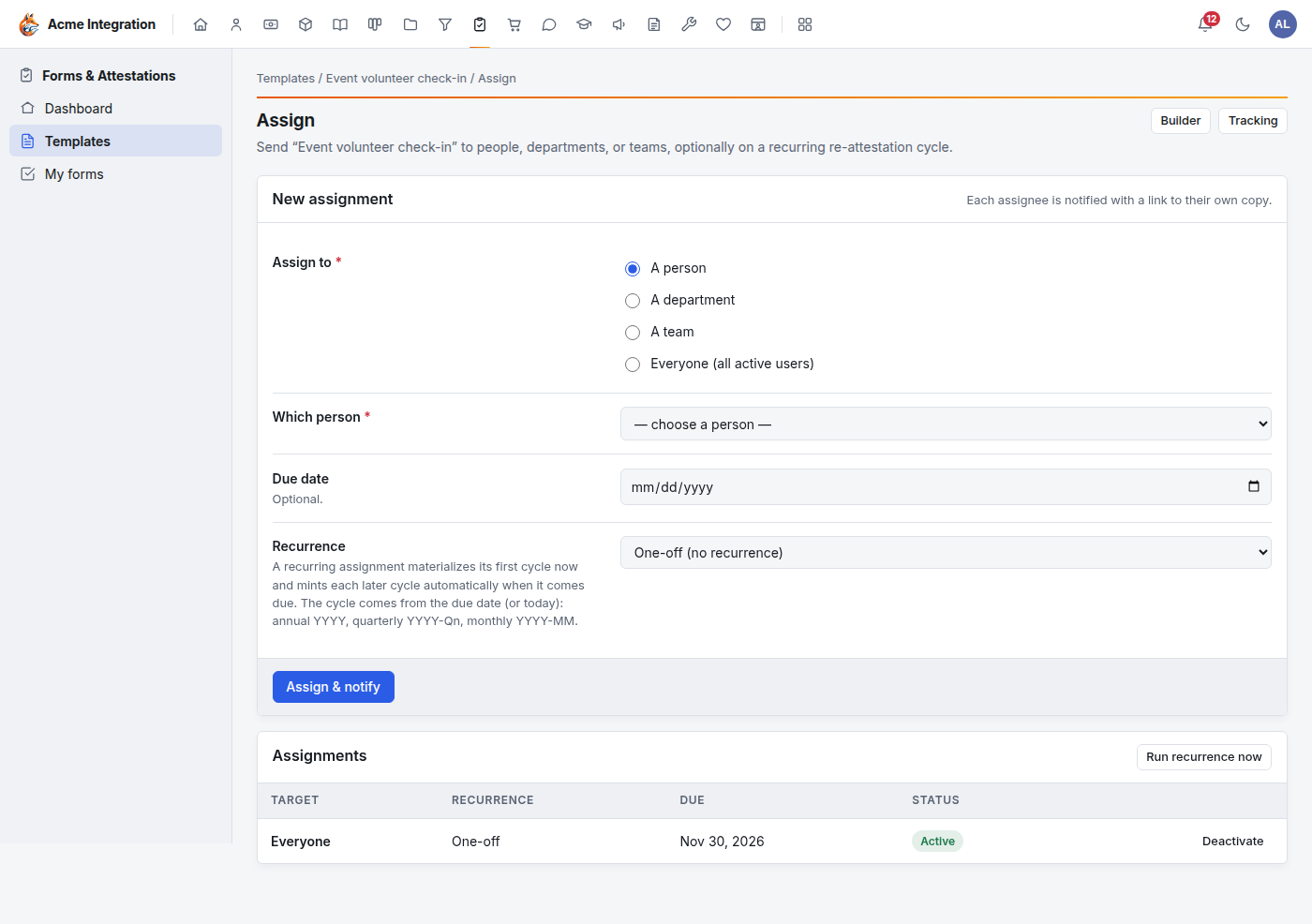
The Assignments list below shows each assignment; Deactivate stops one. Run recurrence now issues any rounds that are due without waiting.
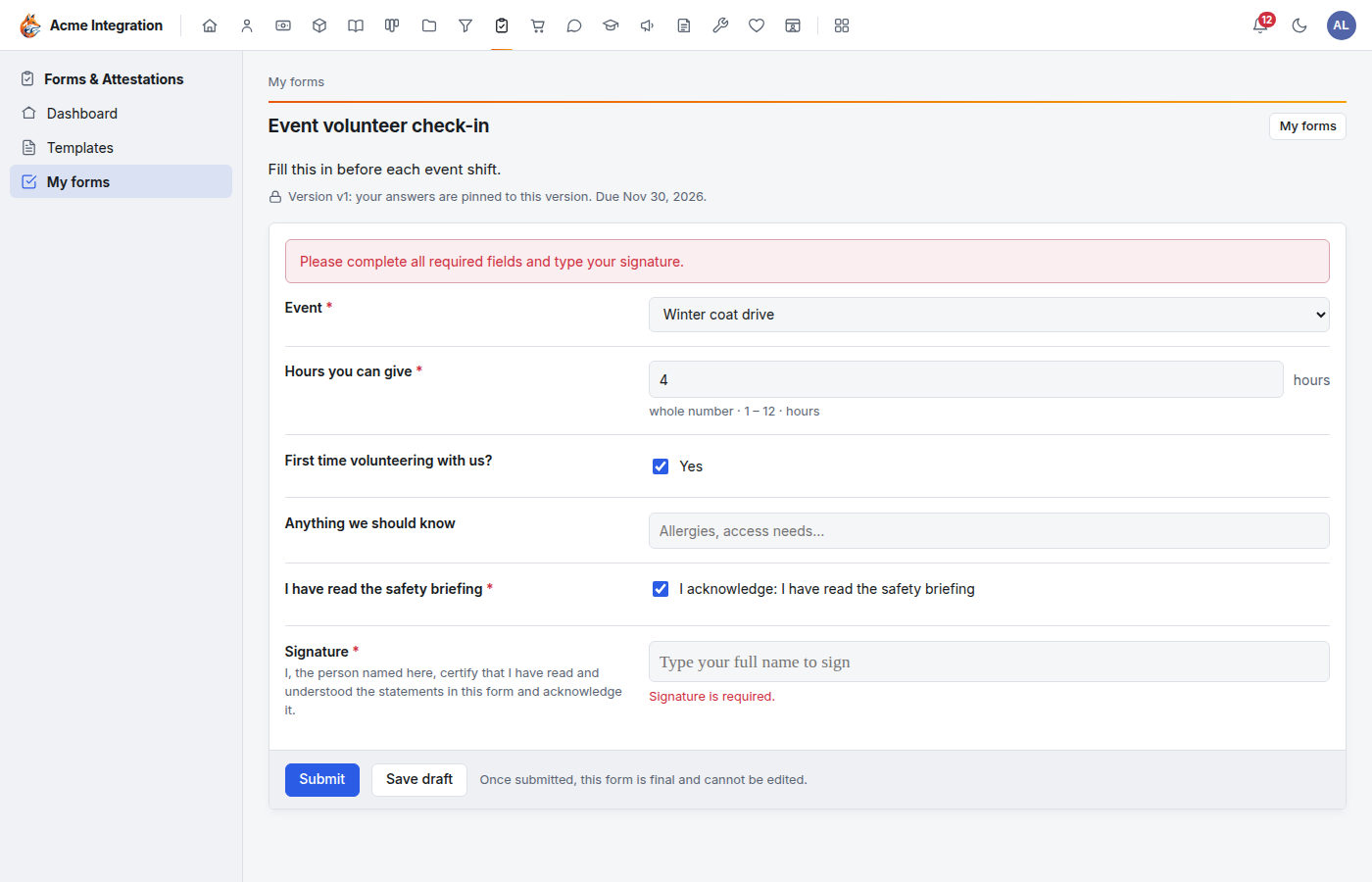
Fill in a form (everyone)
- Open the form from your Inbox, or from Forms & Attestations → My forms, where it is under Needs action.
- Answer the questions. Save draft keeps your answers to finish later.
- If the form has an acknowledgment, type your full name in Signature.
- Click Submit. A form that allows only one submission is then final and view-only.
If an answer breaks a rule (a required question left blank, a number outside its range), the form names the exact question.
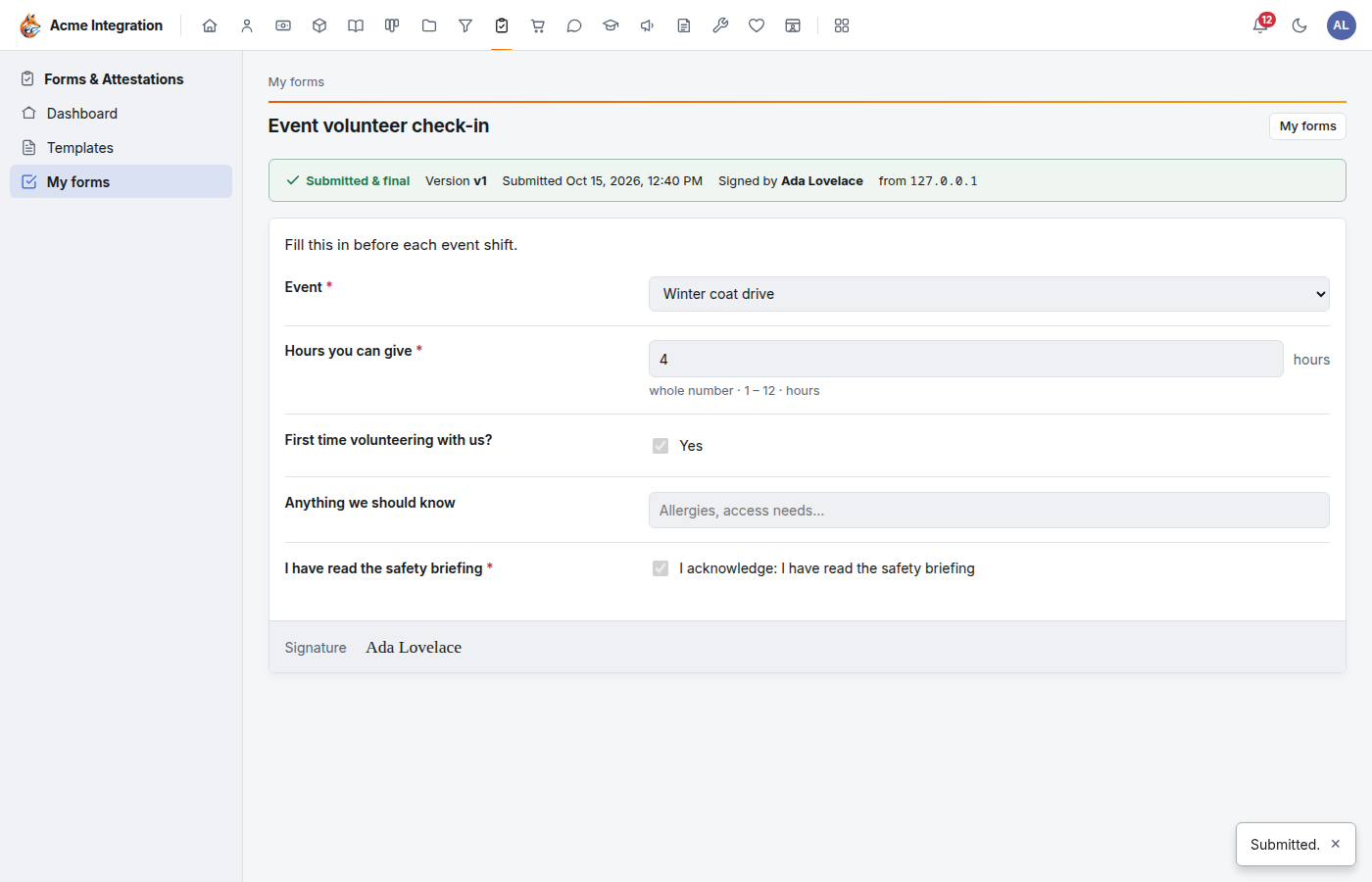
After submitting, the page shows Submitted & final, the version, the time, who signed it and from which address.
See who has completed it
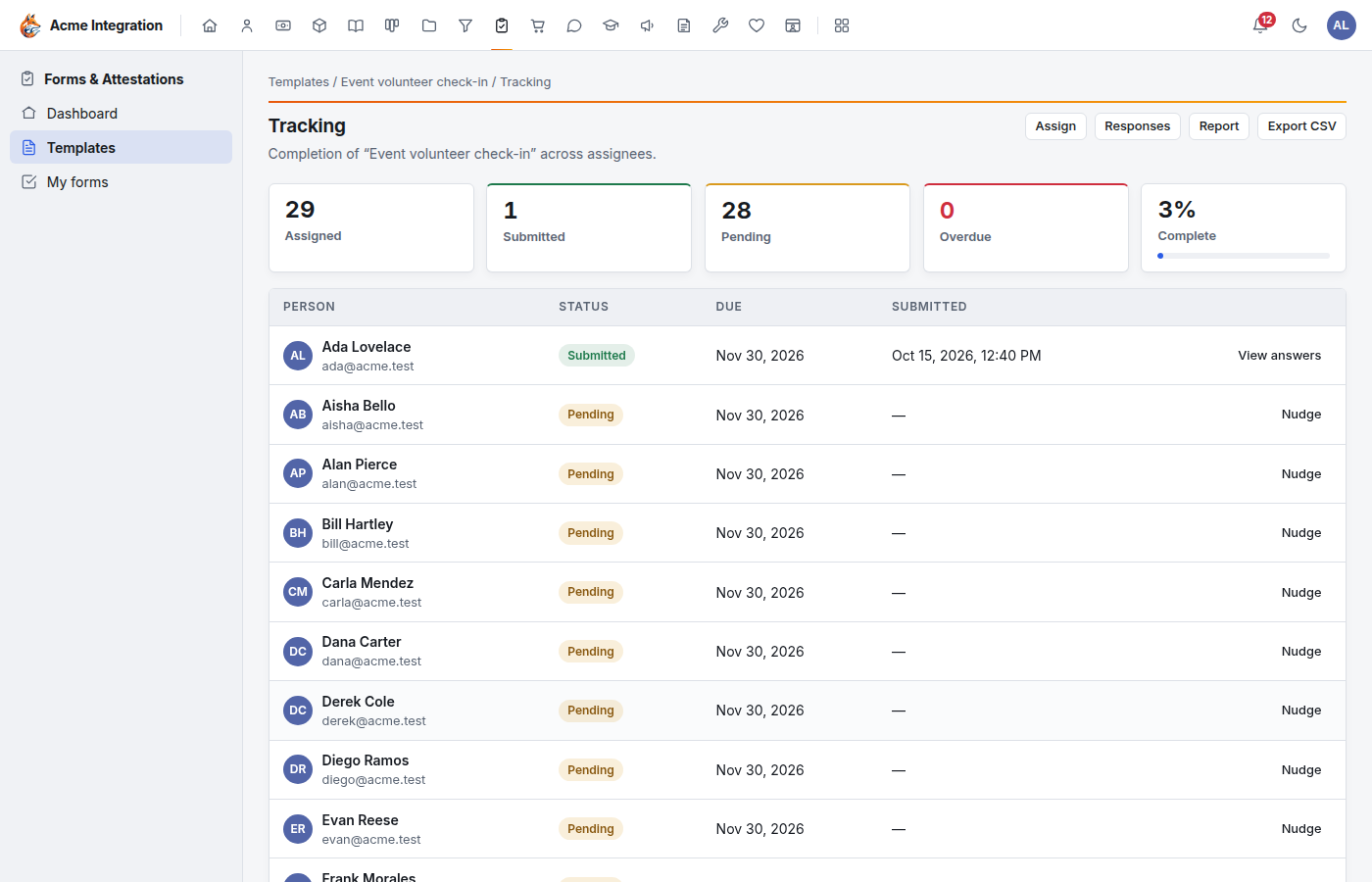
Open the template and click Tracking. Tiles show Assigned, Submitted, Pending, Overdue and the percentage Complete; below them, every assignee with their status, due date and when they submitted.
- Nudge reminds someone who hasn't finished.
- View answers on a submitted row opens their answers, read-only.
- Export CSV downloads the list.
Read the answers
Three places show what came back:
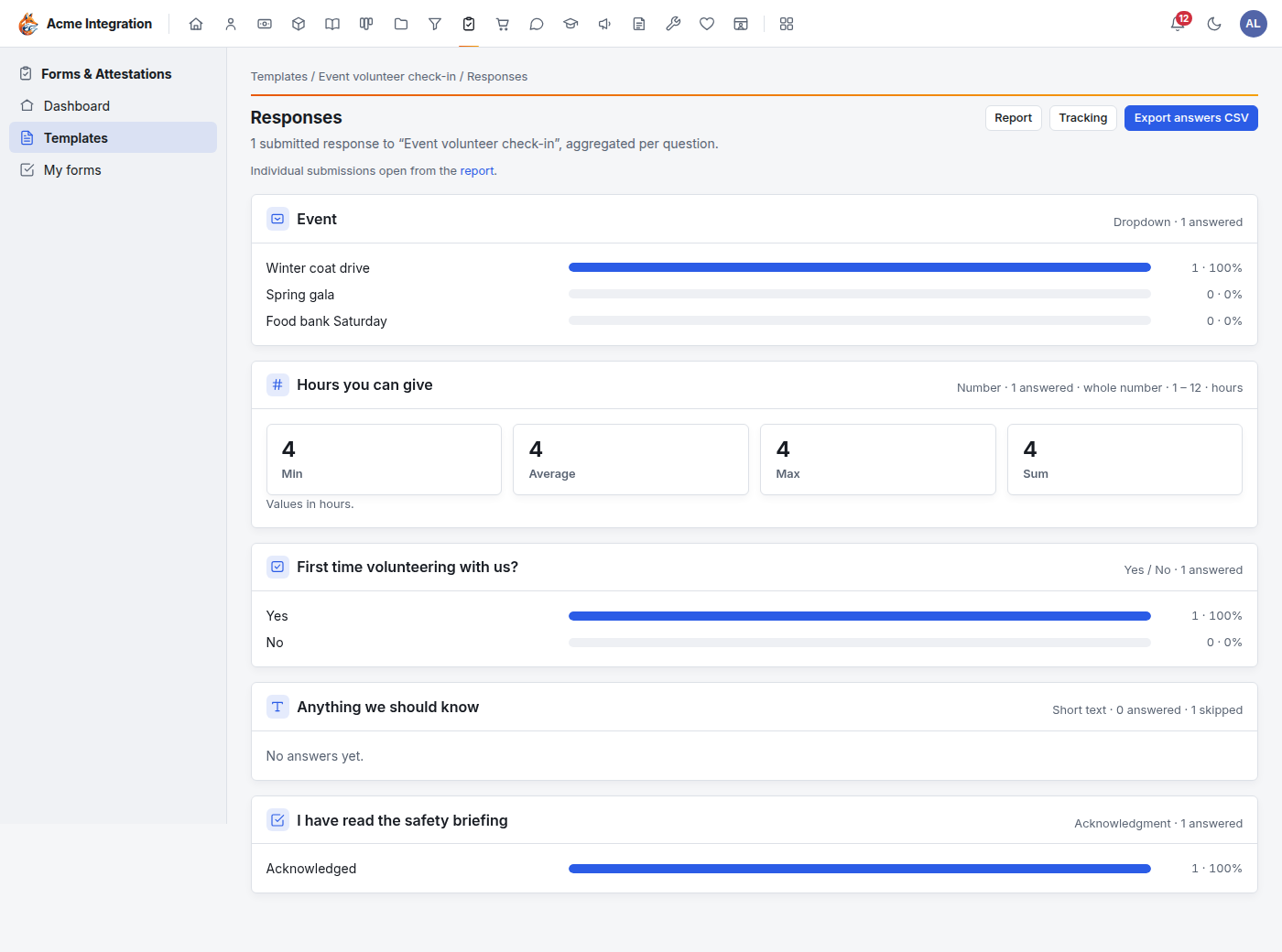
- Responses: each question summed up. Choice questions get counts and bars; numbers get the minimum, average, maximum and sum; dates their range; text the latest answers.
- Report (the attestation report): every submission with its version, signature, time and address. This is the record to show if you ever need to prove who signed what.
- Export answers CSV on Responses: one row per submission, one column per question. Answers to questions you later removed are kept in extra columns at the end.
Copy, archive and share templates
- Duplicate (on Templates or in a template's Settings) makes a fresh draft with the same fields.
- Archive hides a template; Restore brings it back.
- Shared with in Settings gives particular people access to a template.
- Export downloads a template as a file, and Import on Templates loads one, from another Foxx HQ workspace or written by hand. The import page explains the format and offers Download starter template. An imported template arrives as a draft; nothing is published or assigned automatically.
Troubleshooting
"Forms & Attestations isn't in my menu." The module is off under Administration → Modules.
"I don't see Templates." Only forms administrators build templates. Ask for the Forms admin grant, or to be made lead of a department with the Forms area.
"Assign says the form is not published yet." Publish it from the builder first.
"Publish is refused on an acknowledgment." Attach the document under Document to acknowledge.
"Someone can't find the form I assigned." It's in their Inbox and under My forms → Needs action. If the template is Private, only people it is assigned to (or shared with) can see it.
"Submit is refused." The message names the question. A required question is blank, a number is outside its range, or the signature is missing.
"I changed a question, but people still see the old one." Your change is in a draft. Click Publish to make it the live version. People who already started keep the version they began with.