 foxxcyber/docs
Training
Take your organization's courses, and build, publish, assign and track them: lessons, videos, quizzes and completion certificates.
Training holds your organization's own courses. A course is made of sections and lessons: written pages, videos and self-grading quizzes. Progress is tracked, and when someone finishes every lesson they can get a numbered certificate.
Before you start
- Training is turned on under Administration → Modules. See Modules.
- To build courses, you are one of:
- a company administrator;
- a holder of the Training admin grant (Administration → Users → the person → Grant next to Training admin);
- a lead of a department with Training enabled (Administration → Departments → the department → Feature areas). A lead builds courses for their own department.
- For assignments to reach people's Inbox, they need an account in the workspace.
Who sees which courses
- Company-wide courses are open to every employee.
- A department's courses are visible to that department's members.
- Drafts are visible only to the people who can edit them.
Take a course
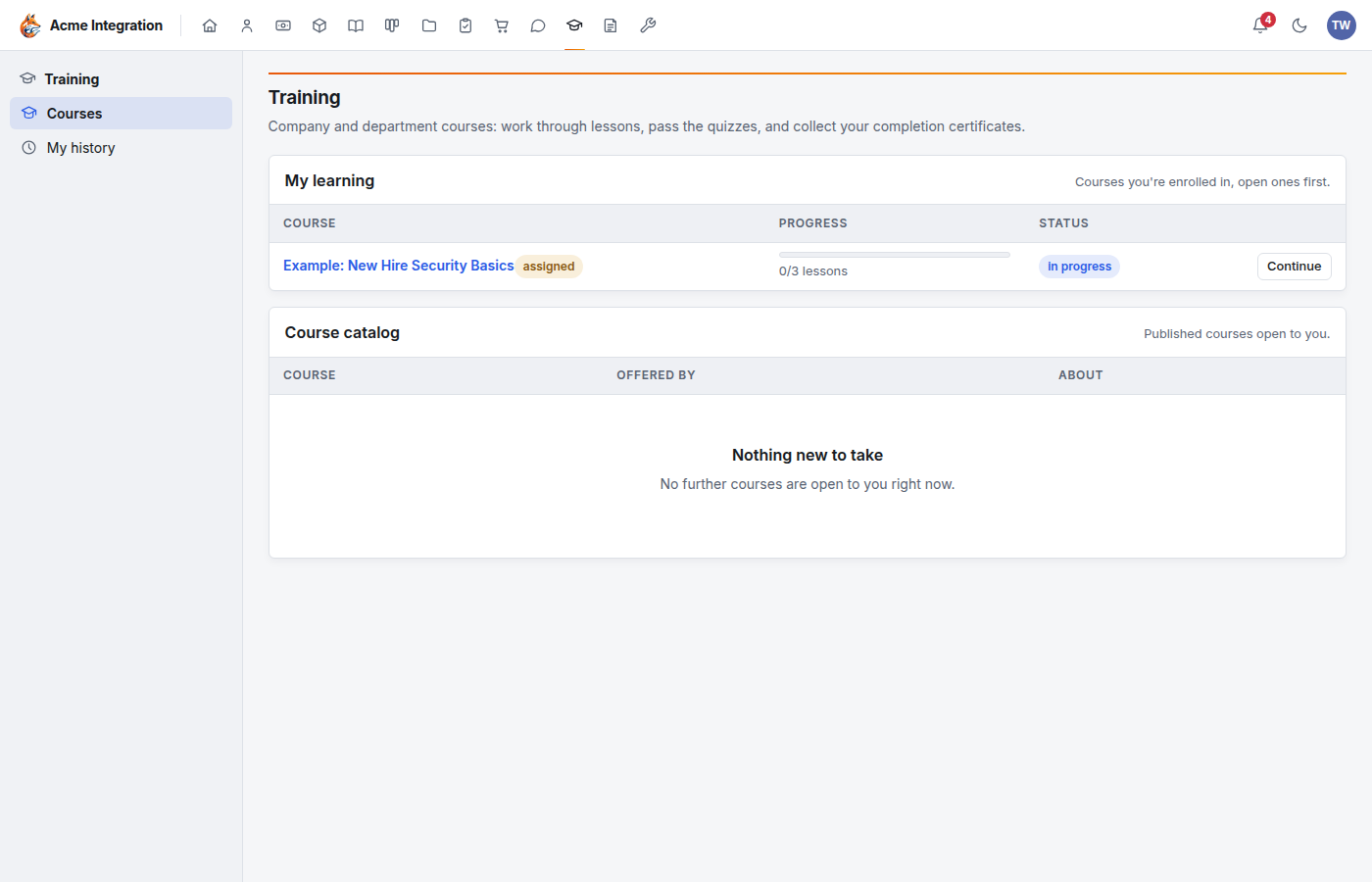
- Open Training from the area bar. My learning lists the courses you're enrolled in, with your progress. Course catalog lists the published courses you can join.
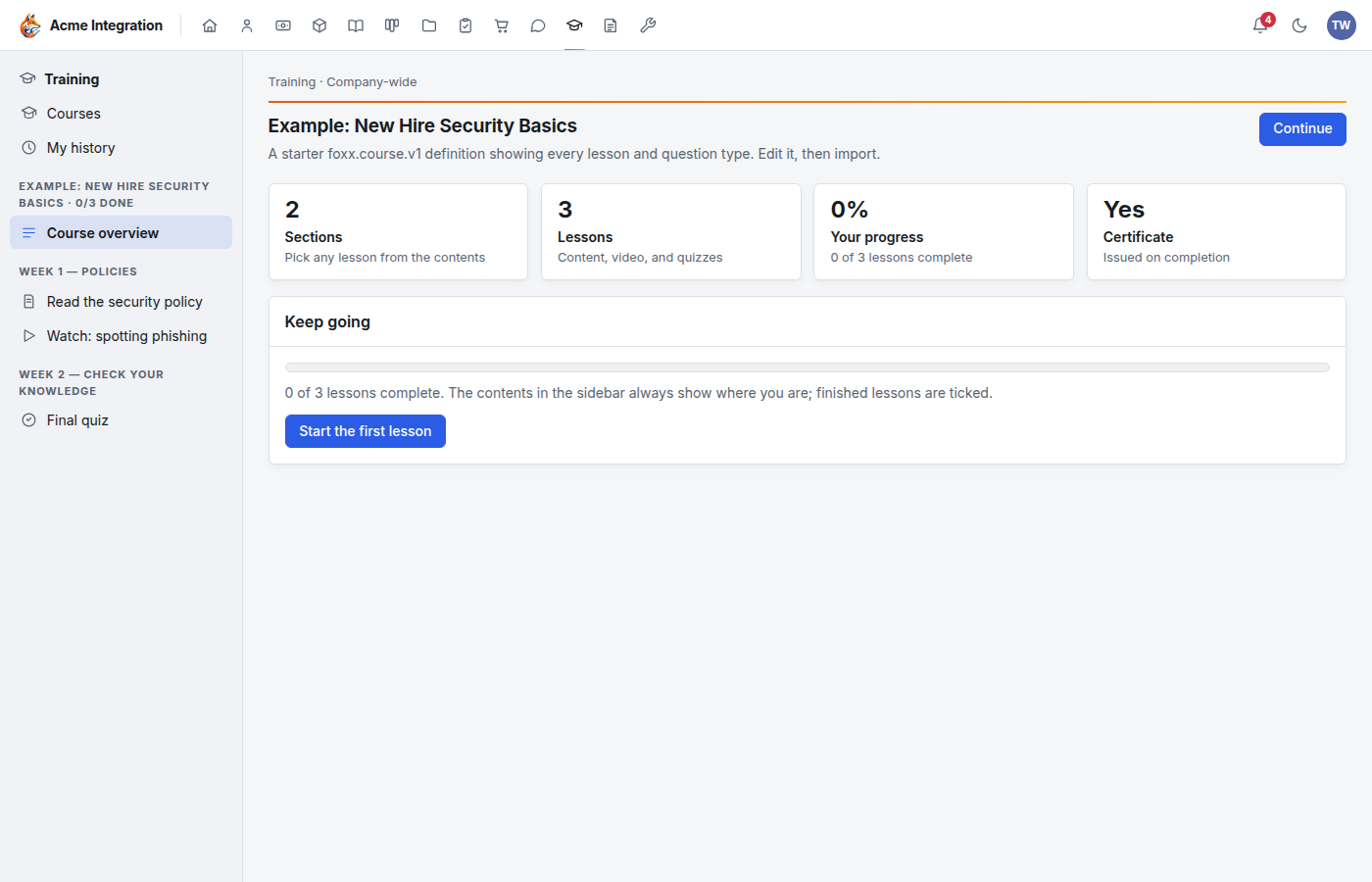
- Click a course. On its overview, click Enroll, or Continue if you've already started. Finishing any lesson also enrolls you.
- Work through the lessons. The course's table of contents is in the sidebar. You can go in order with Next → or jump around.
Each kind of lesson works a little differently:
- Content pages are written pages. Video lessons play an embedded video. Click Mark complete (or Mark complete & continue) when you're done.
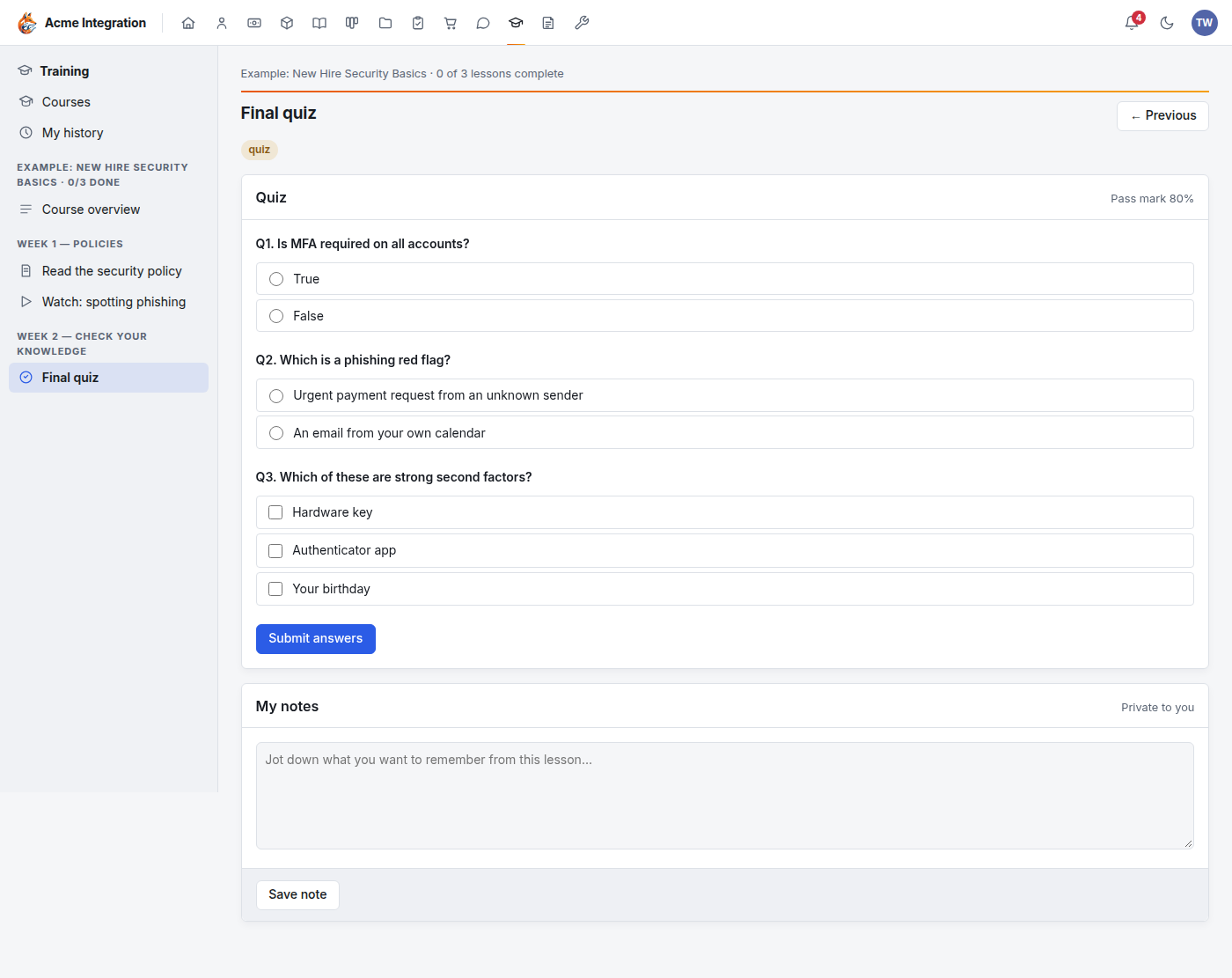
- Quizzes grade themselves. Answer the questions and click Submit answers. You pass at the pass mark shown on the quiz (80% unless the author changed it). You can retry as often as you like. Your best score counts, and passing marks the lesson complete.
- My notes, under every lesson, is your private scratchpad. Nobody else can read it. Click Save note.
When every lesson is complete, the course is done. It's stamped in your history, and if the course gives certificates, yours is created.
Your history and certificates
My history lists every course you've taken, with the dates you enrolled and finished, and all your certificates. Certificates are numbered. Click View / print for a printable copy. Completion records stay even if the course changes later.
Build a course
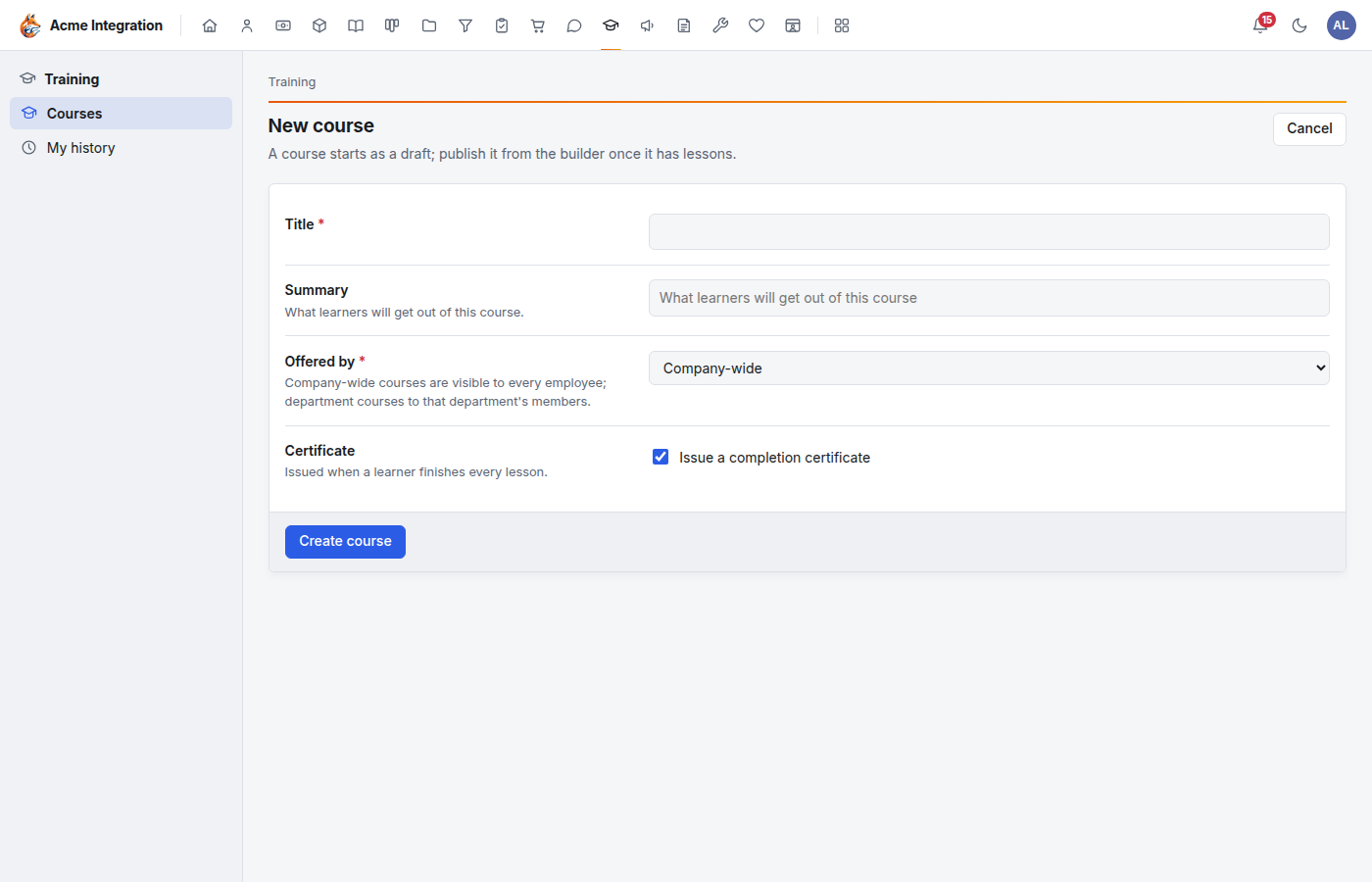
- Go to Training and click New course.
- Fill in:
- Title and Summary (what learners will get from it).
- Offered by: Company-wide, or a department you lead.
- Certificate: tick Issue a completion certificate to give one when a learner finishes every lesson.
- Click Create course. The course opens in the Builder as a draft.
In the Builder:
- Under Add a section, enter a title (such as "Week 1: Basics") and click Add section.
- In each section, type a New lesson title, choose Content page, Video or Quiz, and click Add lesson.
- Click a lesson's name to edit it:
- Content page: write the text in Markdown (headings, lists, links, images).
- Video: paste a YouTube or Vimeo link, a direct .mp4 link, or a Document Library file link in Video URL.
- Quiz: set the Pass mark (%) (empty means 80), then add questions under Add a question: a Prompt, the Type (Single choice, Multiple answers or True / False), the options and the right answer.
- Click Save lesson, then Back to builder.
- Use ↑ and ↓ to reorder sections and lessons.
- Click Publish when it's ready. An empty course can't be published.
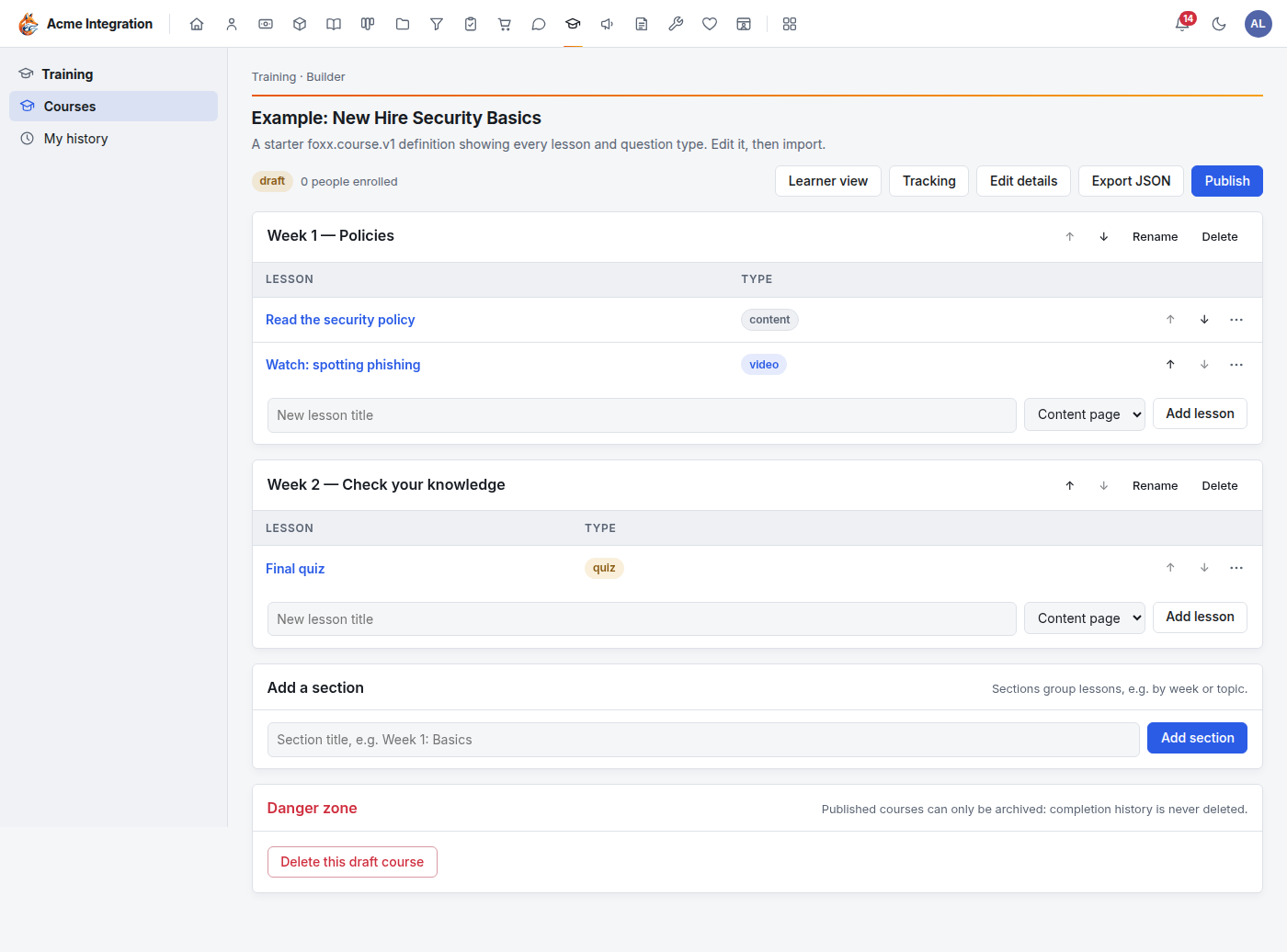
You find courses you can edit under Courses I manage on the Training page. Learner view shows the course as a learner sees it.
A published course can be archived: it leaves the catalog, and everyone's history stays. Only a draft that was never published can be deleted, from Danger zone → Delete this draft course.
Assign a course and track completion
Open the course and click Tracking.
- Under Assign this course, choose Everyone (all active users) (for a department course, everyone in that department) or One department… and pick the department.
- Click Assign. The course must be published first.
Assigned people are enrolled, and the course sits in their Inbox until they finish it. Assigning again never resets anyone's progress.
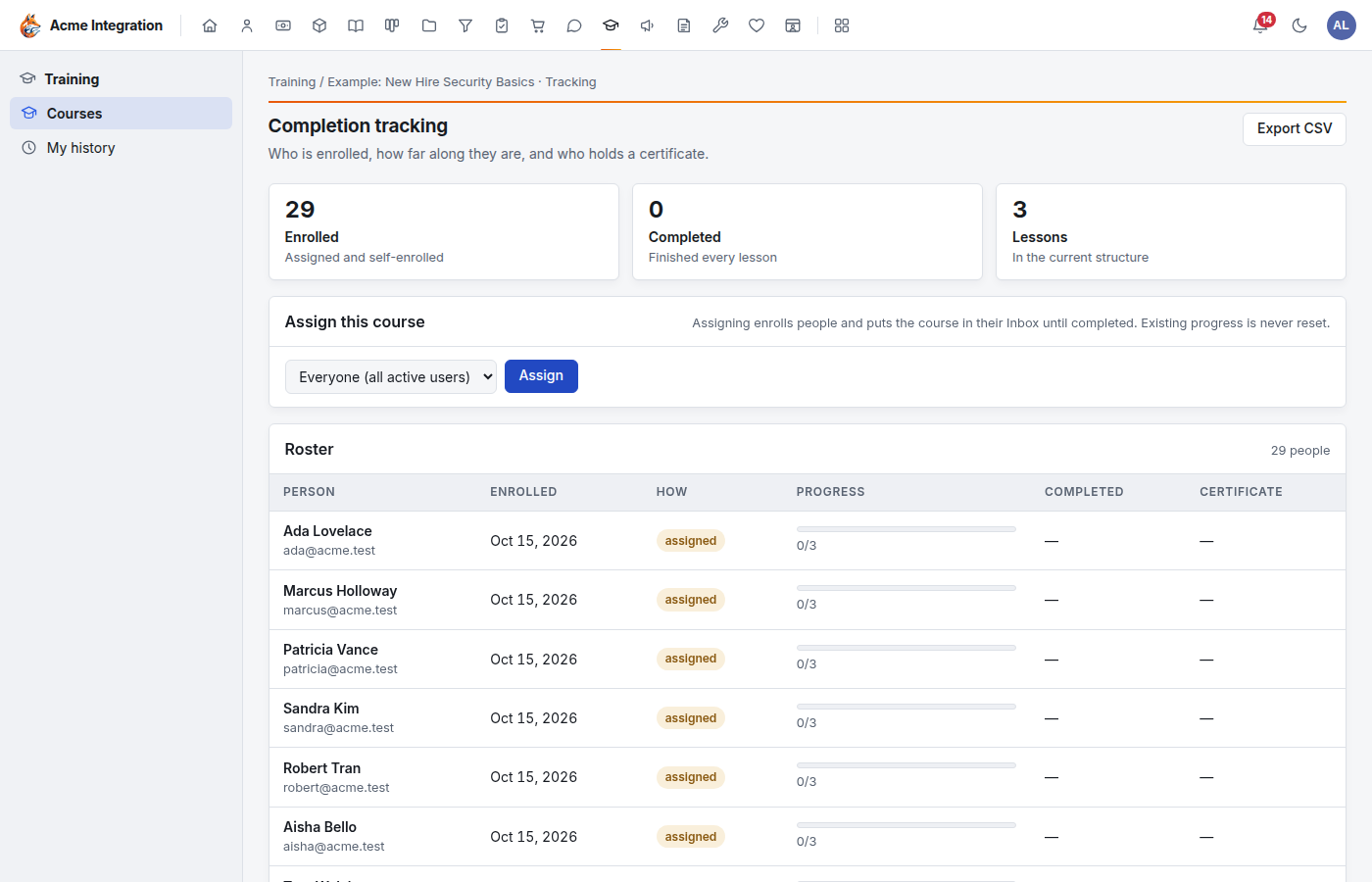
The Roster shows who is enrolled, how (assigned or self-enrolled), their progress, completion date and certificate number. Export CSV downloads it for your compliance records.
Write a whole course in one file
If you'd rather draft a course in one go:
- Go to Training and click Import JSON.
- Click Download starter course for an example that shows every lesson and question type. It imports as it is.
- Edit the file, or paste your own under …or paste the JSON. The
file is a
foxx.course.v1document of up to 512 KB. - Choose Offered by, pick the JSON file, and click Validate & import as draft.
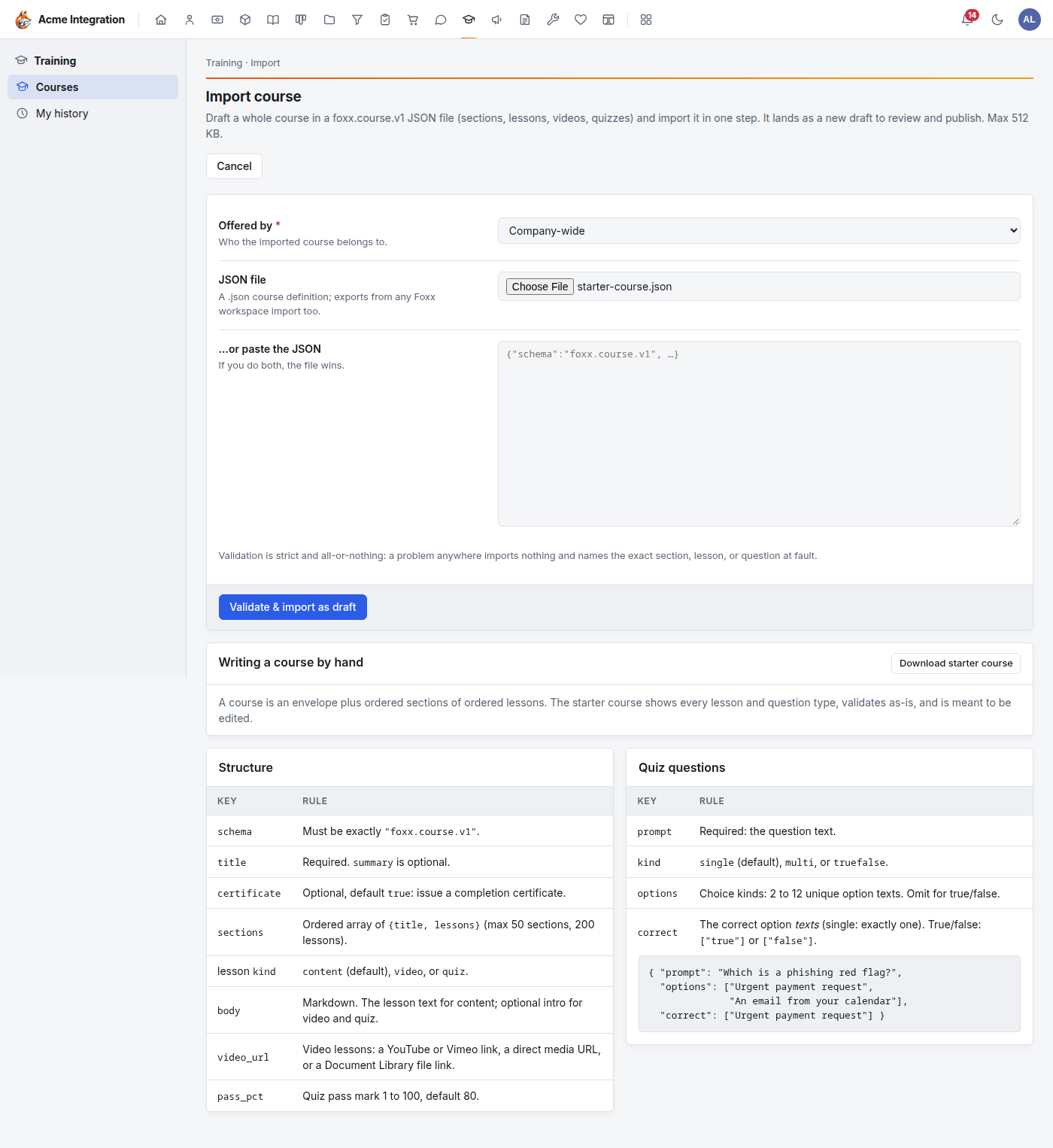
Checking is strict: if anything is wrong, nothing is imported, and the message names the section, lesson or question at fault. An import always lands as a new draft to review. Nothing is published automatically.
Every course's builder also has Export JSON, to back up a course, move it to another workspace, or start the next course from it.
Troubleshooting: I don't see it
- There's no Training in the area bar. It's turned off under Administration → Modules.
- There's no New course or Import JSON button. You're not a company administrator, a Training admin, or a lead of a department with Training enabled.
- A course isn't in someone's catalog. It's still a draft, it's archived, or it belongs to a department they're not in.
- Assign is greyed out. Publish the course first.
- Publish does nothing. The course has no lessons yet.
- There's no Delete for a course. It has been published. Archive it instead.
- No certificate after finishing. The course doesn't issue certificates. Check Edit details → Certificate.