 foxxcyber/docs
AI advisor
Let Claude, or any AI agent you run, work in Foxx HQ for you: switch the AI advisor on, choose what it may read or change area by area, connect Claude, and manage its keys.
The AI advisor lets Claude, or another AI agent you run yourself, work in Foxx HQ through the same API the app's own screens use. It can do whatever a company administrator can, within the scope you give it: add positions to Finance, draft a training course, file tickets, tidy the CRM.
Starting out alone, you might let it do everything. As you hire, narrow its scope so it stays out of areas that now belong to your people.
Before you start
- You must be a company administrator.
- You need Claude (claude.ai, Claude Desktop, the Claude apps or Claude Code) or another AI agent that can make web requests.
Switch it on
- Open Administration → AI advisor.
- Optionally give it a Name. It shows under that name in the audit log and in chat. Leave it blank for "AI advisor".
- Click Switch on.
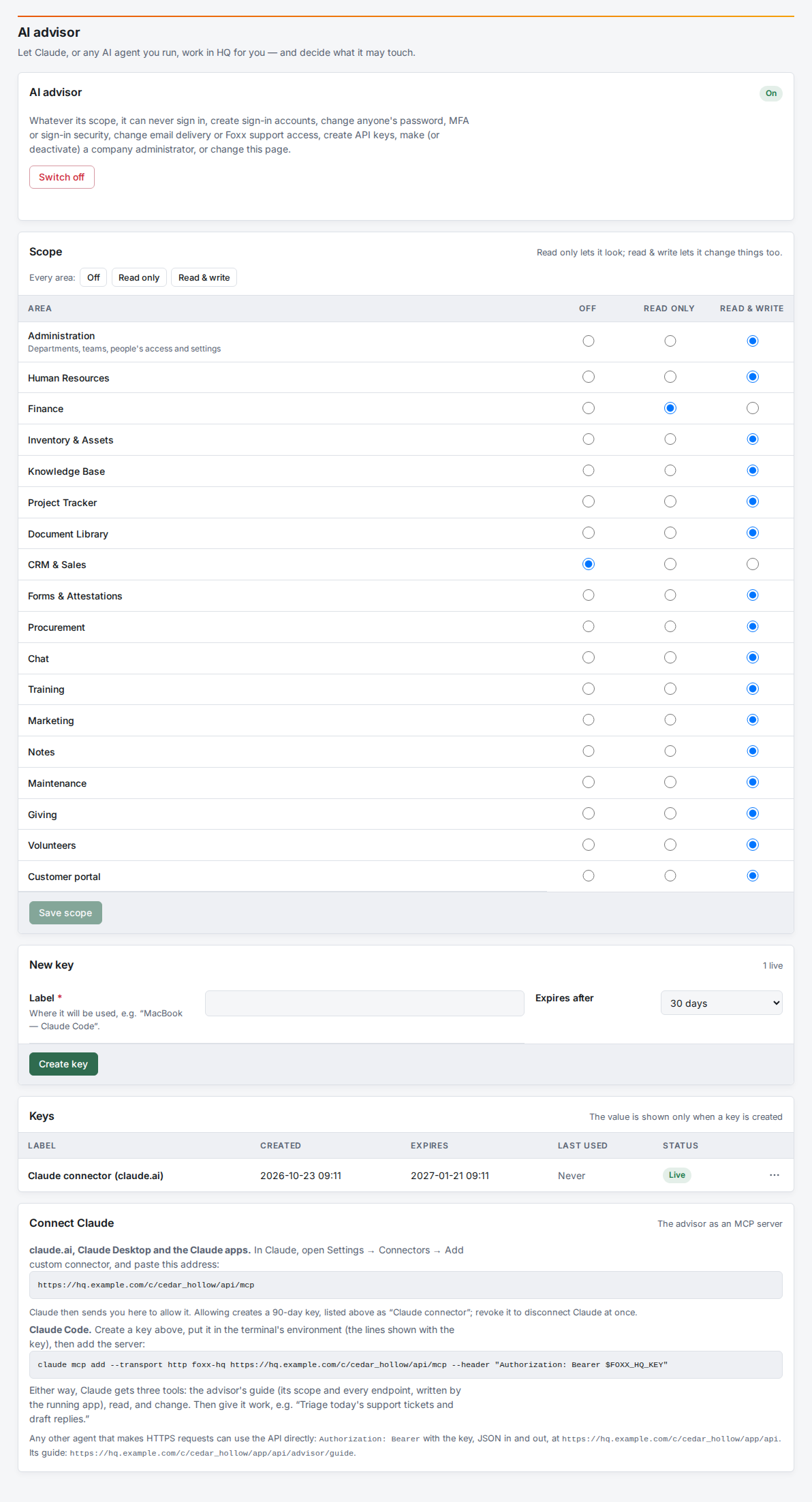
It starts with Read & write in every area.
Choose its scope
The Scope table has one row per area. Each row has three settings:
| Setting | What the advisor may do there |
|---|---|
| Off | Nothing. It cannot even see the area. |
| Read only | Look, but not change anything. |
| Read & write | Look and change, as a company administrator would. |
Administration covers departments, teams, people's access and settings. Use the Every area buttons to set every row at once, then click Save scope. A change applies to the advisor's very next request.
What it can never do
Whatever its scope, the advisor can never:
- sign in, create sign-in accounts, or change anyone's password, MFA or sign-in security;
- change email delivery or Foxx support access;
- create API keys of any kind;
- make anyone a company administrator, or deactivate one;
- connect, change or read the settings of anyone's mailbox;
- change its own scope or keys.
The advisor reaches a person's mailbox only when that person opens it under Mail → Mailbox settings → AI advisor: to read it, or to read, organize and send from it (see Mail). Its scope must also include Mail. Mail it sends leaves from the person's own account. Each request it makes to a mailbox is in the audit log under the advisor's name, with the mailbox's owner.
It reads a whole conversation before it answers one, and with full access can unsubscribe you from a mailing list. With full access it can send and save drafts formatted (bold, lists, links, pictures), and use the person's templates to start a reply.
Give it a key
The agent proves who it is with a key.
- Under New key, enter a Label that says where the key will be used, for example "Laptop - Claude Code".
- Choose when it expires: 7, 30, 60 or 90 days.
- Click Create key.
- Copy the two lines shown, then click I've copied it. Hide it.
The key is shown only once. Anyone holding it can act as the advisor, within its scope, until it expires, so keep it out of chats, tickets and repositories.
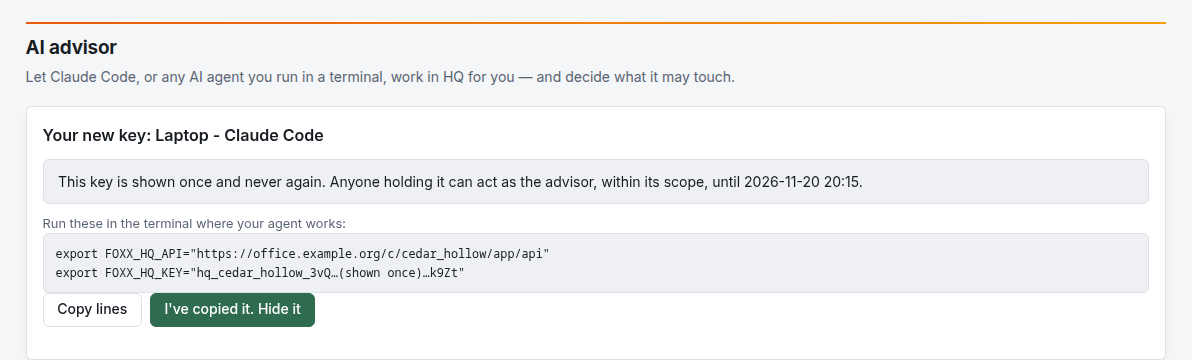
The Keys list shows when each key was created, when it expires and when it was last used. Each row's ⋯ menu has two actions:
- Rotate: replace the key with a new one with the same label and lifetime. The old key stops working at once.
- Revoke: end the key at once.
The advisor can hold up to 25 live keys.
Connect Claude
Foxx HQ is also an MCP server, the standard way Claude connects to other apps. Its address is shown under Connect Claude on the AI advisor screen:
https://<your HQ address>/c/<organization>/api/mcpClaude gets three tools: the advisor's guide (its scope and every endpoint, written by the running app), read, and change. Each call is an ordinary request on the app's API with the advisor's key, so its scope, the things it can never do and the audit log all apply.
claude.ai, Claude Desktop and the Claude apps
- In Claude, open Settings → Connectors and choose Add custom connector.
- Paste the address above.
- Claude opens Foxx HQ. Sign in if asked. The Connect Claude page shows which app is asking and what the advisor may do.
- Click Allow. Claude is connected.
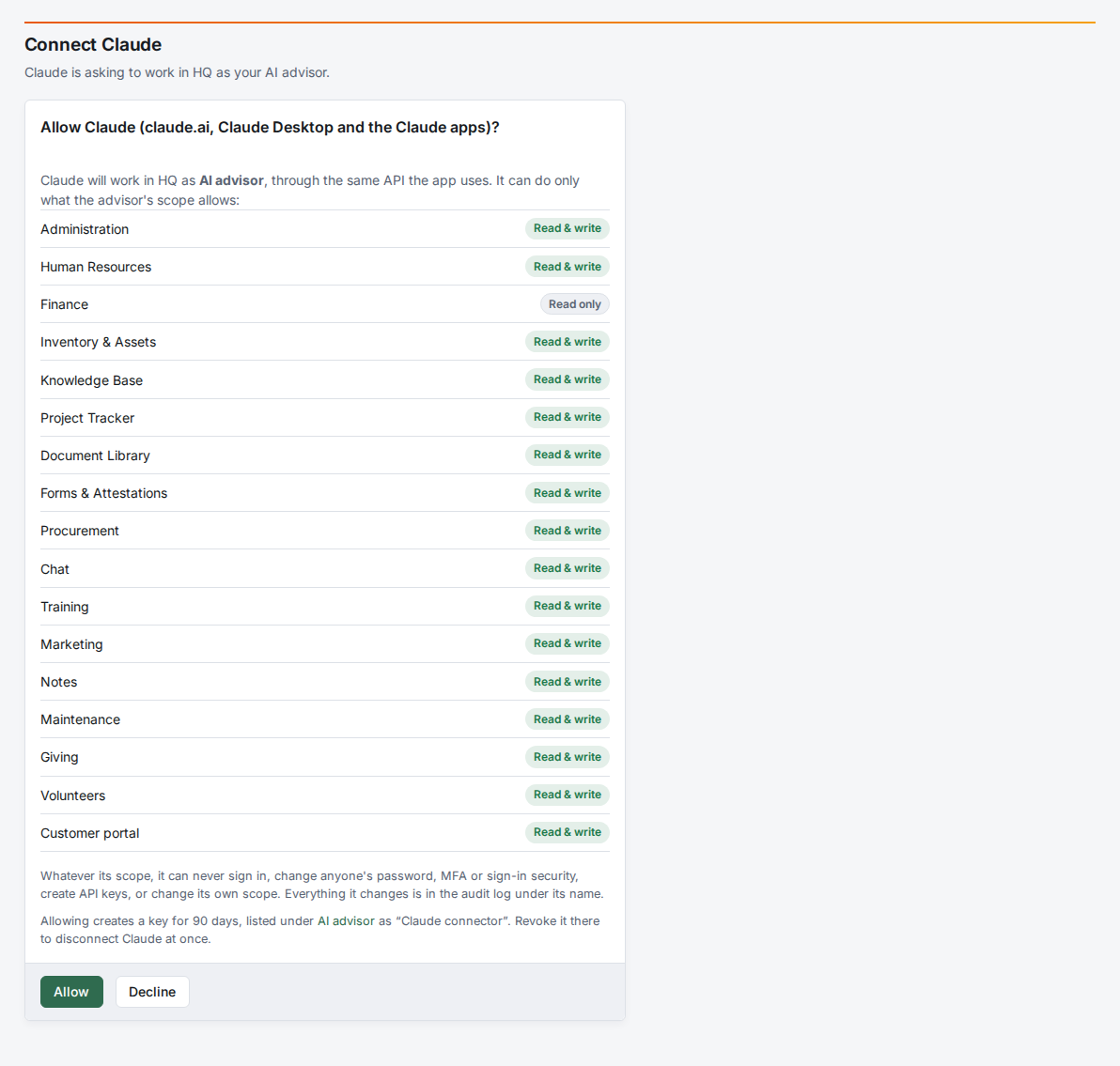
Allowing creates a key for 90 days, listed under Keys as Claude connector (claude.ai). Revoke it to disconnect Claude at once. When it expires, Claude asks you to allow it again. Decline sends Claude away without a key.
Claude Code
-
Give it a key and run the two lines it shows in the terminal where Claude Code works.
-
Add the server:
claude mcp add --transport http foxx-hq "https://<your HQ address>/c/<organization>/api/mcp" \ --header "Authorization: Bearer $FOXX_HQ_KEY" -
Give it work, for example: "Triage today's support tickets and draft replies," or "Add a Bookkeeper position to Finance and draft its training course."
Other agents
Any agent that makes web requests can use the API directly. It sends
Authorization: Bearer <key> and exchanges JSON with the API address
from the two lines. Have it read its guide first:
curl -s -H "Authorization: Bearer $FOXX_HQ_KEY" "$FOXX_HQ_API/advisor/guide"Reading documents
The advisor reads a file in the Document Library as plain text, within
its Document Library scope, through
GET …/files/libraries/<library>/documents/<document>/text: Word and
OpenDocument text as paragraphs, spreadsheets as comma-separated rows
per sheet, PDFs page by page, and text files as they are. A scanned PDF
without a text layer comes back empty, and images have no text. A long
file arrives in windows; the answer's next says where to continue. Its
guide names the endpoint, so you can simply ask: "Read the employee
handbook in Documents and summarize the leave policy."
Switch it off
Click Switch off. Every key stops working at once. Switching it back on restores the scope it had, but you need to create new keys.
What gets recorded
The audit log records every change the advisor makes, under its name. It also records every change to its scope and keys (who made it and when), every request it was refused, and every attempt to use a key that is wrong, expired or revoked.
Troubleshooting
The agent gets "This key has expired" or "This key has been revoked". Create a new key and give it the new lines.
The agent gets "The AI advisor's scope doesn't let it…". The area is Off or Read only for it. Widen that row in Scope if you want it to work there.
The agent gets "The AI advisor can't do this". That is one of the things it can never do. A person has to do it.
Claude says the connection request expired. A request lasts ten minutes. Remove the connector in Claude and add it again.
The Connect Claude page says the AI advisor is switched off. Switch it on, then start again from Claude.
The agent gets "This key is not an active AI advisor key". The key belongs to a person, or the advisor was switched off. Advisor keys only come from Administration → AI advisor, and people's own API keys don't work for it.