 foxxcyber/docs
Your own mailbox inside Foxx HQ: connect Gmail, Microsoft 365 or any IMAP provider; read, search, reply and send; drafts, undo and scheduled send, snooze, folders, rules, a vacation responder, shortcuts, and your AI advisor.
Mail opens your own mailbox inside Foxx HQ. Connect your Gmail, Microsoft 365 (Outlook) or any other mailbox that offers IMAP and SMTP, then read, search, reply, forward and send from HQ.
Your messages stay on your mail server. Foxx HQ copies nothing: each time you open a folder or a message it reads it from your server, and what you send leaves through your own mail account, so it lands in your Sent folder as if you had sent it from your usual mail app. Foxx HQ keeps only how to sign in to your mailbox.
Before you start
- Mail must be on under Administration → Modules (it starts off). See Modules.
- To connect Gmail, a company administrator must have set up Google Workspace, including its mail permission.
- To connect Outlook, a company administrator must have set up Microsoft 365, including its mail permissions.
- Any other provider needs only its server names and your password or an app password.
Your mailbox is yours alone. Company administrators can't open it, and the audit log records only that you connected or disconnected a mailbox, never what you read or sent.
Connect your mailbox
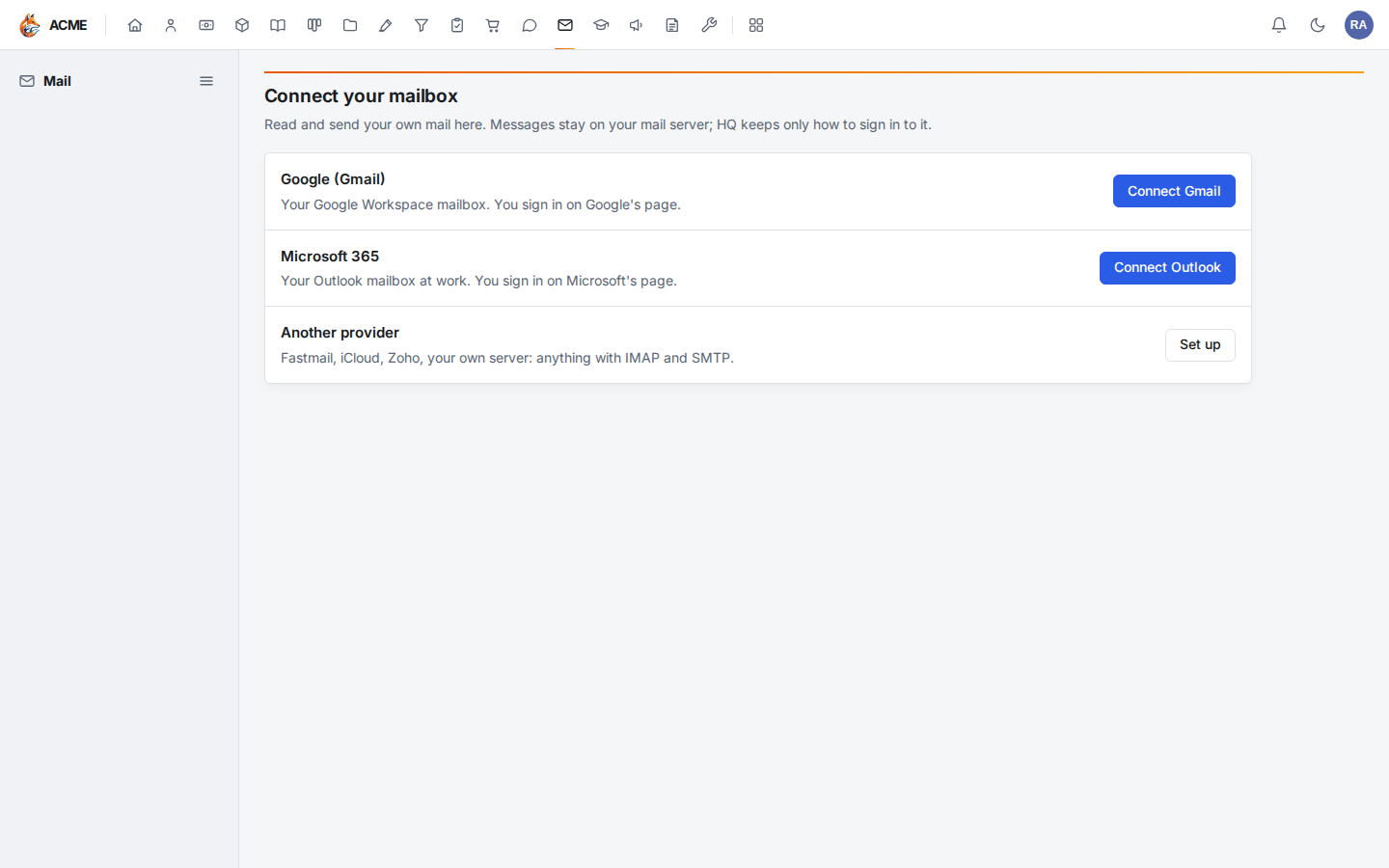
Open Mail. Until you connect a mailbox, it shows Connect your mailbox with three choices.
Gmail or Outlook
- Click Connect Gmail or Connect Outlook.
- Sign in on Google's or Microsoft's page and allow access to your mail. On Google's page, leave Read, compose, send and permanently delete all your email from Gmail ticked: without it Mail can't open your mailbox.
- You come back to Mail with your inbox open.
If the button says Not set up for this company yet, ask a company administrator to set up Google Workspace or Microsoft 365 first.
Another provider
- Click Set up next to Another provider.
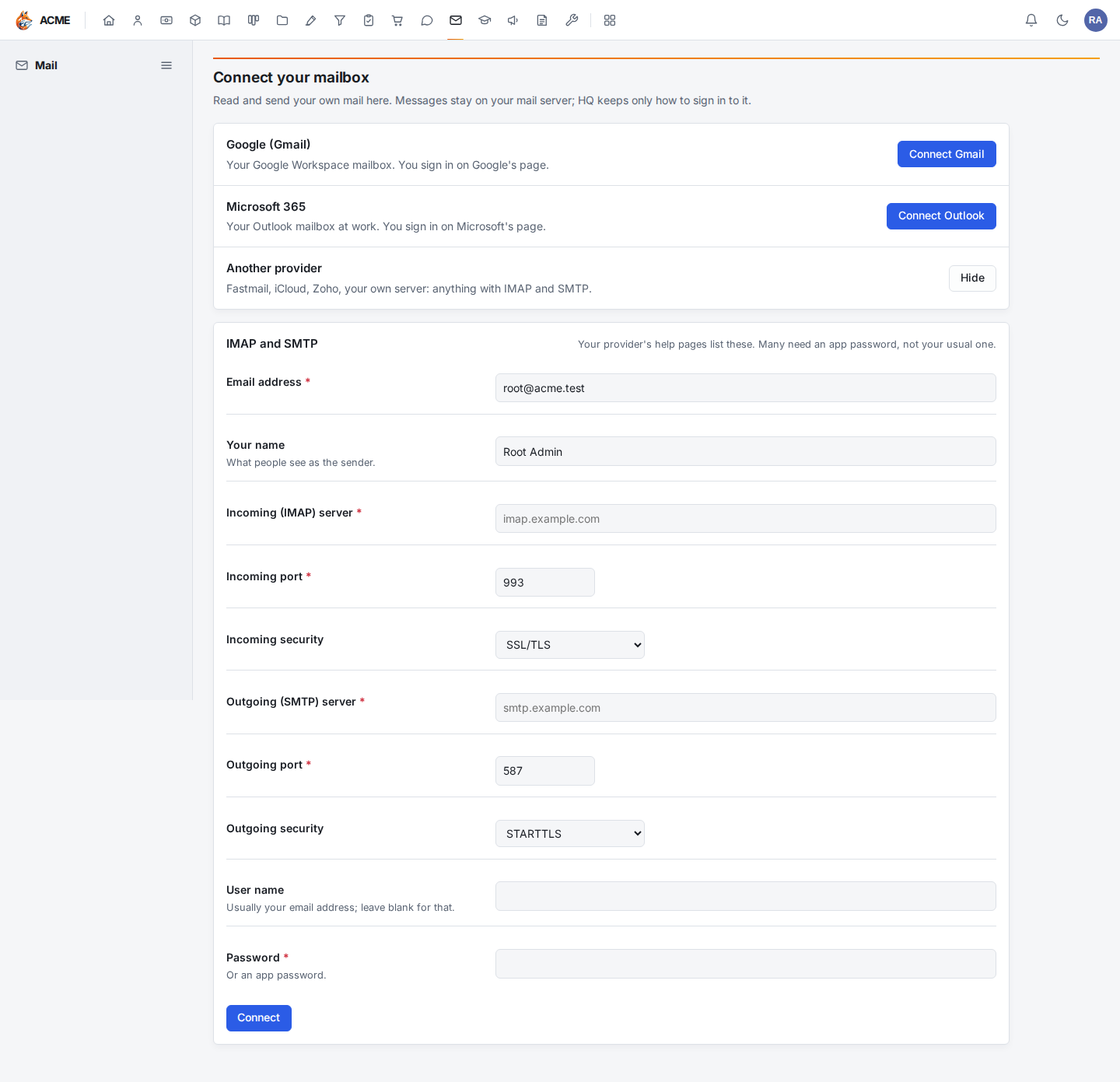
- Fill in your email address, the name people see as the sender, and your provider's incoming (IMAP) and outgoing (SMTP) servers, ports and security. Your provider's help pages list them.
- Enter your password. Many providers (iCloud, Yahoo, Fastmail, Zoho) need an app password you create in your account's security settings, not your usual password.
- Click Connect. Foxx HQ signs in to both servers before it saves anything, so a typo shows here, not on your first message.
Read your mail
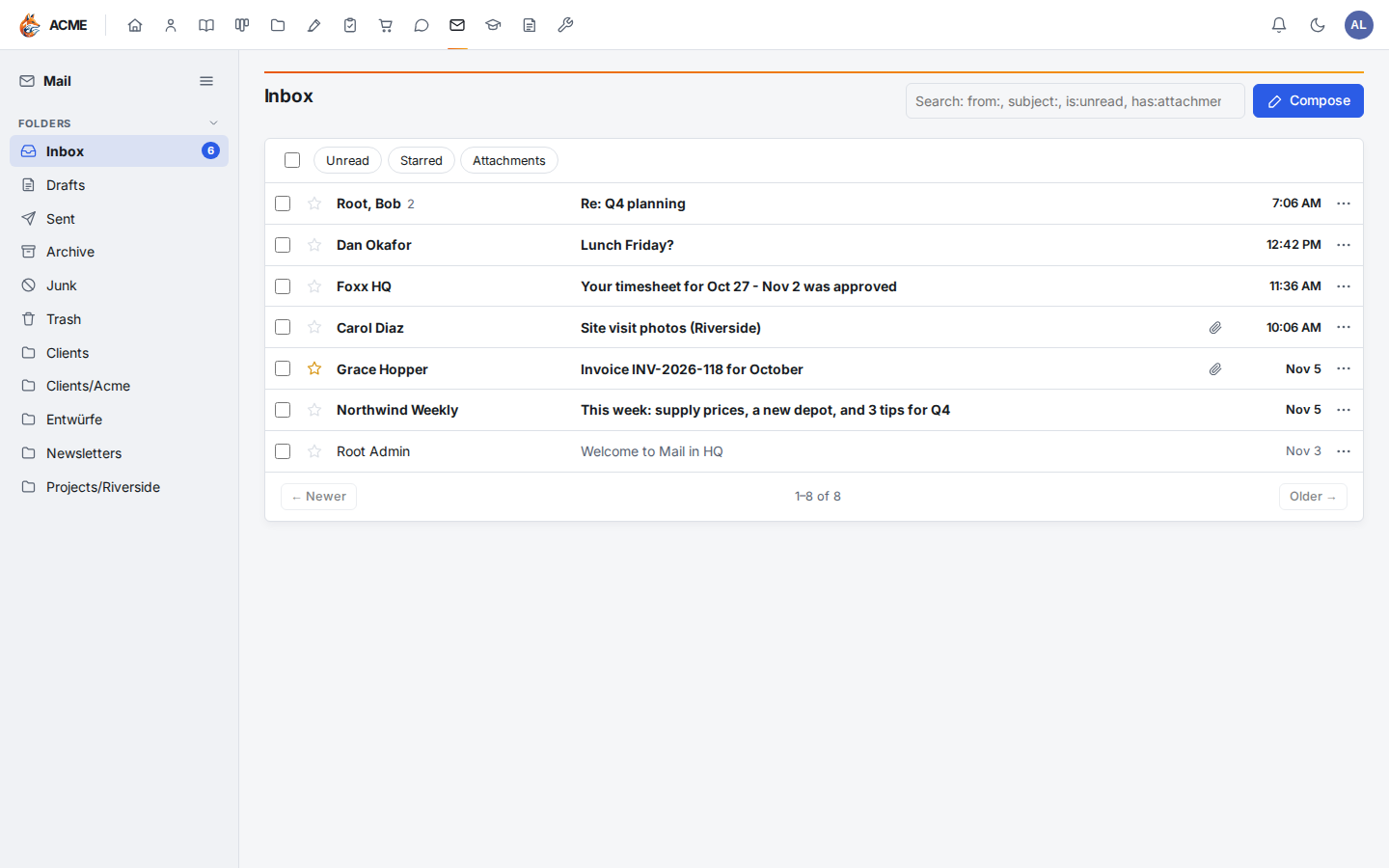
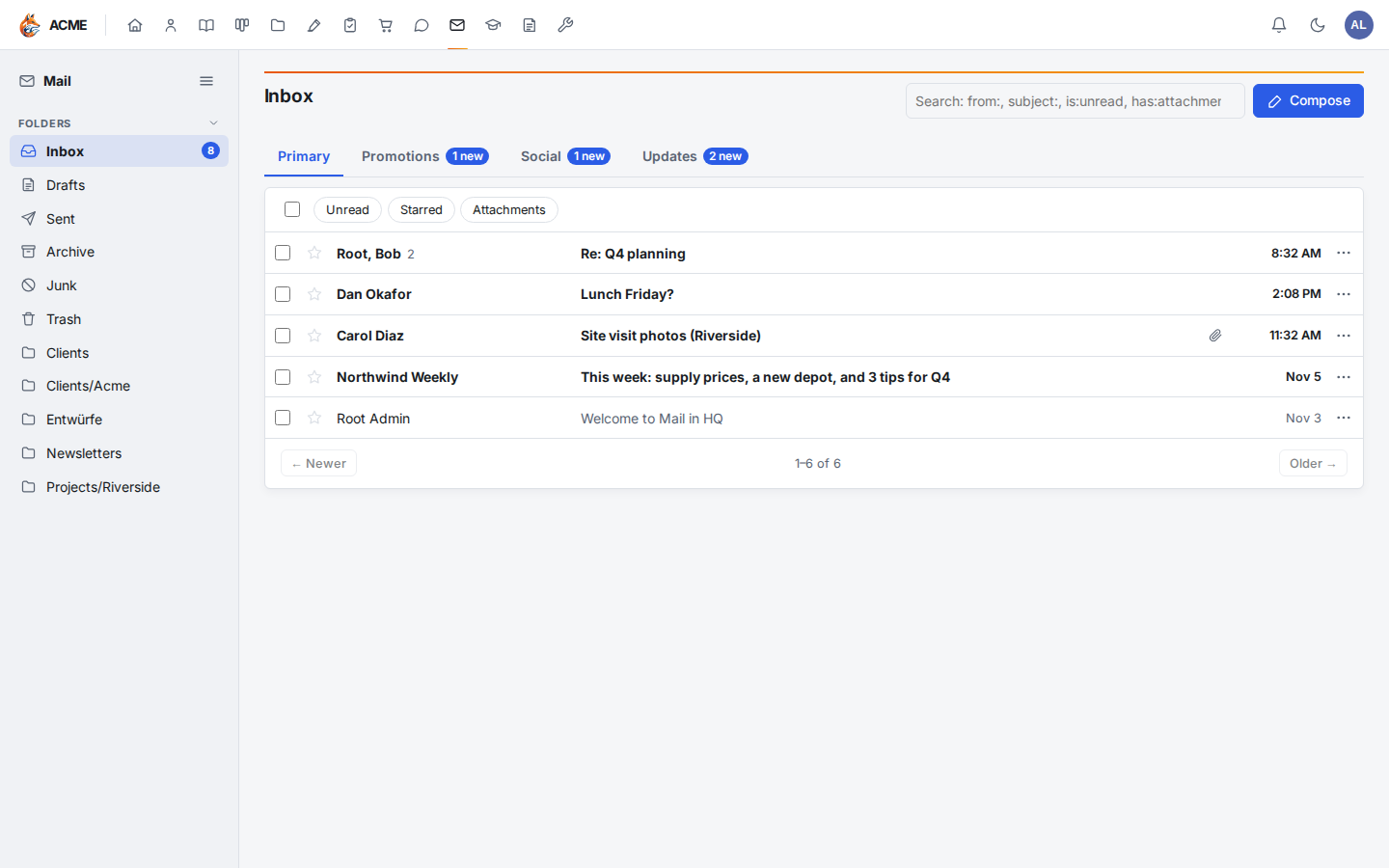
Your folders are in the sidebar: Inbox, Drafts, Sent, Archive, Junk and Trash first, then your own folders. Unread messages are in bold. Each page shows 50 messages, newest first; use Older and Newer to move between pages.
Inbox tabs
Like Gmail, the inbox is sorted into tabs: Primary for mail from people, Promotions for offers and newsletters, Social for social networks, and Updates for receipts, notifications and mailing lists. Each tab other than the one you're on shows how many unread messages it holds. Mail sorts by how a message was sent (the sender, and the headers bulk and automatic mail carry), so the occasional message lands in a tab you wouldn't pick; search finds it in any tab. To see the whole inbox in one list, clear Inbox tabs under Mailbox settings → Writing and reading.
Click a message to open it. Opening a message marks it read.
New mail shows up on its own: while Mail is open, it looks for new messages every half minute (and as soon as you come back to the tab), adds them to the list and tells you who wrote at the bottom of the screen.
Desktop notifications
To hear about new mail while Foxx HQ is in another tab or window, turn on Mailbox settings → Notifications → Turn on desktop notifications and allow notifications when your browser asks. Clicking a notification opens the message. The setting is per browser: turn it on on each computer you use. If the browser blocks notifications for Foxx HQ, allow them in its site settings and turn this on again.
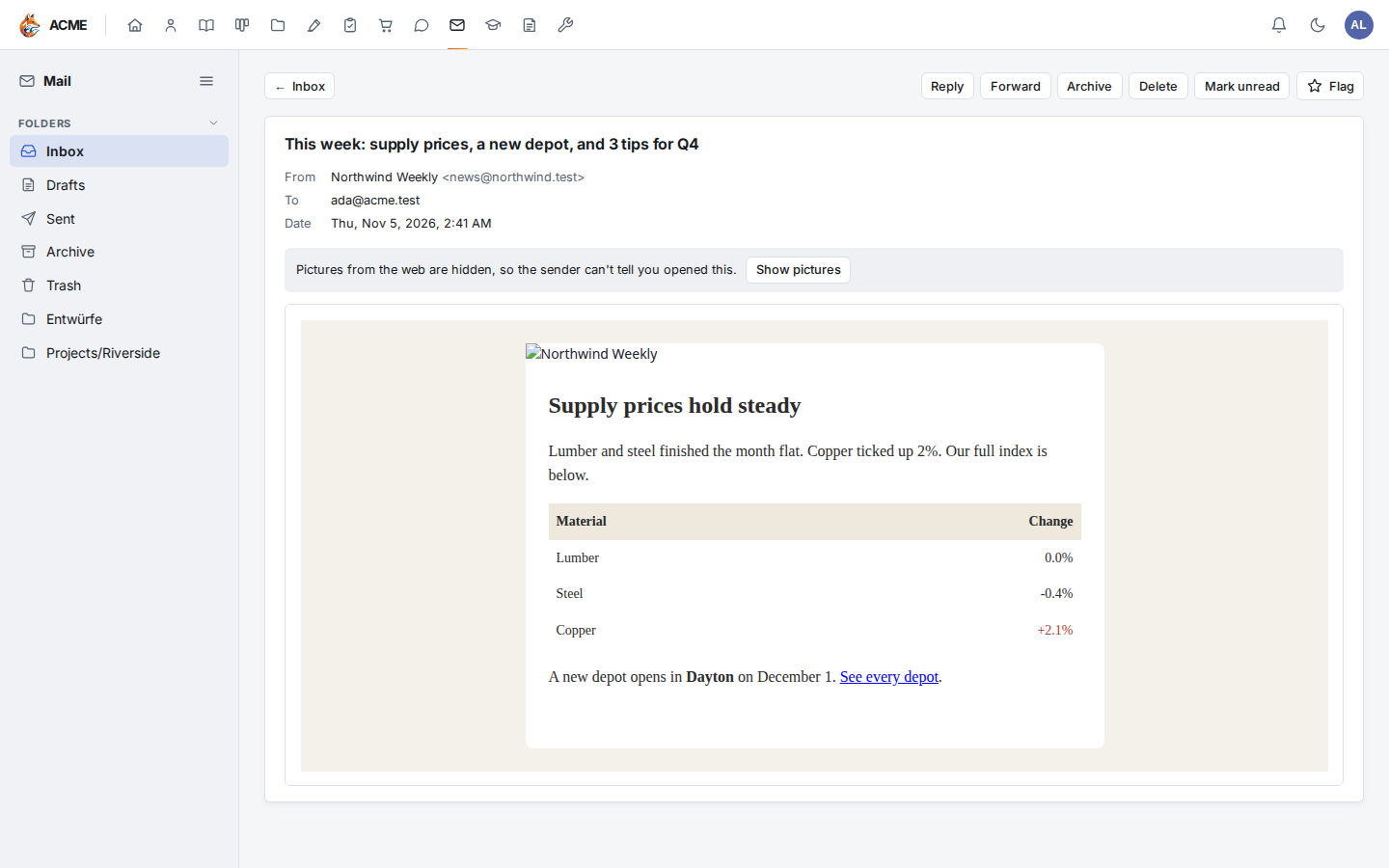
- Pictures from the web are hidden until you click Show pictures. Senders often hide a tiny picture in a message to learn when you opened it; while pictures are hidden, nothing is fetched. Pictures that came inside the message always show.
- Formatted messages are cleaned before they show: scripts, forms and anything else that could act on its own are removed.
- Attachments are listed under the message. Click one to download it.
- Unsubscribe shows next to the sender of mail from a mailing list (a newsletter, a shop's offers). Click it and confirm: Foxx HQ asks the list to stop, or sends the list's unsubscribe message from your account; a list that only has a web page for it opens that page in a new tab, where you finish. A list can take a few days to stop.
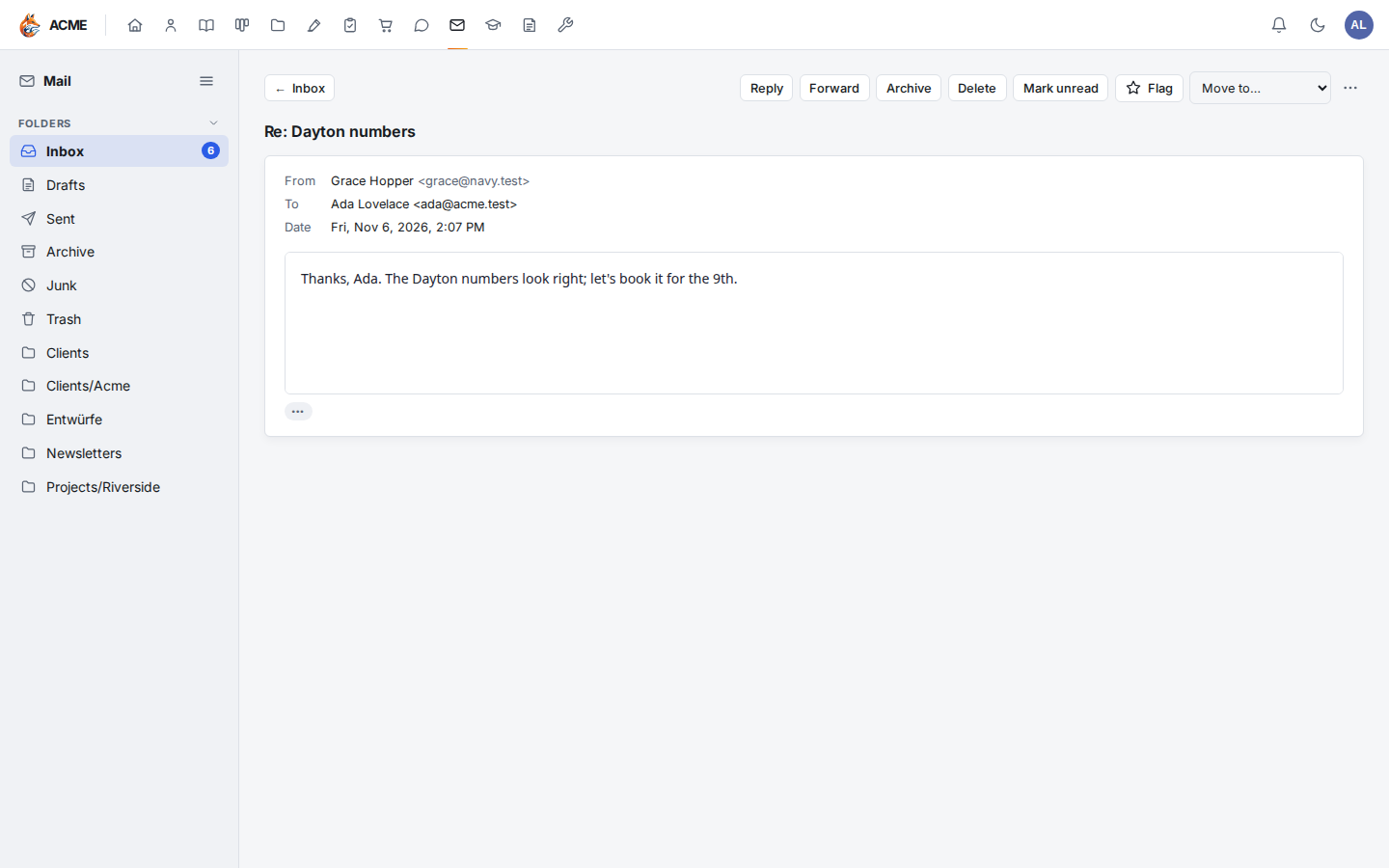
- Quoted text is folded away. When a reply repeats the messages before it, Mail shows only what is new, with ••• under it; click it to see the rest.
Conversations
Like Gmail, Mail groups a message with its replies into a conversation. In the list, a conversation is one row showing who took part (you are me) and how many messages it holds; it is bold while any of them is unread.
Open it and the whole conversation shows, oldest first: the messages in this folder, your inbox and your archive, and the replies you sent (marked Sent). Messages you have read show as one line; click one to open it, and use its Reply or Forward to answer that message. Unread messages are already open.
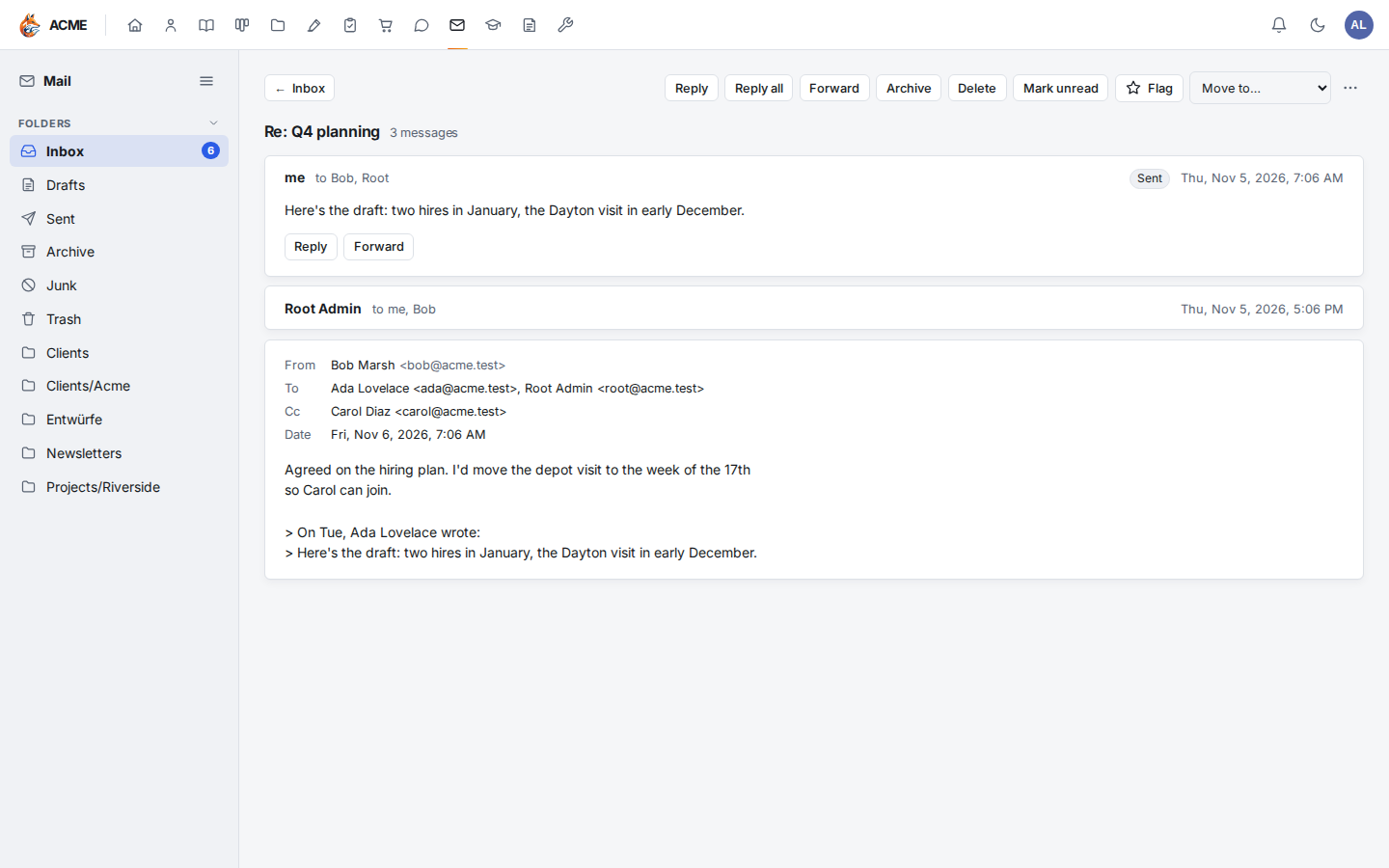
Archive, Delete, Move to…, Snooze and Mark unread, in the list or the open conversation, act on every message of the conversation in that folder. Flag stars the message you have open.
To see each message on its own instead, clear Conversation view under Mailbox settings → Writing and reading.
Write, reply and forward
- Compose (above any folder), or
c, starts a new message. - Reply answers the sender; Reply all also copies everyone else the message went to. The original is quoted below your reply, and your cursor starts above it.
- Forward keeps the original's attachments. Remove any you don't want to send before clicking Send.
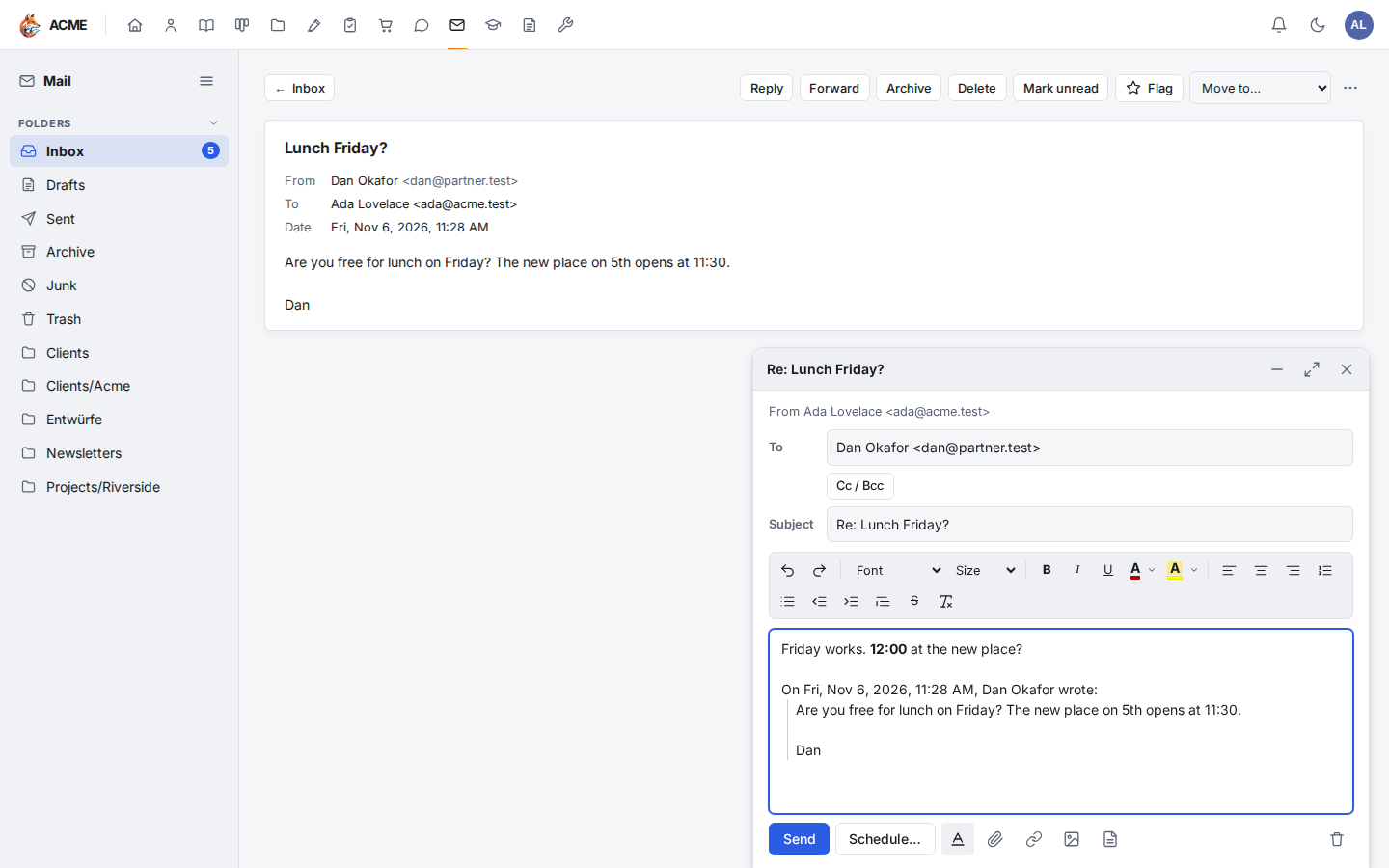
The compose window docks at the bottom right of the screen, as in Gmail, so you can keep reading and searching your mail while you write. Click its title (or the — button) to minimize it to a bar; click the bar to bring it back. The ⤢ button opens it full screen, and × closes it, keeping what you wrote in Drafts. On a phone it fills the screen.
Type addresses separated by commas, as Ada Lovelace <ada@example.com>
or just ada@example.com. As you type, Mail suggests coworkers and, if
you work in the CRM, its contacts: press Enter (or click) to pick
one. Click Cc / Bcc to add copies; people on Bcc receive the
message without anyone else seeing them. Attach files adds files
from your computer (the paper clip), or drag files onto the window. A
message can carry up to 18 MB of attachments and pictures together.
Your sent message is filed in your Sent folder. Ctrl + Enter (⌘ + Enter on a Mac) sends from anywhere in the window.
Format your message
The formatting bar above the message is Gmail's: Undo and Redo, Font (Sans Serif, Serif, Fixed width, Wide, Narrow, Tahoma, Verdana), Size (Small, Normal, Large, Huge), Bold, Italic, Underline, Text colour and Highlight, alignment, numbered and bulleted lists, Indent less and Indent more, Quote, Strikethrough and Remove formatting. Select text first, or turn a style on and type. The A button below the message hides or shows the bar (on a phone it starts hidden).
Your message is sent formatted, with a plain-text copy for mail apps that show only text.
Plain text
The T button below the message switches to plain text, as Gmail's
plain text mode: formatting and pictures come out (Mail asks first when
there are some), and the message is sent as text only, with quotes as
> lines and lists as * or numbered lines. Click it again to format
what you write next.
Links and pictures
Select text and press Ctrl + K (or the link button) to make it a link: enter a web address or an email address and press Enter. With the cursor in a link, the same panel changes or removes it.
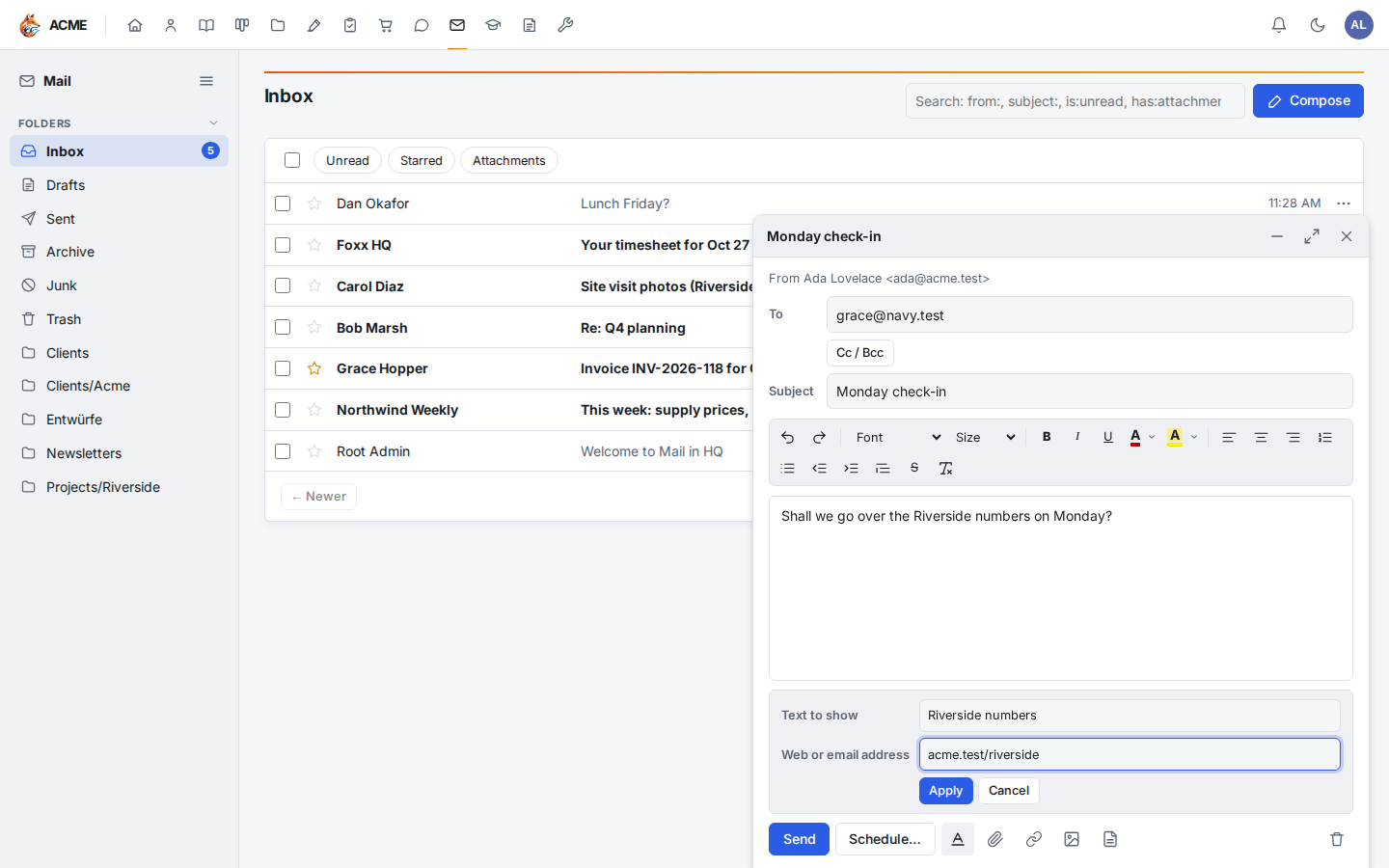
To put a picture in the message itself (not as an attachment), paste it, drag it onto the message, or click the photo button. Pictures can be up to 5 MB each. Click a picture in the message to make it Small, Best fit (the message's width at most), Original size, or to Remove it. Text pasted from a web page or a document keeps its formatting; scripts, tracking pixels and other active content are removed.
Templates
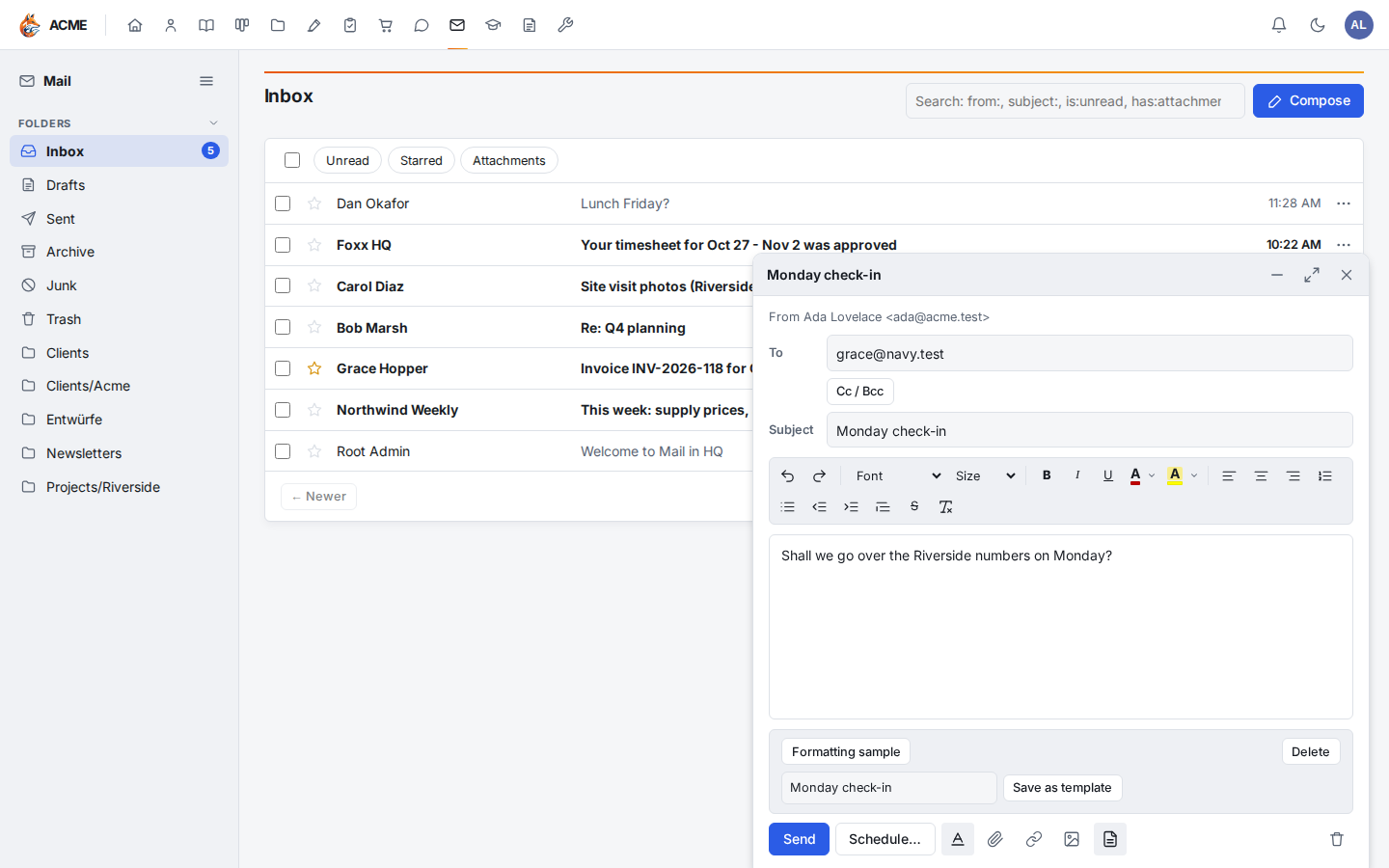
Save a message you send often as a template, as in Gmail. Click the template button below the message, enter a name (the subject is suggested) and click Save as template. Saving under a name you already used replaces that template.
To use one, put the cursor where it should go and click its name in the same panel. Its text goes in at the cursor, and its subject fills an empty Subject. Delete next to a template removes it.
Drafts
Mail saves your message to your mailbox's Drafts folder a moment after you stop typing (it says Draft saved at the top), so a closed tab loses nothing. Close the window with × to keep it for later; open it from Drafts to carry on. The bin button (Discard) deletes the message and its draft (Mail asks first if you typed anything). Drafts keep the formatting, pictures and recipients; attach files again when you pick a draft back up. Opening a new message while one is half-written saves the first to Drafts.
Undo send
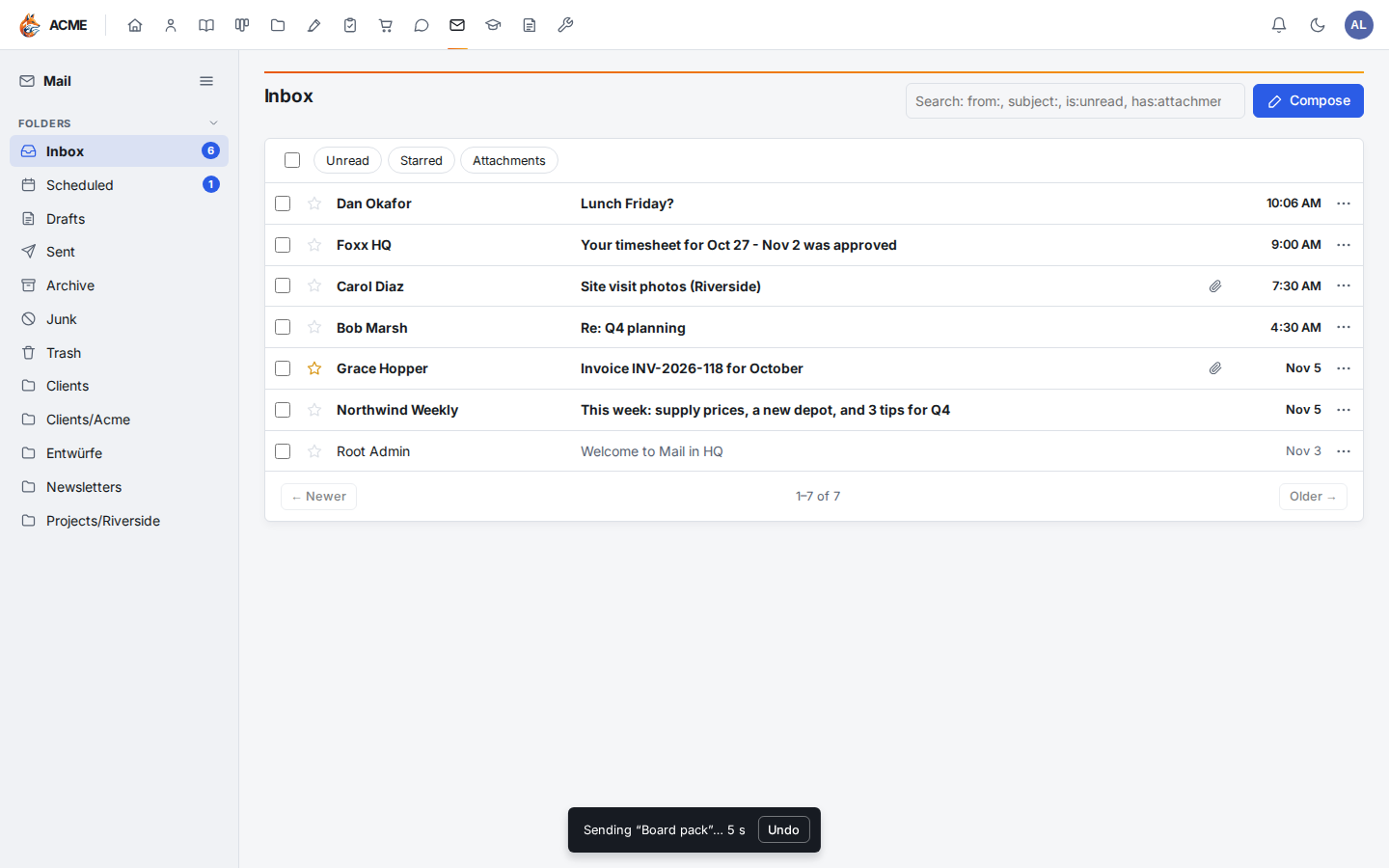
After Send, a bar at the bottom of the screen counts down for a few seconds: click Undo to take the message back into compose before it leaves. Choose the length (or turn it off) under Mailbox settings → Writing and reading.
Schedule send
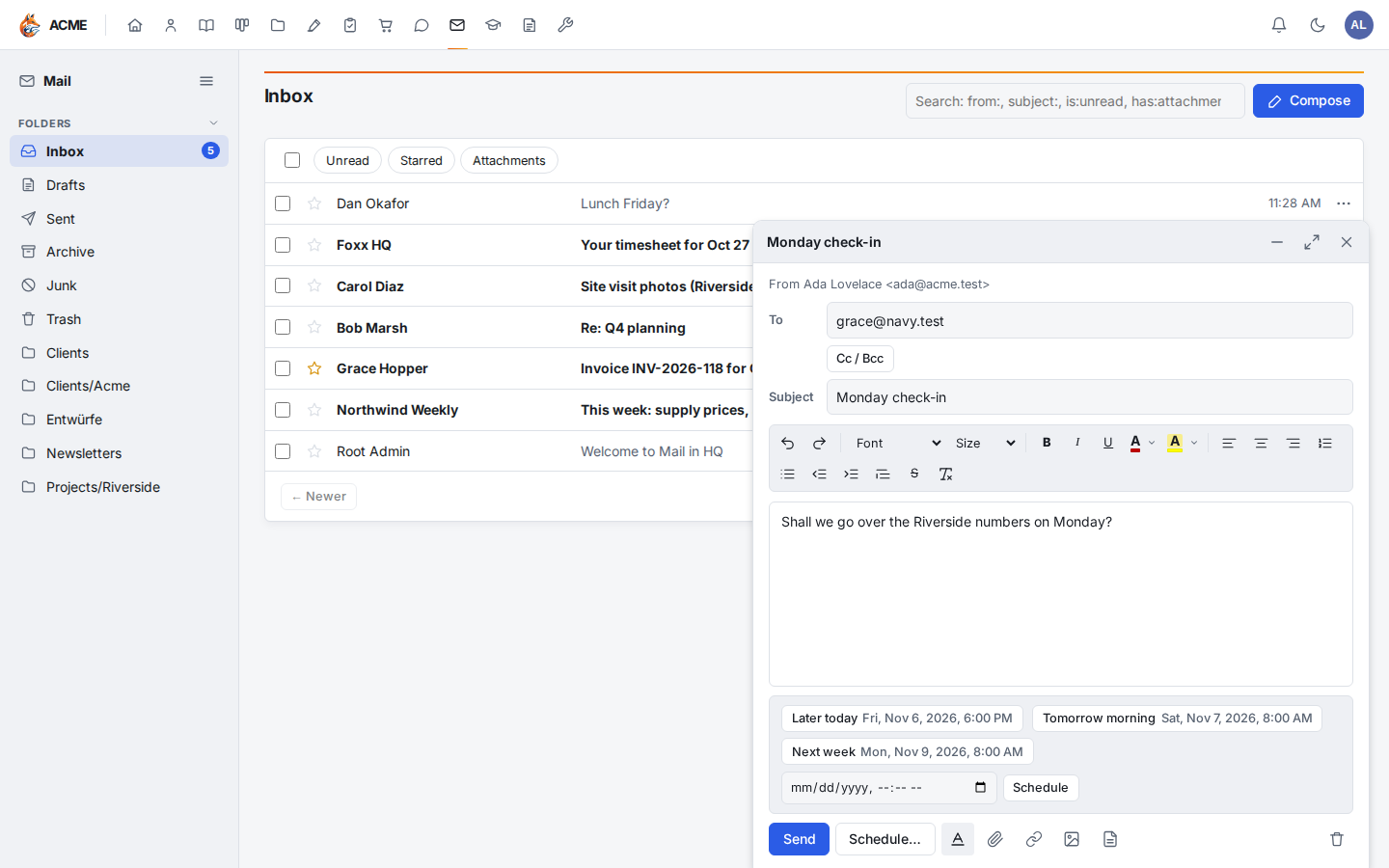
Click Schedule… instead of Send and pick Later today, Tomorrow morning, This weekend, Next week, or a date and time of your own. The message waits under Scheduled in the sidebar until then, and is sent from your account even if nobody has Foxx HQ open. To change one, open Scheduled and click Cancel: it comes back into compose. If your mail server refuses a scheduled message, it stays under Scheduled as Not sent with the server's reason, and you get a notification.
Signature
Write your signature under Mailbox settings → Writing and reading. Mail adds it below new messages, and above the quoted message in replies and forwards.
Organize
Each message's ⋯ menu (in the list) and the buttons above an open message let you:
- Mark as read or Mark as unread.
- Flag a message (the star), to find it again.
- Archive it (out of the inbox, still in your mailbox).
- Move to… any folder.
- Report spam (it moves to Junk), or Not spam in Junk.
- Delete it: it moves to your Trash. Emptying the trash happens in your mail provider, as before.
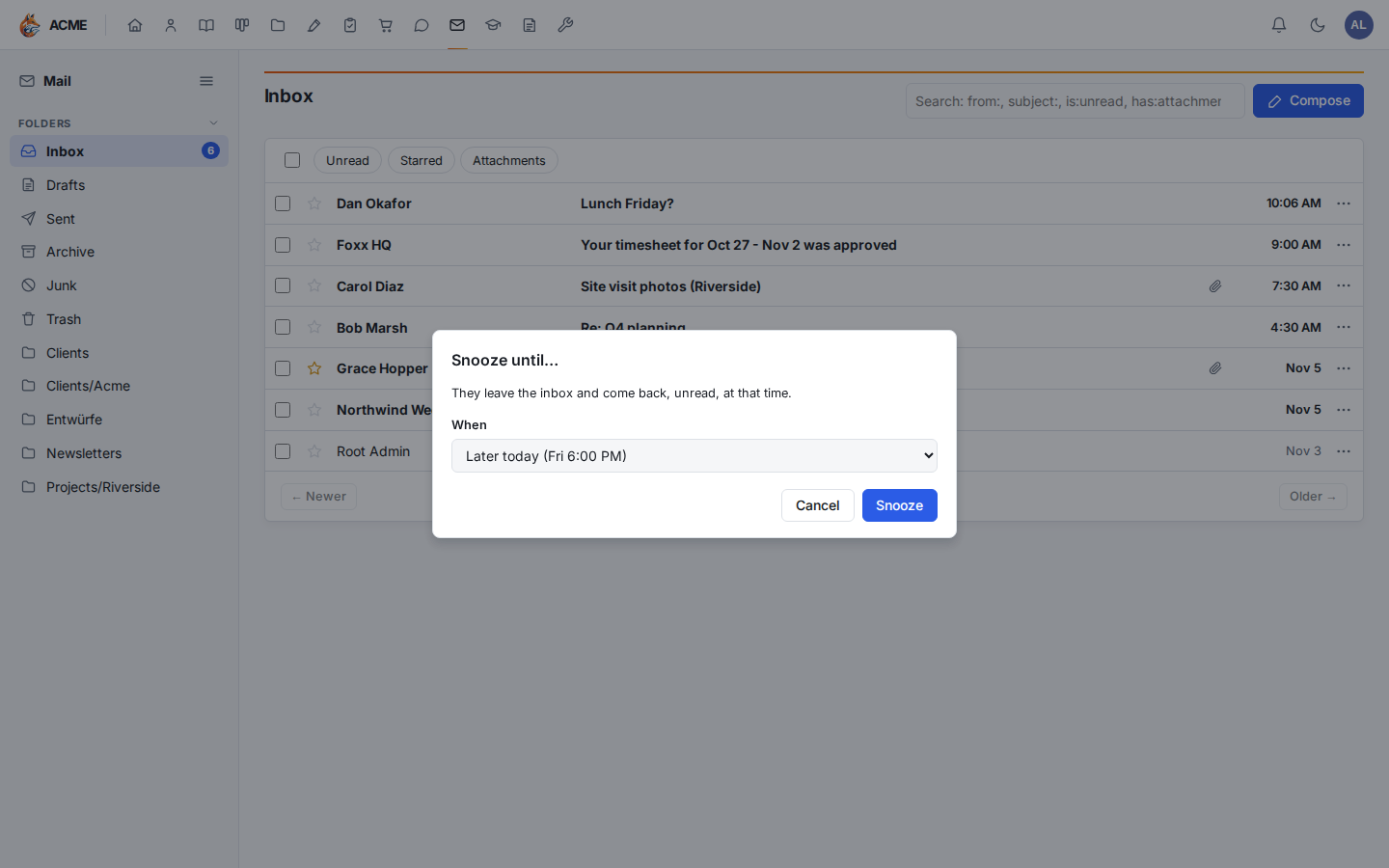
Snooze… puts a message out of sight until a time you pick (later today, tomorrow morning, this weekend, next week, or your own): it moves to a Snoozed folder and comes back to your inbox, unread, at that time. Unsnooze in Snoozed brings it back now.
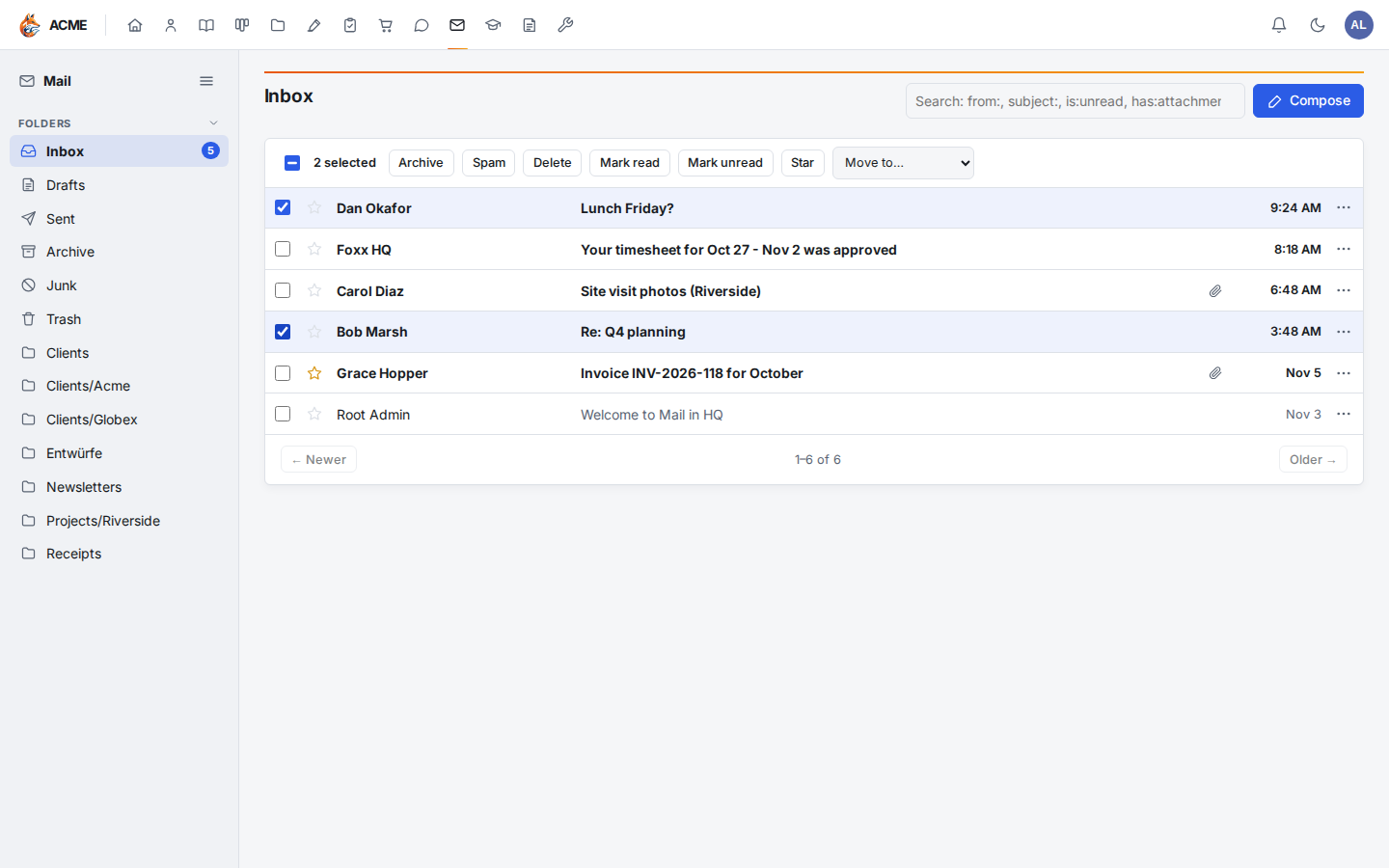
To act on several at once, tick them (or the box at the top for the whole page) and use the bar that appears: Archive, Spam, Delete, Mark read, Mark unread, Star or Move to….
The sidebar shows how many unread messages each folder has.
Undo
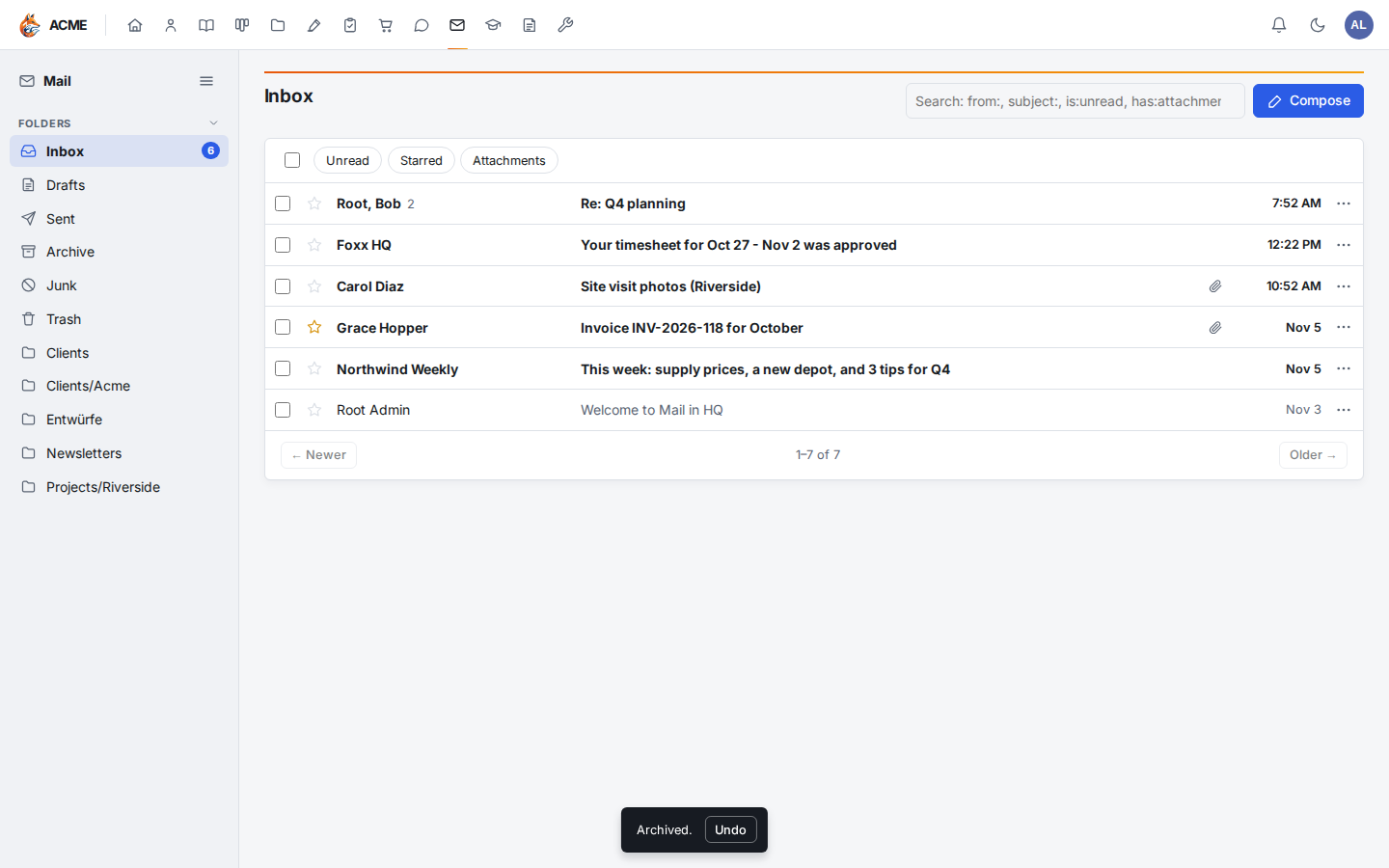
After you archive, delete, report or move messages, a bar at the bottom
of the screen says what happened, with Undo: click it (or press
z) within a few seconds to put the messages back where they were.
Use a message in the CRM or for signature
Log an email to a CRM contact
- Open the message.
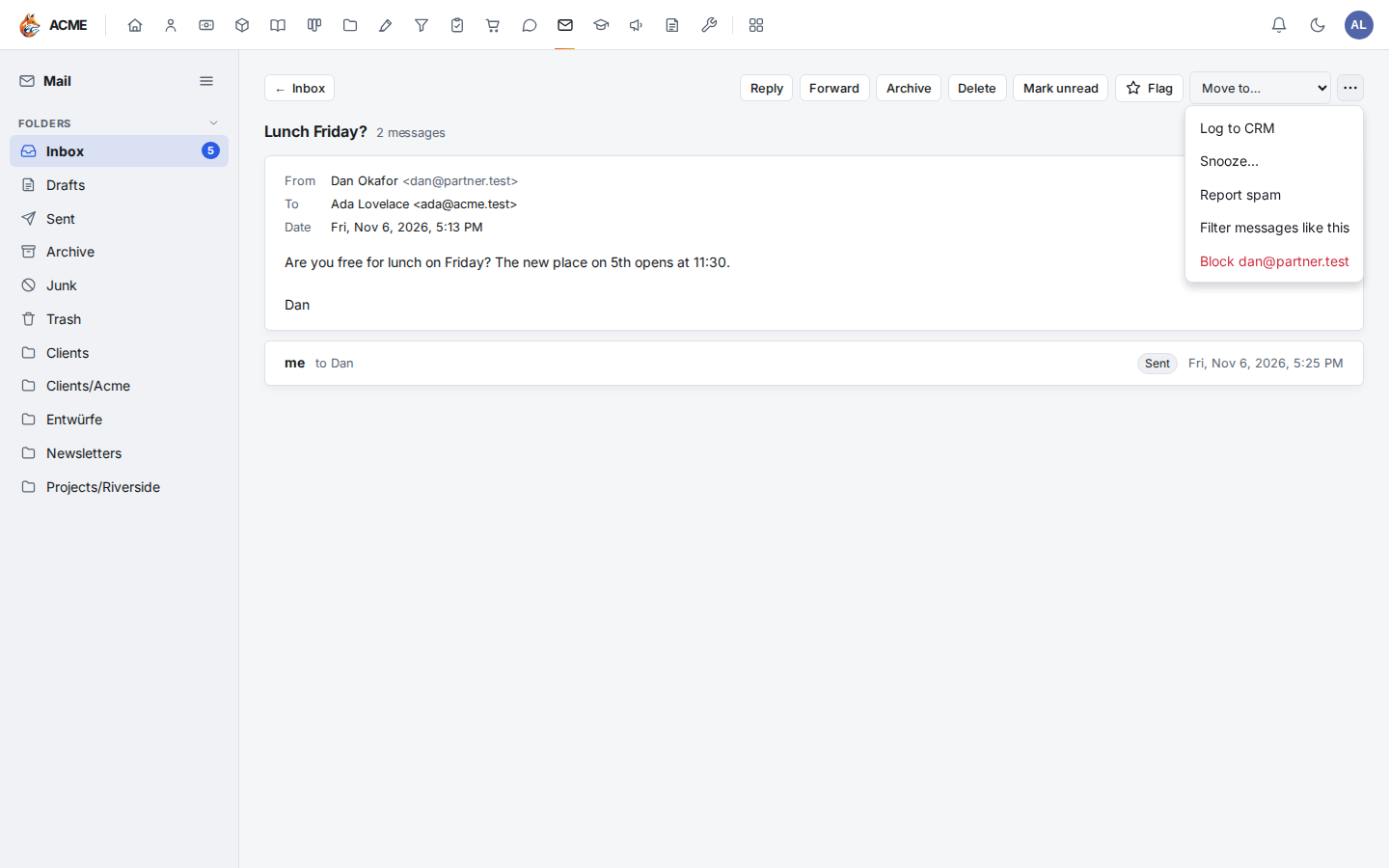
- Click ⋯ (More actions) above it and choose Log to CRM.
The message goes on the timeline of the CRM contact with the sender's address (for a message you sent, the recipient's) as an Email activity, with its text. If no contact has that address, Mail says so and logs nothing: add the contact in the CRM first. A contact's CRM page also lists your mail with them under In your mailbox; see CRM.
Send an attachment for signature
If you use E-signatures:
- Open the message with the PDF or Word attachment.
- Click Send for signature beside the attachment.
- The new envelope opens with the file in it: add the signers, place the fields and click Send (see Send documents for signature).
Search
Search (above any folder) finds messages by any word in the sender, subject or text, and understands the same words as Gmail:
| Type | Finds |
|---|---|
from:grace | messages from an address or name |
to:ada@example.com, cc: | messages sent to someone |
subject:invoice | words in the subject |
is:unread, is:read, is:starred | by state |
has:attachment | messages with files |
after:2026-10-01, before:2026-11-01 | sent after or before a day |
newer_than:7d, older_than:1y | sent in the last days (d), weeks (w), months (m) or years (y) |
larger:5M, smaller:200K | by size |
"board meeting" | an exact phrase |
-newsletter, -from:noreply | leaves those out |
Combine as many as you like: from:grace has:attachment is:unread.
The Unread, Starred and Attachments buttons above the list
add the matching word for you.
Keyboard shortcuts
Mail answers Gmail's shortcuts while you aren't typing in a field. Press ? to see them.
| Key | Does |
|---|---|
c | Compose |
/ | Search |
j / k | Next / previous message in the list |
o or Enter | Open the message |
x | Select the message |
u | Back to the list |
r / a / f | Reply / reply all / forward |
e | Archive |
# | Delete |
s | Star |
Shift + i / Shift + u | Mark as read / unread |
z | Undo the last archive, delete or move |
While you write, in the compose window:
| Key | Does |
|---|---|
Ctrl + Enter | Send |
Ctrl + B / I / U | Bold / italic / underline |
Ctrl + K | Insert or change a link |
Ctrl + Shift + 7 / 8 | Numbered / bulleted list |
Ctrl + Shift + 9 | Quote |
Ctrl + Z / Ctrl + Y | Undo / redo |
Esc | Close a panel, then discard (asks first) |
On a Mac, use ⌘ for Ctrl.
Folders
Open Folders from the sidebar's menu (☰) to make folders of your own, for a client, a project or receipts:
- New folder makes one at the top, or inside another folder.
- Each folder's ⋯ menu: New folder inside, Rename, or Delete. Deleting a folder deletes the messages in it too, so move what you want to keep first.
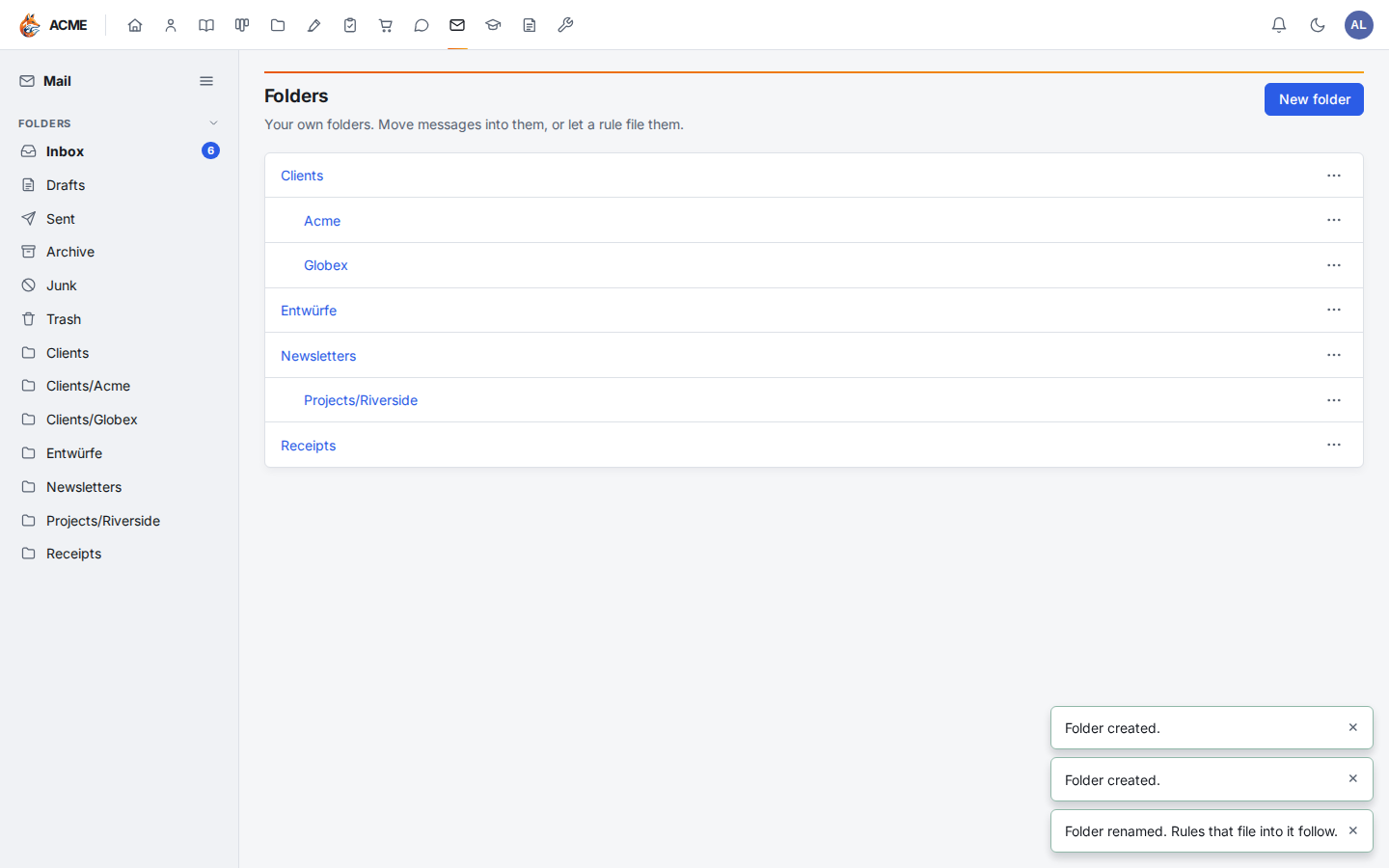
Your mailbox's own folders (Inbox, Sent, Drafts, Junk, Trash) can't be renamed or deleted. In Gmail, your folders are your labels.
Rules
Rules (in the sidebar's menu) sort new mail as it arrives, like Gmail's filters. A rule says what to match: who it's from or to, words in the subject or anywhere in the message, words it must not have, or whether it has an attachment. Every line you fill in must match. Then it says what to do: skip the inbox (archive it), mark as read, star it, move to a folder, or delete it.
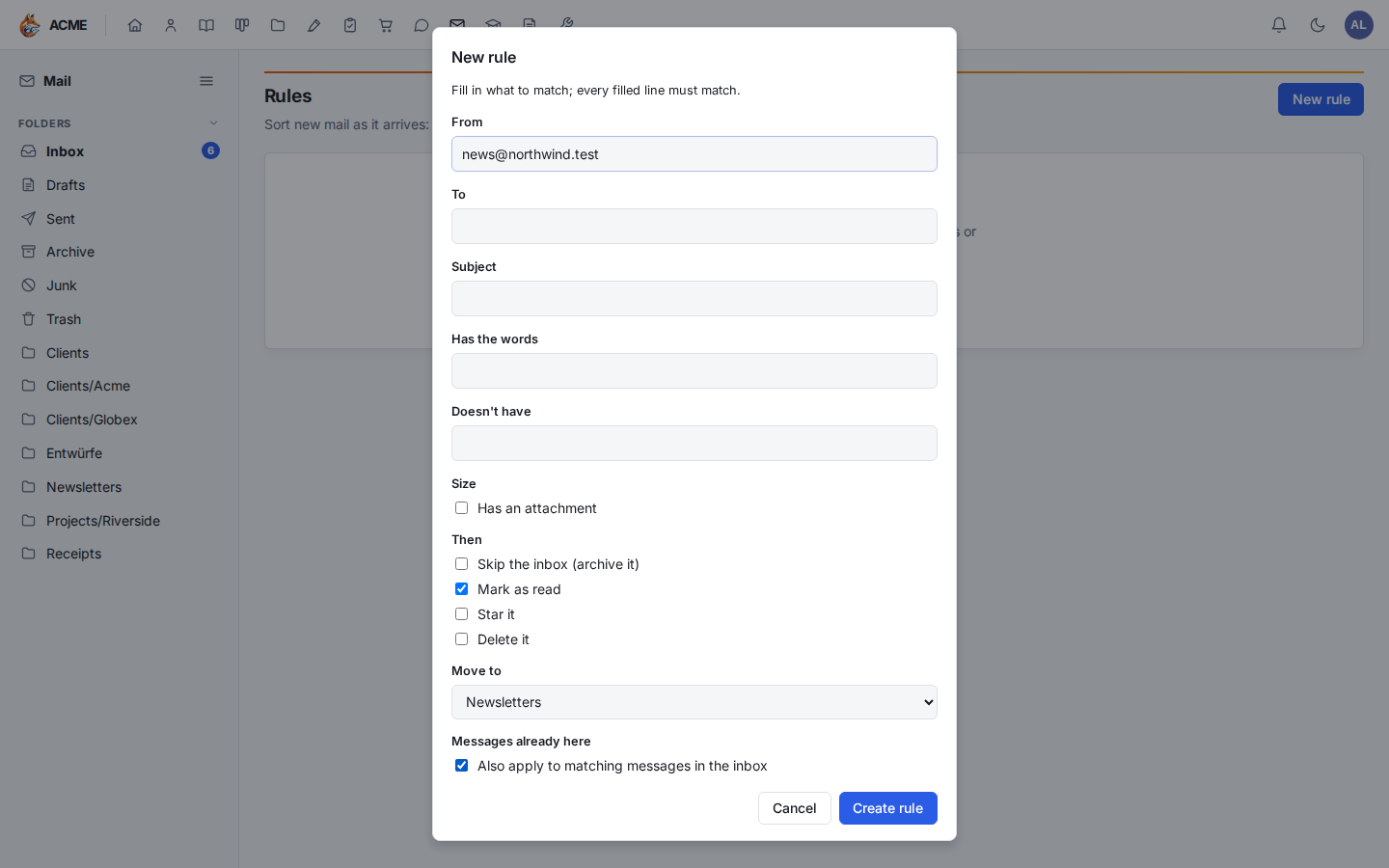
- Open Rules and click New rule, or use Filter messages like this in a message's menu to start from its sender.
- Fill in what to match and what to do.
- Tick Also apply to matching messages in the inbox to sort the mail already there, then click Create rule.
Foxx HQ checks for new inbox mail every minute and applies every rule that matches. A rule only touches mail that arrived after it was made, unless you apply it to the inbox or use Run on the inbox now in its menu. Untick a rule to pause it.
Block a sender from a message's ⋯ menu (above the message): their messages go straight to the trash, the ones in your inbox now too. It is a rule like any other, listed under Rules.
Vacation responder
Under Mailbox settings → Vacation responder, tick Send a vacation reply, write the message (and a subject, or leave it blank for "Re:" and the original subject), and optionally a first and last day. Foxx HQ answers new mail every minute while it's on:
- once every four days per person who writes to you;
- never to mailing lists, newsletters, automatic mail or no-reply addresses, and never to mail that isn't addressed to you;
- from your own account, so the reply looks like any other you send.
Untick it (or let the last day pass) to stop.
Let your AI advisor read or send your mail
If your company uses the AI advisor, for example your own Claude connected through Foxx HQ's MCP connector, you can let it work with your mailbox. Open Mailbox settings and choose, under AI advisor:
- Off (the default): it never sees your mail.
- Read my mail: it can list, search and read your messages.
- Read, organize and send: it can also move, flag, file and snooze messages, make folders and rules, save drafts for you to review, and send or schedule mail as you, from your own account (so it lands in your Sent folder).
Everything it does in your mailbox is in the audit log with your name. It can never change your mailbox settings, your password or this choice. Switch it back to Off at any time.
Settings and disconnecting
Open Mailbox settings from the sidebar's menu (☰) to:
- Change the name your messages are sent under, your signature and the undo window.
- Turn the vacation responder on or off.
- Choose what the AI advisor may do.
- Fix your servers or password (another provider).
- Reconnect Gmail or Outlook if Google or Microsoft stopped accepting the connection.
- Disconnect your mailbox. Your mail stays on your mail server. Disconnecting Gmail leaves Google connected for your calendar; disconnect Google on your account to remove it entirely.
Troubleshooting
"The mail server refused the sign-in." The password is wrong or was changed, or your provider wants an app password. Update it under Mailbox settings. For Gmail or Outlook, click Reconnect.
Gmail connects but folders don't open. Your Google Workspace administrator must allow IMAP: in the Google Admin console, Apps → Google Workspace → Gmail → End User Access → POP and IMAP access.
Outlook reads mail but sending fails. Your Microsoft 365 administrator must allow Authenticated SMTP for your mailbox (in the Microsoft 365 admin center: Users → Active users → you → Mail → Manage email apps).
"Google did not give Mail access." On Google's page, the mail permission was unticked. Click Connect Gmail again and leave it ticked.
"Could not reach the mail server." Check the server name and port under Mailbox settings. Foxx HQ can't connect to a mail server on the Foxx HQ server itself.
A rule didn't run. Rules work on new inbox mail, checked every minute while Foxx HQ runs. If Rules says the last run couldn't reach your mailbox, fix the sign-in under Mailbox settings. A rule that moves to a folder you deleted stops moving; edit it.