 foxxcyber/docs
Object Storage
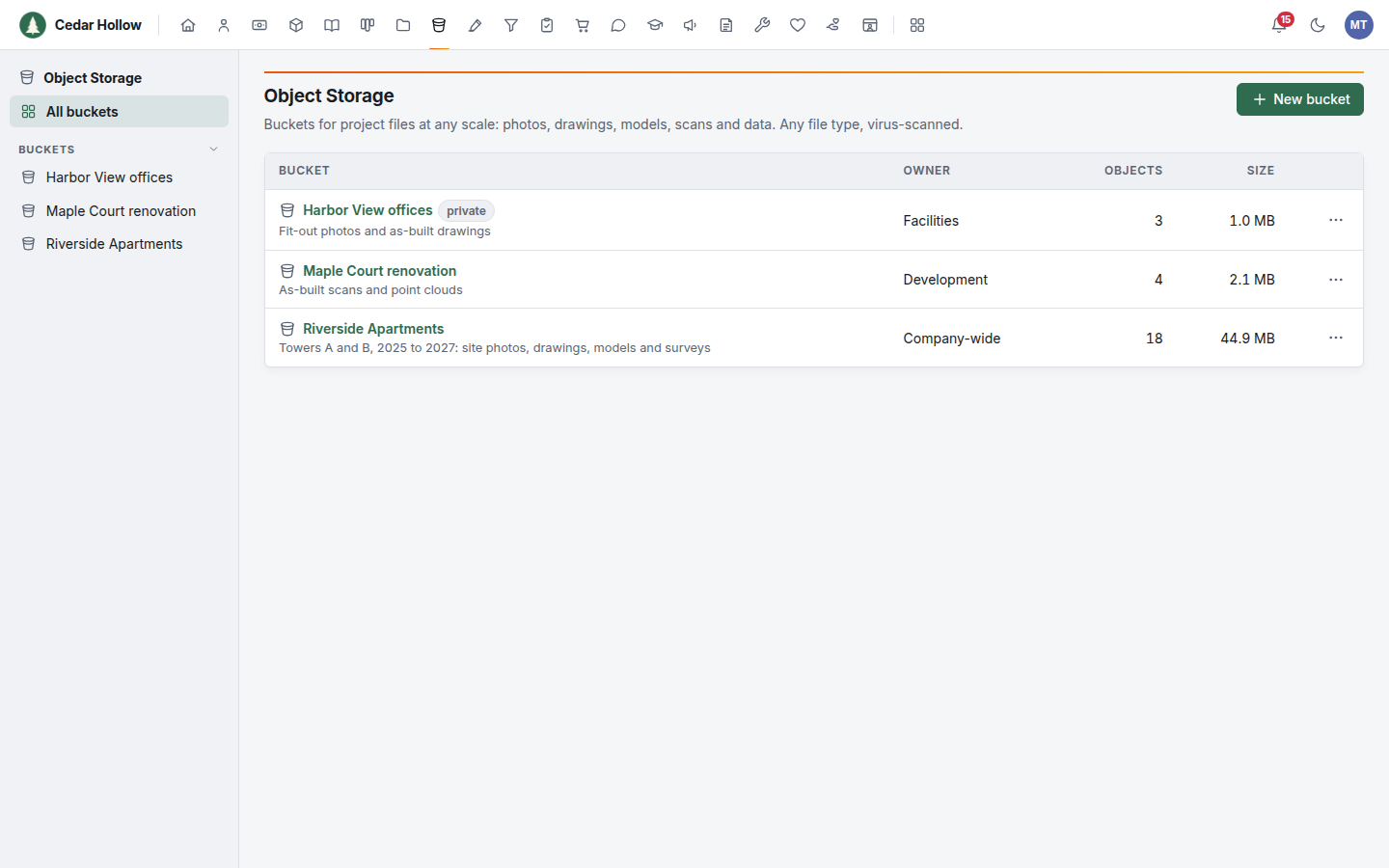
Keep project files at any scale in buckets: photos, drawings, models, scans and data of any file type, uploaded as files or whole folders, virus-scanned, previewed, tagged and searched.
Object Storage keeps the files your projects pile up: thousands of site photos, CAD drawings, 3D and BIM models, point clouds, scans, video and data exports. Files go into buckets, one per project or team if you like, with folders as deep as you need. Any file type is welcome, and every file is checked by a virus scanner before it is stored.
Object Storage or the Document Library?
Use the Document Library for documents people read, write and review. Use Object Storage for everything else.
| Document Library | Object Storage | |
|---|---|---|
| For | Policies, contracts, letters, spreadsheets, presentations | Photos, drawings, models, scans, video, archives, data |
| File types | Documents only (see what it takes) | Any type, virus-scanned |
| Largest file | The size shown on the upload area (10 MB on a standard setup) | 2 GB |
| Upload a whole folder | No | Yes, with its folders inside |
| Edit in the browser, versions, reviews | Yes | No |
| Deleted files | Go to the recycle bin | Are gone at once |
The two never mix: Object Storage files don't show in the Document Library, and documents don't show in Object Storage.
Before you start
- Object Storage must be on under Administration → Modules. It starts off: a company administrator turns it on.
- It also needs your Foxx HQ server to have a file storage bucket and a virus scanner. If it doesn't, Object Storage says it is not set up on this server. Ask your platform operator (see Deployment and file storage).
- Each bucket is owned by the company, a department or a
team, exactly like a library:
- Members of the owning unit add and change objects with no extra setup. Its leads (or a team's managers) administer the bucket.
- An Organization bucket can be read by everyone. A Private bucket is invisible to anyone not granted access.
- A read grant is read-only: no uploads, moves or deletes.
- Who can create buckets: company administrators, department leads and team managers, as for libraries.
Buckets, folders and objects
- A bucket is the top level: a project, a site, a department's archive.
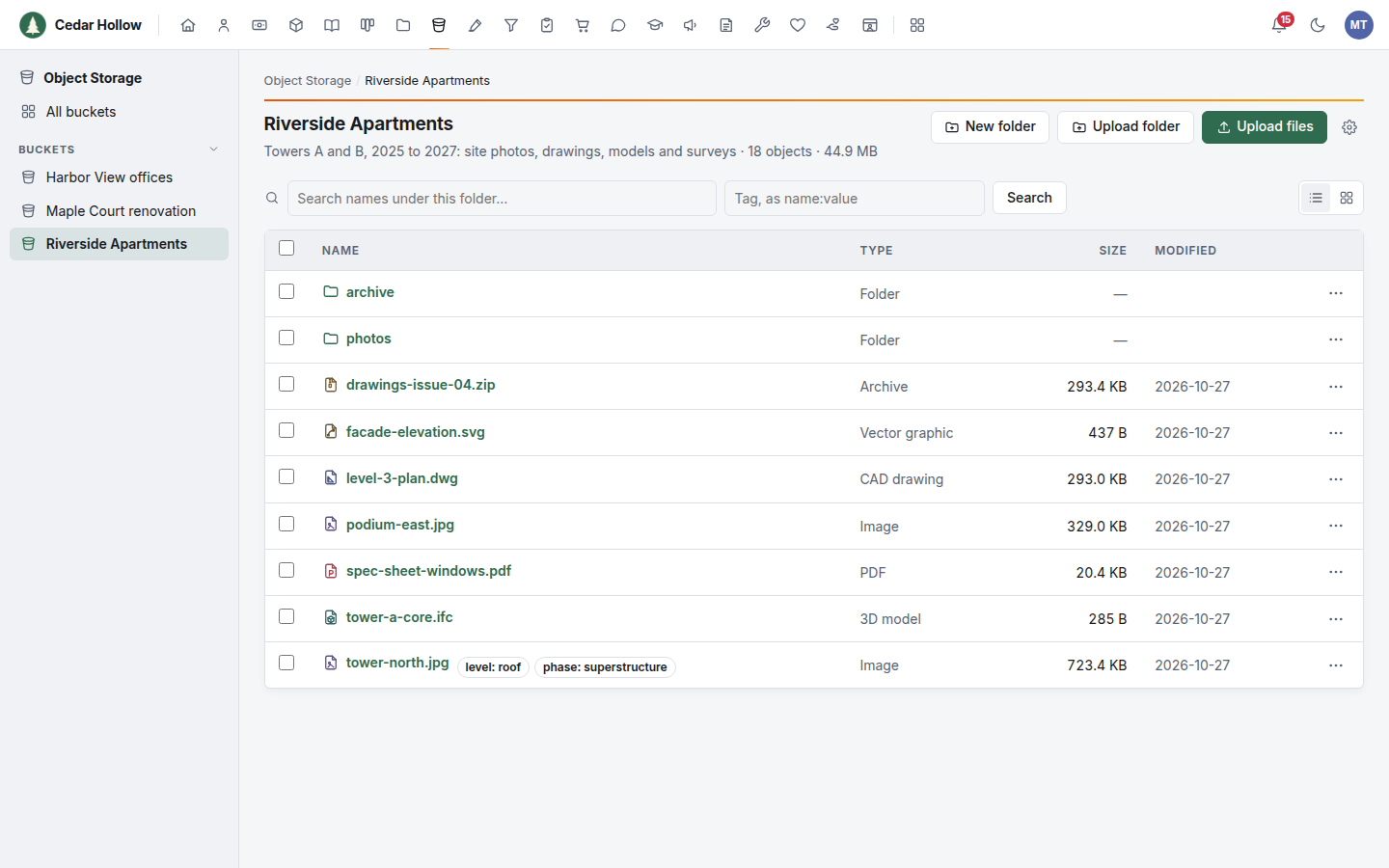
- A folder groups objects inside a bucket. Folders can hold folders, as on your computer.
- An object is a file. Its name is the last part of its path: the
object
Riverside/Framing/IMG_0412.jpgisIMG_0412.jpgin the folderFraminginsideRiverside.
Create a bucket
- Open Object Storage. Buckets lists every bucket you can open, with its owner, how many objects it holds and their total size.
- Click New bucket.
- Enter a Name (unique in your organization) and an optional Description, choose the Owner, and choose Visibility: Organization (everyone can read) or Private (only the owner and the people or units you invite).
- Click Create bucket.
Upload files and folders
Open the bucket, and the folder you want, then:
- Upload files: choose one or more files.
- Upload folder: choose a folder. Everything inside it is uploaded with its folders kept.
- Drag and drop files, folders, or both, onto the bucket. Dropped folders keep their structure too.
- New folder: enter a name and click Create folder.
Follow your uploads
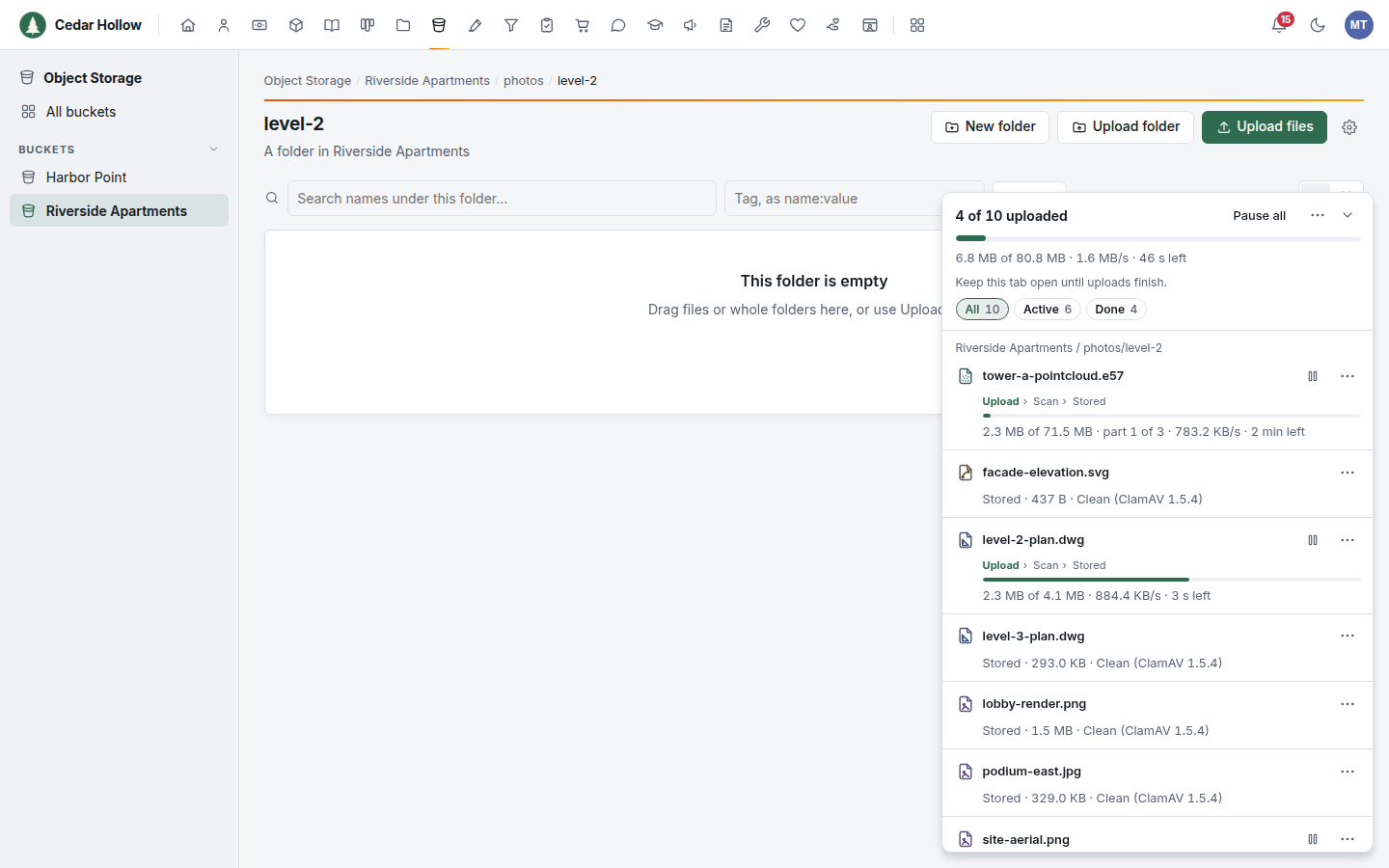
Your uploads show in the Uploads panel at the bottom right of the screen (across the bottom on a phone). It stays on every screen of Foxx HQ: open another folder, another bucket or another area while the files go up.
- The heading counts what is stored, for example 5 of 14 uploaded, and the line under the bar gives the total size, the speed and the time left.
- Each file shows its steps, Upload, Scan and Stored, with its own bar, speed and time left. A big file also shows the piece on its way, for example part 2 of 3.
- All, Active, Failed and Done filter the list.
- Click a file's name for its details: where it goes, its size and type, when it started, its average speed, its attempts and, once stored, the scan result and its SHA-256 fingerprint.
- The arrow at the top right minimizes the panel to a small pill with a progress ring. When every file is in, the panel minimizes itself.
- The browser tab's title shows the overall percentage, for example (42%) Riverside Apartments.
Three files upload at a time; the rest wait their turn.
- Pause beside a file stops it for now; Resume carries on. A big file carries on from the last piece the server has; a smaller one starts again. Pause all and Resume all do every file.
- A file's ⋯ menu has Pause or Resume, Cancel, Retry, Show in folder once it is stored, Copy path and Remove from list.
- The panel's ⋯ menu has Retry failed, Clear finished and Cancel all, which asks first. Canceling also lets go of the pieces the server already holds.
- Show in folder opens the folder a file went into. The folder you have open shows its new files once its uploads finish.
When the connection drops, uploads try again by themselves, waiting a little longer each time (1 second, then 2, 4, 8, 16 and 30). While your computer is offline the panel says Waiting for the connection, and uploads carry on as soon as it is back, a big file from the last piece that arrived. A file that fails six times in a row without getting further stops with Retry.
Keep this tab open until uploads finish. Moving around Foxx HQ is fine, but reloading the page, closing the tab or signing out stops them: files not yet stored need uploading again.
An object with the same name in the same folder is not replaced: the file says Something with this name is already here, and Replace sends it again in its place (Replace all in the panel's menu does every such file, after asking). Replacing keeps no copy of the old one: Object Storage has no version history.
Big files
- A file can be up to 2 GB. The virus scanner can't check a bigger one, so it is refused rather than stored unchecked.
- Files over 32 MB are sent in pieces, one after another. You see one progress bar; a piece that fails is sent again by itself, and a paused or retried file carries on from the last piece that arrived.
- Keep the tab open until the panel says the file is Stored. The file is stored only once the last piece has arrived and the whole file has been scanned. An upload left unfinished is cleared away after a day.
- A large file takes a while to scan after it has arrived: a minute or two for each gigabyte, longer for an archive of many files.
Virus scanning
Every file is scanned before it is stored: one that isn't clean is never stored.
- A file is refused. The Uploads panel says so under the file's name, with what the scanner found, for example: Refused: the virus scanner found Win.Trojan.Agent-1234. Nothing was stored. The refusal is written to the audit log with the file's name and what was found. Delete the file from your computer, or ask your IT support to look at it.
- "Heuristics.Limits.Exceeded…" means the scanner could not check the whole file: it is over 2 GB, it is an archive with more than 10,000 files inside or nested too deep, or it took too long. It is refused for safety. Split it, or unzip it and upload the folder.
- The scanner isn't answering. Uploads are refused for now: they try again by themselves for about a minute, then the Uploads panel says The virus scanner isn't answering, so nothing was stored, and the bucket list shows a warning. Click Retry in a few minutes; everything else in Object Storage keeps working.
Each object's panel shows its scan line: clean, the scanner's version, and when it was scanned.
Find and open objects
- Folders: click a folder to open it; the breadcrumb at the top takes you back up.
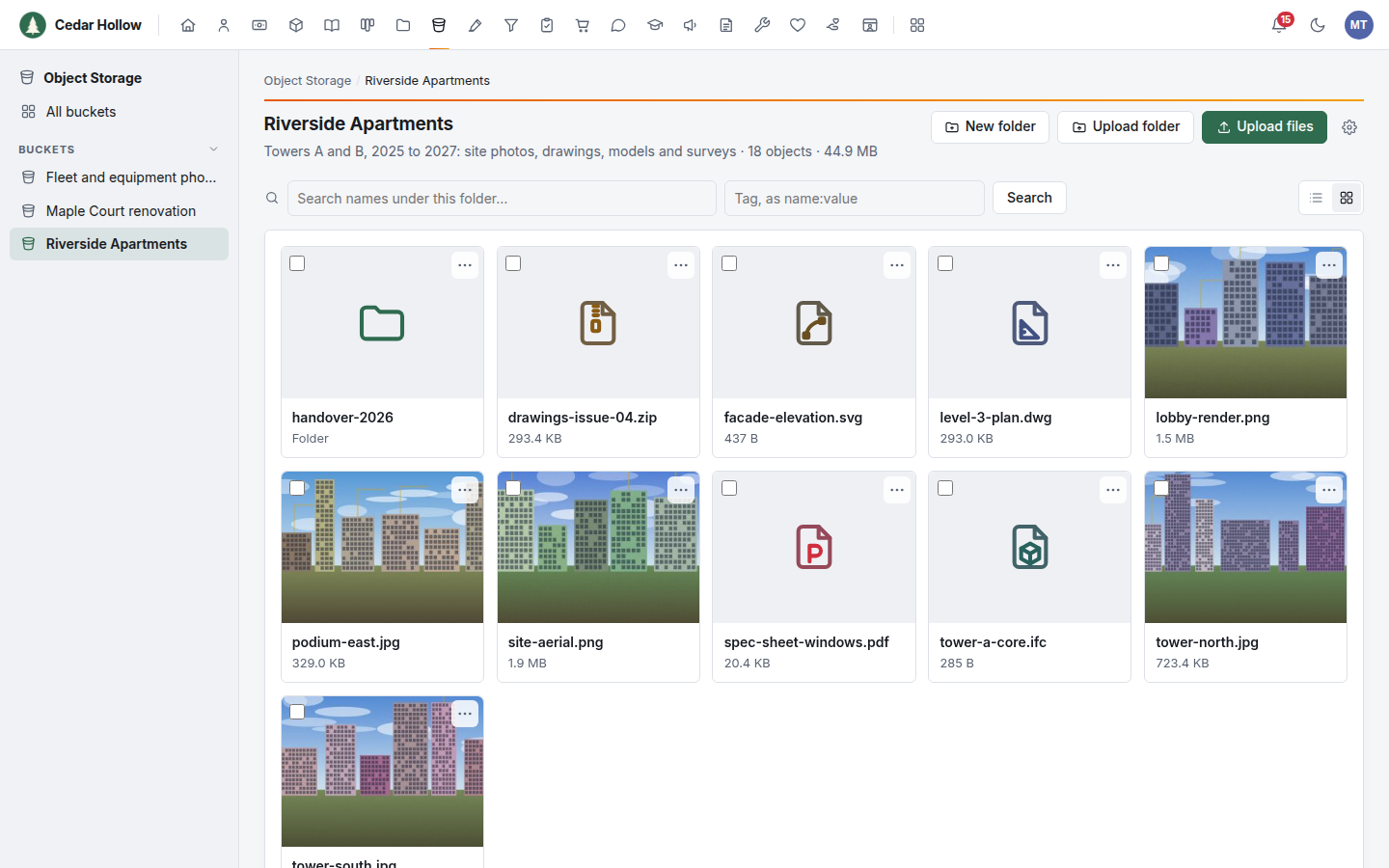
- List or grid: the grid shows photos as thumbnails and other files as large type icons. Long folders load in pages: click Load more at the bottom.
- Search: type part of a name or path and click Search. It searches this folder and every folder inside it.
- Tags: type a tag as
name:valuein the tag box, or click a tag shown under an object's name, to see every object carrying it, in this folder and below. Clear shows the folder again.
Thumbnails and previews
- Thumbnails are made for JPEG, PNG and GIF photos (up to 50 megapixels). Other files, including HEIC, raw camera files, TIFF and WebP, show an icon for their kind: photo, raw photo, vector, CAD drawing, 3D or BIM model, point cloud, map (GIS), video, audio, archive, PDF, Word, spreadsheet, presentation, code, data, design, font, email and more.
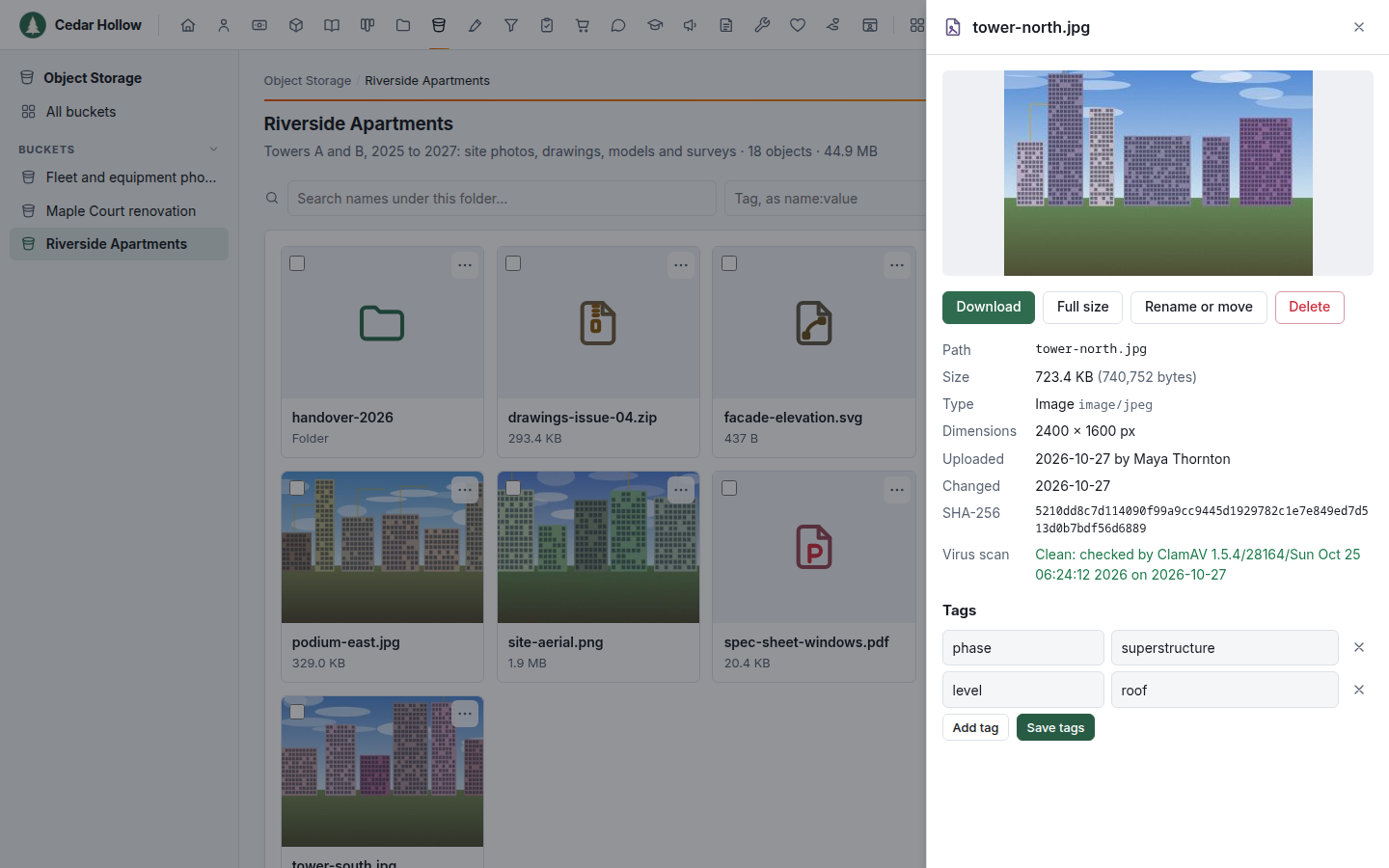
- Open preview (in the object's ⋯ menu, or click its name) shows pictures, SVG drawings, video and audio in the panel; for a PDF, Open the PDF opens it in a new tab. Videos play from the start; skipping ahead isn't supported yet.
- Every other file downloads. Foxx HQ never opens web pages, scripts or other active files in your browser.
Work with objects
Each object's ⋯ menu has:
- Download.
- Open preview (see above).
- Rename or move: change its name, or its folder path to move it. Moving never replaces an object already there.
- Edit tags: add tags as a name and value, such as
phaseandframing. An object can have up to 50. - Delete.
To act on many at once, tick them (or a whole folder) and use Download, Move or Delete above the list. Moving or deleting a big folder can take a few moments.
Deleting is permanent. Object Storage has no recycle bin and no version history.
Bucket settings (bucket administrators)
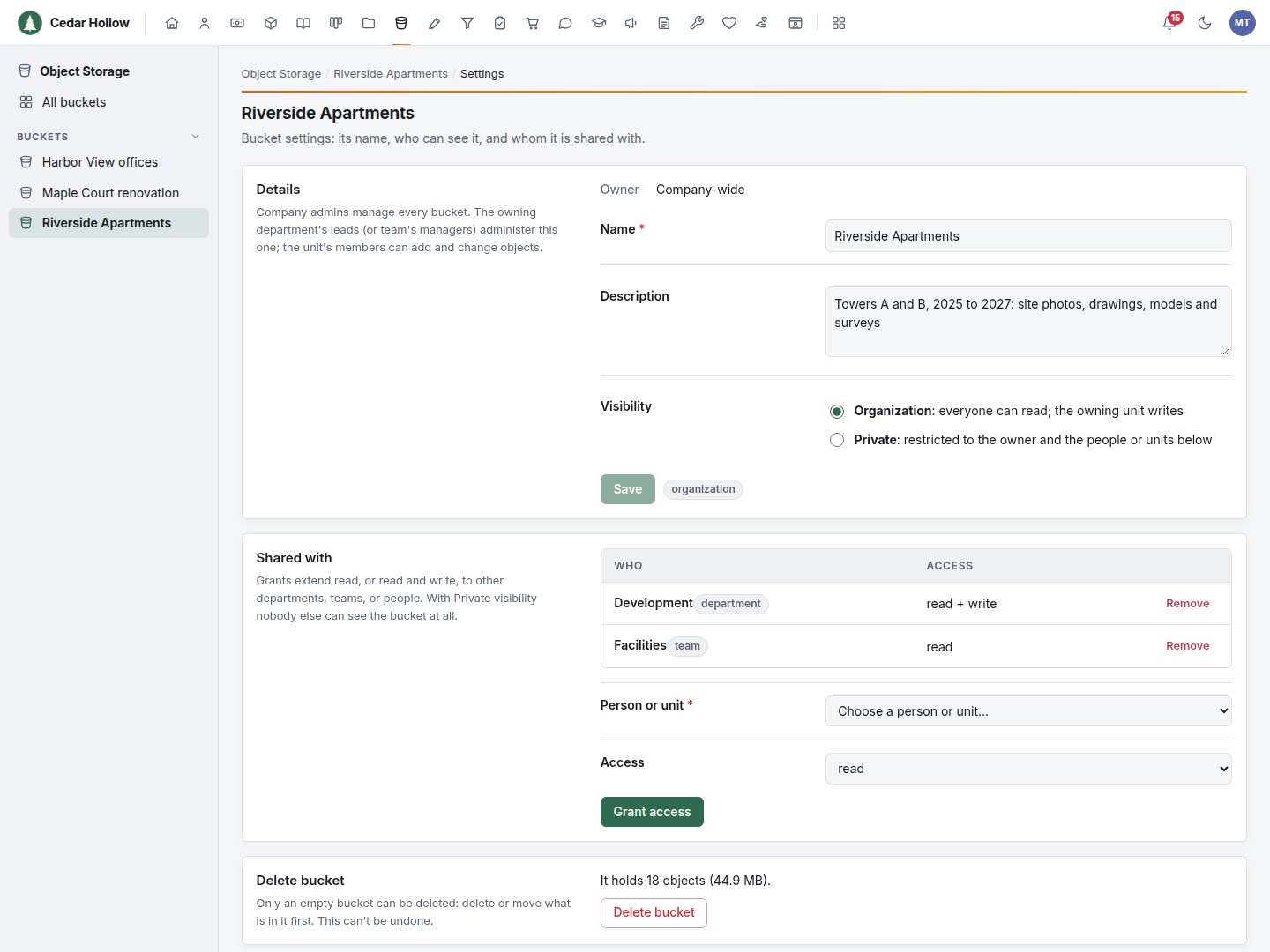
- Open the bucket and click the gear (Bucket settings).
- Change the Name or Description, or the Visibility: Organization or Private.
- Under Shared with, choose a Person or unit and Access (read or read + write), and click Grant access. Remove a grant from its row.
- Delete bucket works only when the bucket is empty.
The AI advisor
Object Storage is one row in the AI advisor's Scope, like every area. With Read only it can list buckets and objects and read their details and tags. With Read & write it can also create buckets and folders, tag, move and delete objects, as a company administrator could. Its uploads are scanned like anyone's. Through the Claude connector it reads only the first megabyte or so of a file, so it can't download big files. Everything it changes is in the audit log under its name.
Troubleshooting
Object Storage isn't in the menu. It is off. A company administrator turns it on under Administration → Modules.
It says Object Storage isn't set up on this server. The server has no file storage bucket or no virus scanner yet. Ask your platform operator.
There is no New bucket button. Only company administrators, department leads and team managers create buckets.
There is no Upload files or New folder button. You have read access only. Ask the bucket's administrators for read + write.
A file was refused by the virus scanner. See Virus scanning. Don't try to get around it: the scanner protects everyone who downloads the file after you.
A big upload failed part way. Click Retry in the Uploads panel. It carries on from the piece that failed.
My uploads stopped when I reloaded the page. Uploads run in the open tab. Keep it open until they finish; upload the files that weren't stored again.
A photo has no thumbnail. Thumbnails are made only for JPEG, PNG and GIF up to 50 megapixels. Download the file to see it.
I can't delete a bucket. Empty it first: delete or move every object in it.