 foxxcyber/docs
Public pages
See every page anyone can open without signing in, customize the careers page, and choose one column or two for the careers and donation pages.
Administration → Public pages lists every page your organization shows the public: where it lives, whether anyone can open it right now, why not if it's off, and where its content is edited. Each page is a template you fill in. You choose what it says, and whether it uses one column or two side by side on a wide screen. Nothing here builds a page from scratch.
Before you start
- You are a company administrator.
- The areas behind the pages are on under Administration → Modules: Human Resources or Volunteers for the careers page, Giving and Finance for the donation page. See Modules.
- Your logo and accent colour are set under Administration → Organization profile. Every public page uses them. See Organization and branding.
The list
Open Administration → Public pages.
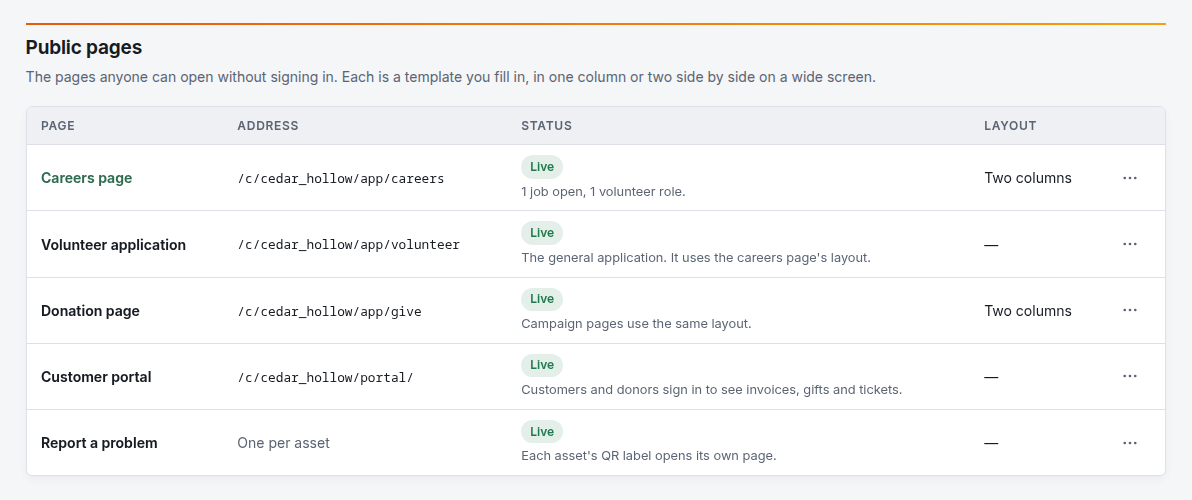
| Page | What it is | Its content is edited in |
|---|---|---|
| Careers page | Your open jobs and volunteer roles | Here: Customize… |
| Volunteer application | The general volunteer application | Volunteers → Openings |
| Donation page | Where donors give; campaign pages share its layout | Giving → Donation page |
| Customer portal | Where customers and donors sign in | Administration → Customer portal |
| Report a problem | One page per asset, opened from its QR label | Maintenance → Settings |
The Status column says Live or Off. The note under it tells you what the page shows, or what to do to turn it on: for example "Publish it and connect Stripe or PayPal to take gifts." The … menu on each row opens the page, copies its address, or takes you to where it's edited.
Customize the careers page
- On the list, open the … menu on Careers page and choose Customize…. You can also click its name. Hiring's Settings page links here too.
- Under Page:
- Live: untick to take the list down. Visitors then see "This page isn't available." Links you've shared to each opening keep working; to stop taking applications, close the openings.
- What it lists: tick Jobs only to leave volunteer roles off. The volunteer application keeps its own page.
- Layout: One column or Two columns (see below).
- Under Content:
- Heading: replaces "Work with us". Leave it empty to keep the default.
- Introduction: who you are and why people work here. Line breaks are kept.
- Why work here: up to six short lines, each with an optional icon, such as benefits, values or perks. Empty rows are left out.
- Under Banner, choose a wide image (PNG, JPEG or WebP, up to 3 MiB; about 3 to 1 works best) and describe what it shows for people who can't see it. Remove the banner takes it off.
- Click Save careers page.
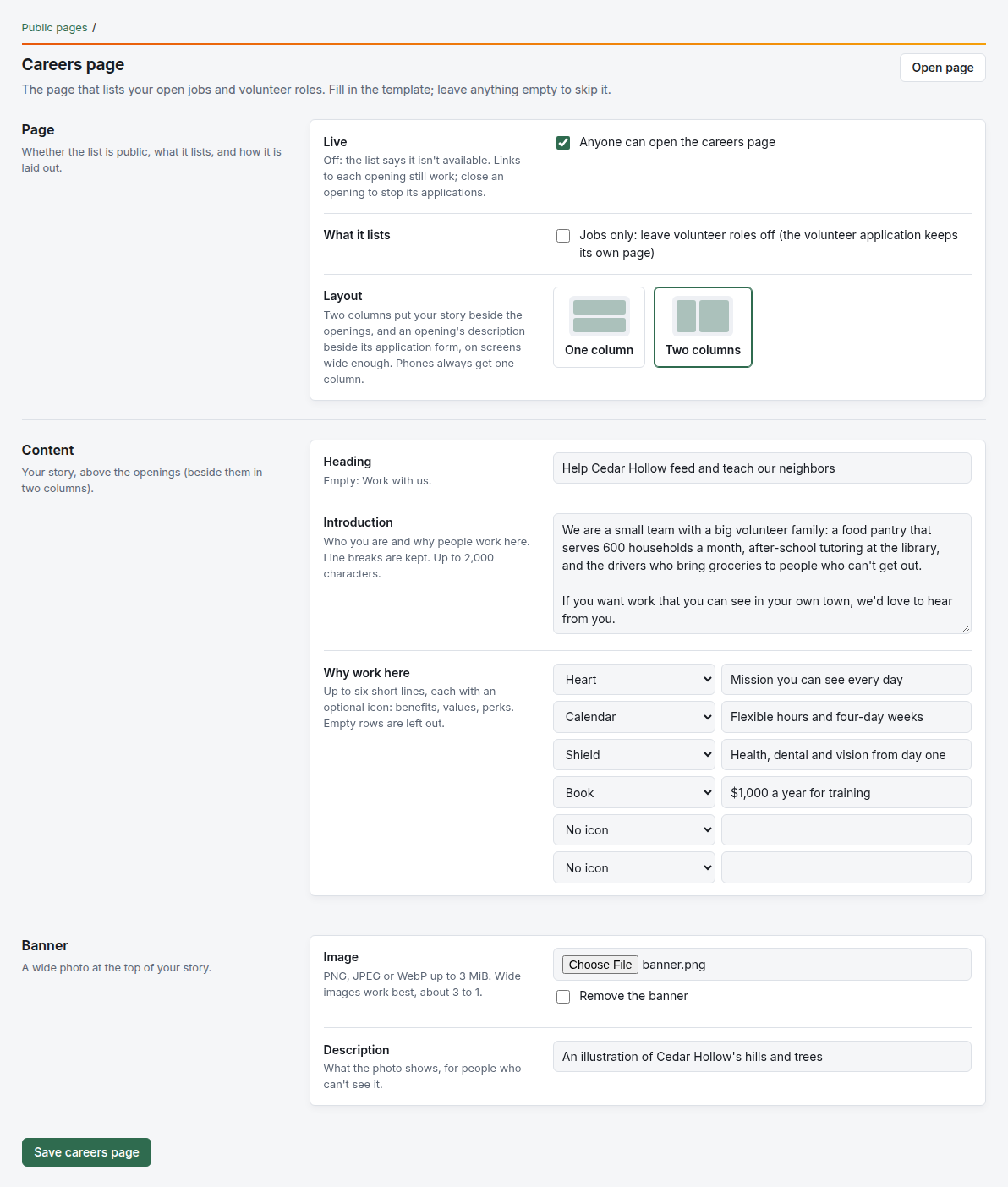
How to tell it worked: Open page at the top right opens the careers page as visitors see it.
One column or two
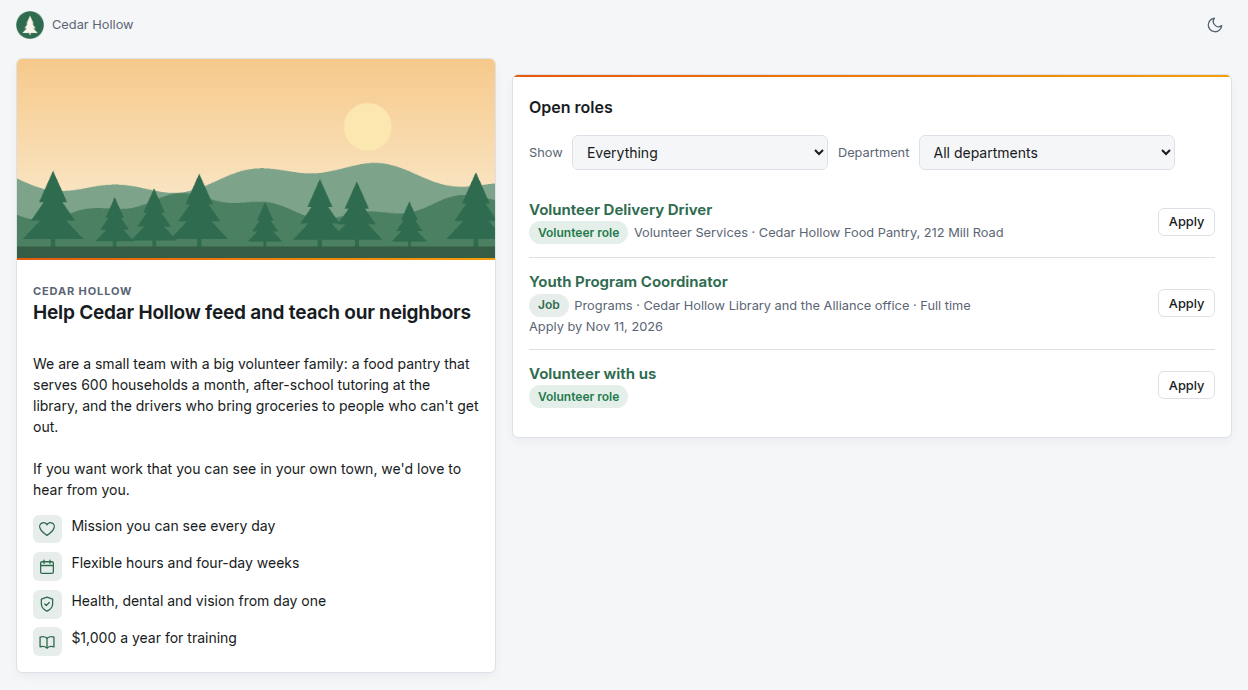
Two columns puts your story (banner, heading, introduction, the "why work here" list) beside the list of openings. On each opening's page, the description sits beside the application form.
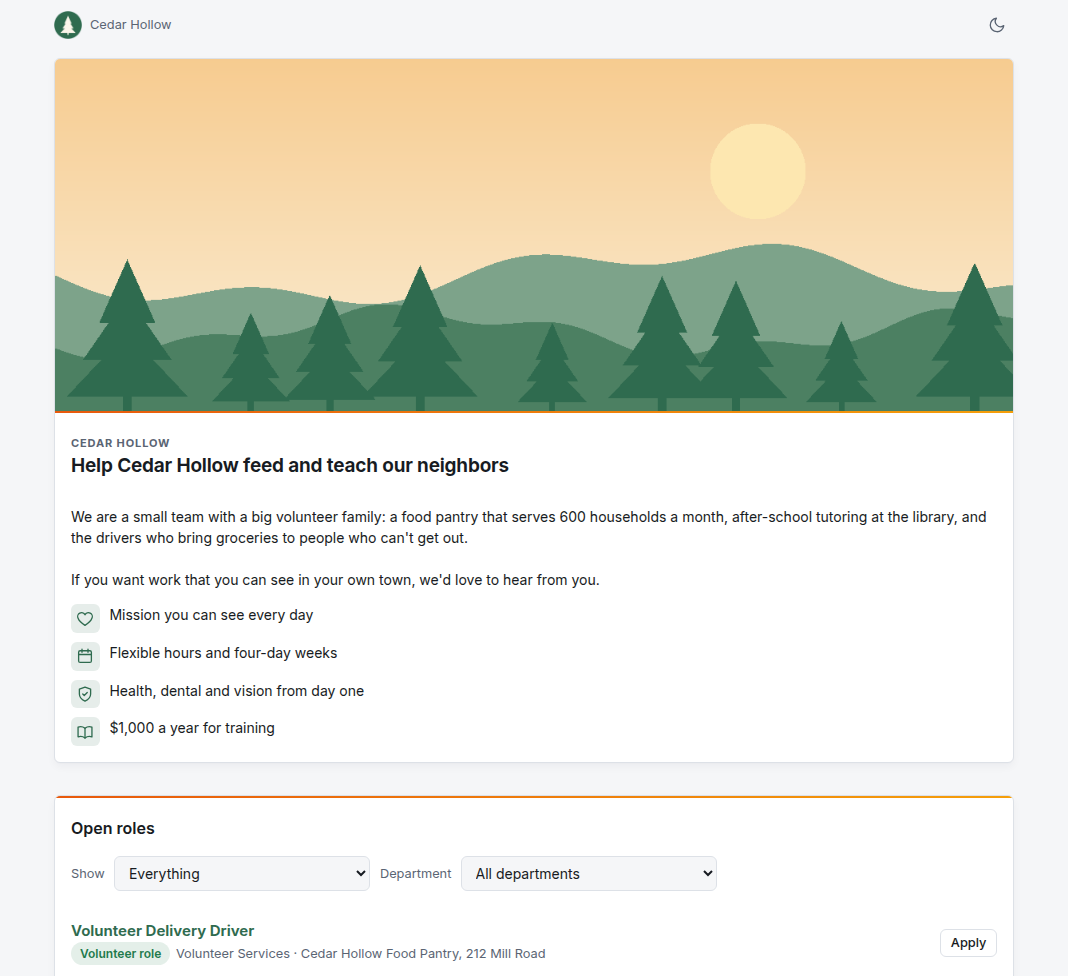
One column stacks the same content above the openings, in a wider column than before.
For the donation page, open its … menu and choose Use two columns or Use one column. Two columns put the story beside the gift form, with the image as a wide strip across the top. Campaign pages follow the same choice, and so does the preview in Giving's editor.
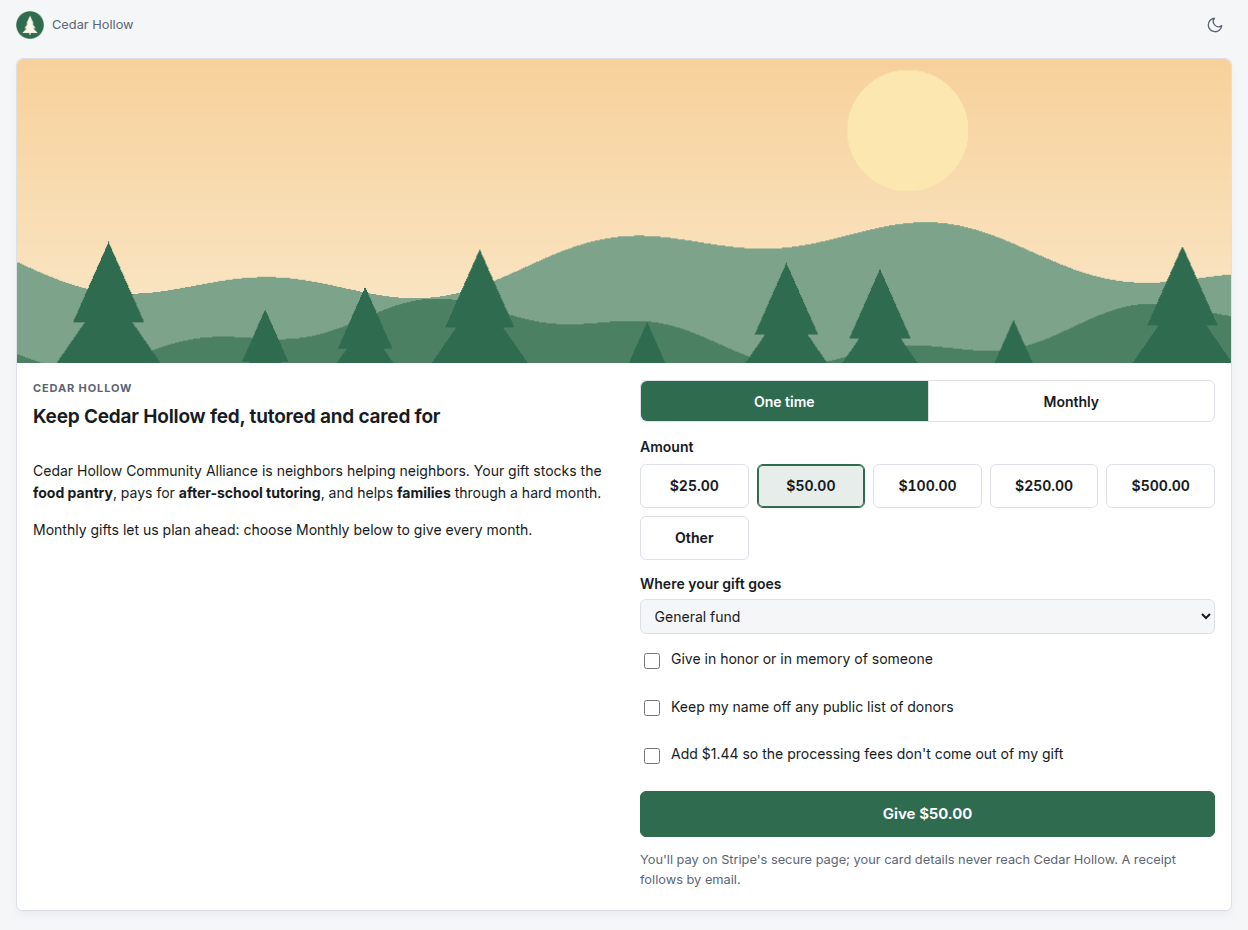
Pages use the extra room on large monitors (1920 pixels wide and up). Phones and narrow windows always get one column.
Troubleshooting
The careers page says "This page isn't available." It's switched off. Tick Live under Customize… and save. If it's on, check that Human Resources or Volunteers is on under Modules.
Volunteer roles don't show on the careers page. Jobs only is ticked. Untick it, or point volunteers to the volunteer application's own address from the list.
The banner upload is refused. It must be a PNG, JPEG or WebP image of 3 MiB or less. SVG isn't accepted.
The donation page shows Off. The note says why: usually the page isn't published, or Stripe or PayPal isn't connected. See Set up giving, start to finish.
I don't see Public pages in Administration. Only company administrators do.