 foxxcyber/docs
Approvals
Approve, reject or send back time off, expense reports, timesheets, requisitions, vendor bills and customer invoices from one tab in your Inbox; sign where a policy asks; name a stand-in while you're away; decide from the email; and set who else approves larger ones.
Time off, expense reports, timesheets, purchase requisitions, vendor bills and customer invoices are approved the same way. When one is submitted, it waits for its approval steps: by default one approval from someone on the requester's approval chain, plus any steps your organization's approval policies add for larger requests. Everyone who has something to decide finds it under Inbox → Approvals.
Before you start
- Nothing to set up for the default. Every request needs one approval along the requester's approval chain: their reports-to manager, the leads of their departments (and the departments above), then the company administrators. Set reporting lines in My organization or under Human Resources.
- HR administrators (company administrators and holders of the HR admin grant) can decide any step on the chain for anyone but themselves.
- Nobody approves their own request, and one person decides at most one step of a request.
- Vendor bills need approval only when a policy says so: a bill above a policy's amount can't be paid until it is approved. A bill raised from a purchase order doesn't need it again (its requisition was approved).
- Customer invoices also need approval only when a policy says so: an invoice whose total is above a policy's amount can't be marked sent or emailed until it is approved. Invoices made by recurring billing don't need it (the subscription agreed their amount).
Decide what waits for you
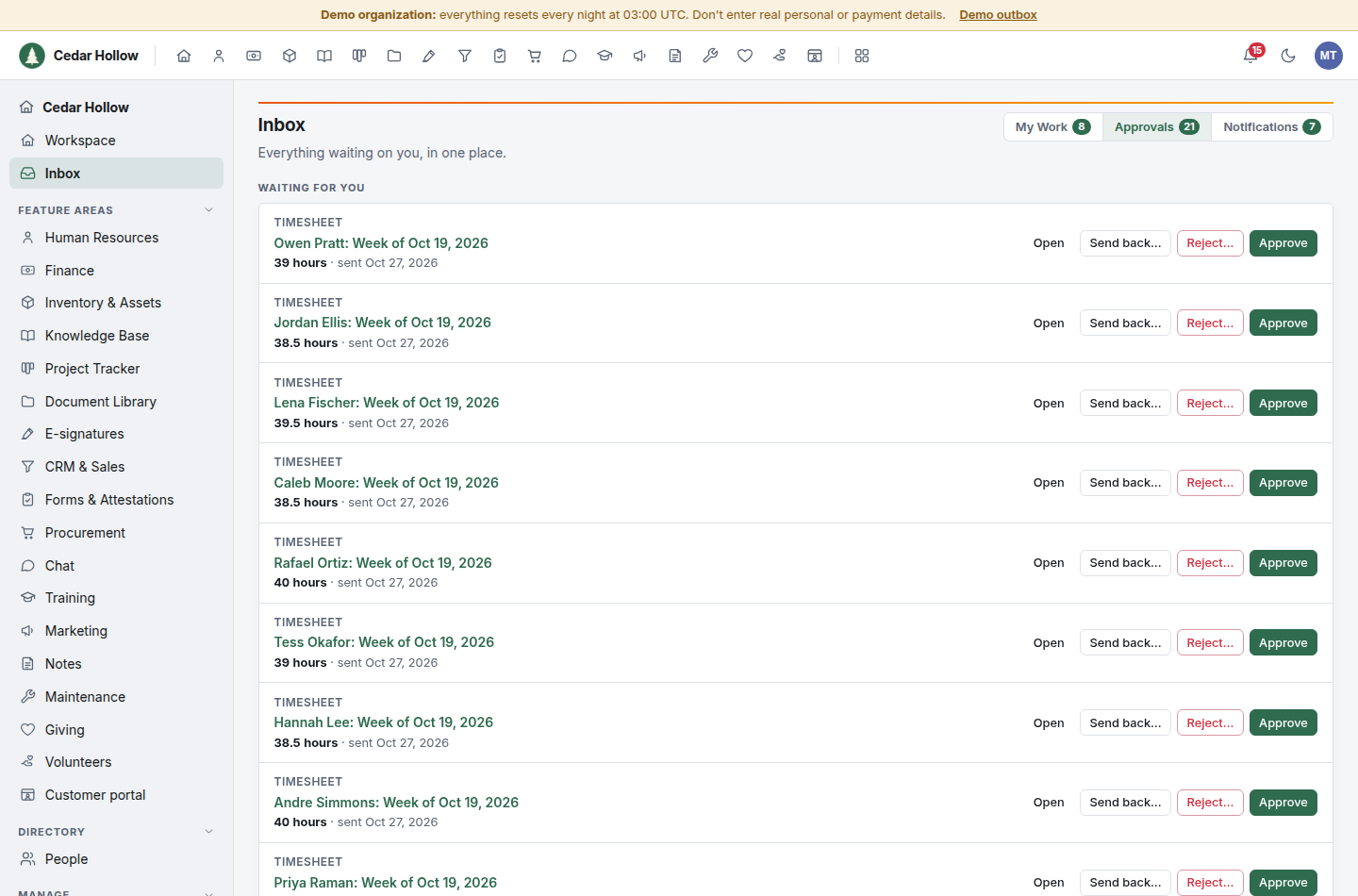
- Open the Inbox and click the Approvals tab. The number on the tab is how many requests wait for you. My Work also lists them, as "3 timesheets await your approval".
- Waiting for you lists every request whose current step is yours, oldest first: who asked, what for, the amount (dollars, days or hours), and which step it is when there is more than one. It shows 50 at a time. When more than 50 wait, a line says which ones you see of how many ("51–100 of 230"), and Previous and Next move between pages.
- On each request:
- Approve decides your step. If another step follows, the request moves on to its approvers; if yours was the last, the request is approved.
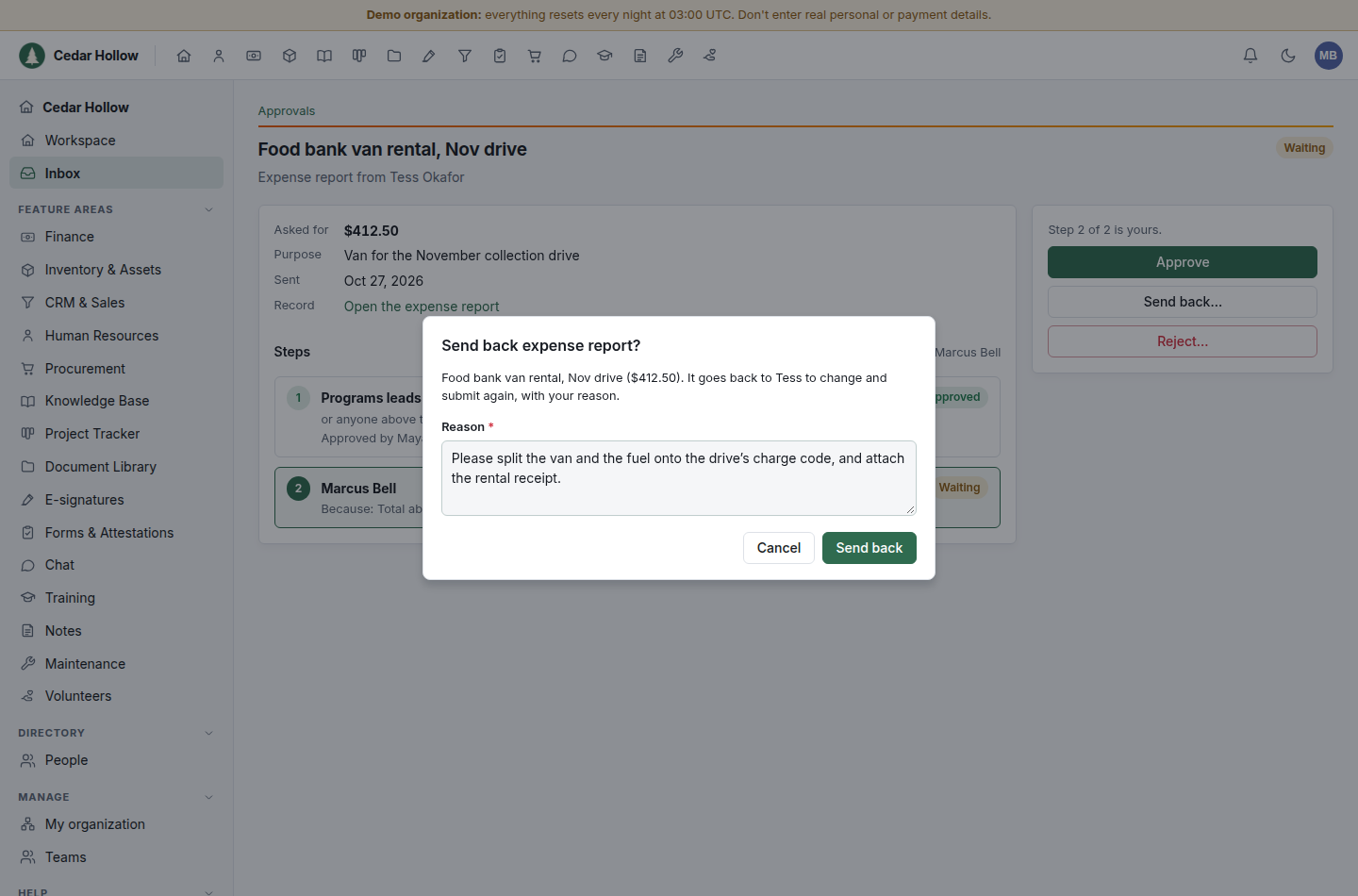
- Send back… returns an expense report or timesheet to its owner to change and submit again. Say what to change.
- Reject… ends the request. Say why.
- Open opens the record itself (the report, timesheet, requisition or bill).
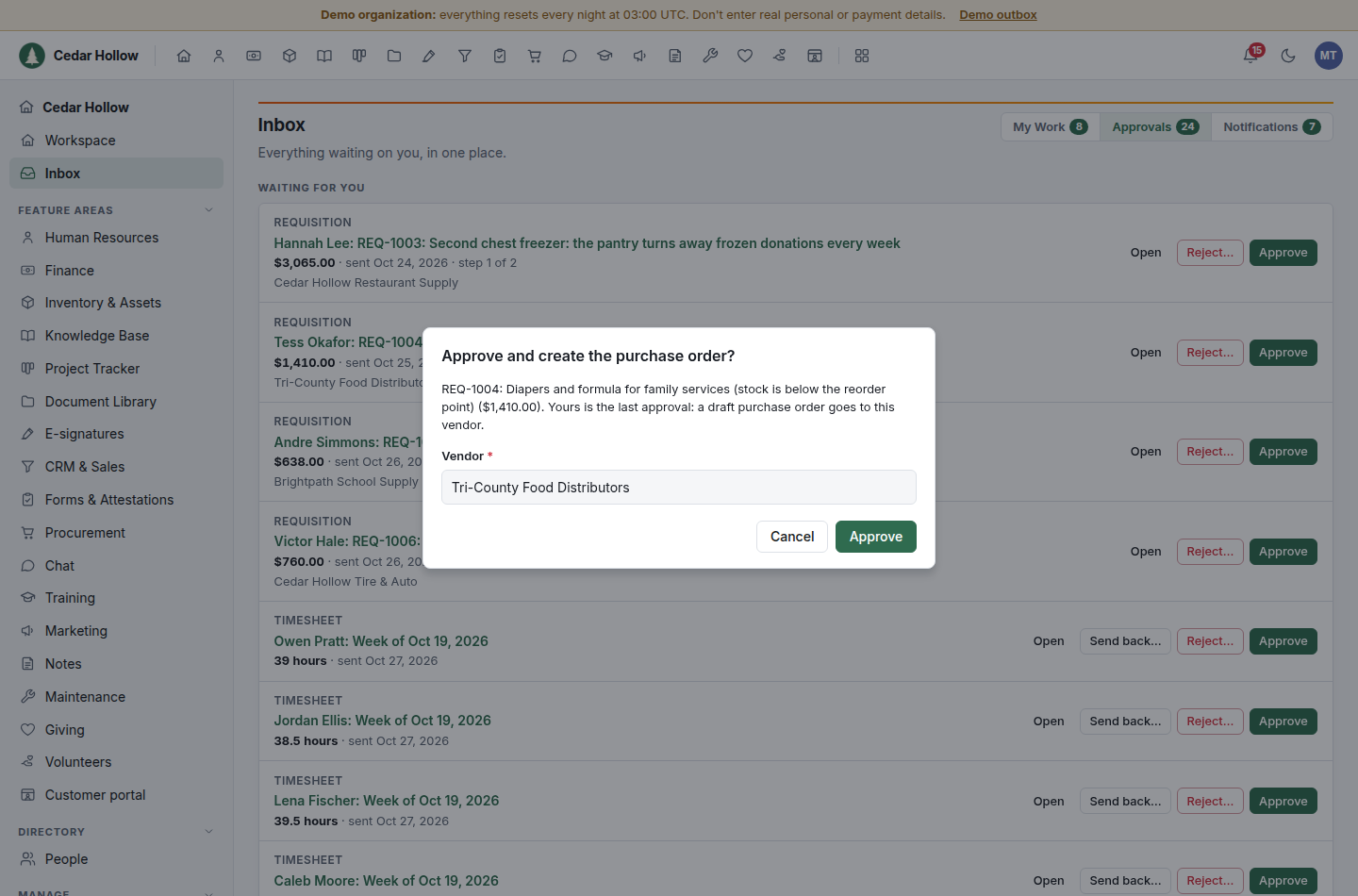
- On a requisition's last step, Approve asks which Vendor the purchase order goes to (the one the requester suggested is filled in) and creates the draft purchase order.
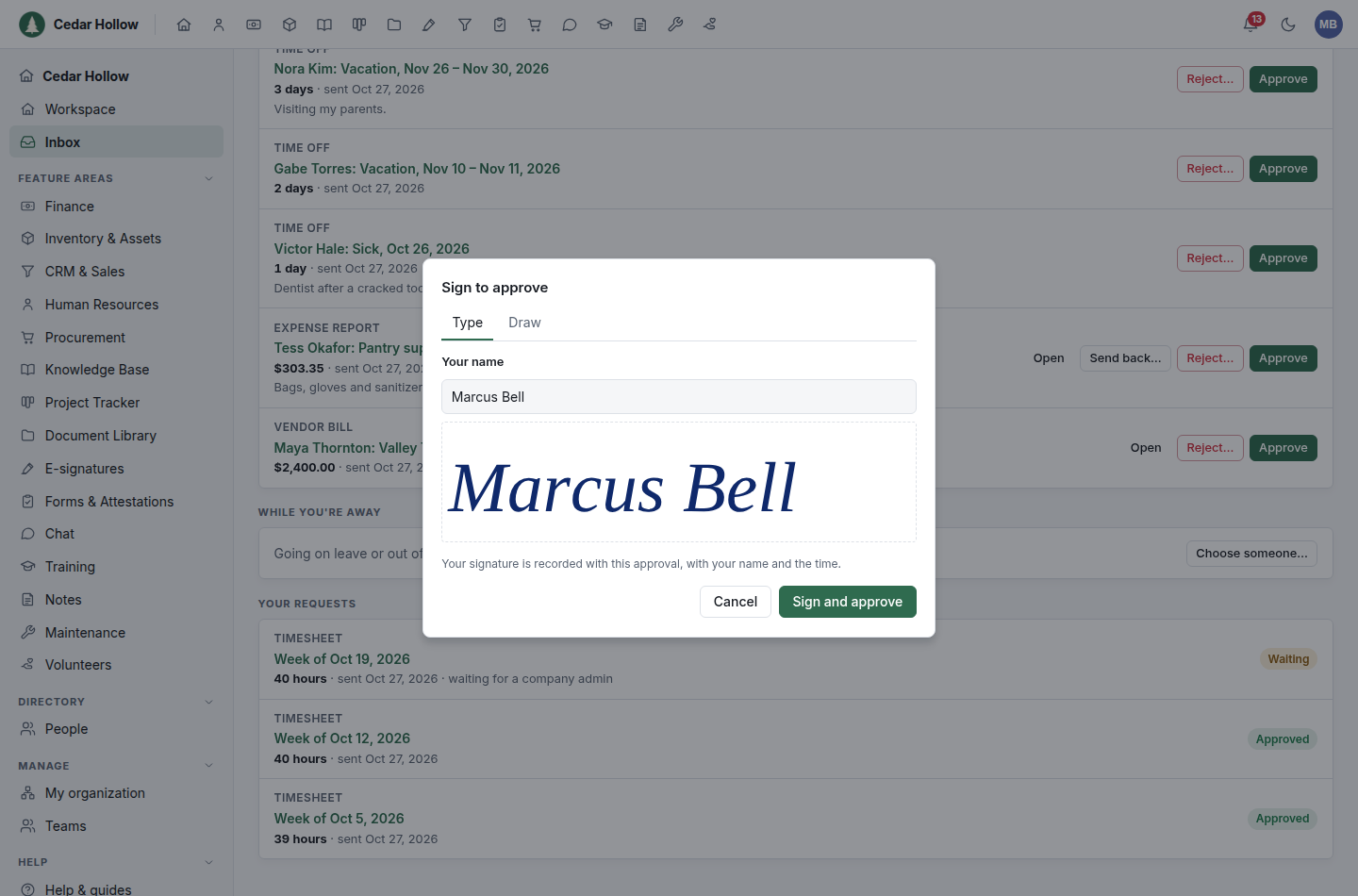
- On a step that takes a signature, Approve asks you to sign: type your name (HQ draws it in a script face) or draw it. The signature is kept with the step.
Click a request's title to see all its steps: who decides each one, why a policy added it, and who decided it and when.
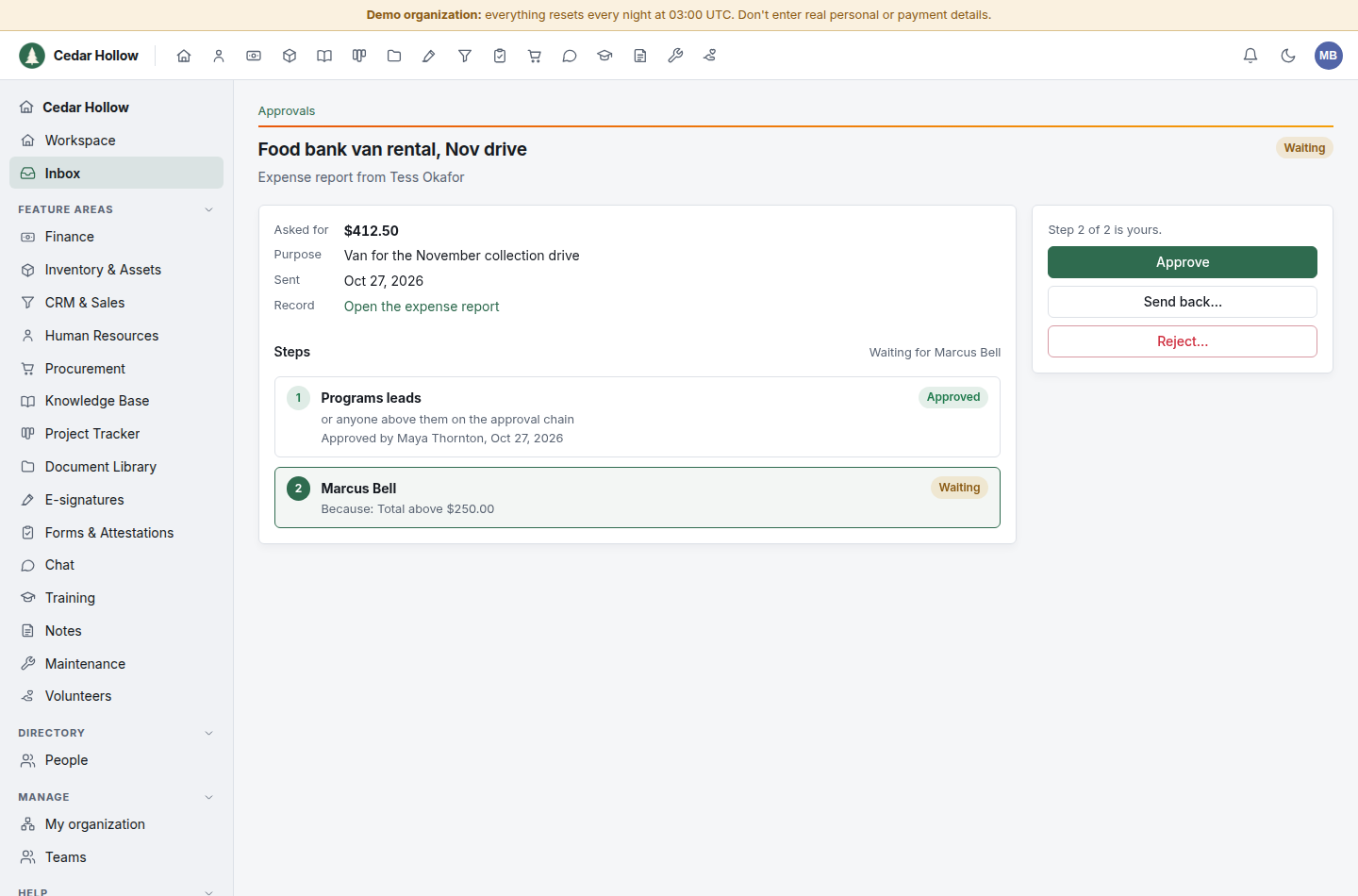
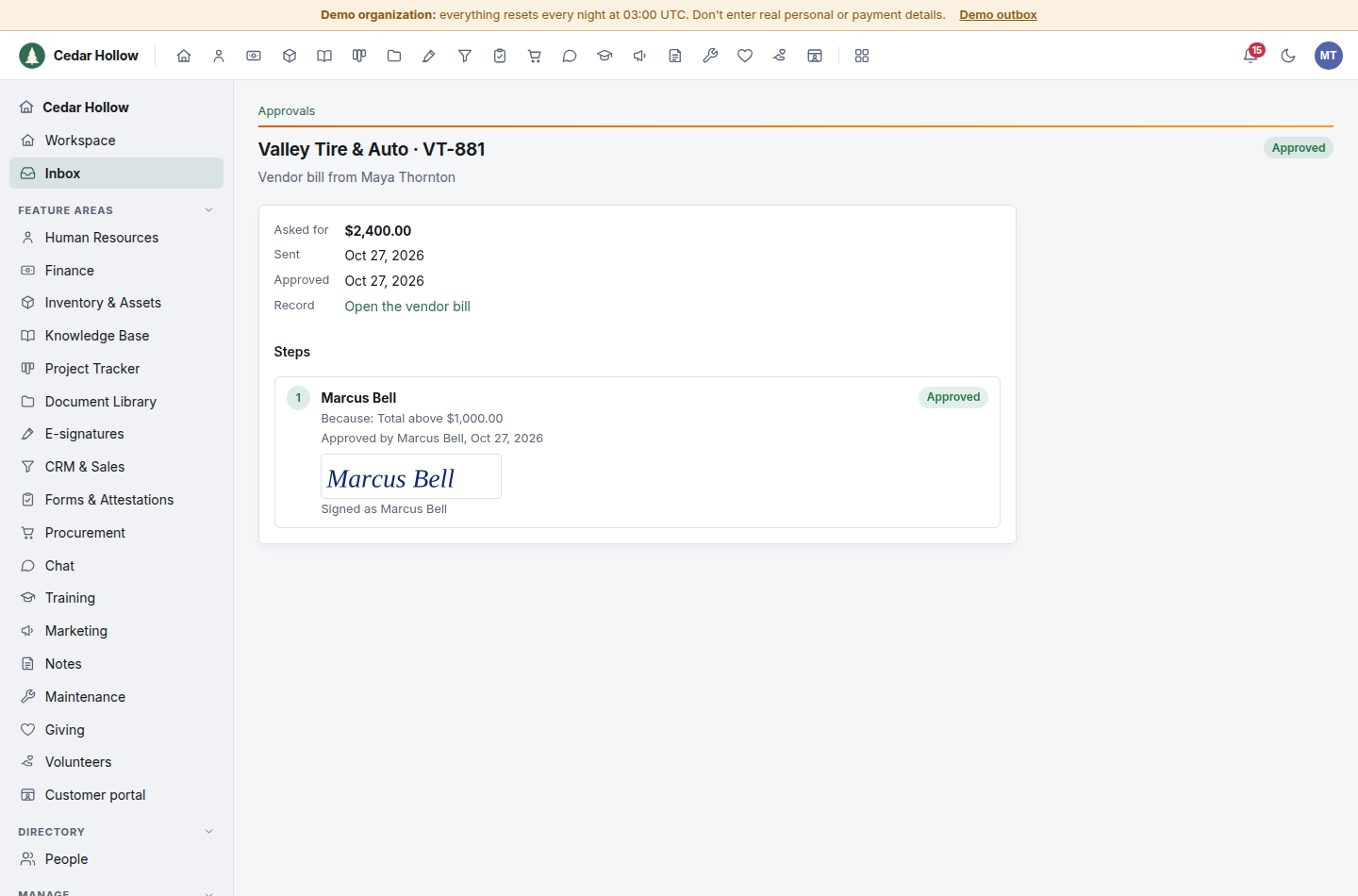
You can also decide from the expense report, timesheet or vendor bill itself: the Approval box at the top shows where it waits and, when the step is yours, the same buttons. Requisitions can still be decided from Procurement → Pending approval.
Also waiting for you lists the decisions made in their own areas, such as maintenance requests to turn into work orders, life events to review in Benefits, access requests and documents a colleague asked you to review. Click one to decide it there.
While you're away
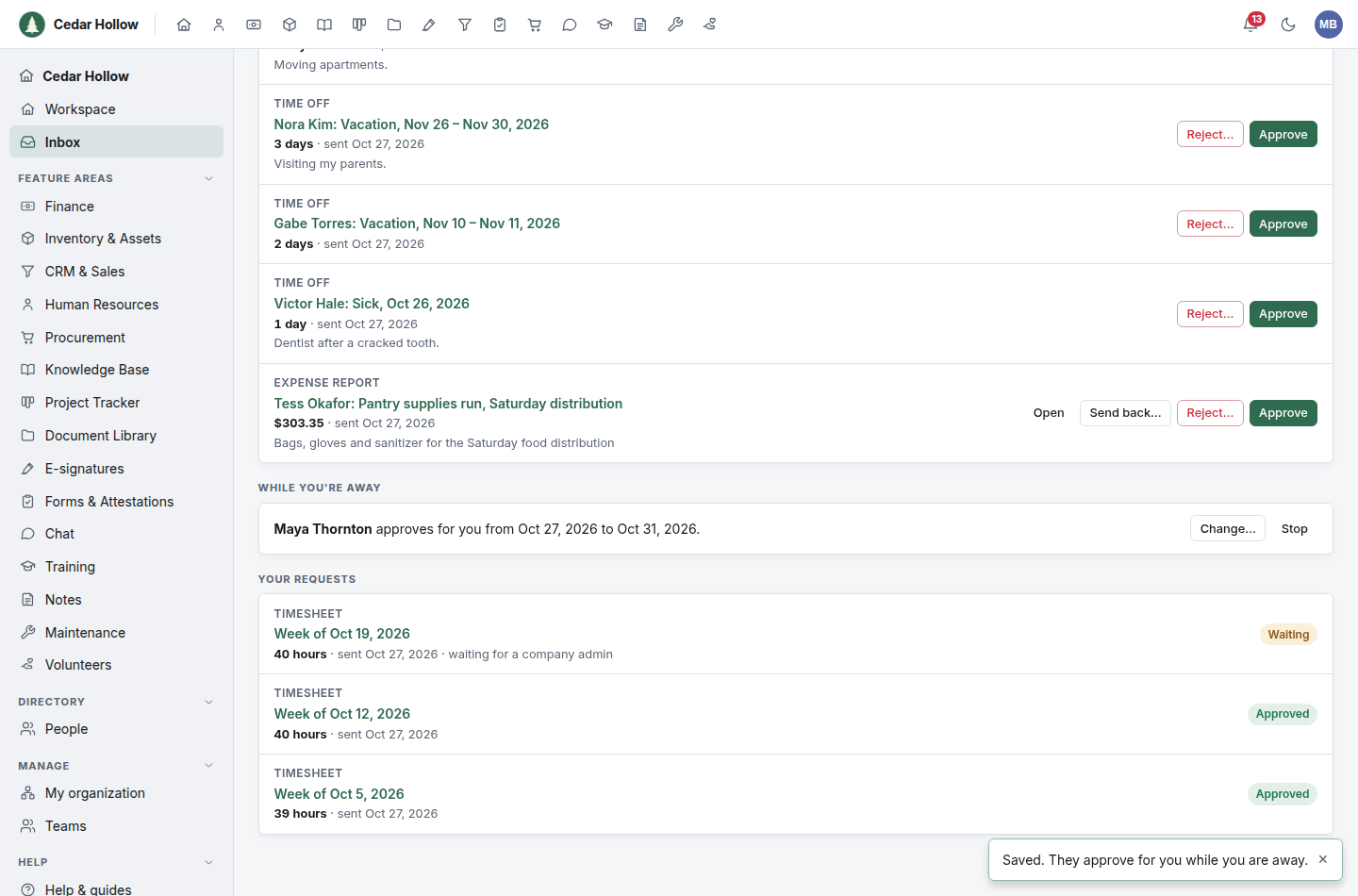
Going on leave or out of reach? Name someone to decide your steps meanwhile.
- In Inbox → Approvals, under While you're away, click Choose someone….
- Choose who Approves for you, the First day away and the Last day away, and click Save. Type part of a name to find the person; only active people are offered. If you are a volunteer, the list finds people by name and shows no emails.
From the first day to the last, they can decide every step you could; each one is recorded as decided by them for you. They are told when a step waits for you. To end it early, click Stop. Nobody can stand in for their own request.
Decide from the email
When your organization turns it on (see below), the email that tells you a step waits for you carries a link to approve or reject without signing in. The link opens a page with the request; nothing is decided until you press Approve, or Reject… with a reason.
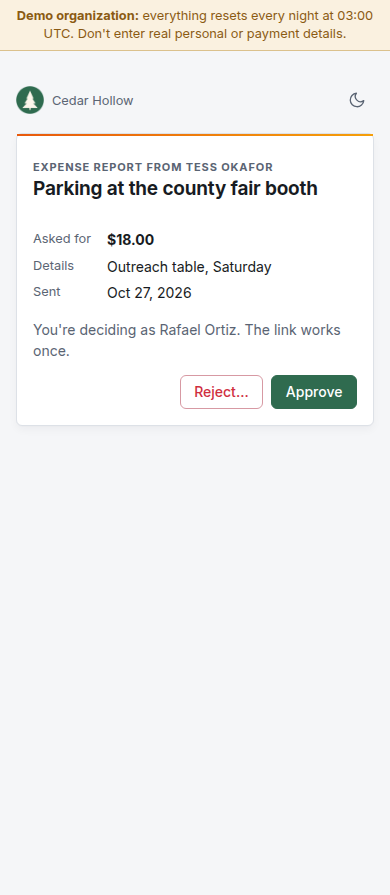
The link works once, for 7 days, only for you, and only while the step is still yours. Don't forward the email. You always sign in if you use an authenticator app or your organization requires two-factor sign-in, and for a step that takes your signature or a requisition's last approval.
Follow your own requests
Your requests, under the Approvals tab, lists what you have submitted: what is still waiting and for whom, then the most recent ones decided, with the reason when one was rejected or sent back.
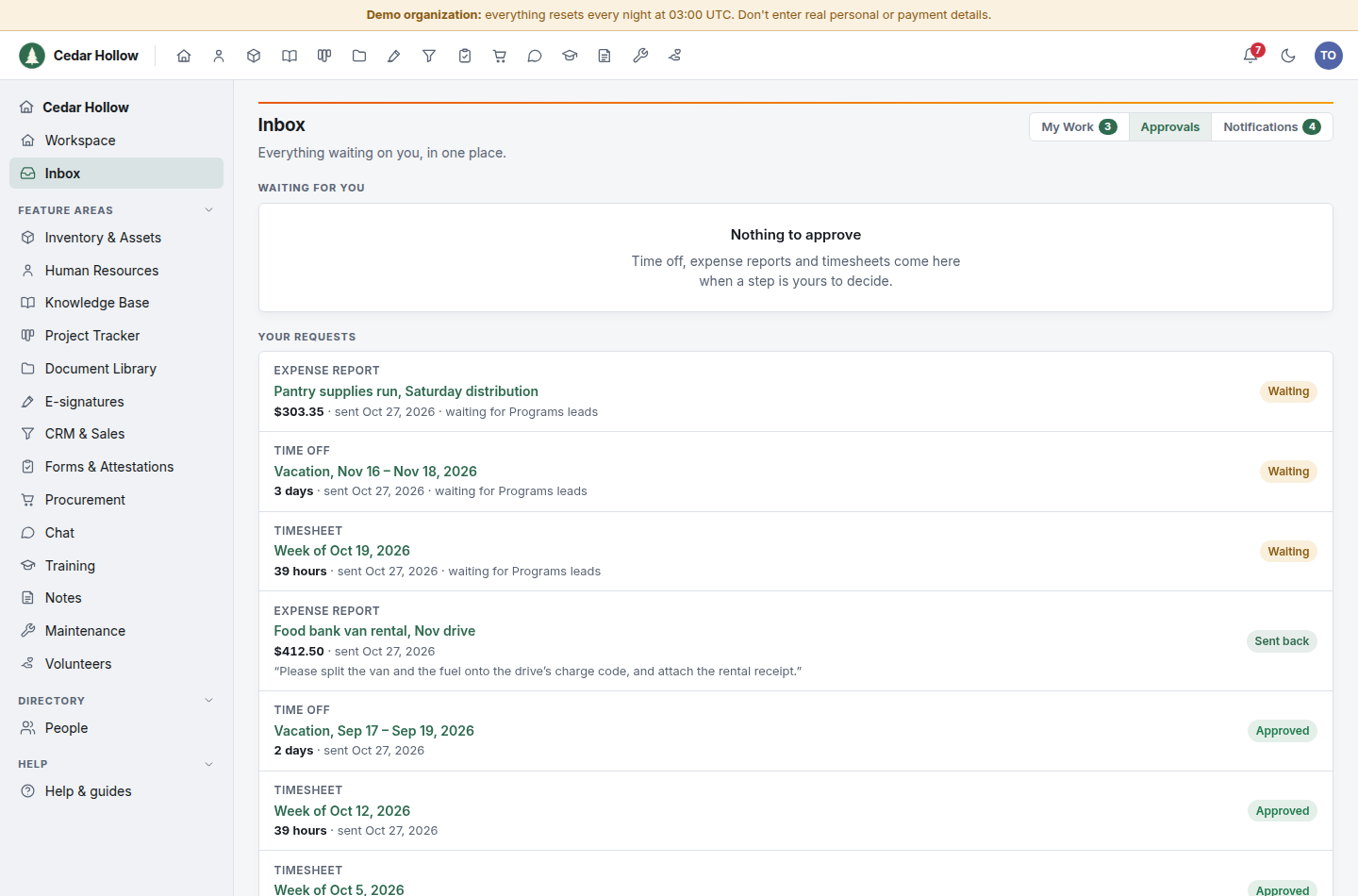
You are told in your notifications (and by email, if you turned email on) when a request is approved, rejected or sent back. Each approver is told when a step waits for them. The email links to the request; you sign in to decide.
A report or timesheet that is sent back is a draft again: change it and click Submit for approval. It starts its steps over. To take back a time-off request before it is decided, open Leave and click Cancel.
Set approval policies (administrators)
Company administrators decide who else approves larger requests.
- Open Administration → Approvals.
- Under the kind of request (Expense report, Time off, Timesheet, Requisition, Vendor bill or Customer invoice), click Add policy.
- Enter the amount: a total in dollars for expense reports, requisitions, vendor bills and customer invoices, a number of workdays for time off, hours in the week for timesheets.
- Choose who else approves a request above that amount:
- The next level up the chain: the next rung of the requester's approval chain (the company admins when there is no next rung);
- A company admin;
- A named person, such as a finance manager.
- Choose whether They sign to approve: with Yes, the approver adopts a signature to approve, and it is recorded with the step.
- Click Add policy.
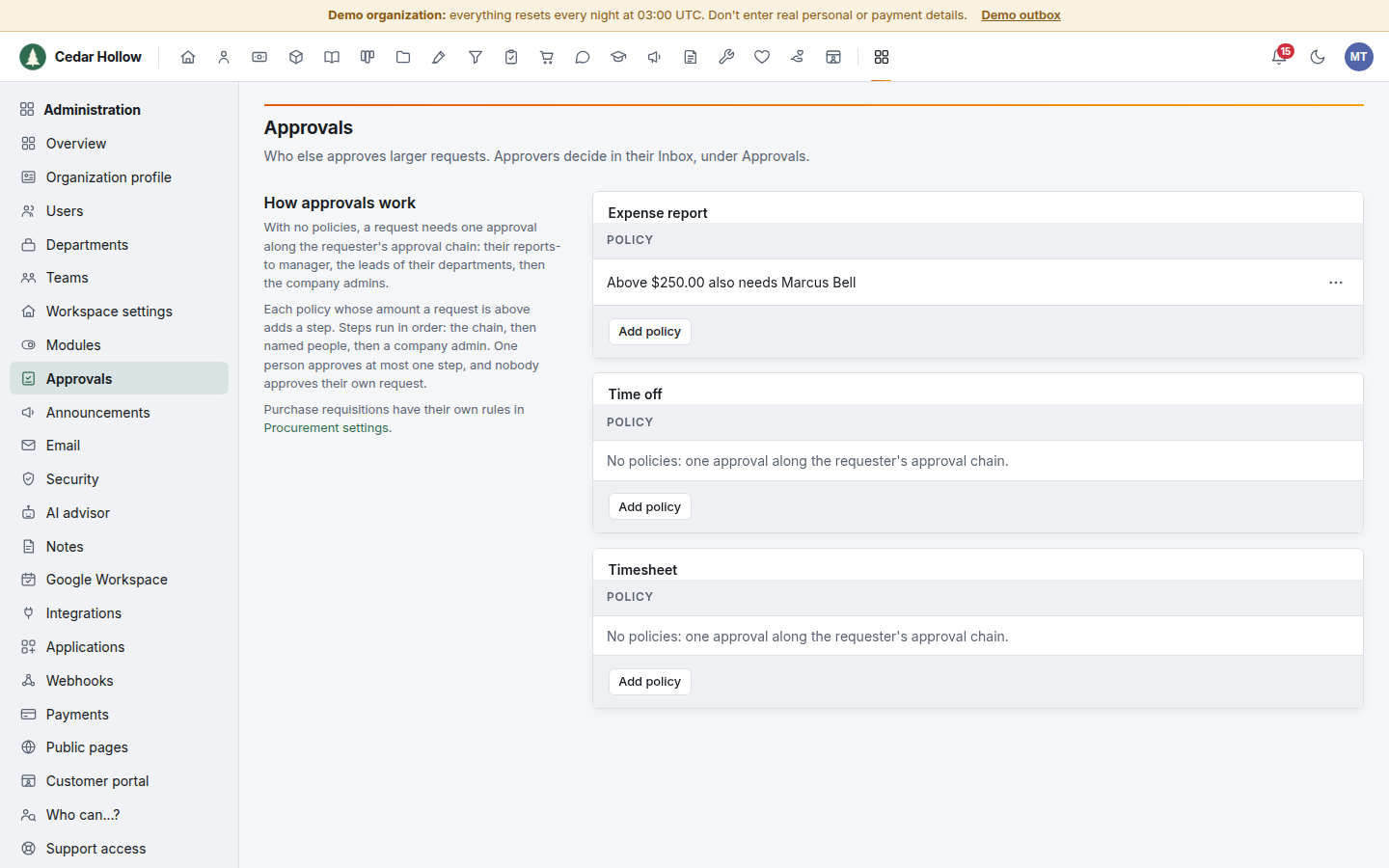
Requisition policies are the same rules as Procurement → Settings → Approval rules; either page edits them. For Vendor bill, a policy makes a bill above its amount need approval before it's paid; the steps are the policies' alone, worked out from whoever entered the bill.
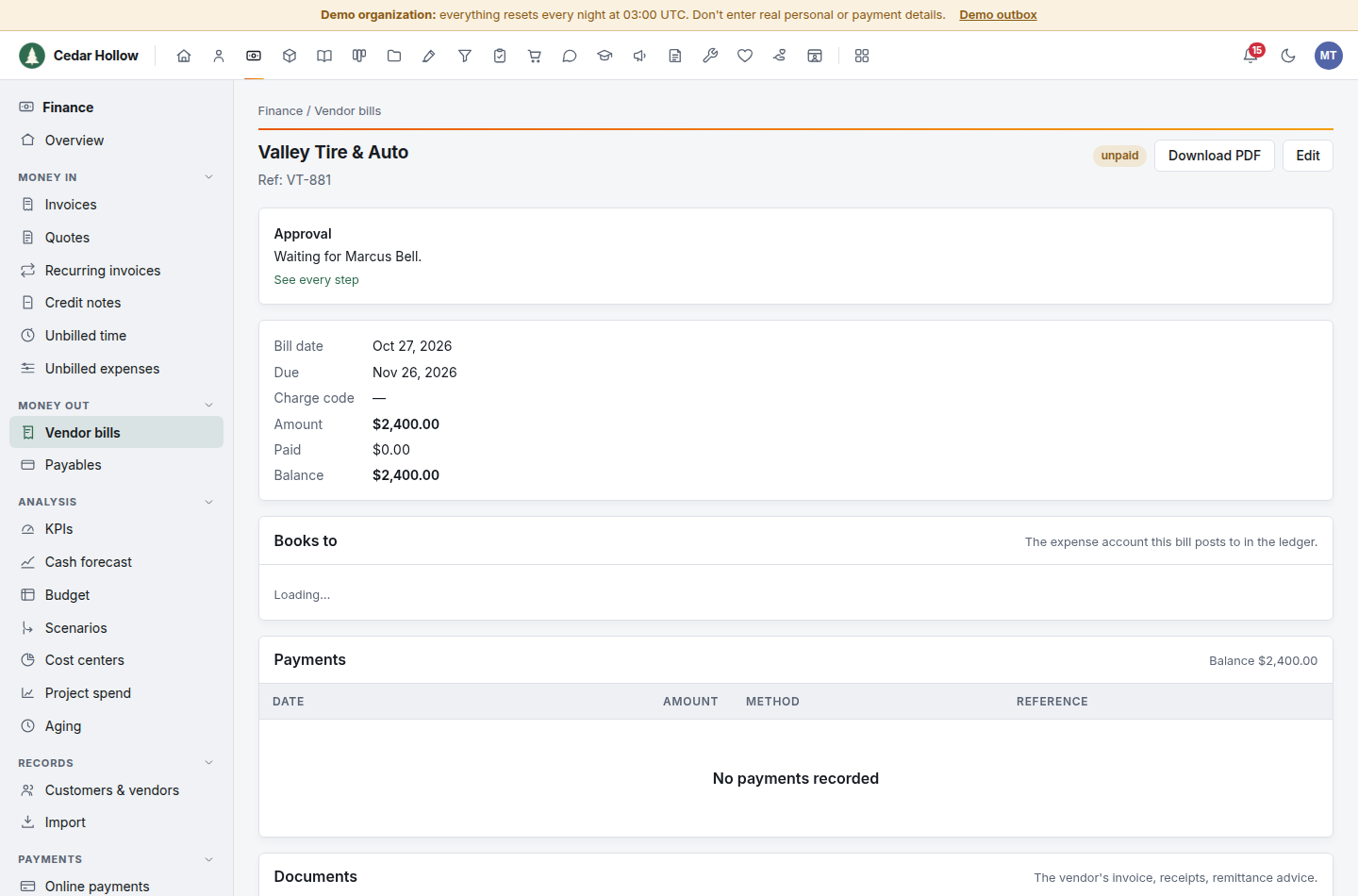
A bill that needs approval is sent when it is recorded, or when its amount changes (an approval is for the amount approved). If it was imported or rejected, open it and click Send for approval.
For Customer invoice, a policy makes an invoice whose total is above its amount need approval before it goes out. To send one for approval:
- Open the draft invoice under Finance → Invoices.
- In the Needs approval before it goes out box, click Send for approval. It waits for the approvers in their Inbox → Approvals; Mark sent stays off meanwhile.
- Once it is approved, click Mark sent, then email it as usual.
An approval is for the total approved: change the lines afterwards and it needs approving again. Invoices made by recurring billing don't need approval.
To let approvers decide from the email, under Decide from the email click Turn on… and confirm. You can't turn it on while your security settings require two-factor sign-in of everyone. Turning it off stops every link already sent.
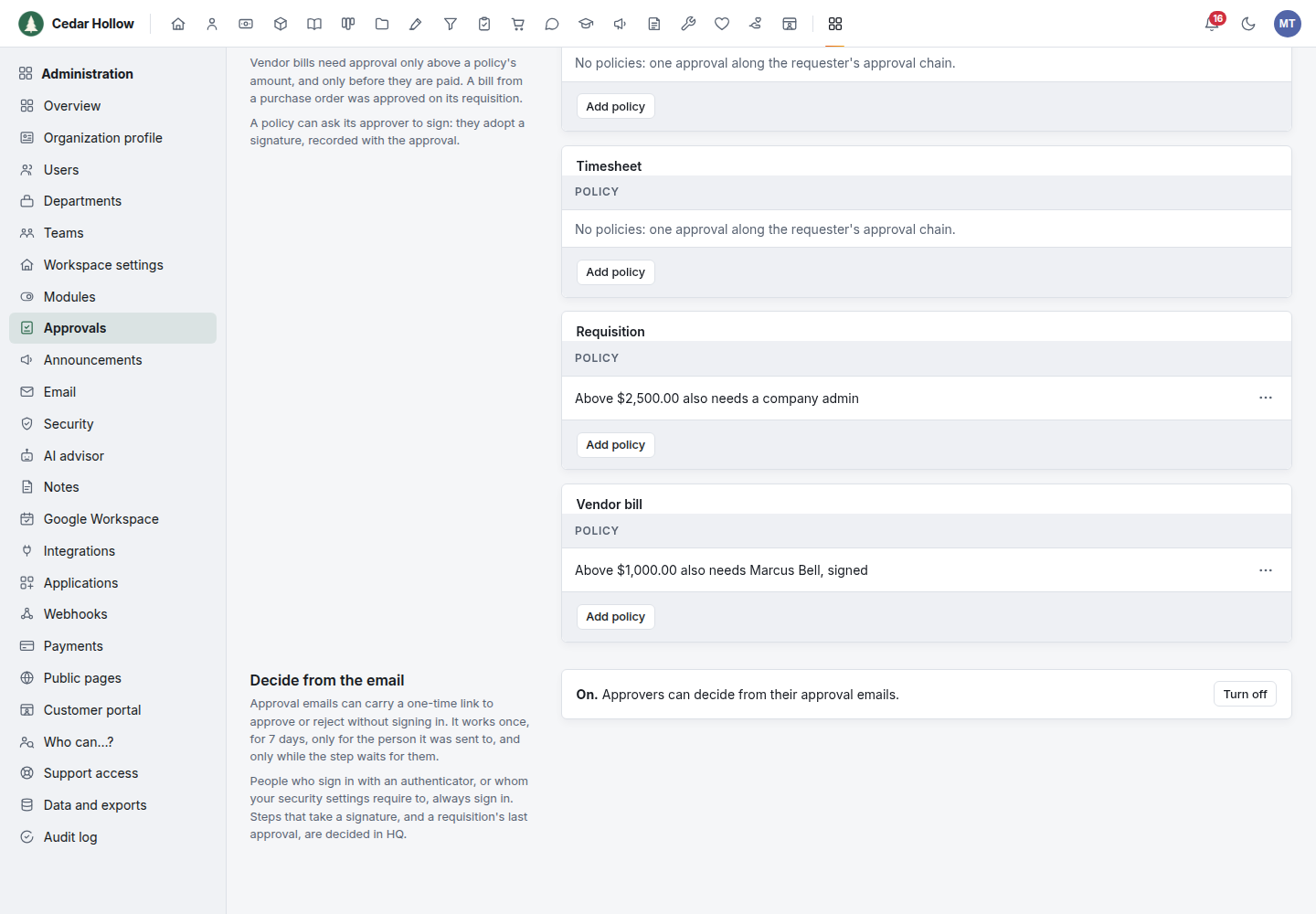
Each policy whose amount a request is above adds a step. Steps run in this order: the chain, then named people, then a company admin. A request already submitted keeps the steps it was given; changing a policy only affects requests submitted after.
Every decision is in the audit log with the step and the reason.
Troubleshooting
- A request I expect isn't in my Approvals tab. Its current step isn't yours yet (an earlier step waits for someone else), or you decided another step of it already. Click it from Your requests (for the requester) or ask an HR administrator.
- I can't approve my own request. Nobody can. It goes to the next person on your approval chain.
- "This step needs your signature." Approve it from Inbox → Approvals or the record's Approval box, which ask you to sign.
- A bill can't be paid. It's above a vendor bill policy's amount and isn't approved for its amount: see its Approval box.
- The email's link says it no longer works. It was used, it expired, the step was decided, or deciding from the email was turned off. Open the request in HQ.
- "Leave this step to someone else." You are the only one left who can approve a later step, and one person decides one step. Ask another approver to take this one.
- Nobody can approve a company administrator's request. A lone company administrator has no one above them. Add a second administrator or give someone the HR admin grant.