 foxxcyber/docs
The phone app
Foxx HQ for Android: sign in from your workspace address; Chat, Mail, your Inbox and approvals, Notes, CRM, the knowledge base, time cards and time off; push notifications through your organization's own server.
Foxx HQ for Android puts Chat, Mail, your Inbox and approvals, Notes, CRM, the knowledge base, your time card and time off on your phone, with notifications for mentions, messages, requests and new email as they happen. It signs in to your organization's own Foxx HQ, with the sign-in you already use.
It needs Android 8.0 or later. Your organization gives you the app (an APK file to install); ask your administrator if you don't have it.
Sign in
-
Open the app and enter your workspace address: the address you sign in at on the web, for example
hq.example.com/c/yourcompany. You can paste any Foxx HQ page's address; the app finds the workspace in it.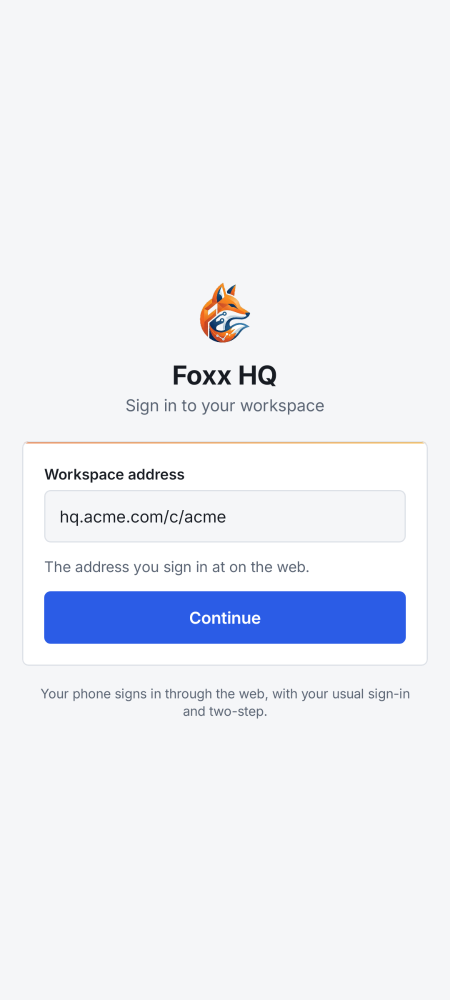
-
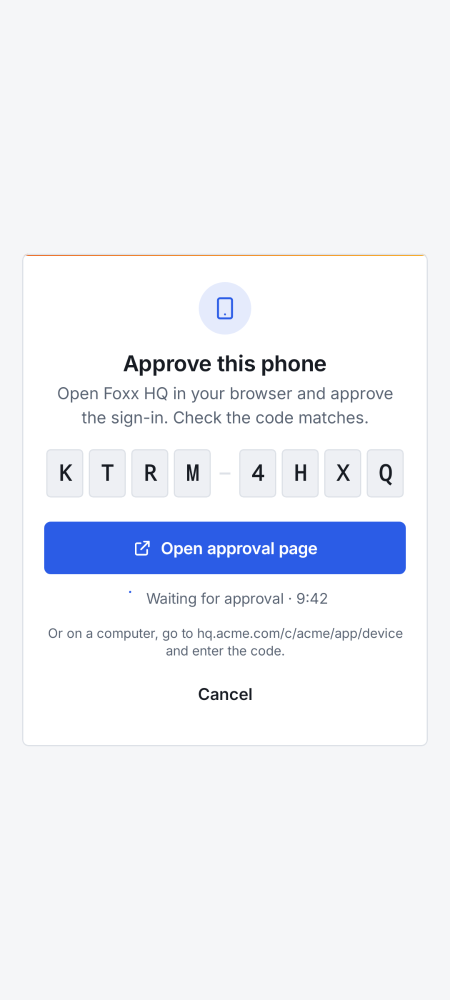
Tap Continue. The app shows a code and Open approval page.
-
Tap Open approval page. Your browser opens Foxx HQ; sign in there if it asks, the usual way (password, two-factor, single sign-on).
-
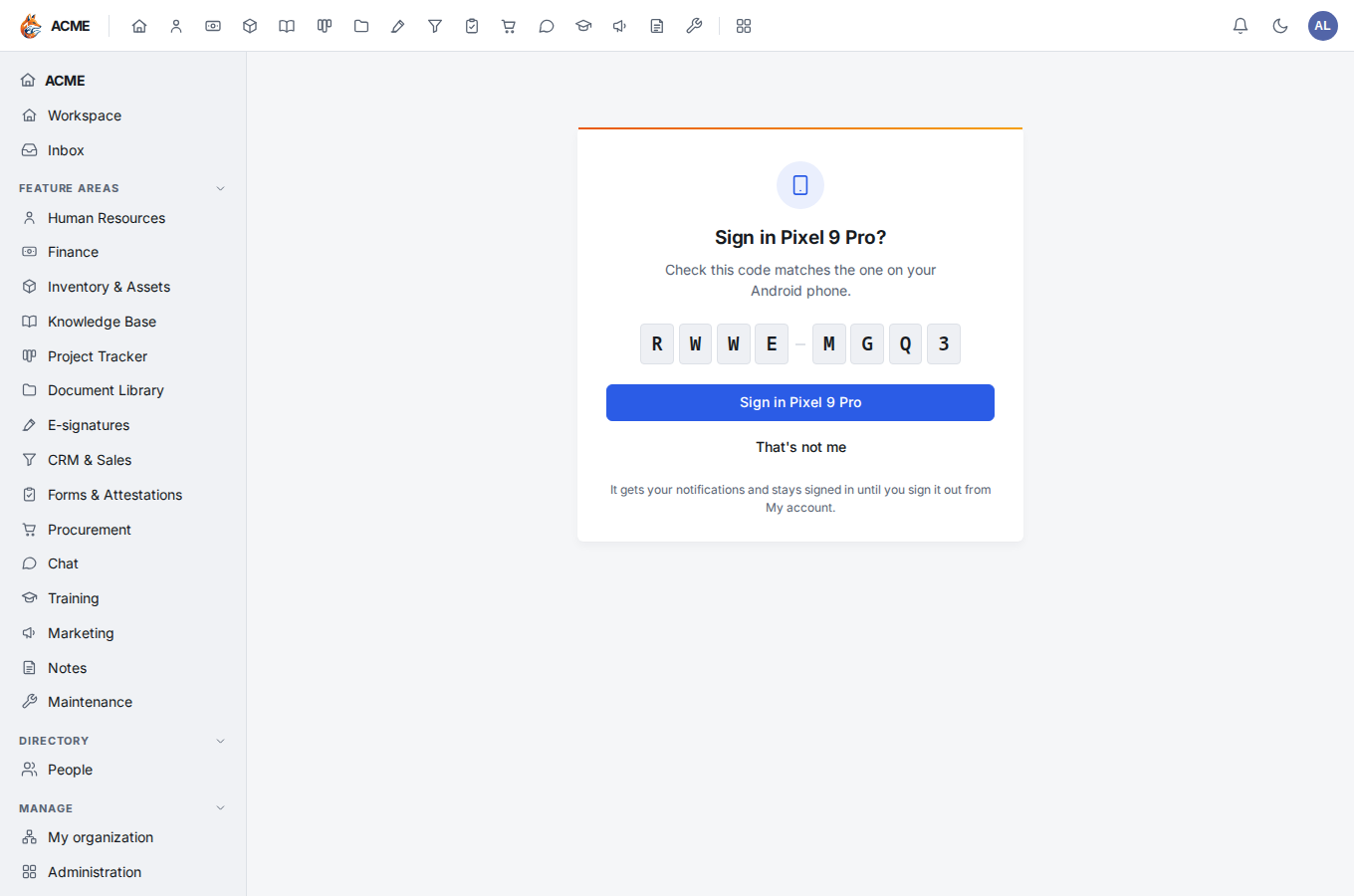
Check that the code on the page matches the one in the app, and tap Sign in with the phone's name.
-
Go back to the app. It finishes on its own.
No browser on the phone? On a computer, open
<your workspace address>/app/device, enter the code, and approve it
there. The code lasts ten minutes; after that, tap Get a new code.
If the page asks to sign in a phone you didn't start, tap That's not me. Nothing is signed in.
The app never sees your password. It keeps a device key, stored encrypted on the phone, which stops working when you sign the phone out.
Chat
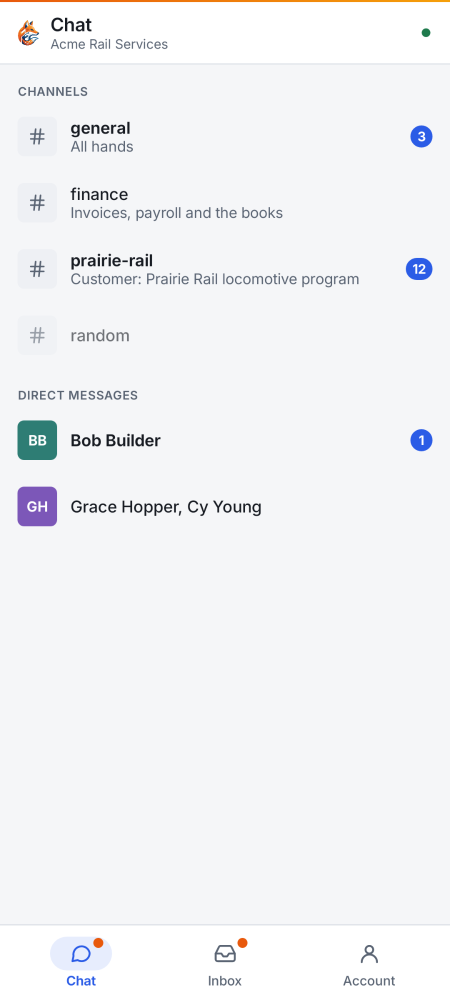
Chat lists your channels, then your direct messages, with how many unread messages each has. Tap one to open the conversation; new messages, edits and reactions appear as they happen while the app is open (the dot at the top right is green while it's connected).
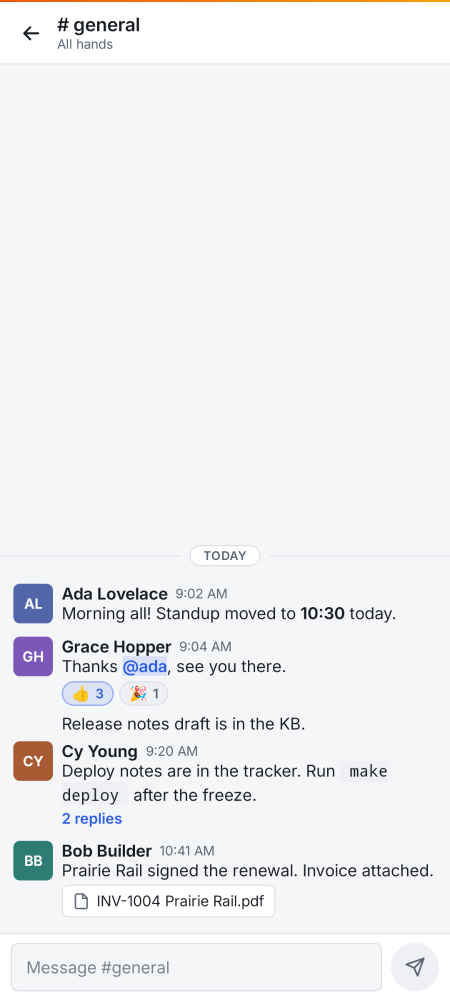
Type in the box at the bottom and tap the send arrow. Tap a reaction to add yours or take it back. Threads, files, pins and channel settings stay on the web for now.
Mail shows your own mailbox, as you connected it in Mail on the web; connect it there first. The chips under the title switch folders. Unread messages are in bold with a dot, and a paperclip marks attachments.
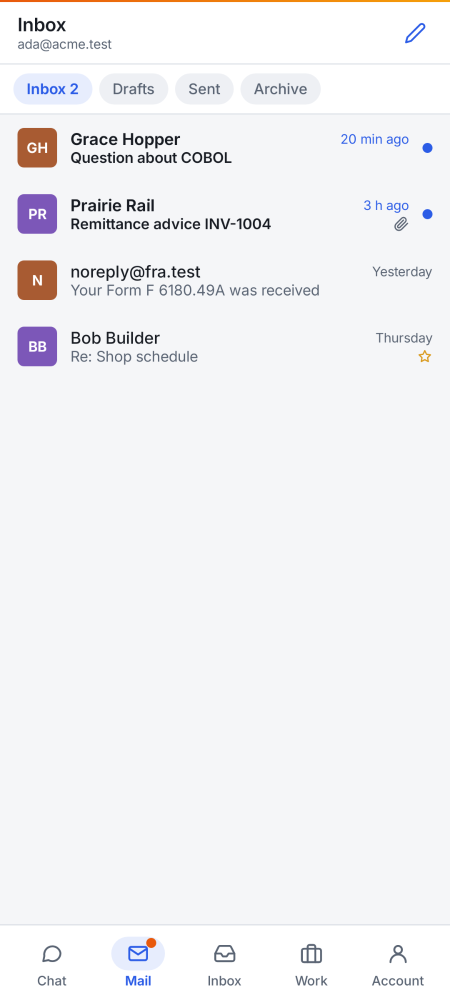
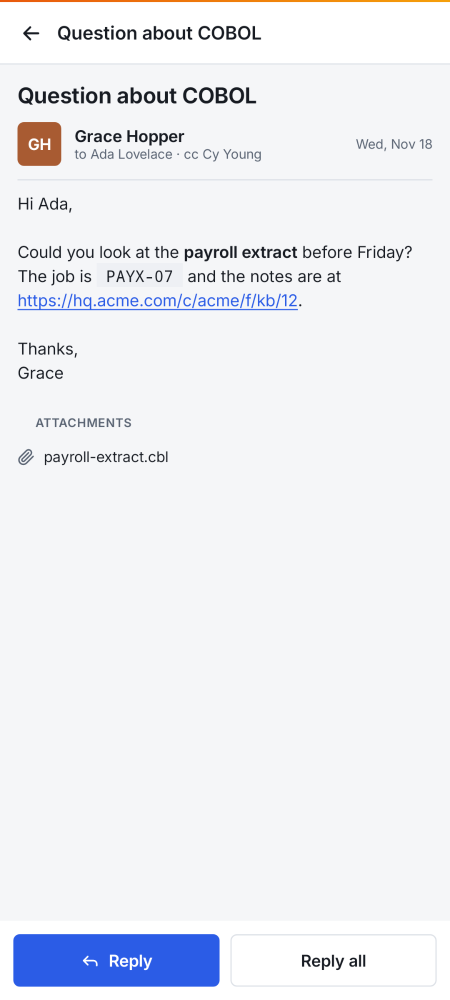
Tap a message to read it (that marks it read). Reply answers the sender, Reply all everyone on it; the pencil at the top writes a new message. A message formatted for a browser has View the original on the web.
Inbox
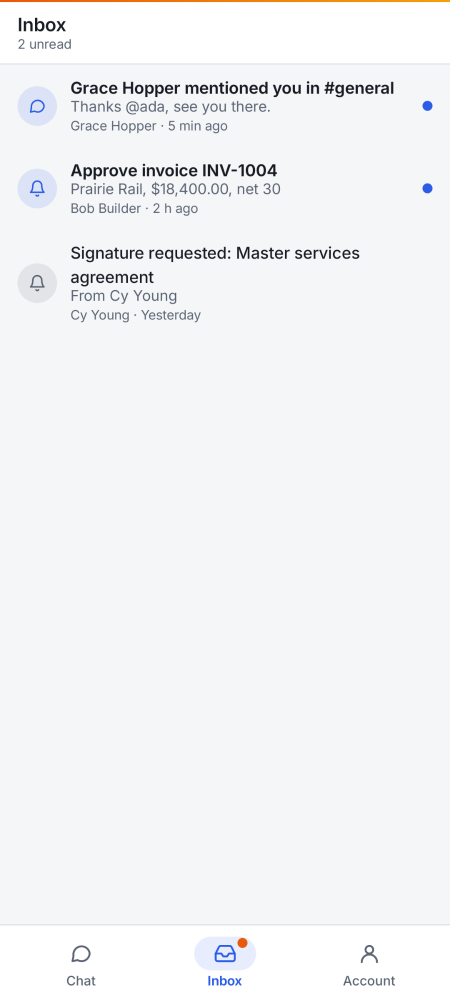
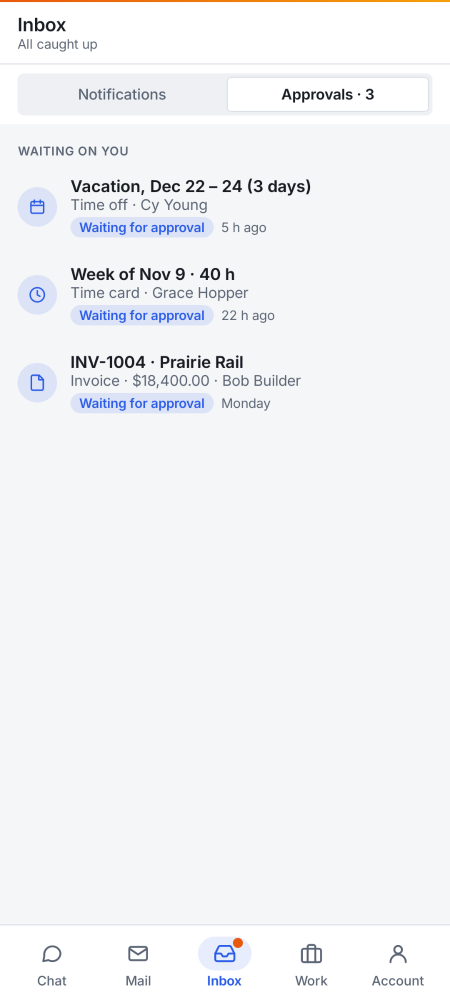
Inbox has two parts. Notifications lists yours, newest first: mentions, approvals, signature requests and the rest. Tap one: a chat, an email, an approval, your time card or time off opens in the app; anything else opens on the web.
Approvals
Approvals lists what's waiting on you (time off, time cards, expenses, invoices, bills and requisitions), then your own requests.
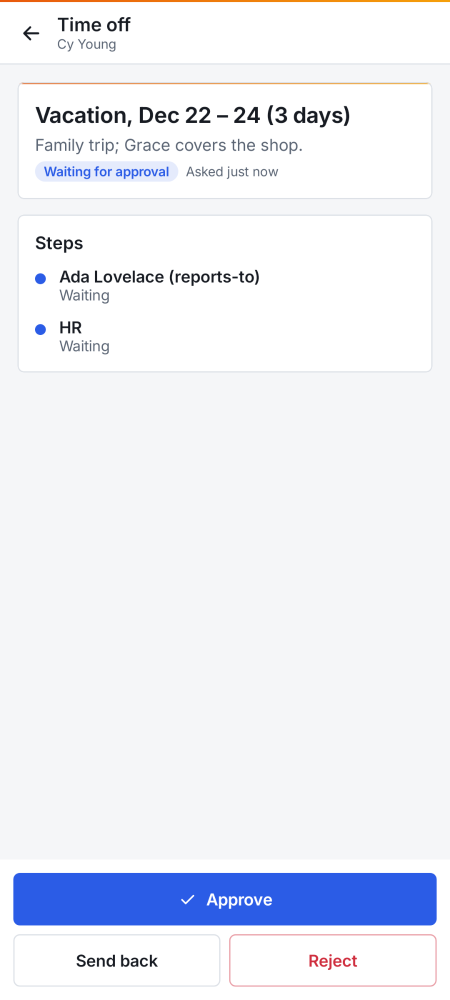
Tap one to see what it is and its steps. Approve decides your step; Send back and Reject ask for a reason, which the person asking sees. A step that takes your signature, or a requisition that needs its vendor chosen, shows Approve on the web instead.
Notes
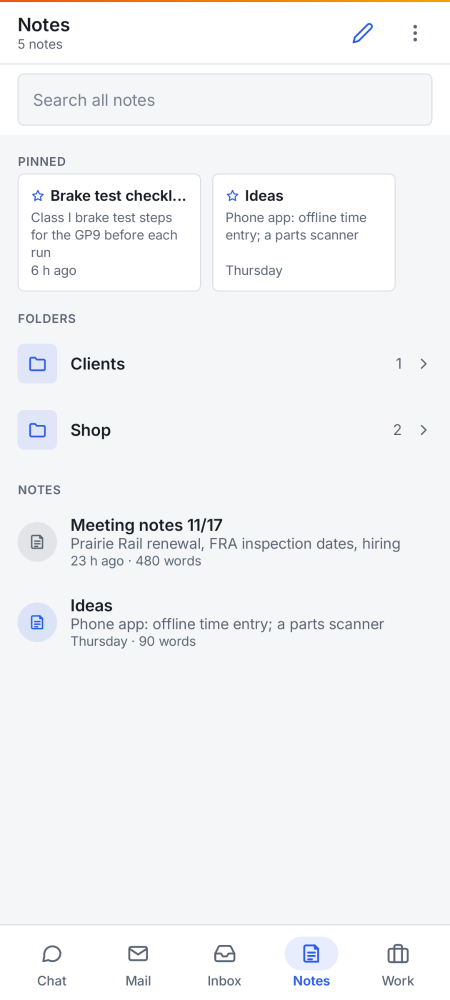
Notes has its own tab. Search every note you can read, see your pinned notes first, and browse your folders.
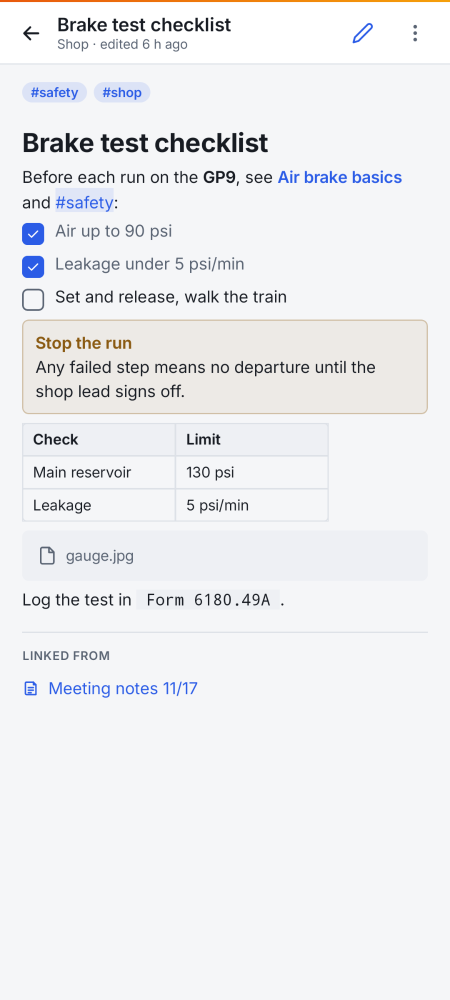
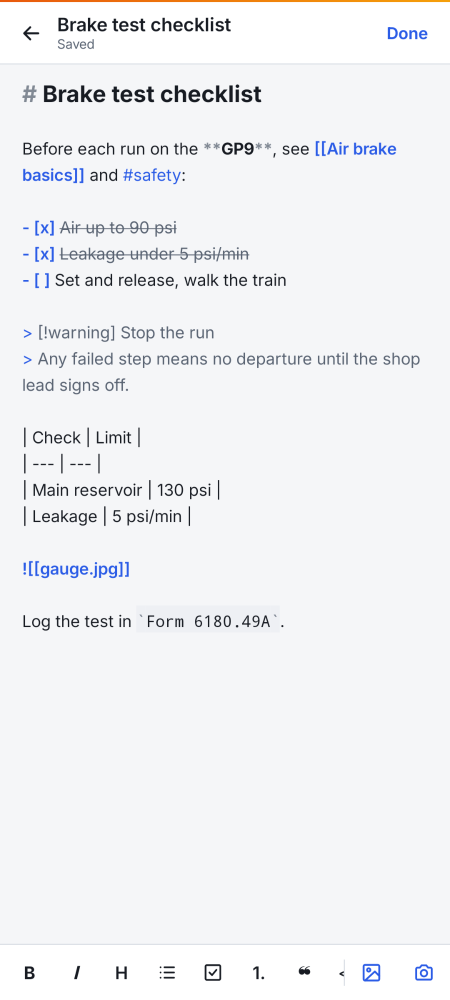
A note reads the way it's written: headings, lists, callouts, tables,
code and pictures. Tap a checklist box to tick it. A [[link]] opens
that note and a #tag searches for it; Linked from lists the notes
that link here.
The pencil edits it. The bar above the keyboard formats the text (bold, italic, heading, lists, checklist, quote, code, note link, highlight), and the picture and camera buttons add a photo. Notes are Markdown, as on the web; lists continue when you press Enter. Edits save on their own a moment after you stop typing. If someone else saved the note while you were editing, nothing is lost: Keep mine as a copy saves yours beside it, Use theirs shows the saved one.
⋮ on a note: Pin, Rename or move (type a new path, like
Shop/Engines/GP9), History (open an earlier version and restore it)
and Move to trash. The pencil on the Notes tab writes a new note in
the folder you're in; ⋮ there has New folder and Trash (restore
a deleted note).
Work
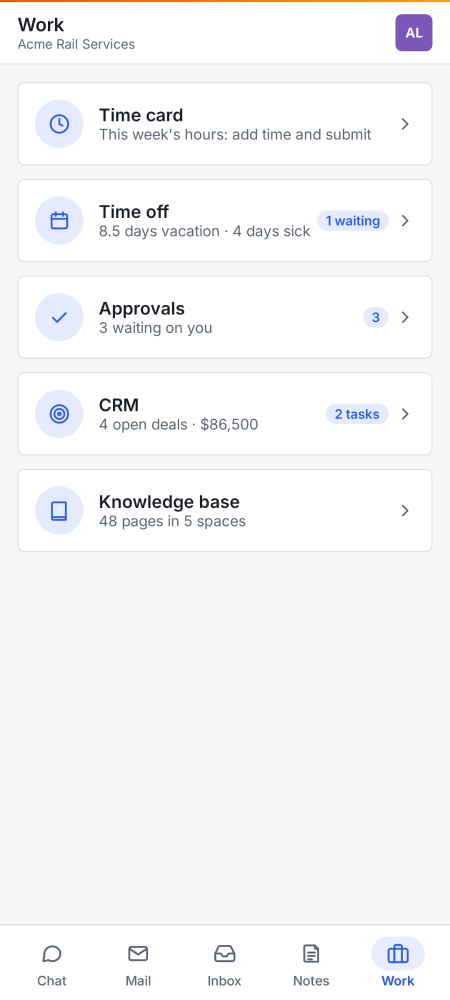
Work holds CRM, the knowledge base, your time card and time off (each appears when your organization uses it), plus a shortcut to your approvals. Your initials at the top right open Account.
CRM
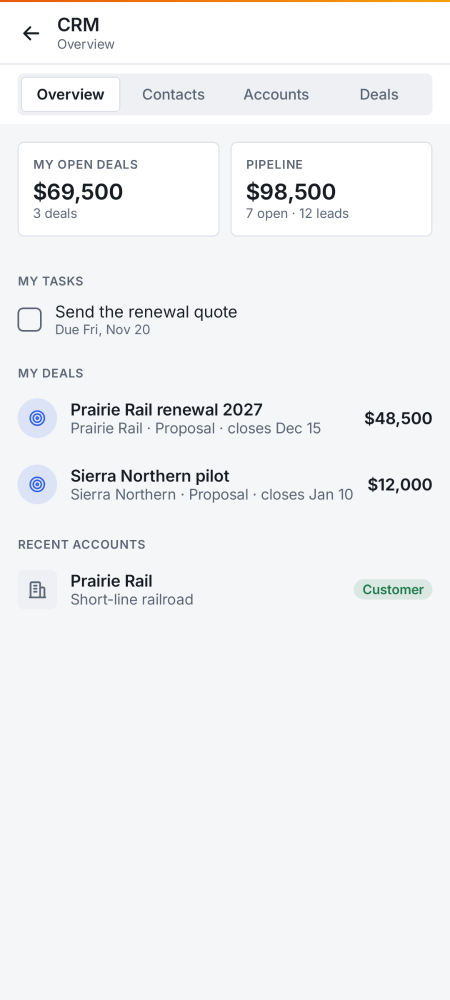
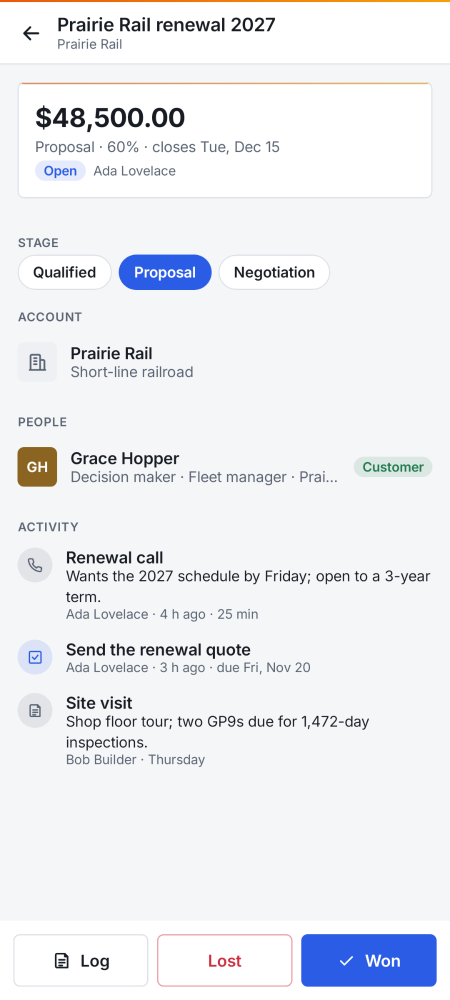
CRM opens on an overview: your open deals and the pipeline, your tasks (tick one to complete it), your deals and recent accounts.
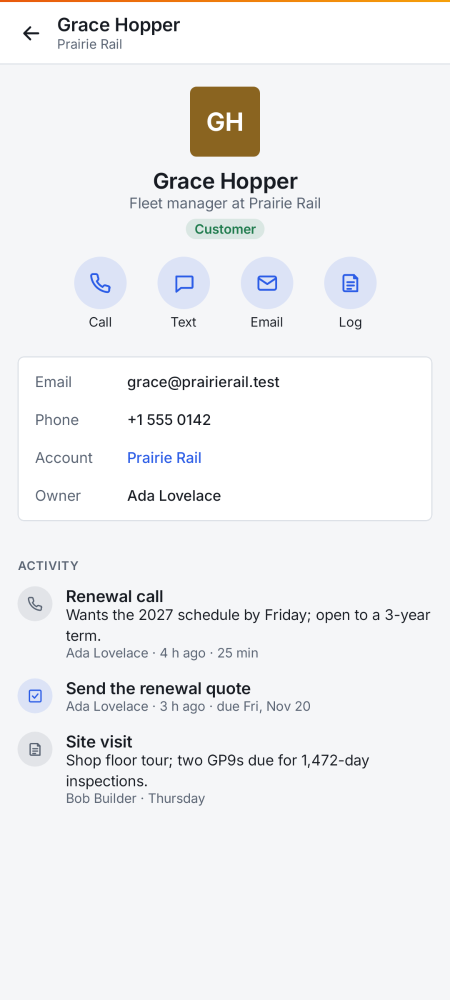
- Contacts and Accounts: search, then tap one. A contact has Call, Text and Email (in the app's Mail when your mailbox is connected) and its activity; an account shows its people and deals.
- Deals: pick a stage to see its deals. On a deal, tap a stage to move it, or Won / Lost (with a reason).
- Log on any contact, account or deal records a note, call, meeting or task (with a due date).
- + on Contacts adds a contact; the account, owner and labels are set on the web.
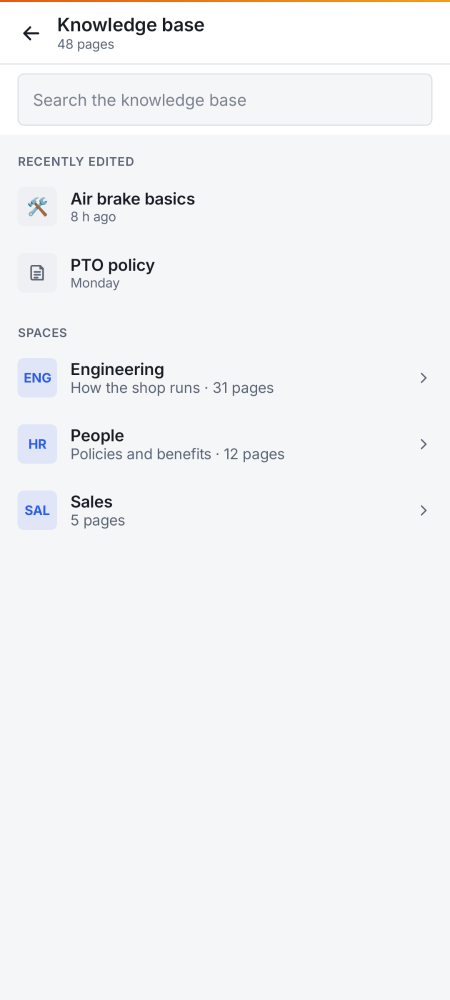
Knowledge base
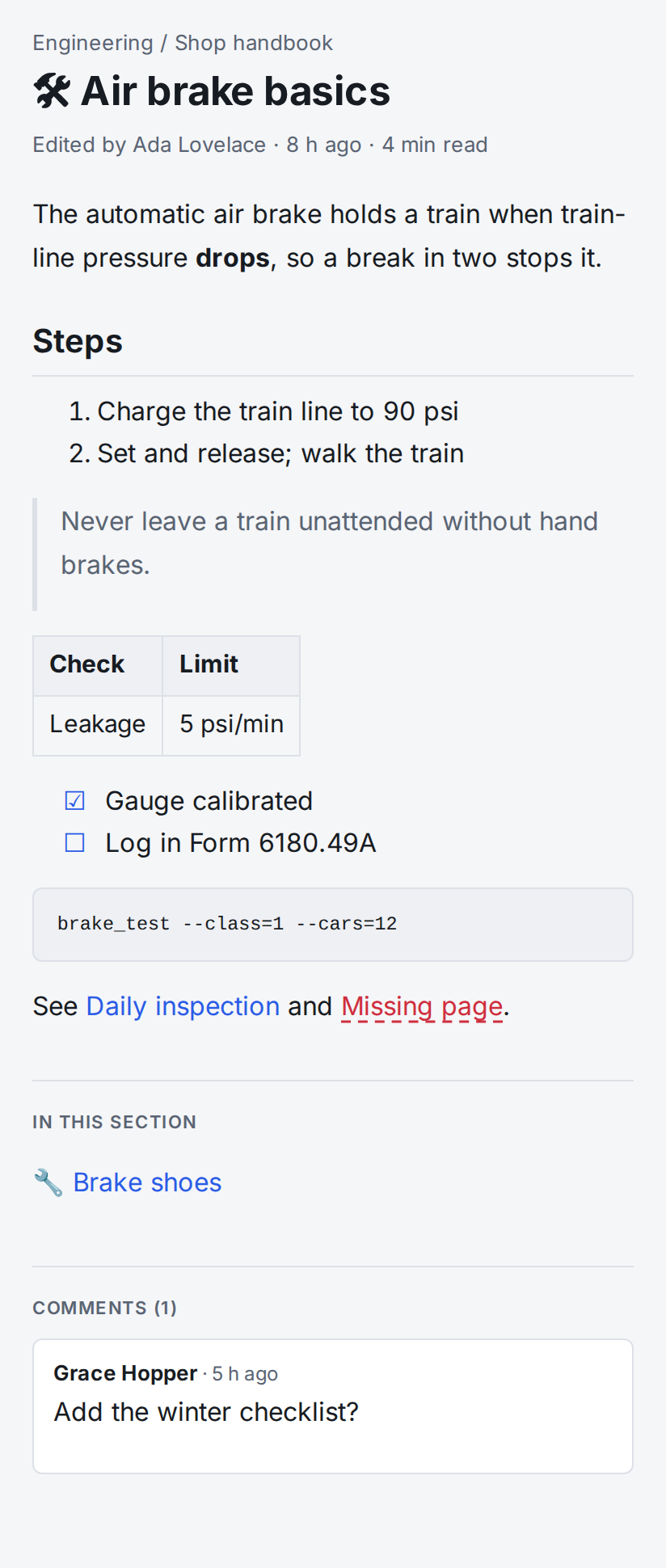
Knowledge base searches every page you can read and lists recently edited pages and the spaces; a space shows its pages as a tree. A page reads as it does on the web, pictures included, with its subpages, the pages that link to it, and comments. The star adds it to your favorites; the box at the bottom adds a comment.
Time card
Your time card opens on this week, with each day's hours and the week's total; the arrows move a week back or ahead.
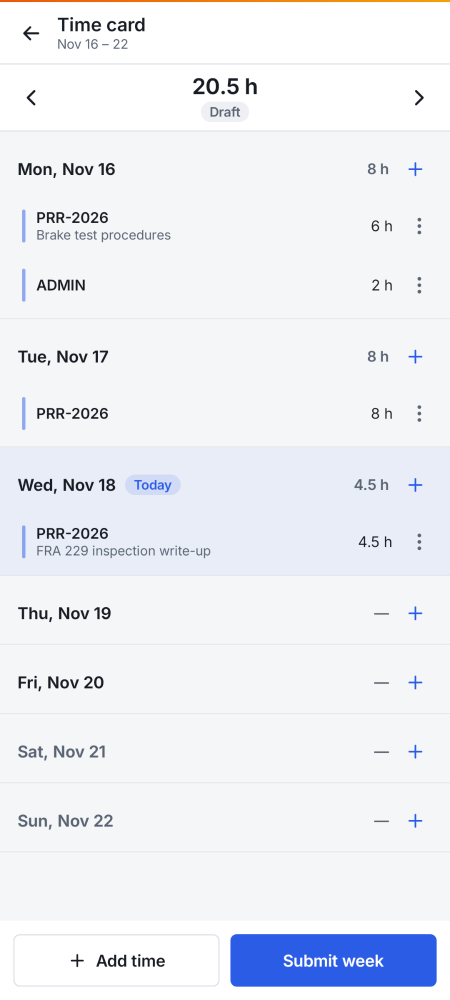
- Add time: tap + on a day (or Add time), choose the charge code, enter the hours and an optional note.
- Remove an entry: ⋮ on its row → Delete entry.
- Submit week sends it for approval. Once submitted it can't be changed; if it's sent back to you, fix it and submit it again.
Time off
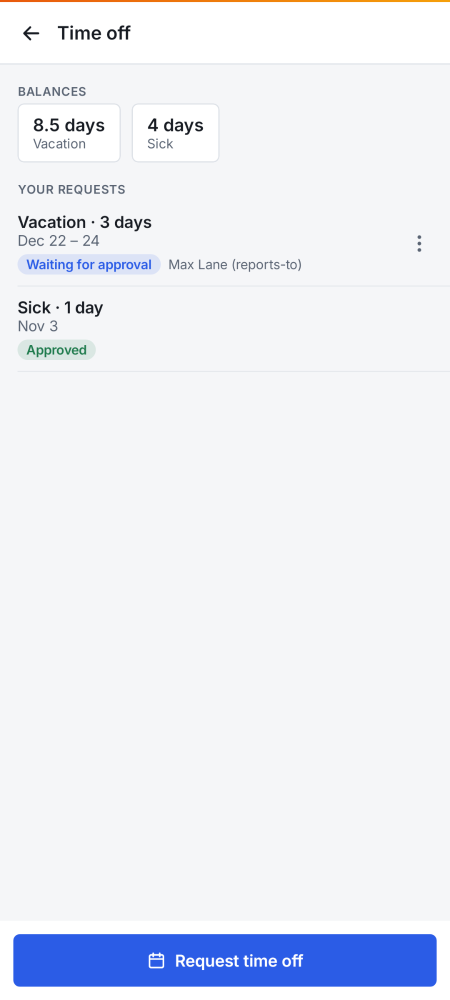
Time off shows your balances and your requests with where each stands. Request time off: choose the type and the dates, add a note if you like, and send it; only weekdays count. To cancel a request still waiting, ⋮ on its row → Cancel request.
Notifications
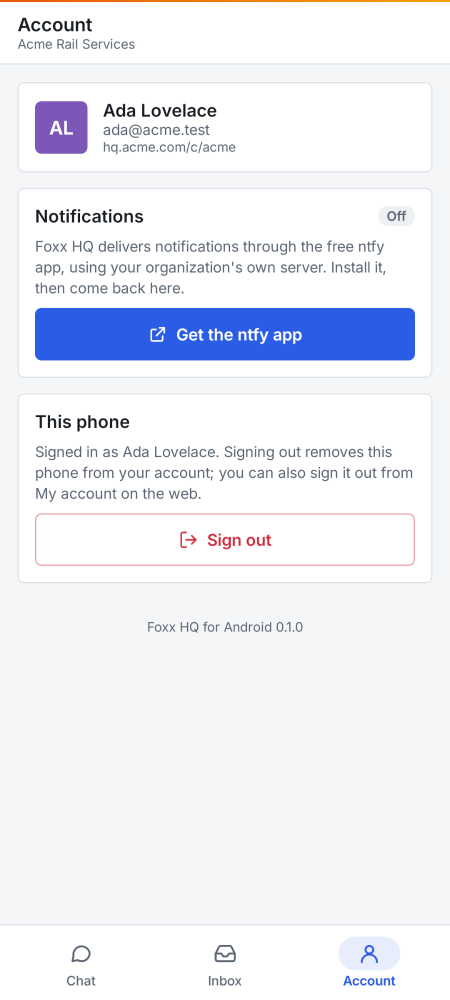
The app gets notifications through the free ntfy app, using your organization's own server. No Google services are involved, and each notification is encrypted on its way to your phone.
-
Open Account in the app. Under Notifications, tap Get the ntfy app and install it.
-
Come back to the app and tap Turn on notifications. Allow notifications when Android asks.
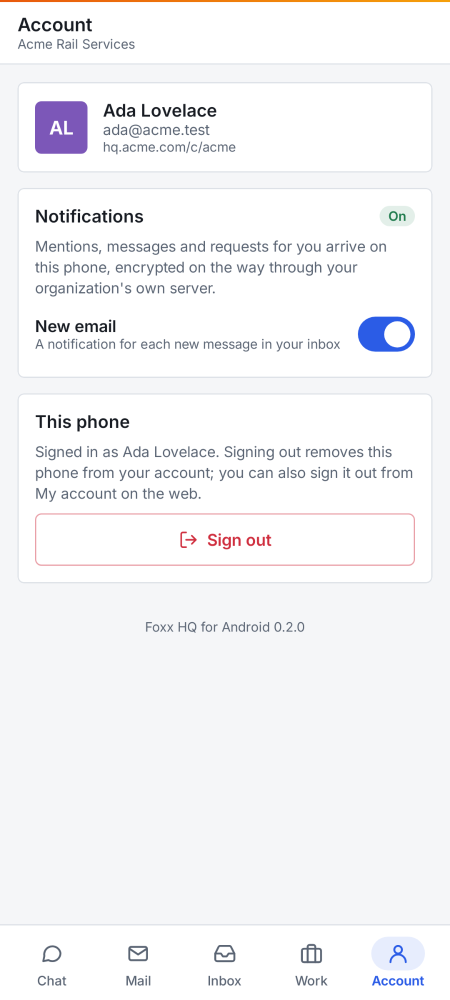
Notifications then says On. They come in two Android notification categories, Messages and mentions and Approvals and requests, so you can quiet one without the other in the phone's settings.
New email sends a notification for each new message in your inbox (it checks about once a minute; mail your Mail rules move away isn't announced). Turn it off for this phone with the switch under Notifications.
If Notifications says your server doesn't send push notifications, your organization hasn't set it up; see Push notifications for the operator. The app still works: new things show up when you open it.
Sign out
- In the app: Account → Sign out.
- From the web: My account → Phones, then Sign out on the phone's row. Use this for a lost phone.
A phone is also signed out when you change your password, sign out everywhere, or your account is disabled.
Troubleshooting
"Include your organization" when signing in. The address needs the
/c/yourcompany part. Copy it from your browser's address bar while
signed in to Foxx HQ.
"Foxx HQ connects over HTTPS only." Use the https:// address.
The approval page says the code isn't right. It expired or was already used. Tap Get a new code in the app.
"This phone was signed out of Foxx HQ." It was signed out from the web, or your password changed. Sign in again.
No notifications. Check Account → Notifications says On, that the ntfy app is installed and allowed to run in the background, and that Foxx HQ's notifications are allowed in Android's settings.